 EN
EN Deutsch
 Español
 Français
 Italiano
 Português
 Nederlands
 Polski
 Bahasa Indonesia
 Русский
 Українська
 العربية
 עברית
עברית हिन्दी
 日本語
日本語 한국어
한국어2026-07-24 · Season 3
Microsoft Purview Data Loss Prevention (DLP) - Simply Explained
Show notes
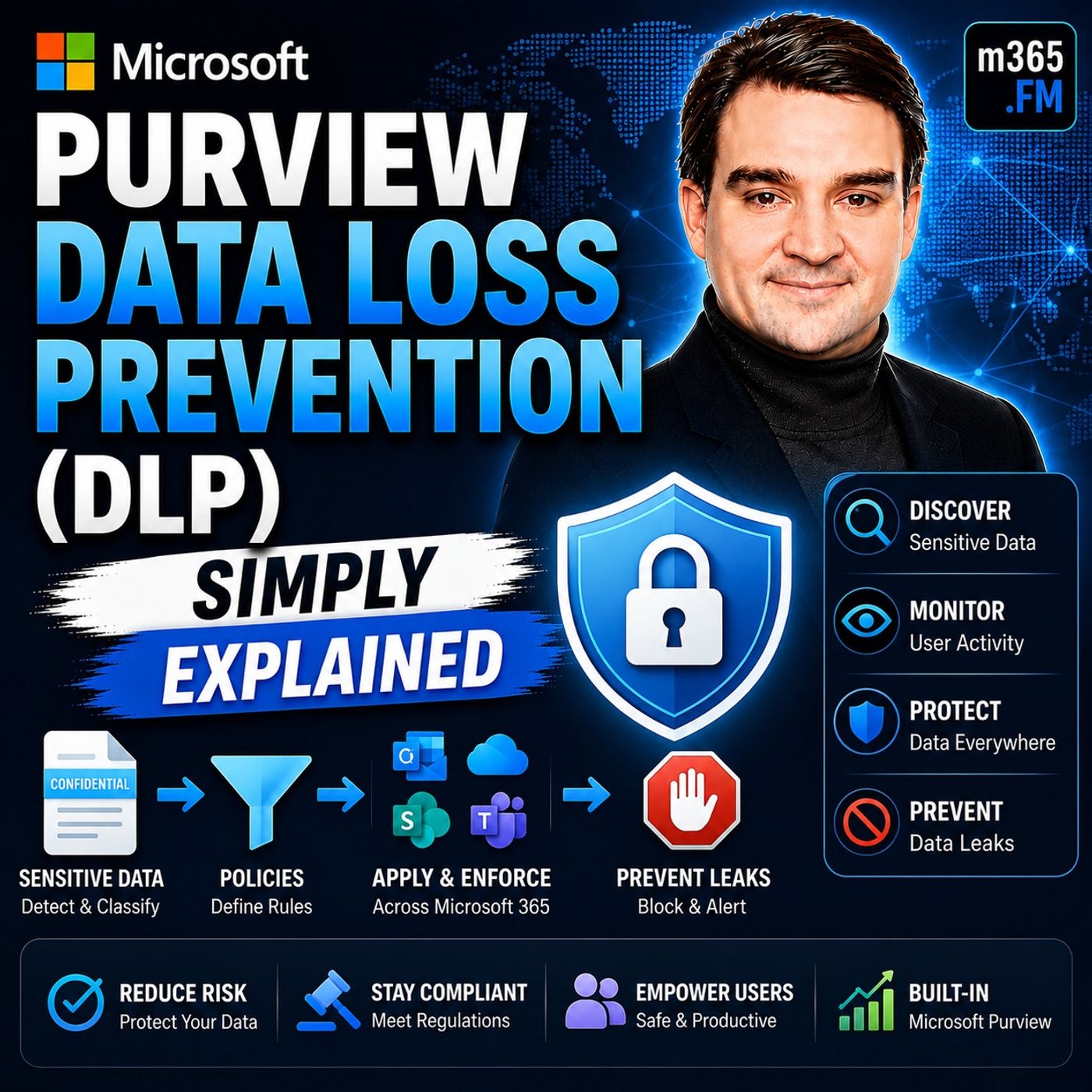
Welcome to another episode of Knowledge Nuggets with Mirko Peters. Today we're exploring Microsoft Purview Data Loss Prevention (DLP), one of the most important security capabilities in Microsoft 365 for preventing accidental data leaks. When most people think about cybersecurity, they imagine hackers breaking through firewalls or ransomware attacks encrypting company data. But the reality is often much simpler. Many of the largest data breaches happen because someone accidentally sends confidential information to the wrong recipient, shares a sensitive document externally, or copies company data to an unauthorized location. Microsoft Purview Data Loss Prevention isn't designed to stop hackers—it is designed to stop well-intentioned employees from making costly mistakes. By automatically identifying sensitive information, monitoring how it's being used, and enforcing security policies across Microsoft 365, DLP quietly protects your organization's most valuable information without preventing employees from getting their work done. In this episode, we'll explore how Microsoft Purview DLP works across email, SharePoint, OneDrive, Teams, endpoints, and Microsoft 365 Copilot, and why it has become a cornerstone of modern Microsoft security. WHY DATA LOSS PREVENTION MATTERS Many organizations focus heavily on defending against external cyberattacks while overlooking the largest source of data loss: accidental human error. Employees regularly send emails to the wrong recipients, upload confidential documents to inappropriate locations, or unintentionally expose sensitive information through everyday collaboration. Traditional approaches attempted to solve this by locking everything down—blocking USB drives, restricting file sharing, and preventing external communication altogether. Unfortunately, overly restrictive environments reduce productivity and often encourage employees to find unofficial workarounds. Microsoft Purview DLP takes a different approach. Instead of blocking everything, it evaluates three critical questions:
- What type of data is being handled?
- Who is handling it?
- Where is the data going?
Based on those answers, DLP automatically decides whether to allow, warn, audit, or block the activity. The goal isn't to restrict users—it is to prevent honest mistakes before they become security incidents. UNDERSTANDING DLP THROUGH A SIMPLE ANALOGY Imagine your organization as a large office building. Microsoft Entra ID acts as the reception desk, verifying everyone's identity before allowing entry. But verifying identity alone doesn't prevent sensitive documents from leaving the building. Microsoft Purview DLP acts like a team of intelligent security guards positioned throughout the organization. Some guards monitor outgoing mail. Others watch file storage rooms. Others supervise meeting rooms and conversations. Additional guards protect employee laptops, while newer guards even monitor interactions with AI assistants such as Microsoft 365 Copilot. Rather than simply checking who enters the building, these security guards continuously monitor what information people are carrying and where that information is going. If confidential information is about to leave inappropriately, the guards intervene before any damage occurs. This mental model makes it much easier to understand how Microsoft Purview DLP protects data throughout Microsoft 365. EXCHANGE ONLINE DLP Email remains one of the most common ways sensitive information leaves an organization. Microsoft Purview DLP integrates directly with Exchange Online to inspect outgoing emails before they are delivered. Every email body and attachment can be analyzed using advanced detection techniques, including:
- Credit card detection
- National identification numbers
- Healthcare information
- Financial records
- Machine learning classifiers
- Pattern recognition
- Context-aware content analysis
If a user attempts to send sensitive information outside the organization, DLP can automatically display a policy tip explaining the violation. Depending on organizational policy, the email may be:
- Allowed
- Warned
- Blocked
- Allowed only after providing business justification
Every event is logged, allowing security administrators to identify trends and investigate repeated policy violations. Instead of discovering a data leak after the email has already been delivered, DLP prevents it before it ever leaves Exchange Online. SHAREPOINT AND ONEDRIVE DLP Sensitive data doesn't only travel through email. Large amounts of confidential information are stored inside SharePoint and OneDrive. Microsoft Purview DLP continuously scans files both at rest and in motion. Files already stored inside document libraries can be inspected for sensitive content, while new sharing activities are evaluated as they occur. When policy violations are detected, DLP can:
- Block external sharing
- Remove inappropriate permissions
- Restrict file access
- Move files into administrator-only quarantine
- Replace removed files with informational placeholders explaining why access was restricted
Organizations can also block sharing with specific domains, revoke previously granted external access, and automatically contain accidental oversharing before confidential documents spread throughout the organization. Rather than simply monitoring storage locations, DLP actively protects how information is shared across Microsoft 365 collaboration platforms. MICROSOFT TEAMS DLP Modern collaboration increasingly happens through Microsoft Teams. Private chats, group chats, and channel conversations frequently contain sensitive business information that never appears in traditional email. Microsoft Purview DLP extends protection directly into Teams. Messages are inspected before they are delivered. If users accidentally include confidential information such as national identification numbers, payment card information, or regulated personal data, DLP can immediately intervene. Possible actions include:
- Blocking the message
- Displaying policy guidance
- Logging the attempted action
- Alerting compliance administrators
Importantly, DLP analyzes message content itself rather than only attached files. This allows organizations to protect informal collaboration just as effectively as traditional email communication. ENDPOINT DLP Cloud services represent only part of the data protection challenge. Employees also interact with sensitive information directly on their devices. Endpoint DLP extends Microsoft Purview protection to Windows and macOS devices. Activities that can be monitored include:
- USB transfers
- Printing
- Clipboard operations
- File uploads
- Personal cloud storage
- Remote desktop sessions
- Bluetooth transfers
- Browser copy and paste
Unlike cloud-only protection, Endpoint DLP continues working even when devices are offline because policies are cached locally. Whenever users attempt to move sensitive information outside approved locations, Endpoint DLP evaluates the action using the same intelligent content inspection capabilities used throughout Microsoft Purview. Recent enhancements further improve protection by preventing unsaved sensitive content from being exfiltrated and limiting Windows Recall snapshots on supported Copilot+ PCs. This extends Microsoft Purview security beyond Microsoft 365 services directly onto user devices. Become a supporter of this podcast: https://www.spreaker.com/podcast/m365-fm-microsoft-365-azure-cloud-power-platform-ai--6704921/support.
Apple Podcasts · Spotify · YouTube · YouTube Music · Deezer
Host: Mirko Peters
Guests
Related articles
Transcript
Read the full transcript
In 2020, an employee at Verta4 accidentally exposed 27.7 million Texas driver records, names, addresses, birth dates, and license numbers by storing three data files in an external storage location. No malicious hacking, no bad intentions, just routine work that went wrong, and the company didn't even discover it themselves. A third party had to tell them. That's the exact problem Microsoft Peruvio Data Loss Prevention DLP for short solves. It's not built to stop hackers, it's designed to stop your own people from accidentally leaking sensitive data. By the end of this episode, you'll know what Microsoft Peruvio DLP really is, why every business needs it, and how it quietly watches over your data across email, files, chats, devices, and even AI tools. The Data League problem, why DLP exists? Before we talk about the solution, let's understand the scale of the problem. Here's a number that matters. 58% of data leaks are accidental. Not malicious, not some sophisticated attack, just someone forwarding an email to the wrong person or attaching the wrong file. Human error is the biggest security vulnerability most organizations have. And it's getting worse last year, 74% of organizations, nearly three out of four, reported a data incident. Yet organizations using disconnected security tools had 2.8 times more incidents. More tools meant more problems, because when your security tools don't talk to each other, you get gaps. And Data leaks through gaps, so what did organizations do before DLP? They locked everything down, disabled USB ports, outlawed personal email restricted everything. The problem? That kills productivity. People need to share files to do their jobs, and when you make it too hard, they find workarounds. They use personal Gmail, upload to Dropbox, or put data on USB drives anyway. The locks become useless. DLP takes a completely different approach. Instead of blocking everything, it watches three things, what the data is, who's handling it and where it's going. Then it enforces rules automatically. The core idea is simple. First, you identify what counts as sensitive, credit card numbers, health records, confidential contracts. Then you monitor that data across all your Microsoft 365 services, email, files, chats, devices, and when someone tries to do something risky, DLP either warns them or blocks the action. It's not about locking people out. It's about catching honest mistakes before they become headlines. The office building analogy. So how does DLP actually do all that? Let's build a mental model. Imagine your organization is an office building with different departments on different floors and different security levels for different areas. The lobby has a reception desk and that's your identity system. Entra ID. It checks badges at the door. Are you who you say you are? Good, you're in. But here's the thing. Once you're inside, data moves constantly. People walk through hallways carrying files. They take documents to meeting rooms. They send papers through the mail room and they bring laptops home at night. And that's where the old approach fails. Because checking badges at the front door doesn't tell you what people are carrying out. DLP is like a team of security guards who don't just check badges. They look at what's in people's hands. A visitor walking out with a stack of confidential documents, the guard stops them. And employee putting client files into their personal bag. The guard asks questions. These guards work everywhere in the building. In the mail room, scanning every outgoing email that's exchange online. In the file storage room watching files being shared, SharePoint in one drive, in the conference rooms monitoring chat messages, teams and on laptops people take home, endpoint DLP protecting devices even when offline. And there's a new guard that just arrived. The one standing next to the AI assistant, making sure it doesn't hand sensitive data to the wrong person. That's copilot DLP. The building gets smarter, but the guards keep up. Exchange online, protecting email. Let's start in the mail room because email is still the most common way data walks out of your organization. One wrong reply. All one misplaced attachment or one moment of clicking send before your brain catches up. That's how most accidental leaks happen. Exchange online DLP scans every email before it sent, both the body text and any attachments. And it's not just doing simple keyword searches, it's using deep content analysis. Patent recognition that catches credit card numbers, following a specific format and passing a checksum test, proximity detection that finds a name and an address right next to each other, and machine learning classifiers that get smarter over time. Now imagine this. An employee finishes a spreadsheet with customer credit card numbers. They need to work on it at home so they draft an email to their personal gmail address and attach the file. They hit send. But before that email actually leaves, exchange DLP scans it, finds the credit card numbers in the attachment, recognizes the destination is outside the organization and blocks the send. What does the employee see? A policy tip. A pop-up that says something like, this email contains sensitive information and can't be sent to external recipients. Depending on how the policy is configured, they might have the option to override by providing a business justification explaining why the send is legitimate. That justification gets logged. So if it's a pattern on the same person doing this every Friday, an admin can investigate. The point is the email never reaches the outside. It's caught before it leaves the building, and every match is logged. So admins can see exactly what was blocked, who tried to send it, and why did it? SharePoint and OneDrive, protecting files at rest and in motion. Email isn't the only place data leaks happen. What about the files already sitting in your SharePoint sites or synced to your OneDrive? That's where the next layer of DLP protection comes in. SharePoint and OneDrive DLP watches files in two states. Address means the file is stored on the site. In motion means someone is sharing it with someone else. You can create policies that scan existing files for anything sensitive. If DLP finds something it shouldn't, it can flag the file, or even quarantine it automatically. The quarantine feature is relatively new. When DLP finds a violating file, it moves that file to a secure location only admins can reach. The original file gets replaced with a tombstone file. It's just a plain text message explaining why the file is missing, and what the user should do if they think it's a mistake. Think of it as a sign that says, "This file has been secured, talk to your admin if you need it." For external sharing, DLP gets even more specific. You can block sharing to particular domains, say you have a competitor, you don't want receiving your internal documents. Just add their domain to a block list, but here's what makes it really useful. That restriction applies retroactively, and if a file was already shared with that domain before you created the policy, DLP can revoke that access. It's not just locking the door going forward, it's checking who's already inside. Let's look at a real scenario, a contractor working with your company accidentally shares a folder marked "confidential" with the entire organization. That means hundreds of people now have access. DLP detects the sensitivity label on the documents. It sees the sharing activity, and it restricts access to only the intended audience. The damages contained before most people even realize the folder was shared. OneDrive functions as your personal file vault. You store your files there and work on them. But DLP watches when you try to sync sensitive files to a personal device. Say someone drags a highly confidential document from one drive into their local downloads folder. DLP can block that action, because once that file leaves the cloud, you lose control over it. The guard at the door checks what's leaving the building, even if it's from your own desk. Teams DLP, protecting chat and channel messages. Work today doesn't just happen in email or shared folders. A lot of it happens in teams. Private chats, channel conversations, quick messages back and forth, and people share sensitive information there all the time. A project manager types a client's social security number into a chat. An engineer pays confidential code into a channel with external guests. A salesperson drops a credit card number into a direct message. No attachment needed, no file required, just text flying across the conversation. Teams DLP scans those messages too. It monitors private chats and channel conversations, and it looks at the message content itself, not just attached files. So if someone types a social security number directly into a chat, DLP catches it. The system can block the message from being sent, show a policy tip explaining why, and log the attempt for review. Let's walk through a specific scenario. You have a channel where you collaborate with external partners. Someone on your team types, here's the client's SSN 123456789. Before that message appears in the channel, Teams DLP scans it. It recognizes the social security number pattern. It sees the messages heading to a channel with external guests, and it blocks the message from being sent, the person who typed it sees a warning. The sensitive number never reaches the channel. An alert gets logged for the compliance team. Teams feels informal. People treat it like instant messaging. They type things they'd never put in an email, but a leaked SSN in a team's chat is just as damaging as one in an email attachment. DLP treats them exactly the same way. Endpoint DLP, protecting devices. So we've put guards in the mail room, the file storage, and the conference rooms. But what about the actual device someone is using right now? Think about a laptop at a coffee shop, a desktop in a home office, or a device on a plane with no internet connection. That's where endpoint DLP steps in. Endpoint DLP extends protection to the physical device itself, including Windows and Mac OS. It watches everything that happens on that machine, and it can block or audit actions that no cloud-based policy can reach. Things like copying files to a USB drive, printing a confidential document, uploading to a personal cloud service like Dropbox, pasting sensitive text into an unapproved browser, or even sending files over Bluetooth. Here's something that surprises most people. Endpoint DLP works even when the device is offline. The policies are cached locally on the machine, so if someone on a plane tries to copy a confidential file to a USB drive, DLP still blocks it because the rules are already on the device, they don't need to phone home. How does it work? A small agent runs on the device. It uses the same deep content analysis we talked about earlier, patent recognition, proximity detection machine learning. But instead of scanning email or sharepoint, it scans content as it moves across the device. When you copy a file, paste text, or try to print the agent checks it every time. It's watching everything that touches sensitive data. Let me give you a concrete example. An employee opens a file labeled highly confidential, and copies a section of text to paste into a personal gmail tab. Endpoint DLP detects the sensitivity label on the source file, sees the paste is going to an unapproved browser and blocks it. A warning pops up explaining why, and the action never completes. Endpoint DLP covers a lot of ground, copying to a USB drive gets blocked, printing a confidential document gets blocked or audited, uploading to Dropbox or Google Drive gets blocked. Even pasting into an AI tool like ChatGbT gets blocked. And less obvious actions, like copying to a network share or a remote desktop session, can also be monitored. Getting devices set up is done through intunal group policy. Microsoft recommends starting in simulation mode, just like with other DLP policies. You run the policy, see what would have been blocked, review the data, tune the rules, then enforce. No surprises, and you won't break any legitimate workflows. Recent updates have made endpoint DLP even more powerful as of 2026. It can detect and block exfiltration of files that haven't been saved yet. Someone pasting sensitive data into a new document and trying to copy it out before ever hitting save. And on co-pilot plus PCs, it can prevent Windows recall from capturing snapshots of sensitive content. The guards on your devices are getting smarter all the time. Co-pilot and AI DLP, the new frontier, so we've got guards in the mail room, the file storage, the conference rooms, and on every laptop. But there's a new corner of the office that needs watching, the AI assistant. Microsoft 365 co-pilot can access your organization's data, emails, files, meetings, chats. That's incredibly powerful, but it also creates a new risk. When someone asks co-pilot a question, they're essentially asking it to pull sensitive information from across your entire organization and hand it to them in a neat summary. Here's the scenario, a user opens co-pilot in word and types, summarise the quarterly financials from the confidential folder. Without DLP, co-pilot might pull that data and present it in the response. Even if the user has legitimate access, the question creates a new copy of sensitive information in a new context. Once that summary exists in a new document, it can be shared, copied, or leaked, just like any other file. DLP for co-pilot changes that by controlling what co-pilot can do with sensitive information. It can block co-pilot from generating responses that contain sensitive data. In our scenario, co-pilot sees the sensitivity label on the quarterly financials, recognizes the content is confidential, and either blocks the summary entirely or excludes the sensitive parts. This protection works across word, Excel, PowerPoint, Teams, and Outlook. Anywhere co-pilot appears. Microsoft deployed default DLP policies for co-pilot in simulation mode in early 2026, so every tenant has a starting point. But here's the catch, those default policies are in simulation mode, not actively blocking anything until you configure them. Many organizations think they are protected because they see the policy in the portal, but unless enforcement is turned on, co-pilot is still handing out sensitive data. There's another angle too. DLP can protect against the prompt itself. If a user tries to paste sensitive data into a public AI tool like ChatGPT, endpoint DLP can block that paste using the same agent that blocks USB copies. The risk isn't just what co-pilot reveals, it's what your user's accidentally feed into external AI models, and here's a recent update that matters. As of 2026, co-pilot will not interact with files that carry sensitivity labels at all, no matter where you open them. The label travels with the file and co-pilot respects it. That's a clean boundary. If a file is labeled highly confidential, co-pilot won't touch it. Avoiding common mistakes. Now all of this sounds great on paper, but here's the thing, real-world DLP deployments fail all the time. It's almost never the technology's fault, it's how the organization approaches it. The biggest mistake people make is treating DLP as an IT project. A team of admins sits in a room, configures some policies and deploys them, then users get blocked from doing legitimate work, help desk calls spike, policies get rolled back, the security team loses credibility, that's not how this works. DLP is a governance program, not an IT project. You need business stakeholders in the room, legal compliance HR finance, people who understand how data actually flows. Because if you block a workflow, finance depends on to close the quarter you'll hear about it. Second mistake. Too many sensitivity labels. Some organizations launch with 15 or more labels, nested sub labels, names like semi-restricted internal use only, external sharing permitted with written approval. Users look at that and do one of three things, they ignore labels entirely, but they apply the default label to everything, or they pick the lowest restriction to avoid friction. None of those protect your data, keep it simple, start with three to five labels. Public internal confidential, highly confidential, expand only after people have adopted the basics. Third mistake. Only covering email. This one's incredibly common. An organization configures exchange DLP checks the box, declares the job done, but that policy does nothing for teams chats. Nothing for SharePoint bulk uploads, nothing for someone copying files to a USB drive. You need to cover all the channels. Email, SharePoint, OneDrive, Teams and Points and Copilot. Each one is a separate door data can walk out of. Fourth mistake. Skipping simulation mode. The temptation is to turn policies on immediately because you want protection now, but that's how you break things. Always start in audit mode, let the policy run, log what it would have blocked, and review the data. You'll find legitimate workflows you didn't account for. You'll see false positives you need to tune. Then move to policy tips. Warnings that educate users without blocking. Then after your confident, turn enforcement on. Here's a practical 90 day plan, day one, deploy in audit mode only, day 30. Analyze the alerts and identify patterns, day 60, tune your labels and exceptions based on what you've learned. Day 90, turn on enforcement targeting a false positive rate under 5%, remember the number from the beginning. 58% of leaks are accidental. DLP isn't about punishing users. It's about catching honest mistakes before they become headlines. So here's what Microsoft purview DLP actually is. It's a unified set of security guards that protect sensitive data across email, files, chats, devices and AI tools. It watches data in all three states, addressed in motion and in use. And it uses deep content analysis to understand what the data is, not just what it looks like. The goal isn't to lock everything down. The goal is to stop the 58% of accidental leaks while letting people do their jobs. Because the Verta4 story on 27.7 million records exposed by one innocent action happens every day in organizations that don't have these protections in place. Next time you hear about a data breach that was just an honest mistake, remember DLP exists exactly for that. Subscribe on your favorite podcast platform and share this with someone starting their data security journey. Thanks for listening.