 EN
EN Deutsch
 Español
 Français
 Italiano
 Português
 Nederlands
 Polski
 Bahasa Indonesia
 Русский
 Українська
 العربية
 עברית
עברית हिन्दी
 日本語
日本語 한국어
한국어2026-06-03 · Season 2
How I Built a JARVIS-Like Microsoft Copilot Assistant
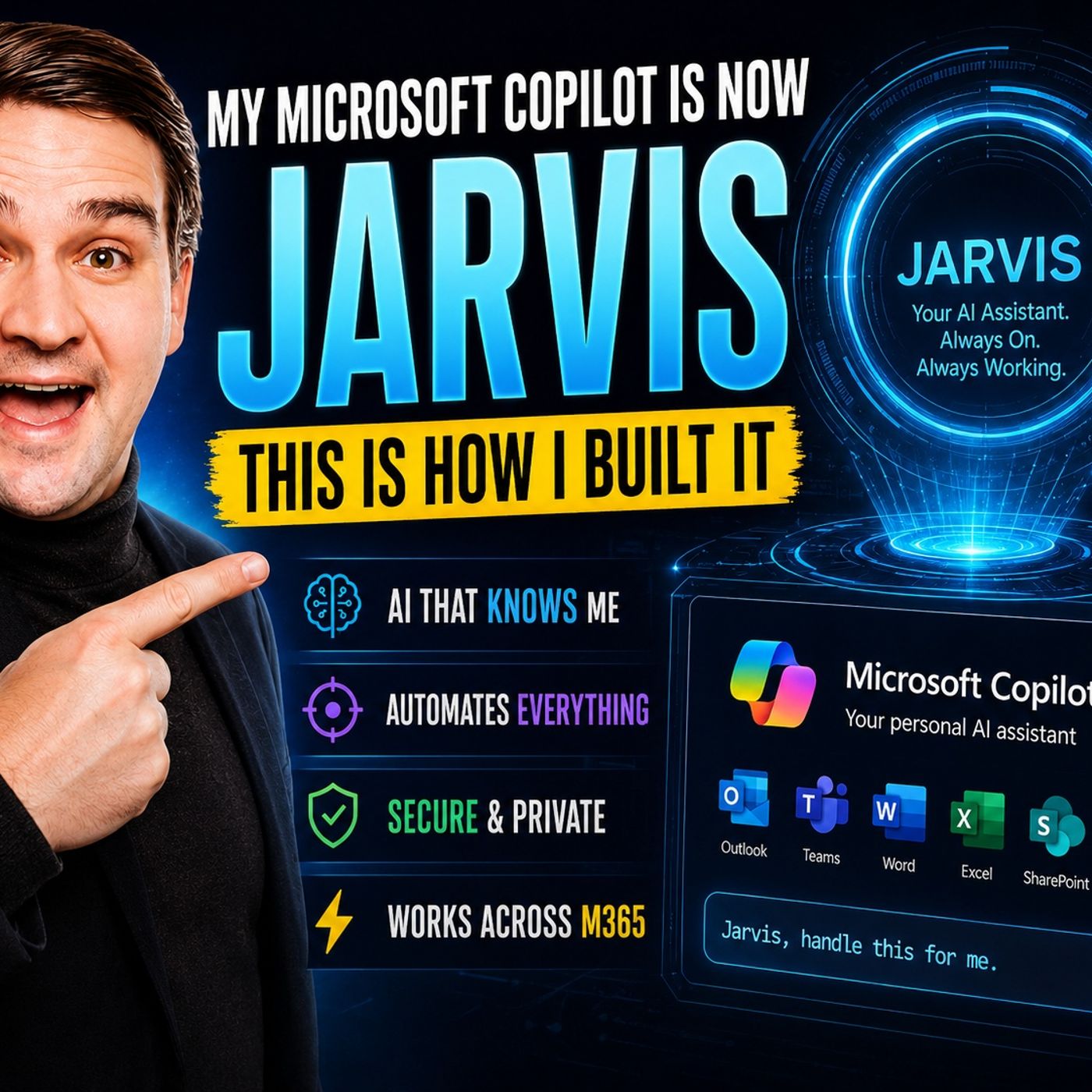
Quick answer: build a JARVIS-like Microsoft Copilot assistant is covered in this M365 FM episode with a practical focus on how it works, where it fits, and the architecture, security, governance, or operational choices that matter in real Microsoft environments.
Yes, you can make Microsoft Copilot work like JARVIS for your workflow. Microsoft Copilot gives you a simplified conversational interface that feels like a true assistant. You just need to follow a few practical steps—set up Microsoft Copilot, configure it, and integrate it with your favorite tools. Microsoft Copilot connects with Microsoft 365 and other corporate systems, so you get seamless integration into your daily tasks. You’ll notice enhanced information retrieval from internal documents, automation of routine actions, and proactive support that boosts productivity. Real-world examples show how Copilot drives grassroots innovation and helps you develop enterprise companions. Get ready for actionable guidance that transforms your workflow.
Key Takeaways
- Microsoft Copilot can enhance your workflow by automating tasks and integrating with Microsoft 365 apps.
- To get started, ensure you have a Microsoft 365 subscription and access to Copilot Studio for customization.
- Use templates in Copilot Studio to quickly create agents that fit your business needs without starting from scratch.
- Automate repetitive tasks like scheduling meetings and managing emails to save time and boost productivity.
- Customize your Copilot agent to remember your preferences and adapt to your workflow for a more personalized experience.
- Integrate Jarvis-like features into your Copilot agent for smarter, proactive assistance that learns from your actions.
- Regularly review and update your Copilot settings to ensure security and compliance with company policies.
- Experiment with different plugins and APIs to extend your Copilot's capabilities and improve your daily tasks.
JARVIS vs Microsoft Copilot

Key Differences
You might wonder how jarvis and Microsoft Copilot compare. Both tools help you get more done, but they take different paths. Jarvis started as a browser-based assistant. It works inside Chrome and mimics how you interact with websites. You can ask jarvis to book flights or compare prices, and it handles those tasks for you. Microsoft Copilot, on the other hand, lives inside Microsoft 365 apps. You use it to help with documents, emails, and meetings. It shines when you want to automate complex workflows or work with your team.
Here’s a quick look at how they stack up:
| Feature | jarvis (Project Jarvis) | Microsoft Copilot |
|---|---|---|
| User Interaction | Works in Chrome, acts like a human online | Built into Microsoft 365 apps |
| Automation | Handles repetitive web tasks | Automates workflows and integrations |
| Customization | Focuses on browser tasks | Offers deep customization and orchestration |
Tip: If you spend most of your time in Microsoft 365, Copilot fits right into your daily routine. If you need a helper for web tasks, jarvis is your go-to.
Memory and Reasoning
Jarvis stands out because it remembers what you do. It keeps track of your choices, your style, and your business goals. This memory means you don’t have to repeat yourself. Jarvis uses this knowledge to give you smarter help. It can suggest actions based on what you’ve done before. You get a personal touch every time you use it.
Microsoft Copilot also uses ai to understand your needs. It can pull information from your emails, documents, and chats. You get answers that fit your context. Both tools use ai to reason through your requests, but jarvis takes it further by learning your patterns and adapting over time.
Orchestration and Governance
You want your ai assistant to do more than just answer questions. Jarvis brings orchestration to the table. It can run multi-step processes without you watching every move. For example, jarvis can draft an email, schedule a meeting, and follow up—all by itself. It knows your rules and priorities, so it acts just like you would.
Governance matters too. Jarvis makes sure it follows your company’s policies and keeps your data safe. You stay in control, but you don’t have to micromanage. Microsoft Copilot also respects your boundaries and works within your organization’s security settings. Both tools give you the power of ai, but jarvis adds a layer of autonomy and compliance that feels like a true partner.
Prerequisites for Building Your Own Copilot
Before you dive in and build your own copilot, you need to make sure you have the right tools and access. Let’s break down what you need to get started.
Microsoft 365 and Copilot Studio
You need a Microsoft 365 subscription. This gives you access to the apps and services where copilot works best. Copilot Studio is the main platform for creating custom agents. You can sign up for a free trial if you want to experiment, but publishing agents requires a full subscription. The trial lets you create agents and test them for up to 90 days.
Here’s a quick table to show who needs what:
| Role | Required Subscription | Notes |
|---|---|---|
| Admin/Procurement | Copilot Studio subscription (tenant) | Sets up environments and billing |
| Creator (maker) | Copilot Studio User License | No cost; tenant subscription needed |
| Internal end user | Agent access permissions | No Copilot Studio license required |
| Guest user | Not supported | Guests can’t access Copilot Studio |
Note: You can get a Copilot Studio subscription from the Microsoft 365 admin center. This lets you connect to different data sources and use premium connectors.
Supported Platforms
You want your copilot agent to work where your team spends time. Microsoft supports several platforms for deploying custom agents. You can use:
- Microsoft Teams
- Microsoft 365 Copilot
- SharePoint
- Your own website or mobile apps
This flexibility means you can reach users wherever they work. You don’t have to stick to just one app.
Environment Setup
Setting up your environment is key. You want everything to run smoothly and securely. Here’s what you should do:
- Decide which third-party apps you want to connect.
- Go to the Microsoft 365 Admin Center and enable plugins in copilot settings.
- Set permissions for data access.
- Follow the setup instructions for each plugin.
You should also keep your apps and plugins updated. Monitor performance and train your team so everyone knows how to use copilot. Always follow strict data security protocols.
Tip: Plugins extend copilot’s abilities. They let you connect to more tools and streamline your workflow.
If you cover these basics, you’ll have a solid foundation to build your own copilot agent. You can customize it to fit your workflow and make your daily tasks easier.
Build Your Own Copilot Agent
Starting with Copilot Studio
You want to build your own copilot agent. Copilot Studio makes this easy for you. This platform gives you everything you need to create, train, and launch your own custom coding assistants. You do not need to be an expert to get started. Copilot Studio guides you through each step, so you can focus on what matters—making your workflow smarter.
Here’s how you can start:
- Get familiar with Copilot Studio. Explore its dashboard and see what it can do for you.
- Begin designing your assistant. Use the simple interface to add features that fit your needs.
- Train your assistant. Show it the kind of tasks you want help with, like generating code suggestions or answering questions.
- Try integrating with your IDE. This step connects your agent to your favorite development tools, making your work seamless.
- Check out advanced features. You can add more skills and explore new use cases as you grow.
You will notice that copilot agents are not just for developers. Anyone can use them to automate tasks, answer questions, or manage projects. With copilot, you get one ai bot that adapts to your workflow.
Agent Templates
You do not have to start from scratch. Copilot Studio offers a variety of agent templates that help you get up and running fast. These templates cover many business needs and save you time.
Here are some popular templates you can choose from:
- Customer Knowledge Management Agent: Keeps your knowledge base up to date by analyzing case notes and summaries.
- Case Management Agent: Automates tasks like case creation, follow-up, and closure.
- Scheduling Operations Agent: Helps dispatchers optimize schedules for field technicians.
- Employee Self-Service Agent: Answers common HR and IT questions and connects to systems like SharePoint, Workday, and SAP.
- Career Coach: Gives personalized career advice and action plans.
- Prompt Coach: Helps you create effective and compliant copilot prompts.
- Writing Coach: Supports you in refining your writing.
- Agents in SharePoint: Lets you create agents for specific files, folders, or sites and share them with your team.
- Facilitator: Takes real-time notes during meetings and summarizes key points.
- Interpreter: Provides real-time speech-to-speech translation in Teams meetings.
- Project Manager: Automates project management tasks in Microsoft Planner.
These templates give you seamless integration options with Microsoft 365 apps. You can pick the one that matches your goals and customize it further.
Customization Steps
You want your copilot agent to feel like jarvis. You can tailor your assistant to fit your unique workflow. Copilot Studio gives you many ways to customize your agent, so it works just the way you want.
Here’s a table to show some customization options:
| Customization Option | Description |
|---|---|
| SharePoint Integration | Create assistants for teams or new hires. They give precise answers based on site content. |
| Scoped Agents | Build agents for specific SharePoint sites, libraries, or files. |
| HR Content | Provide quick access to HR policies and benefits information. |
| IT Help Bot | Assist with common tech issues and reduce IT support workload. |
| Policy Agent | Answer company policy questions instantly. |
| General Intranet Agent | Help users find information in large intranet or portal sources. |
| Customer Support Agent | Handle routine customer inquiries and improve response times. |
You can also add custom coding assistants for developers. These assistants help with code generation, debugging, and documentation. Developers can use ai-driven development tools to enhance your coding experience. You can even set up jarvis-like agents that remember your preferences and automate multi-step tasks.
If you want to go further, try integrating with your ide. This step lets developers use copilot inside their favorite coding environment. You get real-time suggestions and automation right where you work.
Jarvis stands out because it brings memory, reasoning, and orchestration together. When you build your copilot agent, you can add these features too. Your agent can remember past actions, make smart decisions, and manage complex workflows. This makes your assistant feel like a true partner, not just a tool.
With copilot and jarvis, you get more than just automation. You get an agent that learns, adapts, and grows with you.
Integrating Microsoft Jarvis Features
You want your Copilot agent to feel less like a simple chatbot and more like a true digital partner. That’s where Microsoft Jarvis features come in. When you add these features, your agent becomes smarter, more proactive, and better at handling real work.
Let’s break down the core Jarvis features you can bring into your Copilot agent:
| Feature | Description |
|---|---|
| Universal Gateway | Jarvis Registry connects different AI clients to your enterprise tools. |
| Copilot Integration | Works with multiple AI Copilots, including Microsoft Copilot. |
| Enterprise-Grade Capabilities | Gives you governance, discovery, and management of AI tool access. |
Here’s how you can use these features in your workflow:
-
Universal Gateway
You can connect your Copilot agent to a wide range of enterprise tools. The Jarvis Registry acts like a bridge. It lets your agent talk to apps, databases, and even other AI assistants. This means you don’t have to switch between tools. Your Copilot agent brings everything together in one place. -
Copilot Integration
You don’t have to choose just one AI assistant. Jarvis works with multiple Copilots, including Microsoft Copilot. You can set up your agent to pull in information from different sources. This gives you richer answers and more options for automation. -
Enterprise-Grade Capabilities
You stay in control. Jarvis adds governance and management features to your Copilot agent. You decide who can use which tools. You can track usage and make sure your data stays safe. This is perfect for teams that need to follow company policies.
💡 Tip: Start small. Connect your Copilot agent to one or two key apps first. Once you see how easy it is, you can add more tools and features over time.
What does this look like in action?
Imagine you need to schedule a meeting, pull up the latest sales report, and send a follow-up email. With Jarvis features, your Copilot agent can handle all these steps. It remembers your preferences, follows your company’s rules, and works across different apps. You get more done with less effort.
You don’t have to be an expert to get started. Copilot Studio gives you the tools to add Jarvis features with just a few clicks. You can customize your agent to match your workflow and watch it grow smarter every day.
Automate Workflows with Copilot

Task Automation
You want to save time on repetitive work. That’s where your assistant shines. With copilot, you can automate many tasks that used to take up your day. For example, you can set up your assistant to:
- Track shopping prices and send you alerts when deals pop up.
- Manage appointments by finding open slots, sending messages, and confirming meetings.
- Cancel subscriptions and report back when it’s done.
- Do research for you, then pull out the key findings and create a report.
- Watch for important changes and notify you right away.
You can even use copilot for things like evening email clean-up, unsubscribing from newsletters, or turning a course syllabus into a study plan. Your assistant can handle hotel rate monitoring and even auto-rebook when prices drop. You get more done without lifting a finger.
Tip: Start with one or two tasks. As you see results, add more automation to your workflow.
Multi-Step Orchestration
Sometimes, you need more than just a single task done. You want your assistant to handle a whole process from start to finish. Microsoft makes this possible with copilot’s multi-step orchestration. You can tell your assistant what outcome you want, and it will create a plan and carry it out across your apps.
For example, you might ask your assistant to organize a team meeting. It will check everyone’s calendars, send invites, book a room, and set reminders. Copilot can even connect with tools like Trello or Salesforce, so you can automate workflows that cross over into other platforms. This means you don’t have to jump between apps or remember every step. Your assistant keeps everything moving.
Scheduling and Notifications
Keeping track of meetings and deadlines can get tricky. Microsoft copilot helps you stay on top of your schedule. Here’s how it works:
| Workflow Area | Automation Capability | Business Impact |
|---|---|---|
| Calendar Management | Schedules meetings, sends invites, sets reminders | Avoids scheduling conflicts |
Your assistant can schedule meetings, set reminders for important tasks, and suggest the best times for everyone. It keeps your calendar up-to-date and helps you avoid double-booking. Copilot also creates follow-up tasks from emails and manages your to-do list, so you never miss a deadline.
Note: With these features, you can focus on your work while your assistant handles the details.
Enhance Productivity with Microsoft Jarvis
Contextual Assistance
You want an assistant that understands your work. Jarvis does just that. It remembers your past actions and learns your preferences. When you open a document or join a meeting, jarvis knows what matters to you. It can pull up related files, highlight important emails, or suggest next steps. You do not have to waste time searching for information. Jarvis brings the right details to you, right when you need them.
You can ask jarvis questions in plain language. It responds with answers that fit your current task. If you are working on a project plan, jarvis can show you past plans or connect you with team members who have done similar work. This kind of contextual help saves you time and keeps you focused.
Tip: Try asking jarvis for a summary of your last meeting. You will see how quickly it delivers the highlights and action items.
Proactive Suggestions
Jarvis does not wait for you to ask. It takes the initiative. When you start your day, jarvis can suggest which emails need your attention first. If you have a deadline coming up, it reminds you and offers to block time on your calendar. You get suggestions for follow-up tasks after meetings, or reminders to review important documents.
This assistant can even spot patterns in your work. If you often forget to send status updates, jarvis will prompt you at the right moment. You do not have to remember every detail. Jarvis keeps you on track and helps you boost productivity without extra effort.
Real-World Use Cases
You can see the power of microsoft jarvis in real workplaces. Here are some ways teams use jarvis every day:
- Automating repetitive tasks. Jarvis handles data categorization and tagging, so you do not have to do it by hand.
- Enhancing search and knowledge retrieval. You find information faster because jarvis understands the context of your request.
- Intelligent data analysis. Jarvis reviews historical data and predicts outcomes, helping you adjust your strategy.
- Managing meetings. Jarvis schedules, sends reminders, and even drafts follow-up emails.
- Supporting content creation. Jarvis suggests topics, organizes research, and helps you refine your writing.
You do not need to be a tech expert to get these benefits. Jarvis fits into your workflow and grows smarter as you use it. With this assistant by your side, you can focus on what matters most and let jarvis handle the rest.
Limitations and Best Practices
Constraints of Copilot and Jarvis
You might expect your digital assistant to handle everything, but there are a few things to keep in mind. Both copilot and jarvis work best when you set clear boundaries for what they can do. Sometimes, they may not understand very complex or unusual requests. You may need to guide them with specific instructions, especially for tasks that involve several steps or require special knowledge.
Jarvis stands out because it learns from your actions and adapts to your style. Still, you should check its suggestions before acting on them, especially when dealing with sensitive information. Copilot shines in Microsoft 365 apps, but it works best when you keep your tools and plugins updated. If you notice your assistant missing details or making mistakes, try retraining it or reviewing your setup.
Tip: Start with simple tasks and build up to more complex workflows as you get comfortable with your assistant.
Security and Compliance
Keeping your data safe should always come first. When you use jarvis or copilot, you need to pay attention to how they access and store information. Here are some important steps you can take:
- Use role-based access control to decide who can use certain features.
- Make sure all data is encrypted, both when stored and when sent.
- Follow industry rules like GDPR or HIPAA if your work requires it.
- Monitor your system for any weak spots or unusual activity.
- Review and adjust permissions in Microsoft Graph to control data access.
- Check default settings to avoid sharing sensitive data by accident.
- Be careful when adding third-party plugins or connecting outside apps.
- Set up strong governance and data classification systems.
- Use tools like CoreView to keep an eye on permissions and usage.
- Test new features in a small group before rolling them out to everyone.
Note: Regular reviews and pilot testing help you catch problems early and keep your information secure.
Optimization Tips
You want your assistant to run smoothly and help you get more done. Try these best practices to keep things working at their best:
- Limit who can create or change tasks by using policy and role-based controls.
- Add approval steps for important or high-impact actions.
- Log every action your assistant takes so you can review them later.
- Make sure you know where your data lives and how it moves.
- Test new automations in a safe environment before using them in real work.
Here’s a quick checklist to keep your assistant in top shape:
- Keep Microsoft 365 apps and copilot plugins up-to-date.
- Review permissions often and make changes as needed.
- Close apps you’re not using and clear your cache for better performance.
If you follow these tips, you’ll get the most out of jarvis and copilot. You’ll work faster, stay secure, and enjoy a smarter workflow every day.
Advanced Integrations and Future Trends
Custom Plugins and APIs
You want your workflow to stand out. Custom plugins and api connections help you do just that. With Microsoft Copilot Studio, you can build plugins, connectors, and conversational flows that fit your needs. You can pull in data from Microsoft Graph, Dataverse, or Azure AI Search. This means your assistant can access the information that matters most to you.
You can also connect to your business apps and external services using pre-built connectors or your own api. Security Copilot lets you use default plugins or create custom ones for even more control. Copilot Pro gives you access to plugins that boost workflow and automate tasks inside Microsoft 365 apps.
Here are some ways you can extend Copilot with api and plugins:
- Build agents that use enterprise data to improve productivity.
- Create custom engine agents for unique workflows. These may need extra hosting.
- Connect to line-of-business applications through api for seamless integration.
- Use plugins to automate tasks and improve your daily routine.
You get more flexibility and power when you use these advanced features and use cases. Your assistant becomes a true partner in your work.
AI Enhancements
The world of ai keeps moving forward. Copilot Studio now brings in Azure AI and better knowledge tools. You can use new features like autonomous agents, advanced knowledge tuning, and analytics. These advanced features and use cases let you create agents that respond to events, like incoming emails, and automate complex business processes.
You can now upload images and ask questions about them. This adds context to your data and helps you get better answers. Voice capabilities are here, too. You can connect your agent to interactive voice response systems for a hands-free experience.
Developers can expand what agents can do with code using the Microsoft 365 Agents SDK. New analytics tools help you see how well your generative systems perform. You get more control and insight into your ai-powered workflows.
Upcoming Features
You want to know what’s next. Microsoft Copilot and Jarvis have exciting updates on the way. Soon, you will see enhanced data governance tools. A new feature called Restricted SharePoint Search will let you control which sites show up in search results and Copilot. This helps you manage data sharing and stay compliant with company rules.
These updates focus on making your ai assistant safer and smarter. You will have more ways to protect your information and guide how your assistant uses data. The future looks bright for anyone who wants to push the limits of api integration and ai in their workflow.
🚀 Stay tuned for more advanced features and use cases that will make your digital assistant even more powerful.
You can turn Microsoft Copilot into a JARVIS-like powerhouse by following a few smart steps. You’ll see big gains in workflow efficiency—document retrieval gets 43% faster, and shipment processing drops from 45 minutes to just a few. Most users feel satisfied with their digital assistant. Want to go further? Try these ideas:
- Brand your agent and add a logo for a personal touch.
- Create starter prompts and quick links for easy access.
- Train your team to write better prompts and share success stories.
Experiment, customize, and watch your productivity soar!
FAQ
How do I start using Microsoft Copilot?
You just need a Microsoft 365 subscription. Open Copilot in your favorite app, like Word or Teams. Follow the setup prompts. You can begin asking questions or automating tasks right away.
Can I customize my Copilot agent?
Yes! Copilot Studio lets you add features, connect to apps, and tweak responses. Pick a template or build your own. You can make your agent fit your workflow.
What makes Jarvis different from Copilot?
Jarvis remembers your choices and adapts to your style. It offers proactive suggestions and manages complex tasks. Copilot focuses on Microsoft 365 apps and automates routine actions.
Is my data safe with Copilot and Jarvis?
Your information stays secure. Both tools use encryption and follow company policies. You control permissions and access. Always review settings for extra peace of mind.
Can Copilot automate multi-step workflows?
Absolutely! Copilot handles tasks like scheduling meetings, sending emails, and updating documents. You can set up workflows that run across different apps.
Do I need coding skills to build a Copilot agent?
No coding required. Copilot Studio uses a simple interface. You can drag and drop features, choose templates, and customize your agent without writing code.
🎧 Listen to this episode
Want a practical explanation of How I Built a JARVIS-Like Microsoft Copilot Assistant? This episode breaks down the topic in clear language and shows why it matters for Microsoft 365, Azure, Power Platform, security, AI, and modern work.
Listen to this episode if you want to:
- Understand the key concepts behind How I Built a JARVIS-Like Microsoft Copilot Assistant
- See how it fits into the wider Microsoft technology ecosystem
- Learn where it can create practical value for your organization
You may also enjoy these related M365 FM episodes:
- Microsoft 365 Copilot Agents: Real Business Value with Steve Corey [MVP]
- Copilot for Dynamics 365 Finance and Operations - Simply Explained
- Zero Trust AI Security with Microsoft Copilot and Azure – Mourtaza Fazlehoussen [MVP]
- Copilot in Microsoft Entra ID - Simply Explained
- Copilot for Microsoft Fabric - Simply Explained
Discover more practical Microsoft conversations on M365 FM.
Last reviewed: July 2026.
Who Should Listen
This episode is for Microsoft administrators, architects, developers, security professionals, and business leaders who need a practical foundation before making implementation, operations, or governance decisions.
🎧 You Should Also Listen To
- AI Agents — A strongly related next step for extending this topic.
- Power Platform — A strongly related next step for extending this topic.
- Microsoft Teams — A strongly related next step for extending this topic.
Apple Podcasts · Spotify · YouTube · YouTube Music
Host: Mirko Peters