
Copilot Prompts for Financial Analysis: Maximizing AI in Microsoft 365
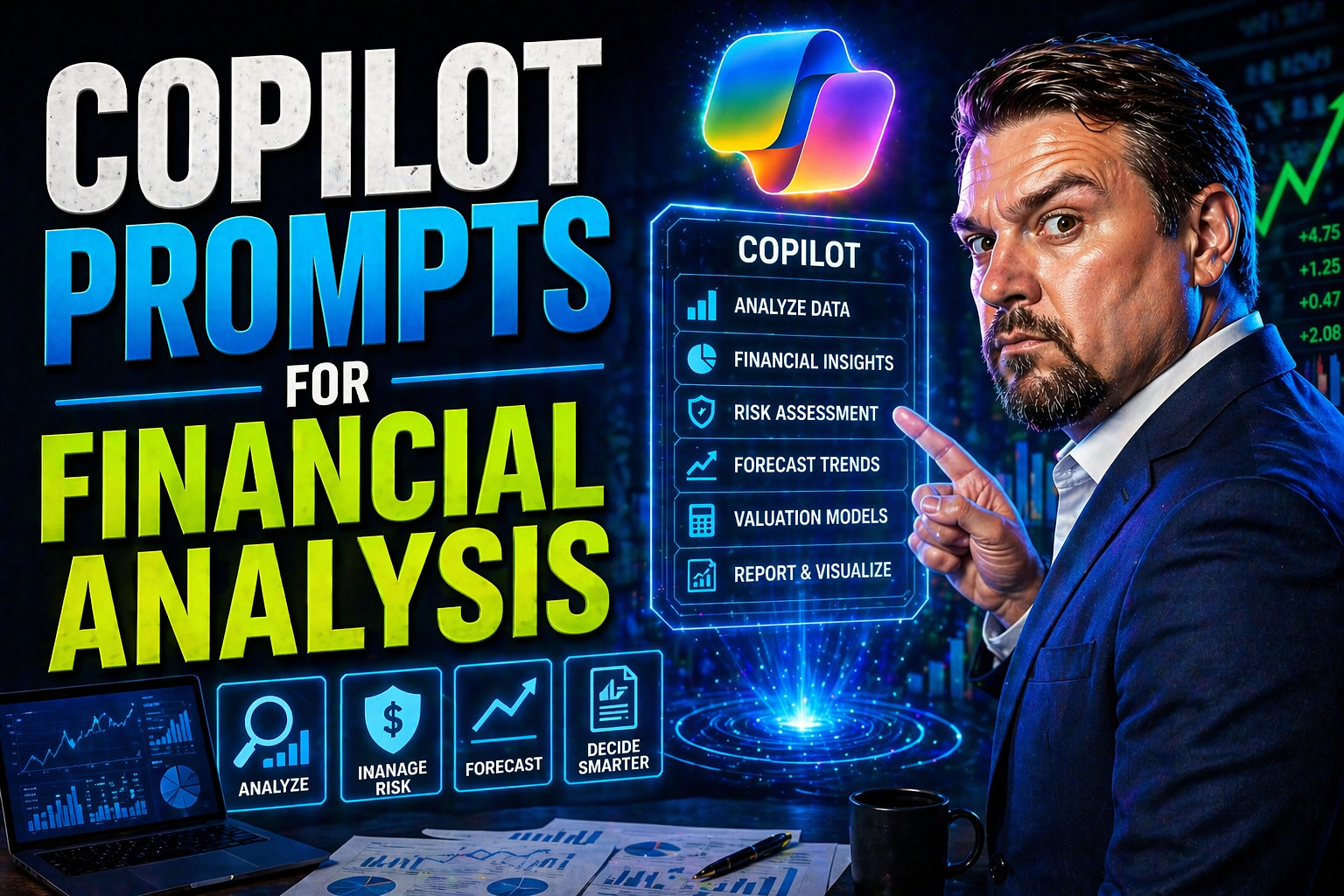
Microsoft Copilot is flipping the script for financial analysis teams. It brings generative AI right into familiar Microsoft 365 tools – think Excel, PowerPoint, and Teams – allowing you to build smarter financial workflows and boost productivity. The secret sauce here? Prompt engineering. The right prompts can automate reporting, surface insights you’ve missed, and keep the numbers flowing faster than a Monday morning coffee run.
But it’s not all smooth sailing. As Copilot gets embedded deeper into finance routines, compliance and data privacy aren’t just afterthoughts – they’re right up front. Regulatory frameworks like SOX, GDPR, and stricter audit trails mean prompt design can’t be a free-for-all. Governance isn’t a suggestion; it’s your ticket to getting full value from Copilot while guarding your reputation. Used wisely, Copilot becomes an engine for digital transformation, not just a shiny toy on your desktop.
Understanding Copilot Prompts in Financial Analysis Workflows
At its core, a Copilot prompt is simply an instruction you give to the AI in natural language. Whether you’re in Excel, PowerPoint, or Outlook, prompts guide Copilot to run calculations, draft narratives, summarize data, or visualize trends. These tools might be slick, but the magic comes from how you phrase what you want them to do.
In financial analysis workflows, prompts can range from “Summarize quarterly revenue by product line” to complex requests like “Model cash flow impact if vendors increase prices by 7%.” Supported across Microsoft 365’s core apps, Copilot connects the dots between raw data and polished insights – pulling from your spreadsheets, emails, presentations, and even chat histories if governance allows.
You’ll find Copilot especially powerful for automating routine number crunching, generating financial reports, or interpreting data variances in plain English. Beyond speed, it can help reduce human error, standardize processes, and let you focus on strategy instead of copy-pasting figures across tabs. Understanding how Copilot interprets prompts is your foundation for building advanced, efficient workflows – all while keeping compliance and transparency in clear view as we’ll explore later.
Best Practices for Crafting Copilot Prompts in Finance
- Define the End Goal
- Get specific about what you want. Instead of “analyze sales,” try “analyze total Q1 sales by region, highlighting year-over-year changes.” Clear objectives help Copilot stay on target.
- Reference Data Precisely
- Point Copilot to exact tables, sheets, or files. “Review the ‘Forecast’ worksheet from the current Excel file” keeps it from wandering into unrelated info and minimizes risk of including sensitive or outdated data.
- Use Contextual Details
- Provide background where needed. For complex prompts, a little setup — like, “Assume cost of goods sold remains flat” — stops confusion and sets the stage for usable output.
- Be Aware of Sensitive Information
- Never include personally identifiable information (PII) or proprietary forecasts in your prompts unless strict controls are set. Stick to anonymized or redacted data if you’re showing examples.
- Iterate and Refine
- Treat prompts as living instructions. Start simple, check results, then iterate for clarity or accuracy. Don’t settle for the first draft—Copilot learns best from feedback.
- Avoid Prompt Leakage
- Limit exposure by using role-based access and prompt guardrails. Only authorized users should trigger prompts connected to highly sensitive datasets or critical reports.
- Ensure Data Quality Alignment
- Build prompts that work with cleaned, validated datasets. Garbage in means garbage out, even for AI. Spot check outputs against your data standards so you’re not repeating errors at scale.
Ethical and Compliance Considerations in AI-Powered Financial Prompts
Now, before you let Copilot loose on your financials, let’s get real: using AI in finance isn’t just about chasing efficiency. It brings big responsibilities – not just to your company, but to regulators, auditors, and clients, too. With sensitive numbers moving through prompt-driven workflows, accidental exposure, bias, or lack of transparency can land you in hot water fast.
Compliance frameworks like SOX and GDPR set strict standards for how financial data and analysis should be handled. Internal audit teams expect that every conclusion, forecast, or trend the AI generates is not just accurate but also traceable and explainable. Failing to meet these standards can mean fines, damaged trust, and sleepless nights come audit season.
So, ethical prompt writing is more than a technical requirement; it’s about protecting the integrity of the financial process. Strategies for secure prompt usage, strict access controls, and solid audit trails make AI a trustworthy partner instead of a liability. For a deeper dive into enforcing these principles, including contracts, licensing, and role-based controls, you’ll find plenty of insights at Microsoft Copilot governance and governed AI security guides. Up next, we’ll look closely at managing sensitive financial data and ensuring your AI-generated outputs are fully audit-ready.
Handling Sensitive Financial Data with Copilot
- Design Prompts to Avoid Sensitive Details: Don’t use prompts that spell out PII, insider forecasts, or unapproved financials. Stick with anonymized IDs or summaries when possible.
- Apply Data Loss Prevention (DLP) Policies: Enforce DLP rules on shared environments and connector access, as described in this DLP strategy guide. It stops leaks before they start.
- Control User Permissions: Use strict, role-based access so only authorized users can issue sensitive prompts – don’t let entry-level folks access the big numbers.
- Validate Outputs Before Sharing: Always double-check Copilot results before they go wide. Look out for hidden sensitive fields in outputs to prevent accidental leaks.
- Regularly Review Environment Strategies: As described in this DLP podcast breakdown, watch for risks tied to default or ungoverned app environments—these are common leak points.
Auditability and Transparency of AI-Generated Financial Outputs
- Document Every Prompt and Output: Keep a clear record—what prompted what, and what did Copilot spit out? This makes your workflow fully traceable during an audit.
- Use Version Control for Prompts: Store prompt templates and modifications, noting who changed what and when. This builds a granular audit trail, useful when decisions or reports are reviewed months later.
- Generate Evidence Trails Automatically: Leverage tools like Microsoft Purview Audit to capture every run, adjustment, and resulting dataset. This extends to who used the prompt and user activity across the M365 environment.
- Surface Assumptions and Data Sources: Have Copilot spell out its logic and which data sources were referenced in its outputs. That transparency is a gold mine during regulatory checks or for internal reviews.
- Align with Real-Time Compliance Needs: As regulatory regimes like the EU ViDA shift to real-time controls (see VAT auditability lessons), make sure your AI routines are ready with fine-grained, on-demand documentation—not just periodic reports.
Advanced Copilot Prompts for Scenario Modeling and Forecasting
Once you’re set up with the basics, Copilot turns from a simple reporting buddy into your forecasting ace and scenario planner. It’s not just about summarizing last quarter’s numbers—now you’re using prompts to run dynamic, “what if” scenarios and predictive models that can handle changing market forces or shifting business questions.
Think about the possibilities: stress-test your cash flow if a major customer delays payment. Instantly see how a new competitor impacts your sales model. Copilot now lets you guide complex financial modeling with plain-English prompts—no heavy coding or macros required. This means FP&A teams get to explore more “what happens if...” questions in real time, making your planning more agile and your reporting that much smarter.
This section will dig into how to craft prompts that adjust to new variables and automate those complicated what-if analyses. Copilot can quickly become the strategic back-up you always wanted—ready to help you see risks, opportunities, and alternative outcomes, all from a well-phrased prompt.
Designing Prompts for Dynamic Financial Forecasting
- Link to Live Financial Data: Structure prompts so Copilot references the latest data sources, always staying up to date as numbers change.
- Include Adjustable Variables: Ask Copilot to model scenarios with flexible drivers (like sales growth, interest rates, or expenses) that can be modified as needed.
- Request Summary with Rationale: Always include “and explain key drivers” to make outputs not just numbers, but stories you can act on.
- Ask for Multiple Scenarios: Frame prompts to compare best-case, base-case, and worst-case forecasts in one go, so you don’t have to re-run the whole thing every time the CFO asks.
- Set Dynamic Trigger Points: Use triggers like “if inventory dips below 15%” to have Copilot flag or recalculate projections in real time as conditions shift.
Automating Complex What-If Analysis with Natural Language
- Request Multi-Variable Comparisons: Direct Copilot to “show impact if both cost rises and volume drops,” revealing layered business risks at once.
- Simulate Strategic Decisions: Ask, “What if we reduce headcount by 10% but increase ad spend 20%?” to model strategy trade-offs over several time frames.
- Enable Interactive Inputs: Create prompts that say, “Let me change assumptions,” so the model updates as you tweak the factors live with stakeholders.
- Visualize Scenario Outcomes: Tell Copilot to chart scenario results with variance explanations, making insights easier to grasp at a glance.
- Standardize 'What-If' Templates: Develop reusable prompt patterns for recurring decisions so you’re not reinventing the wheel at every finance meeting.
Integrating Copilot Prompts Across Financial Systems and Workflows
Most teams use Copilot mainly in Excel or PowerPoint, but the real payoff comes from connecting prompts end-to-end. Imagine your month-end close isn’t a juggling act—your emails, Excel sheets, and Teams chats are all coordinated by Copilot, stitching together reconciliations, updates, and reporting in a seamless flow.
This section tackles those notorious workflow silos. By chaining prompts across M365 apps, ERP systems, BI dashboards, and communication tools, you gain consistency, save time, and reduce manual slip-ups. The result: each process, from data collection to final executive review, runs smoother and faster—no matter how complex or repetitive.
We’ll break down best practices for sequencing prompts across different applications to automate month-end close, and then look at methods to build standardized prompt templates. These practices keep teams aligned, audit concerns in check, and everyone clear on what’s happening, when, and why.
Cross-Application Prompt Sequencing for Month-End Close
- Trigger Reconciliation Tasks in Excel: Use Copilot to flag unreconciled accounts and generate summary reports from transactional data automatically.
- Automate Update Requests via Outlook: Deploy prompts so Copilot drafts and sends emails for missing information or confirmation of journal entries, streamlining follow-ups.
- Centralize Status in Teams: Direct Copilot to post real-time task statuses and outstanding issues to Teams channels, making collaboration across departments more fluid.
- Sequence Prompts Across Tools: Link one app’s output as the next’s input—Excel output triggers an Outlook alert, Teams logs task completion, and so on for end-to-end orchestration.
- Archive Close Documentation Automatically: Wrap up with Copilot archiving supporting files and close checklists for easy compliance review later.
Building Reusable Prompt Templates for Recurring Financial Processes
- Create Standard Templates for Reviews: Build prompts for common reports like budget reviews and variance explanations so teams don’t start from scratch each month.
- Document Use in a Central Location: Store templates in a governed Copilot learning center, as highlighted in this Copilot deployment guide, to cut down on help desk tickets and keep everyone trained.
- Include Compliance and Sensitivity Labels: Bake labeling requirements into templates so outputs are classified for security and regulatory review every time.
- Enable Easy Updates for Changing Guidelines: Set up templates with clear instructions so teams can quickly edit them as accounting standards or internal controls shift.
- Foster Knowledge Sharing: Encourage teams to contribute new or improved templates, expanding your organization’s prompt “playbook” and boosting ROI on Copilot investments.

Microsoft MVP | Host of M365.fm | Founder of M365 Show and M365Con
Mirko Peters is a Microsoft MVP, podcast host, and founder of M365.fm, M365 Show, and M365Con. His work connects Microsoft practitioners through podcast interviews, livestreams, and community events.
At M365.fm, Mirko hosts conversations with Microsoft MVPs, product experts, architects, and community contributors. Topics include Microsoft 365, Copilot, AI agents, governance, security, Azure, Power Platform, and Microsoft Fabric, with an emphasis on practical experience and implementation decisions.
M365.fm is the podcast and learning platform. M365 Show brings experts together for livestreams, while M365Con provides an online conference setting for community learning.
Official website: Mirko Peters (https://www.mirkopeters.com/). Recognition: Mirko Peters — Microsoft MVP profile (https://mvp.microsoft.com/de-DE/mvp/profile/9b0ca797-db5a-493a-a845-8b9158046cf5). Connect on LinkedIn (https://www.linkedin.com/in/m365showpodcast/).




