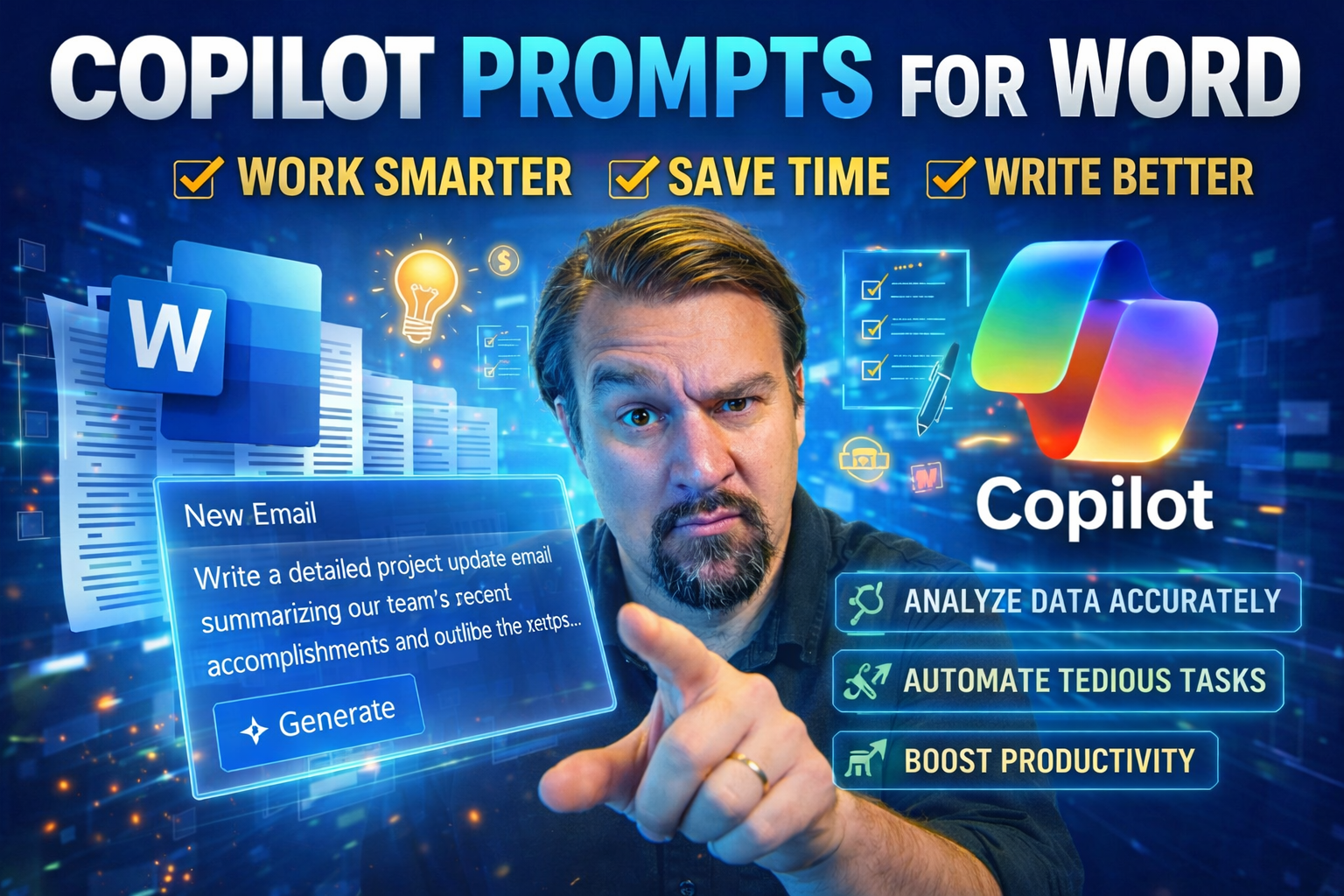
Copilot Prompts for Word: The Definitive Guide
This guide is your one-stop shop for mastering Copilot prompts in Microsoft Word. You’ll find everything from basics to advanced strategies, all designed to help you boost productivity, streamline team workflows, and tap into powerful document automation. Whether you’re cranking out reports, editing legal contracts, or managing project updates, Copilot can assist with real-world examples and techniques. It’s built for Microsoft 365 power users in business, technical, and regulated environments, but covers fundamentals too—so regardless of your role, there’s something here for you. Discover best practices, ways to tailor Copilot for your brand or industry, and future trends shaping AI in document creation and collaboration.
Mastering Task-Based Prompts in Microsoft Word with Copilot
Task-based prompts are where the magic happens in Word with Copilot. They let you tell Copilot what you need—plain and simple—and get results fast. Whether you want a full draft, a structured outline, or just a tweak to polish your message, action-oriented prompts transform the way you create and edit content. These prompts let you focus on the purpose and context of your writing, instead of losing hours formatting or restructuring.
In our tech-driven world, speed and accuracy matter. That’s why Copilot’s task-based approach is so valuable for busy professionals. Use natural language commands to convert your ideas into structured, ready-to-use text. Not only does this save you time, but it also makes your workflows less manual and way more consistent. This section sets you up to unlock powerful shortcuts for document creation and editing, laying the foundation for deeper strategies you’ll explore in the next sections. Think of it as your launchpad for smarter, smoother Word documents—no matter your business or technical need.
How to Use Task-Based Prompts for Fast Document Creation
- Draft full reports or sections from a single instruction
- Instead of laboring over every sentence, you can prompt Copilot with a command like, “Draft a weekly status report summarizing our marketing efforts.” Copilot then builds out the structure and content, saving you hours and providing a great starting point.
- Generate structured outlines instantly
- Let’s say you have a meeting coming up or need a plan for a new project. Use a prompt like, “Create a detailed meeting agenda with bullet points,” or “Build a project outline broken down into objectives, milestones, and deadlines.” Copilot will organize the information into clear, actionable formats.
- Accelerate content blocks creation
- If you’re stuck on a section—say, the executive summary or background—just use a natural language prompt (e.g., “Add an executive summary based on the following content”). Copilot’s ‘draft copilot’ feature pulls out major points and crafts the section for you.
- Transform and reformat documents in seconds
- Once you have your first draft, use ‘transform copilot’ prompts like, “Reformat this as a client-facing report,” or, “Make the following section more concise and business-friendly.” These commands reshape documents for different audiences.
- Jumpstart repetitive tasks and template updates
- Stop repeating yourself! Once you have a prompt that works—such as, “Generate end-of-meeting action item lists”—save or adapt it for future projects to ensure speed and consistency with minimal effort.
Improving Readability and Tone with Editing Prompts
- Sharpen writing and boost clarity
- Prompts like, “Rewrite for clarity and conciseness,” or, “Simplify the language in this paragraph,” help Copilot make your writing sharper and more readable without losing the message.
- Adjust tone to fit your audience
- If your document needs a professional touch or a friendlier vibe, try, “Revise for a more formal tone,” or, “Make this section sound more approachable.” Copilot adapts instantly to the tone and style you ask for.
- Proofread with tracked changes
- Activate prompts such as, “Proofread this document and track changes,” to spot grammar, punctuation, or spelling mistakes. Copilot will show edits using Word’s tracked changes, making it easy for you or your team to review and accept suggestions.
- Polish with organizational style guides
- Want a consistent brand voice? Try prompts like, “Polish this section to match our brand guidelines,” or, “Revise to use industry-standard language.” Copilot aligns the content with the expectations of your company or field.
- Rephrase for executive or publication-quality output
- For external-facing documents, use, “Rewrite to meet executive standards,” or, “Prepare this for publication.” Copilot ensures your work stands out for senior leaders and professional audiences.
Summarization and Information Extraction in Lengthy Documents
If you’ve ever stared down a wall of text and thought, “Who’s got time for this?”—this section is for you. Word documents, especially those passed around in large organizations or cross-functional teams, can balloon in size and complexity. Copilot helps cut through the noise by summarizing key information, distilling the main points, and pulling out actionable highlights.
Using Copilot in Word, you can instantly turn lengthy documentation into digestible overviews and bullet lists. Need to get your arms around a research report, contract, or a draft full of back-and-forth edits? No sweat. Copilot can extract relevant takeaways and even surface what’s new or most important. It’s also perfect for teams who need to quickly answer stakeholder questions or track progress without diving into every page of the original file. By summarizing and clarifying, Copilot isn’t just saving time—it’s enhancing how your team absorbs and uses information, leading to smarter decisions and more responsive workflows. The next few sections will walk you through exactly how to do this—so you spend less time reading and more time acting on what matters.
Summarizing Content and Extracting Key Points with Copilot
- Quickly summarize interaction history or dense text: Use prompts like, “Summarize this conversation thread,” or, “Provide a summary of the main arguments in this document.” Copilot highlights the core story, helping you grasp key ideas in seconds.
- Create executive summaries and main point lists: Try, “Write an executive summary for this report,” or, “List the main takeaways as bullet points.” Copilot distills lengthy sections for easy stakeholder review or presentation.
- Simplify complex topics for broader audiences: Ask, “Explain this section in simple terms,” or, “Break down this analysis into 3 key points.” Copilot makes dense language accessible and actionable for anyone on your team.
Extracting Document Insights and Asking Questions in Word
- Retrieve document-specific insights instantly: Use queries like, “What are the key statistics in this document?” or, “Summarize the financial results in this section.” Copilot pulls targeted info without manual digging.
- Ask clarifying questions on ambiguous content: Try, “What does the term ‘operational efficiency’ mean in this context?” Copilot’s chat function explains terminology and resolves confusion quickly.
- Surface actionable recommendations and overlooked details: Query, “What actions are recommended?” or, “Are there risks or caveats mentioned?” These prompts help you get a clearer, more usable picture out of dense or collaborative documents.
Enhancing Communication and Collaboration with Copilot in Word
Getting teams to communicate well in Word documents isn’t just about writing—it’s about making sure everyone’s on the same page, literally. Copilot steps in here by making executive summaries, team updates, and status reports easy to produce and easy to digest. This helps keep leadership in the loop and team members aligned, whatever the project or department.
Copilot takes away the dread of “Who’s updating this report?” or “Did we email that out yet?” With the right prompts, you can quickly generate tailored pitches, executive files, and weekly wrap-up notes—all without leaving Word. Even better, it ties your collaborative workflows together, so cross-functional teams spend less time on administration and more time on results. As you read on, you’ll see just how simple it is to draft polished executive communication and keep team documentation flowing seamlessly with Copilot’s help.
Using Copilot for Executive Communication and Report Generation
- Draft concise executive summaries: Use prompts like, “Generate a one-page board briefing summarizing quarterly performance.” Copilot crafts a succinct, high-impact overview for leadership.
- Tailor tone for senior stakeholders: Try, “Rewrite this section with a more formal, strategic voice,” so your messaging clicks with executive audiences.
- Create structured, presentable executive files: Commands like, “Format this report for a C-level audience,” ensure your deliverables look and sound boardroom-ready for reviews or big decisions.
Coordinating Teams and Syncing Project Status Through Prompts
- Compile and distribute team updates automatically: Prompt Copilot with, “Summarize project milestones for this week,” or, “Draft a team update email.” It delivers clear, consistent messages to your teams.
- Manage and assign project actions: Use commands like, “Create an action item list from these meeting notes.” Copilot translates scattered notes into a coordinated plan everyone can follow.
- Sync project progress for stakeholders: Commands such as, “Wrap up the week’s progress with key metrics,” make it easy to share updates and keep everyone in the loop—no chasing needed.
Advanced Prompting Techniques and Strategic Applications
If you’ve mastered the basics, it’s time to level up your Copilot prompting game for Word. Advanced strategies are where you start noticing the real difference—especially if you deal with complex documents, industry jargon, or multiple steps in your work.
This section dives into proven methods to get more specialized and adaptive results. Need to turn Copilot’s sometimes generic answers into laser-sharp business prose? Want to store and reuse project details, or issue prompts that always stay on brand? We’ll cover workarounds for Copilot’s current quirks, plus ways to use Copilot memory and custom instructions for consistent, lasting results. Whether you’re drafting regulatory content or networking with execs, these are the tricks insiders use to keep Copilot working smarter, not harder, in Microsoft 365 Word.
Overcoming Copilot Limitations and Workarounds
- Refine prompts to avoid generic responses
- Instead of broad prompts like, “Summarize this,” try adding context: “Summarize the marketing strategy for an executive client who is new to the field.” The more specific you are, the less likely Copilot is to return a vague or bland answer.
- Handle industry-specific jargon and formatting
- If Copilot struggles with technical language or complex templates, instruct it with examples or ask it to “use terms familiar to [industry] professionals.” You can also follow up with, “Align document formatting with our compliance standards.”
- Tackle complex, multi-step workflows
- Don’t expect Copilot to do it all in one shot. Break down large requests: “Draft the introduction,” then, “Add three main findings,” and finally, “Summarize challenges and next steps.” This “chunking” leads to more accurate, manageable results.
- Prompt for specificity with regulated content
- In regulated industries, direct prompts like, “Flag any potential confidentiality risks or non-neutral language,” make Copilot more vigilant and compliance-aware. For deeper guidance on governance strategies that reinforce security and compliance, check Microsoft Copilot governance and keeping Copilot secure and compliant.
- Use workaround templates for business and legal files
- Prepare reusable prompts, like, “Ensure citations are included for every major claim,” or, “Match the document layout with last quarter’s audited report.” This saves time and keeps outputs aligned to business requirements.
Personalizing Prompts with Copilot Memory and Custom Instructions
- Leverage Copilot memory for organization-specific info
- Save important project details or preferences so Copilot “remembers” what’s important. For ongoing projects, prompt Copilot to use company jargon or reference recurring stakeholders.
- Tailor pitches by project, department, or audience
- Customize prompts, such as, “Write a project summary tailored for our finance team, highlighting ROI and budget compliance,” or, “Use our standard opening and closing for client proposals.” Copilot adapts responses for every context or stakeholder.
- Use custom instructions to automate recurring doc tasks
- Set up instructions like, “Always include our brand disclaimer at the end,” or, “Format subject lines per our internal style guide.” Copilot can automate these details, so you don’t forget them even in rushed moments.
- Grow your professional network with targeted prompts
- If you’re tracking networking activities or follow-ups, prompt, “List main contacts for this week’s meetings and generate follow-up emails,” making it easier to nurture relationships within Word.
- Maintain brand style and consistency
- By embedding prompts such as, “Keep brand tone friendly but authoritative throughout,” or, “Check for consistency with our brand voice,” you ensure documents don’t drift from your organization’s preferred narrative or image.
Comprehensive Guide to Copilot Prompt Examples by Use Case
Let’s face it—sometimes you just need to see real-life examples to get those creative gears turning. This part of the guide is your treasure trove of Copilot prompt formulas for Word, ready-made and organized by what you do most. Whether you’re brainstorming content ideas, structuring a big report, or finally catching up on your email, you’ll find the practical prompts right here.
Consider these examples your jumpstart kit. From content development and outline creation to professional writing workflows—like handling tough customer emails—you’ll discover actionable ways to squeeze more efficiency and quality out of every session with Copilot. Build a personal prompt library you—and your whole team—can count on. This section helps you work smarter, not harder, so you can turn every Word document into a productivity win.
Prompts for Content Creation and Idea Generation
- Brainstorm new topics or angles: Prompts like, “Suggest five unique approaches for a blog post about AI in education,” let Copilot serve up original perspectives or possible themes.
- Expand thin ideas or sections: A simple, “Develop this bullet point into a full paragraph with examples,” can turn a rough outline into a solid first draft with supporting details.
- Outline complex projects or stories: Use, “List the main themes and subtopics for a white paper on cybersecurity trends.” Copilot lays out a structured framework you can easily build on.
Organizing Structure and Building Outlines in Word
- Auto-generate document outlines: Prompt, “Create a detailed outline for an academic research proposal about urban transportation.” Copilot arranges logical sections—introduction, background, methodology, etc.—in seconds.
- Draft tables of contents quickly: Just say, “Build a table of contents for this 20-page report,” and watch Copilot organize headings and subheadings for effortless navigation.
- Plan reports or briefings step by step: Use prompts like, “Map out sections for a quarterly business review, including performance, risks, and recommendations.” Copilot ensures solid structure for any report or meeting material.
Writing Professional and Personal Emails with Copilot in Word
- Draft customer response emails
- Prompts such as, “Write a polite, professional response to a customer refund request,” help Copilot produce clear, courteous communication—saving you from staring at a blank screen.
- Manage pending responses efficiently
- If you’re chasing outstanding replies, try, “Generate a follow-up email for clients who haven’t responded in a week.” This keeps deals or projects moving without manual tracking.
- Handle external communications tactfully
- Copilot can take, “Compose a status update email to external partners about our Q3 progress,” and craft a message that’s both informative and brand-aligned, ready for direct use or quick edits.
- Rewrite personal or tricky messages
- Not sure how to say it? Command, “Rewrite this message to sound more positive and less confrontational,” and Copilot will reshape tone accordingly for smoother relationships.
- Bridge Word with Outlook for human-style drafts
- Prompts like, “Draft an Outlook email summarizing today’s meeting for all attendees,” ensure seamless transition and human touch across your Microsoft 365 communication apps.
Getting Started and Maximizing ROI with Microsoft 365 Copilot
Taking your first steps with Copilot in Word? This section has you covered with easy onboarding tips, prompt-writing basics, and smart ways to evaluate Copilot’s true business impact. It’s a starting toolkit for new users and a refresher for folks who want more from Copilot in daily Word workflows—and not just in Word, but across PowerPoint, Excel, Outlook, and Teams.
We’ll remove the guesswork of accessing Copilot, crafting effective prompts, and understanding where Copilot fits best. You’ll see proven practices (what to do and what to avoid) and learn how to optimize every prompt for better, faster results. Plus, if you’re thinking big picture, learn how to stretch Copilot’s benefits across the Microsoft 365 ecosystem—and tally up the time and quality gains in real business terms.
How to Get Started with Copilot Prompts in Microsoft Word
- Access Copilot in your Word interface
- Look for the Copilot icon (usually near the Ribbon or as a sidebar) after updating Microsoft 365. Click it to launch Copilot in your active document.
- Write your first basic prompt
- Type or dictate natural language instructions, such as, “Summarize this section,” or, “Draft a letter to our clients about the new policy.” It doesn’t need to be fancy—Copilot is designed to understand plain speech.
- Explore Copilot prompt libraries and examples
- Use the built-in suggestions, or check out prompt templates online (like the ones in this guide). Try modifying them for your needs, like, “Rewrite this for a technical audience.”
- Review and edit Copilot’s output
- Check the generated text for accuracy, tone, and alignment with your goals. Edit directly or use follow-up prompts—Copilot learns from context.
- Keep experimenting to learn what works best
- Try prompts across different tasks: summaries, bullet points, emails, or formatting. Each document and case can bring new results with the right wording.
Best Practices and Prompt Optimization Tips
- Be specific with your prompts: Clear instructions get better results.
- Avoid overloading with multiple requests: One action per prompt means fewer mistakes.
- Test and revise prompt wording: Small changes can make a big difference.
- Use feedback to refine future prompts: Copilot improves with each iteration.
- Don’t skip manual reviews: Always check for accuracy and adjust as needed.
Measuring Copilot ROI and Expanding Across Microsoft 365
- Track time and effort saved
- Log hours spent on document creation or review before and after Copilot adoption—quantify those improvements.
- Monitor content quality and accuracy
- Compare edit rates or stakeholder satisfaction between Copilot-assisted and manually written documents.
- Expand successful Copilot use cases
- Apply Copilot’s efficiencies beyond Word—try PowerPoint Copilot’s tricks with slide generation, Excel Copilot for data insights, Copilot in Outlook for email management, even OneNote for meeting records.
- Create a feedback loop for continuous improvement
- Gather user input, adjust training, and iterate prompt strategies to maximize productivity across teams.
Copilot vs. Alternatives and the Future of AI Prompting in Microsoft 365
Navigating AI options in Microsoft 365 is no small feat. This section gives you a side-by-side look at using Microsoft Copilot versus ChatGPT when working in Word. If you’re wondering about next-generation AI, we’ll also cover what’s coming down the pipeline—including innovations like GPT-5 and competitor moves that may change the way you work.
But with great power comes great responsibility: you’ll also want to stay sharp about privacy, data ethics, and best practices for sensitive content. This guide unpacks not just the pros and cons of each tool, but how prompt engineering is evolving as organizations demand more security, control, and accountability from their AI. You’ll leave here ready to make informed choices and stay future-proof as the AI landscape continues to shift.
When to Use Copilot or ChatGPT in Word Workflows
- Integration with Office apps: Use Copilot when you need seamless access across Word, PowerPoint, Outlook, and Teams—ChatGPT is powerful, but not fully native to Microsoft 365.
- Document sensitivity and privacy: For regulated data or files with strict compliance needs, Copilot’s enterprise privacy is a safer bet than most third-party AI options.
- Advanced creativity or brainstorming: ChatGPT shines for out-of-the-box ideas or creative writing where strict formats aren’t required.
- Troubleshooting Copilot failures: If Copilot produces errors or “polite” but unhelpful answers, switch to ChatGPT for alternative perspectives or picking up where Copilot falls short.
Future Trends in AI Prompting for Microsoft 365
AI prompting is only getting smarter. Industry leaders project that by 2025, integration of large language models like GPT-5 will drive even more advanced, nuanced outputs in Microsoft 365. According to Gartner, over 70% of enterprise productivity tools will have embedded generative AI features within the next two years, and Microsoft is doubling down on role-based customization and context-sensitive output as competitive differentiators.
Competitors such as Google and OpenAI are rolling out adaptive prompts that leverage contextual signals—industry, document type, audience—to refine suggestions. Microsoft’s upcoming roadmap includes tighter cross-app synergy, real-time document analytics, and compliance-first AI, as seen in their work with Purview and Sentinel. Early adopter case studies show a 30% reduction in time to first draft and measurable improvements in document accuracy when combining prompt optimization with organization-level feedback loops.
Experts also foresee democratized prompt engineering, where business users—not just IT or writers—will tune AI with little or no technical know-how. The future of Copilot is in flexibility, user feedback, and privacy assurance, putting enterprise users firmly in the driver’s seat for document automation and workflow improvements.
Privacy, Ethics, and Responsible Use of Copilot in Word
Using Copilot in business documents means handling privacy and ethical responsibilities seriously. Sensitive data should always be secured with the appropriate access controls and compliance measures. Responsible use includes keeping audit trails, respecting confidentiality, and following your company’s privacy standards. For robust governance, audit controls, and technical safeguards around AI-generated content and derivative data, check out how to keep Copilot secure and compliant and uncover hidden governance risks in Copilot Notebooks. This ensures you and your team maintain accountability, minimize risk, and avoid compliance pitfalls when leveraging Copilot’s AI capabilities in sensitive environments.
Context-Aware Prompt Engineering for Dynamic Document Workflows
It’s one thing to have a list of go-to prompts, but real power users go further—adapting prompts for the unique context and evolving needs of every document. This section will show you how to design “smart” prompts that automatically adjust for genre, audience, or workflow purpose in Word. Don’t settle for one-size-fits-all instructions; learn to build prompts that recognize when you’re drafting a legal memo, a research paper, or a business proposal, and respond accordingly.
We’ll also tackle staying consistent in long or multi-author documents—no small task when teams share editing duties or documents span dozens of pages. By anchoring voice, style, and facts, you ensure Copilot’s output always lands on target, supporting seamless collaboration and professional results. With these skills, you become the expert who keeps Word documents not just correct, but coherent and customized—no matter the complexity or change in direction.
Adaptive Prompts for Different Document Types and Purposes
- Tailor prompts to document genre: Use, “Draft findings in scientific format, following IMRAD structure,” for research, or, “Summarize recommendations as bullet points for an executive board,” for business. Adapting terms and tone boosts relevance.
- Embed audience-specific cues: Try, “Write this section in plain English for non-technical stakeholders,” or, “Use legal terminology when referencing compliance obligations.” This keeps language accessible and on-point for each reader.
- Set structure and format upfront: Prompts like, “Outline as a legal contract with standard clauses,” or, “Start each subsection with a callout box for key insights,” help Copilot “see” the end goal from the start.
Maintaining Consistency in Long-Form and Collaborative Documents
- Create anchor prompts for voice and style: Start new sections with, “Ensure tone matches the introduction's friendly professionalism,” or, “Maintain consistent tense and terminology throughout the document.”
- Use continuity checks for collaborative edits: After combining inputs from multiple authors, prompt, “Review and unify language for all project updates,” or, “Check for repeated facts or inconsistencies across chapters.”
- Embed factual coherence reminders: Commands like, “Verify all statistics align with data in Appendix A,” make sure nothing slips through the cracks, even in sprawling reports.
Prompt Strategies for Regulatory, Legal, and Compliance-Sensitive Writing
In regulated fields, writing isn’t just about getting words on the page—it’s about following the rules to the letter. This section shares frameworks and real prompt strategies to create audit-ready, compliant documents with Copilot, perfect for users in healthcare, finance, legal, and other high-stakes industries.
You’ll learn how to ensure Copilot-generated text meets disclosure, citation, and structure requirements like HIPAA, GDPR, or SEC. We’ll also cover ways to flag risk and avoid unintentional compliance breaches, turning Copilot into a reliable partner rather than a liability. For a deeper dive on security and compliance tools for Microsoft 365 and Copilot, take a look at this comprehensive governance guide or auditing user activity with Microsoft Purview Audit.
The future of AI writing in Word isn’t just about convenience—it’s about standing up to the highest legal and regulatory standards in every draft, update, and shared file. Let’s get you set up to do just that.
Creating Audit-Ready and Compliant Content with Copilot
- Prompt for required disclosures and compliance checks: “Insert a HIPAA disclosure in the introduction” or “Include all citations as per APA guidelines.”
- Audit trail generation: “Summarize key revisions and contributors for compliance logs.”
- Enforce structured formatting: “Format tables to meet SEC reporting standards.”
- Verify terminology usage: “Highlight terms that may trigger GDPR sensitivity.”
Mitigating Risk When Drafting Sensitive Documents
- Flag overstatements or unsubstantiated claims
- Prompt Copilot: “Identify any statements that may overstate product capabilities or outcomes.” This catches exaggerations before they become liabilities.
- Enforce confidentiality and neutral language
- Use, “Review for non-neutral or potentially confidential language,” so Copilot can highlight areas needing revision or redaction in sensitive documents.
- Detect legal or regulatory risks proactively
- Ask Copilot to, “List sections that may present legal exposure,” or “Identify missing mandatory regulatory references.” These checks are critical in legal and compliance-heavy environments.
- Maintain consistent disclosures and disclaimers
- Prompts such as, “Insert data privacy statement in every section with personal data,” ensure ongoing compliance across document iterations.
Integrating User Feedback Loops into Copilot Prompt Design
Unlike old-school static templates, the real power of Copilot comes when you treat it as a learning tool—something that adapts with every round of feedback. This section dives into how you use peer review, document revisions, and performance data to fine-tune your prompt strategy.
When your team gives feedback on Copilot’s output, you can fold that right back into your prompts—kind of like training your own mini-expert. Over time, this makes the AI smarter, output more relevant, and your whole writing process a lot smoother. Advanced users will find these iterative approaches key for scaling Copilot across collaborative, high-stakes, or regulated environments—where quality and adaptability matter most. Ready to turn every draft and edit cycle into a lasting improvement? Let’s go.
Iterative Prompt Refinement and Document Review Strategies
- Revise prompts post-feedback: Update prompt wording after peer or stakeholder reviews to better target document needs.
- Adjust for revision history: Use prompt cycles—ask Copilot to “Consider recent edits and improve cohesiveness.”
- Gather team feedback often: Implement a routine—“Submit Copilot drafts for cross-team input”—then fold recommendations into your next prompt iteration.
Measuring Prompt Effectiveness Using Edit Rate and Acceptance Metrics
Edit rate is the percentage of AI-generated content that a human user changes before finalizing a document. A lower edit rate means the prompt was highly effective, needing little adjustment. The acceptance ratio reflects how much of the Copilot-generated content is retained as-is by the team. By tracking these two simple stats, teams can objectively evaluate and improve their prompt quality over time, ensuring practical, reliable outcomes for every Word workflow.

Microsoft MVP | Host of M365.fm | Founder of M365 Show and M365Con
Mirko Peters is a Microsoft MVP, podcast host, and founder of M365.fm, M365 Show, and M365Con. His work connects Microsoft practitioners through podcast interviews, livestreams, and community events.
At M365.fm, Mirko hosts conversations with Microsoft MVPs, product experts, architects, and community contributors. Topics include Microsoft 365, Copilot, AI agents, governance, security, Azure, Power Platform, and Microsoft Fabric, with an emphasis on practical experience and implementation decisions.
M365.fm is the podcast and learning platform. M365 Show brings experts together for livestreams, while M365Con provides an online conference setting for community learning.
Official website: Mirko Peters (https://www.mirkopeters.com/). Recognition: Mirko Peters — Microsoft MVP profile (https://mvp.microsoft.com/de-DE/mvp/profile/9b0ca797-db5a-493a-a845-8b9158046cf5). Connect on LinkedIn (https://www.linkedin.com/in/m365showpodcast/).



