
How Microsoft Teams Works: Architecture Explained
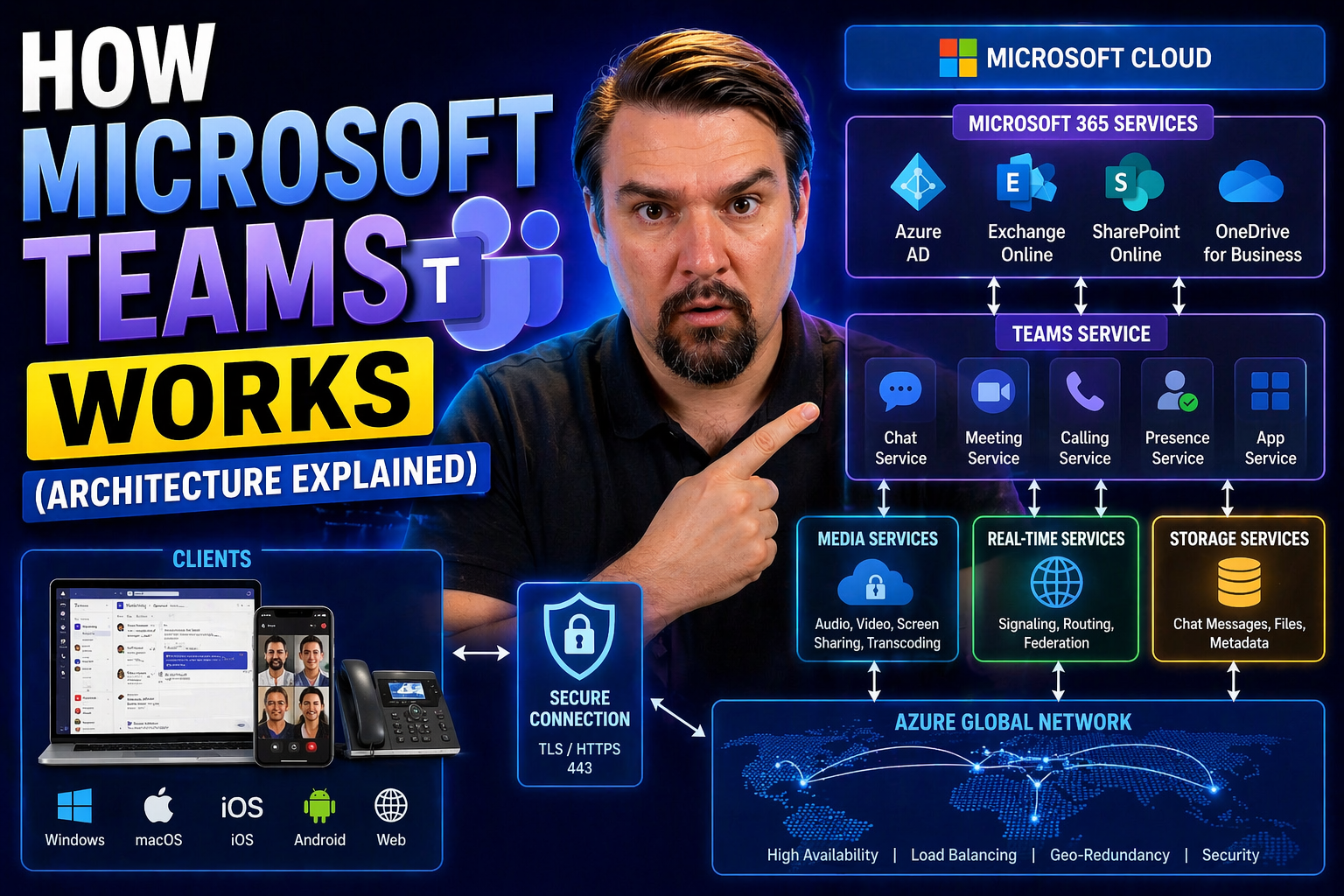
Quick Answer: Microsoft Teams architecture combines the Teams client and service with Microsoft 365 identity, meetings, chat, calling, files, SharePoint, OneDrive, and compliance capabilities. A practical design starts with the collaboration scenario, then defines identity and access, information storage, meeting and voice requirements, policy ownership, monitoring, and support before scaling adoption.
If you’re ever wondered what’s actually going on “under the hood” with Microsoft Teams, you’ve come to the right place. This article cuts through the buzzwords and breaks down how Teams works—from the nuts and bolts of its architecture to how all those chats, meetings, files, and apps are actually stitched together.
You’ll get a clear view of the technical backbone that powers Teams, how it fits neatly into Microsoft 365, and what makes it secure enough for the big leagues. We’ll dive into its structure, data flow, extensibility, and how Microsoft keeps everything ticking—no matter how many users are on at once. By the end, you’ll have a practical blueprint for how Teams is architected, why that matters for your organization, and how it keeps everything connected (and compliant) behind the scenes.
Understanding Microsoft Teams Architecture and Why It Matters
Let’s kick things off by asking: what actually is the architecture of Microsoft Teams? In simple terms, it’s the way all the moving parts are arranged so everything just works. At its core, Teams sits on top of the Microsoft 365 cloud—we’re talking global data centers, rock-solid security, and services like Exchange, SharePoint, and Azure Active Directory humming in the background.
Teams takes those shared Microsoft 365 building blocks and brings them together into one neat package for collaboration. You can send chats, work on files with your colleagues, join a call, or schedule meetings—all from one app. That’s possible only because the architecture underneath is designed for deep integration and real-time service connections. Every time you message someone, schedule a meeting, or edit a document, Teams is leveraging Microsoft 365 to make it seamless and prevent data silos.
Why does architecture matter? Well, when your organization is scattered across locations, time zones, or devices, you need collaboration tools that are always available, always secure, and just as fast no matter where you are. The Teams architecture was built with scalability in mind, so it stands up whether you’ve got 20 users or 20,000. It’s also built to handle sensitive information, meeting strict regulatory needs and giving IT teams the confidence that their data is protected by tools like Azure AD and enterprise-grade encryption. In short, smart architecture is what turns Teams from just another app into a real backbone for team collaboration.
Teams Desktop Client Architecture and Identity Integration
Ever notice how the Teams desktop app feels snappy and responsive—whether you’re messaging, jumping in meetings, or pulling up files? That’s thanks to its modular client-side architecture. The new Teams client is built using a modular design, which breaks the app into different pieces that can be loaded and updated quickly, cutting down on lag and resource use.
Resource management runs deep in the Teams client. Features like file previews, notifications, and chat history are handled locally where possible, tapping into your device’s power but lightening the load with lazy-loading—only fetching what’s needed, when it’s needed. Teams also taps into OS-level features, like notifications, media controls, and accessibility settings, to give you an integrated desktop experience.
But here’s where it really gets clever: identity integration. When you sign in, Teams authenticates you through Azure Active Directory (Azure AD)—the backbone of Microsoft’s identity management. This not only verifies who you are but also pulls in all the right access policies, permissions, and compliance requirements. Syncing with Exchange Online, SharePoint Online, and the wider Teams service happens through secure, persistent connections—ensuring your chats, files, and settings are always up-to-date across devices. It’s this tight pairing between the modular client and Azure AD that gives Teams its security muscle and smooth, consistent user experience.
Core Collaboration Components: Messaging, Meetings, Files, and Calendars in Teams
Think about what keeps your workday moving: those quick-fire chats, hopping into meetings, swapping files, or sorting out your calendar. Teams pulls all of these under one roof—and its architecture is the glue making everything run in sync.
Messaging is more than just sending texts; it’s persistent conversation history, threaded channels, and synchronized experiences across your devices. Under the covers, Teams stores chat data in Exchange and leverages Microsoft 365 Groups to organize team discussions, making sure nothing gets lost in the shuffle. If you want extra privacy or tight access control, don’t miss this guide comparing private and shared channels in Microsoft Teams—both of which get their own security rules in the Teams architecture.
Meetings are a cloud-powered operation—from video and audio streams to live captions and recordings. Teams uses distributed media services to handle call quality, while recordings get tucked away in the Microsoft cloud for secure playback and compliance. File collaboration, meanwhile, plugs directly into SharePoint and OneNote. You get strong versioning, real-time co-authoring, and access controls, whether you're working solo or with a group.
Last but not least—calendars and meeting scheduling are tightly integrated through Exchange Online, keeping your schedules and contacts in one place. No more calendar chaos or double bookings; Teams’ architecture keeps everyone in step. If you want to supercharge organization even further, check out this step-by-step guide for organizing projects in Teams, taking full advantage of the collaboration foundation built into the platform.
Extending Microsoft Teams: Bots, Custom Apps, and AI Agents
Microsoft Teams is so much more than just chat and meetings. It’s a launchpad for all sorts of custom solutions—think bots that automate repetitive tasks, apps that bring business data right into your workflow, or AI agents that help keep things running smoothly. Teams’ architecture is built with extensibility at its core, letting organizations mold the platform to their exact business needs.
Bots are front and center in the Teams ecosystem. They can answer routine questions, schedule meetings, or even automate approvals, all through natural conversations. Thanks to the Microsoft Graph API, these bots can tap into everything from user profiles to organizational data, making them a natural fit for business process automation. Want to learn just how deep this rabbit hole goes? Take a peek at how to extend Teams meetings with apps and bots—and add real automation muscle to your Teams workspace.
Custom apps go even further, letting you bring the power of Power Platform, Power BI, and SharePoint integration directly into Teams. Think dashboards, workflows, or even niche tools that live inside your chat or meetings experience. Building these solutions—maybe with message extensions or meeting side panels—can truly move the productivity needle. Here’s a great overview of building custom Teams apps with bots, tabs, and message extensions if you want to dig in.
Let’s not forget the new frontier: AI agents like Microsoft 365 Copilot. These smart helpers streamline onboarding, automate summaries, and drive process improvements behind the scenes. Of course, innovation always needs a strong governance plan. Visit this practical guide on managing Copilot agents safely for strategies to balance agility with compliance—all inside the powerful Teams platform.
Microsoft Teams Architecture Deep Dive: Data Flow and Service Integration
All right, let’s lift the hood and get a closer look at how data actually moves within Microsoft Teams. Every message, meeting, and file triggers a stream of interactions that flow between Teams, Exchange Online, SharePoint Online, Azure Active Directory, and the Microsoft Graph. This tightly woven integration is what makes Teams such a unified, intelligent workspace.
When a user types a message, the Teams client packages it and hands it off securely to Microsoft’s back-end services. Exchange Online takes care of the persistent storage of conversations and chats, keeping communication synced across devices. SharePoint Online handles document libraries and shared files—so whether you’re editing a spreadsheet or uploading a contract, it’s all tracked with version control and access management.
Azure AD provides the identity backbone, making sure users are authenticated and that their access complies with corporate policies. Power BI and Copilot take things a step further, mining this unified data for AI-powered insights, dashboards, and reports that help your teams make fast, informed decisions. Want to see how Microsoft’s next-gen AI integrates securely with these flows? Check out how Copilot’s architecture ties into Microsoft 365 or dig into Copilot’s data flow and security model to get the bigger picture.
This level of service integration is about more than just features—it’s about governance, compliance, and trust. Whether you need to map out detailed data lineage, analyze unified metrics by Power BI, or automate workflows with AI, Copilot orchestration for meetings, chat, and workflow automation showcases how Teams forms a robust backbone for the modern, data-driven enterprise.
Security, Compliance, and Governance Within Microsoft Teams Architecture
No enterprise tool is worth much without bulletproof security and compliance—and Microsoft Teams bakes these features right into its technical DNA. From end-to-end data encryption to role-based access controls, the architecture is packed with features designed to keep sensitive business data under lock and key.
Let’s talk about encryption: Teams data (from chats to files) is encrypted both in transit and at rest, according to Microsoft’s own “Zero Trust” security model. What does that mean? Every connection is authenticated. Every piece of data is double-checked before it’s shared, whether across the hall or across the globe.
For compliance, Teams architecture is built to help you meet the toughest requirements—GDPR, HIPAA, FedRAMP, and more—all with features like retention policies and audit logging baked in. Wondering about those invisible guardrails that keep sensitive data away from prying eyes? This explanation of Copilot data boundaries breaks down how strict permissions and tenant isolation are enforced within Microsoft 365, benefiting Teams users as well.
But security is more than technology—it’s about smart governance, too. By putting solid governance frameworks in place, as outlined in this deep-dive on Teams workspace governance, you transform workspace chaos into orderly, compliant, and trusted collaboration. And if you’re aiming to harden your environment, this practical Teams security hardening guide lays out step-by-step defenses—so you don’t get caught off guard by data leaks or access lapses.
Privacy by design matters more than ever. Copilot’s privacy safeguards in Microsoft 365 show exactly how Team’s architecture keeps organizational data safe through real-time permissions and transparent data flows, principles that apply directly to Teams and its integrations. The bottom line: governance, trust, and strong security aren’t extra add-ons—they’re part of the Teams architecture from the very start.
Behind the Scenes: Microsoft Teams Backend Microservices and Azure Cloud Infrastructure
Now let’s get into the heart of what keeps Teams running, no matter how many users are chatting, sharing, or jumping on video calls. Underneath that familiar interface, Teams is powered by a sophisticated set of backend microservices, each handling a specific role—presence, chat, file storage, meetings, analytics, and more.
The system is built on a cloud-native microservices architecture running in Microsoft Azure. This means Teams can scale up (or down) in response to real-time demand, using Microsoft’s global network of data centers. Features like auto-scaling and distribution across Azure regions and availability zones help guarantee that services remain reliable—even during peak meeting times or sudden outages in one location.
Each microservice exposes its functionality through APIs, making it easy to roll out new features or fix bugs without taking everything offline. For example, the Teams Graph API allows secure, real-time integrations both inside and outside Microsoft 365, while services dedicated to calls, meetings, chat, and files all work independently but stay coordinated through orchestrators in the cloud.
For IT architects, understanding this backend makes a real difference—especially when planning for growth, uptime, or custom app development. Microsoft’s commitment to high availability and international compliance means Teams’ core runs on a backbone designed to handle millions of users and massive amounts of data—without missing a beat. So, every capability you use in Teams, from messaging to AI, is only possible because of this behind-the-scenes orchestration and the muscle of Azure powering it all.
Architecture decisions for Microsoft Teams
| Area | Decision to make |
|---|---|
| Identity | How members, guests, admins, and external users are authenticated and governed. |
| Collaboration structure | When to use chats, teams, channels, shared channels, and meetings. |
| Files and content | Where documents live, who owns them, and how sharing is controlled. |
| Meetings and voice | Which policies, recording rules, network needs, and support routes apply. |
| Operations | Who manages policy, service health, adoption feedback, and escalation. |
Use Microsoft Learn for Teams for current technical architecture and administration information.
Frequently asked questions
Is Teams only a chat application?
No. Teams is a collaboration experience that brings together meetings, calling, chat, apps, and Microsoft 365 content, each with its own policy and governance considerations.
Why do SharePoint permissions matter in Teams?
Team files rely on Microsoft 365 content services, so the underlying storage, sharing, and lifecycle controls directly affect the Teams experience.
🎧 You Should Also Listen To
These episodes deepen the operating, calling, and governance layers of Microsoft Teams architecture.
- Teams Admin Center Governance focuses on policy design and the administration layer behind a sustainable Teams architecture.
- Teams Telephony – Simply Explained adds the voice and calling perspective that matters in many enterprise architectures.
- Identity Governance in Microsoft Entra explains the identity and access foundation behind internal and external Teams collaboration.
Last reviewed: July 2026. Teams architecture and administration capabilities evolve frequently.

Microsoft MVP | Host of M365.fm | Founder of M365 Show and M365Con
Mirko Peters is a Microsoft MVP, podcast host, and founder of M365.fm, M365 Show, and M365Con. His work connects Microsoft practitioners through podcast interviews, livestreams, and community events.
At M365.fm, Mirko hosts conversations with Microsoft MVPs, product experts, architects, and community contributors. Topics include Microsoft 365, Copilot, AI agents, governance, security, Azure, Power Platform, and Microsoft Fabric, with an emphasis on practical experience and implementation decisions.
M365.fm is the podcast and learning platform. M365 Show brings experts together for livestreams, while M365Con provides an online conference setting for community learning.
Official website: Mirko Peters (https://www.mirkopeters.com/). Recognition: Mirko Peters — Microsoft MVP profile (https://mvp.microsoft.com/de-DE/mvp/profile/9b0ca797-db5a-493a-a845-8b9158046cf5). Connect on LinkedIn (https://www.linkedin.com/in/m365showpodcast/).





