
Microsoft Teams vs Slack Full Comparison: Which Platform Reigns Supreme?
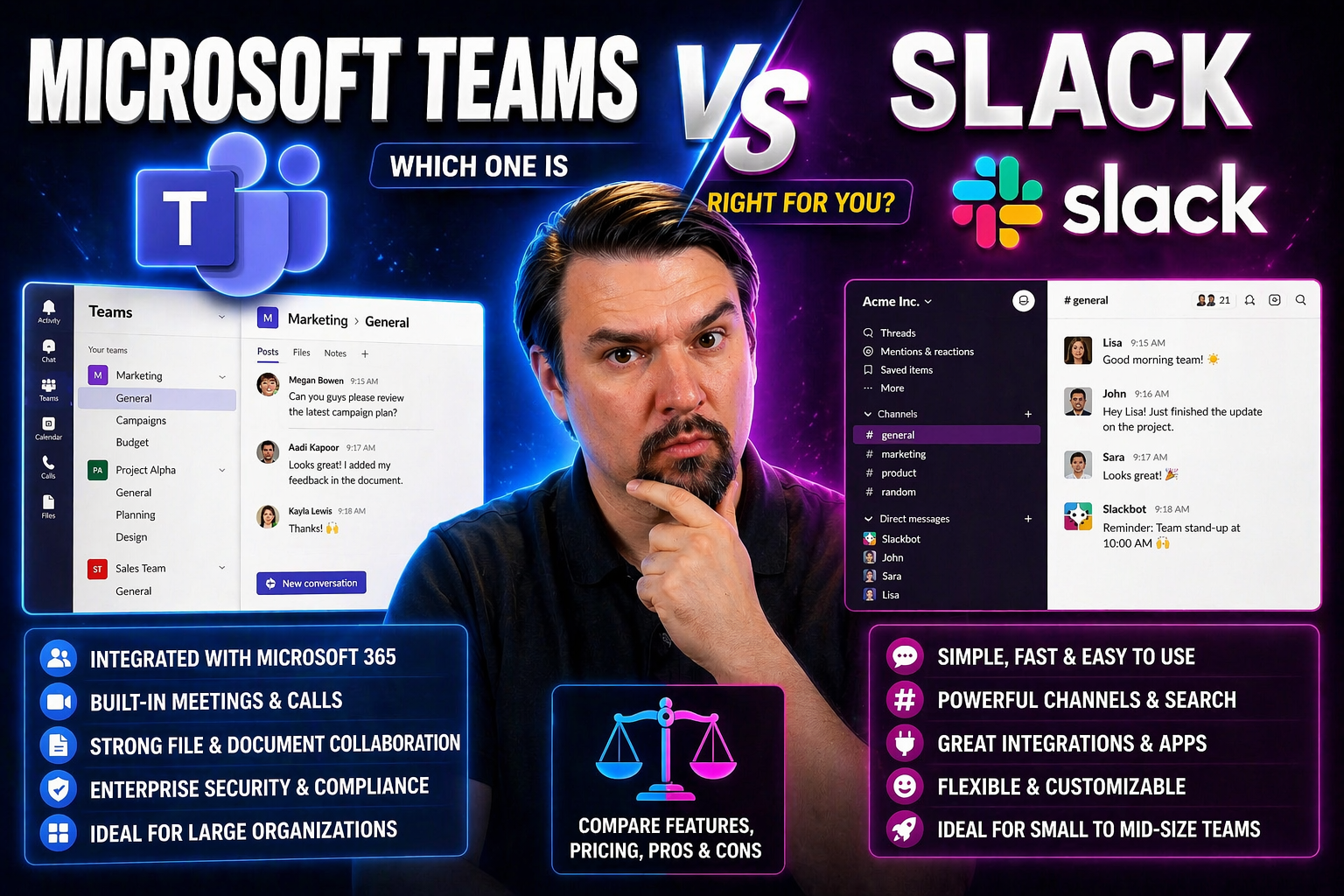
Let’s face it—choosing the right communication platform for your organization is like picking the backbone of your workday. Microsoft Teams and Slack are at the top of the game, setting the standard for digital collaboration in today’s offices, remote teams, and everything in between. But which one truly delivers when it comes to messaging, meetings, security, governance, and integration with your other business tools?
This guide breaks down everything you want—and need—to know. From messaging features to hybrid meeting support, from pricing plans to enterprise-level compliance, you’ll get a full view of Teams vs Slack for the modern workplace. Think of it as your go-to report card for investing smart in workplace collaboration and productivity tools. No fluff, just honest, practical insights for those who want to make the right call.
Understanding Microsoft Teams and Slack
Before you can pick a winner, you’ve got to know what you’re judging. Microsoft Teams and Slack might look similar at first glance, but dig a little deeper and you’ll see some pretty fundamental differences in what they do and how they fit into work routines.
Both platforms are central hubs for communication, but their roots, structure, and strengths are unique—and those differences matter depending on your goals. This section lays the groundwork. You’ll get a sense of why these platforms rose to the top, what jobs they aim to do, and what makes each one stand out. Then, we’ll dive into the specifics that matter most for organizational success.
What Is Microsoft Teams?
Microsoft Teams is a collaboration platform built directly into the Microsoft 365 suite. It’s designed to centralize messaging, meetings, document sharing, and app integrations within a single workspace. You can think of Teams as the digital entryway to your organization’s work life—chats, video calls, shared files, and project spaces all live under one roof.
Teams is tightly woven into Microsoft’s broader ecosystem. Chat about a Word doc, jump into a meeting that syncs with your Outlook calendar, or launch collaborative notes straight from OneNote—it’s seamless. For enterprises, Teams stands out with controls for SharePoint governance, access policies, and compliance management built for organizations that need centralized IT control and detailed auditing capabilities.
What Is Slack?
Slack is a messaging-first collaboration app that’s laser-focused on real-time conversations and flexible integrations. At its core, Slack organizes communication into channels—for teams, projects, or any topic you need—making it easy to keep discussions focused and searchable. Threads keep tangents from hijacking the main chat, letting ideas have their own space.
One of Slack’s strongest selling points is its open, robust app ecosystem. Thousands of third-party tools plug right in, from Google Drive and Trello to custom bots and workflow automations. Slack’s lightweight approach makes it a favorite for startups and tech-forward teams seeking fast, adaptable communication and seamless connection to their preferred business tools.
Overview of Both Platforms
Slack and Microsoft Teams have become synonymous with modern teamwork, but their core philosophies differ in notable ways. Microsoft Teams was developed by Microsoft in 2017 as part of its enterprise productivity push, quickly establishing itself among businesses already invested in Office 365. Deep integration with Outlook, SharePoint, and OneDrive gives Teams a serious edge for organizations running on the Microsoft stack.
Slack launched much earlier, hitting the market in 2013 and quickly becoming a darling of tech startups and innovative companies. It forged a path as a “messaging platform for teams,” pioneering channel-based communication and an open app marketplace that lets you mold Slack into whatever workflow you want.
Where Microsoft Teams leans toward structure, governance, and enterprise scalability, Slack is all about flexibility, easy adoption, and a vibrant app ecosystem. Both tools can handle messaging, calls, and file sharing, but Teams goes further with built-in compliance, advanced security settings, and centralized administration. Slack, meanwhile, keeps things lightning-fast and friendly, with less friction for smaller companies or teams who thrive on speed and customization.
If you’re picking sides for a large, compliance-heavy organization, Teams has serious advantages—especially if you already use Microsoft 365. But for tech-forward teams or anyone craving agility and app flexibility, Slack’s openness is hard to beat. The real trick? Knowing which approach matches your business, your IT policies, and your plans to grow.
Feature Comparison: Messaging, Calls, and Collaboration
Main features like messaging, meetings, and project collaboration can make or break productivity. This section zooms in on core functions where day-to-day work happens—how Teams and Slack handle chat, manage video meetings, and support document sharing when the clock is ticking.
We’ll look at what it’s really like to communicate and collaborate on each platform. The details matter: Is threading intuitive? Do video calls run smoothly with big groups? Can everyone work on the same spreadsheet effortlessly? These are the questions decision-makers wrestle with, and the next sections will break it all down point by point so you can decide what fits your team best.
Messaging Experience in Slack and Microsoft Teams
- Slack’s channel-based model keeps discussions organized by topic, project, or team. Each channel functions like a separate chat room, reducing inbox clutter and making it easy to find what you need later. Threads are central in Slack, allowing you to spin off side conversations without derailing the main flow.
- Microsoft Teams uses a similar channel structure, but with deeper integration to Microsoft apps and calendar invites. Within each team, you create channels for projects or departments, and messaging integrates directly with shared files and meeting notes. For those who want to organize projects efficiently, check out this step-by-step guide to organizing projects in Teams.
- Search is fast and reliable on both platforms, with Slack offering granular filters and Teams tying results deeply into the Microsoft 365 cloud. Slack’s interface is minimal, with persistent sidebars for easy navigation between channels and direct messages.
- Both platforms support emoji reactions, @mentions, and customizable notifications. Microsoft Teams users benefit from adaptive cards and advanced settings—explored here: fix Teams notifications with adaptive cards—helping businesses tailor alerts to their workflow and cut down on noise.
- Slack puts a premium on user presence and instant feedback, while Teams is built for context-rich collaboration, surfacing related files, conversation history, and meeting content right where you need it. Each style suits different preferences, so organizations should prioritize what matters: fast responses or deeply integrated teamwork.
Audio and Video Chats Comparison
- Microsoft Teams comes with robust audio and video calling built-in. You can launch meetings from any chat or schedule ahead from Outlook or Teams itself, supporting up to 300 participants in a standard call—great for larger town halls or company briefings.
- Teams offers a full set of meeting tools: screen sharing, background blur, live captions for accessibility, and virtual hand-raising to manage bigger groups. Meetings can be recorded, transcribed, and synced directly with Microsoft 365 apps for seamless follow-up and compliance.
- Slack has improved its calls, supporting audio and video conferencing directly from any channel or DM. It now accommodates Huddles (quick, lightweight calls) or full-fledged video meetings via Slack’s native call feature or integrations like Zoom.
- Screen sharing, emoji reactions, and chat overlay keep participation lively. Slack handles impromptu discussions almost like you’d pull someone aside in a hall—fast and frictionless. For teams that live in the Google world or prefer Zoom, Slack makes external integrations a breeze.
- Reliability and innovation edge toward Teams for enterprises, especially with added AI productivity through tools like Microsoft Copilot that can automate meeting summaries and task follow-up. For a deeper dive on AI-powered calls and workflow integration, see this workflow automation guide.
Collaboration and File Sharing Features
- Microsoft Teams is built for document collaboration. All files shared in Teams channels are stored in SharePoint, enabling real-time co-authoring in Word, Excel, and PowerPoint. This approach is ideal for teams who need a secure, single source of truth with permissions tied to Microsoft 365 groups for compliance and governance. Detailed project organization tips can be found here: organizing projects in Teams.
- Slack’s file-sharing system is simpler—files can be dragged into any channel or DM, and previews make them instantly accessible. Storage limits apply to free and paid tiers, but you can easily link Google Drive, Dropbox, and other storage providers for expanded capacity.
- Permissions in Teams are tightly controlled, with users accessing documents only if they have SharePoint rights. Slack keeps things flexible, but can require extra setup for granular file security.
- In-app previews and the ability to search file content are strong on both platforms. Teams’ live document editing with multiple colleagues—especially for Office files—is much smoother, as it avoids the confusion of conflicting versions.
- For cross-team or external collaboration, read this Teams guide to private vs shared channels—which offers practical advice for keeping sensitive and open collaboration separate and secure.
Integrations and App Ecosystem
Successful teamwork doesn’t happen in isolation—most organizations rely on a patchwork of apps to get work done. This section explores how Slack and Microsoft Teams connect with popular tools, custom workflows, and cloud services. Think app stores, integrations, and system-wide automation, from CRM and project management to workflow builders and central dashboards.
You’ll see how each platform approaches flexibility versus deep synergy, and why those differences could impact your day-to-day processes or IT policies. The upcoming subsections focus on third-party connections and specialized Microsoft 365 integration, offering insight for organizations with diverse or highly specialized software stacks.
Third-Party Integrations with Slack and Microsoft Teams
- Slack is renowned for its open app marketplace, hosting thousands of pre-built integrations—from Google Drive, Zoom, and Trello to Salesforce and GitHub. Installing apps is straightforward, and many workflows require just a few clicks to connect Slack to other business tools.
- Customizations in Slack go deep: you can build your own bots, set up workflow automations, or use native features like Workflow Builder to automate recurring tasks. Thanks to strong documentation and APIs, tech teams love molding Slack to fit unique needs.
- Microsoft Teams offers its own app store, including connectors for apps like Jira, ServiceNow, and Adobe Creative Cloud. Its real advantage lies in integrating with the wider Microsoft 365 world. Teams also supports custom development, letting power users create bots, tabs, and message extensions. Get a practical guide on building custom Teams apps with this article.
- For organizations needing synchronized, real-time data, Microsoft Teams and Loop components—covered in this guide—enable collaborative objects across Teams, Power BI, and CRM for decision-making without data silos.
- While Slack emphasizes “bring your own stack” flexibility, Teams shines for those deeply invested in Microsoft tools, providing better automation and security with Microsoft Graph and Power Automate. Ultimately, the winner here often depends on your current tech stack and how much you value plug-and-play integration over deep enterprise automation.
Microsoft 365 and Office Integration
Microsoft Teams’ strongest feature is its tight integration with the rest of the Microsoft 365 ecosystem. Calendar invites, real-time document editing, and meeting links all flow naturally from Outlook, SharePoint, Word, and Excel into the Teams experience. You can co-author Office docs directly inside Teams, bringing chat, file history, and even Power BI dashboards right into the same workspace. For sales teams, integrating Dynamics 365 Sales data turns Teams into a live CRM collaboration hub, embedding real-time sales and approval workflows directly into chats and channels.
This deep connectivity means meetings can be scheduled and joined from Outlook or Teams, with all stakeholders staying updated automatically. Document permissions follow SharePoint rules, ensuring sensitive information stays protected while making collaboration more efficient. For dashboards and project reviews, embedding Power BI dashboards in Teams gives frontline staff instant access to live metrics, reducing the need for constant status updates or report exports.
Slack, on the other hand, relies on external integrations for similar functionality. While you can connect Office 365, it’s never quite as seamless as with Teams—there’s always an extra click, login, or manual step. For companies already running Microsoft 365, Teams is the clear winner in this arena, enabling automated workflows and unified collaboration straight out of the box.
User Experience and Interface Design
A user-friendly design makes the difference between a tool that people hate and one they actually want to use. Here, we’ll focus on the visual layouts, customization options, and how easily people can jump in and start working. If user buy-in and adoption are high on your list, these factors will play a major role in your decision.
Coming up, you’ll find short takes on the look and feel of both platforms and how easy it is for both IT and non-technical folks to get started and stay productive.
Layout and Flexibility in Slack and Microsoft Teams
Slack keeps things tidy with a clean, left-hand sidebar that organizes channels, direct messages, and apps. Channel lists are easy to scan, with custom emojis and color-coded icons for quick navigation. Users can personalize their workspace with custom themes, compact settings, and notification controls to fit their working style.
Microsoft Teams presents a slightly busier interface, thanks to more features packed into the side and top menus. Tabs across the top of each channel let you access files, notes, or apps without ever leaving the conversation. Customization in Teams is more top-down, with workspaces shaped by IT admins rather than end users, but Teams’ tight integration delivers context right where it’s needed, improving productivity for those who embrace its layout.
Ease of Use and Support in Slack and Microsoft Teams
- Slack’s onboarding is famously quick. Inviting users is as simple as sending an email or sharing a join link. The in-app walkthrough brings new users up to speed fast, and plenty of searchable documentation is available if you get stuck.
- Microsoft Teams onboarding takes a little more planning—especially in larger organizations. User accounts can be managed centrally via Azure Active Directory, and documentation is extensive, but the feature set can feel overwhelming for newcomers. Change management efforts help ensure successful adoption, as explained in this Copilot rollout article.
- Slack provides localized support via chat, email, and a community forum. Tips and prompts in the app make it easy for users to self-serve.
- Microsoft offers support tickets, extensive self-help knowledge bases, and enterprise service ties to your Microsoft 365 tenant. Ongoing user training through learning paths and “champion” programs boosts adoption, especially when adopting new features or upgrades across large teams.
Pricing and Security for Slack and Microsoft Teams
Budgets and security go hand-in-hand with collaboration tools. Before rolling out a platform companywide, leaders need a clear understanding of the total cost, what’s included, and whether the platform checks important security and compliance boxes. The next two sections break down the value propositions—what you get at each price point, and which platform goes further with data protection and regulatory needs in mind.
Pricing Plans Compared
- Slack Free Plan: Good for small teams or casual use. Includes 90-day message history, up to 10 integrations, and basic voice/video calls for one-on-one chats. Storage and compliance features are limited.
- Slack Pro Plan: Aims at growing teams. Adds unlimited message history, unlimited integrations, group calling, guest access, and priority support. Pricing is per user, billed monthly or annually.
- Microsoft Teams Free: Offers unlimited chat, video calling, and file sharing with up to 100 participants. Cloud storage is capped, and management features are basic.
- Microsoft 365 Business Basic/Standard: Unlocks the full Teams experience. Includes all Office apps, 1 TB+ OneDrive storage per user, advanced security, compliance, and admin controls—great value for companies going all-in on Microsoft 365. Business Basic is the lowest tier, while Standard adds desktop Office and advanced tools. Teams is included at no extra charge, making it an ROI winner for organizations already using Microsoft 365.
- Cost Effectiveness: Slack’s per-user cost can add up at scale, especially with extra integrations. Teams, bundled with Office 365, often delivers stronger value for larger organizations, absorbing licensing into an existing budget line and providing more compliance-ready features out of the box.
Security and Data Privacy Features
- Data Encryption: Both Teams and Slack encrypt data in transit and at rest, but Microsoft’s enterprise-grade controls take things further for sensitive industries. Teams employs advanced identity protections, reviewed in security best practices, including Conditional Access and Data Loss Prevention.
- Multi-Factor Authentication (MFA): Both platforms support MFA to strengthen user authentication and block unauthorized access. Microsoft pushes harder for tenant- and group-level policy enforcement through Entra ID.
- Compliance Certifications: Teams boasts deep compliance for HIPAA, GDPR, SOC, and more, plus tenant isolation and Purview DLP. For Copilot-specific compliance and privacy guidance, you can check out Copilot data boundaries and privacy principles.
- Audit Logging and eDiscovery: Teams leads with built-in audit trails, legal hold, and eDiscovery features, making it enterprise-ready. Slack offers audit logs and compliance partnerships, but Teams’ centralized control wins for regulated industries.
- Incident Response: Teams’ native integration with Security Copilot and other Microsoft security solutions enhances threat hunting and response, reducing manual workload for overburdened IT teams, detailed in this article.
AI Features and Automation in Slack and Microsoft Teams
AI is quickly changing how teams communicate and automate work—if you want to futureproof your platform decision, it deserves a closer look. In this section, we spotlight how Slack and Microsoft Teams are putting artificial intelligence to work, from meeting recaps to advanced search and low-code workflows. These tools don’t just look good on a feature list—they’re reshaping productivity and how much teams can accomplish in a day.
AI Features and Copilot in Microsoft Teams and Slack
- Microsoft 365 Copilot: Teams’ Copilot feature brings generative AI directly into meetings, chat, and documents. It can summarize discussions, surface key tasks, and draft follow-up notes automatically. For tips on maximizing this tool, see best Copilot prompts or dive deeper into real-world Copilot scenarios.
- Slack AI Search and Workflow Automation: Slack’s new AI features make searching long conversations quick—summarizing relevant messages, surfacing answers, and auto-suggesting next steps. Workflow Builder enables non-coders to create mini-automations, like setting status reminders or routing approvals, right from the interface.
- Meeting Recaps and Summaries: Both platforms support AI-generated meeting notes and action item extraction, but Microsoft Copilot offers tighter linkages with Outlook, OneNote, and assigned tasks. For full automation and governance benefits across chat, meetings, and documents, explore M365 Copilot automation.
- Licensing and Rollout: Teams’ Copilot requires specific Microsoft 365 licenses and tenant readiness. For IT decision-makers, guidance on Copilot licensing and enabling Copilot is a must-read before rollout.
- AI Maturity: Microsoft’s AI is more deeply embedded for enterprise automation and compliance. Slack is catching up with open APIs, but its strength still lies in flexible, lightweight automation. If advanced AI and unified governance matter most, Teams currently leads the way.
Winner Is... Final Recommendation
So, who comes out on top? For organizations already using Microsoft 365, Teams is the clear favorite. Its integration unlocks a seamless, secure workflow and makes governance straightforward. In one recent Forrester report, enterprises reported a 25% boost in collaboration efficiency and reduced the need for duplicate tools by rolling out Teams alongside Microsoft 365. Governance structures—reviewed in this deep-dive—topple chaos by offering audit controls, clear permissions, and built-in compliance.
On the other hand, Slack wins with technology startups, agencies, and smaller outfits craving agility and freedom to mix-and-match business tools. Independent research from Okta’s “Business at Work” report showed Slack adoption is strongest in organizations prioritizing flexibility and open app ecosystems, especially where non-Microsoft tools are default.
For security, data retention, and compliance needs, Teams leads with its Purview DLP, security controls, and unified admin interface. Integration and process automation also tip toward Teams—especially for large-scale deployments. But Slack’s approachable UI, rapid onboarding, and customization make it an easy sell for distributed, fast-growing teams who want tools on their own terms.
Bottom line: If you’re an enterprise-scale operation with compliance on your brain, Teams is the solid bet. If you value flexibility and quick setup with less centralized control, Slack will meet you where you’re at. Consider where you’re heading, who manages IT, and how tightly you need to police collaboration—those answers will steer your decision and help you get real value from your investment.
Frequently Asked Questions About Microsoft Teams and Slack
- Can Teams and Slack be integrated or used together? While third-party connectors exist, these two platforms are not deeply interoperable out of the box. Most organizations pick one as their primary tool but can use bots or APIs to push messages between them for transition periods.
- How hard is it to migrate from Slack to Teams, or vice versa? Migration tools and partners exist, but full migration (messages, files, user settings) requires careful planning. Data format differences mean not everything transfers perfectly. Expect some manual cleanup post-migration.
- Is advanced meeting hosting the same on both platforms? Teams offers more robust features for scheduled and large meetings, including live events, lobby controls, direct calendar integration, and access management. Slack is best for quick, informal calls; it pairs better with Zoom for larger events.
- How do support options compare? Both offer email and self-serve support. Microsoft provides enterprise-level service with dedicated support channels for 365 customers, while Slack relies on excellent in-app documentation and responsive customer teams for paid plans.
- Which is better for regulated industries? Teams’ compliance toolkit (eDiscovery, legal hold, audit logs) is more mature, making it preferable for finance, healthcare, and government customers dealing with strict data handling rules.
Remote and Hybrid Work Performance
Hybrid and remote work are the new normal, so it’s not enough for a tool to work well in the office. This section examines how Slack and Teams fare in real-world distributed work, from keeping teams aligned across time zones to ensuring remote folks feel just as included as those in the room. The next two parts cover asynchronous communication and hybrid meeting inclusivity—addressing pain points that other comparisons often overlook. For more on hybrid work optimization, see how Microsoft Places addresses hybrid work messes.
Asynchronous Communication Effectiveness
- Slack excels at asynchronous messaging, with channels and threads helping global teams manage conversations at their own pace. Flexible status updates reflect time zone availability, reducing pressure to respond instantly.
- Teams supports delayed responses with rich message history, pinned messages, and robust search. Integration with Outlook ensures task reminders and follow-ups even across geographies.
- Both platforms support “Do Not Disturb” and custom notification controls for after-hours respect. Slack offers scheduled send, while Teams leverages calendar integration for out-of-office status.
- If asynchronous collaboration is your top priority, Slack’s channel-first model and workflow builder tip the scale, but Teams offers more robust audit and compliance for regulated environments.
Hybrid Meeting Inclusivity and Engagement
- Teams leads with features like live transcription, AI-powered speaker detection, hand-raising, and post-meeting recaps—ensuring remote people aren’t silent observers. Copilot can capture highlights and tasks for everyone, as outlined here.
- Slack’s video calls are lightweight and easy to join from anywhere, but lack deeper tools for fairness—screen sharing and emojis are the main ways to participate.
- Teams enables breakout rooms for group work, polls, and inclusive reactions—key for making hybrid meetings as engaging as in-person. All content can be recorded, making it accessible for absentees.
- If equal participation and documentation matter, Teams is the safer choice, especially for organizations running mixed-location meetings with complex attendance or compliance needs.
Admin Control, Governance, and Compliance
For enterprise IT, governance and control aren’t just checkboxes—they’re make-or-break for risk management and scale. This section goes under the hood on how Slack and Teams tackle onboarding, provisioning, and lifecycle management, along with message retention and compliance workflows for legal and regulatory requirements. If you want confident, scalable collaboration, this is the stuff that keeps admins up at night!
User Lifecycle Management in Slack and Teams
- Teams leverages Azure Active Directory for centralized onboarding and automatic offboarding. Role-based access is enforced at the team, channel, and app levels. Admins can automate membership updates as staff change roles—crucial for controlling permissions at scale.
- Slack manages users via its admin dashboard and can integrate with identity providers using SSO and SCIM for streamlined provisioning. Offboarding requires manual review to ensure channel or app access is revoked for all departing users.
- Bulk user import, deprovision requests, and group-based policy assignment are more mature and automated in Microsoft Teams. Large organizations with fluctuating teams will find Teams less risky for accidental access leaks.
- Both platforms offer audit logs for user activity. However, Teams provides more granular controls for multi-tenancy, external guests, and compliance-ready environments, as detailed in this guide.
- Best practice? Choose the platform that fits your HR and IT policies, but if operational efficiency and integration with enterprise identity systems are top requirements, Teams has the upper hand.
Data Retention, Archiving, and eDiscovery
- Teams supports native message retention, customizable retention policies, legal hold, and robust eDiscovery tools—making it a fit for regulated sectors. Admins can lock down data, search across messages, and export records easily. Details on governance benefits can be found in this governance deep-dive.
- Slack has message and file retention policies, but legal hold and advanced eDiscovery are limited to paid enterprise plans and usually rely on integrations with third-party tools.
- Both platforms can archive channels, but Teams does so with SharePoint integration—providing sysadmins unified control of stored data across Microsoft 365. This distinction matters for large orgs under constant audit scrutiny.
- When strict data governance is non-negotiable, Teams supplies more built-in tools to simplify compliance, monitoring, and legal operations for IT and security leaders.

Microsoft MVP | Host of M365.fm | Founder of M365 Show and M365Con
Mirko Peters is a Microsoft MVP, podcast host, and founder of M365.fm, M365 Show, and M365Con. His work connects Microsoft practitioners through podcast interviews, livestreams, and community events.
At M365.fm, Mirko hosts conversations with Microsoft MVPs, product experts, architects, and community contributors. Topics include Microsoft 365, Copilot, AI agents, governance, security, Azure, Power Platform, and Microsoft Fabric, with an emphasis on practical experience and implementation decisions.
M365.fm is the podcast and learning platform. M365 Show brings experts together for livestreams, while M365Con provides an online conference setting for community learning.
Official website: Mirko Peters (https://www.mirkopeters.com/). Recognition: Mirko Peters — Microsoft MVP profile (https://mvp.microsoft.com/de-DE/mvp/profile/9b0ca797-db5a-493a-a845-8b9158046cf5). Connect on LinkedIn (https://www.linkedin.com/in/m365showpodcast/).




