 EN
 Deutsch
 Español
 Français
 Italiano
 Português
 Nederlands
 Polski
 Bahasa Indonesia
 Русский
 Українська
 العربية
 עברית
 日本語
 한국어
Designing an AVD autoscale schedule that matches real working hours
Partner · Neutral partner: Nerdio
By Mirko Peters ·
Build an Azure Virtual Desktop autoscale schedule from measured session counts, not office hours on paper. This guide goes from hourly session data to phase start times, minimum percentage, capacity threshold and a check.
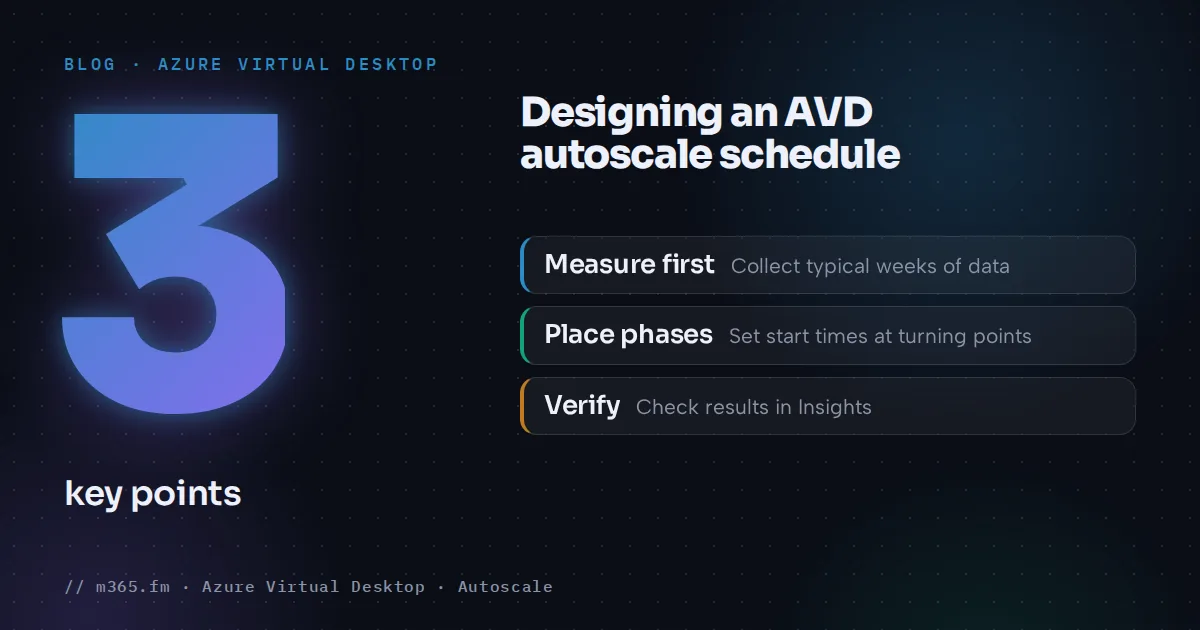
A good autoscale schedule starts from measured session counts: find the hours where sessions rise, hold and fall, and place the four phase start times at those turning points. Then set the minimum percentage of hosts and the capacity threshold in ramp-up and ramp-down, keep the ramp-down wait shorter than its phase, and verify the result with Insights.
Key points
- Start with data: hourly new connections from WVDConnections show when sign-ins begin, and session counters show where sessions hold, fall and reach the evening floor. Phase starts follow.
- Ramp-up must start early enough for hosts to power on before the first users arrive. Measure start times in your environment; the Learn pages give no figure.
- A ramp-down wait time must be shorter than the ramp-down phase. Learn's FAQ example is a 15-minute phase with a 20-minute wait, where forced sign-out never happens.
- Autoscale cannot ramp down on specific dates and a plan runs in one time zone. Use separate schedules for weekdays and weekends, and plan holidays by hand.
- Disconnected sessions keep hosts running. A time limit policy that signs them out, combined with a minimum of 0 percent, is the documented way to reach zero hosts after hours.
Sibling articles explain the phases ("Ramp-up, peak, ramp-down and off-peak: the four AVD autoscale phases explained") and plan creation ("How to create and assign an AVD scaling plan step by step"). This one covers the step before both: deciding the values.
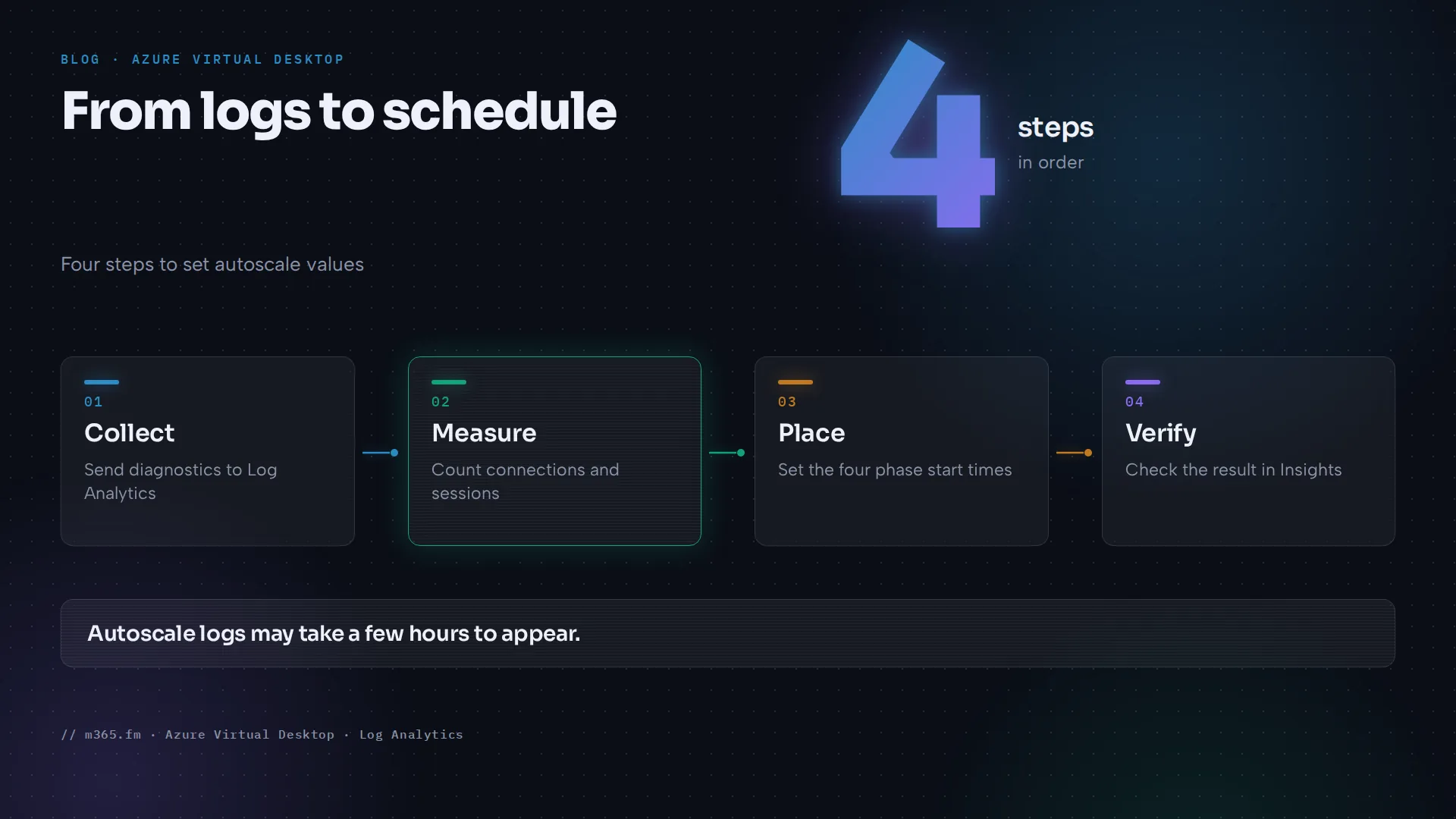
Step 1: Collect real usage data
Office hours on paper can differ from actual sign-in behavior. Measure at least a few typical weeks.
- Turn on diagnostic settings for the host pool and its workspace and send them to a Log Analytics workspace. On the host pool, include Autoscale logs for pooled host pools; Learn's Insights page lists it among the minimum categories. Viewing the data takes the Desktop Virtualization Reader and Log Analytics Reader roles; it may take a few hours to appear.
- Query
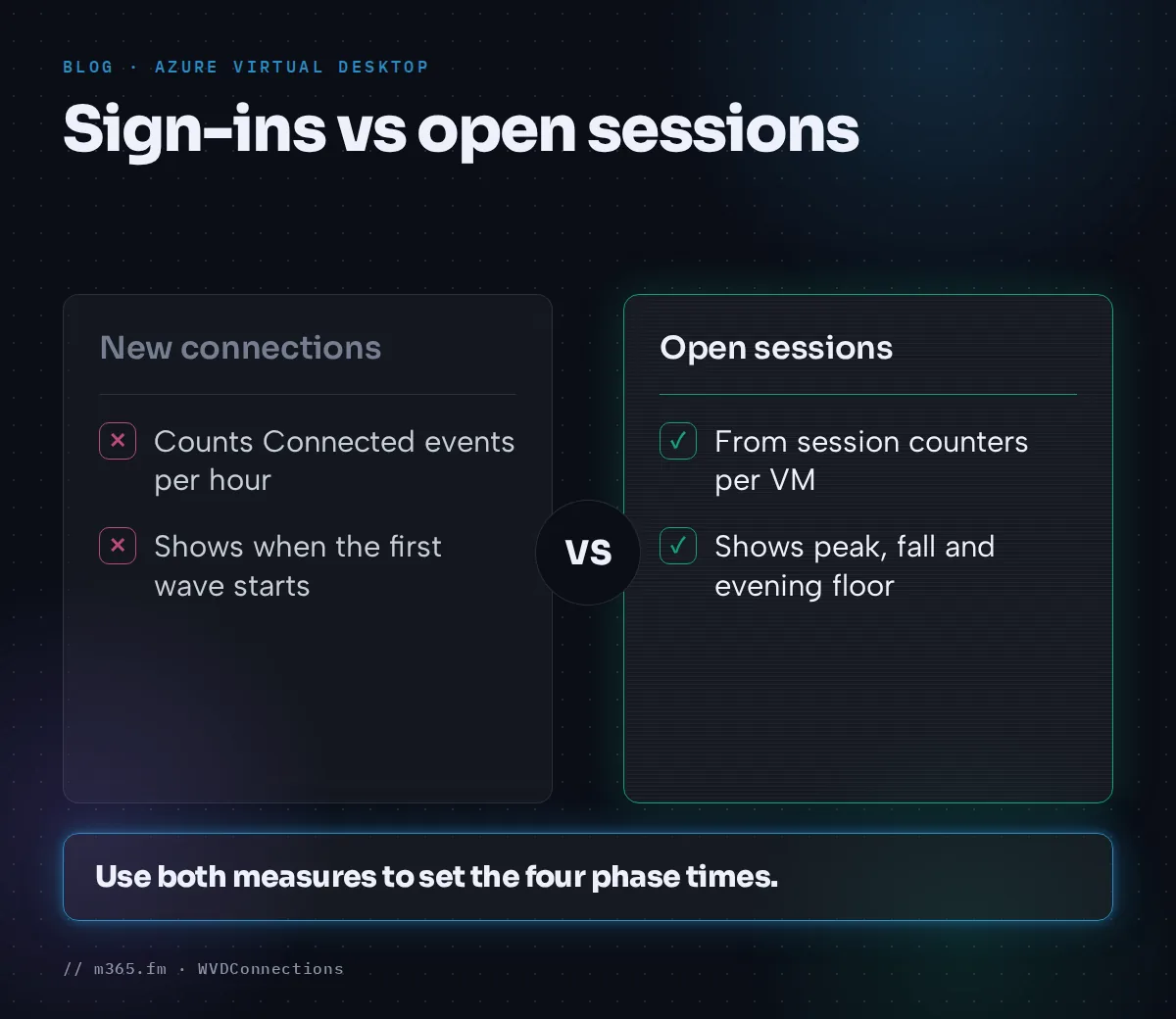
WVDConnectionsfor the sign-in profile. Learn describes the connection states Started, Connected and Completed; Connected is when the user successfully connects to the VM. Counting Connected events per hour gives new connections per hour: when the first wave starts and how large it is, not how many sessions are open. The query adapts Learn's per-day pattern to hourly counts; check the column names in your workspace. Learn's category table lists a Connections category, which the diagnostic setting needs for this table:
WVDConnections
| where State == "Connected"
| summarize NewConnections = dcount(CorrelationId) by bin(TimeGenerated, 1h)
| order by TimeGenerated asc
The table reference lists TimeGenerated as UTC. Convert the hours to the plan's time zone before you read start times, for example with the KQL function datetime_utc_to_local, and allow for daylight saving. With a half-hour offset, one-hour bins do not match local hours.
- Open sessions show the peak, the fall and the evening floor. Azure Virtual Desktop Insights collects performance counters through a data collection rule into the workspace you chose for session host data, which can differ from the diagnostics workspace, so query the one that holds the counters. Learn's cost page lists the counters Terminal Services Active Sessions, Inactive Sessions and Total Sessions, each sampled every 60 seconds per VM. The page does not define them, so query them yourself, check what they report and add the hosts together for a pool figure.
- After a plan is assigned to a pooled host pool and its Autoscale logs reach Log Analytics, the Autoscale tab in Insights shows the power-state changes of the session hosts over time and summary information. The underlying table,
WVDAutoscaleEvaluationPooled, has the columnsSessionCount,SessionOccupancyPercent,ActiveSessionHostCountandConfigSchedulePhase, so you can read these values per schedule phase. Learn definesSessionCountas the sessions on hosts that autoscale considers active.
Write down four numbers per weekday: when sign-ins first appear (sign-in profile), and, from the session counters, when sessions reach the daily maximum, when they start to fall, and when they reach the evening floor.
Step 2: Place the four phase start times
Learn defines the phases by session behavior: ramp-up is when sessions climb, peak is when they hold steady, ramp-down is when they fall, and off-peak is the daily minimum (autoscale schedule phases).
- Ramp-up start: before your first sign-in wave. Learn says this is when autoscale starts "preparing session hosts" for peak hours. Time how long a deallocated host takes to accept connections and add a margin; the page states no start-up duration.
- Peak start: where the curve flattens. This is also the end of ramp-up. Use the time zone you set for the plan.
- Ramp-down start: where concurrent sessions begin to fall steadily, not at the official finish time.
- Off-peak start: where the curve reaches the evening floor. This is the end of ramp-down.
Learn says a plan operates only in its configured time zone, and the peak start must be in that zone. Its pages give no daylight saving guidance, so check Insights after a clock change.
Step 3: Set minimum percentage and capacity threshold
This step covers power management autoscaling for pooled host pools. Dynamic autoscaling has different fields in its own section of Learn's create-and-assign page.
The capacity threshold and the minimum percentage of hosts are entered only in ramp-up and ramp-down. Learn's create-and-assign page says:
- The ramp-up capacity threshold carries over to peak, and the ramp-down value carries over to off-peak. Peak and off-peak have no threshold or minimum field of their own.
- Learn's troubleshooting page applies the minimum percentage during ramp-down and off-peak, but the create-and-assign page states the carry-over only for the capacity threshold. After a schedule change, check in Insights that hosts really reach zero.
Use your data like this:
- Ramp-up minimum: the number of hosts needed for the first wave, divided by total hosts. Autoscale rounds a non-whole result up.
- Ramp-up threshold: how full hosts may get before another starts. Learn says autoscale does not turn on VMs until the used host pool capacity is greater than the capacity threshold.
- Ramp-down threshold and minimum: Learn's third scenario pairs a high threshold with a low minimum percentage, which it says decreases the need to turn on new session hosts at the end of the workday.
- Ramp-down minimum: the floor you accept while load falls. Set it to 0 percent if hosts should be able to reach zero after hours, because Learn's FAQ says autoscale can turn off all VMs if the minimum percentage of hosts is 0 and no sessions remain.
Choosing the threshold value is covered in "Choosing the right capacity threshold for pooled host pools". Set a custom maximum session limit first: Learn's create-and-assign page says not to use the default MaxSessionLimit value.
Step 4: Fit the ramp-down to the exit pattern
The ramp-down field Force logoff of users decides what happens to users on hosts that autoscale wants to remove:
- On. Autoscale picks the host with the fewest sessions, puts it in drain mode, notifies users, signs them out after the wait time and deallocates the VM. See force sign-out.
- Off. You must choose VMs have no active or disconnected sessions or VMs have no active sessions. The autoscale FAQ recommends the second ("Stop VMs when no active sessions"). The worked example below uses it.
Learn's FAQ gives this trap for forced sign-out, which happens only in ramp-down: with a 15-minute ramp-down and a 20-minute wait time, the schedule moves to off-peak before the sign-out occurs. Make the phase longer than the wait.
To reach zero hosts, Learn's FAQ says you need zero sessions including disconnected ones, a 0 percent minimum during off-peak hours, and a Group Policy time limit for disconnected sessions (for example 15 to 30 minutes) that completes before ramp-down ends. The create-and-assign page gives the Intune equivalent, Set time limit for disconnected sessions in a Session Time Limits profile.
Step 5: Cover days, weekends and holidays
- Create separate schedules where behavior differs. A plan can have several, for example weekday and weekend schedules, each with a "Repeat on" setting.
- On unselected days, the last off-peak settings of the selected days carry over until the next ramp-up.
- Autoscale does not support ramping down on specific dates such as holidays. The FAQ names no workaround; because changes to an assigned plan apply immediately, one option is to edit the plan by hand on the day. The exclusion tag keeps individual hosts out of scaling.
- Nerdio Manager, a separate product, offers a Default and an Alternative schedule for specific dates such as holidays: Nerdio auto-scaling.
Worked example: three user groups
The numbers are invented. A pooled host pool has 15 hosts, a maximum session limit of 10 and a threshold of 75 percent in both phases. Learn gives the formula (sessions divided by the maximum session limit times the threshold, rounded up) for ramp-down and off-peak. For ramp-up and peak it states only the trigger: autoscale turns on a host when used capacity exceeds the capacity threshold. The table applies the same arithmetic to those phases as an approximation.
| Time | Concurrent sessions | Hosts needed | Reasoning |
|---|---|---|---|
| 06:30 to 08:00 | 20 (support team) | 20 / 7.5 = 2.7, so 3 | A 20 percent minimum of 15 hosts is also 3 |
| 08:00 to 08:30 | 20 rising to 100 | 3 rising to 14 | Autoscale adds hosts as sessions climb |
| 08:30 to 17:00 | 100 (office staff) | 100 / 7.5 = 13.3, so 14 | Peak, threshold carried over from ramp-up |
| 17:00 to 20:00 | 20 (finance team) | 20 / 7.5 = 2.7, so 3 | Load-based, no floor needed |
| 20:00 to 21:00 | 0 | 0 once the disconnected-session limit has run | Ramp-down still running; if users disconnect rather than sign out, the limit completes at 20:30 |
| After 21:00 | 0 | 0 | Needs a 0 percent minimum (entered in ramp-down; confirm in Insights that it holds in off-peak) and no disconnected sessions |
The "hosts needed" column is a capacity calculation, not a forecast of running hosts. With Force logoff of users off, more than 3 hosts can stay on if the finance team's sessions are spread across them.
A schedule from this table:
- Ramp-up 06:00: breadth-first, minimum 20 percent, threshold 75 percent. 06:00 is a margin before the 06:30 sign-ins; size it from your measured start-up time.
- Peak 08:30: breadth-first, as in Learn's FAQ example. The 75 percent threshold carries over from ramp-up.
- Ramp-down 17:00: depth-first, minimum 0 percent, threshold 75 percent. The stop condition is VMs have no active sessions and Force logoff of users is off.
- Off-peak 21:00: depth-first, threshold carried over from ramp-down, plus a 30-minute disconnected-session limit set through policy. If users disconnect at 20:00, the limit completes at 20:30, before ramp-down ends.
Step 6: Verify and adjust
After a week, run the query from Learn's autoscale monitoring page:
WVDAutoscaleEvaluationPooled
| where ResultType == "Succeeded"
| summarize max(SessionOccupancyPercent), max(SessionCount), max(ActiveSessionHostsPercent), max(ActiveSessionHostCount) by _ResourceId, bin(TimeGenerated, 1d), ConfigScheduleName, ConfigSchedulePhase
| order by _ResourceId asc, TimeGenerated asc, ConfigScheduleName, ConfigSchedulePhase asc
Learn gives no rule for reading these values; the following is a rule of thumb. Autoscale turns on another host only when used capacity is greater than the capacity threshold, so reaching the threshold is expected. Occupancy that is well above the threshold during ramp-up, or close to 100 percent soon after peak starts, suggests ramp-up began too late. Occupancy far below the threshold through ramp-up and peak suggests ramp-up began too early or the minimum is too high. Low occupancy in ramp-down and off-peak is not a fault, because the minimum keeps hosts running. Learn defines ScalingReasonMessage as the actions autoscale decided to perform and why; read it for the phases you want to question.
Sources
- Microsoft Learn: Autoscale scaling plans and example scenarios in Azure Virtual Desktop
- Microsoft Learn: Create and assign an autoscale scaling plan for Azure Virtual Desktop
- Microsoft Learn: Azure Virtual Desktop autoscale glossary
- Microsoft Learn: Troubleshoot autoscale in Azure Virtual Desktop
- Microsoft Learn: Azure Virtual Desktop autoscale FAQ
- Microsoft Learn: Use Log Analytics for the diagnostics feature
- Microsoft Learn: Monitor autoscale operations with Insights
- Microsoft Learn: Use Azure Virtual Desktop Insights
- Microsoft Learn: Estimate Azure Virtual Desktop Insights costs
- Nerdio: Enable dynamic host pool auto-scaling
FAQ
How early should ramp-up start before the first users sign in?
Time how long a session host takes to power on in your own environment, then start ramp-up that much earlier plus a margin. The autoscale scenarios and create-and-assign pages give no figure for the start-up time or a minimum lead time.
Can one scaling plan have different schedules for weekdays and weekends?
Yes. Microsoft Learn says a plan can contain multiple schedules, such as separate weekday and weekend schedules, each with its own Repeat on days. On days you do not select, the last off-peak settings carry over until the next ramp-up.
Can autoscale handle public holidays?
Not on its own. The autoscale FAQ says autoscale does not currently support ramping down on specific dates such as holidays. Nerdio's help pages describe alternative schedules for specific dates in Nerdio Manager, which is a separate product.