 EN
 Deutsch
 Español
 Français
 Italiano
 Português
 Nederlands
 Polski
 Bahasa Indonesia
 Русский
 Українська
 العربية
 עברית
 日本語
 한국어
Microsoft 365 Governance for Teams: Lifecycle, Naming Policy and Sprawl Control
By Mirko Peters ·
Which built-in Microsoft 365 controls enforce governance for Teams: group creation limits, naming policy, expiration, sensitivity labels and archiving. Steps, licensing notes and what each control cannot do.
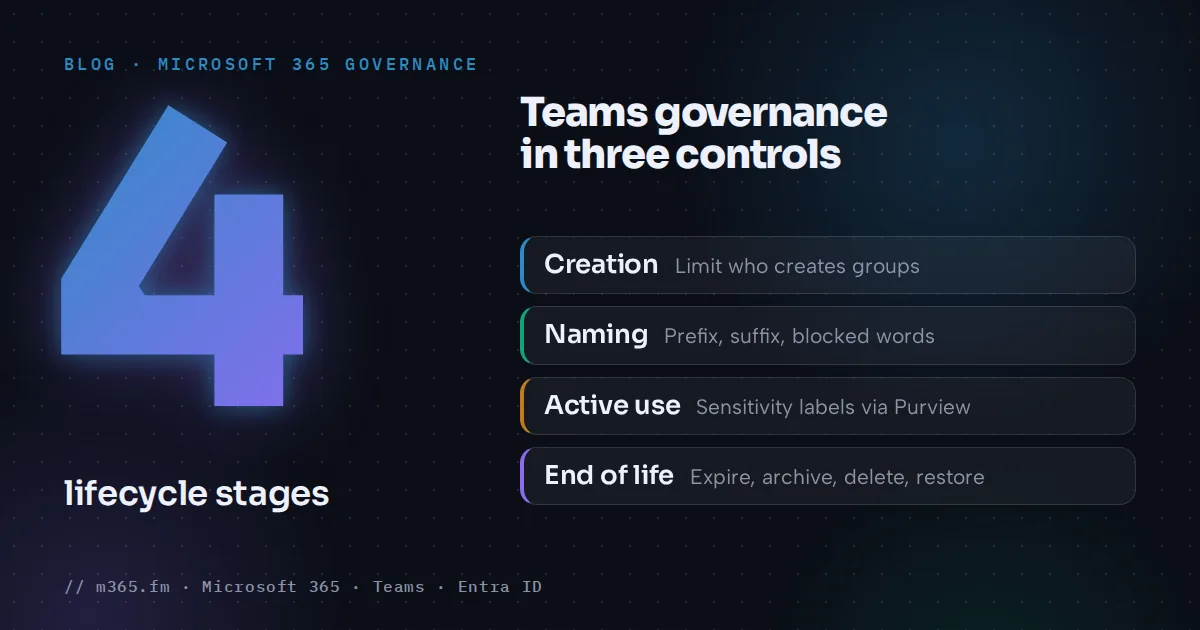
Governance for Teams works through the Microsoft 365 group behind each team. Microsoft Entra ID can limit who creates groups, force naming rules, expire inactive groups and, together with Microsoft Purview, apply sensitivity labels. The Teams admin center adds archiving. None of these tools find sprawl for you. They set rules at creation and at the end of life, and they need someone to own the exceptions.
Key points
- Every team sits on a Microsoft 365 group, so group-level policies in Microsoft Entra ID (creation limits, naming, expiration) govern Teams.
- Naming policy enforces prefix and suffix rules and blocked words. Exact-match only, 63 characters in total, and Global Administrator and User Administrator are exempt.
- Expiration lifetime is at least 30 days, owners get emails at 30, 15 and 1 day before expiry, and a deleted group can be restored for 30 days.
- Archive a team before you delete it. Microsoft Learn says an archived team can be reactivated, but a deleted team cannot be restored directly.
- Sensitivity labels for containers can enforce privacy, guest access and sharing per team. Learn does not state the license, so check the Purview service description.
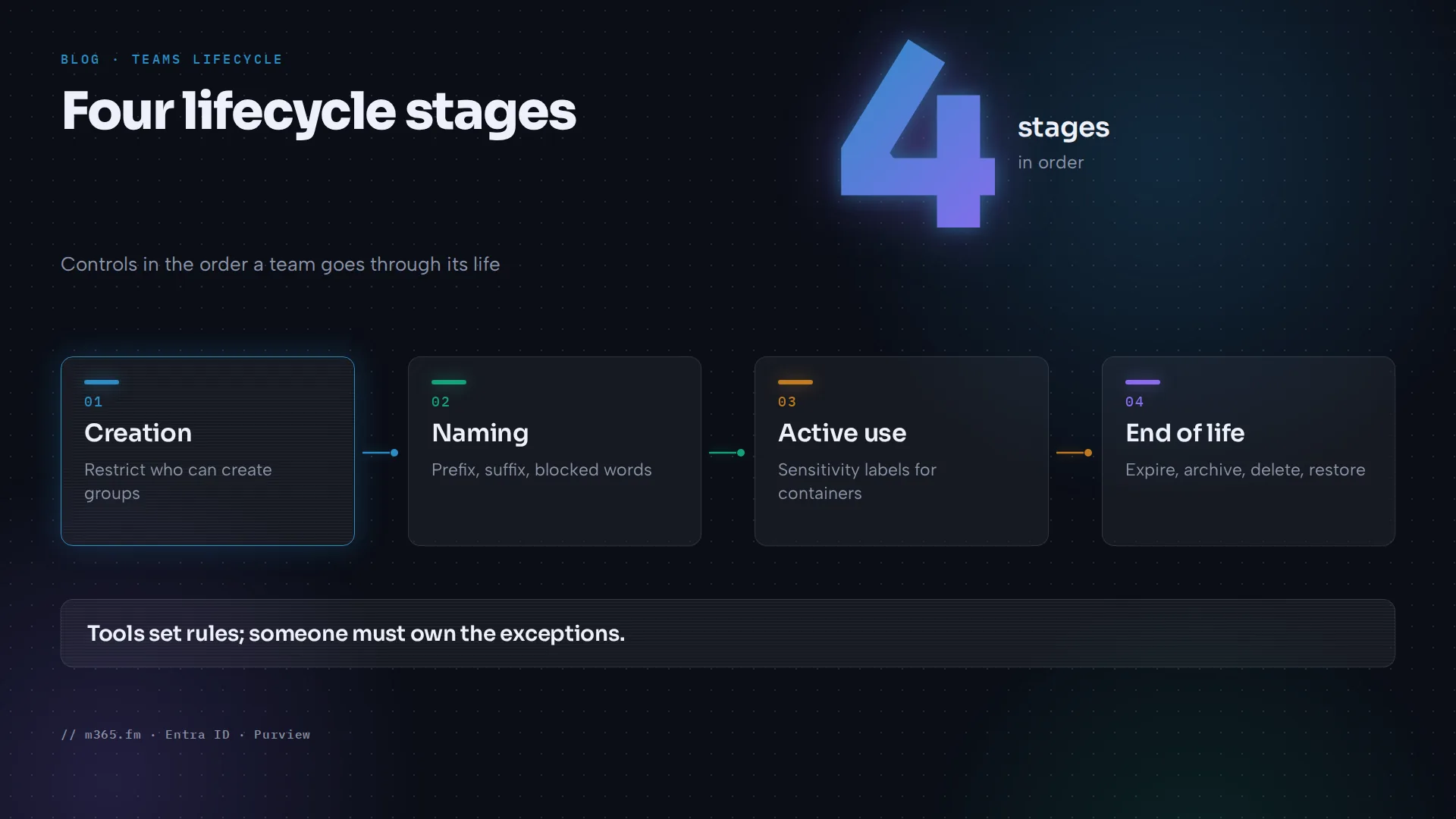
This article walks through each control in the order a team goes through its life, with the limits Microsoft documents.
The lifecycle in four stages
| Stage | Control | Where you set it | |---|---|---| | Creation | Restrict who can create groups | Microsoft Graph PowerShell (Beta module) | | Naming | Prefix and suffix, blocked words | Microsoft Entra admin center | | Active use | Sensitivity labels for containers | Microsoft Purview | | End of life | Expiration, archive, delete and restore | Entra admin center, Teams admin center |
Stage 1: Decide who can create teams
By default all users can create Microsoft 365 groups. Microsoft Learn says this is recommended because people can collaborate without waiting for IT. If you need a gate, Learn describes limiting creation to the members of one security group or Microsoft 365 group. Nested groups are allowed.
The documented steps are:
- Create the group of allowed creators in the Microsoft 365 admin center. Add people or groups as members, not owners.
- Run the PowerShell script from Learn with the Microsoft Graph PowerShell Beta module. It sets
EnableGroupCreationto false andGroupCreationAllowedGroupIdto your group. - Wait at least 30 minutes, then test with a user outside the group. Learn suggests opening Planner and choosing New Plan.
Know the side effects:
- The restriction affects Outlook, SharePoint, Viva Engage, Teams, Planner, Power BI (classic) and Project for the web.
- Several admin roles can still create groups. Learn says Global Administrators can create groups in the Microsoft 365 admin center, Planner, Exchange and SharePoint, but not in Teams.
- If allowed members still cannot create groups, check their OWA mailbox policy.
- The page is marked archived on Learn, so check the steps against current documentation.
For compliance concerns, Microsoft suggests requiring a training course before adding someone to the creators group.
Stage 2: Enforce a naming policy
The group naming policy applies to the group name and alias across workloads. It supports two rules:
- Prefix and suffix. The structure is
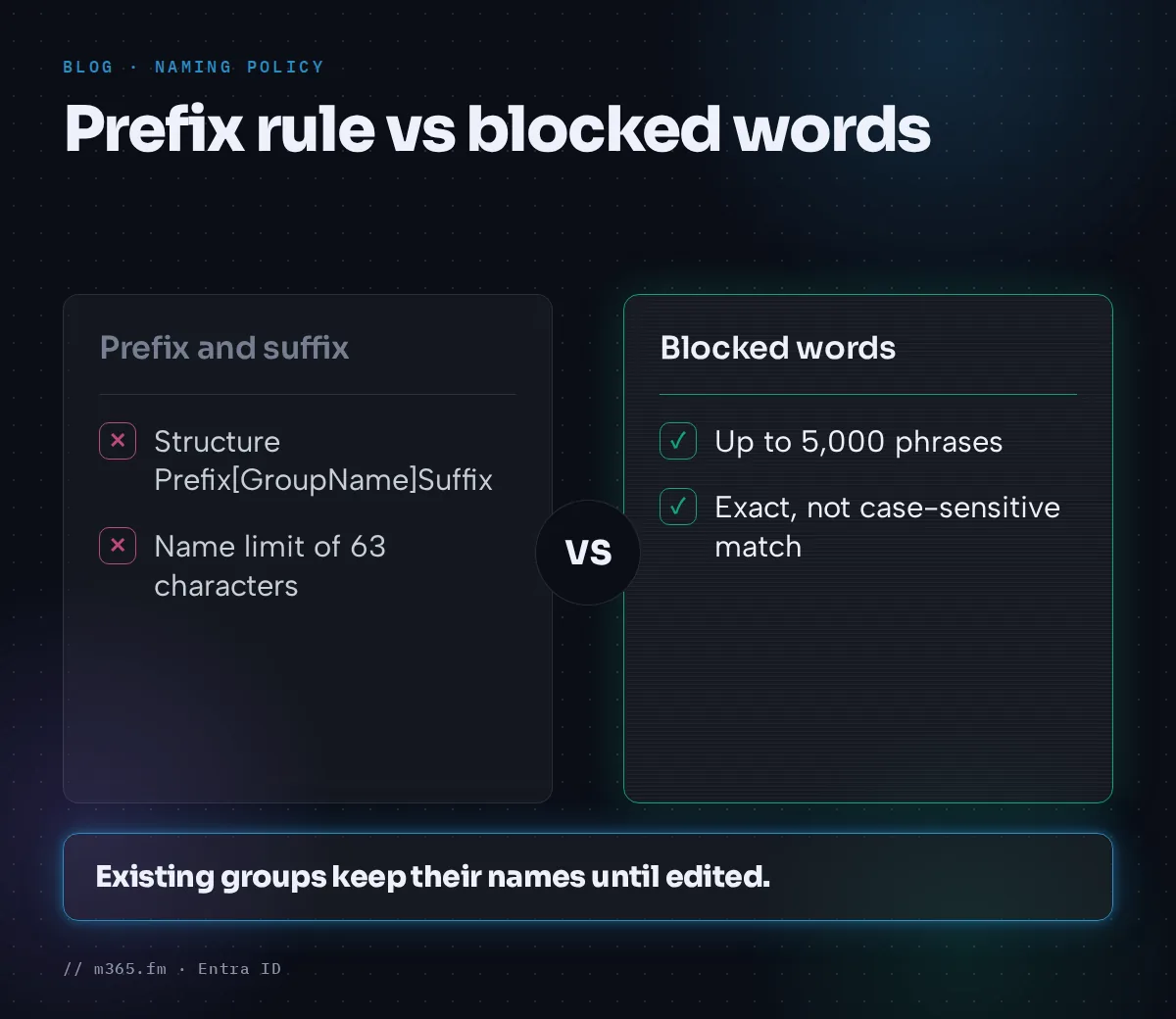
Prefix[GroupName]Suffix. Supported attributes are Department, Company, Office, State or province, Country or region and Title. Extension and custom attributes are not supported. The combined length of prefix, suffix and group name is limited to 63 characters. - Blocked words. A comma-separated list with up to 5,000 phrases. Matching is exact and not case-sensitive, so blocking "lass" does not block "Class".
To configure it, sign in to the Microsoft Entra admin center as at least a Group Administrator. Go to Microsoft Entra ID > All groups > Groups, then select Naming policy. You can also set PrefixSuffixNamingRequirement and CustomBlockedWordsList in the Group.Unified setting with Microsoft Graph PowerShell.
Points that surprise people:
- Existing groups are not renamed. The policy bites when an owner edits the name.
- Global Administrator and User Administrator are exempt.
- Compliance varies by client. Teams, SharePoint, Planner and the Outlook clients enforce it, but some show the error only on save. The Classroom app does not apply it automatically.
Stage 3: Label teams for how they may be used
Sensitivity labels for containers apply to Teams, Microsoft 365 groups, SharePoint sites, Viva Engage communities and Loop workspaces. They protect the container, not the files inside. A label can set:
- privacy (Public or Private),
- whether owners can add guests,
- external sharing for the SharePoint site,
- unmanaged device access and authentication context, which depend on Conditional Access,
- private team discoverability and shared channel controls.
Two cautions from Learn. The feature must be enabled first, including a label sync with Execute-AzureAdLabelSync, or the settings show but cannot be set. And new labels take at least an hour to replicate, 24 hours if shared channel controls are set. The Learn page does not state license requirements, so check the Purview service description.
Stage 4: Expire, archive and delete
Expiration policy
When you turn expiration on, you set a lifetime in days. The minimum is 30. One policy applies to the organization, and you choose All, Selected (up to 500 groups) or None. To set it, go to Identity > Groups > All groups > Expiration.
- Owners get emails 30, 15 and 1 day before expiration. Groups without an owner use the alternate email address you enter.
- Groups in use renew themselves about 35 days before expiry. For Teams, visiting a channel counts as activity.
- The group is deleted one day after the expiration date and can be restored for 30 days.
- After a policy is enabled, Learn says Entra waits five days before sending notifications, so groups are not flagged before activity can be recorded.
For groups without an owner, notices go to the alternate email address you configure, so make sure that address is monitored.
Archive first, delete later
In the Teams admin center, select Teams, select the team, then Archive. You can tick Make the SharePoint site read-only for team members. Learn says archiving stops team activity, archives private channels and their site collections, and keeps content viewable. Restore brings the team back.
Deleting is different. Learn says a deleted team cannot be restored directly, but restoring the Microsoft 365 group within the default 30-day soft-delete window brings back tabs, channels and sites. That restore can take up to 24 hours.
A practical order of work
- Turn on the naming policy first. It is low risk because it only affects new and edited groups.
- Define two or three sensitivity labels for teams and test them on pilot teams.
- Decide on a creation restriction only if you have a request process ready.
- Enable expiration last, after owners are reachable and you have tested notification emails.
- Write down who handles ownerless teams and restores.
Related
- Microsoft 365 group naming policy
- Microsoft 365 group expiration policy
- Sensitivity labels for containers
- Microsoft 365 Groups
Sources
- Naming policy for Microsoft 365 groups (Microsoft Learn)
- Expiration policy for Microsoft 365 groups (Microsoft Learn)
- Manage who can create Microsoft 365 Groups (Microsoft Learn, archived)
- Microsoft 365 group expiration policy (Microsoft Learn, archived)
- Archive or delete a team (Microsoft Learn)
- Sensitivity labels for Teams, groups and sites (Microsoft Learn)
FAQ
Which tools enforce governance for Teams in Microsoft 365?
According to Microsoft Learn, the built-in controls are the group creation restriction, the group naming policy and the group expiration policy in Microsoft Entra ID, sensitivity labels for containers in Microsoft Purview, and archiving in the Teams admin center. Teams are backed by Microsoft 365 groups, so the group policies apply to them.
How do I stop users from creating teams without approval?
Microsoft Learn describes limiting group creation to the members of one designated security or Microsoft 365 group, set with Microsoft Graph PowerShell. This affects Outlook, SharePoint, Teams, Planner and other services that rely on groups. Several admin roles can still create groups, and the page is marked archived, so verify the steps before use.
Does a naming policy rename existing teams?
No. Learn says the policy applies to new groups when it is configured. Existing groups are not changed until an owner edits the group name, and the policy is then enforced.
What happens to an expired team?
Learn says owners are warned 30, 15 and 1 day before expiration, active groups renew automatically, and an expired group is deleted one day after the expiration date. A deleted Microsoft 365 group can be restored within 30 days by an owner or an administrator.
Do I need special licenses for these controls?
Learn requires Microsoft Entra ID P1 or Basic EDU licenses for the naming policy, P1 or P2 for expiration, and P1, P2 or Basic EDU for restricting group creation. For naming and expiration the licenses do not need to be assigned to every group member. For sensitivity labels on containers the Learn page refers you to the Microsoft Purview service description.