 EN
EN Deutsch
 Español
 Français
 Italiano
 Português
 Nederlands
 Polski
 Bahasa Indonesia
 Русский
 Українська
 العربية
 עברית
עברית हिन्दी
 日本語
日本語 한국어
한국어2026-07-15 · Season 3
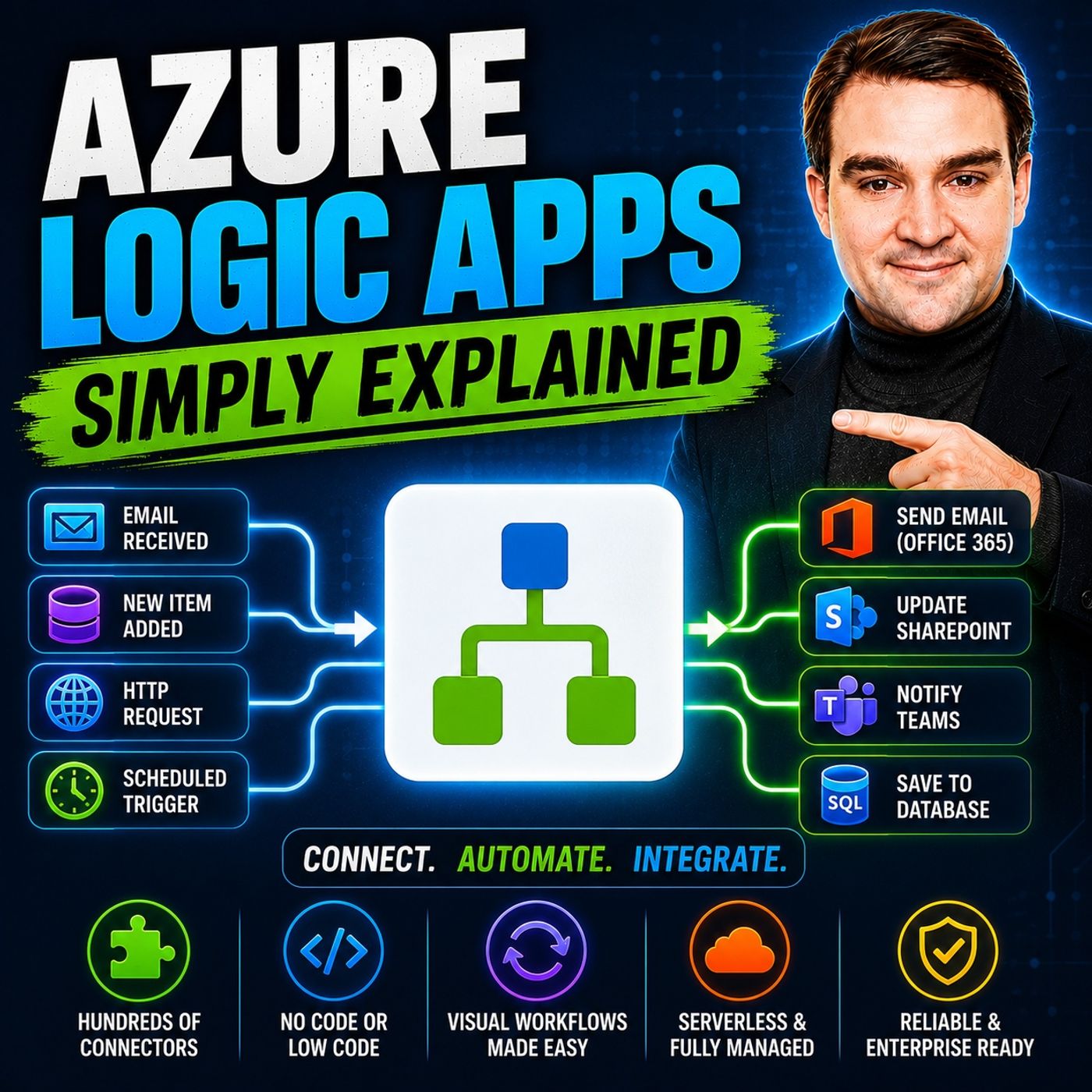
Azure Logic Apps - Simply Explained
Show notes
Connecting business applications has traditionally required custom development, complex integrations, and weeks of engineering effort. Azure Logic Apps changes that by providing a cloud-native workflow platform that allows organizations to automate processes visually without building integration code from scratch. In this episode of m365.fm, we explain Azure Logic Apps in plain English and show how it connects Microsoft 365, Azure services, enterprise applications, and third-party platforms into intelligent automated workflows. Whether you're an IT professional, developer, business analyst, or Microsoft administrator, you'll learn how Logic Apps simplifies enterprise automation while reducing manual work and operational complexity. WHY MODERN BUSINESSES NEED AUTOMATION Every organization relies on dozens of disconnected applications. SharePoint stores documents, Teams handles collaboration, Outlook manages email, SQL databases store business data, and CRM systems manage customers. Unfortunately, these systems rarely communicate automatically. We explore why manual processes remain common in many organizations, how traditional custom integrations become expensive to build and maintain, and why Azure Logic Apps has become Microsoft's enterprise automation platform for connecting applications without writing extensive code. Through practical examples, you'll discover how Logic Apps eliminates repetitive manual work while improving speed, accuracy, and business productivity. TRIGGERS, ACTIONS, AND CONNECTORS EXPLAINED Every Logic App begins with a trigger that starts a workflow, followed by actions that perform specific tasks. This episode explains event-based triggers, scheduled workflows, visual workflow design, conditional branching, loops, approvals, and error handling using simple real-world scenarios. We also explore one of Logic Apps' biggest strengths: its library of more than 1,400 built-in and managed connectors. Learn how Logic Apps integrates with Microsoft 365, Azure SQL Database, SharePoint, Microsoft Teams, Outlook, Salesforce, SAP, ServiceNow, GitHub, Dropbox, REST APIs, and hundreds of other business platforms without requiring developers to build custom integrations from scratch. CONSUMPTION VS. STANDARD AND REAL-WORLD SCENARIOS Choosing the right hosting model is an important architectural decision. We compare the Consumption and Standard plans, explaining pricing models, execution costs, dedicated compute, virtual network support, scalability, and enterprise deployment scenarios. Through practical examples—including document approval workflows, customer order processing, healthcare onboarding, IT incident response, and enterprise integration—you'll see how organizations use Logic Apps to automate complex business processes while reducing operational costs and improving reliability. We also discuss best practices for selecting the right hosting model based on workload size and business requirements. THE FUTURE OF LOGIC APPS: AI-POWERED AUTOMATION Azure Logic Apps is rapidly evolving beyond traditional workflow automation into an intelligent orchestration platform. This episode explores Microsoft's latest innovations, including natural language workflow generation, AI-powered workflow creation, and agentic automation introduced with Logic Apps Automation. You'll discover how AI agents can participate directly in workflows, make intelligent decisions, call connectors dynamically, and orchestrate increasingly sophisticated business processes. Whether you're modernizing legacy integrations, building cloud-native automation, or exploring Microsoft's AI-powered future, this episode provides a practical foundation for understanding where Azure Logic Apps fits within the modern Microsoft ecosystem and why it remains one of Azure's most powerful integration services. Become a supporter of this podcast: https://www.spreaker.com/podcast/m365-fm-microsoft-365-azure-cloud-power-platform-ai--6704921/support.
Apple Podcasts · Spotify · YouTube · YouTube Music · Deezer
Host: Mirko Peters
Related articles
Transcript
Read the full transcript
Welcome to another episode of Microsoft Knowledge Nuggets. I'm Mirko Peters, today's topic as your logic apps. Here's the question, what if you could connect your apps without writing a single line of code? I'm not talking about simple things like sending an email. I'm talking about connecting systems that don't talk to each other, your email, your file storage, your database, your customer records, and making them work together automatically. That's what as your logic apps does. In this episode, I'll explain what it actually is, how it works, and why it matters for anyone who uses Microsoft tools at work. By the end, you'll understand the big picture and know exactly where logic apps fits in your world. The problem, why automation needs a glue? Let's start with a scenario most people know. You get a file dropped into a SharePoint folder and someone needs to know about it in Teams. Maybe a database needs to be updated too. Three separate systems with no connection between them. So what happens? Someone manually checks the folder, copies the information, pastes it into Teams, then opens the database and makes the update every single time. It's slow, boring, and easy to make mistakes. The old way of handling this was to have someone write custom code. That means finding a developer, explaining what you need, waiting weeks for them to build it, then waiting again when something breaks. For most Teams, that's a non-starter because the IT department has a backlog and business teams have problems they need solved now. So the work stays manual. The problem isn't that people don't want to automate. It's that connecting different systems is hard. Each system has its own way of handling authentication, its own data format, its own rules. Writing code to bridge all of that takes time and expertise and most companies don't have enough developers to go around. So what if there was a platform that did all that connecting for you, a platform that already knows how to talk to SharePoint, Teams, Outlook, Databases, and hundreds of other services where you just say when this happens, do that and it handles the rest. That's exactly what Azure Logic Apps is. What Logic Apps actually is. Welcome to another episode of Microsoft Knowledge Nuggets. I'm Mirko Peters and today we're talking about Azure Logic Apps in plain English. So what exactly is it? Let's break it down. Azure Logic Apps is a cloud-based workflow service from Microsoft. It runs in Azure, which means Microsoft handles the servers, the scaling, the uptime. You don't have to worry about any of that. You just build your workflow and it runs. Here's the simplest way to think about it. Imagine your company is in office building. Each department is a separate room. SharePoint is one room, Teams is another. Your database is down the hall. Normally, if you need something to move from one room to another, someone has to physically carry it. Logic Apps is the automated mail room. It sits in the middle, knows where everything needs to go and roots messages between departments automatically. You don't need to build new doors between every room. You just tell the mail room what to do. Now you might have heard of Power Automate and you might be wondering, isn't that the same thing? Not exactly. Power Automate is built for business users. It's designed for simple personal workflows. Like email me when I get a message in Teams. Logic Apps is built for IT teams and developers. It handles more complex scenarios, bigger volumes and enterprise great needs like security and compliance. Think of Power Automate as a bicycle. Great for getting around the office. Logic Apps is a delivery truck. Built for heavier loads and longer routes. Logic Apps is also serverless. That's a technical term, but it means something simple. You only pay when your workflows actually run. If nothing happens all day, you pay nothing. If a thousand files get uploaded at once, the platform scales up automatically to handle it and you pay for what you used. No service to manage, no capacity planning, no wasted money on idle hardware. The building blocks, triggers and actions. Every Logic App starts the same way with a trigger. A trigger is just something that kicks off your workflow. Think of it like a motion sensor. When the sensor detects movement, the lights turn on. In Logic Apps, when the trigger fires, your workflow starts running. Triggers come in two main flavors. Event-based triggers wait for something to happen. A file uploads to SharePoint. An email arrives in Outlook. A new row appears in a database table. Schedule-based triggers run on a timer. Every hour, every day at 9 a.m., every Monday morning. You pick what makes sense for your scenario. Once the trigger fires, you add actions. Actions are the steps your workflow takes. Send a message in Teams. Create a record in Salesforce. Update a row in SQL Server. Call an external API. Each action is a building block. You can snap together. Let me give you a concrete example. Say you have a SharePoint document library where your team uploads proposals. When a new proposal lands, you want the team to know about it in Teams. Your trigger is when a file is created in SharePoint. Your action is post a message in a Teams channel. Two blocks, that's it. The workflow runs automatically every time someone uploads a file. No one has to remember to send the notification. It just happens. The visual designer is where you build these workflows. It's a drag and drop canvas in the Azure portal. You pick your trigger from a list, drop it onto the canvas, then add actions underneath. Each action connects to the one before it. You can add conditions. If the file is over one maybe be, send it to the review team, otherwise, file it in the archive. You can add loops. You can add parallel branches. The designer shows you the whole flow visually, so you can see exactly what will happen at every step. And here's the thing. You don't need to be a developer to use it. If you can draw a flow chart, you can build a logic app. The platform handles all the technical plumbing behind the scenes. Authentication, error handling, retries is all built in, but the real power isn't just the workflow itself. It's what you can connect to. And that brings us to connectors. Connectors, the real superpower. Logic apps comes with over one 400 pre-built connectors. That number sounds impressive, but let me tell you what it actually means. A connector is a ready-made bridge between logic apps and another service. Microsoft has already handled the hard work of authentication, error handling and retries, so you just pick the service you want and it works. Want to pull data from Salesforce? There's a connector. Need to update a record in SAP connector for that too. And if you need to send a message to a service now, queue, there's a connector ready to go. Microsoft 365 services like SharePoint, Teams Outlook, and OneDrive all have connectors. As your services like SQL Database, Blob Storage, and Event Grid all covered. Third party services like Dropbox, GitHub, Twitter, and Slack, connectors for every one of them. Each connector gives you a set of triggers and actions specific to that service. The SharePoint connector listens for new files, the Outlook connector sends emails and the SQL connector runs queries and stored procedures. You don't need to learn the API for each service. The connector abstracts all that away. Now, two types of connectors you should know about. Built-in connectors run inside the logic apps runtime itself. They're faster and cheaper because there's no external call to a hosted service. Built-in connectors include HTTP, service bus, Azure Functions, and some Azure services. Managed connectors are hosted by Microsoft and cover the broader ecosystem. Hundreds of services from Microsoft and third parties. They cost a bit more per call, but they cover way more ground. If no connector exists for the service you need, you're not stuck. Logic apps include a generic HTTP action that lets you call any rest API directly. Just passing the URL, method, headers, and body. It works the same as a connector just without the pre-built convenience. You handle authentication yourself, but you still get all the retry and error handling logic apps provides. The one 400 connectors matter because they remove the biggest barrier to automation, the integration work. Every connector you don't have to build yourself saves weeks of development time. When you combine connectors with triggers and actions, you can build workflows that span your entire technology stack without writing a single line of integration code. Consumption versus standard, which model fits you. You understand what logic apps is, how triggers and actions work, and the power of connectors. But there's another decision you need to make that affects how much you pay. Logic apps comes in two flavors, consumption and standard, and they're not the same thing, so choosing the wrong one can cost you. Consumption is the pay per execution model. You build your workflow and only pay when it runs. If it sits idle all day, you pay nothing. If it runs a hundred times, you pay for a hundred executions. The first 4,000 actions each month are free, and after that it's fractions of a penny per action. Connector calls cost a bit more, but still tiny amounts. For most beginners, this is the right place to start. Think of consumption like a taxi. You pay for the ride you take. If you don't go anywhere, you don't pay. If you take a short trip, it costs a little. If you take a long trip, it costs more. The price matches your usage exactly. Standard is different. It runs on dedicated compute, like having your own server, but managed by Microsoft. You pay a fixed monthly cost based on how much compute power you reserve. The smallest standard plan starts around $175 a month and gives you one virtual CPU and 3.5 gigabytes of memory. You can run as many workflows as you want on that plan, and the price doesn't change based on how many times they execute. Standard is like a car payment. You pay the same amount every month, whether you drive it once a day or once a year. If you drive a lot, that fixed cost can be cheaper per trip than taking taxis everywhere. But if you barely drive, you're paying for capacity you don't use. So when do you pick each one? Consumption is great for spiky or low volume workloads. Say a workflow that runs a few times a day when someone uploads a file, that's pennies per month on consumption. So putting it on standard would be a waste. But if you have a workflow that runs thousands of times in our processing orders, handling real-time data, or orchestrating complex integrations, the per execution costs of consumption add up fast. At that point, standards fixed monthly price becomes the cheaper option. There's another difference worth knowing. Standard gives you more control. You get better performance because the compute is dedicated to you, plus virtual network support for strict security requirements. And you can even run standard workflows locally on your own hardware. Consumption runs only in Microsoft's cloud on shared infrastructure, so you don't get the same level of control, but you also don't have to manage anything. For most people starting out, the answer is simple. Start with consumption. It costs virtually nothing to try. Build your first workflow, see how it works, and only worry about standard if your volume grows to the point where consumption becomes more expensive than the fixed plan. You can always migrate later. Real-world examples in action. Let me show you what this looks like when real companies run it. These aren't just ideas. They're actual workflows happening today. Example one is the simplest. A file lands in a SharePoint document library, and that's the trigger. The action fires off a notification to a Microsoft Teams channel, name of the file, who uploaded it, and a link to open it. Setup takes about three minutes. The result? Nobody has to manually check the folder anymore. Every team member sees that notification instantly. Over a year that one workflow saves hours of checking, forwarding, and those, did you see the new file? Messages. It's a small thing, but it adds up fast. Example two gets more complex. A customer places an order on a website, and that order hits a SQL database. A logic app picks it up, validates the inventory against another database, shoots a confirmation email throughout look, creates a record in Salesforce, and posts a notification to the warehouse team in Teams. That's five different systems connected in one flow. Before logic apps, someone would have to check that database manually, send the email, open Salesforce, and walk over to the warehouse. Now it happens in seconds, automatically, with no human touching a thing. That's the kind of integration that saves whole departments. Example three comes from healthcare. A research case study documented a logic app's workflow for patient onboarding. When a new patient was registered in their electronic medical record system, the logic app would create accounts in Microsoft 365, send welcome materials, schedule the first appointment, and notify the care team. The numbers were impressive, manual errors dropped by 75%, and onboarding speed improved by 40%. That's not just faster. That's better patient care, because the administrative work doesn't fall through the cracks. Example four is IT incident response, and Azure Monitor alert fires when a server goes down. That alert triggers a logic app. The workflow creates a ticket in service now, post the message in a team's channel with the incident details and starts a timer. If nobody acknowledges the incident within 15 minutes, the logic app escalates. It sends an SMS to the on-call engineer, then to the team lead, then to the manager. It keeps going until someone responds. Before this, IT teams relied on email alerts that got buried in inboxes. Now, incidents get addressed faster, because the escalation is automatic. The common thread across all these examples is the same. Logic apps connect systems that don't naturally talk to each other. SharePoint doesn't know about teams. Your database doesn't know about Salesforce. Your monitoring tools don't know about your ticketing system. Logic apps sits in the middle, listens for events, and routes information where it needs to go. It's the glue that holds your automation together. Where logic apps is headed, a genetic automation. So, that's where logic apps is today. But the platform is changing fast, and the biggest shift is something you need to know about. It's called a "gentic automation", and it's changing what's possible with workflows. Microsoft announced Logic Apps Automation at Build2026. The headline feature is simple but powerful. You can now describe what you want in natural language, and the platform builds the workflow for you. Instead of dragging and dropping every trigger and action, you type something like, when a support ticket comes in, check the customer's history, and if they're a premium customer, assign it to the senior team. Logic Apps analyzes your request, picks the right connectors, configures the parameters, and scaffolds the entire workflow. You can then tweak it in the visual designer, but the heavy lifting is done. That alone is a big shift. But the bigger change is AI agents. Logic Apps now lets you integrate AI agents directly as steps in your workflow. These agents aren't just calling an API and returning a result. They reason, they use tools, they make decisions. You give an agent a goal, a set of tools it can use, and instructions on how to behave. The agent then figures out the best way to accomplish the goal, calling connectors, querying databases, and even asking for human approval when it needs to. Think about what that means for the examples we just covered. The SharePointed Teams notification is simple. But what about the customer order workflow? Instead of hard coding every step, you could have an agent that handles exceptions. An order comes in with a customer address that doesn't match the database. Instead of the workflow failing, the agent can check the customer's history, look up alternative addresses, and decide whether to process or flag it for review. It adapts to situations the workflow designer didn't anticipate. The key inside here is that logic apps isn't just for connecting apps anymore. It's becoming the orchestration layer for AI. The connectors handle the plumbing, the workflows handle the logic, and the agents handle the decisions that used to require a human in the loop that's a fundamentally different way of thinking about automation. Getting started with logic apps. Let me tell you exactly how to start if you want to try this yourself. You don't need much. You'll need an Azure subscription. If you don't have one, Microsoft gives you $200 in free credit for the first month. That's plenty to build and test several workflows without spending a dime. And you'll need a work or school account. A personal hotmail account works for some things, but for the full experience, use an account tied to your organization. Start with the consumption plan. It's the cheapest way to learn. You can build your first workflow without committing to any monthly cost. If your workflow runs once a day, you'll pay pennies a month. There's no risk. Pick a simple scenario you already do manually. Don't try to automate your entire department on day one. Focus on one thing. Maybe it's getting a notification when a file lands in a specific folder. Or saving email attachments to one drive automatically. Or posting a message in Teams when a new item appears in a SharePoint list. The simpler the scenario, the faster you'll get it working. And the more confident you'll feel building the next one. The Azure portal has a visual designer. Open it, pick a trigger from the list, add an action and test it. You don't need to write any code. The designer shows you the whole flow and you can run it immediately to see if it works. Microsoft also provides templates for common scenarios. Open the Logic Apps Designer and you'll see a gallery of pre-built templates. File upload notifications, email to Teams alerts, scheduled data exports. You can use a template as a starting point and customize it for your needs. That's the fastest way to get something running. Start today. Pick one repetitive task you do across apps and automate it. Even if it saves you five minutes a day, that's five minutes you get back. Once you see how easy it is, you'll start finding more. So here's what you need to remember. Logic Apps is Microsoft's automation glue. It connects systems that don't talk to each other naturally. It handles the plumbing, authentication, retries, error handling, scaling, so you don't have to manage any of it. And it runs without you thinking about servers. The key takeaway is this. You don't have to be a developer to build automations and you don't have to be an IT pro to run them. The visual designer, the pre-built connectors, the templates, they're all designed to lower the barrier. If you can describe a process, you can automate it. Your homework is simple. Think of one repetitive task you do across apps. One thing that involves moving information from one system to another, then go try to automate it with Logic Apps. Start with the consumption plan. Use a template if one exists. See how far you get. That's it for this episode of Microsoft Knowledge Nuggets. If this helped you understand, Logic Apps a little better. Share it with someone who's starting their journey into Microsoft automation. And subscribe on your favorite podcast platform so you don't miss the next one. I'm Merco Peters and thanks for listening.