


 Apple Podcasts
 Spotify
 Youtube Music
 Spreaker
 Podchaser
 Amazon Music
 Azure Logic Apps - Simply Explained
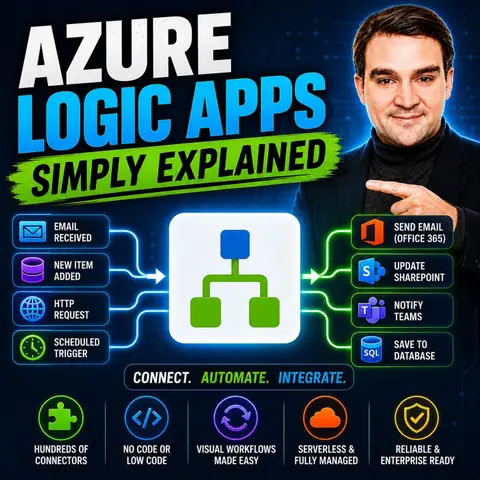
Azure Logic Apps is Microsoft's cloud-native workflow automation platform that helps organizations connect applications, services, and data without writing large amounts of code. Instead of building complex integrations from scratch, you create visual workflows that automatically respond to events, execute business processes, and move information between cloud services, on-premises systems, and third-party applications.
In this episode, you'll learn what Azure Logic Apps is, how it works, and why it's one of the most powerful automation services in Microsoft Azure. The discussion explains the core building blocks of a workflow, including triggers, actions, connectors, conditions, loops, and approvals, while showing how they work together to automate repetitive business tasks. You'll also discover the difference between Azure Logic Apps, Power Automate, and Azure Functions, helping you choose the right tool for different automation scenarios.
The episode explores practical use cases such as document approvals, file processing, email automation, ERP and CRM integrations, IT operations, monitoring, incident response, and AI-powered workflows. You'll see how Logic Apps connects seamlessly with Microsoft 365, Azure Storage, Service Bus, Event Grid, SQL Server, SAP, Salesforce, and hundreds of other services through pre-built connectors, making enterprise integration significantly faster and easier.
Finally, you'll understand when Azure Logic Apps is the ideal solution for workflow orchestration, how it scales automatically, and the best practices for building secure, reliable, and maintainable automations. By the end of this episode, you'll have a solid understanding of Azure Logic Apps and how it helps organizations streamline business processes while reducing manual work across their entire Microsoft ecosystem.
Quick answer: Azure Logic Apps is a cloud workflow service for connecting systems, automating processes, and orchestrating integrations with managed connectors. This episode explains triggers, actions, connectors, error handling, and design choices that help teams build dependable automation without managing workflow servers.
Are you looking for a way to simplify your business processes? Azure Logic Apps might be just what you need! This powerful tool automates workflows and integrates various services, making your life a whole lot easier. With Azure Logic Apps, you can connect different applications without getting lost in complex coding or lengthy integration efforts. Recent industry reports show that businesses using Azure Logic Apps see improved efficiency as they automate complex integrations and streamline workflows. So, if you want to boost productivity and enhance operational efficiency, Azure Logic Apps is definitely worth exploring!
Key Takeaways
- Azure Logic Apps automates workflows, making business processes simpler and more efficient.
- The low-code visual designer allows users to create workflows without extensive coding skills.
- Businesses can connect over 200 services, enhancing productivity and streamlining operations.
- Organizations report significant ROI, with improvements in productivity and efficiency after implementing Azure Logic Apps.
- The serverless model reduces costs, as you only pay for the actions your workflows perform.
- Creating workflows is straightforward, requiring just a few clicks to set up triggers and actions.
- Azure Logic Apps supports various industries, helping automate tasks like scheduling and transaction approvals.
- Monitoring tools provide insights into workflow performance, allowing for optimization and troubleshooting.
Azure Logic Apps Overview

Azure Logic Apps is a cloud-based service that helps you automate workflows and connect apps without needing extensive coding skills. Imagine being able to create complex workflows with just a few clicks! This tool allows you to integrate various services, making it easier to manage your business processes.
Key Features
Here are some standout features that make Azure Logic Apps a go-to choice for workflow automation:
| Feature | Description |
|---|---|
| Low-code visual designer | Enables you to create workflows using a drag-and-drop interface without extensive coding. |
| Extensive integration capabilities | Connects various services, data sources, and applications seamlessly. |
| Enterprise-grade connectors | Provides advanced connectors for integrating with enterprise systems and custom APIs. |
| Support for complex workflows | Facilitates the design of intricate workflows suitable for both simple and complex automation. |
With Azure Logic Apps, you can automate tasks like scheduling, sending email notifications, handling client orders, and transferring files. This flexibility allows you to tailor solutions to meet your specific needs.
The benefits of using Azure Logic Apps are significant. You gain a cloud-based Platform-as-a-Service (PaaS) that streamlines your workflows and enhances productivity. Here’s how:
- You can create automated workflows that integrate services, systems, and applications.
- The low-code/no-code tools make it easy for anyone to automate tasks, even without specialized expertise.
- Developers can build AI-powered applications faster, while teams can move from idea to production without complex infrastructure.
By automating complex business processes, Azure Logic Apps reduces the time and errors associated with manual workflows. You can connect with over 200 different services, enhancing your overall productivity. This capability allows you to focus on what matters most—growing your business.
Importance of Azure Logic Apps
Business Benefits
Azure Logic Apps can significantly enhance your business operations. By automating workflows, you can streamline processes and boost productivity. Organizations that have implemented Azure Logic Apps report impressive results, including:
- 295% ROI over three years
- Payback in less than six months
- 35-45% increase in productivity
- 40-50% improvement in efficiencies
- Cost reductions valued at over $650,000
These figures highlight how Azure Logic Apps can transform your workflow management. You can also expect a 70% reduction in process completion time and an 85% improvement in data accuracy. This means less time spent on repetitive tasks and more focus on strategic initiatives. Plus, employees often feel more satisfied when they can avoid mundane activities.
The serverless nature of Azure Logic Apps allows you to deploy workflows quickly without worrying about infrastructure management. This is a game-changer compared to traditional automation methods, which often require extensive setup and ongoing maintenance. With Azure Logic Apps, you can concentrate on designing effective workflows rather than getting bogged down in technical details.
Comparison with Other Tools
When comparing Azure Logic Apps to other automation tools like Microsoft Power Automate and AWS Step Functions, several factors come into play. Here’s a quick overview:
| Factor | AWS Step Functions Advantage | Azure Logic Apps Advantage |
|---|---|---|
| Ecosystem Fit | Ideal for AWS-centric environments | Suited for Microsoft/Azure stacks and broad SaaS connectivity |
| Workflow Complexity | Better for intricate, long-running state machines | Excels in simple to moderate integrations via visual tools |
| Scalability | Automatic scaling with durable execution | Flexible scaling with connector support, but potential latency in hybrid setups |
Azure Logic Apps stands out with its extensive library of over 1,400 pre-built connectors. This makes it easy to integrate various services without extensive coding. The visual designer allows you to create workflows using a drag-and-drop interface, making it accessible even for those with minimal technical skills.
In terms of pricing, Azure Logic Apps offers two main tiers: the Consumption tier, which charges based on the number of executions, and the Standard tier, which provides additional features for more complex needs. This flexibility ensures that you can choose a plan that fits your business requirements.
Building Workflows with Azure Logic Apps
Creating workflows with Azure Logic Apps is a straightforward process. You don’t need to be a coding expert to get started. Just follow these simple steps to create a Logic Apps workflow:
- Open the Azure portal and navigate to your logic app menu. Select Workflows and click on Add.
- In the New workflow pane, name your workflow and choose the State type (either Stateful or Stateless), then select Create.
- Choose the blank stateful workflow from the list.
- Access the Designer from the workflow menu under Tools.
- Click on Add trigger to open the connectors gallery and select a trigger operation.
- Ensure your blank workflow is open and the Add a trigger prompt is selected.
- Search for request and add the When an HTTP request is received trigger to your workflow.
- Save your workflow by selecting Save on the designer toolbar.
- Under the added trigger, click the plus sign (+) and select Add an action.
- Search for office 365 outlook send email and add the Send an email (V2) action to your workflow.
- In the action's information pane, create a connection to your email account by selecting Sign in.
With these steps, you can easily create a Logic Apps workflow that automates tasks and integrates various services.
Triggers and Actions
In Azure Logic Apps, triggers and actions are the backbone of your workflows. They help you automate business processes effectively. Here’s how they work:
- A trigger initiates your workflow. It can be based on various events, such as receiving an email or a scheduled time.
- Actions follow the trigger and perform tasks like sending emails, creating records, or calling APIs.
Here’s a quick overview of different types of triggers:
| Trigger Type | Description |
|---|---|
| Scheduled Trigger | Runs on a fixed interval. |
| HTTP Request Trigger | Starts when another system calls the workflow endpoint. |
| Event-based Trigger | Responds to changes in a connected service. |
| Connector-based Trigger | Monitors a mailbox, queue, file location, or business application for new activity. |
When you set up your workflow, remember that it can branch, loop, or pause as needed. This flexibility allows you to create complex workflows that suit your business needs.
To summarize, triggers kick off your workflows, while actions handle the tasks that follow. By understanding how to use these components, you can effectively manage your Logic Apps workflows and automate processes that save you time and effort.
How Azure Logic Apps Function
Workflow Execution
When you create workflows in Azure Logic Apps, you can expect smooth execution and monitoring. Each workflow runs based on triggers you set, allowing you to automate tasks efficiently. You can monitor your Logic App through various tools that provide insights into performance and execution status. Here are some monitoring tools you might find useful:
| Monitoring Tool | Best Use Case | Strengths |
|---|---|---|
| Log Analytics (Workspace) | Real-time monitoring and troubleshooting | Rich querying capabilities with KQL, integration with Azure Monitor, alerting capabilities. |
| Storage Accounts (Blob Storage) | Long-term storage for audit and compliance purposes | Best for storing large volumes of data at low cost, simple export and archive capabilities. |
| Event Hubs | Streaming telemetry to external systems | Ideal for pushing telemetry data to external processing systems or analytics platforms. |
Every Logic App emits telemetry data, helping you understand how your workflows perform. This data falls into three categories: platform metrics, resource logs, and activity logs. By analyzing this information, you can identify bottlenecks and optimize your workflows for better performance.
Serverless Model
The serverless model of Azure Logic Apps is a game-changer for organizations looking to save costs and scale efficiently. With this model, you only pay for the actions your workflows perform. This pay-per-use pricing eliminates the need for hefty upfront investments and reduces ongoing operational costs. You can focus on your core activities without the burden of managing infrastructure.
Here are some advantages of the serverless architecture:
- Automatic scaling based on demand, ensuring resources are allocated dynamically.
- Cost efficiency, as you’re charged based on actual usage, which lowers costs during periods of low demand.
- Reduced management overhead, allowing developers to concentrate on application logic rather than infrastructure.
Additionally, the serverless model enables faster development cycles. You can respond quickly to changing business needs and market demands, making your organization more agile. Azure Logic Apps also implement robust error handling, utilizing retry policies and timeout settings to manage failures effectively. For instance, if a transient issue occurs, your workflow can automatically retry the action instead of failing outright.
Real-World Applications
Use Cases Across Industries
Azure Logic Apps have found their way into various industries, transforming how businesses operate. Here are some common use cases:
| Industry | Use Case Description |
|---|---|
| Healthcare | Streamlining patient appointment scheduling by checking doctor availability and scheduling in the system. |
| Financial Services | Automating client transaction approval by integrating with CRM, accounting systems, and compliance tools. |
| Client Support | Streamlining ticket management by categorizing and routing support tickets to appropriate teams. |
In the manufacturing sector, organizations leverage Azure Logic Apps to enhance operational efficiency. They connect systems like SAP and PLM for real-time data synchronization. This integration leads to improved collaboration and innovation among teams. Here are some key aspects of how Azure Logic Apps benefit manufacturing:
| Aspect | Description |
|---|---|
| Automated System Integrations | Azure Logic Apps connect SAP, PLM, and PPM systems for real-time data synchronization. |
| Enhanced Operational Efficiency | Centralized integration and streamlined processes improve overall performance. |
| Scalability and Flexibility | Cloud infrastructure supports growth and adapts to business needs. |
| Improved Collaboration | Unified platforms enhance team collaboration and innovation. |
Success Stories
Many organizations have achieved remarkable results using Azure Logic Apps. Here are a few notable success stories:
| Company | Achievement | Link |
|---|---|---|
| Fortune Brands Innovations | Unified brands under one portal, enhancing customer experience with Power Pages and Dynamics 365. | Read the story |
| Solv | Eliminated 98% of clerical errors, saving 40 man-hours monthly with Dynamics 365 Business Central. | Read the story |
| Syensqo.AI | Developed SyGPT chatbot rapidly using Azure OpenAI Service. | Read the story |
These examples illustrate how Azure Logic Apps can drive digital transformation across various sectors. Whether automating order processing in e-commerce or streamlining incident management, Azure Logic Apps empower businesses to innovate and respond quickly to market demands. By integrating essential systems, you can enhance data flow and improve overall efficiency, allowing your organization to focus on strategic initiatives.
In summary, Azure Logic Apps offers a powerful solution for automating workflows and integrating services. With its low-code approach, you can quickly create automated processes that save time and reduce errors. Here are some key benefits to consider:
- Automation: Streamline complex processes with minimal coding.
- Scalability: Adjust resources based on your needs, ensuring efficiency.
- Flexibility: Connect to various applications and services effortlessly.
- Cost-Effectiveness: Pay only for what you use, making it ideal for businesses of all sizes.
By leveraging Azure Logic Apps, you can enhance productivity and focus on what truly matters—growing your business. So why not explore the potential of Azure Logic Apps today?
FAQ
What are Azure Logic Apps?
Azure Logic Apps is a cloud service that helps you automate workflows and connect different applications without needing extensive coding skills.
How do I start using Azure Logic Apps?
To start, sign in to the Azure portal, create a new Logic App, and use the visual designer to build your workflows.
Can I integrate third-party applications?
Yes! Azure Logic Apps offers over 1,400 connectors, allowing you to integrate with popular services like Salesforce, SAP, and more.
Is Azure Logic Apps suitable for small businesses?
Absolutely! Azure Logic Apps is designed for businesses of all sizes. Its low-code approach makes it accessible for small teams.
How does pricing work for Azure Logic Apps?
Azure Logic Apps has a pay-as-you-go pricing model. You only pay for the actions your workflows perform, making it cost-effective.
Can I monitor my workflows?
Yes, you can monitor your workflows using tools like Log Analytics and Azure Monitor. These tools provide insights into performance and execution status.
Are there any security features?
Yes, Azure Logic Apps includes built-in security features such as encryption, authentication, and compliance with industry standards.
What types of triggers can I use?
You can use various triggers, including scheduled triggers, HTTP request triggers, and event-based triggers, to start your workflows.
🎧 Listen to this episode
Want a practical explanation of Azure Logic Apps? This episode breaks down the topic in clear language and shows why it matters for Microsoft 365, Azure, Power Platform, security, AI, and modern work.
Listen to this episode if you want to:
- Understand the key concepts behind Azure Logic Apps
- See how it fits into the wider Microsoft technology ecosystem
- Learn where it can create practical value for your organization
You may also enjoy these related M365 FM episodes:
- Azure Logic Apps for Multi-Agent AI Orchestration
- Stop Microsoft Copilot Prompt Injection with Azure Logic Apps
- Scale Azure Logic Apps Beyond Custom Connectors
- Power Automate vs Azure Logic Apps for Scalable Workflows
- Logic Apps and Copilot Studio for Intent-Driven Automation
Discover more practical Microsoft conversations on M365 FM.
Last reviewed: July 2026.
Who Should Listen
This episode is for Azure administrators, architects, developers, and IT leaders who need a practical foundation before designing, governing, or operating this service.
🎧 You Should Also Listen To
- Azure Functions — A practical next step for extending this topic.
- Azure Service Bus — A practical next step for extending this topic.
- Azure Event Grid — A practical next step for extending this topic.
🚀 Want to be part of m365.fm?
Then stop just listening… and start showing up.
👉 Connect with me on LinkedIn and let’s make something happen:
- 🎙️ Be a podcast guest and share your story
- 🎧 Host your own episode (yes, seriously)
- 💡 Pitch topics the community actually wants to hear
- 🌍 Build your personal brand in the Microsoft 365 space
This isn’t just a podcast — it’s a platform for people who take action.
🔥 Most people wait. The best ones don’t.
👉 Connect with me on LinkedIn and send me a message:
"I want in"
Let’s build something awesome 👊
1
00:00:00,000 --> 00:00:02,560
Welcome to another episode of Microsoft Knowledge Nuggets.
2
00:00:02,560 --> 00:00:05,760
I'm Mirko Peters, today's topic as your logic apps.
3
00:00:05,760 --> 00:00:08,160
Here's the question, what if you could connect your apps
4
00:00:08,160 --> 00:00:10,080
without writing a single line of code?
5
00:00:10,080 --> 00:00:12,520
I'm not talking about simple things like sending an email.
6
00:00:12,520 --> 00:00:13,880
I'm talking about connecting systems
7
00:00:13,880 --> 00:00:15,760
that don't talk to each other, your email,
8
00:00:15,760 --> 00:00:18,680
your file storage, your database, your customer records,
9
00:00:18,680 --> 00:00:20,800
and making them work together automatically.
10
00:00:20,800 --> 00:00:22,240
That's what as your logic apps does.
11
00:00:22,240 --> 00:00:25,080
In this episode, I'll explain what it actually is,
12
00:00:25,080 --> 00:00:26,880
how it works, and why it matters
13
00:00:26,880 --> 00:00:29,400
for anyone who uses Microsoft tools at work.
14
00:00:29,400 --> 00:00:31,520
By the end, you'll understand the big picture
15
00:00:31,520 --> 00:00:34,560
and know exactly where logic apps fits in your world.
16
00:00:34,560 --> 00:00:37,400
The problem, why automation needs a glue?
17
00:00:37,400 --> 00:00:39,720
Let's start with a scenario most people know.
18
00:00:39,720 --> 00:00:41,960
You get a file dropped into a SharePoint folder
19
00:00:41,960 --> 00:00:43,760
and someone needs to know about it in Teams.
20
00:00:43,760 --> 00:00:46,000
Maybe a database needs to be updated too.
21
00:00:46,000 --> 00:00:48,560
Three separate systems with no connection between them.
22
00:00:48,560 --> 00:00:49,360
So what happens?
23
00:00:49,360 --> 00:00:52,080
Someone manually checks the folder, copies the information,
24
00:00:52,080 --> 00:00:54,560
pastes it into Teams, then opens the database
25
00:00:54,560 --> 00:00:56,080
and makes the update every single time.
26
00:00:56,080 --> 00:00:58,880
It's slow, boring, and easy to make mistakes.
27
00:00:58,880 --> 00:01:00,240
The old way of handling this was to have
28
00:01:00,240 --> 00:01:01,600
someone write custom code.
29
00:01:01,600 --> 00:01:04,200
That means finding a developer, explaining what you need,
30
00:01:04,200 --> 00:01:05,760
waiting weeks for them to build it,
31
00:01:05,760 --> 00:01:07,320
then waiting again when something breaks.
32
00:01:07,320 --> 00:01:08,920
For most Teams, that's a non-starter
33
00:01:08,920 --> 00:01:10,640
because the IT department has a backlog
34
00:01:10,640 --> 00:01:13,200
and business teams have problems they need solved now.
35
00:01:13,200 --> 00:01:14,480
So the work stays manual.
36
00:01:14,480 --> 00:01:16,440
The problem isn't that people don't want to automate.
37
00:01:16,440 --> 00:01:18,400
It's that connecting different systems is hard.
38
00:01:18,400 --> 00:01:20,800
Each system has its own way of handling authentication,
39
00:01:20,800 --> 00:01:22,920
its own data format, its own rules.
40
00:01:22,920 --> 00:01:25,800
Writing code to bridge all of that takes time and expertise
41
00:01:25,800 --> 00:01:28,360
and most companies don't have enough developers to go around.
42
00:01:28,360 --> 00:01:30,440
So what if there was a platform that did all that
43
00:01:30,440 --> 00:01:32,520
connecting for you, a platform that already knows
44
00:01:32,520 --> 00:01:36,040
how to talk to SharePoint, Teams, Outlook, Databases,
45
00:01:36,040 --> 00:01:38,040
and hundreds of other services where you just say
46
00:01:38,040 --> 00:01:40,600
when this happens, do that and it handles the rest.
47
00:01:40,600 --> 00:01:42,840
That's exactly what Azure Logic Apps is.
48
00:01:42,840 --> 00:01:44,520
What Logic Apps actually is.
49
00:01:44,520 --> 00:01:47,320
Welcome to another episode of Microsoft Knowledge Nuggets.
50
00:01:47,320 --> 00:01:49,360
I'm Mirko Peters and today we're talking about
51
00:01:49,360 --> 00:01:51,000
Azure Logic Apps in plain English.
52
00:01:51,000 --> 00:01:52,920
So what exactly is it? Let's break it down.
53
00:01:52,920 --> 00:01:55,440
Azure Logic Apps is a cloud-based workflow service
54
00:01:55,440 --> 00:01:56,280
from Microsoft.
55
00:01:56,280 --> 00:01:58,080
It runs in Azure, which means Microsoft
56
00:01:58,080 --> 00:02:00,520
handles the servers, the scaling, the uptime.
57
00:02:00,520 --> 00:02:02,240
You don't have to worry about any of that.
58
00:02:02,240 --> 00:02:04,120
You just build your workflow and it runs.
59
00:02:04,120 --> 00:02:06,000
Here's the simplest way to think about it.
60
00:02:06,000 --> 00:02:07,680
Imagine your company is in office building.
61
00:02:07,680 --> 00:02:09,120
Each department is a separate room.
62
00:02:09,120 --> 00:02:11,160
SharePoint is one room, Teams is another.
63
00:02:11,160 --> 00:02:12,360
Your database is down the hall.
64
00:02:12,360 --> 00:02:15,120
Normally, if you need something to move from one room to another,
65
00:02:15,120 --> 00:02:17,000
someone has to physically carry it.
66
00:02:17,000 --> 00:02:18,840
Logic Apps is the automated mail room.
67
00:02:18,840 --> 00:02:21,280
It sits in the middle, knows where everything needs to go
68
00:02:21,280 --> 00:02:23,600
and roots messages between departments automatically.
69
00:02:23,600 --> 00:02:25,800
You don't need to build new doors between every room.
70
00:02:25,800 --> 00:02:27,600
You just tell the mail room what to do.
71
00:02:27,600 --> 00:02:29,760
Now you might have heard of Power Automate
72
00:02:29,760 --> 00:02:31,760
and you might be wondering, isn't that the same thing?
73
00:02:31,760 --> 00:02:32,800
Not exactly.
74
00:02:32,800 --> 00:02:34,720
Power Automate is built for business users.
75
00:02:34,720 --> 00:02:37,040
It's designed for simple personal workflows.
76
00:02:37,040 --> 00:02:39,600
Like email me when I get a message in Teams.
77
00:02:39,600 --> 00:02:42,440
Logic Apps is built for IT teams and developers.
78
00:02:42,440 --> 00:02:45,000
It handles more complex scenarios, bigger volumes
79
00:02:45,000 --> 00:02:47,960
and enterprise great needs like security and compliance.
80
00:02:47,960 --> 00:02:49,840
Think of Power Automate as a bicycle.
81
00:02:49,840 --> 00:02:51,520
Great for getting around the office.
82
00:02:51,520 --> 00:02:53,080
Logic Apps is a delivery truck.
83
00:02:53,080 --> 00:02:55,400
Built for heavier loads and longer routes.
84
00:02:55,400 --> 00:02:56,920
Logic Apps is also serverless.
85
00:02:56,920 --> 00:02:59,400
That's a technical term, but it means something simple.
86
00:02:59,400 --> 00:03:01,480
You only pay when your workflows actually run.
87
00:03:01,480 --> 00:03:03,480
If nothing happens all day, you pay nothing.
88
00:03:03,480 --> 00:03:05,560
If a thousand files get uploaded at once,
89
00:03:05,560 --> 00:03:07,760
the platform scales up automatically to handle it
90
00:03:07,760 --> 00:03:09,240
and you pay for what you used.
91
00:03:09,240 --> 00:03:11,840
No service to manage, no capacity planning,
92
00:03:11,840 --> 00:03:14,240
no wasted money on idle hardware.
93
00:03:14,240 --> 00:03:16,840
The building blocks, triggers and actions.
94
00:03:16,840 --> 00:03:20,000
Every Logic App starts the same way with a trigger.
95
00:03:20,000 --> 00:03:22,280
A trigger is just something that kicks off your workflow.
96
00:03:22,280 --> 00:03:23,760
Think of it like a motion sensor.
97
00:03:23,760 --> 00:03:26,360
When the sensor detects movement, the lights turn on.
98
00:03:26,360 --> 00:03:28,120
In Logic Apps, when the trigger fires,
99
00:03:28,120 --> 00:03:29,480
your workflow starts running.
100
00:03:29,480 --> 00:03:31,080
Triggers come in two main flavors.
101
00:03:31,080 --> 00:03:33,440
Event-based triggers wait for something to happen.
102
00:03:33,440 --> 00:03:35,200
A file uploads to SharePoint.
103
00:03:35,200 --> 00:03:36,720
An email arrives in Outlook.
104
00:03:36,720 --> 00:03:38,880
A new row appears in a database table.
105
00:03:38,880 --> 00:03:40,880
Schedule-based triggers run on a timer.
106
00:03:40,880 --> 00:03:43,760
Every hour, every day at 9 a.m., every Monday morning.
107
00:03:43,760 --> 00:03:45,640
You pick what makes sense for your scenario.
108
00:03:45,640 --> 00:03:47,400
Once the trigger fires, you add actions.
109
00:03:47,400 --> 00:03:49,280
Actions are the steps your workflow takes.
110
00:03:49,280 --> 00:03:50,480
Send a message in Teams.
111
00:03:50,480 --> 00:03:51,880
Create a record in Salesforce.
112
00:03:51,880 --> 00:03:53,360
Update a row in SQL Server.
113
00:03:53,360 --> 00:03:54,840
Call an external API.
114
00:03:54,840 --> 00:03:56,160
Each action is a building block.
115
00:03:56,160 --> 00:03:57,320
You can snap together.
116
00:03:57,320 --> 00:03:58,840
Let me give you a concrete example.
117
00:03:58,840 --> 00:04:00,680
Say you have a SharePoint document library
118
00:04:00,680 --> 00:04:02,600
where your team uploads proposals.
119
00:04:02,600 --> 00:04:04,400
When a new proposal lands, you want the team
120
00:04:04,400 --> 00:04:05,960
to know about it in Teams.
121
00:04:05,960 --> 00:04:08,680
Your trigger is when a file is created in SharePoint.
122
00:04:08,680 --> 00:04:11,520
Your action is post a message in a Teams channel.
123
00:04:11,520 --> 00:04:12,880
Two blocks, that's it.
124
00:04:12,880 --> 00:04:15,960
The workflow runs automatically every time someone uploads a file.
125
00:04:15,960 --> 00:04:18,400
No one has to remember to send the notification.
126
00:04:18,400 --> 00:04:19,480
It just happens.
127
00:04:19,480 --> 00:04:21,880
The visual designer is where you build these workflows.
128
00:04:21,880 --> 00:04:24,120
It's a drag and drop canvas in the Azure portal.
129
00:04:24,120 --> 00:04:25,600
You pick your trigger from a list,
130
00:04:25,600 --> 00:04:28,600
drop it onto the canvas, then add actions underneath.
131
00:04:28,600 --> 00:04:31,360
Each action connects to the one before it.
132
00:04:31,360 --> 00:04:32,760
You can add conditions.
133
00:04:32,760 --> 00:04:34,560
If the file is over one maybe be,
134
00:04:34,560 --> 00:04:36,440
send it to the review team, otherwise,
135
00:04:36,440 --> 00:04:37,680
file it in the archive.
136
00:04:37,680 --> 00:04:38,520
You can add loops.
137
00:04:38,520 --> 00:04:40,240
You can add parallel branches.
138
00:04:40,240 --> 00:04:42,880
The designer shows you the whole flow visually,
139
00:04:42,880 --> 00:04:45,240
so you can see exactly what will happen at every step.
140
00:04:45,240 --> 00:04:46,040
And here's the thing.
141
00:04:46,040 --> 00:04:47,800
You don't need to be a developer to use it.
142
00:04:47,800 --> 00:04:48,760
If you can draw a flow chart,
143
00:04:48,760 --> 00:04:50,120
you can build a logic app.
144
00:04:50,120 --> 00:04:52,000
The platform handles all the technical plumbing
145
00:04:52,000 --> 00:04:52,920
behind the scenes.
146
00:04:52,920 --> 00:04:55,760
Authentication, error handling, retries is all built in,
147
00:04:55,760 --> 00:04:57,920
but the real power isn't just the workflow itself.
148
00:04:57,920 --> 00:04:59,400
It's what you can connect to.
149
00:04:59,400 --> 00:05:01,200
And that brings us to connectors.
150
00:05:01,200 --> 00:05:03,400
Connectors, the real superpower.
151
00:05:03,400 --> 00:05:07,280
Logic apps comes with over one 400 pre-built connectors.
152
00:05:07,280 --> 00:05:08,440
That number sounds impressive,
153
00:05:08,440 --> 00:05:10,160
but let me tell you what it actually means.
154
00:05:10,160 --> 00:05:11,800
A connector is a ready-made bridge
155
00:05:11,800 --> 00:05:14,240
between logic apps and another service.
156
00:05:14,240 --> 00:05:15,960
Microsoft has already handled the hard work
157
00:05:15,960 --> 00:05:18,280
of authentication, error handling and retries,
158
00:05:18,280 --> 00:05:20,560
so you just pick the service you want and it works.
159
00:05:20,560 --> 00:05:22,040
Want to pull data from Salesforce?
160
00:05:22,040 --> 00:05:22,840
There's a connector.
161
00:05:22,840 --> 00:05:25,520
Need to update a record in SAP connector for that too.
162
00:05:25,520 --> 00:05:27,480
And if you need to send a message to a service now,
163
00:05:27,480 --> 00:05:29,480
queue, there's a connector ready to go.
164
00:05:29,480 --> 00:05:32,600
Microsoft 365 services like SharePoint, Teams Outlook,
165
00:05:32,600 --> 00:05:34,360
and OneDrive all have connectors.
166
00:05:34,360 --> 00:05:36,800
As your services like SQL Database, Blob Storage,
167
00:05:36,800 --> 00:05:38,480
and Event Grid all covered.
168
00:05:38,480 --> 00:05:41,760
Third party services like Dropbox, GitHub, Twitter, and Slack,
169
00:05:41,760 --> 00:05:43,440
connectors for every one of them.
170
00:05:43,440 --> 00:05:45,360
Each connector gives you a set of triggers
171
00:05:45,360 --> 00:05:47,520
and actions specific to that service.
172
00:05:47,520 --> 00:05:49,320
The SharePoint connector listens for new files,
173
00:05:49,320 --> 00:05:50,760
the Outlook connector sends emails
174
00:05:50,760 --> 00:05:54,000
and the SQL connector runs queries and stored procedures.
175
00:05:54,000 --> 00:05:56,360
You don't need to learn the API for each service.
176
00:05:56,360 --> 00:05:58,480
The connector abstracts all that away.
177
00:05:58,480 --> 00:06:01,200
Now, two types of connectors you should know about.
178
00:06:01,200 --> 00:06:04,240
Built-in connectors run inside the logic apps runtime itself.
179
00:06:04,240 --> 00:06:05,720
They're faster and cheaper because there's
180
00:06:05,720 --> 00:06:07,880
no external call to a hosted service.
181
00:06:07,880 --> 00:06:10,920
Built-in connectors include HTTP, service bus,
182
00:06:10,920 --> 00:06:13,280
Azure Functions, and some Azure services.
183
00:06:13,280 --> 00:06:15,360
Managed connectors are hosted by Microsoft
184
00:06:15,360 --> 00:06:17,000
and cover the broader ecosystem.
185
00:06:17,000 --> 00:06:19,520
Hundreds of services from Microsoft and third parties.
186
00:06:19,520 --> 00:06:22,280
They cost a bit more per call, but they cover way more ground.
187
00:06:22,280 --> 00:06:25,040
If no connector exists for the service you need, you're not stuck.
188
00:06:25,040 --> 00:06:27,080
Logic apps include a generic HTTP action
189
00:06:27,080 --> 00:06:29,440
that lets you call any rest API directly.
190
00:06:29,440 --> 00:06:32,400
Just passing the URL, method, headers, and body.
191
00:06:32,400 --> 00:06:33,680
It works the same as a connector
192
00:06:33,680 --> 00:06:35,280
just without the pre-built convenience.
193
00:06:35,280 --> 00:06:36,560
You handle authentication yourself,
194
00:06:36,560 --> 00:06:39,800
but you still get all the retry and error handling logic apps provides.
195
00:06:39,800 --> 00:06:42,040
The one 400 connectors matter because they remove
196
00:06:42,040 --> 00:06:44,640
the biggest barrier to automation, the integration work.
197
00:06:44,640 --> 00:06:46,440
Every connector you don't have to build yourself
198
00:06:46,440 --> 00:06:48,200
saves weeks of development time.
199
00:06:48,200 --> 00:06:50,760
When you combine connectors with triggers and actions,
200
00:06:50,760 --> 00:06:54,000
you can build workflows that span your entire technology stack
201
00:06:54,000 --> 00:06:56,920
without writing a single line of integration code.
202
00:06:56,920 --> 00:06:59,640
Consumption versus standard, which model fits you.
203
00:06:59,640 --> 00:07:01,280
You understand what logic apps is,
204
00:07:01,280 --> 00:07:03,960
how triggers and actions work, and the power of connectors.
205
00:07:03,960 --> 00:07:06,920
But there's another decision you need to make that affects how much you pay.
206
00:07:06,920 --> 00:07:08,680
Logic apps comes in two flavors,
207
00:07:08,680 --> 00:07:11,200
consumption and standard, and they're not the same thing,
208
00:07:11,200 --> 00:07:13,920
so choosing the wrong one can cost you.
209
00:07:13,920 --> 00:07:16,640
Consumption is the pay per execution model.
210
00:07:16,640 --> 00:07:19,800
You build your workflow and only pay when it runs.
211
00:07:19,800 --> 00:07:21,680
If it sits idle all day, you pay nothing.
212
00:07:21,680 --> 00:07:24,920
If it runs a hundred times, you pay for a hundred executions.
213
00:07:24,920 --> 00:07:27,600
The first 4,000 actions each month are free,
214
00:07:27,600 --> 00:07:30,160
and after that it's fractions of a penny per action.
215
00:07:30,160 --> 00:07:32,920
Connector calls cost a bit more, but still tiny amounts.
216
00:07:32,920 --> 00:07:35,080
For most beginners, this is the right place to start.
217
00:07:35,080 --> 00:07:36,880
Think of consumption like a taxi.
218
00:07:36,880 --> 00:07:38,280
You pay for the ride you take.
219
00:07:38,280 --> 00:07:40,320
If you don't go anywhere, you don't pay.
220
00:07:40,320 --> 00:07:42,440
If you take a short trip, it costs a little.
221
00:07:42,440 --> 00:07:44,520
If you take a long trip, it costs more.
222
00:07:44,520 --> 00:07:46,320
The price matches your usage exactly.
223
00:07:46,320 --> 00:07:47,640
Standard is different.
224
00:07:47,640 --> 00:07:50,520
It runs on dedicated compute, like having your own server,
225
00:07:50,520 --> 00:07:51,800
but managed by Microsoft.
226
00:07:51,800 --> 00:07:55,040
You pay a fixed monthly cost based on how much compute power you reserve.
227
00:07:55,040 --> 00:07:58,240
The smallest standard plan starts around $175 a month
228
00:07:58,240 --> 00:08:01,760
and gives you one virtual CPU and 3.5 gigabytes of memory.
229
00:08:01,760 --> 00:08:04,800
You can run as many workflows as you want on that plan,
230
00:08:04,800 --> 00:08:07,880
and the price doesn't change based on how many times they execute.
231
00:08:07,880 --> 00:08:09,360
Standard is like a car payment.
232
00:08:09,360 --> 00:08:10,760
You pay the same amount every month,
233
00:08:10,760 --> 00:08:12,840
whether you drive it once a day or once a year.
234
00:08:12,840 --> 00:08:15,480
If you drive a lot, that fixed cost can be cheaper per trip
235
00:08:15,480 --> 00:08:17,040
than taking taxis everywhere.
236
00:08:17,040 --> 00:08:19,760
But if you barely drive, you're paying for capacity you don't use.
237
00:08:19,760 --> 00:08:21,160
So when do you pick each one?
238
00:08:21,160 --> 00:08:23,920
Consumption is great for spiky or low volume workloads.
239
00:08:23,920 --> 00:08:25,840
Say a workflow that runs a few times a day
240
00:08:25,840 --> 00:08:27,040
when someone uploads a file,
241
00:08:27,040 --> 00:08:28,760
that's pennies per month on consumption.
242
00:08:28,760 --> 00:08:31,120
So putting it on standard would be a waste.
243
00:08:31,120 --> 00:08:33,400
But if you have a workflow that runs thousands of times
244
00:08:33,400 --> 00:08:36,080
in our processing orders, handling real-time data,
245
00:08:36,080 --> 00:08:38,160
or orchestrating complex integrations,
246
00:08:38,160 --> 00:08:41,640
the per execution costs of consumption add up fast.
247
00:08:41,640 --> 00:08:43,680
At that point, standards fixed monthly price
248
00:08:43,680 --> 00:08:45,200
becomes the cheaper option.
249
00:08:45,200 --> 00:08:46,680
There's another difference worth knowing.
250
00:08:46,680 --> 00:08:48,480
Standard gives you more control.
251
00:08:48,480 --> 00:08:51,440
You get better performance because the compute is dedicated to you,
252
00:08:51,440 --> 00:08:54,760
plus virtual network support for strict security requirements.
253
00:08:54,760 --> 00:08:58,160
And you can even run standard workflows locally on your own hardware.
254
00:08:58,160 --> 00:09:01,360
Consumption runs only in Microsoft's cloud on shared infrastructure,
255
00:09:01,360 --> 00:09:03,360
so you don't get the same level of control,
256
00:09:03,360 --> 00:09:05,320
but you also don't have to manage anything.
257
00:09:05,320 --> 00:09:07,560
For most people starting out, the answer is simple.
258
00:09:07,560 --> 00:09:08,760
Start with consumption.
259
00:09:08,760 --> 00:09:10,560
It costs virtually nothing to try.
260
00:09:10,560 --> 00:09:12,400
Build your first workflow, see how it works,
261
00:09:12,400 --> 00:09:14,240
and only worry about standard if your volume grows
262
00:09:14,240 --> 00:09:17,200
to the point where consumption becomes more expensive than the fixed plan.
263
00:09:17,200 --> 00:09:19,000
You can always migrate later.
264
00:09:19,000 --> 00:09:20,600
Real-world examples in action.
265
00:09:20,600 --> 00:09:23,120
Let me show you what this looks like when real companies run it.
266
00:09:23,120 --> 00:09:24,320
These aren't just ideas.
267
00:09:24,320 --> 00:09:26,200
They're actual workflows happening today.
268
00:09:26,200 --> 00:09:27,680
Example one is the simplest.
269
00:09:27,680 --> 00:09:31,120
A file lands in a SharePoint document library, and that's the trigger.
270
00:09:31,120 --> 00:09:34,400
The action fires off a notification to a Microsoft Teams channel,
271
00:09:34,400 --> 00:09:37,160
name of the file, who uploaded it, and a link to open it.
272
00:09:37,160 --> 00:09:38,600
Setup takes about three minutes.
273
00:09:38,600 --> 00:09:39,440
The result?
274
00:09:39,440 --> 00:09:41,840
Nobody has to manually check the folder anymore.
275
00:09:41,840 --> 00:09:44,160
Every team member sees that notification instantly.
276
00:09:44,160 --> 00:09:47,280
Over a year that one workflow saves hours of checking, forwarding,
277
00:09:47,280 --> 00:09:49,200
and those, did you see the new file?
278
00:09:49,200 --> 00:09:49,920
Messages.
279
00:09:49,920 --> 00:09:52,120
It's a small thing, but it adds up fast.
280
00:09:52,120 --> 00:09:53,680
Example two gets more complex.
281
00:09:53,680 --> 00:09:55,880
A customer places an order on a website,
282
00:09:55,880 --> 00:09:57,840
and that order hits a SQL database.
283
00:09:57,840 --> 00:10:01,280
A logic app picks it up, validates the inventory against another database,
284
00:10:01,280 --> 00:10:03,080
shoots a confirmation email throughout look,
285
00:10:03,080 --> 00:10:04,800
creates a record in Salesforce,
286
00:10:04,800 --> 00:10:07,640
and posts a notification to the warehouse team in Teams.
287
00:10:07,640 --> 00:10:10,120
That's five different systems connected in one flow.
288
00:10:10,120 --> 00:10:12,920
Before logic apps, someone would have to check that database manually,
289
00:10:12,920 --> 00:10:16,080
send the email, open Salesforce, and walk over to the warehouse.
290
00:10:16,080 --> 00:10:17,960
Now it happens in seconds, automatically,
291
00:10:17,960 --> 00:10:19,720
with no human touching a thing.
292
00:10:19,720 --> 00:10:22,320
That's the kind of integration that saves whole departments.
293
00:10:22,320 --> 00:10:24,200
Example three comes from healthcare.
294
00:10:24,200 --> 00:10:28,200
A research case study documented a logic app's workflow for patient onboarding.
295
00:10:28,200 --> 00:10:31,760
When a new patient was registered in their electronic medical record system,
296
00:10:31,760 --> 00:10:35,000
the logic app would create accounts in Microsoft 365,
297
00:10:35,000 --> 00:10:37,920
send welcome materials, schedule the first appointment,
298
00:10:37,920 --> 00:10:39,600
and notify the care team.
299
00:10:39,600 --> 00:10:43,400
The numbers were impressive, manual errors dropped by 75%,
300
00:10:43,400 --> 00:10:45,680
and onboarding speed improved by 40%.
301
00:10:45,680 --> 00:10:46,920
That's not just faster.
302
00:10:46,920 --> 00:10:49,240
That's better patient care, because the administrative work
303
00:10:49,240 --> 00:10:51,120
doesn't fall through the cracks.
304
00:10:51,120 --> 00:10:53,240
Example four is IT incident response,
305
00:10:53,240 --> 00:10:55,680
and Azure Monitor alert fires when a server goes down.
306
00:10:55,680 --> 00:10:57,280
That alert triggers a logic app.
307
00:10:57,280 --> 00:10:59,480
The workflow creates a ticket in service now,
308
00:10:59,480 --> 00:11:03,120
post the message in a team's channel with the incident details and starts a timer.
309
00:11:03,120 --> 00:11:05,840
If nobody acknowledges the incident within 15 minutes,
310
00:11:05,840 --> 00:11:07,280
the logic app escalates.
311
00:11:07,280 --> 00:11:09,600
It sends an SMS to the on-call engineer,
312
00:11:09,600 --> 00:11:11,640
then to the team lead, then to the manager.
313
00:11:11,640 --> 00:11:13,440
It keeps going until someone responds.
314
00:11:13,440 --> 00:11:15,600
Before this, IT teams relied on email alerts
315
00:11:15,600 --> 00:11:17,160
that got buried in inboxes.
316
00:11:17,160 --> 00:11:18,800
Now, incidents get addressed faster,
317
00:11:18,800 --> 00:11:20,760
because the escalation is automatic.
318
00:11:20,760 --> 00:11:23,320
The common thread across all these examples is the same.
319
00:11:23,320 --> 00:11:26,080
Logic apps connect systems that don't naturally talk to each other.
320
00:11:26,080 --> 00:11:27,480
SharePoint doesn't know about teams.
321
00:11:27,480 --> 00:11:29,480
Your database doesn't know about Salesforce.
322
00:11:29,480 --> 00:11:31,960
Your monitoring tools don't know about your ticketing system.
323
00:11:31,960 --> 00:11:34,400
Logic apps sits in the middle, listens for events,
324
00:11:34,400 --> 00:11:36,440
and routes information where it needs to go.
325
00:11:36,440 --> 00:11:39,000
It's the glue that holds your automation together.
326
00:11:39,000 --> 00:11:40,520
Where logic apps is headed,
327
00:11:40,520 --> 00:11:41,720
a genetic automation.
328
00:11:41,720 --> 00:11:43,920
So, that's where logic apps is today.
329
00:11:43,920 --> 00:11:45,640
But the platform is changing fast,
330
00:11:45,640 --> 00:11:48,120
and the biggest shift is something you need to know about.
331
00:11:48,120 --> 00:11:49,840
It's called a "gentic automation",
332
00:11:49,840 --> 00:11:52,160
and it's changing what's possible with workflows.
333
00:11:52,160 --> 00:11:55,440
Microsoft announced Logic Apps Automation at Build2026.
334
00:11:55,440 --> 00:11:57,240
The headline feature is simple but powerful.
335
00:11:57,240 --> 00:11:59,600
You can now describe what you want in natural language,
336
00:11:59,600 --> 00:12:01,560
and the platform builds the workflow for you.
337
00:12:01,560 --> 00:12:04,400
Instead of dragging and dropping every trigger and action,
338
00:12:04,400 --> 00:12:05,600
you type something like,
339
00:12:05,600 --> 00:12:06,960
when a support ticket comes in,
340
00:12:06,960 --> 00:12:08,360
check the customer's history,
341
00:12:08,360 --> 00:12:10,000
and if they're a premium customer,
342
00:12:10,000 --> 00:12:11,560
assign it to the senior team.
343
00:12:11,560 --> 00:12:14,960
Logic Apps analyzes your request, picks the right connectors,
344
00:12:14,960 --> 00:12:16,360
configures the parameters,
345
00:12:16,360 --> 00:12:18,200
and scaffolds the entire workflow.
346
00:12:18,200 --> 00:12:19,960
You can then tweak it in the visual designer,
347
00:12:19,960 --> 00:12:21,240
but the heavy lifting is done.
348
00:12:21,240 --> 00:12:22,600
That alone is a big shift.
349
00:12:22,600 --> 00:12:24,400
But the bigger change is AI agents.
350
00:12:24,400 --> 00:12:27,000
Logic Apps now lets you integrate AI agents
351
00:12:27,000 --> 00:12:28,960
directly as steps in your workflow.
352
00:12:28,960 --> 00:12:31,760
These agents aren't just calling an API and returning a result.
353
00:12:31,760 --> 00:12:34,640
They reason, they use tools, they make decisions.
354
00:12:34,640 --> 00:12:37,440
You give an agent a goal, a set of tools it can use,
355
00:12:37,440 --> 00:12:39,040
and instructions on how to behave.
356
00:12:39,040 --> 00:12:40,640
The agent then figures out the best way
357
00:12:40,640 --> 00:12:44,040
to accomplish the goal, calling connectors, querying databases,
358
00:12:44,040 --> 00:12:46,360
and even asking for human approval when it needs to.
359
00:12:46,360 --> 00:12:48,720
Think about what that means for the examples we just covered.
360
00:12:48,720 --> 00:12:50,880
The SharePointed Teams notification is simple.
361
00:12:50,880 --> 00:12:52,640
But what about the customer order workflow?
362
00:12:52,640 --> 00:12:54,000
Instead of hard coding every step,
363
00:12:54,000 --> 00:12:56,200
you could have an agent that handles exceptions.
364
00:12:56,200 --> 00:12:58,080
An order comes in with a customer address
365
00:12:58,080 --> 00:12:59,680
that doesn't match the database.
366
00:12:59,680 --> 00:13:00,960
Instead of the workflow failing,
367
00:13:00,960 --> 00:13:03,000
the agent can check the customer's history,
368
00:13:03,000 --> 00:13:04,480
look up alternative addresses,
369
00:13:04,480 --> 00:13:06,920
and decide whether to process or flag it for review.
370
00:13:06,920 --> 00:13:10,120
It adapts to situations the workflow designer didn't anticipate.
371
00:13:10,120 --> 00:13:11,800
The key inside here is that logic apps
372
00:13:11,800 --> 00:13:13,520
isn't just for connecting apps anymore.
373
00:13:13,520 --> 00:13:15,960
It's becoming the orchestration layer for AI.
374
00:13:15,960 --> 00:13:17,520
The connectors handle the plumbing,
375
00:13:17,520 --> 00:13:19,200
the workflows handle the logic,
376
00:13:19,200 --> 00:13:20,480
and the agents handle the decisions
377
00:13:20,480 --> 00:13:22,160
that used to require a human in the loop
378
00:13:22,160 --> 00:13:23,920
that's a fundamentally different way
379
00:13:23,920 --> 00:13:25,880
of thinking about automation.
380
00:13:25,880 --> 00:13:27,560
Getting started with logic apps.
381
00:13:27,560 --> 00:13:29,040
Let me tell you exactly how to start
382
00:13:29,040 --> 00:13:30,240
if you want to try this yourself.
383
00:13:30,240 --> 00:13:31,280
You don't need much.
384
00:13:31,280 --> 00:13:32,720
You'll need an Azure subscription.
385
00:13:32,720 --> 00:13:35,120
If you don't have one, Microsoft gives you $200
386
00:13:35,120 --> 00:13:36,960
in free credit for the first month.
387
00:13:36,960 --> 00:13:39,400
That's plenty to build and test several workflows
388
00:13:39,400 --> 00:13:40,680
without spending a dime.
389
00:13:40,680 --> 00:13:42,400
And you'll need a work or school account.
390
00:13:42,400 --> 00:13:44,840
A personal hotmail account works for some things,
391
00:13:44,840 --> 00:13:46,280
but for the full experience,
392
00:13:46,280 --> 00:13:48,560
use an account tied to your organization.
393
00:13:48,560 --> 00:13:50,000
Start with the consumption plan.
394
00:13:50,000 --> 00:13:51,520
It's the cheapest way to learn.
395
00:13:51,520 --> 00:13:52,840
You can build your first workflow
396
00:13:52,840 --> 00:13:54,600
without committing to any monthly cost.
397
00:13:54,600 --> 00:13:56,520
If your workflow runs once a day,
398
00:13:56,520 --> 00:13:57,600
you'll pay pennies a month.
399
00:13:57,600 --> 00:13:58,680
There's no risk.
400
00:13:58,680 --> 00:14:00,800
Pick a simple scenario you already do manually.
401
00:14:00,800 --> 00:14:03,440
Don't try to automate your entire department on day one.
402
00:14:03,440 --> 00:14:04,440
Focus on one thing.
403
00:14:04,440 --> 00:14:05,720
Maybe it's getting a notification
404
00:14:05,720 --> 00:14:07,880
when a file lands in a specific folder.
405
00:14:07,880 --> 00:14:10,560
Or saving email attachments to one drive automatically.
406
00:14:10,560 --> 00:14:11,920
Or posting a message in Teams
407
00:14:11,920 --> 00:14:14,040
when a new item appears in a SharePoint list.
408
00:14:14,040 --> 00:14:15,320
The simpler the scenario,
409
00:14:15,320 --> 00:14:16,960
the faster you'll get it working.
410
00:14:16,960 --> 00:14:19,400
And the more confident you'll feel building the next one.
411
00:14:19,400 --> 00:14:21,280
The Azure portal has a visual designer.
412
00:14:21,280 --> 00:14:23,040
Open it, pick a trigger from the list,
413
00:14:23,040 --> 00:14:24,280
add an action and test it.
414
00:14:24,280 --> 00:14:25,840
You don't need to write any code.
415
00:14:25,840 --> 00:14:27,280
The designer shows you the whole flow
416
00:14:27,280 --> 00:14:29,600
and you can run it immediately to see if it works.
417
00:14:29,600 --> 00:14:32,840
Microsoft also provides templates for common scenarios.
418
00:14:32,840 --> 00:14:34,200
Open the Logic Apps Designer
419
00:14:34,200 --> 00:14:36,520
and you'll see a gallery of pre-built templates.
420
00:14:36,520 --> 00:14:39,120
File upload notifications, email to Teams alerts,
421
00:14:39,120 --> 00:14:40,680
scheduled data exports.
422
00:14:40,680 --> 00:14:42,320
You can use a template as a starting point
423
00:14:42,320 --> 00:14:43,720
and customize it for your needs.
424
00:14:43,720 --> 00:14:45,720
That's the fastest way to get something running.
425
00:14:45,720 --> 00:14:46,760
Start today.
426
00:14:46,760 --> 00:14:49,720
Pick one repetitive task you do across apps and automate it.
427
00:14:49,720 --> 00:14:51,320
Even if it saves you five minutes a day,
428
00:14:51,320 --> 00:14:52,840
that's five minutes you get back.
429
00:14:52,840 --> 00:14:56,320
Once you see how easy it is, you'll start finding more.
430
00:14:56,320 --> 00:14:57,760
So here's what you need to remember.
431
00:14:57,760 --> 00:15:00,120
Logic Apps is Microsoft's automation glue.
432
00:15:00,120 --> 00:15:03,040
It connects systems that don't talk to each other naturally.
433
00:15:03,040 --> 00:15:05,200
It handles the plumbing, authentication,
434
00:15:05,200 --> 00:15:07,280
retries, error handling, scaling,
435
00:15:07,280 --> 00:15:08,960
so you don't have to manage any of it.
436
00:15:08,960 --> 00:15:11,680
And it runs without you thinking about servers.
437
00:15:11,680 --> 00:15:12,800
The key takeaway is this.
438
00:15:12,800 --> 00:15:15,040
You don't have to be a developer to build automations
439
00:15:15,040 --> 00:15:17,360
and you don't have to be an IT pro to run them.
440
00:15:17,360 --> 00:15:19,240
The visual designer, the pre-built connectors,
441
00:15:19,240 --> 00:15:21,640
the templates, they're all designed to lower the barrier.
442
00:15:21,640 --> 00:15:24,600
If you can describe a process, you can automate it.
443
00:15:24,600 --> 00:15:25,800
Your homework is simple.
444
00:15:25,800 --> 00:15:28,400
Think of one repetitive task you do across apps.
445
00:15:28,400 --> 00:15:30,120
One thing that involves moving information
446
00:15:30,120 --> 00:15:31,520
from one system to another,
447
00:15:31,520 --> 00:15:33,320
then go try to automate it with Logic Apps.
448
00:15:33,320 --> 00:15:34,760
Start with the consumption plan.
449
00:15:34,760 --> 00:15:36,400
Use a template if one exists.
450
00:15:36,400 --> 00:15:37,520
See how far you get.
451
00:15:37,520 --> 00:15:40,080
That's it for this episode of Microsoft Knowledge Nuggets.
452
00:15:40,080 --> 00:15:41,600
If this helped you understand,
453
00:15:41,600 --> 00:15:42,960
Logic Apps a little better.
454
00:15:42,960 --> 00:15:44,880
Share it with someone who's starting their journey
455
00:15:44,880 --> 00:15:46,600
into Microsoft automation.
456
00:15:46,600 --> 00:15:49,000
And subscribe on your favorite podcast platform
457
00:15:49,000 --> 00:15:50,480
so you don't miss the next one.
458
00:15:50,480 --> 00:15:52,320
I'm Merco Peters and thanks for listening.

Founder of m365.fm, m365.show and m365con.net
Mirko Peters is a Microsoft 365 expert, content creator, and founder of m365.fm, a platform dedicated to sharing practical insights on modern workplace technologies. His work focuses on Microsoft 365 governance, security, collaboration, and real-world implementation strategies.
Through his podcast and written content, Mirko provides hands-on guidance for IT professionals, architects, and business leaders navigating the complexities of Microsoft 365. He is known for translating complex topics into clear, actionable advice, often highlighting common mistakes and overlooked risks in real-world environments.
With a strong emphasis on community contribution and knowledge sharing, Mirko is actively building a platform that connects experts, shares experiences, and helps organizations get the most out of their Microsoft 365 investments.




