Stop Building Dashboards: The Proactive Notification Blueprint

Most dashboards look great at first, but they quickly fail in practice. The issue isn’t the data, it’s the behavior they depend on. Dashboards require people to actively check them, and in reality, that rarely happens consistently.
This episode explains why dashboards are inherently reactive. They show what has already happened, but they don’t prompt action when it actually matters. Important signals get missed, decisions are delayed, and problems continue unnoticed because no one is looking at the right time.
The better approach is a proactive notification model. Instead of expecting users to pull insights from dashboards, systems should push the right information to the right people exactly when it’s needed. That means designing alerts around meaningful events, clear ownership, and specific actions, rather than just sending more data.
Many organizations struggle with this because they either send too many notifications or provide alerts without context or accountability. When that happens, people ignore them just like they ignore dashboards.
The real solution is to treat notifications as part of the system design. Focus only on what truly matters, make sure every signal has an owner, and ensure each alert leads to a clear next step. The goal is not more visibility, but faster and more reliable decisions without relying on someone remembering to check a dashboard.


Imagine your workflow as a smart assistant that brings the right data to you before you even ask. With the proactive notification blueprint from Microsoft 365, you can turn your calendar and scheduling into engines for growth. Notifications arrive just when you need them, guiding your decisions. You do not have to check dashboards or miss key updates. Unique home assistant blueprints help you stay ahead, making your workday smoother and more effective.
Key Takeaways
- Proactive notifications act like a smart assistant, delivering important updates before you need to ask.
- Shift from traditional dashboards to push-based insights to reduce missed opportunities and enhance responsiveness.
- Implementing proactive notifications improves operational efficiency and reduces downtime for teams.
- Use Microsoft 365’s AI-driven tools to automate notifications and streamline your workflow.
- Identify gaps in your current workflow to ensure timely updates reach the right people.
- Set clear rules for notifications to prioritize urgent events and avoid overwhelming your team.
- Regularly gather feedback to refine your notification strategy and improve effectiveness.
- Start small with automation to achieve quick wins and gradually expand your proactive notification system.
Why Proactive Notification Matters
From Dashboards to Push-Based Insights
Traditional dashboards require you to search for information. You must log in, scan charts, and hope you spot important changes in time. This approach often leads to missed opportunities because you react only after problems appear. Proactive notification changes this pattern. Instead of waiting for you to check, the system acts like an assistant, delivering insights directly to you when they matter most. This shift helps you stay ahead and focus on growth.
You can see the difference between these two approaches in the table below:
| Feature | Push-Based Insights | Dashboard-Based Insights |
|---|---|---|
| Responsiveness | Real-time and proactive, enabling swift action on trends and anomalies. | Provides a comprehensive view, simplifying decision-making. |
| Missed Opportunities | Reduces missed opportunities by alerting teams to emerging issues. | Helps teams spot trends and patterns, facilitating timely responses. |
| Data Visualization | Often lacks visual representation, focusing on alerts. | Utilizes visualizations to present data clearly and intuitively. |
| Collaboration | May not foster collaboration as effectively. | Enhances collaboration through shared views of metrics. |
With proactive notification, you receive alerts about critical events as they happen. This approach reduces the risk of missing urgent issues and helps you respond faster.
Key Benefits for Teams and Leaders
When you use a blueprint for proactive notification, your team gains several advantages. You improve operational efficiency because everyone receives timely updates. You reduce downtime by acting quickly during critical events. Communication becomes more accurate, and you create a clear record of messages and responses. These benefits help you build a resilient organization.
Here are some measurable benefits:
| Benefit | Description |
|---|---|
| Improved Operational Efficiency | Organizations can quickly send alerts to large groups, ensuring timely communication. |
| Reduced Downtime | By minimizing response time during critical events, organizations can maintain productivity. |
| Enhanced Communication Accuracy | Provides accurate information with a smaller margin of error, improving overall communication. |
| Cost Reduction | Helps in reducing operational costs and developing resilience against disruptions. |
| Audit Trail Creation | Encourages accountability by maintaining a record of messages and responses. |
You can see these benefits in many industries. For example, in healthcare, AI-powered notifications help doctors respond faster to patient needs. In business, teams avoid costly delays by acting on real-time alerts.
Real-World Impact
Proactive notification systems have transformed how organizations operate. A major U.S. consumer bank moved from reactive audits to real-time anomaly detection. This change allowed the bank to spot issues before they became problems. As a result, the bank reduced SLA breaches by 96% and avoided over $10 million in regulatory fines.
A software company uses notifications to send guides and FAQs before releasing updates. This strategy reduces support tickets and eases the workload for customer service teams. Utility companies send weather-related alerts to customers, showing a thoughtful and customer-focused approach. Amazon keeps customers informed about order statuses and potential delays, sometimes offering benefits for any inconvenience. These examples show how proactive notification can drive growth and improve customer experience.
Tip: When you use proactive notification, you empower your team to act quickly and confidently. You turn your workflow into a smart assistant that supports your goals every day.
Proactive Notification Blueprint Overview
Microsoft 365’s Approach
You can transform your workflow with Microsoft 365’s proactive notification system. This approach uses AI-driven orchestration to deliver timely insights. Unlike traditional enterprise solutions, Microsoft 365 integrates intelligent agents that act on your intent. You receive unified communications powered by AI, which empowers you to make decisions faster and more confidently.
Here is a comparison of Microsoft 365’s proactive notification features with other enterprise solutions:
| Feature | Microsoft 365 E7 | Other Enterprise Solutions |
|---|---|---|
| Proactive Notifications | AI-driven orchestration | Traditional notifications |
| Workflow Enhancement | AI agents act on intent | Manual processes |
| Integration of Communication | Unified communications with AI | Basic integration without AI |
| Employee Empowerment | Intelligent, productivity-enhancing tools | Standard tools without AI capabilities |
You gain access to intelligent tools that enhance productivity. You do not have to rely on manual processes or basic notifications. Microsoft 365’s system helps you stay ahead by delivering actionable information directly into your workflow.
Six-Layer Architecture
The blueprint uses a six-layer architecture to ensure notifications are timely and relevant. Each layer serves a unique function and works together to create a seamless experience.
| Layer | Function Description |
|---|---|
| SOURCE SYSTEMS | Where truth lives (ERP, CRM, service, finance, etc.) |
| EVENT DETECTION | Identifying meaningful change (thresholds + anomalies) |
| AI REASONING | Adding context, summarization, and pattern understanding |
| ORCHESTRATION | Coordinating actions via Power Automate |
| DELIVERY | Sending to the right place (Teams, approvals, tasks, etc.) |
| FEEDBACK LOOP | Tracking outcomes and improving the system over time |
Source Systems
You connect your workflow to trusted data sources. These include ERP, CRM, service, and finance systems. You ensure that notifications come from accurate and reliable information.
Event Detection
You identify meaningful changes in your data. The system detects thresholds and anomalies. You receive alerts when something important happens, so you can act quickly.
AI Reasoning
You benefit from AI that adds context and summarizes information. The system understands patterns and provides insights that help you make better decisions.
Orchestration
You coordinate actions using Power Automate. The system manages workflows and ensures that the right steps happen at the right time. You streamline processes and reduce manual effort.
Delivery
You receive notifications in the right place. The system sends alerts to Teams, approvals, or tasks. You stay informed without having to search for updates.
Feedback Loop
You track outcomes and improve the system over time. The feedback loop helps you learn from past actions. You refine your notification strategy and increase effectiveness.
How It Works in Practice
You see the blueprint in action across many industries. Amazon uses predictive analytics to offer personalized product recommendations. This approach increases customer satisfaction and sales. Zappos anticipates customer needs with personalized communications. You build loyalty and improve satisfaction. Apple empowers users with self-service resources through the Genius Bar and online support. You resolve issues independently and maintain high satisfaction.
- Amazon uses predictive analytics for personalized recommendations.
- Zappos focuses on anticipating customer needs with personalized communications.
- Apple provides self-service resources, empowering users to solve problems.
You integrate the blueprint into your workflow by connecting your data sources, setting up event detection, and using AI reasoning. You automate actions and deliver notifications where they matter most. You use feedback to improve your system and drive better outcomes.
Tip: You can start small by connecting one data source and setting up basic event detection. Over time, you expand your blueprint to cover more processes and teams.
Assess Your Workflow
Identify Notification Gaps
You start by looking for gaps in your current workflow. These gaps often appear when important updates do not reach the right people at the right time. You can analyze unproductive workflows by examining roles, skills, and tools. This helps you understand where your process slows down or misses critical events.
- Review your workflow performance to spot areas where notifications fail.
- Use workflow process maps to visualize how information moves through your team.
- Apply Lean Concepts or Six Sigma methods to reduce inefficiencies.
- Value stream mapping helps you see where problems occur and where improvements are possible.
Tip: A home assistant can help you track these gaps by monitoring your calendar and scheduling. This makes your workflow smarter and more responsive.
Map Key Processes
You need to map out each step in your workflow to see where notifications are most needed. This process helps you decide which steps are necessary and which can be automated. You also learn who benefits from each step and how to improve efficiency.
- Check if each step in your workflow is essential.
- Determine the purpose of each step and identify who it serves.
- Explore automation options to boost efficiency.
You can use several tools and frameworks to help with this task:
| Tool/Framework | Description |
|---|---|
| DMAIC Model | Structured process improvement: Define, Measure, Analyze, Improve, Control. |
| Fishbone Analysis | Cause and effect diagram to find root causes of problems. |
| Process Mapping | Visualizes steps and feedback loops for better efficiency. |
| Pareto Charts | Shows factors by impact to highlight key issues. |
| FMEA | Identifies potential failures to prevent errors and improve safety. |
Note: Unique home assistant blueprints can automate notifications for routine tasks, freeing up your time for growth.
Set Actionable Goals
You set actionable goals to make your workflow more effective. Clear goals help you avoid confusion and keep your team focused. You break the process into simple tasks and assign roles so everyone knows their responsibility.
- Define specific tasks to keep things manageable.
- Assign roles and responsibilities to prevent ambiguity.
- Set clear dependencies to avoid bottlenecks.
- Automate repetitive tasks to reduce manual work.
Callout: When you use proactive notification in your blueprint, your assistant delivers timely updates. This keeps your calendar and scheduling organized and supports your growth.
Design Your Notification Strategy
Prioritize Critical Events
You need to decide which events deserve immediate attention. Not every update requires the same urgency. Start by listing the types of alerts your team receives. Use a table to help you sort them by priority:
| Alert Type | Priority Level |
|---|---|
| Life-threatening arrhythmias | Highest |
| Device malfunctions | Medium |
| Routine maintenance notifications | Lowest |
Focus on reducing turnaround time for critical result notifications. Make sure the right people, such as caregivers or team leads, receive these alerts. Look for patterns that cause delays in reporting. When you address these factors, you help your organization respond faster and support growth.
- Aim to decrease turnaround time for critical notifications.
- Ensure notifications reach the right person.
- Identify and fix causes of delayed reporting.
Tip: Use your home assistant to monitor your calendar and highlight urgent events. This keeps your scheduling on track and prevents missed deadlines.
Choose Notification Channels
You have many options for delivering notifications. Some teams prefer instant messages, while others rely on email or mobile alerts. Think about where your team spends most of their time. If your team uses Microsoft Teams, send alerts there. For field workers, mobile push notifications may work best. Match the channel to the urgency and context of the message.
- Use chat apps for urgent updates.
- Send emails for routine information.
- Push notifications work well for on-the-go staff.
Your blueprint should include a mix of channels. This ensures everyone receives the right information at the right time.
Set Rules and Triggers
You need clear rules to decide when and how to send notifications. Well-timed alerts connect user emotions with your service. Use external triggers, like push notifications, that match internal triggers, such as a user’s concern about a deadline. Avoid sending too many or irrelevant alerts, as this can annoy users.
Urgent vs. Routine
Set different rules for urgent and routine events. For urgent issues, send immediate alerts and require quick action. For routine updates, group them and send at scheduled times. This keeps your team focused and reduces distractions.
Individual vs. Team Alerts
Decide if an alert should go to one person or the whole team. Individual alerts work best for personal tasks or approvals. Team alerts help everyone stay informed about shared goals. Your assistant can help you set these preferences in your notification system.
Note: A proactive notification strategy helps you deliver the right message, at the right time, to the right person. This approach keeps your workflow efficient and your team ready for action.
Automate and Integrate
Tools and Platforms
You can automate your workflow using a variety of tools within Microsoft 365. Power Automate stands out as a primary solution for building proactive notifications. This tool connects with SharePoint, Microsoft Teams, and email, making it easy to enhance communication across your organization. You can trigger automated notifications when someone selects a specific item in SharePoint, ensuring your team receives immediate updates.
Here are some popular tools and platforms you can use:
- Power Automate for building custom workflows and notifications.
- Microsoft Teams for delivering alerts directly to chat or channels.
- SharePoint for tracking changes and triggering updates.
- Outlook for sending email notifications.
- The Microsoft 365 Agents Toolkit for creating interactive notifications in Teams.
A home assistant can also help you manage routine reminders and keep your calendar organized. By combining these tools, you create a system that supports your blueprint for proactive communication.
Setting Up Automated Alerts
You need to follow best practices to set up automated alerts that truly improve your workflow. Start by identifying the events that should trigger notifications. Decide who needs to receive each alert and group recipients to avoid confusion. Write clear and concise messages that match the recipient’s role. Choose the best delivery channel, such as Teams, email, or mobile push notifications, to ensure your message arrives quickly.
Consider these steps for effective alert setup:
- Prioritize notifications based on urgency and importance.
- Test your workflows regularly to confirm they work as expected.
- Use built-in templates for common scenarios to save time.
- Set up daily summaries for minor updates to prevent overload.
- Monitor error logs and use analytics to track performance.
- Review and update your workflows often to keep them relevant.
- Gather feedback from users to refine your notification process.
Tip: Your assistant can help you monitor feedback and suggest improvements, making your notification system smarter over time.
Integration with Microsoft 365 and Others
You can expand your proactive notification capabilities by integrating Microsoft 365 with other platforms. Bots can send alerts, updates, or reminders through different channels, ensuring your team stays informed. Notifications can be triggered by user actions, system changes, or even personalized recommendations. You can use the Microsoft 365 Agents Toolkit to build applications that send interactive notifications in Teams.
Here are some ways to enhance integration:
- Use proactive engagement to automate workflows that trigger outbound calls or messages.
- Connect Dynamics 365 Contact Center with other systems using APIs or Power Automate flows.
- Deploy AI agents to start customer interactions and provide personalized support.
You can also categorize notifications as interactive, scheduled, or event-driven, depending on your needs. This flexibility helps you respond faster and close cases more efficiently. By integrating these tools, you create a seamless experience that keeps your team focused and your workflow efficient.
Note: When you automate and integrate your notifications, you free up time for high-value tasks and ensure your team never misses a critical update.
Quick Wins
You do not need to wait months to see results from proactive notification automation. You can achieve quick wins that make a real difference in your workflow and customer experience. Start with simple automations that deliver immediate value.
Here are some common use cases and the benefits you can expect:
| Use Case | Benefit |
|---|---|
| Service outage alerts | Reduced contact center congestion |
| Delivery delay updates | Lower operational costs |
| Appointment reminders | Improved customer trust |
| Billing anomaly notifications | Faster resolution times |
| Policy or contract change updates | Enhanced overall experience |
You can set up service outage alerts to notify your team and customers right away. This action reduces the number of calls to your support center. Delivery delay updates help you manage expectations and cut down on extra costs. Appointment reminders keep your customers informed and build trust. Billing anomaly notifications allow you to resolve issues faster. Policy or contract change updates improve the overall experience for everyone involved.
You can also automate smaller tasks that save time and reduce frustration. For example:
- Offer help when a customer tries to reset a password multiple times.
- Send automated notifications if a shipment gets delayed.
- Deliver targeted offers to users based on their browsing patterns.
These quick wins do not require complex setup. You can use Microsoft 365 tools like Power Automate to create these workflows in just a few steps. You can start with templates and customize them for your needs. You do not need advanced technical skills to get started.
Tip: Focus on one or two high-impact automations first. Measure the results and share the improvements with your team. Small changes can lead to big gains in efficiency and satisfaction.
You will notice fewer missed updates and faster responses. Your team will spend less time on manual tasks. Your customers will appreciate the timely communication. As you build confidence, you can expand your automation strategy to cover more processes.
Quick wins show the power of proactive notification. You can transform your workflow step by step and see positive results right away.
Optimize with Feedback Loops
Monitor Notification Effectiveness
You need to check if your notifications help your team respond quickly and stay organized. Start by conducting an alert audit. Review delivery rates, open rates, and response times. Calculate acknowledgment rates for each notification type over a 30-day period. If you find acknowledgment rates below 60% or response times that exceed your service level agreement, consider redesigning those alerts.
You can also track other important metrics:
- Time to complete tasks after receiving notifications
- Error rates in task completion
- Number of iterations needed to finish key tasks
- Compliance with established standards
These metrics show where your workflow succeeds and where it needs improvement. Your assistant can help you monitor these numbers and highlight areas for growth.
Tip: Use your calendar to schedule regular reviews of notification performance. This keeps your workflow efficient and prevents missed updates.
Gather and Apply Feedback
You can improve your notification strategy by listening to your team and users. Try several methods to gather feedback:
- Use in-app surveys and polls to capture real-time opinions about notifications.
- Collect direct user reviews and ratings from app stores or websites.
- Analyze behavioral data to see how users interact with notifications.
- Monitor customer support channels for signs of dissatisfaction.
- Listen to social media discussions for candid feedback.
Apply what you learn to adjust your notification timing, content, and delivery channels. When you respond to feedback, you build trust and make your workflow more effective.
Callout: A home assistant can help you collect feedback and suggest improvements, making your notification system smarter over time.
Continuous Improvement
You should always look for ways to make your workflow better. Use a structured approach to ensure continuous improvement. The table below shows key strategies:
| Strategy | Description |
|---|---|
| Regular Analysis | Continually analyze performance metrics to find areas for improvement. |
| User Feedback | Ask for feedback from users to refine workflows and meet their needs. |
| Integration | Seamlessly connect with tools like Microsoft Teams and Office 365. |
| Workflow Review | Periodically review and refine automated workflows to keep them efficient. |
| Data Analysis | Use analytics tools to monitor performance and make informed adjustments. |
You can use your calendar to plan workflow reviews and set reminders for regular analysis. When you integrate feedback and analytics, you create a cycle of improvement. This process helps your team stay agile and ready for new challenges.
Note: Continuous improvement keeps your workflow strong and supports long-term growth.
Use Cases and Examples
Individual Productivity
You can boost your daily productivity by using proactive notification in your workflow. Imagine starting your day with a summary of important meetings and deadlines sent straight to your calendar. You do not need to search for updates or reminders. Your assistant can highlight urgent tasks and suggest the best time to complete them. This approach helps you focus on what matters most and reduces stress.
A home assistant can remind you to prepare for meetings or follow up on emails. You can set up notifications for recurring tasks, so you never miss a deadline. When you automate these reminders, you free up mental space and stay organized. You can also track your progress and adjust your schedule as needed.
Tip: Use your assistant to block time for deep work. This helps you avoid distractions and finish important projects faster.
Team Collaboration
You can improve teamwork by sharing timely and relevant information with your group. Proactive notification keeps everyone in the loop and encourages engagement. Here are some ways it helps your team:
- You receive welcome messages that explain the purpose of each communication.
- You get clear instructions on what actions to take after updates.
- You stay informed about changes, which helps you work together smoothly.
When your team knows what to do and when to do it, you avoid confusion. You can use group chats or shared documents to keep everyone updated. This approach builds trust and makes collaboration easier.
Note: Teams that use proactive notification respond faster to changes and solve problems together.
Project Management
You can manage projects more effectively by using proactive notification to track progress and address issues quickly. When you receive alerts about deadlines, budget changes, or resource needs, you can act before problems grow. This leads to better outcomes for your projects.
The table below shows how project management improves with proactive notification:
| Outcome | Improvement Percentage |
|---|---|
| Reduced scope creep | 40% |
| Improved reporting accuracy | 35% |
| Increased team engagement | 45% |
| Better resource utilization | 30% |
| Higher success rates | 35% |
| Better budget adherence | 40% |
| Improved stakeholder satisfaction | 45% |
| Faster issue resolution times | 50% |
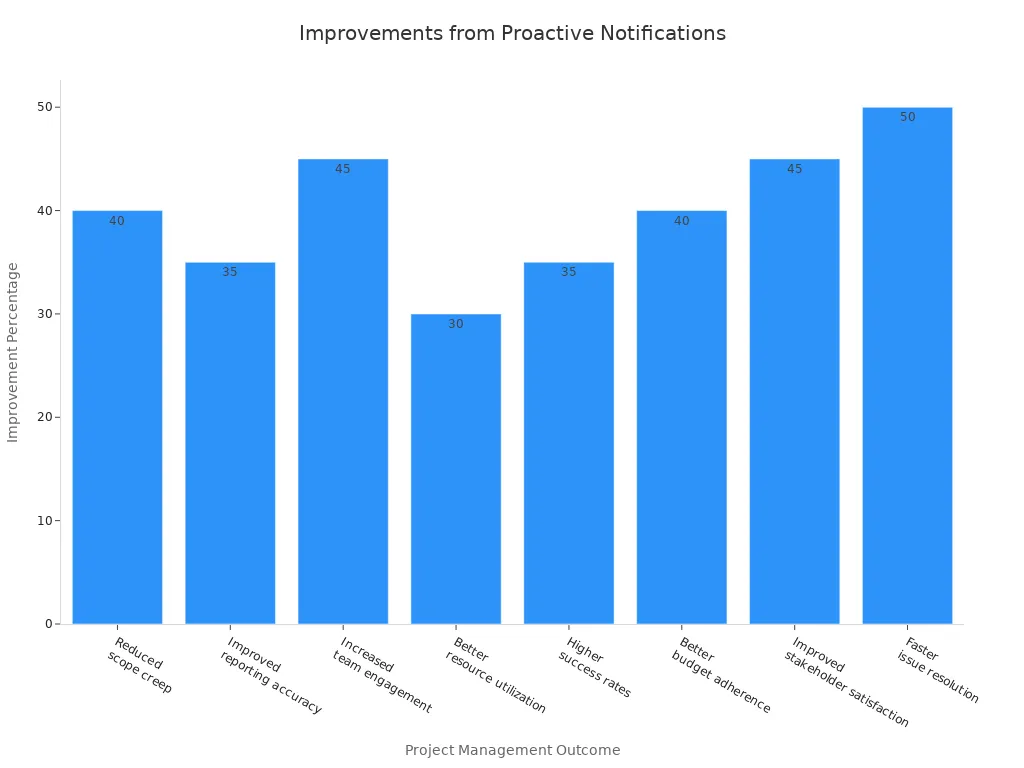
You can see faster issue resolution and higher satisfaction among stakeholders. You also notice better budget control and fewer surprises during the project. By using proactive notification, you help your team stay on track and reach goals more often.
Callout: Start with one project and set up simple notifications. You will see improvements in teamwork and results right away.
Customer Support
You can transform your customer support experience by using proactive notifications. Customers want fast answers and seamless help. They do not want to wait for problems to happen. When you use proactive notifications, you anticipate customer needs and address issues before they become complaints. This approach builds trust and shows that you value your customers.
Proactive notifications help you deliver support in real time. For example, you can send alerts about service outages, delivery delays, or billing issues before customers even ask. You can also remind customers about upcoming appointments or policy changes. These actions reduce confusion and prevent frustration.
Here are some ways proactive notifications improve customer support:
- You anticipate customer needs and solve problems quickly.
- You build deeper relationships with your customers, which increases loyalty and satisfaction.
- You stay ahead of customer expectations by addressing issues before they arise.
- You use real-time alerts and personalized messages to improve customer retention.
- You turn your support team into partners in the customer journey, not just problem-solvers.
A home assistant can help you manage routine support tasks. For example, it can send reminders to your support team or update your calendar with follow-up actions. This makes your workflow more organized and ensures that no customer request gets missed.
You can use the following table to see how proactive notifications change customer support:
| Traditional Support | Proactive Support |
|---|---|
| Waits for customer contact | Reaches out before issues occur |
| Solves problems reactively | Anticipates and prevents problems |
| Focuses on ticket closure | Builds long-term relationships |
| Measures response time | Measures customer satisfaction |
When you use an assistant to automate notifications, you free up your team to focus on complex cases. You also give customers the information they need, when they need it. This approach turns customer service into a revenue-generating function, not just a cost center.
Tip: Start by automating simple alerts, such as appointment reminders or outage notifications. Over time, expand your system to include personalized offers and follow-up messages. You will see higher satisfaction and stronger customer loyalty.
Proactive Cybersecurity Blueprint
Security-Driven Notifications
You face new threats every day. Attackers look for vulnerabilities in your systems and try to exploit them before you can react. A proactive cybersecurity blueprint helps you stay ahead. You do not wait for a cyber-attack to happen. You use security-driven notifications to warn you about risks as soon as they appear. These alerts help you act fast and protect your data.
You can set up your assistant to monitor your attack surface. When the system detects a threat, it sends you a notification. You see the alert in your calendar or on your home assistant. This approach gives you time to respond before the attack causes damage. Security-driven notifications also support automated remediation. The system can fix simple problems right away, so you do not have to handle every issue yourself.
Tip: Use security-driven notifications to keep your team informed and ready to act. Fast alerts reduce the chance of a successful attack.
Embedding Cybersecurity Blueprint Principles
You can make your organization safer by embedding cybersecurity blueprint principles into your workflow. This means you do not just react to threats. You build a preemptive mindset and focus on continuous threat exposure management. You look for risks before they become problems.
The table below shows how you can use these principles to reduce data risks:
| Proactive Measure | Description | Mitigation Strategies |
|---|---|---|
| Identifying human error patterns | Understand the types of human errors that lead to data risks. | Classify errors into slips, mistakes, and violations. |
| Integrating behavioral analytics | Use data to detect risk precursors and improve decision-making. | Implement near-miss reporting and feedback mechanisms. |
| Fostering a culture of learning | Encourage transparency and continuous improvement in handling human errors. | Establish a Human Risk Committee and promote psychological safety. |
You can work with your ciso to create a preemptive program. This program helps you spot weaknesses and fix them early. You use vulnerability management and threat hunting to find and close gaps. You also encourage your team to report near-misses and learn from mistakes. This culture of learning makes your security stronger every day.
Preventing Data Risks
You can prevent data risks by using the proactive cybersecurity blueprint. You do not rely only on firewalls or passwords. You use cloud security tools to watch for threats in real time. You set up preemptive exposure management to find and fix vulnerabilities before attackers can use them.
Your blueprint should include continuous threat exposure management. This means you check your systems often and update your defenses. You use automated tools to scan for new risks. When the system finds a problem, it sends you a notification. You can act quickly and keep your data safe.
Note: A strong cybersecurity plan protects your business and your customers. You build trust by showing you care about security.
Common Pitfalls to Avoid
Notification Overload
You might think more notifications mean better awareness, but too many alerts can overwhelm you and your team. When you receive constant messages, you may start to ignore important ones. This overload can lead to missed deadlines or even security risks. Your assistant should help you filter out noise and highlight only the most urgent updates. Use your calendar to schedule regular reviews of your notification settings. This way, you can adjust the frequency and content of alerts to match your needs. A home assistant can also help you group routine reminders, so you do not get distracted by less important messages.
Tip: Review your notification channels every month. Remove or combine alerts that do not add value. This keeps your workflow focused and efficient.
Ignoring Feedback
You need to listen to feedback from your team and users. If you ignore their suggestions, your notification system may become less effective. Feedback helps you spot gaps, such as missed threats or slow responses to vulnerabilities. You can use surveys, direct conversations, or analytics to gather opinions. When you act on this information, you improve your blueprint and make your workflow stronger. Remember, continuous threat exposure management depends on learning from real experiences. Your assistant can help you collect and organize feedback, making it easier to spot trends and take action.
| Feedback Method | Benefit |
|---|---|
| Surveys | Quick insights from users |
| Analytics | Data-driven improvement |
| Team Meetings | Open discussion of challenges |
Note: Always thank your team for their input. Show them how their feedback leads to better results.
Stagnant Processes
You should avoid letting your workflow become stagnant. If you never update your processes, you may miss new threats or fail to spot emerging vulnerabilities. Attackers often look for outdated systems because they are easier to exploit. Regularly review your blueprint and update your security measures. Preemptive exposure management helps you find and fix weaknesses before they become problems. Use your calendar to set reminders for process reviews. This habit keeps your workflow fresh and ready for new challenges.
Callout: Stay proactive. Update your notification rules and security protocols often. This approach protects your organization from evolving risks.
By watching out for these pitfalls, you keep your notification system effective and your team ready to respond. You build a culture of improvement and resilience, which is essential in today’s cybersecurity landscape.
Measuring Success
Key Metrics
You need to measure the impact of your proactive notification system. Start by tracking how quickly your team responds to alerts. Look at the time between when a notification is sent and when someone takes action. You can also count the number of missed or ignored alerts. These numbers show if your notifications reach the right people at the right time.
Use your calendar to schedule regular reviews of these metrics. This helps you spot trends and make changes before problems grow. You can also track the number of tasks completed after receiving a notification. If you see more tasks finished on time, your system works well.
Here is a simple table to help you organize your data:
| Metric | What It Shows |
|---|---|
| Response Time | Speed of action after alert |
| Acknowledgment Rate | Percentage of alerts seen |
| Task Completion Rate | Tasks finished after notification |
| Missed Alerts | Unread or ignored notifications |
Tip: Ask your home assistant to remind you to check these numbers each month.
ROI and Business Outcomes
You want to see real results from your blueprint. Start by looking at cost savings. If your team spends less time searching for information, you save money. Fewer missed deadlines mean fewer penalties or lost customers. You can also measure customer satisfaction. Send short surveys after key events to see if people feel more informed.
Track how many risks you avoid because of early warnings. For example, if a cybersecurity alert stops a data breach, you protect your business and your reputation. Use numbers to show the value. If you reduce downtime or improve response times, you can show a clear return on investment.
Note: Your assistant can help you collect feedback and organize survey results.
When to Revisit Your Blueprint
You should not set your system and forget it. Plan to review your blueprint every few months. Use your calendar to set reminders for these check-ins. Look for signs that your notifications need updates. If you see more missed alerts or slower responses, it is time to make changes.
Ask your team for feedback. They can tell you if the notifications help or if they need something different. Stay alert for new risks or changes in your workflow. Preemptive exposure management means you always look for ways to improve and stay ahead of threats.
Callout: A strong review process keeps your notification system effective and your organization ready for anything.
You can transform your workflow with the proactive notification blueprint from Microsoft 365. Start with small steps, like using your assistant to set reminders in your calendar or adding a home assistant for daily updates. These changes help you act faster and stay organized. Share your results with your team and inspire others to try this approach. Begin today and see how much more you can achieve.
FAQ
What is the Proactive Notification Blueprint?
You use the Proactive Notification Blueprint to receive important updates automatically. This system sends alerts when key events happen. You do not need to check dashboards all the time.
How do I start using proactive notifications?
You begin by connecting your main data sources. Then, you set up event detection and choose which notifications matter most. You can use your calendar to schedule regular reviews of your notification settings.
Can I customize which notifications I receive?
Yes, you can choose which events trigger alerts. You set rules for urgent or routine updates. You decide if notifications go to you or your whole team.
How does a home assistant help with notifications?
A home assistant can organize reminders and send you alerts for meetings or tasks. You stay on track and never miss important updates during your workday.
Will the system work with my current tools?
You can integrate the blueprint with Microsoft 365 tools like Teams, Outlook, and SharePoint. This makes it easy to fit proactive notifications into your existing workflow.
How does the assistant improve my workflow?
The assistant helps you by sending timely notifications and reminders. You spend less time searching for information and more time focusing on important tasks.
Is my data safe with proactive notifications?
You keep your data secure by using Microsoft 365’s built-in security features. The system sends alerts about risks so you can act quickly and protect your information.
🚀 Want to be part of m365.fm?
Then stop just listening… and start showing up.
👉 Connect with me on LinkedIn and let’s make something happen:
- 🎙️ Be a podcast guest and share your story
- 🎧 Host your own episode (yes, seriously)
- 💡 Pitch topics the community actually wants to hear
- 🌍 Build your personal brand in the Microsoft 365 space
This isn’t just a podcast — it’s a platform for people who take action.
🔥 Most people wait. The best ones don’t.
👉 Connect with me on LinkedIn and send me a message:
"I want in"
Let’s build something awesome 👊
1
00:00:00,000 --> 00:00:04,480
Your dashboard looks alive on launch day, clean charts, fresh numbers, executive smiles.
2
00:00:04,480 --> 00:00:12,520
But decay starts the moment you publish it because the whole model depends on someone opening it, scanning it, and spotting the problem before the moment passes.
3
00:00:12,520 --> 00:00:13,840
That's the break.
4
00:00:13,840 --> 00:00:15,560
Most BI still runs on pull.
5
00:00:15,560 --> 00:00:20,320
People check data when they remember or when they have time, or when they already suspect something is wrong.
6
00:00:20,320 --> 00:00:23,840
But high-value decisions usually don't fail because the chart didn't exist.
7
00:00:23,840 --> 00:00:28,960
They fail because nobody looked at it at the right time, so the shift isn't from one report style to another.
8
00:00:28,960 --> 00:00:37,040
It's from static reporting to notification architecture where power BI, power automate, dataverse, and AI work together to push action when context changes.
9
00:00:37,040 --> 00:00:41,160
Because if you keep building dashboards as the end product, you're not funding visibility.
10
00:00:41,160 --> 00:00:46,640
You're funding delay, the death of the data graveyard, a dashboard usually dies in a very boring way.
11
00:00:46,640 --> 00:00:49,440
It doesn't end with a technical failure or some dramatic outage.
12
00:00:49,440 --> 00:00:56,240
It dies because work moves on and conditions change, while the dashboard stays exactly where it was, sitting in a tab and waiting to be visited.
13
00:00:56,240 --> 00:00:59,520
What looked like visibility slowly turns into storage.
14
00:00:59,520 --> 00:01:01,120
That's why I call it a data graveyard.
15
00:01:01,120 --> 00:01:02,560
The floor isn't the chart design.
16
00:01:02,560 --> 00:01:03,840
It's the assumption behind it.
17
00:01:03,840 --> 00:01:10,960
You're assuming that people will stop what they're doing, go looking for insight, and then translate that insight into action fast enough for it to matter.
18
00:01:10,960 --> 00:01:12,600
In most organizations, that doesn't happen.
19
00:01:12,600 --> 00:01:16,080
People are already buried in tools, meetings, approvals, and chat threads.
20
00:01:16,080 --> 00:01:20,880
Analytics becomes just another place to check, and once it becomes another chore, it becomes optional.
21
00:01:20,880 --> 00:01:23,280
Research on dashboard fatigue points in that direction.
22
00:01:23,280 --> 00:01:25,680
Workplaces already run across huge ab counts.
23
00:01:25,680 --> 00:01:28,000
And that constant switching adds stress.
24
00:01:28,000 --> 00:01:34,720
One study in enterprise settings tie digital overload and burnout together with employees dealing with more than 100 apps on average.
25
00:01:34,720 --> 00:01:38,400
Another finding that matters here is that dashboard use often falls hard after launch.
26
00:01:38,400 --> 00:01:42,720
Some research on automated BI put utilization around 20% after six months,
27
00:01:42,720 --> 00:01:47,040
which shows the problem isn't getting a dashboard live, but getting it used when timing matters.
28
00:01:47,040 --> 00:01:48,480
And that timing part is everything.
29
00:01:48,480 --> 00:01:53,200
If a finance lead needs to notice a budget drift or an operations manager needs to catch an SLA risk,
30
00:01:53,200 --> 00:01:55,360
a passive screen creates lag by default.
31
00:01:55,360 --> 00:01:58,400
You navigate, you search, you compare, then maybe you act.
32
00:01:58,400 --> 00:02:02,800
That sequence sounds normal because we've accepted it for years, but it's a slow sequence.
33
00:02:02,800 --> 00:02:04,880
It turns awareness into a manual task.
34
00:02:04,880 --> 00:02:06,480
Executives don't need more views.
35
00:02:06,480 --> 00:02:08,400
They need fewer missed moments.
36
00:02:08,400 --> 00:02:09,520
That's a different requirement.
37
00:02:09,520 --> 00:02:11,360
A dashboard is good at exploration.
38
00:02:11,360 --> 00:02:15,600
It can help you inspect trends, compare segments, and ask follow-up questions.
39
00:02:15,600 --> 00:02:17,200
But it doesn't intervene.
40
00:02:17,200 --> 00:02:20,160
It doesn't interrupt the day when a decision has started to go off track.
41
00:02:20,160 --> 00:02:23,520
It just waits there, hoping someone checks in before the issue gets bigger.
42
00:02:23,520 --> 00:02:26,960
So what teams called stale dashboards are often stale operating models.
43
00:02:26,960 --> 00:02:30,800
You can redesign the page, you can clean up colors, you can reduce KPI clutter.
44
00:02:30,800 --> 00:02:35,040
That may help a little, but if the system still depends on memory and manual review,
45
00:02:35,040 --> 00:02:36,720
the basic weakness stays put.
46
00:02:36,720 --> 00:02:38,560
DataRot is not mainly a design problem.
47
00:02:38,560 --> 00:02:39,760
It's an operating problem.
48
00:02:39,760 --> 00:02:42,640
The information might be fresh in the model and still be useless in practice
49
00:02:42,640 --> 00:02:45,520
because nobody gets pulled into action at the right time.
50
00:02:45,520 --> 00:02:47,440
And this is where the conversation needs to change.
51
00:02:47,440 --> 00:02:50,320
The question is no longer how do we build a better dashboard page.
52
00:02:50,320 --> 00:02:53,440
The better question is, what business moment deserves intervention,
53
00:02:53,440 --> 00:02:57,680
who owns that moment, and how should the system respond when it starts to drift.
54
00:02:57,680 --> 00:03:00,800
Once you look at it that way, the old pull model stops looking mature.
55
00:03:00,800 --> 00:03:02,960
It starts looking incomplete.
56
00:03:02,960 --> 00:03:07,040
So if the old model is pulled, the next step is defining the push model clearly.
57
00:03:07,040 --> 00:03:09,520
The shift from dashboards to event thinking.
58
00:03:09,520 --> 00:03:11,520
Once you see the pull model for what it is,
59
00:03:11,520 --> 00:03:13,520
the next shift becomes obvious.
60
00:03:13,520 --> 00:03:17,120
You have to stop starting with pages and start starting with events.
61
00:03:17,120 --> 00:03:19,040
That sounds like a small tweak,
62
00:03:19,040 --> 00:03:21,040
but it changes the entire strategy.
63
00:03:21,040 --> 00:03:23,440
Page first thinking asks what charts we should show,
64
00:03:23,440 --> 00:03:26,000
how we should group them, and who gets access to the file.
65
00:03:26,000 --> 00:03:28,480
Event first thinking asks a much harder question,
66
00:03:28,480 --> 00:03:31,840
which is what specific change in the business actually deserves a response.
67
00:03:31,840 --> 00:03:33,360
Not a view, a response.
68
00:03:33,360 --> 00:03:36,960
This means you stop organizing your BI work around reports
69
00:03:36,960 --> 00:03:38,880
and start organizing it around moments.
70
00:03:38,880 --> 00:03:40,400
A budget threshold breaks,
71
00:03:40,400 --> 00:03:42,160
a delivery slips outside of tolerance,
72
00:03:42,160 --> 00:03:44,160
or an approval sits on a desk for too long.
73
00:03:44,160 --> 00:03:48,640
Maybe a churn signal rises, or a data loss pattern appears where an unusual variance shows up.
74
00:03:48,640 --> 00:03:51,600
Those are not just reporting artifacts, they are operating moments.
75
00:03:51,600 --> 00:03:52,640
And that is the shift.
76
00:03:52,640 --> 00:03:56,400
Most teams build information products as if the user's main job is interpretation.
77
00:03:56,400 --> 00:03:59,600
But in real work, people are usually not sitting around waiting to interpret data
78
00:03:59,600 --> 00:04:01,200
because they are busy in a call,
79
00:04:01,200 --> 00:04:04,000
approving spend, or trying to unblock a team.
80
00:04:04,000 --> 00:04:06,880
What helps them is not another page with another slicer.
81
00:04:06,880 --> 00:04:09,600
What helps is a system that notices the deviation
82
00:04:09,600 --> 00:04:13,200
and pushes the right context directly into the flow of work.
83
00:04:13,200 --> 00:04:16,240
To design that well, you need a simple structure for every event.
84
00:04:16,240 --> 00:04:18,960
First, you define the signal to show exactly what changed.
85
00:04:18,960 --> 00:04:23,040
Then you define the threshold to decide at what point it matters enough to interrupt someone.
86
00:04:23,040 --> 00:04:26,000
You need an owner who is actually responsible for acting,
87
00:04:26,000 --> 00:04:29,840
and a route so the message appears where it has the best chance of being used.
88
00:04:29,840 --> 00:04:31,120
Finally, you need a response.
89
00:04:31,120 --> 00:04:33,440
You have to know what should happen next, right away.
90
00:04:33,440 --> 00:04:35,920
If the event is real, if one of those pieces is missing,
91
00:04:35,920 --> 00:04:38,080
the whole system gets weak fast.
92
00:04:38,080 --> 00:04:40,000
This clicked for me when I stopped asking,
93
00:04:40,000 --> 00:04:42,320
whether a dashboard looked complete and started asking
94
00:04:42,320 --> 00:04:44,880
whether a business issue had an owner and a route.
95
00:04:44,880 --> 00:04:47,920
A lot of reporting work feels finished when the visuals are polished,
96
00:04:47,920 --> 00:04:50,960
even though the actual decision path is still undefined.
97
00:04:50,960 --> 00:04:52,080
The chart may be accurate,
98
00:04:52,080 --> 00:04:54,480
but the operating system around it is still vague.
99
00:04:54,480 --> 00:04:56,080
And vague systems are slow systems.
100
00:04:56,080 --> 00:04:59,120
There is also a massive difference between awareness and intervention.
101
00:04:59,120 --> 00:05:02,160
Awareness means someone could know something if they went looking for it.
102
00:05:02,160 --> 00:05:06,400
Intervention means the system enters the work at the exact moment the issue starts to matter.
103
00:05:06,400 --> 00:05:07,760
Those are not the same thing,
104
00:05:07,760 --> 00:05:10,320
and a lot of BI programs accidentally blur them together.
105
00:05:10,320 --> 00:05:12,240
If you remember nothing else, remember this.
106
00:05:12,240 --> 00:05:13,840
Dashboard support exploration,
107
00:05:13,840 --> 00:05:16,240
but event systems support decision velocity.
108
00:05:16,240 --> 00:05:19,120
That matters at the executive layer more than anywhere else.
109
00:05:19,120 --> 00:05:21,520
Senior leaders do not need a larger review ritual,
110
00:05:21,520 --> 00:05:24,640
but they do need less friction between a signal and an action.
111
00:05:24,640 --> 00:05:26,800
The value here is not just better visibility,
112
00:05:26,800 --> 00:05:29,600
it is a shorter time to pay out and faster exception handling.
113
00:05:29,600 --> 00:05:31,200
It creates a lower mental load,
114
00:05:31,200 --> 00:05:34,800
because nobody has to keep polling for trouble across 10 different places.
115
00:05:34,800 --> 00:05:36,560
Research on decision-making backs this up.
116
00:05:36,560 --> 00:05:39,840
Only a small share of organizations think they are actually good at making
117
00:05:39,840 --> 00:05:42,720
decisions quickly, even after spending huge amounts on BI.
118
00:05:42,720 --> 00:05:45,120
The issue isn't access to data by itself.
119
00:05:45,120 --> 00:05:48,160
The issue is whether intelligence shows up in time with enough meaning
120
00:05:48,160 --> 00:05:50,640
for someone to act without another round of searching.
121
00:05:50,640 --> 00:05:52,320
That is why event thinking is stronger.
122
00:05:52,320 --> 00:05:53,440
It removes the search step.
123
00:05:53,440 --> 00:05:54,880
Once you remove the search step,
124
00:05:54,880 --> 00:05:57,920
you start designing systems that fit how work happens now.
125
00:05:57,920 --> 00:06:02,080
Context appears inside teams, approvals, tasks, or escalations,
126
00:06:02,080 --> 00:06:05,600
instead of waiting inside a dashboard tab for a weekly review.
127
00:06:05,600 --> 00:06:06,720
But there is a trap here.
128
00:06:06,720 --> 00:06:08,560
A lot of teams see this shift,
129
00:06:08,560 --> 00:06:11,600
and then they build basic threshold alerts everywhere and call it progress.
130
00:06:11,600 --> 00:06:13,360
That usually creates a second problem,
131
00:06:13,360 --> 00:06:14,960
that is just as bad as the first one.
132
00:06:14,960 --> 00:06:18,000
Why most alert strategies fail?
133
00:06:18,000 --> 00:06:21,840
The first version of proactive reporting usually goes wrong in a very predictable way.
134
00:06:21,840 --> 00:06:24,320
A team realizes dashboards are too passive,
135
00:06:24,320 --> 00:06:26,960
so they start adding alerts on top of the existing data.
136
00:06:26,960 --> 00:06:28,560
Revenue drops below a certain number,
137
00:06:28,560 --> 00:06:30,160
Q-length rises above a limit,
138
00:06:30,160 --> 00:06:32,000
or spend crosses a fixed line.
139
00:06:32,000 --> 00:06:32,960
For a week or two,
140
00:06:32,960 --> 00:06:34,720
it feels better because messages are moving,
141
00:06:34,720 --> 00:06:36,560
and people think they have modernized the model.
142
00:06:36,560 --> 00:06:38,000
Then the noise starts.
143
00:06:38,000 --> 00:06:40,880
What looked proactive turns into another stream people learn to ignore
144
00:06:40,880 --> 00:06:43,200
because most alerts are built on raw numbers,
145
00:06:43,200 --> 00:06:44,880
without enough business meaning.
146
00:06:44,880 --> 00:06:45,680
A number moved,
147
00:06:45,680 --> 00:06:48,400
but the system doesn't explain if anyone should care right now.
148
00:06:48,400 --> 00:06:51,360
Is this normal for this hour, this day, or this customer segment?
149
00:06:51,360 --> 00:06:53,280
A threshold by itself cannot answer that.
150
00:06:53,280 --> 00:06:55,120
That is where basic alerting breaks.
151
00:06:55,120 --> 00:06:57,440
If you trigger on raw variants without context,
152
00:06:57,440 --> 00:06:58,800
you get false urgency.
153
00:06:58,800 --> 00:07:00,560
A backlog might rise every Monday morning,
154
00:07:00,560 --> 00:07:03,120
or an approval queue might spike right before the month ends.
155
00:07:03,120 --> 00:07:06,640
None of those should create the same level of interruption as a true exception,
156
00:07:06,640 --> 00:07:08,720
but weaker alert models treat them as equal
157
00:07:08,720 --> 00:07:11,520
because they do not understand patterns or consequences.
158
00:07:11,520 --> 00:07:12,720
And users learn fast.
159
00:07:12,720 --> 00:07:15,040
If six alerts out of ten do not need action,
160
00:07:15,040 --> 00:07:18,080
the seventh alert starts losing trust before it is even opened.
161
00:07:18,080 --> 00:07:21,840
The thing most people miss is that alert fatigue does not come only from volume.
162
00:07:21,840 --> 00:07:23,040
It comes from ambiguity.
163
00:07:23,040 --> 00:07:25,520
People can handle an interruption when the message is clear.
164
00:07:25,520 --> 00:07:28,240
What they cannot handle is a steady stream of messages
165
00:07:28,240 --> 00:07:30,080
that dump the interpretation back on them.
166
00:07:30,080 --> 00:07:31,600
If the recipient has to stop,
167
00:07:31,600 --> 00:07:32,800
open three systems,
168
00:07:32,800 --> 00:07:33,840
and guess the cause,
169
00:07:33,840 --> 00:07:36,000
the notification did not remove friction.
170
00:07:36,000 --> 00:07:37,200
It just relocated it.
171
00:07:37,200 --> 00:07:38,800
That means a red badge is not enough.
172
00:07:38,800 --> 00:07:41,840
A good notification has to do more work before it reaches a person.
173
00:07:41,840 --> 00:07:44,240
It should explain what changed why it matters now
174
00:07:44,240 --> 00:07:46,320
and what action path is expected.
175
00:07:46,320 --> 00:07:47,360
Without those details,
176
00:07:47,360 --> 00:07:49,520
you are not sending operational intelligence.
177
00:07:49,520 --> 00:07:51,280
You are just sending unfinished homework.
178
00:07:51,280 --> 00:07:54,640
This is also why anomaly detection matters more than a lot of teams think.
179
00:07:54,640 --> 00:07:58,000
Static thresholds are blunt tools that ignore trends and baseline behavior.
180
00:07:58,000 --> 00:08:01,120
Research around AI builder anomaly detection
181
00:08:01,120 --> 00:08:02,400
points to a better pattern here
182
00:08:02,400 --> 00:08:04,720
because dynamic baselines can reduce false positives.
183
00:08:04,720 --> 00:08:05,920
It is not perfect.
184
00:08:05,920 --> 00:08:08,880
But it is better in environments where normal moves around.
185
00:08:08,880 --> 00:08:11,120
There is another failure point that shows up later.
186
00:08:11,120 --> 00:08:12,240
Teams build alerts,
187
00:08:12,240 --> 00:08:14,320
but they never define the response path.
188
00:08:14,320 --> 00:08:17,120
The system can spot a problem and post to teams.
189
00:08:17,120 --> 00:08:20,160
But then nothing happens because nobody agreed on what happens next.
190
00:08:20,160 --> 00:08:21,920
There is no task, no approval,
191
00:08:21,920 --> 00:08:23,200
and no audit trail.
192
00:08:23,200 --> 00:08:24,880
It is just a message hanging in a chat.
193
00:08:24,880 --> 00:08:26,400
That is not architecture.
194
00:08:26,400 --> 00:08:27,600
That is leakage.
195
00:08:27,600 --> 00:08:30,400
If you want notifications to work,
196
00:08:30,400 --> 00:08:32,160
each one needs a specific job.
197
00:08:32,160 --> 00:08:33,760
It has to detect, explain,
198
00:08:33,760 --> 00:08:35,280
root, trigger and track.
199
00:08:35,280 --> 00:08:39,440
The message itself should be one part of a controlled flow rather than the whole solution.
200
00:08:39,440 --> 00:08:40,960
The design rule is simple
201
00:08:40,960 --> 00:08:43,200
and it is stricter than most teams expect.
202
00:08:43,200 --> 00:08:46,320
Every notification should answer four things before it ships.
203
00:08:46,320 --> 00:08:47,200
What changed?
204
00:08:47,200 --> 00:08:47,840
Why now?
205
00:08:47,840 --> 00:08:48,560
Who owns it?
206
00:08:48,560 --> 00:08:49,760
And what happens next?
207
00:08:49,760 --> 00:08:51,120
Once you build with that rule,
208
00:08:51,120 --> 00:08:53,440
a learning starts acting less like system noise
209
00:08:53,440 --> 00:08:55,200
and more like a managed intervention.
210
00:08:55,200 --> 00:08:56,960
That changes what the architecture has to carry
211
00:08:56,960 --> 00:08:59,280
because the hard part is no longer sending messages.
212
00:08:59,280 --> 00:09:01,520
The hard part is carrying context inside the message.
213
00:09:01,520 --> 00:09:04,160
The proactive notification blueprint.
214
00:09:04,160 --> 00:09:05,920
So what does the architecture actually look like
215
00:09:05,920 --> 00:09:07,840
when you stop thinking in terms of reports
216
00:09:07,840 --> 00:09:09,680
and start thinking in terms of intervention?
217
00:09:09,680 --> 00:09:12,480
You need six layers and each layer does a different job.
218
00:09:12,480 --> 00:09:15,280
Source systems, event detection, AI reasoning,
219
00:09:15,280 --> 00:09:17,440
orchestration, delivery, feedback,
220
00:09:17,440 --> 00:09:18,720
start with the source systems
221
00:09:18,720 --> 00:09:20,880
because this is where many teams get confused.
222
00:09:20,880 --> 00:09:23,040
The goal is not to replace your operational systems
223
00:09:23,040 --> 00:09:24,560
with one giant alert engine.
224
00:09:24,560 --> 00:09:27,440
The goal is to watch the systems that already hold the truth.
225
00:09:27,440 --> 00:09:30,080
ERP, CRM, service data, security signals,
226
00:09:30,080 --> 00:09:31,680
finance records, inventory movements,
227
00:09:31,680 --> 00:09:34,320
case updates, power BI can sit on top of those sources
228
00:09:34,320 --> 00:09:35,360
and help model the signals,
229
00:09:35,360 --> 00:09:37,200
but it should stop being treated as the place
230
00:09:37,200 --> 00:09:38,560
where the process ends.
231
00:09:38,560 --> 00:09:40,880
In this model, power BI becomes a sensor.
232
00:09:40,880 --> 00:09:42,160
That's an important change.
233
00:09:42,160 --> 00:09:43,760
You still use it to shape metrics,
234
00:09:43,760 --> 00:09:45,360
compare states and expose patterns.
235
00:09:45,360 --> 00:09:47,520
You still use it for analysis and exploration.
236
00:09:47,520 --> 00:09:49,280
But when a business condition crosses
237
00:09:49,280 --> 00:09:50,880
from observation into action,
238
00:09:50,880 --> 00:09:53,040
the output should move beyond the report surface.
239
00:09:53,040 --> 00:09:55,760
So instead of asking people to keep returning to a dashboard,
240
00:09:55,760 --> 00:09:57,360
you use that analytical layer
241
00:09:57,360 --> 00:10:00,080
to help identify a business event worth acting on.
242
00:10:00,080 --> 00:10:01,520
Then you need event detection.
243
00:10:01,520 --> 00:10:02,640
Some events are simple.
244
00:10:02,640 --> 00:10:04,560
A value crosses a known tolerance.
245
00:10:04,560 --> 00:10:05,920
An approval is overdue.
246
00:10:05,920 --> 00:10:07,840
A case sits untouched too long.
247
00:10:07,840 --> 00:10:09,040
Others need more judgment.
248
00:10:09,040 --> 00:10:10,000
The pattern looks unusual,
249
00:10:10,000 --> 00:10:12,320
but only relative to trend or expected behavior.
250
00:10:12,320 --> 00:10:14,400
This is where AI reasoning starts to matter
251
00:10:14,400 --> 00:10:17,680
because not every useful signal lives inside a fixed threshold.
252
00:10:17,680 --> 00:10:20,640
AI builder anomaly detection and power BI AI features
253
00:10:20,640 --> 00:10:22,400
can help spot unusual patterns.
254
00:10:22,400 --> 00:10:24,800
While co-pilot-based reasoning can help summarize,
255
00:10:24,800 --> 00:10:28,240
classify, or explain what just happened in plain language.
256
00:10:28,240 --> 00:10:29,600
That doesn't replace governance.
257
00:10:29,600 --> 00:10:32,320
It gives the flow a better first pass before a human sees it.
258
00:10:32,320 --> 00:10:34,400
After detection and reasoning,
259
00:10:34,400 --> 00:10:36,640
the center of gravity shifts to power automate.
260
00:10:36,640 --> 00:10:38,080
This is the orchestration layer.
261
00:10:38,080 --> 00:10:40,160
Not just the message sender, the conductor.
262
00:10:40,160 --> 00:10:41,360
It decides what flow runs,
263
00:10:41,360 --> 00:10:42,480
what system gets updated,
264
00:10:42,480 --> 00:10:43,600
whether approval is needed,
265
00:10:43,600 --> 00:10:45,120
whether a task should be created,
266
00:10:45,120 --> 00:10:46,960
whether an escalation should happen,
267
00:10:46,960 --> 00:10:49,280
and what conditions suppress duplicate noise.
268
00:10:49,280 --> 00:10:50,560
If power BI notices,
269
00:10:50,560 --> 00:10:51,840
power automate acts.
270
00:10:51,840 --> 00:10:52,720
That's the split.
271
00:10:52,720 --> 00:10:53,920
Now that action needs memory.
272
00:10:53,920 --> 00:10:54,560
Without state,
273
00:10:54,560 --> 00:10:56,480
notification systems get messy fast.
274
00:10:56,480 --> 00:10:57,440
You don't know what was sent,
275
00:10:57,440 --> 00:10:58,240
who acted,
276
00:10:58,240 --> 00:10:59,520
whether the case is still open,
277
00:10:59,520 --> 00:11:00,720
whether the issue was dismissed,
278
00:11:00,720 --> 00:11:02,320
or whether the same alert keeps reappearing
279
00:11:02,320 --> 00:11:03,680
with no learning built in.
280
00:11:03,680 --> 00:11:05,120
That's where data verse earns its place.
281
00:11:05,120 --> 00:11:07,200
It gives you a place to store notification history,
282
00:11:07,200 --> 00:11:08,080
workflow status,
283
00:11:08,080 --> 00:11:09,680
owner changes, escalation state,
284
00:11:09,680 --> 00:11:11,680
retry outcomes, and audit detail.
285
00:11:11,680 --> 00:11:13,840
So the flow is not just firing and forgetting.
286
00:11:13,840 --> 00:11:15,120
It is tracking.
287
00:11:15,120 --> 00:11:16,320
And once you track state,
288
00:11:16,320 --> 00:11:17,520
routing gets smarter.
289
00:11:17,520 --> 00:11:19,360
Not every event belongs in the same channel.
290
00:11:19,360 --> 00:11:22,160
A CFO budget exception may need an approval flow.
291
00:11:22,160 --> 00:11:25,200
A frontline service issue may need a team's post plus a task.
292
00:11:25,200 --> 00:11:27,920
A risky compliance pattern may need an incident record
293
00:11:27,920 --> 00:11:29,600
and a secure route for follow up.
294
00:11:29,600 --> 00:11:32,080
A senior leader may only need a one-liner alert
295
00:11:32,080 --> 00:11:34,480
with a confidence summary and a decision prompt.
296
00:11:34,480 --> 00:11:36,240
The route depends on role, urgency,
297
00:11:36,240 --> 00:11:38,320
and what kind of action the event is asking for.
298
00:11:38,320 --> 00:11:40,080
That's why delivery is its own layer.
299
00:11:40,080 --> 00:11:42,240
Teams, email, approval workflows,
300
00:11:42,240 --> 00:11:44,400
planner tasks, incidents, escalations,
301
00:11:44,400 --> 00:11:45,680
even external systems,
302
00:11:45,680 --> 00:11:47,120
they are not the architecture.
303
00:11:47,120 --> 00:11:48,160
They are endpoints.
304
00:11:48,160 --> 00:11:49,840
Pick them based on response behavior,
305
00:11:49,840 --> 00:11:51,760
not based on what connector feels easiest.
306
00:11:51,760 --> 00:11:54,160
If the person who needs to act lives in teams all day,
307
00:11:54,160 --> 00:11:54,880
route there.
308
00:11:54,880 --> 00:11:56,640
If the action needs traceable approval,
309
00:11:56,640 --> 00:11:58,000
use the approval path.
310
00:11:58,000 --> 00:12:00,080
If the issue belongs in a managed queue,
311
00:12:00,080 --> 00:12:01,440
create the case directly.
312
00:12:01,440 --> 00:12:04,240
Delivery should fit the work pattern already in place.
313
00:12:04,240 --> 00:12:07,040
One level deeper, the part most teams skip is feedback.
314
00:12:07,040 --> 00:12:09,040
Did the recipient act was the alert useful?
315
00:12:09,040 --> 00:12:10,000
Was it noise?
316
00:12:10,000 --> 00:12:13,280
Was the issue confirmed, dismissed, reassigned, or escalated?
317
00:12:13,280 --> 00:12:15,920
If you don't capture that outcome, the system stays blind.
318
00:12:15,920 --> 00:12:18,160
It keeps notifying with no memory of value.
319
00:12:18,160 --> 00:12:19,520
The better model is closed loop,
320
00:12:19,520 --> 00:12:20,480
detect the signal,
321
00:12:20,480 --> 00:12:22,160
route the context, capture the result,
322
00:12:22,160 --> 00:12:23,200
then tune the rules,
323
00:12:23,200 --> 00:12:23,840
the summaries,
324
00:12:23,840 --> 00:12:25,680
and the routes based on what led to action
325
00:12:25,680 --> 00:12:26,640
and what didn't.
326
00:12:26,640 --> 00:12:28,240
That's how notification architecture
327
00:12:28,240 --> 00:12:31,360
starts acting like an operating layer instead of a collection of flows.
328
00:12:31,360 --> 00:12:32,560
And once that model is clear,
329
00:12:32,560 --> 00:12:34,720
the next question gets practical fast.
330
00:12:34,720 --> 00:12:36,160
Where do you start without turning this
331
00:12:36,160 --> 00:12:38,880
into an overbuilt automation project on day one?
332
00:12:38,880 --> 00:12:41,120
High value use cases that justify the shift.
333
00:12:41,120 --> 00:12:42,560
So where do you apply this first?
334
00:12:42,560 --> 00:12:43,280
Not everywhere.
335
00:12:43,280 --> 00:12:44,320
That's usually the mistake.
336
00:12:44,320 --> 00:12:47,680
Start where a late decision already costs money, trust, or control.
337
00:12:47,680 --> 00:12:49,280
Finance is one of the clearest places.
338
00:12:49,280 --> 00:12:51,760
A dashboard can show budget drift after the fact,
339
00:12:51,760 --> 00:12:53,600
but a notification flow can intervene
340
00:12:53,600 --> 00:12:55,280
while there's still room to respond.
341
00:12:55,280 --> 00:12:57,600
Say a cost center moves outside expected variance,
342
00:12:57,600 --> 00:12:59,040
the system can detect the change,
343
00:12:59,040 --> 00:13:00,640
attach the last approved baseline,
344
00:13:00,640 --> 00:13:02,000
route it to the budget owner,
345
00:13:02,000 --> 00:13:04,640
and trigger an approval or review path right away.
346
00:13:04,640 --> 00:13:06,080
Same with cash flow movement.
347
00:13:06,080 --> 00:13:07,440
Same with exception approvals.
348
00:13:07,440 --> 00:13:09,120
The point is not to admire the variance.
349
00:13:09,120 --> 00:13:12,240
The point is to shorten the path from detection to financial action.
350
00:13:12,240 --> 00:13:13,920
Operations works the same way,
351
00:13:13,920 --> 00:13:15,600
just with different pressure points,
352
00:13:15,600 --> 00:13:17,120
stock issues, backlog movement,
353
00:13:17,120 --> 00:13:19,280
and SLA breach risk all decay fast
354
00:13:19,280 --> 00:13:21,120
when nobody owns the moment early enough.
355
00:13:21,120 --> 00:13:22,720
If an item drops below safe stock,
356
00:13:22,720 --> 00:13:24,480
a team doesn't need another report tab.
357
00:13:24,480 --> 00:13:25,600
They meet the current level,
358
00:13:25,600 --> 00:13:27,040
the affected product or region,
359
00:13:27,040 --> 00:13:28,240
the likely consequence,
360
00:13:28,240 --> 00:13:30,080
and the route to replenish or escalate.
361
00:13:30,080 --> 00:13:31,520
If an SLA is drifting,
362
00:13:31,520 --> 00:13:32,960
the flow should identify the queue,
363
00:13:32,960 --> 00:13:34,720
the owner, the age of the work,
364
00:13:34,720 --> 00:13:37,200
and what action closes the gap before the breach lands.
365
00:13:37,200 --> 00:13:40,320
Security and compliance are even more dependent on timing.
366
00:13:40,320 --> 00:13:41,760
In those areas, people already know
367
00:13:41,760 --> 00:13:43,520
raw alert volume can get out of hand,
368
00:13:43,520 --> 00:13:45,200
so value comes from better triage,
369
00:13:45,200 --> 00:13:46,640
not just faster messaging.
370
00:13:46,640 --> 00:13:48,160
A risky behavior pattern,
371
00:13:48,160 --> 00:13:50,720
a DLP signal, or an insider risk case,
372
00:13:50,720 --> 00:13:52,160
needs more than a warning.
373
00:13:52,160 --> 00:13:53,920
It needs enough context for the right
374
00:13:53,920 --> 00:13:55,760
team to decide whether this is noise,
375
00:13:55,760 --> 00:13:57,840
policy tuning, or real investigation.
376
00:13:57,840 --> 00:14:00,080
We've already seen that tuned proactive models
377
00:14:00,080 --> 00:14:01,440
in Microsoft environments
378
00:14:01,440 --> 00:14:03,840
can reduce high-civility DLP events
379
00:14:03,840 --> 00:14:06,240
and cut response time for insider risk teams.
380
00:14:06,240 --> 00:14:07,440
That only happens when the route
381
00:14:07,440 --> 00:14:09,840
and the action path are built in from the start.
382
00:14:09,840 --> 00:14:11,600
Service teams are another strong fit
383
00:14:11,600 --> 00:14:13,200
because sentiment and handoff failures
384
00:14:13,200 --> 00:14:16,080
often hide inside normal reporting until the issue spreads.
385
00:14:16,080 --> 00:14:19,120
If negative feedback starts clustering around one process,
386
00:14:19,120 --> 00:14:21,360
one account group, or one service step,
387
00:14:21,360 --> 00:14:24,400
a summary alert can surface the shift before churn shows up
388
00:14:24,400 --> 00:14:26,240
in the quarterly review.
389
00:14:26,240 --> 00:14:27,840
If a handoff fails between teams,
390
00:14:27,840 --> 00:14:29,840
the system can flag the stuck case,
391
00:14:29,840 --> 00:14:31,280
attach the customer context,
392
00:14:31,280 --> 00:14:33,680
assign ownership, and move it back into motion.
393
00:14:33,680 --> 00:14:36,000
That's the difference between seeing a trend later
394
00:14:36,000 --> 00:14:38,320
and correcting a customer experience while it still matters
395
00:14:38,320 --> 00:14:39,520
and at the executive level,
396
00:14:39,520 --> 00:14:41,840
the use case gets simpler, not bigger.
397
00:14:41,840 --> 00:14:43,280
Leaders rarely need another ritual
398
00:14:43,280 --> 00:14:45,440
where they open 10 views and hunt for meaning.
399
00:14:45,440 --> 00:14:48,160
What they need is a small number of one-line decision alerts
400
00:14:48,160 --> 00:14:49,440
that say what changed,
401
00:14:49,440 --> 00:14:50,480
why it needs attention,
402
00:14:50,480 --> 00:14:52,400
and what decision is sitting in front of them now.
403
00:14:52,400 --> 00:14:56,240
Research on executive decision-making points the same way.
404
00:14:56,240 --> 00:14:59,520
Very few organizations think they're good at making decisions quickly
405
00:14:59,520 --> 00:15:01,520
and one reason is that information arrives
406
00:15:01,520 --> 00:15:03,360
as volume instead of direction.
407
00:15:03,360 --> 00:15:05,600
So when you choose your first use case,
408
00:15:05,600 --> 00:15:07,680
force the design through four filters.
409
00:15:07,680 --> 00:15:10,400
Trigger, context, owner, action path,
410
00:15:10,400 --> 00:15:12,080
if any one of those is fuzzy,
411
00:15:12,080 --> 00:15:13,120
don't automate it yet
412
00:15:13,120 --> 00:15:14,400
because the right place to start
413
00:15:14,400 --> 00:15:16,080
isn't where the data looks interesting.
414
00:15:16,080 --> 00:15:17,520
It's where the delay already hurts.
415
00:15:17,520 --> 00:15:20,320
Governance, limits, and cost control.
416
00:15:20,640 --> 00:15:23,040
Once teams see a few notification flows working,
417
00:15:23,040 --> 00:15:24,800
they usually want to scale fast.
418
00:15:24,800 --> 00:15:26,080
That is the right instinct,
419
00:15:26,080 --> 00:15:27,920
but this is also where sloppy architecture
420
00:15:27,920 --> 00:15:29,200
starts getting expensive.
421
00:15:29,200 --> 00:15:31,440
First, you have to plan for metered AI use.
422
00:15:31,440 --> 00:15:33,920
In 2026, AI builder credit models
423
00:15:33,920 --> 00:15:36,480
are shifting toward co-pilot credit models
424
00:15:36,480 --> 00:15:38,320
and that changes how you think about cost.
425
00:15:38,320 --> 00:15:41,200
You cannot treat AI summarization or reasoning steps
426
00:15:41,200 --> 00:15:43,440
like free decoration inside every flow.
427
00:15:43,440 --> 00:15:45,360
They need budgets, environment allocation,
428
00:15:45,360 --> 00:15:46,640
and constant monitoring.
429
00:15:46,640 --> 00:15:48,640
Power Platform gives you capacity reporting
430
00:15:48,640 --> 00:15:50,720
in the admin center and you need to use it.
431
00:15:50,720 --> 00:15:52,560
Monthly resets and delayed reporting
432
00:15:52,560 --> 00:15:55,520
can hide overuse until a massive bill shows up at your door.
433
00:15:55,520 --> 00:15:57,120
Then there are the delivery limits.
434
00:15:57,120 --> 00:15:58,640
If teams is your main endpoint,
435
00:15:58,640 --> 00:16:00,640
payload size and request volume matter
436
00:16:00,640 --> 00:16:02,560
more than most people expect.
437
00:16:02,560 --> 00:16:06,000
Adaptive cards in teams run into a 28 kilobyte payload limit
438
00:16:06,000 --> 00:16:08,560
and standard posts have their own size constraints.
439
00:16:08,560 --> 00:16:10,720
Request limits in Power Platform and Teams throttling
440
00:16:10,720 --> 00:16:12,720
can also hit you when one design gets copied
441
00:16:12,720 --> 00:16:14,240
across dozens of flows.
442
00:16:14,240 --> 00:16:16,400
A notification pattern that works fine in a pilot
443
00:16:16,400 --> 00:16:18,800
can start failing quietly once volume rises,
444
00:16:18,800 --> 00:16:20,800
especially when every branch posts messages
445
00:16:20,800 --> 00:16:22,400
and updates records in parallel.
446
00:16:22,400 --> 00:16:24,640
That is why low code is enough until it isn't.
447
00:16:24,640 --> 00:16:26,000
If your flow volume is moderate
448
00:16:26,000 --> 00:16:29,120
and the response path stays inside Microsoft 365,
449
00:16:29,120 --> 00:16:31,680
power automate plus data verse can carry a lot.
450
00:16:31,680 --> 00:16:33,280
But if you need high volume scheduling
451
00:16:33,280 --> 00:16:35,760
or burst handling across thousands of notifications,
452
00:16:35,760 --> 00:16:39,040
this is where Azure Functions or Service Bus start to make sense.
453
00:16:39,040 --> 00:16:40,800
It is not because low code failed
454
00:16:40,800 --> 00:16:42,560
but because the workload changed.
455
00:16:42,560 --> 00:16:44,880
The model should stay simple for as long as it can.
456
00:16:44,880 --> 00:16:47,600
Then separate when throughput or reliability demands it.
457
00:16:47,600 --> 00:16:50,080
There is also a more basic form of waste to control.
458
00:16:50,080 --> 00:16:51,760
You have to watch for duplicate alerts,
459
00:16:51,760 --> 00:16:53,600
dead alerts and onalous alerts.
460
00:16:53,600 --> 00:16:56,160
If a condition keeps firing after someone already acted,
461
00:16:56,160 --> 00:16:57,120
you need to suppress it.
462
00:16:57,120 --> 00:16:59,520
If nobody has responded to an alert type in 60 days,
463
00:16:59,520 --> 00:17:01,120
it is time to review it.
464
00:17:01,120 --> 00:17:03,280
If routing keeps landing in the wrong place,
465
00:17:03,280 --> 00:17:05,600
fix the route instead of adding another message.
466
00:17:05,600 --> 00:17:07,680
Good governance is less about publishing standards
467
00:17:07,680 --> 00:17:09,920
and more about keeping the system clean after launch.
468
00:17:09,920 --> 00:17:11,680
You should measure response rates,
469
00:17:11,680 --> 00:17:13,920
track dismissals and watch escalations
470
00:17:13,920 --> 00:17:15,920
to see which notifications lead to action
471
00:17:15,920 --> 00:17:17,680
and which ones just create traffic.
472
00:17:17,680 --> 00:17:18,560
So the rule is simple.
473
00:17:18,560 --> 00:17:20,960
Notifications are products, not side effects.
474
00:17:20,960 --> 00:17:21,760
They need owners.
475
00:17:21,760 --> 00:17:22,720
They need maintenance.
476
00:17:22,720 --> 00:17:24,400
They need life cycle reviews.
477
00:17:24,400 --> 00:17:25,600
And they need cost visibility
478
00:17:25,600 --> 00:17:27,520
because a noisy system burns money twice.
479
00:17:27,520 --> 00:17:29,440
It burns money once in platform consumption
480
00:17:29,440 --> 00:17:31,280
and it burns it again in human attention.
481
00:17:31,280 --> 00:17:34,080
So keep the dashboard but change its job.
482
00:17:34,080 --> 00:17:35,680
Use dashboards for exploration,
483
00:17:35,680 --> 00:17:37,280
trend review and deeper analysis.
484
00:17:37,280 --> 00:17:39,280
Do not treat them as the final operating surface.
485
00:17:39,280 --> 00:17:41,120
Move action into notification flows
486
00:17:41,120 --> 00:17:42,720
where the system can detect change,
487
00:17:42,720 --> 00:17:44,560
route context and trigger the next step
488
00:17:44,560 --> 00:17:46,240
without waiting for someone to go look.
489
00:17:46,240 --> 00:17:47,440
If you want to start tomorrow,
490
00:17:47,440 --> 00:17:50,560
pick one decision that still depends on somebody checking a chart.
491
00:17:50,560 --> 00:17:53,680
Map the event, the owner, the route and the response.
492
00:17:53,680 --> 00:17:55,200
If this changed how you think,
493
00:17:55,200 --> 00:17:57,840
subscribe to M365FM,
494
00:17:57,840 --> 00:17:58,800
leave a review
495
00:17:58,800 --> 00:18:01,520
and connect with Mirko Peters on LinkedIn.

Founder of m365.fm, m365.show and m365con.net
Mirko Peters is a Microsoft 365 expert, content creator, and founder of m365.fm, a platform dedicated to sharing practical insights on modern workplace technologies. His work focuses on Microsoft 365 governance, security, collaboration, and real-world implementation strategies.
Through his podcast and written content, Mirko provides hands-on guidance for IT professionals, architects, and business leaders navigating the complexities of Microsoft 365. He is known for translating complex topics into clear, actionable advice, often highlighting common mistakes and overlooked risks in real-world environments.
With a strong emphasis on community contribution and knowledge sharing, Mirko is actively building a platform that connects experts, shares experiences, and helps organizations get the most out of their Microsoft 365 investments.