
Common Beginner Mistakes in Teams: Your Guide to Starting Right
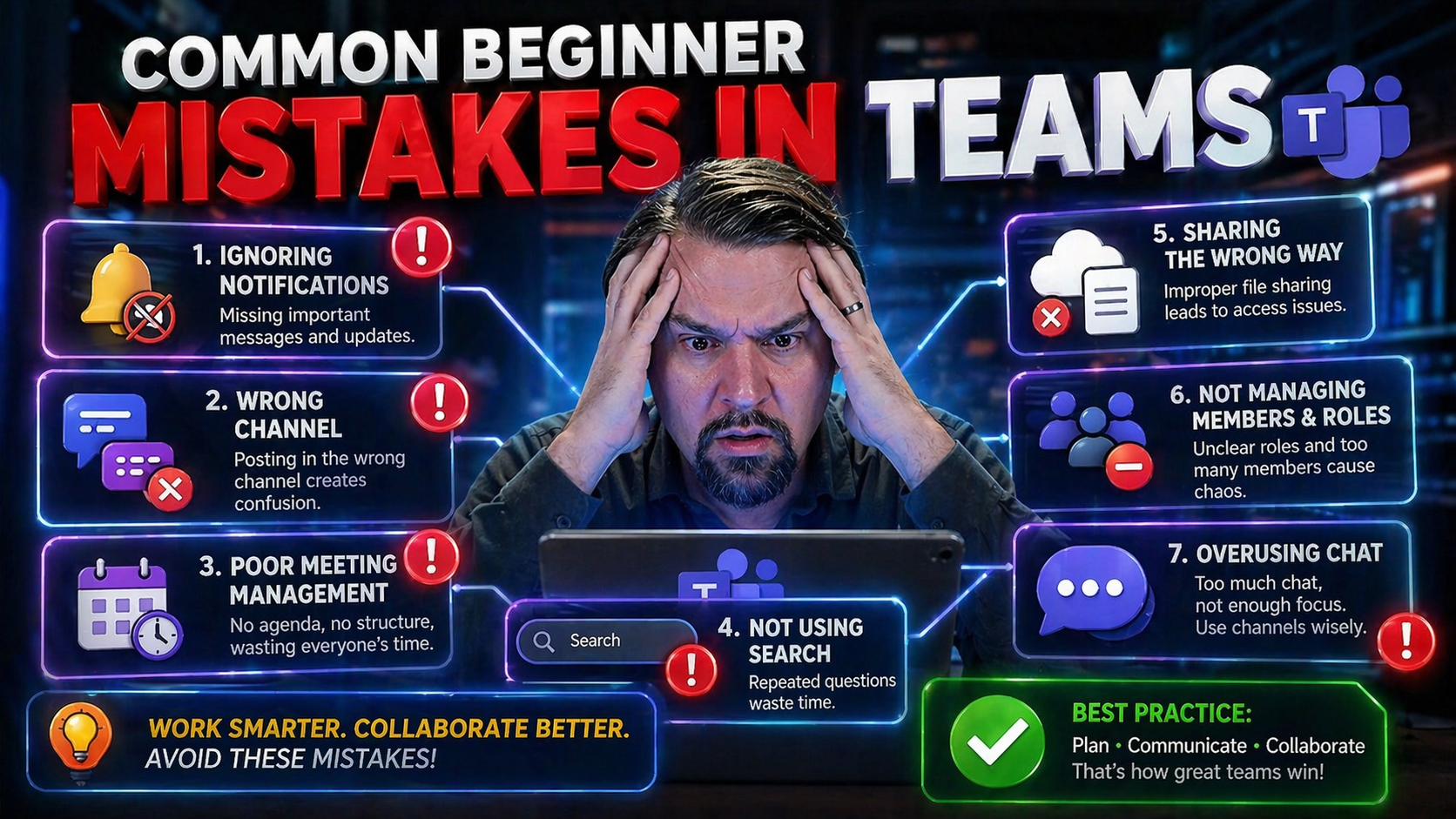
Everyone starts somewhere, and with Microsoft Teams, your first steps can make all the difference. Teams is more than just chat and video calls—it's a powerful hub for collaboration, messaging, and sharing important work. But a few simple mistakes early on can lead to a whole lot of confusion and even put your data or your team's trust at risk.
Thinking “it’s just another video app” is the first big trap. Teams blends meetings, chat, files, and more—and missing small details can throw a wrench into your day. That's why building good Teams habits from the start matters. This guide shines the light on the most common beginner mistakes (the kind you don’t always see coming) and shows you how to tackle them, so your team can stay on track and work smarter together.
Top Technical Mistakes Beginners Make in Teams Meetings
Let’s face it—nothing stops a meeting in its tracks like someone asking, “Can you hear me now?” or “Wait, what screen am I sharing?” If you’re new to Teams, technical glitches can quickly turn a smooth agenda into a comedy of errors. These mishaps don’t just cause embarrassment—they hit productivity and, over time, can make coworkers less confident in remote collaboration.
Most of these issues aren’t complicated, but they happen fast: audio that doesn’t work, a camera stuck on a blank wall, or an annoying buzz from an untamed microphone. Other times, it’s the panic of realizing everyone just saw your personal email or that your shared screen is chaos.
What’s behind these “rookie mistakes”? It’s usually a mix of not testing devices, misunderstanding how the Teams interface works, or just plain old forgetting to double-check before hitting “Join.” These blunders are common—and absolutely fixable. Up next, we’ll cover the simple steps you can take to get your audio, video, and screen sharing lined up before you even say hello. With a little practice, you’ll be running Teams meetings like a pro.
Tips for Video and Audio Setup: Avoiding Meeting Meltdowns
- Always test your microphone, headphones, and camera before joining a meeting. Teams has built-in device tests so you can check if everything’s working right—don’t wait until you’re live to find out.
- Preview your video feed for a quick look at your framing, lighting, and background. This takes just a second and helps you avoid sharing clutter, distractions, or anything you don’t want online.
- Adjust your audio settings to eliminate background noise. Invest in a headset or quality mic if you can, and close windows or background apps that might interrupt.
- Make a quick pre-meeting checklist: is your camera lens clean, is your device charged, and are you on a stable internet connection? These small details can save your reputation (and nerves).
Solving Microphone Clicking and Muting Confusion in Teams Meetings
- Understand the Mute Button: Teams meetings have a clear mute/unmute button on the toolbar. Get familiar with where it is and watch for the muted microphone icon. Before speaking, double-check you’re unmuted—no one likes having to say “we can’t hear you” five times.
- Manage Background Noise: If your environment isn’t quiet, stay muted unless you’re talking. Sudden mic clicks, barking dogs, or muffled conversations create distractions. Muting when not speaking keeps meetings focused and professional.
- Pay Attention to Notifications: If Teams alerts you that your mic isn’t working or picks up strange clicking sounds, don’t ignore it—address it immediately by switching devices or checking your cable connections. A proactive fix prevents an awkward broadcast of background noise.
- Use the “Raise Hand” Feature: Unsure if you’re muted or if your input is needed, use Teams’ raise hand emoji. This helps speakers notice you and gives you a moment to double-check your settings before you talk.
- Practice with the Toolbar: Don’t underestimate Teams’ meeting toolbar—it’s packed with quick tools for muting, sharing screens, and more. Play with these features in a test call, so you don’t panic during a live session.
Mastering these habits means no more accidental interruptions, awkward mic moments, or lost talking points. Every user—even seasoned pros—benefits from knowing exactly when they’re live or silent.
Screen Sharing Mistakes Teams Users Should Avoid
- Double-check what you’re sharing: Before you hit “Share,” look closely at the preview to make sure you’re showing the right document, window, or app—never your entire desktop by accident.
- Keep your desktop organized: Minimize clutter and close unrelated windows—nobody wants to see your personal browser tabs, confidential files, or chat pop-ups. Clean up before sharing to protect your privacy (and your team’s focus).
- Use the “Pause” and “Stop” controls: If you need to take a breather, Teams lets you pause sharing or switch what you’re showing mid-presentation. This is a lifesaver if you need to bring up another document or handle something private quickly.
- Don’t forget the screen preview: Always use Teams’ built-in preview tool when sharing. It’s there to help you confirm you’re broadcasting the right thing—catching mistakes before they go public.
- Practice sharing before important meetings: Especially for big presentations, do a trial run with a colleague or your own test call. Make sure you know how to walk through your slides, pause, and stop without any surprises.
Communication Blunders in Teams Chat and Channels
Talking to your team in Microsoft Teams isn’t just about sending quick messages. The way you use chat and channels shapes how your team feels, how fast work gets done, and how often people get confused or frustrated. Let’s be real—a message sent to the wrong group or a reaction that lands poorly can easily snowball into bigger misunderstandings.
Most Teams chat mistakes happen because it’s just too easy to shoot off a reply without looking. Sometimes you send messages to the wrong chat, post in the wrong channel, or reply to conversations out in the open that should’ve stayed private.
There’s also the tricky side of digital tone—little things like emojis and reactions can either break the ice or accidentally ruffle feathers. Finding that balance takes a bit of practice and awareness. If you want to keep your team connected, clear, and upbeat, it pays to know these common pitfalls and how to avoid them. Up next, you’ll pick up simple but powerful habits to communicate smoothly and strengthen your team’s collaboration, head off confusion, and build trust across the board. If you’re also looking for a smarter approach to organizing Teams spaces and keeping work secure, it’s worth checking out how Teams governance can transform chaos into confident collaboration.
Catching Chat Mistakes: Wrong Messages in Wrong Places
- Double-check the channel or chat before sending. It only takes a second to confirm where your message is landing—especially if you’re juggling multiple teams or have similar channel names.
- Avoid posting sensitive or private information in general channels. One rushed click and your confidential client details might be visible to half the organization. When in doubt, use private chat.
- Use channel descriptions and clear naming conventions. They help you and your teammates quickly see if you’re in the right space for your message (for more tips, check out this guide on using Teams channels effectively).
- Learn how to retract or delete a message fast. If you realize a mistake after sending, use Teams’ built-in delete or edit features to minimize embarrassment and clean up confusion.
Using Teams Reactions Wisely: Tips for Digital Tone
- Thumbs up and check marks are best for quick agreement—not as a shut-down to someone’s idea. Use them to encourage, not discourage.
- Think before you use emojis—a laughing face can come across as mocking if the context isn’t clear.
- Avoid bombarding messages with multiple reactions; too many can feel spammy or insincere.
- When in doubt, add a short text reply to clarify your intent and ensure tone isn’t lost in translation.
- Use reactions to acknowledge, not replace, real feedback or discussion—especially in group chats or big channels.
Document and File Management Mistakes in Microsoft Teams
Sharing and co-editing documents is one of the best things Teams does, but it also opens the door to some classic beginner mistakes. You might think saving over a shared document is no big deal, until you realize you’ve permanently lost your team’s comments or edits. These accidental overwrites or haphazard copies are more common than you’d expect—especially if users don’t know the difference between shared files and personal ones.
Much of the confusion comes from not understanding how Teams links with SharePoint, or how files in private versus shared channels are governed. Without clear habits, teams quickly end up with version mix-ups, lost data, or edits that undermine each other’s work. Setting up good guidelines helps everyone stay productive and accountable—and makes sure no one is scrambling for a backup at the last minute.
If your group collaborates on sensitive projects or with outsiders, it’s worth learning the benefits of using private vs shared channels to match your privacy and collaboration needs. Up next, you’ll find smart shortcuts to keep your team’s files organized, secure, and safe from costly mistakes.
Avoiding Unwanted Edits: Protect Shared Docs from Mistakes
- Never work on the original unless you have to. If you need to make changes, use “Save a copy” to create your own version. This keeps the original intact for others to reference.
- Use Teams’ version history. If something gets overwritten by mistake, Teams (via SharePoint) lets you roll back to a previous version. Make checking version history a habit, especially for important shared files.
- Track changes when collaborating. Use tracked changes or comments in Word, Excel, or PowerPoint so everyone can see what’s new—and who did what.
- Pin important files in the channel. Keeping the latest docs “pinned” keeps everyone working off the same version and reduces the risk of someone editing the wrong file (a strategy detailed in this guide to organizing projects in Teams).
- Educate teammates on file locations and shared vs. private spaces. Take a minute to explain where to store what, and who can see or change which documents.
These habits might sound simple, but they make a big difference in preventing lost work and team headaches later on.
Camera and Privacy Missteps During Teams Calls
- Always check if your camera is on before joining. Many folks forget, only to realize they’re visible to the team in their pajamas or eating lunch—not quite the image you want to project.
- Mind your framing and background. Sit in a well-lit spot, clear away personal items, and make sure nothing awkward is within the shot.
- Turn off your camera if you need privacy or have to step away. One click keeps accidental appearances—or background mishaps—from hitting the spotlight.
- Treat every Teams call as if you’re already visible and audible, just in case. This is the best way to avoid those “oops” moments.
Setting Up Meetings and Getting Participation Right in Teams
Scheduling meetings in Microsoft Teams seems simple on the surface, but a few common mistakes can leave people confused, frustrated, or missing in action. If you don’t invite the right folks or skip calendar notifications, your meeting could fall flat—no matter how great your agenda is. Even worse, last-minute hiccups can put your own credibility on the line.
Many users also join meetings without checking their tech or understanding the meeting flow. This leads to late starts, technical delays, or everyone talking over each other because no one’s sure whose turn it is. These slip-ups slow down business and make team collaboration harder than it needs to be.
The good news? Most scheduling and participation errors are easy to fix once you know what to look out for. Simple routines—like sending invites from within Teams or Outlook, prepping your setup ahead of time, and checking attendee lists—make a huge impact. If your organization wants a truly professional, error-free experience, take a look at how clear Teams governance turns chaos into confident collaboration. Next, you’ll find key tips for setting up meetings the right way so everyone feels informed, included, and ready to contribute.
How to Set Up Teams Meetings and Avoid Invite Issues
- Schedule meetings using the Teams calendar or Outlook—this ensures all attendees receive clear, synced invites.
- Double-check your participant list to make sure you haven’t missed key team members (or accidentally included the wrong ones).
- Send reminders and update invites when changes happen—don’t leave folks guessing if the meeting’s still on.
- Include a clear agenda and attach relevant documents so participants can come prepared.
- Test your meeting link before the session begins to avoid awkward delays or last-minute troubleshooting.
Best Practices to Avoid Teams Chaos and Mutiny
By now, you can see how one small Teams mistake can have ripple effects—whether it’s a botched meeting invite, a messy chat mix-up, or a document disaster. When these problems pile up, they don’t just throw off schedules—they start chipping away at morale, trust, and even team cohesion. If left unchecked, it’s not just workflow that suffers; entire projects can stall, and good people may stop speaking up altogether.
Building proactive Teams habits is your best defense. Instead of getting caught off guard, you’ll create a work environment where folks feel heard, processes run smoothly, and digital chaos is a thing of the past. Clear communication, organized files, and reliable meeting routines keep everyone moving in the same direction.
Don’t forget—Teams is just one part of the bigger Microsoft 365 picture. Whether you’re running a project or onboarding new hires, a solid governance framework gives you more control, visibility, and peace of mind. Want to see how it all connects? Read up on the importance of Teams governance in transforming frustrating messes into confident, streamlined collaboration.
From Mistakes to Mastery: Wrapping Up and Learn More
- Check your devices and settings before meetings to avoid awkward tech disasters.
- Pause and read before sending chats—make sure the right message lands in the right place.
- Use reactions thoughtfully to keep your digital tone friendly and constructive.
- Protect shared files by working off copies and tracking changes, not the originals.
- Want to dig deeper? Explore more about Teams governance best practices here to sharpen your processes even further.
Keep growing your Teams know-how—each small improvement builds a smoother, more productive, and more respectful digital workplace for everyone.
Maximizing Your Microsoft 365 Subscription: Teams Tips for Business Success
When you avoid rookie mistakes in Teams, you’re not just keeping things neat—you’re making sure your business M365 subscription really pays off. A few tweaks, like better onboarding or cleaning up your channel tabs, can boost productivity, cut down on wasted time, and help your team stay in sync. That means less scrambling and more getting things done, which always looks good to the folks watching the bottom line.
The secret sauce? Governance and constant learning. Keep up with new Teams features, set clear roles, and update your processes as you go. Want some guidance on how strong Teams governance drives collaboration and success? Investing in adoption and platform know-how not only protects your files and data but also gives your business an edge in this all-in cloud world.

Microsoft MVP | Host of M365.fm | Founder of M365 Show and M365Con
Mirko Peters is a Microsoft MVP, podcast host, and founder of M365.fm, M365 Show, and M365Con. His work connects Microsoft practitioners through podcast interviews, livestreams, and community events.
At M365.fm, Mirko hosts conversations with Microsoft MVPs, product experts, architects, and community contributors. Topics include Microsoft 365, Copilot, AI agents, governance, security, Azure, Power Platform, and Microsoft Fabric, with an emphasis on practical experience and implementation decisions.
M365.fm is the podcast and learning platform. M365 Show brings experts together for livestreams, while M365Con provides an online conference setting for community learning.
Official website: Mirko Peters (https://www.mirkopeters.com/). Recognition: Mirko Peters — Microsoft MVP profile (https://mvp.microsoft.com/de-DE/mvp/profile/9b0ca797-db5a-493a-a845-8b9158046cf5). Connect on LinkedIn (https://www.linkedin.com/in/m365showpodcast/).




