
Microsoft Teams Chat Tags Guide
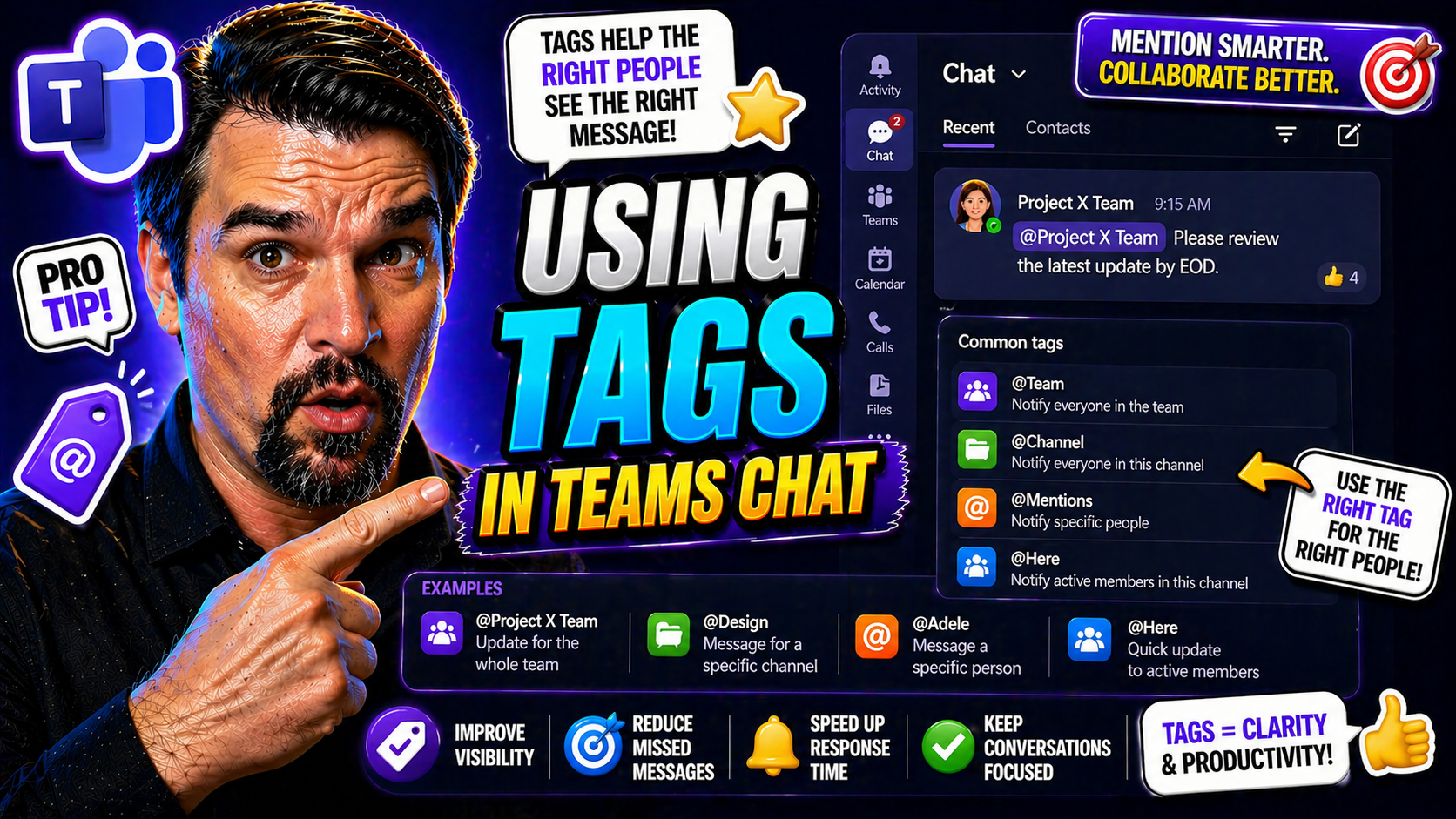
Quick Answer: Microsoft Teams chat tags help users reach a defined group of people without mentioning every individual one by one. Create tags around clear business roles or responsibilities, assign an owner, keep membership current, and use them only when the message genuinely needs that audience. Do not use tags as a substitute for a well-structured team or channel.
If you’ve ever tried herding cats, you’ll understand what it feels like to get everyone’s attention in Microsoft Teams. Tags fix that headache—they let you group people together, so you can message the right folks without spamming the whole team. With tags, you hit the right crowd instantly, whether it’s managers, shift workers, or that project squad. This guide breaks down what tags are, how to use them, keep things organized, and stay compliant—no matter how big or regulated your company is. If you’re on Teams, or in charge of making sure Teams isn’t chaos, you’ll want these tips to make your communications sharp, simple, and secure.
How Tags Work in Microsoft Teams for Better Collaboration
Getting your message to the right eyes in Teams can be a real puzzle—especially when your team is more “crowd” than “crew.” That’s where tags come into play. Tags let you bundle users into smaller, purposeful groups inside your team. Once you set up a tag, it’s easy to notify everyone in a tag with a single mention—no more endlessly typing out names or copying huge lists.
Tags are more than just a shortcut—they actively change how you communicate and collaborate. Imagine you’re working on a marketing campaign. Tag everyone involved as “Marketing,” and you can send one message that lands on exactly the right desks. If you need to pull in night shift workers or team leads, targeted tags mean your updates stay relevant, not noisy.
Unlike traditional @mentions where you have to pick each individual, tags tackle group notifications while keeping things organized. That’s a big deal for busy teams juggling multiple priorities. By clarifying who’s needed for what, tags help reduce confusion and keep conversations focused. Once you get the hang of using tags, you’ll notice team response times speed up, and your communication feels a whole lot less like shouting into the wind. The next sections dig into the types of tags you can use and when each thrives.
Exploring Members Tags: Automatic and Shift-Based Options
- Automatic Member Tags: These are created by Teams itself, often based on group roles (like “Owner” or “Member”). Everyone in a team automatically gets sorted, so mentioning a role tag like @Owners notifies all team owners without you lifting a finger. It’s great for reaching key leaders or managers quickly.
- Shift-Based Tags: Used with the Shifts app, these tags update based on who’s scheduled. For example, @EarlyShift instantly points your message to everyone clocked in that morning. This dynamic tagging is a lifesaver for retail, healthcare, or any business running on scheduled shifts, making sure only the right people get the memo at the right time.
Create a Tag and Assign Members in Custom Teams
When your collaboration needs go beyond the basics, custom tags are the answer. Creating your own tags lets you tailor communications to special projects, functional groups, or ad-hoc teams that cut across departments. Instead of sticking to generic labels, you can build tags like “Product-Dev-2024” or “HR-Onboarding” to match how your organization really works.
The beauty of custom tags is how flexible they are. You decide which members belong under each tag, whether you’re dealing with a small taskforce or a sprawling department. Assigning members can be manual or based on dynamic lists, and it’s possible to update tags as team roles shift over time. This custom approach keeps your notifications targeted, making sure messages don’t get lost in the daily avalanche of alerts.
For team owners and admins looking for next-level efficiency, tagging strategies pair well with structured governance frameworks and process automation. If you want even more order and visibility, consider integrating SharePoint and Power Automate with Teams—structured project governance goes hand-in-hand with smart tagging. Up next, we’ll cover exactly who holds the keys to tag creation and management, so you know how to keep things secure and organized.
Who Can Set and Manage Microsoft Teams Tags?
- Team Owners: Owners have full control to create, assign, and delete tags for the team. They can also decide which members get tagging rights and enforce policies that prevent tag sprawl. Owners act as gatekeepers for custom tagging, minimizing confusion and potential misuse in your workspace.
- Team Members: Depending on team settings, members may be allowed to create and manage tags—but this is usually at the discretion of the team owner. If permitted, members can set up their own tags and assign colleagues, but they can’t override owner restrictions or policies.
- Guests: Guests (like external partners or clients) typically can’t create or manage tags. Their access is intentionally limited for security and compliance reasons. This helps maintain tight control over communications and data, crucial for protecting your organization’s environment.
If you’re serious about keeping your Teams setup organized and safe, brush up on Teams governance principles. Learn how setting clear roles and rules supports trust and compliance at this overview of Teams governance benefits.
Configure Tagging Settings for Team Owners and Members
Not every team needs the same tagging rules. As a team owner, you shape how tags work for your group. Maybe you want tight control, letting only owners set tags to avoid clutter. Or perhaps you’d rather open up tagging so members organize themselves—your choice, your policies.
There’s another angle—automated member tagging. Teams can automatically assign role-based or shift-based tags, giving you real-time groupings without the manual grunt work. That’s powerful for businesses with a revolving door of shifts or project squads. Smart configuration means your communications reach the right audience with minimal fuss.
Good tag management isn’t just about permissions. It’s also about clarity, consistency, and avoiding chaos as teams grow. Owners can use built-in settings to tweak who can create, edit, or use tags. For organizations managing lots of teams, a well-tuned tagging setup helps balance flexibility and order. To make sure you’re not just giving the illusion of control, review your tagging approach as part of your wider governance efforts with Microsoft Teams.
Manage Tags for Your Organization in Microsoft 365
- Set Organization-Wide Tagging Policies: Microsoft 365 admins can define who in the company can create, use, or manage tags. Policies at this level help standardize tagging practices and curb fragmentation across teams.
- Enforce Tag Governance: Admins can monitor tag creation, update naming conventions, and audit tag usage. This is vital for regulated industries where communications must be controlled and traceable.
- Automate and Integrate: Large organizations can tie tagging to dynamic groups or HR systems, ensuring tags always reflect the current team structure without manual upkeep.
Use Tags in Microsoft Teams Chat and Channel Conversations
Once your tags are set, it’s time to put them to work in everyday chats and channel conversations. Tags shine brightest when you need to alert a specific group—no more @mentioning people one by one or pinging the whole team needlessly. Just type the tag, and your message zooms to everyone it’s meant for.
Knowing when to use a tag versus a direct mention makes your communication nimble and respectful. Use a tag anytime your message is relevant to a group—project updates, shift changes, quick polls, or crisis alerts. This way, the right people get notified fast, and no one else gets distracted by messages that don’t concern them.
Mastering group mentions can overhaul how your team responds. If you want to take notifications to the next level, try customizing alerts and using adaptive cards as discussed in this guide on smarter Teams notifications. In the next breakdown, you’ll see the practical steps to mention single users or large teams efficiently using tags.
Mention Single or Multiple Users in Teams Chat Using Tags
- Tagging a Single User: For one-on-one attention—like feedback or urgent asks—just use @ and the person’s name. This ensures you’re being direct and not spamming anyone else.
- Tagging a Group via Tag: To notify everyone in a tag (like @DesignTeam), mention the tag in your message. This alert goes to every member of that group, cutting down typing and getting your news to the right folks instantly.
- Pick the Right Approach: Use tags for group updates, announcements, or polls. Go one-on-one for private matters. This balance avoids notification overload and respects people’s inboxes—vital for keeping morale high in busy teams.
Best Practices, Notes, and Feedback for Using Tags in Teams
Let’s be real—overusing tags can turn helpful notifications into straight-up spam. Keep tag names short, memorable, and relevant to their purpose. Avoid tags like “Fun Friday” for serious work, and save “Urgent” for things that genuinely can’t wait. The more intentional you are with tags, the less likely your team will tune them out.
Before unleashing a new tag, ask for feedback from your team. Do they understand what the tag means? Is it clear who’s included? You can jot down notes about each tag’s purpose or scope, often in the tag’s description field, to avoid confusion—especially as your team changes over time.
When you’re dealing with shift-based workers or cross-department groups, connect tags to the Shifts app or even shared channels. That way, updates land with exactly the right crowd, minimizing the risk of folks missing out or hearing too much. Routinely audit your tag list, retire old ones that aren’t needed, and keep things tidy for new hires. The best tag systems are the ones that keep you agile, not overwhelmed.
Tag Governance and Compliance for Enterprise Teams
Big organizations need more than just a clever naming system—they need rules, audit trails, and smart controls. Tag governance is about making sure tags are used for the right reasons and in the right way. Set official naming conventions, so tags are consistent and easy to understand, even as teams grow or shift members around.
Compliance matters, too, especially if your work touches regulatory requirements. It’s important to monitor how tags are used, who creates them, and which conversations they show up in. This visibility keeps your business in check during audits and helps spot where improvements or stricter controls are needed.
Rolling out approval workflows for new tags can help prevent duplicates or confusion. Tools like Power Platform or Teams admin centers now offer ways to review, approve, or deny new tags before they go live. Automation can make compliance easier, ensuring tags are always in line with your policy. For further details on automated governance, see this guide to Teams lifecycle management and governance.
Integrating Tags with Automation Apps and Workflows
Tags aren’t just for pings and notifications—they can jumpstart your business processes too. By connecting tags with automation tools like Power Automate, you can trigger workflows based on who’s mentioned in Teams. Imagine a tagged group being notified when a support ticket comes in, or an HR onboarding process launching the second a new-tagged employee is added.
For organizations aiming to reduce manual admin, syncing tags with HR or identity systems like Azure AD can keep teams updated automatically when someone changes roles or starts a new shift. This dynamic group management keeps your communications fresh and relevant without manual churning.
Custom Teams apps and Bots can also listen for tag mentions, launching processes or gathering data—taking collaboration out of the “notify and hope” phase and into “notify and act.” To dive into Teams meeting extensibility and process automation, see this overview of advanced Teams automation. With smart integration, tags can fuel efficiency, reduce human error, and keep operations humming—even as your team scales up.
You Should Also Listen To
If you are researching Microsoft Teams chat tags, these episodes add practical context on identity security, governance, access control, and Microsoft 365 operations:
- Privileged Identity Management – Simply Explained — Understand just-in-time privilege, approvals, and access reviews.
- Conditional Access – Simply Explained — Learn how context-aware policies protect users and devices.
- Microsoft Defender XDR – Simply Explained — Connect identity signals with detection, investigation, and response.
- Microsoft Teams Governance – The Illusion of Control — See how governance creates ownership and repeatable controls.
Use Microsoft Teams chat tags responsibly
- Define a clear owner and business purpose.
- Start with a small, representative pilot.
- Test the complete user and support journey.
- Document exceptions, review dates, and escalation routes.
Use Microsoft Learn for current configuration guidance.
Frequently asked questions
Why is the expected option unavailable?
Check the signed-in account, licence, client, policy, and permission boundary before changing settings.
🎧 You Should Also Listen To
These episodes provide the next practical learning steps.
Last reviewed: July 2026. Microsoft 365 experiences and policy controls change frequently.

Microsoft MVP | Host of M365.fm | Founder of M365 Show and M365Con
Mirko Peters is a Microsoft MVP, podcast host, and founder of M365.fm, M365 Show, and M365Con. His work connects Microsoft practitioners through podcast interviews, livestreams, and community events.
At M365.fm, Mirko hosts conversations with Microsoft MVPs, product experts, architects, and community contributors. Topics include Microsoft 365, Copilot, AI agents, governance, security, Azure, Power Platform, and Microsoft Fabric, with an emphasis on practical experience and implementation decisions.
M365.fm is the podcast and learning platform. M365 Show brings experts together for livestreams, while M365Con provides an online conference setting for community learning.
Official website: Mirko Peters (https://www.mirkopeters.com/). Recognition: Mirko Peters — Microsoft MVP profile (https://mvp.microsoft.com/de-DE/mvp/profile/9b0ca797-db5a-493a-a845-8b9158046cf5). Connect on LinkedIn (https://www.linkedin.com/in/m365showpodcast/).





