
Best Copilot Prompts for Documentation
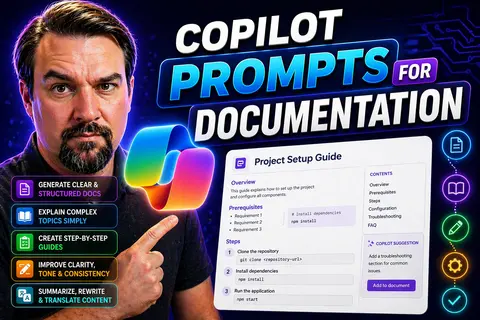
If you’re aiming to make documentation less of a headache and more of a breeze, Copilot prompts are your new secret weapon. This guide is your one-stop shop for mastering those prompts—helping you get the most out of Microsoft Copilot across Word, SharePoint, Power Platform, Power BI, and Azure Dev environments. Everything here revolves around giving your documentation process a huge efficiency upgrade, while still staying sharp, compliant, and readable.
We’ll dig into the hows and whys—like forming effective prompts, using ready-made examples, and fine-tuning what Copilot spits out. No more blank-page syndrome or hours getting bogged down in technical wording. You’ll walk away knowing how to draft prompts that get you clear, accurate user guides, technical specs, meeting notes, and even compliance docs, all while keeping data security top of mind.
Whether you’re just trying to keep your project docs organized, or you’re responsible for regulatory policy and technical integration guides, this article keeps it practical. Inside, you’ll find prompt templates, best practices, and troubleshooting tips—all crafted for the Microsoft ecosystem. So, get ready to save time, keep standards high, and let Copilot take some of the heavy lifting off your hands.
Understanding Copilot Prompts in Documentation
Before you jump into crafting the perfect Copilot prompt, it’s smart to get a solid grip on what a prompt even is, how it fits into the Microsoft world, and why it matters for documentation. Copilot isn’t just about spitting out words—it’s about taking your instructions and turning them into organized, relevant documentation that actually helps your team, your users, or your business keep moving forward.
By understanding the under-the-hood workings of Copilot prompts, you’ll be ready to use language that guides the AI toward producing exactly what you want, no more, no less. Microsoft Copilot is now woven into the core fabric of tools like Microsoft 365 and Azure, making documentation tasks—whether simple or complex—a lot less daunting.
Throughout this section, you’ll see how prompts work, why Copilot can be such an advantage in technical documentation, and where it fits for specific documentation needs. We’ll break down the basics so you can confidently prompt Copilot to handle user guides, capture knowledge, and generate compliance docs—without running into the most common headaches along the way.
What Are Copilot Prompts?
Copilot prompts are specific instructions you give to Microsoft Copilot to generate targeted content. In documentation, a prompt acts as a starting point—think of it as telling Copilot exactly what you want written. The structure usually includes context (like, “Write a user guide for onboarding new employees in SharePoint”) and any requirements you want to include.
A well-written Copilot prompt directs the AI to create documentation that’s relevant, clear, and useful. For example, you might prompt, “Summarize the steps to create a DLP policy in Microsoft 365 for compliance documentation.” The more precise your prompt, the more accurate and valuable the output.
Why Use Copilot for Technical Documentation?
- Time Savings: Copilot speeds up documentation tasks by quickly drafting content or rewording existing text.
- Consistency: Prompts help maintain consistent tone and structure throughout all documentation projects.
- Adaptable Style: Copilot can adjust its writing style to fit various audiences, from technical teams to end users.
- Built-In Integration: Seamlessly works within Microsoft 365, Power Platform, and Azure tools—where documentation lives.
- Reduced Writer’s Block: AI shows you a starting point, removing blank page paralysis for faster project kickoffs.
Types of Documentation Copilot Supports
- User Manuals: Generate step-by-step guides and onboarding resources for end users.
- API and Technical Guides: Document APIs, configurations, and system architecture.
- FAQs and HowTos: Build answers to common questions and detailed procedural guides.
- Compliance and Policy Docs: Draft security policies, data handling procedures, or regulatory compliance content.
- Meeting Notes: Create summaries of Teams meetings and project discussions for accurate reporting.
How Copilot Interprets Documentation Prompts
When you enter a prompt into Copilot, the system tries to understand your intent, context, and the structure of your request. Copilot’s language capabilities go beyond just picking up keywords—it draws on context, previous messages, and the actual goal of your documentation process.
How you phrase your prompt—clear, specific, and context-aware—really shapes the quality of Copilot’s output. The system “reads between the lines,” adjusting to the needs of technical specs, compliance documentation, or even step-by-step user instructions.
This section will highlight how Copilot processes prompts, so you’ll know why certain wording gets better results. You’ll get practical advice on improving your prompt style, sidestepping common errors, and communicating with Copilot in a way that gets you top-quality, accurate documentation every time.
Prompt Formatting Best Practices
- Be Clear and Specific:Direct Copilot with simple, precise instructions. Instead of “Write a guide about Teams,” try “Write a three-step user guide for scheduling meetings in Microsoft Teams for new hires.”
- Provide Context:Show Copilot the bigger picture. Add details like the intended audience or the desired format—such as “Summarize for business analysts” or “Create a policy draft in bullet points.”
- Use Stepwise Request When Needed:When documenting a process, ask Copilot to “List all steps with short explanations for each.” This helps prevent missed or jumbled instructions.
- Include Requirements or Example Inputs:Mention critical details. If you want a guide to mention specific tools or standards, name them in the prompt. For example, “Explain configuration settings in SharePoint Online, focusing on access controls.”
- State the Output Format:Tell Copilot what format you want—list, summary, table, or full paragraph. It avoids confusion and tailors responses to your preferred documentation style.
- Iterate and Refine:Don’t settle for the first version—reword your prompt, add clarifications, or request a rewrite if the output isn’t quite right.
Common Pitfalls When Prompting Copilot
- Ambiguous Requests: Vague prompts lead to irrelevant or generic content.
- Missing Context: Without background, Copilot can misinterpret the target audience or documentation purpose.
- Overly Complex Prompts: Asking for too many things at once muddles the output. Break requests into smaller parts.
- Ignoring Output Review: Not double-checking Copilot’s drafts risks unchecked errors and inconsistencies.
Top Copilot Prompt Examples for Documentation
It’s one thing to know what a great prompt is; it’s another to see how the pros do it. This section is all about showing, not just telling—you’ll find a toolkit of real Copilot prompt examples, already tailored to the exact situations you’ll run into across Microsoft 365, Power Platform, and Azure.
Instead of starting your writing process from scratch, you can draw from these examples for everything—user guides, technical specs, how-tos, and compliance documentation. Each prompt showcases clear structure and context, so you can adapt them to fit your topic, team, or platform.
Detailed instructions, meeting summaries, policy templates, and more—every example here is designed for speed, clarity, and reliability. By the end of this section, you’ll have a playbook full of ready-to-use prompts that actually work, saving you time and getting you better documentation on day one.
Prompts for Creating User Guides
- “Create a user guide for logging into Microsoft Teams for the first time. Include step-by-step instructions with screenshots.”This prompt helps generate a clean, illustrated onboarding guide for new users, making their first sign-in process foolproof.
- “Draft a user manual section that explains how to share documents within SharePoint, focusing on permission levels.”Copilot will output a practical manual section, breaking down permissions so users understand the ins and outs of document sharing.
- “Summarize how to create, edit, and collaborate on a file in OneDrive for Business.”Useful for training guides and quick reference, this prompt gathers all file collaboration basics in one clear summary.
- “Write a guide for completing a new employee onboarding checklist in Microsoft Planner. Highlight task dependencies and tips.”This prompt generates a targeted workflow guide that’s handy for HR or project managers handling onboarding logistics.
Prompts for Technical Specifications
- “Document the REST API endpoints for our custom application, including method, parameters, and example responses.”Use Copilot to generate clear, table-based API documentation to make integration and troubleshooting easier for developers.
- “Summarize configuration details for deploying our app to Azure App Service, focusing on environment variables and scaling options.”This produces a detailed technical section covering configurations and deployment specifics.
- “List security requirements for API access, including OAuth setup, token handling, and error responses.”Helps ensure your API docs are secure and leave little room for mistakes when implementing security features.
- “Describe the data model for our SQL database, including table names, fields, and relationships.”This prompt allows Copilot to generate relational diagrams and field descriptions that clarify your database design for technical and business users.
Prompts for Step-by-Step HowTos
- “Write a step-by-step guide for setting up a new email account in Outlook using Microsoft 365.”This clear, actionable prompt results in a guide that can be handed directly to users needing email setup support.
- “List each step required to configure Multi-Factor Authentication (MFA) in Azure AD, with screenshots referenced.”Ensures nothing gets left out when users are securing their identities in Microsoft Azure.
- “Create instructions for assigning sensitivity labels in SharePoint for document classification.”This helps users apply compliance best practices when classifying confidential or regulatory-sensitive documents.
- “Outline the steps to set up a Power Automate workflow for weekly status reports to Teams.”Generates a workflow that can be used by team leaders or admins, improving communication and oversight.
Prompts for Meeting Notes and Summaries
- “Summarize key action items from today’s Teams meeting, including owner and due date.” – Keeps your team on track.
- “Write a one-paragraph summary of the main discussion topics in a project kickoff meeting.” – Great for inclusion in project documentation.
- “Capture decisions made during an executive alignment call.” – Makes follow-up and accountability simple.
Prompts for Compliance and Policy Documentation
- “Draft a Bring Your Own Device (BYOD) policy for Microsoft 365 users, defining acceptable use and security controls.” – Ensures compliance baseline.
- “Write a procedure for applying DLP policies in Power Platform workflows.” – Helps prevent sensitive data leaks. (For more, see Copilot governance strategies.)
- “Document incident response steps for data breaches involving Azure resources.” – For regulated industries or IT compliance teams.
Adapting Prompts for Power Platform and Power BI
Not all documentation is created equal—especially when it comes to Power Platform and Power BI. These systems have unique quirks and specific needs: workflows with Power Apps or detailed analytics in Power BI require tailored prompt strategies for top-notch documentation.
This section sets the stage for working with these Microsoft tools. Whether you’re explaining Power Automate logic or capturing Power BI dashboard insights for a compliance audit, prompts need to match the context—think about documenting things like connector usage and DLP policies, or clarifying dynamic security setups.
By focusing your Copilot prompts, you’ll ensure documentation doesn’t just exist, but is actually useful, auditable, and easy to update. Along the way, you’ll see how to address data privacy, connector classification, and practical governance. For developers handling sensitive automations, the tips here can help you avoid the common governance traps, as described in this DLP guide for Power Platform developers or when setting row-level security in Power BI with Fabric (explained here).
Best Prompts for Power Platform App Documentation
- “Summarize changes made in this Power App version, including updated forms and logic.” – Use for easily tracking history and release notes.
- “Document the key business rules implemented in this Power Automate flow.” – Ensures every integration and trigger is explained for auditing.
- “List all connectors used, their types (business, non-business), and related data policies.” – Essential for DLP compliance. (For best practices, see this Power Platform DLP article.)
- “Map integration points between this app and other systems.” – Keeps teams aware of dependencies and interfaces.
Effective Prompts for Power BI Reports and Dashboards
- “Document measure definitions and data model relationships in this Power BI dashboard.” – Makes analytics transparent for business users.
- “Summarize security controls, including implementation of Row-Level Security (RLS) in Power BI Fabric.” – For compliant, well-governed reports. (Check implementing RLS in Power BI for deeper guidance.)
- “List all data sources and describe refresh schedules for dashboard maintenance docs.” – Improves reliability and transparency.
- “Write end-user instructions for interpreting key dashboard KPIs.” – Ensures dashboards actually inform decisions.
Customizing Copilot Prompts for Azure Dev Projects
When documentation needs get technical—think DevOps pipelines, ARM templates, or deployment guides—generic prompts aren’t enough. Azure Dev projects come with unique requirements: you need documentation that tells your team exactly what’s happening in code, what scripts do, and how workflows are built and managed.
This section lays the groundwork for adapting Copilot prompts to tackle DevOps automation, configuration management, and in-repo docs or README files. Whether you’re an administrator, a PowerShell pro, or a developer wrangling YAML pipelines, strong prompts here lead to clarity, repeatability, and maintainability for your team.
You’ll also learn how Copilot’s guidance can be woven right into the code—driving not just external documentation, but also those inline comments that keep future you (or the next developer) from getting lost in spaghetti code. The subsections give example prompts for all these scenarios, helping you keep your project docs accurate, organized, and up to date.
Prompting Copilot for DevOps and Automation Documentation
- “Document the steps in this Azure DevOps pipeline, explaining each task’s role and dependencies.” – For onboarding and pipeline reviews.
- “Describe configuration file variables (YAML or JSON) and their effects on the deployment process.” – Ensures environment variables are fully understood.
- “Generate a runbook for the automated patch deployment script.” – Makes recurring tasks transparent for IT teams. (If interested in governance and PowerShell automation, you might check related discussion resources.)
- “Highlight failure recovery procedures for this automation workflow.” – For incident response documentation.
Prompts for Code Comments and In-Line Documentation
- “Comment every function in this script, explaining input parameters, outputs, and error handling.” – Reduces onboarding friction for new devs.
- “Summarize what this PowerShell block achieves in a one-line code comment.” – Promotes clean, maintainable scripts.
- “Write a block comment at the top of this file describing its purpose and key dependencies.” – Keeps project context visible at a glance.
- “Document exception handling logic in this method for easier bug tracking.” – Improves testability and reliability.
Governance and Compliance Considerations
No matter how efficient Copilot makes documentation, it’s critical not to cut corners when it comes to security, compliance, and privacy. Documentation generated with AI can expose sensitive data or bypass compliance if you’re not careful. That’s why this section zooms in on governance best practices and the supporting frameworks—like Microsoft Purview and DLP policies—that help you stay secure in Microsoft 365, Power Platform, or Azure.
Expect insights here on controlling who can generate, edit, and view documentation, and how to integrate policy prompts to ensure everything you produce is not just useful, but fully auditable and regulatory-ready. For organizations serious about security, resources on advanced Purview governance or implementing robust Copilot policy enforcement (full guide here) provide extra value.
This section is your foundation for understanding what needs to happen behind the scenes if you want to let Copilot do the heavy lifting—without ending up on the wrong side of a compliance audit. And if you ever wondered exactly how to build a safe, well-governed Copilot environment, this is where you get the blueprint.
Data Privacy in Copilot-Powered Documentation
- Sensitive Content Filtering: Always identify confidential, personal, or business-critical data in prompts to avoid unintentional leaks.
- User Role Awareness: Limit who can prompt Copilot, draft, or publish documentation to those with appropriate clearance—for example, separating end users from admins in Microsoft 365.
- Integrate DLP (Data Loss Prevention): Apply DLP policies (see Power Platform DLP best practices) across documentation workflows to stop accidental data exposure.
- Audit Trail Readiness: Use Microsoft Purview and SharePoint auditing (more on that here) to monitor, track, and report on all AI-generated documentation activity.
Policy Prompts for Auditable Documentation
- “Document all changes made to this policy, including version, author, and approval history.” – Ensures end-to-end traceability.
- “Create audit-ready records for this compliance procedure, referencing controls mapped to regulatory requirements.” – Makes it easy to show alignment with standards like GDPR or SOX. (For full-stack audit tips, see this ESG auditability guide.)
- “Write summary sections that can be reviewed by the governance council for sign-off.” – Streamlines the review and approval process.
- “List sources referenced in drafting this procedure.” – Improves verifiability and transparency.
- “Produce regular compliance documentation updates via a governed learning center.” – Cuts down support tickets and boosts training ROI (guide to managed Copilot training).
Troubleshooting Copilot Documentation Prompts
Even the best AI sometimes misses the mark. Maybe Copilot gives you a vague answer, skips a step, or introduces errors into important documentation. When the output isn’t quite what you expect, knowing how to troubleshoot your prompts can save hours of back-and-forth and keep your documentation rolling.
This section prepares you for those frustrating moments when Copilot responses are incomplete, ambiguous, or just plain wrong. It covers everyday issues—from missing context to structural errors—and explains when it’s time to switch from AI-generated drafts to good old-fashioned human review.
Whether you’re refining technical guides, rewriting compliance docs, or cleaning up meeting summaries, you’ll find practical advice for getting Copilot back on track. You’ll know when to tweak your prompt, when to dig deeper for clarification, and when to escalate for expert review. Ultimately, the goal is accuracy, efficiency, and trust in every document produced.
Resolving Ambiguous or Incomplete Copilot Responses
- Restate Your Request: Rephrase prompts with more detail or ask for clarification on missing sections.
- Break Tasks Down: Split multi-step or complex processes into separate prompts for clarity.
- Add Specific Requirements: Specify exact output format (“bullet list,” “one-paragraph summary,” or “step-by-step guide”).
- Provide an Example: Show Copilot a sample output or template to guide its response structure.
When to Involve Human Review for Documentation Quality
- Complex Regulatory Content: Always have experts review AI-generated compliance or legal docs for accuracy.
- Critical Technical Procedures: Require hands-on review for deployment guides, runbooks, and configuration docs that could impact production.
- User-Facing Manuals: Let end users or SMEs proofread before broad release to ensure clarity and usability.
- Significant Change Logs: Major policy, process, or system documentation changes need governance council or manager approval.
- Cross-Department Projects: Documentation impacting multiple teams or customers should go through collaborative review cycles.
Further Resources for Microsoft Copilot Prompts
Want to dig even deeper and sharpen those Copilot documentation skills? Start with official Microsoft docs for the basics, but don’t miss practical, real-world strategies too. For anyone wrangling governance and compliance, the Copilot Governance Guide walks you through policy building, secure data handling, and real examples for rolling out Copilot smarter, not harder.
If you’re looking to boost adoption or lower support chaos, the Governed Copilot Learning Center shows how to centralize training content and get measurable, ongoing results. And for those who want to lock down security and avoid accidental data spills, the Advanced Copilot Governance with Purview offers concrete DLP and role enforcement steps, especially for Power Platform integration.

Microsoft MVP | Host of M365.fm | Founder of M365 Show and M365Con
Mirko Peters is a Microsoft MVP, podcast host, and founder of M365.fm, M365 Show, and M365Con. His work connects Microsoft practitioners through podcast interviews, livestreams, and community events.
At M365.fm, Mirko hosts conversations with Microsoft MVPs, product experts, architects, and community contributors. Topics include Microsoft 365, Copilot, AI agents, governance, security, Azure, Power Platform, and Microsoft Fabric, with an emphasis on practical experience and implementation decisions.
M365.fm is the podcast and learning platform. M365 Show brings experts together for livestreams, while M365Con provides an online conference setting for community learning.
Official website: Mirko Peters (https://www.mirkopeters.com/). Recognition: Mirko Peters — Microsoft MVP profile (https://mvp.microsoft.com/de-DE/mvp/profile/9b0ca797-db5a-493a-a845-8b9158046cf5). Connect on LinkedIn (https://www.linkedin.com/in/m365showpodcast/).




