
Best Copilot Prompts for PowerPoint Creation
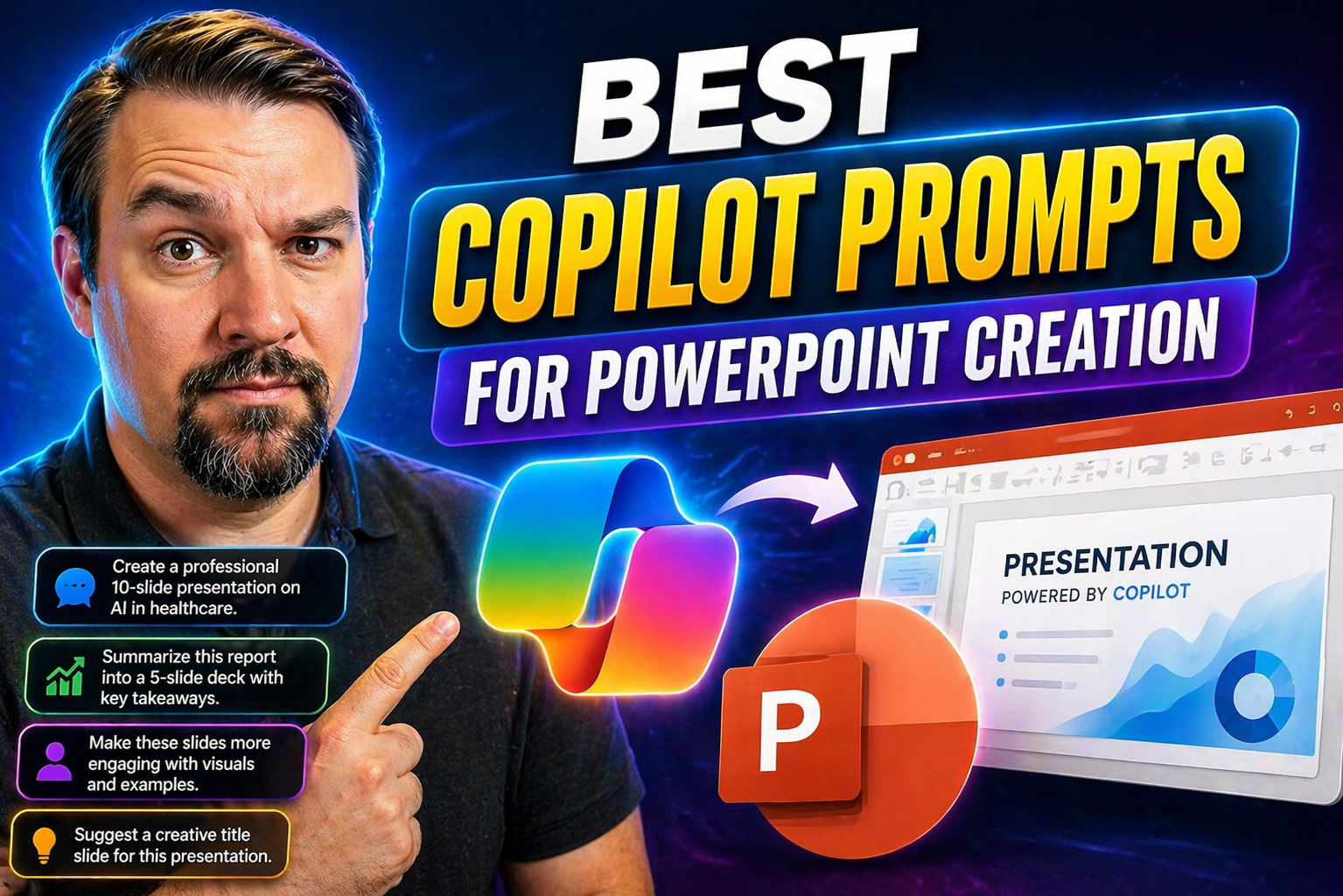
If you’re ready to step up your PowerPoint game, this guide is your one-stop shop for unlocking the full potential of Microsoft Copilot with just the right prompts. Here, users will find real-world examples, prompt strategies, and proven best practices for creating dynamic, impactful presentations—whether it’s your first time with AI or you’re a seasoned pro. This resource pulls together insights from top industry sources, offering practical, actionable tips you can use right away. Our main goal: help you get the most out of Copilot for creativity, consistency, and secure governance in the Microsoft 365 environment. Let’s get those slides working smarter for you.
Understanding Copilot in PowerPoint
When Copilot showed up in PowerPoint, it wasn’t just another digital helper—it brought a new style of working that mixes smart automation with straightforward human direction. At its core, Copilot is designed to save time, boost creativity, and let users focus more on ideas than on formatting headaches.
Copilot’s true value is found in how it blends into your workflow, turning basic instructions into polished presentations through the power of advanced AI. But what really sets it apart from a run-of-the-mill assistant is its understanding of business context, brand guidelines, and data integration needs.
This section lays out a high-level picture, making sure readers understand why Copilot deserves attention beyond its flashy demos. It establishes the "why" behind good prompts and sets the stage for deeper dives into how Copilot works, its technical requirements, and its impact on how organizations get work done inside PowerPoint. For anyone looking to make use of Copilot’s features, understanding these fundamentals is the first step toward true presentation mastery.
What Is Copilot in PowerPoint
Copilot in PowerPoint is Microsoft’s AI-powered assistant built right into the app to help users create, refine, and enhance slide presentations. Unlike basic tools, Copilot goes beyond templates to actually generate content, structure your story, and suggest visuals based on your prompts. Its core function is to translate clear instructions into finished slides, combining on-brand design with real-time content assistance. For everyday users, Copilot can transform the way ideas are brought to life, making polished, audience-ready presentations in a fraction of the usual time.
How Copilot Works with PowerPoint Slides
Copilot collaborates with users by interpreting written instructions and then generating slide layouts, text, and visuals directly within PowerPoint. It can build new presentations from scratch or update existing decks, depending on what’s requested. As you refine your prompt, Copilot updates the slides in real time—letting you edit, review, or ask for changes continuously. While Copilot is savvy, its suggestions do depend on the accuracy and clarity of your input. The tool helps streamline repetitive formatting and accelerates presentation drafting but always benefits from direct oversight for high-stakes or sensitive projects.
Benefits of Using Copilot for PowerPoint Creation
Integrating Copilot into PowerPoint isn’t just a cool tech upgrade—it’s a strategic move for efficiency and quality. According to Microsoft’s own studies, business users report up to a 50% reduction in time spent building presentations using Copilot, especially for repetitive design tasks and initial content drafts.
Teams say Copilot brings a surge of creativity, often surfacing visual or structural ideas they hadn’t considered. For instance, Microsoft research found that 67% of users felt their presentations were more engaging and cohesive when using Copilot-driven strategies.
Expert opinion emphasizes consistency as another top benefit, with Copilot helping to maintain brand standards, tone, and data accuracy across entire organizations. By automatically pulling from corporate templates and content policies, Copilot minimizes the risk of off-brand slides or messaging mishaps.
Real-world case studies show that organizations adopting Copilot for PowerPoint free up employee time for more strategic work, all while boosting productivity. As summarized in Microsoft guidance, Copilot’s role extends beyond slides—it’s a tool for enabling smarter, faster, and more creative communication within fast-paced deadline environments.
Getting Started with Copilot Prompts in PowerPoint
Before anyone can kick off with Copilot prompts in PowerPoint, there are a few things to know about setup and access. Understanding these basics will help users avoid common roadblocks and make the most of what Copilot can do right from the start.
This section gives a high-level look at what's needed in terms of licensing, organizational permissions, and interface familiarity. Whether you're in a small business or an enterprise environment, knowing how to get Copilot up and running is crucial for taking advantage of its prompt-driven features.
The following subsections break down the practical steps to check eligibility, activate Copilot, and navigate the AI controls within PowerPoint. From initial requirements to enabling the feature for day-to-day use, readers will have a clear path for getting Copilot live in their workflow. Troubleshooting basics and organizational guidelines are also covered to ensure a smooth introduction into any Microsoft 365 environment.
Requirements for Using Copilot in PowerPoint
To use Copilot in PowerPoint, users need an active Microsoft 365 subscription that includes a Copilot license. Typically, Copilot is available for Microsoft 365 E3, E5, Business Standard, or Business Premium plans, and sometimes requires an organizational admin to enable access. Additionally, users must be in a supported region, have updated PowerPoint apps (desktop or web), and be signed in with a work or school account. Meeting these prerequisites ensures seamless Copilot activation and use.
How to Enable Copilot for PowerPoint Presentations
- Open PowerPoint in Microsoft 365 (desktop or web) and sign in using your eligible work or school account.
- Check for the Copilot (or AI) button in the toolbar—usually located near the top ribbon or sidebar.
- If the Copilot option is missing, contact your IT administrator to confirm Copilot licensing and tenant-wide feature enablement in the Microsoft 365 Admin Center.
- Admins may need to assign Copilot licenses, update user permissions, and configure data security policies if required.
- Once Copilot appears, click the icon to access the prompt bar and begin using AI-powered presentation features with your slides.
Basic Copilot Prompts to Build Your First PowerPoint
- “Create a 5-slide presentation about our company history for a new employee orientation.”Copilot generates an outline, fills in key company milestones, and adds relevant visuals.
- “Make a presentation summarizing last quarter’s sales performance.”The tool imports your data (manual entry or linked) and creates clear, readable slides with charts and key figures.
- “Build an educational deck on the water cycle for high school students.”Copilot provides easy-to-understand content, adds suitable images, and formats the slides for a classroom setting.
- “Generate a basic project proposal template for upcoming team meetings.”Copilot creates a starter deck with standard sections like objectives, timeline, and budget, using clean, professional design.
- “Summarize this meeting transcript into a 3-slide action plan.”Paste the transcript, prompt Copilot, and it condenses key decisions and tasks into concise, organized slides.
Advanced Copilot Prompts for Polished Presentations
- “Design a client pitch deck using our brand colors and logos, focusing on service benefits and ROI.”Copilot applies custom branding, aligns the content for a sales focus, and polishes the visual theme.
- “Revamp this marketing plan by adding interactive infographics and a dynamic summary slide.”Copilot introduces clickable elements, modern charts, and animated transitions to boost engagement.
- “Transform our quarterly report slides into a persuasive story for senior leadership, with key takeaways on every slide.”Copilot restructures slides into a narrative format and emphasizes action items for decision-makers.
- “Create a training presentation for cybersecurity awareness, including visual scenarios and quizzes.”Builds interactive content with scenario-based exercises, knowledge checks, and bold warning visuals.
- “Restyle this merger update presentation for an external investor event with a formal, enterprise look.”Copilot adapts tone and visuals for a boardroom setting, ensuring slides look polished and high-stakes ready.
Copilot Prompt Structures and Syntax Best Practices
Clever prompting makes all the difference—especially if you want Copilot to spin out truly useful PowerPoint decks instead of vague outlines. Learning how to craft your instructions pays off big time on both accuracy and presentation quality.
This section dives into what makes a prompt effective, focusing on structure, clarity, and tone. Setting the right context and specifying your audience helps Copilot adapt its suggestions to your exact needs, whether you’re speaking to executives, students, or teammates.
The following tips will help unlock Copilot’s full potential: think about prompt types, get specific with requests, and communicate the intended mood or theme. The subsections below break down how to make instructions crystal clear, along with ways to outline the setting and audience, so you consistently get presentations tailored just the way you want them.
How to Write Clear Prompts for PowerPoint Design
- Use Concrete Language: Be specific about the presentation topic, structure, or visual style you want.
- Set Objectives: State what you hope to achieve (inform, persuade, train) to help Copilot adjust tone and content.
- Break Down Steps: Give stepwise instructions for layouts, transitions, or brand elements you want included.
- Mention Slide Numbers or Sections: If you need a certain amount, say it—this helps balance the deck.
- Request Visual Guidance: Describe preferred image types, colors, or data outlines to align Copilot’s choices with your needs.
Ways to Set Context and Audience in Copilot Prompts
- Define Your Audience: Specify whether the deck is for executives, students, customers, or a special event.
- Indicate the Occasion: Mention if it’s a sales pitch, workshop, team update, or keynote—Copilot tailors accordingly.
- Include the Setting: Virtual, hybrid, in-person—any relevant details help Copilot adjust content style and delivery mode.
- Share Key Messages: Let Copilot know what the big ideas or must-communicate points are.
- State Sensitivity Level: For confidential or public presentations, Copilot can adjust explanations and data depth.
Common Copilot Prompt Mistakes to Avoid
- Being too vague: General prompts like “make a presentation” often yield bland or off-topic slides.
- Overloading instructions: Packing too many requests into one prompt confuses Copilot and leads to messy outputs.
- Missing context: If you don’t specify the audience or purpose, you may get slides that don’t fit the situation.
- Ignoring brand or tone guidelines: Failing to mention brand colors, logo use, or required tone causes inconsistent presentations.
- Over-relying on the AI: Not reviewing or refining Copilot’s work may leave errors or inaccuracies in your deck.
Top Copilot Prompts for Business Presentations
- “Draft a sales proposal deck for our new SaaS platform, focusing on key features and market advantages.”Get a ready-to-go pitch with clear selling points and modern visuals.
- “Summarize our annual strategy review for the executive board, including a KPI dashboard slide.”Copilot delivers high-level insights with a concise data summary and sharp formatting.
- “Build a client onboarding presentation, incorporating timelines, milestones, and next steps.”Streamlines training and sets clear expectations for new clients.
- “Reformat this quarterly financial report into a stakeholder presentation—use neutral color schemes and charts.”Makes data approachable and keeps everyone on the same page with visual clarity.
- “Create a leadership briefing summarizing recent policy changes and action items for department heads.”Condenses internal updates and highlights critical next steps for decision-makers.
Creative Copilot Prompts for Educational and Event Slides
- “Design an interactive lesson deck on digital literacy for middle school students, including quiz slides.”Copilot builds in knowledge checks and engaging visuals perfect for classrooms.
- “Prepare an event welcome presentation for an industry conference with themed backgrounds and speaker bios.”Sets the mood for your event while spotlighting key contributors.
- “Develop a visual timeline of women’s suffrage history for a community outreach workshop.”Makes history accessible with succinct bullet points and meaningful graphics.
- “Generate a fun, informational slide deck about recycling for a family festival.”Uses bright imagery and simple language to engage audience members of all ages.
- “Create a session recap deck for a teacher training day, highlighting strategies discussed and next steps.”Ensures participants leave with actionable summaries and a clear sense of progress.
Using Copilot for Data and Charts in PowerPoint
Turning raw numbers into clear, engaging slides can be tough—this is where Copilot truly shines. With the right prompts, users can quickly generate a range of charts, graphs, and data summaries that not only look good but also tell a compelling story.
This section gets into how to request specific chart types, ask Copilot for quick data visualizations, and even link in Power BI data for richer, interactive presentations. Clear prompting means you spend less time fiddling with spreadsheet exports and more time focusing on insights and messaging.
The detailed subsections below show you how to draft prompts for charts and data-driven slides that really hit home, as well as practical guidance for securely weaving in Power BI visuals (even addressing concerns like scalable, secure Row-Level Security (RLS) in Power BI with Fabric) to boost both impact and compliance.
Best Prompts for Building Visual Data Slides
- “Create a bar chart comparing monthly sales for Q1, using data from this table.”Ask Copilot to visualize numbers from pasted data—always specify chart type and timeframe for best results.
- “Summarize key findings from this spreadsheet in a 2-slide overview with pie charts and bullet points.”Copilot can pull highlights and design slides that balance text with effective visuals.
- “Generate a trend graph showing website traffic growth year-over-year, and include a brief data summary.”Requests like this prompt Copilot to auto-format data and explanatory notes together for context.
- “Visualize our department budget split as a donut chart, labeling each segment clearly.”Clear guidance on chart style leads to properly labeled, presentation-ready graphics—fewer corrections later.
- For more on securing Power BI data, see implementing RLS in Power BI with Fabric.
Tips for Integrating Power BI with Copilot in Presentations
- Link Live Power BI Dashboards: Prompt Copilot to embed specific, real-time dashboards directly into slides, keeping data fresh.
- Use Data Summaries: Ask for Copilot to pull high-level insights from connected Power BI datasets for executive briefings.
- Request Static Snapshots: If real-time data isn’t permitted, prompt for secure screenshots or exported charts to limit exposure.
- Ensure Data Governance: For presentations with sensitive data, reference practices like Row-Level Security in Power BI with Fabric for compliance and access control.
Governance and Security for Copilot in PowerPoint
When rolling out Copilot in PowerPoint across an organization, security and compliance aren’t just boxes to check—they’re essential steps, especially when dealing with sensitive data or strict regulatory environments.
This section establishes why governance matters from both a risk and workflow perspective. With AI-powered content generation, it’s easier than ever for users to accidentally expose or mishandle confidential information, so aligning with policies and monitoring usage is critical.
The subsections dive into practical guidance, highlight risks, and connect readers to established strategies for managing Copilot at scale. For those interested in technical policies and tools, solutions like Microsoft Purview, DLP, and centralized audit controls play a key role. You’ll also find governance approaches, compliance checklists, and expert perspectives to help keep Copilot adoption secure and fully compliant—no matter the industry or region.
Managing Data Privacy and Sensitive Content
- Apply Least-Privilege Controls: Ensure Copilot only accesses the data it truly needs—restrict broad permissions using Entra ID and role-based security.
- Enable Data Loss Prevention (DLP): Use DLP tools to monitor slide content for sensitive data and auto-apply protection or warnings before sharing decks externally.
- Train Users on Prompt Safety: Teach teams to avoid including confidential details in prompts, especially when presenting externally or to large audiences.
- Leverage Sensitivity Labels: Automatically extend confidentiality and information protection labels to Copilot-generated slides and exported documents.
- For deep dives on these strategies, check AI security governance guidance and practical Copilot governance policies.
Best Practices for Copilot Governance in PowerPoint
- User Training: Regular training reduces accidental exposure of sensitive content and helps employees prompt responsibly.
- Prompt Monitoring: Monitor prompts and Copilot outputs for compliance with GDPR, industry, or organization-specific rules.
- Enforce Technical Controls: Use Microsoft Purview, automated DLP rules, and audit logs to catch and prevent risky content sharing.
- Centralized Learning: Adopt a governed Copilot learning center for up-to-date user support and policy reinforcement.
Troubleshooting Copilot Prompt Challenges
Even the smartest AI can trip up sometimes—especially with complex requests, unclear phrasing, or technical hiccups. That’s why knowing how to troubleshoot Copilot issues is a must if you want smooth, frustration-free PowerPoint creation.
This section sets the context for tackling two key problems: when Copilot isn’t responding at all, and when it creates weak or off-target slides no matter what you type in. The upcoming subsections offer clear, practical advice for sorting these issues out fast.
Expect actionable fixes for both end users and IT admins, plus guidance for reshaping prompts and getting better results on the next try. Whether your slides are stuck loading or the generated content just doesn’t cut it, you’ll find the right troubleshooting tips here.
Fixing Copilot Not Responding in PowerPoint
- Refresh Your App: Close and reopen PowerPoint or refresh the browser to clear loading errors.
- Check Internet and Sign-in: Ensure a stable connection and that you’re logged in with the correct Microsoft 365 account.
- Verify Licensing: Confirm your Copilot license is active; reach out to IT if unsure.
- Clear Browser Cache or App Cache: Sometimes cached data blocks Copilot features—clear it and try again.
- Admin Review: If problems persist, admins may need to check backend permissions or feature rollout status in the Microsoft 365 Admin Center.
Improving Prompt Results When Output Is Weak
- Rephrase the Prompt: Try breaking your request into smaller, clearer questions or tasks.
- Add Context: Tell Copilot who the audience is, what the event is, and what message matters.
- Specify Outcomes: For slide count, data focus, or visuals, being explicit gets more targeted results.
- Iterate and Refine: Review Copilot’s draft and prompt again for edits or extra slides where needed.
- Combine Manual Tweaks: Don’t be afraid to adjust Copilot’s work yourself—sometimes a quick human touch is all it takes to go from “meh” to “wow.”
Frequently Asked Questions About Copilot Prompts
- Can anyone use Copilot in PowerPoint?You’ll need a Microsoft 365 subscription with the appropriate Copilot license and permissions from an organizational admin.
- How detailed should my prompts be?The more context and specifics, the better—Copilot responds best to clear topic, audience, and outcome details.
- Does Copilot handle confidential information safely?Copilot follows your organization’s Microsoft 365 security and DLP rules, but users should avoid sharing unnecessary sensitive info in prompts.
- Can Copilot generate charts and data from Excel or Power BI?Yes—simply paste in data or link datasets, then prompt for specific chart types or summaries in your slides.
- What do I do if Copilot’s output isn’t right?Rephrase your prompt, add detail, or make manual edits; if it’s a technical issue, check licensing and network status.
Where to Find More Copilot Prompt Inspiration
- Microsoft’s Copilot Learning Center:The official hub for prompt examples, tutorials, and usage guides—always up to date with new features.
- Community Galleries:Microsoft’s PowerPoint community forums and sites like Tech Community showcase user-tested prompt ideas and troubleshooting tips.
- Blogs and Podcasts:Follow Microsoft 365 MVP blogs, YouTube creators, and dedicated podcasts that post prompt walkthroughs, deep dives, and creative inspiration.
- Microsoft Documentation:Official docs often add new Copilot use cases, licensing updates, and feature demonstrations.
- Watch for Webinars and Events:Many Microsoft 365 events regularly host live Copilot showcases—great for Q&A and real-world examples.
Key Takeaways for Copilot PowerPoint Prompt Success
- Be Clear and Specific: Well-structured prompts are the secret to getting reliable, high-quality slides from Copilot.
- Set Context: Naming the audience, occasion, and intent gives Copilot what it needs to tailor its work.
- Review Everything: Always double-check content and formatting before sharing—AI can miss the details.
- Prioritize Governance: Follow your organization’s security and compliance policies, especially with sensitive or regulated material.
- Keep Learning: New prompt strategies, updates, and creative tricks come out all the time—stay curious and experiment!

Microsoft MVP | Host of M365.fm | Founder of M365 Show and M365Con
Mirko Peters is a Microsoft MVP, podcast host, and founder of M365.fm, M365 Show, and M365Con. His work connects Microsoft practitioners through podcast interviews, livestreams, and community events.
At M365.fm, Mirko hosts conversations with Microsoft MVPs, product experts, architects, and community contributors. Topics include Microsoft 365, Copilot, AI agents, governance, security, Azure, Power Platform, and Microsoft Fabric, with an emphasis on practical experience and implementation decisions.
M365.fm is the podcast and learning platform. M365 Show brings experts together for livestreams, while M365Con provides an online conference setting for community learning.
Official website: Mirko Peters (https://www.mirkopeters.com/). Recognition: Mirko Peters — Microsoft MVP profile (https://mvp.microsoft.com/de-DE/mvp/profile/9b0ca797-db5a-493a-a845-8b9158046cf5). Connect on LinkedIn (https://www.linkedin.com/in/m365showpodcast/).




