
Copilot and SharePoint Permissions Explained
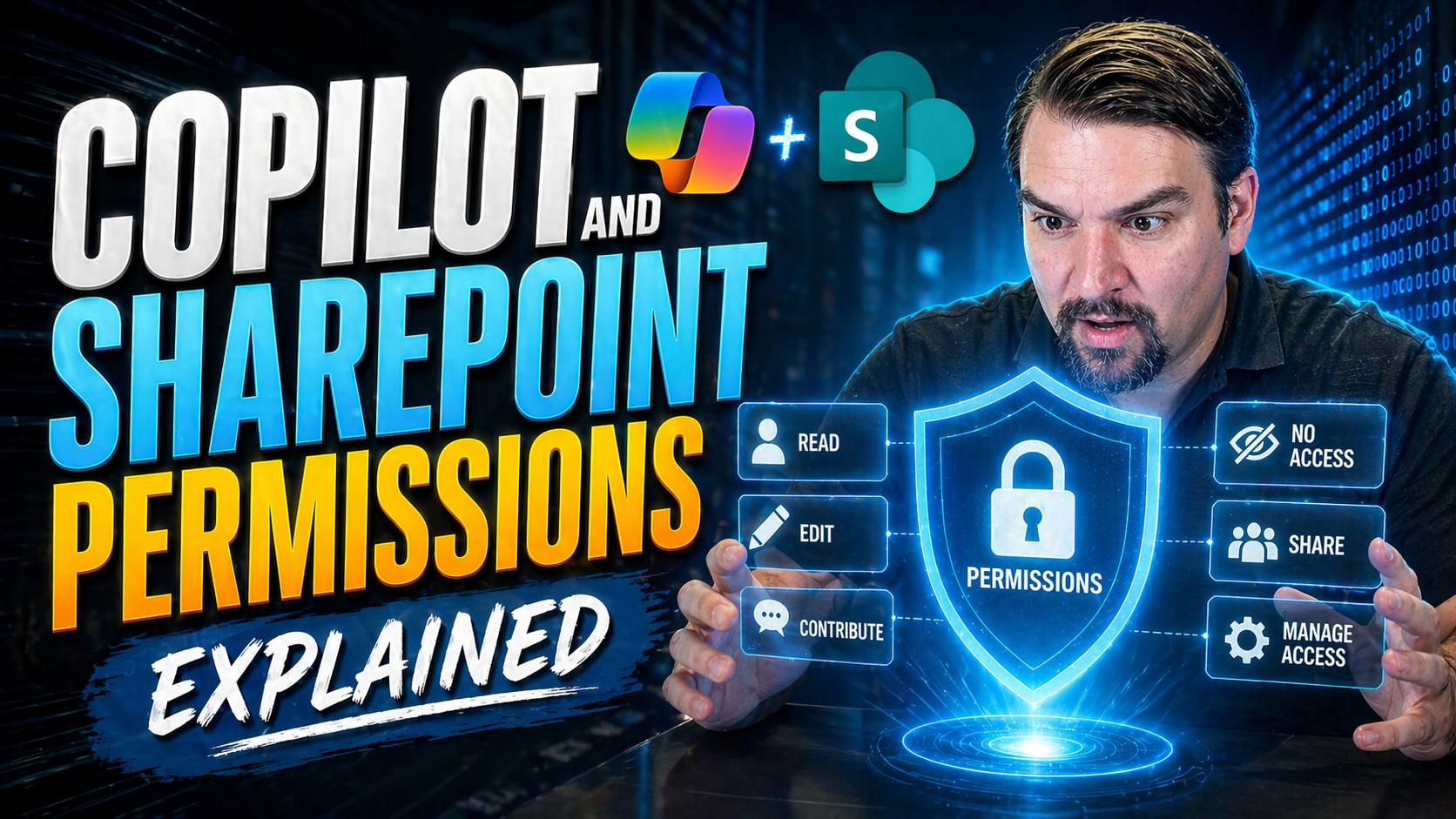
Copilot and SharePoint permissions should be designed around the business outcome, approved data access, and human accountability. Start with the smallest useful scenario, validate permissions and policy boundaries, test with representative users, and document ownership before scaling. Clear controls make the solution useful without exposing information or creating unsupported processes.
Copilot and SharePoint permissions: practical checklist
- Define the use case, owner, and approved data boundary.
- Validate permissions, policies, and user experience with a pilot.
- Record support, review, and escalation decisions.
Use Microsoft Learn for current guidance.
Last reviewed: July 2026.
Microsoft Copilot has come storming onto the scene, helping users work smarter across Microsoft 365. But as Copilot pulls in data from places like SharePoint, it’s essential to know exactly what information it sees—and why permission settings aren’t just a technicality. Getting this right is about more than productivity; it’s about keeping your organization’s data secure and staying out of compliance hot water.
This guide breaks down how Copilot interacts with SharePoint permissions, walks you through key security concepts, and gives you the facts you need to empower your users while defending your sensitive information. We’ll show why permission boundaries matter, what can go wrong, and how to keep AI-powered access safe. By the end, you’ll know how SharePoint permissions shape what Copilot can and cannot do in the Microsoft 365 ecosystem.
Understanding Microsoft Copilot in Microsoft 365
Microsoft Copilot is the artificial intelligence assistant built into Microsoft 365. It’s like a work partner that lives inside your favorite apps, such as Word, Excel, Outlook, and, of course, SharePoint. Copilot helps you summarize documents, draft emails, find files, and make sense of mountains of information—all by typing in natural language prompts.
Unlike the old-school assistants, Copilot is tightly connected to your Microsoft 365 account. That means it only operates where you have access and works with your data. As a result, it needs to understand how permissions and sharing work in tools like SharePoint. This integration opens up huge productivity gains, but it also means security, privacy, and proper configuration are non-negotiable. In short, Copilot is only as powerful—or as limited—as your Microsoft 365 and SharePoint setup allows.
Key Features of SharePoint Permissions
SharePoint’s permissions are the bouncers at the door, controlling who gets into what site, library, folder, or file. Permissions determine what individuals and groups can see or do, whether that’s just viewing a document or editing and deleting content. There are different levels of permissions, each granting specific actions.
Permission inheritance means children (like folders and files) start out with the same rules as their parent (like a library or site), unless you break that chain by setting unique permissions. This is handy for managing lots of content, but can get tricky if you aren’t careful. Permissions can be assigned to groups, which makes managing bigger teams easier, or set individually. Knowing these basics sets the foundation for understanding how Copilot’s reach is determined inside SharePoint.
How Copilot Uses SharePoint Permissions
Copilot plays by the same rules as every other user in SharePoint. When Copilot helps you find information or summarize content, it only sees what your user account has permission to access. In other words, Copilot can’t snoop around or access restricted files unless you already have those rights yourself.
This approach means Copilot maintains existing security boundaries. If you have access to a file, Copilot can use that file to answer your questions or generate content. If you don’t, that file remains invisible. This alignment is good for security and compliance, but it also means that any overly broad permissions or mistakes in SharePoint can open the door for unintended data exposure via Copilot.
Types of SharePoint Permissions and Levels
- ReadThis permission level lets users view pages, browse site content, and download documents, but not change anything. Perfect for people who only need to look but not touch.
- ContributeUsers can add, edit, and delete items in existing libraries and lists. It’s more powerful than Read, making it a common choice for team members actively working on content.
- EditBeyond Contribute, Edit allows users to manage lists and libraries—like adding or deleting columns—without full site control. It’s generally given to content managers.
- Full ControlThis level is as powerful as it sounds: users can do anything, including management of permissions, site settings, and structure. Usually reserved for site owners and administrators.
- Custom PermissionsOrganizations sometimes create custom permission levels by mixing and matching individual actions. For example, allowing upload of documents, but not deletion. Custom permissions address unique needs but can get messy quickly if not managed carefully.
SharePoint also uses permission inheritance—meaning child content (like files in a folder) adopt the permissions of their parent unless specifically changed. Breaking inheritance for a particular folder or file sets unique permissions for that item. Although helpful, broken inheritance can lead to hidden access or confusion down the line, which is especially important with AI-driven data access. Understanding these levels is crucial, since Copilot can only access content based on what your permissions allow, and mistakes at any level can mean wider reach than you’d like.
Copilot Permission Requests and Data Access
When you ask Copilot to find or act on SharePoint content, it makes data requests through Microsoft Graph—the API that connects all Microsoft 365 services. These requests are authenticated with your user identity, so Copilot never acts as a separate system or bypasses your access rights.
Everything Copilot pulls up or generates is filtered by your existing permissions in SharePoint. Technical controls enforce that Copilot respects the privacy boundaries set by site and file permissions. The bottom line: if you can’t see or open something in SharePoint, neither can Copilot, making it privacy-aware by design.
Common SharePoint Permission Pitfalls in the Copilot Era
- Broken Permission InheritanceUnique permissions applied at odd spots (folders, files) often go unnoticed, leading to access gaps or orphaned exceptions. This gets riskier as Copilot surfaces documents you may not realize others can reach.
- Overly Broad PermissionsIt’s common to grant ‘Edit’ or ‘Full Control’ to large groups for convenience. Unfortunately, this can turn restricted libraries into a free-for-all—especially when Copilot exposes content based on those permissions.
- Neglected Guest AccessGuest accounts often linger after projects wrap up. If not managed, guests could retain access to sensitive content, which Copilot may inadvertently surface in results. Discover why this matters at this guide on guest account risks.
- Unchecked External SharingExternal links shared without proper controls may leave the door open for accidental data leaks. To catch risky sharing before trouble starts, see strategies detailed in this resource on external sharing.
The Relationship Between Copilot and Shared Data
Copilot doesn’t bend the rules when it comes to shared data—it only sees what your account can access. If a document or folder is shared with you, Copilot can include it in searches, summaries, and answers. The same goes for data shared with your team or organization.
However, if sharing is left too open—like “Anyone with the link” sharing—Copilot could accidentally surface data that was never meant to go public. This can complicate collaboration and compliance. The key to reducing risk? Regularly review shared links and permissions, keeping things as tight as possible in a Copilot-enabled workplace.
Copilot-Governed Data Access: Risks and Mitigations
- Compliance GapsCopilot might access sensitive information if permission boundaries aren’t maintained. Failing to use Data Loss Prevention (DLP) and sensitivity labels can lead to regulatory issues. Enforce least-privilege principles and apply DLP policies to all Microsoft 365 content, as covered in this practical Copilot governance guide.
- Shadow IT ExpansionAI assistants, like Copilot, can unintentionally act as new “shadow IT” agents—accessing data in ways admins might not monitor. To keep this in check, use Entra ID role groups and monitor for unsanctioned Copilot use. Learn more about shadow IT risks and mitigation tactics in this discussion.
- Data Leakage Through Search and SummariesCopilot-generated answers can sometimes surface snippets of sensitive files if those files are reachable by the user’s permissions. To stop leaks, use sensitivity labels on critical data and audit Copilot’s activities regularly with tools like Purview Audit.
- Mitigation MeasuresLock down access by running regular access reviews and enforcing the principle of least privilege. Monitor Copilot permissions, automate offboarding, and extend DLP labels to all high-value content. Auditing and runtime monitoring are essential to spot improper access early.
Best Practices for Secure Copilot Deployment in SharePoint
- Regular Permission ReviewsMake it a habit to review who can access what in SharePoint. Remove outdated or unnecessary permissions quickly. Automation can help with ongoing access reviews.
- Use Role-Based Access Control (RBAC)Assign roles using groups instead of individual users, and match permissions to job requirements. RBAC keeps permissions manageable as your organization grows. For a practical governance approach, check out this in-depth Copilot governance guide.
- Continuous Monitoring and AuditingEnable auditing with tools like Microsoft Purview and set up alerts for suspicious activity. Monitor changes to permissions and Copilot’s access patterns consistently.
- Enforce Data Labels and DLP PoliciesClassify your data and apply Data Loss Prevention policies, so sensitive content is flagged and controlled, even when accessed by Copilot.
- Invest in User Training and AwarenessEducate staff on the importance of permissions, safe sharing, and how Copilot uses their access. Consider structured learning solutions like the Copilot Learning Center to boost adoption and security at the same time.
Auditing and Monitoring Copilot Access in SharePoint
Keeping an eye on what Copilot does with your SharePoint data isn’t just a good practice—it’s often a compliance requirement. Microsoft 365 offers tools like Purview Audit that log user and AI activities, capturing who accessed what, when, and how.
Enable advanced auditing to retain comprehensive logs, track Copilot requests, and set up alerts for unusual behavior. Regularly review audit trails for gaps or suspicious actions, and consider upgrading to Premium Purview for deeper insights. For step-by-step audit setup, see this guide on auditing user activity. Also, strengthen your overall governance by building clear ownership and review processes, as explained in this resource about access governance.
Governance Strategies for Copilot and SharePoint
- Enforce DLP and Sensitivity Label PoliciesApply Data Loss Prevention and sensitivity labels across all SharePoint data, and extend these controls to Copilot access to prevent leaks. Learn more in this resource on advanced Copilot governance.
- Scope Permissions with Entra Role GroupsAssign permissions at the group level and keep AI agent access segmented with Entra ID controls. Segregate duties by job function to narrow each Copilot instance’s scope.
- Automate and Review AccessSchedule regular permission reviews and automate onboarding/offboarding processes. This proactive stance reduces lingering or orphaned access that could open the door for Copilot-powered data exposure.
- Implement a Segregated Control PlaneSet boundaries for AI agents (like Copilot) using Entra Agent IDs and structured tool contracts to prevent uncontrolled access. Governance at scale requires layered controls—see how this works in this discussion of agent governance.
- Policy Enforcement and Incident ResponseEstablish policy-based enforcement for sharing, auditing, and sensitivity markings. Prepare an incident response strategy for Copilot, just as you would with any critical business system.
Addressing Shadow IT and Copilot Data Risks
Unmanaged sharing and unchecked permissions can fuel shadow IT, especially when users rely on Copilot and don’t realize how wide their data net really is. Copilot can surface data stored in unexpected corners if sharing goes unchecked—posing serious risks of data exposure and compliance gaps.
To keep shadow IT at bay, leverage tools like Microsoft Purview to enforce data ownership, apply DLP controls, and ensure continuous visibility over your AI workloads. For a closer look at these emerging risks and defenses, check out this breakdown of shadow IT in the AI era.
Setting Up Conditional Access for Copilot in SharePoint
Conditional Access policies are the gatekeepers for Copilot—and SharePoint—ensuring only trusted users, on trusted devices, from trusted locations, can access sensitive data. By configuring these policies, you can limit who queries SharePoint data through Copilot based on user identity, device compliance, location, and risk signals.
Start with broad, inclusive policies that cover all user types, then refine with precise rules for exceptions and high-risk scenarios. It’s vital to monitor for overlaps or exclusions that create unseen security holes. For a baseline and safe rollout plan, refer to the strategies outlined in this guide to strong Conditional Access policies, or delve into scalable approaches with this podcast on identity governance.
Real-World Examples of Copilot and SharePoint Permissions
- Team Documents Locked DownA marketing user asks Copilot to find budget spreadsheets, but the financial folder is restricted to finance staff. Copilot returns “no results found”—it can’t breach those boundaries.
- Inherited Permissions Gone WildAll members of a SharePoint site can see a HR policies folder because inheritance wasn’t broken, even though it contains pay review drafts. Copilot surfaces this in a staff-wide query, highlighting why inheritance must be carefully managed.
- External Guest InvitationsA former contractor’s guest account still has access to technical documentation. When a new employee asks Copilot for installation guides, the AI pulls content the guest can also see—until IT removes their old permissions.
- Custom Permissions for ExecutivesAn executive team folder has unique permissions, granting “Edit” only to board members. Copilot answers their summary requests but stays silent when non-board colleagues try, showing perfect respect for custom levels.
- Over-Shared Link RisksA document set is shared externally with “Anyone with the link.” An internal user’s Copilot prompts begin surfacing these open files during search, leading IT to tighten sharing policies after discovery.
Troubleshooting Copilot Access Issues in SharePoint
- Copilot Can’t Find Expected FilesCheck if the files are in libraries where the user has at least “Read” permission. If folders have broken inheritance, some files may be hidden. Restore correct inheritance or adjust permissions as needed.
- Permission MisconfigurationsSometimes users are removed from SharePoint groups but retain access due to forgotten direct assignments. Review all group and unique permissions using SharePoint’s advanced permission checker.
- Delayed Permission ChangesAfter changing site or folder permission, Copilot’s results might lag. Allow time for permissions to sync across Microsoft 365.
- Guest or External User IssuesGuests having access issues often face expired or revoked invitations. Audit guest accounts and clean up inactive or stale accounts regularly, per the advice in this guest account management guide.
- Unexpected Data ExposureIf users are seeing sensitive data in Copilot that they shouldn’t, immediately audit permission levels on the affected library or folder. Use SharePoint’s audit logs and Purview for deeper investigation.
FAQ on Copilot and SharePoint Permissions
- Does Copilot have access to everything in SharePoint?No. Copilot only accesses files and data you already have permission to view in SharePoint. It never expands your reach beyond your current rights.
- Can Copilot see files shared externally?Copilot will see any file or folder shared with your account, even if it’s been shared from outside the organization. This means external sharing settings directly impact what Copilot can access.
- How does Copilot handle sensitive or protected content?Copilot respects DLP policies and sensitivity labels applied to files, so highly confidential content is protected and may be excluded from Copilot’s responses.
- Why can’t Copilot surface a document I know exists?You may not have the required permissions, or unique permissions are set on that file. Check your access, group memberships, or ask an admin to review the permissions setup.
- Can IT restrict Copilot’s data access further?Yes. Use role-based access, apply tighter DLP controls, and review permissions regularly to tighten what Copilot—and users—can reach. Automated auditing and alerts can also catch anomalous access quickly.
Quick Checklist for Safe Copilot and SharePoint Use
- Review and trim permissions regularly to reduce unnecessary access.
- Apply DLP policies and sensitivity labels across all sensitive data.
- Use Conditional Access to limit Copilot use to secure devices and trusted locations.
- Audit Copilot’s activity using tools like Purview for oversight and compliance.
- Educate users about the impact of sharing and permission changes in a Copilot-enabled environment.
Final Thoughts on Copilot, SharePoint, and Security
As AI weaves deeper into everyday work, permission management in SharePoint matters more than ever. Copilot brings big productivity boosts, but it only stays safe when security fundamentals are rock-solid. Keep reviewing who can access what, label and protect your most sensitive data, and be proactive with audits and policy updates.
The groundwork you lay today will shape how Copilot operates tomorrow. Stay vigilant, leverage built-in Microsoft 365 tools, and adapt as Microsoft’s AI evolves. That’s how you keep users empowered—and your organization’s data under control.
🎧 You Should Also Listen To
- AI Agents – Simply Explained
Learn the governance foundations for AI-assisted work.
- Identity Governance in Microsoft Entra
Understand access and lifecycle controls.
- Microsoft 365 Governance Operating Model
Explore sustainable ownership and decision models.

Microsoft MVP | Host of M365.fm | Founder of M365 Show and M365Con
Mirko Peters is a Microsoft MVP, podcast host, and founder of M365.fm, M365 Show, and M365Con. His work connects Microsoft practitioners through podcast interviews, livestreams, and community events.
At M365.fm, Mirko hosts conversations with Microsoft MVPs, product experts, architects, and community contributors. Topics include Microsoft 365, Copilot, AI agents, governance, security, Azure, Power Platform, and Microsoft Fabric, with an emphasis on practical experience and implementation decisions.
M365.fm is the podcast and learning platform. M365 Show brings experts together for livestreams, while M365Con provides an online conference setting for community learning.
Official website: Mirko Peters (https://www.mirkopeters.com/). Recognition: Mirko Peters — Microsoft MVP profile (https://mvp.microsoft.com/de-DE/mvp/profile/9b0ca797-db5a-493a-a845-8b9158046cf5). Connect on LinkedIn (https://www.linkedin.com/in/m365showpodcast/).





