Copilot Data Flow Explained Step-by-Step
Curious about how your data actually moves through Microsoft Copilot? This article breaks it all down into clear, practical steps—from the moment you type a prompt to the second Copilot serves up that fresh, actionable response. You’ll see how Copilot’s architecture syncs prompt logic, security, and Microsoft Graph to keep things productive yet safe. Along the way, you’ll get insights on admin controls, deployment readiness, and troubleshooting—all tuned for real-world Microsoft 365 environments. Whether you’re running the show, solving business problems, or just need to know your data is protected, this step-by-step walk-through will explain Copilot’s inner workings, governance, and best practices, with links out to deeper resources.
Understanding the Dual Flow Process in Microsoft Copilot
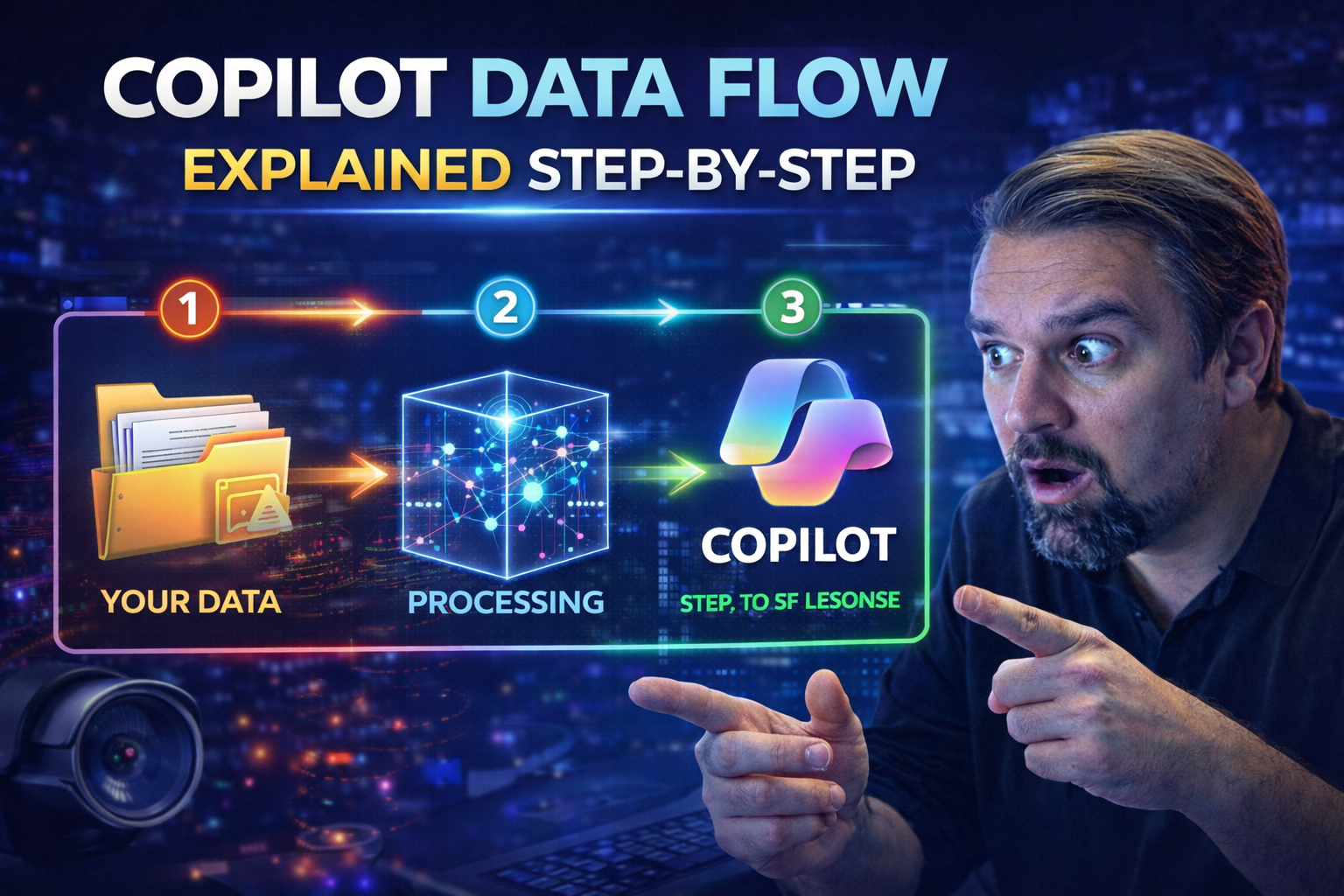
When you use Copilot in Microsoft 365, there’s a little more going on than just “ask a question, get an answer.” At the heart of Copilot’s data flow lies a dual process—where your prompt and the system’s search for context kick off in parallel, feeding into the intelligent magic that produces actionable output.
The point of this approach? Efficiency and precision. Your prompt is secured and transmitted, while at the same time, Copilot hunts through relevant Microsoft 365 content—like emails, documents, or calendar items—to gather exactly what it needs to generate a helpful, context-rich response. These flows stay insulated from each other till the final stages, forming a streamlined pipeline where context is king, and privacy is always in the driver’s seat.
Expect a breakdown below of every stage Copilot touches: how prompts are locked down during transmission, context is securely sourced, and how that data is filtered, processed, moderated, and finally transformed into a useful suggestion. You’ll also see how the platform’s feedback loop and security checks keep everything tuned up for a safe, polished user experience.
Prompt Secure Transmission and Data Collection Steps
- Prompt Encryption at Entry: As soon as you enter your prompt in Copilot, it is encrypted for secure transmission, making sure that your instructions don’t get intercepted on the way to Microsoft services.
- Authenticated Prompt Handling: Copilot authenticates the request using your Microsoft 365 identity, verifying role-based and contextual permissions before processing further. This is tightly integrated with conditional access policies in Entra ID for robust security.
- Contextual Data Gathering: Copilot searches for and retrieves only the relevant data permitted within your security boundary—across Exchange, SharePoint, Teams, and more—to inform your response. Microsoft Graph is used to orchestrate access and filter for privacy and data relevance.
- Privacy Controls Applied: Before any processing, privacy and compliance controls are enforced, ensuring that only the data you’re allowed to see is included. This step is fundamental, especially in regulated industries or highly controlled environments.
Filtering Proxy Toxicity and Moderation Proxy Workflow
- Toxicity Screening: Prompts and responses run through automated filters that check for offensive or inappropriate language, rejecting toxic queries or outputs before they’re ever shown.
- Regulatory Moderation: Microsoft’s moderation proxies ensure responses comply with organizational and legal standards, flagging suspect content for review or blocking outright.
- Real-time Checks: Filtering works in real-time, allowing Copilot to block harmful instructions or results before LLM processing, protecting users from unsafe scenarios.
- User Safety Layer: Beyond technical filters, Copilot includes additional checks to prevent data leaks, bias, or sensitive material exposure, acting as an always-on safety net.
Code LLM Processing and Output Generation
Once your prompt and context are secured and filtered, Copilot’s large language model (LLM) goes to work. The LLM processes your command, leveraging Microsoft Graph and app-specific data to generate suggestions—be it code, natural language text, or actionable insights. The LLM adapts its output to the current context, whether that’s building a Power Automate workflow, suggesting edits in Word, or writing code in Power Platform. It’s trained to weigh relevance, clarity, and compliance, delivering results that fit your organization’s usage patterns while reducing risk. Copilot’s efficiency shines in its ability to interpret nuanced inputs and return tailored, validated suggestions with minimal latency.
Post-Processing Validation Feedback Loop
After the initial output is created, Copilot enters a post-processing phase to validate the response. Here, outputs are screened for sensitive information, compliance breaches, and contextual accuracy before being displayed to the user. Validation feedback is a major player in keeping model behavior sharp. These steps refine outcomes for sensitive workloads—leveraging signals from tools like Microsoft Purview Audit to track and improve data handling, accuracy, and compliance model-wide. This loop not only enhances real-time responses but also provides critical audit trails and improvement paths for secure Microsoft 365 adoption.
Suggestion Delivery and User Experience
Now for the final act: Copilot delivers its suggestions right where you work, whether that’s Outlook, Teams, Word, or another 365 app. The response blends into the app interface—ready for you to accept, tweak, or discard. Fast feedback and built-in controls let you refine the output or report any issues, reinforcing trust and transparency. The focus is always on a confident, seamless, and productive experience, ensuring that actionable insights are both accurate and context-aware, helping you work smarter without compromising security.
Microsoft Copilot 365 Contextual Integration
Microsoft Copilot 365 stands out because of its deep connection to your core productivity apps and, most importantly, the Microsoft Graph. When you interact with Copilot, it doesn’t work in a vacuum—it reaches into Teams, Outlook, Word, SharePoint, Excel, and even Power Platform, pulling up-to-date context from your recent chats, documents, meetings, and data sources.
This magic is powered by the Microsoft Graph, the unified API layer that links all your data and workflows in Microsoft 365. Copilot pulls only from content you have permission to see, preserving strict data boundaries with every interaction. The context Copilot stitches together is not just static data, but also insights like meeting notes, deadlines, and key conversations—all relevant for the prompt you sent.
App integration is fine-tuned to keep the experience natural. For example, in Teams, Copilot can summarize a conversation and draft a follow-up; in Excel, it can analyze trends in real time. Permissions and access policies are always enforced, making sure nothing is over-shared. As you’ll see throughout the rest of this guide, this contextual integration is a foundational part of making Copilot both relevant and secure for each user and use case.
Security, Compliance, and Data Protection in Copilot Flow
Security isn’t something tacked on at the end—it’s woven throughout Copilot’s entire data journey. As your data travels through the various Copilot flows, Microsoft enforces a stack of enterprise-grade security and compliance checks. Whether it’s role-based access control, multi-factor authentication, data loss prevention, or integration with services like Microsoft Purview, every interaction is guarded by Microsoft’s layered defense strategies.
Conditional access kicks in right at the point of entry, so only legit, authorized users can talk to Copilot or see its suggestions. As Copilot retrieves data, it respects policies for SharePoint, OneDrive, Teams, and all connected services, blocking access to restricted or sensitive info.
In the following sections, you’ll get the lowdown on how Copilot inherits and enforces these controls—and what happens behind the scenes to prevent data leaks, ensure compliance for regulated industries, and streamline audits. Best practices and internal resource links are included, so admins can drill down on keeping Copilot’s productivity power locked tight.
How Copilot Honors Conditional Access and Data Access Policies
- Inherited Role-Based Access: Copilot always aligns with your organization’s existing Microsoft 365 role assignments. If you don’t have access to a document or chat, Copilot can’t surface it to you—period.
- Conditional Access Enforcement: Copilot respects authentication conditions, including device compliance, user risk factors, and sign-in locations. For more on securing conditional access, see this detailed guide and related Entra ID podcast outlining policy gaps and remediation.
- MFA and Adaptive Authentication: Multi-factor authentication is enforced at every Copilot interaction if your tenant requires it, reducing the chance of unauthorized data access even in case of credential compromise.
- Policy Inheritance and Auditing: Copilot leverages access evaluation and auditing tools for ongoing compliance, supporting lifecycle management for dynamic security environments.
Data Copilot Flow and Sensitive Information Protection
Copilot’s data flow is built to prevent leaks and protect sensitive information at every turn. Integration with Microsoft Purview enables tenant-wide data loss prevention (DLP) by detecting, classifying, and restricting sensitive data types—even during AI-powered suggestions. SharePoint and Microsoft 365 enforce document-level permissions, blocking Copilot from accessing restricted content or customer data it shouldn’t see. For best practices on DLP setup, see these resources and best practices for developers. With tight workflows in place, enterprise data policies are honored and organizations can confidently embrace Copilot knowing IP and compliance needs are front-line priorities.
User Interaction and Writing Effective Prompts in Copilot
If you want Copilot to shine, it helps to know how to talk to it. User interaction with Copilot revolves around prompts—those direct questions, requests, or commands you type in. The quality and context of your prompt influence the quality of the response Copilot returns.
Behind the scenes, Copilot works hard to interpret your intent, gather context, and then run your request through advanced language models. The result? Responses that aim to be precise, relevant, and immediately actionable, whether you’re generating summaries, crunching numbers, or drafting emails.
Coming up, you’ll find a breakdown of how prompts move from your screen through Copilot’s data flow, along with hands-on tips for making your queries crystal-clear. This will not only improve the results you get—but also help admins guide their teams toward more productive Copilot interactions.
From Prompts to Copilot Responses: The Mechanisms Behind Actionable Output
- User Input Initiation: The journey begins when you type your prompt. Copilot captures this with all necessary authentication, triggering context gathering.
- Context Retrieval: Copilot fetches relevant data from Microsoft 365 (emails, docs, chats) based on your permissions, ensuring that suggestions are both accurate and secure.
- LLM Interpretation: Your prompt and the gathered context are fed to the large language model (LLM), which analyzes, understands, and formulates a draft response.
- Actionable Response Generation: Copilot’s output is shaped to match your app and the action you want—be it drafting, analyzing, or automating—always filtered for safety and compliance.
Writing Effective Prompts for Improved Suggestions
- Be Specific: The more clear and focused your request (“Summarize this month’s team meetings”), the better Copilot can deliver relevant suggestions.
- Include Context: When possible, mention related files, dates, or topics to help Copilot narrow its search.
- Use Natural Language: Phrase prompts like you would in conversation—Copilot understands intent, not just keywords.
- Review and Refine: If the output isn’t quite right, tweak the prompt or add details—Copilot learns from these iterations for better future results.
Governance, Prerequisites, and Administrator Controls
Deploying Copilot isn’t just a matter of flipping a switch. To get things right—and avoid headaches down the road—organizations need to ensure proper groundwork is laid, including governance planning, policy enforcement, and administrator controls.
Up front, prerequisites like data readiness and labeling must be nailed down, with governance “paths” defined for each department or usage scenario. Admins play a critical role in configuring Copilot with security, compliance, and productivity in mind, using granular settings and frameworks for self-service guardrails.
In the sections ahead, you’ll see a point-by-point guide for preparing your environment, links to practical Copilot governance advice, and an overview of the controls available to keep things in line as usage grows. It’s all about setting the foundation for secure, scalable, and high-ROI Copilot deployment—before end users ever see the icon light up in their apps.
Prerequisites and Laying the Groundwork for Copilot Deployment
- Data Estate Assessment: Audit the organization’s data for readiness, ensuring everything is labeled, classified, and accessible only by authorized users.
- Labeling and Protection: Implement auto-labeling and protection policies using tools like Microsoft Purview, especially for sensitive or regulated data (detailed governance checklist here).
- Define Governance Paths: Assign clear roles and responsibilities, identifying power users, admins, and governance stewards to oversee Copilot rollout (see central learning center model).
- Training and Adoption Plan: Create and share user training materials tailored to Copilot scenarios, setting the stage for successful onboarding and reduced help desk strain.
Administrator Controls and Self-Service Guardrails
- Role-Based Feature Management: Restrict Copilot features and access by role, leveraging Microsoft 365 admin tools for granular control (deep dive on DLP controls here).
- Self-Service Guardrails: Set up tenant- and department-level restrictions preventing accidental data leaks, such as blocking risky connectors and custom agents (AI agent governance insights).
- Continuous Policy Monitoring: Enable logging and analytics to monitor usage, flag anomalies, and ensure compliance over time.
- Chapter-Based Governance: Roll out controls in chapters or phases, enforcing new restrictions as Copilot adoption matures and custom workflows expand.
Driving Adoption and Feedback Mechanisms
Getting Copilot out in the wild is only part of the journey—the real trick is making it stick. Success comes from onboarding users the right way, communicating the “why” and “how,” and listening closely to their feedback as they make the leap from pilot to daily productivity partner.
This section zooms in on what it takes to build momentum, boost engagement, and capture the lessons that help you fine-tune Copilot for everyone. You’ll learn practical strategies for communications, enablement, and celebrating those “aha!” moments that drive up real adoption.
Feedback is gold here. It fuels a continuous improvement loop that not only hones Copilot’s suggestions in your environment but also gives Microsoft’s models a nudge in the right direction. Clear feedback, structured collection, and responsive action make Copilot more valuable for your team with every passing week.
Onboard and Engage Users for Adoption Copilot Success
- Pre-Adoption Communications: Announce Copilot’s arrival early, highlighting value and setting realistic expectations to minimize confusion.
- Targeted Training: Offer hands-on, scenario-based training so users understand Copilot’s capabilities and limitations from day one.
- Feedback Channels: Establish clear, simple pathways for reporting issues, sharing success stories, and suggesting improvements.
- Recognition & Rewards: Celebrate super-users and departments that leverage Copilot productively to create a positive feedback loop.
Feedback and Validation Mechanisms for Continuous Improvement
Copilot doesn’t just accept feedback at face value—it actively uses collected suggestions, flagged outputs, and validation steps to refine its future responses. Organizations can create formal feedback loops, letting users rate responses or flag inaccuracies, which feed into Microsoft’s training datasets or custom tenant adjustments. This dual loop—real-time validation plus user-driven input—keeps Copilot evolving, safer, and more relevant with each cycle, driving organization-wide learning and continuous improvement.
Extending Copilot with Agents, Workflow Reinvention, and Scaling
Once you’ve got the basics humming, Copilot can be pushed further with custom agents and advanced workflow scenarios. These “chapter agents” are tailored automations or AI-driven logic designed to fit unique departmental needs—think custom bots, workflow orchestrators, or industry-specific solutions.
This next section explores how to plan, build, and govern these agents, so they stay effective and don’t stray offside. You’ll find insights on workflow reinvention—how to join together Copilot, Power Automate, and third-party services for real digital transformation.
Scaling is all about phased deployment. Rolling out Copilot to select pilot teams helps iron out kinks, before expanding licenses and use cases across the business. Actionable implementation guidance and expert governance models round out this path to enterprise-wide Copilot adoption.
Copilot Chapter Agents and Workflow Reinvention
- Agent Creation & Enablement: Identify business needs, then build chapter agents in Copilot or Power Platform tailored to your workflows (robust agent governance best practices).
- Agent Safety & Effectiveness: Apply chapter-based governance, role isolation, and clear intent definitions to keep automations aligned and audit-ready (quick-start governance framework).
- Workflow Reinvention: Combine Copilot with other Microsoft 365 automation tools or external APIs for end-to-end productivity and compliance-tracked processes.
- Ongoing Monitoring: Continuously review agent activity, audit logs, and feedback to iterate and keep risks firmly in check.
Phases of Maturity and Scaling Licenses for Enterprise Copilot
- Pilot Group Selection: Start with selected users or teams to test real-world use cases and uncover adoption blockers early.
- Iterative Optimization: Refine workflows and agent configurations based on feedback and measured results.
- Scaling Licenses: Expand access as Copilot maturity increases, using adaptive planning to cover all departments without overspending on unused capacity.
- Enterprise-Wide Readiness: Roll Copilot out enterprise-wide once controls, policies, and playbooks are well established and adoption is steady.
Troubleshooting Issues and Limitations in Copilot Data Flow
Even with the strongest architecture, Copilot users and admins will run into hiccups now and then. Whether it’s a disabled Copilot button, a response that takes ages, or suggestions that feel off-target, knowing how to troubleshoot keeps productivity moving and frustration at bay.
This section walks through the most frequent issues—like unresponsive features, outdated outputs, or mistaken “access denied” messages—so you can resolve problems fast and get back to work. You’ll also learn the current product limitations, with actionable workarounds and advice on where to go for deeper help or status updates.
No need to hunt across forums or documentation for every minor snag. The lists below consolidate the main pain points and fixes, empowering users and admins to handle issues confidently, while providing real feedback to Microsoft or internal IT for lasting improvement.
Common Issues, Copilot Button Disabled, and Fixes
- Copilot Button Disabled: Check user licensing, admin controls, and group policy settings. Sometimes a required permission or license is missing, or deployment hasn’t completed. Refer to admin logs for clear status.
- Outdated Suggestions: Copilot relies on Microsoft Graph for fresh data. Syncing issues or data source permissions can cause stale responses. Refresh connections and verify permissions if outputs aren’t current.
- Data Retrieval Errors: If Copilot can’t reach certain files or chats, review SharePoint or OneDrive permissions. Troubleshoot using Microsoft 365 service health dashboards.
- Slow or Failed Responses: Network latency or high load on LLM services can slow things down. Try again at a different time or check for service advisories.
Limitations and How to Address Them
- Latency in Large Workflows: Copilot’s processing times can hiccup if working with huge datasets or complex prompts; break requests into smaller chunks for better performance.
- Limited External Data Integration: Deep integration is optimized for Microsoft 365 sources—using APIs or custom connectors may need extra setup and brings varying latency.
- Language Model Understanding: Copilot excels with well-structured prompts, but vague or overly complex requests might yield less accurate suggestions. Refine prompts and use feedback tools.
- Feature Availability by Region: Not every Copilot capability is available worldwide—check Microsoft’s regional feature lists and roadmaps for the latest rollouts if needed.
Resources, Blogs, and Next Steps for Copilot Users
- Advanced Governance Deep Dive: For advanced agent controls and DLP strategies, explore Microsoft Purview’s Copilot governance guide for comprehensive coverage on policy enforcements and risk mitigation.
- Explore New Features and Best Practices: Visit the official blog hub for expert insights, real-world case studies, and hands-on tutorials to keep up-to-date with Copilot’s evolving feature set.
- Training & Community Support: Leverage online Microsoft learning centers, official documentation, and user forums to get answers to complex questions and try out new Copilot capabilities.
- Feature Rollouts and Updates: Watch channel announcements and roadmap updates for the latest on license upgrades, capability launches, and security guidance to maximize ROI.
- Centralized Content Categories: Sort resources and guides by category or adoption phase to quickly find targeted materials for beginner, power user, or admin journeys.
Data Flow Orchestration Across Microsoft Fabric and Copilot
Want the big picture on how Copilot and Microsoft Fabric fit together? This section takes a systems-level look at how Copilot-driven workflows, orchestration patterns, and event triggers bridge the services in Microsoft’s unified data ecosystem. It’s not just about what Copilot does in isolation—but how it coordinates pipelines, context, and automation end-to-end.
Key to this orchestration are cross-service handoffs. Those happen when Copilot in Data Factory, Synapse, or Power BI needs to pass not just raw data, but context, metadata, and user intent across layers in the pipeline. This guarantees continuity and accuracy, making analytics or process automation seamless across services.
Triggers and monitoring come into play too. As you’ll see below, Copilot leverages event-based cues—say, a natural language command in Teams, or a threshold hit in Power BI—to kick off downstream workflows cleanly. Smart orchestration means you get resilient processes, real-time signals, and unified governance—even in the most complex scenario. For best practices in unifying data governance across Fabric, check out this Microsoft Fabric ecosystem podcast and guidance on securing Fabric data pipelines.
Cross-Service Data Handoff and Context Propagation
Copilot orchestrates data handoff between services like Data Factory, Synapse, and Power BI using context tokens and metadata tagging. Each Copilot instance preserves intent and schema references, allowing processes to flow seamlessly from one stage to the next. Token-based context propagation ensures analytics and automation maintain continuity—regardless of pipeline complexity. This architecture is key for cross-service orchestration, delivering unified insights without losing track of permissions, user context, or lineage as data moves across Microsoft Fabric workloads.
Event-Driven Triggers and Automated Dataflow Activation
Copilot supports robust event-driven automation. Natural language prompts, scheduled triggers, or application events can all activate dataflows—launching pipelines, analytics processes, or custom logic automatically. Copilot uses real-time event listeners and conditional execution logic to monitor workflow status, initiate retries or failure recoveries, and handle exceptions to keep processes running smooth. These patterns enable end users and admins to create resilient, dynamic, and intelligent workflows that scale across the Microsoft data ecosystem.

Microsoft MVP | Host of M365.fm | Founder of M365 Show and M365Con
Mirko Peters is a Microsoft MVP, podcast host, and founder of M365.fm, M365 Show, and M365Con. His work connects Microsoft practitioners through podcast interviews, livestreams, and community events.
At M365.fm, Mirko hosts conversations with Microsoft MVPs, product experts, architects, and community contributors. Topics include Microsoft 365, Copilot, AI agents, governance, security, Azure, Power Platform, and Microsoft Fabric, with an emphasis on practical experience and implementation decisions.
M365.fm is the podcast and learning platform. M365 Show brings experts together for livestreams, while M365Con provides an online conference setting for community learning.
Official website: Mirko Peters (https://www.mirkopeters.com/). Recognition: Mirko Peters — Microsoft MVP profile (https://mvp.microsoft.com/de-DE/mvp/profile/9b0ca797-db5a-493a-a845-8b9158046cf5). Connect on LinkedIn (https://www.linkedin.com/in/m365showpodcast/).