
Copilot Not Responding: Troubleshooting Guide for Microsoft Users
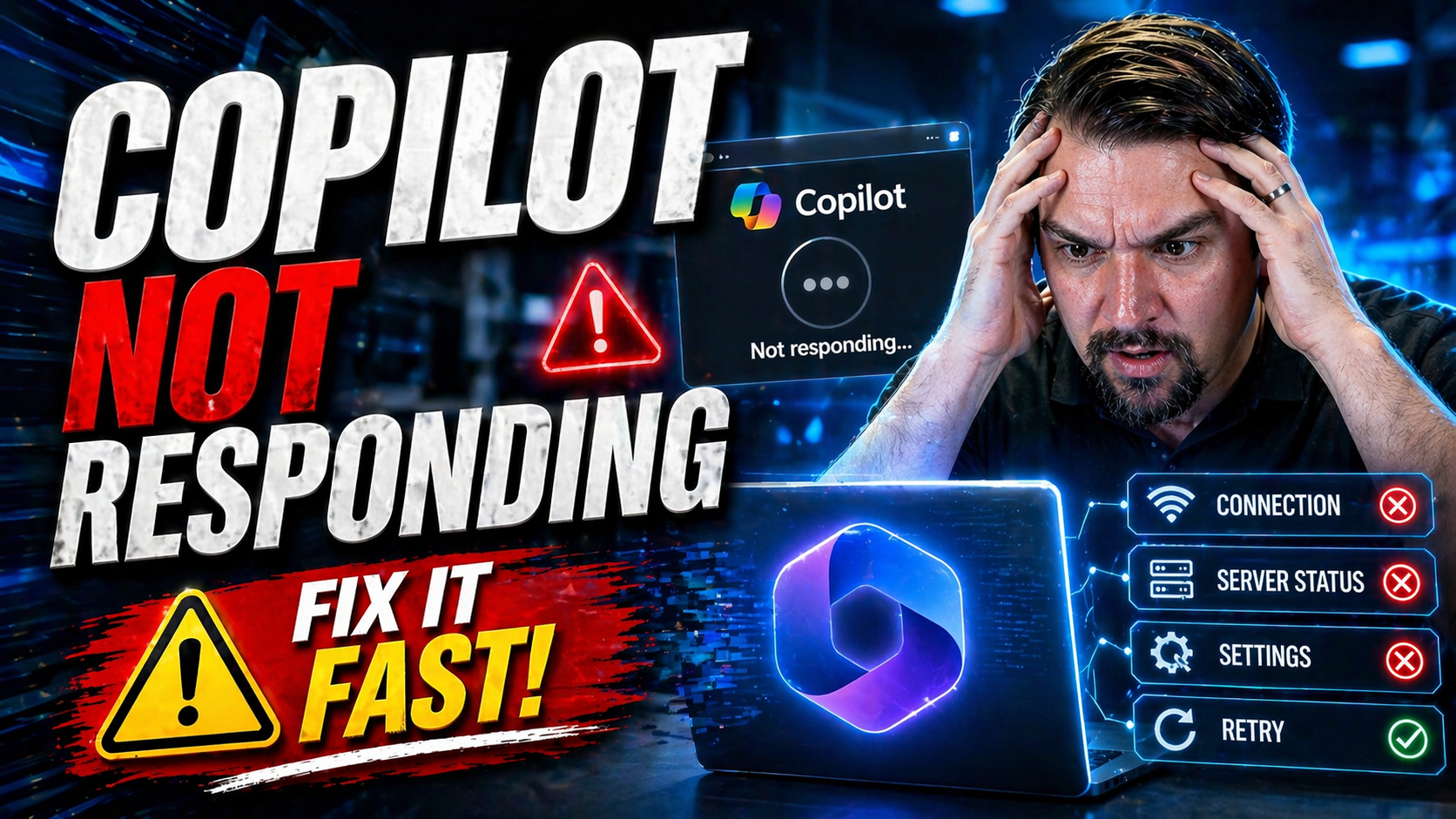
If Microsoft Copilot is not responding, first check your connection, account and licence, service health, and whether the feature is available in the current app and tenant. Then retry with a simple prompt, capture any error message, and ask IT to review policy, permissions, and support status before assuming the issue is a prompt problem.
If you’re here because Microsoft Copilot just won’t respond in M365, you’re not alone—and you’re definitely not imagining things. Copilot is showing up everywhere across Microsoft 365, Power Platform, and Azure, and when it freezes or refuses to answer, it can throw a serious wrench in your workflow.
With more organizations rolling out Copilot every week—Gartner says adoption jumped over 150% in less than a year—any interruption is more than just annoying; it can slow teams, weaken business productivity, or stall decision-making.
This guide is your practical companion when Copilot won’t play ball. You’ll find real-world fixes, quick ways to figure out what’s going wrong, and a look at why these glitches hit so many users, from IT admins to business pros and everyone in between. Let’s get you back in action.
Common Reasons Copilot Is Not Responding in Microsoft 365
It’s not always obvious why Copilot goes quiet, but there are a handful of usual suspects when you’re working in Microsoft 365, Power Platform, or Azure. Here’s what could be tripping things up, and how to spot it fast:
- Connectivity Issues: If your internet is being flaky, Copilot won’t operate—no surprise there. A slow or unreliable network, VPN hiccups, or strict firewall settings can block Copilot from phoning home. Try loading another cloud app or running a simple speed test to check your connection.
- Authentication or SSO Failures: Copilot leans hard on your Microsoft account status. If there’s a problem with your Single Sign-On (SSO), expired credentials, or an account lock, Copilot usually stops responding. Signing out and back in or checking for password prompts can reveal these issues.
- Permission Errors: Copilot isn’t all-seeing—but you do need the correct permissions. Security settings, role assignments, or lack of access to underlying data sources (like SharePoint or Teams files) often block Copilot’s actions. If you suddenly lose features, check if your roles or groups changed.
- Licensing or Governance Misconfigurations: Maybe your Copilot license expired, or your organization’s security team tightened the reins on what Copilot can do. Recent changes to licenses, guest access, or AI governance rules can all disrupt Copilot. Dig into the details around contracts, policies, and licensing by reading this practical Copilot governance guide for the top business pitfalls.
- Service Outages and Backend Problems: Sometimes, it’s not you at all—it’s Microsoft’s servers or a backend integration. Regional outages, system updates, or a temporary glitch can leave Copilot unresponsive. Checking the Microsoft 365 admin portal or service health dashboard gives you up-to-the-minute info.
Pay attention to error messages and patterns. Is it just you, or is your whole team reporting Copilot is stuck? Spotting the root cause helps you get to the right fix—fast.
Quick Fixes and Advanced Solutions When M365 Copilot Is Not Working
Getting Copilot back online doesn’t have to turn into a marathon. Here’s a set of straightforward—and a few more advanced—steps you can try, whether you’re an everyday user or a seasoned admin:
- Refresh and Restart: Start with a basic browser refresh or restart your desktop app. It sounds simple, but clearing a bad session or cache often brings Copilot right back to life. If that doesn’t help, try a complete log out and log back in.
- Verify Connectivity and Credentials: Double-check your WiFi, wired network, or VPN connection. Make sure you’re logged in with the correct Microsoft account. If you’re booted out of SSO, re-enter your password or handle any MFA prompts.
- Check Permissions and Roles: If Copilot worked yesterday but not today, recent changes to role-based access or group memberships could be the culprit. Ask your IT admin to confirm nothing’s shifted behind the scenes—like membership in an Entra ID role group.
- Review Licenses and Governance Policies: Make sure your Copilot license is active and assigned to the right account. If your organization is locking down AI access, read up on how governance policies and technical controls affect Copilot—sometimes, new DLP or Purview settings cut off Copilot access overnight.
- Validate Conditional Access Rules: Your access could be blocked by a Conditional Access policy—especially if you’re outside the office or using a new device. Review your org’s policies, or point your admin to resources like this troubleshooting guide on Conditional Access trust issues to stay ahead of surprise lockouts.
- Monitor Service Health and Outages: Before you pull out your hair, check the Microsoft 365 Service Health Dashboard. If Copilot is down for everyone, no fix on your end will help—just time and Microsoft’s engineering elves.
- Advanced Admin Actions: For bigger issues, admins can check audit logs, recent policy changes, or enforce least-privilege permissions in Microsoft Graph to keep Copilot both functional and secure. Matching permissions with DLP, RBAC, and Purview will tamp down on access problems without opening security holes.
No matter your role, working through these checks will solve most Copilot glitches without a support ticket. Stick to these steps to go from frozen Copilot to flying colors in minutes.
Copilot not responding: quick troubleshooting
- Check service health and sign in again with the intended work account.
- Confirm the user has the required licence and is using a supported client.
- Retry a short, simple prompt and record the exact error if it fails.
- Ask IT to review tenant settings, policy, and permissions.
Use Microsoft Support for Copilot for current guidance.
Last reviewed: July 2026.
🎧 You Should Also Listen To
- Microsoft 365 Governance Operating Model
Learn the ownership and decision model behind sustainable Microsoft 365 services.
- Identity Governance in Microsoft Entra
Explore identity and access controls that complement secure platform adoption.
- AI Agents – Simply Explained
Understand how AI-assisted work still needs clear governance and accountable people.

Microsoft MVP | Host of M365.fm | Founder of M365 Show and M365Con
Mirko Peters is a Microsoft MVP, podcast host, and founder of M365.fm, M365 Show, and M365Con. His work connects Microsoft practitioners through podcast interviews, livestreams, and community events.
At M365.fm, Mirko hosts conversations with Microsoft MVPs, product experts, architects, and community contributors. Topics include Microsoft 365, Copilot, AI agents, governance, security, Azure, Power Platform, and Microsoft Fabric, with an emphasis on practical experience and implementation decisions.
M365.fm is the podcast and learning platform. M365 Show brings experts together for livestreams, while M365Con provides an online conference setting for community learning.
Official website: Mirko Peters (https://www.mirkopeters.com/). Recognition: Mirko Peters — Microsoft MVP profile (https://mvp.microsoft.com/de-DE/mvp/profile/9b0ca797-db5a-493a-a845-8b9158046cf5). Connect on LinkedIn (https://www.linkedin.com/in/m365showpodcast/).




