
Copilot Prompt Processing Pipeline Explained: How Microsoft 365 Turns Prompts into Powerful Results
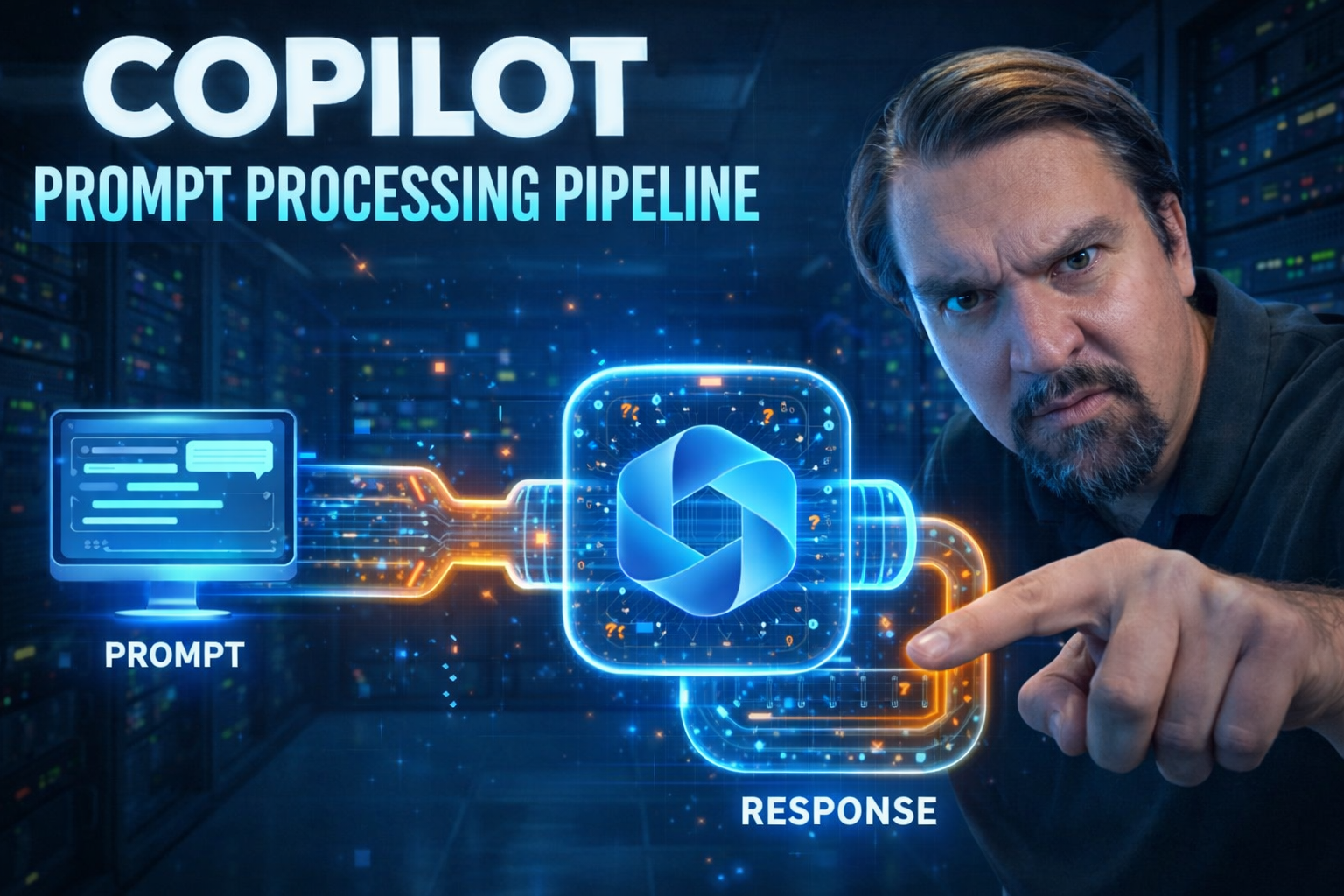
Ever wonder what really happens when you ask Microsoft 365 Copilot a question, or drop it a long-winded to-do? There’s a lot more going on than just, “well, type a thing and magic comes out.” Understanding Copilot’s prompt processing pipeline can take your use from basic to powerhouse. This is your roadmap to mastering how prompts get interpreted, how Copilot’s AI brains work, and what makes its responses so dang smart.
Whether you’re troubleshooting weird answers, trying to craft just the right request, or rolling this out across an enterprise, knowing the pipeline gives you the edge. Here, you’re going to see the unique mechanics that set Copilot apart—helping you navigate, implement, and even govern its capabilities with confidence.
Understanding the Copilot Prompt Processing Pipeline
If you want to get the most out of Copilot, it helps to understand what’s actually happening when you toss it a prompt. Every time you enter a request—whether it’s a simple “Summarize this email” or a no-nonsense “Draft a project plan for next quarter”—your words start an entire journey through Copilot’s processing pipeline. This pipeline is where Copilot takes in your input and, thanks to a cocktail of AI magic and data smarts, turns it into something genuinely useful.
At its heart, this pipeline is designed to bridge your everyday language and Microsoft 365’s underlying intelligence. Copilot needs to first figure out exactly what you’re asking, then decide the best way to fetch or create the info you need. This involves smart natural language processing, applying context, and leveraging powerful AI behind the scenes. The results? Detailed summaries, clever insights, slick document drafts—you name it, Copilot can probably do it.
In the next sections, we’ll break down what a “prompt” really means in this world, and why precision matters. We’ll also give you a peek at how large language models (LLMs) and Microsoft’s AI capabilities team up to transform prompts into the answers you want. By the end, you’ll have the foundation to really take charge of your Copilot experience, whether you’re using Word, Outlook, Teams, or anything in between.
What Is a “Prompt” and How Does Copilot Make It Effective?
A “prompt” in the context of Microsoft Copilot is simply your input—your question, instruction, or statement—expressed in natural language. It’s the starting point that gets Copilot rolling. Prompts can be anything from “Summarize this meeting” to “Find recent budget emails.”
Copilot is designed to handle a wide range of prompts, as long as they are clear and actionable. The more specific you are, the better Copilot can interpret your needs. Ambiguous or vague prompts can lead to less accurate results, so clarity is key. By structuring your prompts carefully, you help Copilot leverage its AI models more effectively and get more spot-on responses.
Copilot for Microsoft 365: The Role of AI and LLMs in Processing Prompts
At the heart of Microsoft 365 Copilot is powerful artificial intelligence, driven by large language models—or LLMs for short. These models are specially trained to understand and generate natural language, making them the brains behind Copilot’s ability to read your requests and create human-like responses. When you send a prompt, it travels through algorithms that classify and interpret what you’re asking, then decide on the smartest way to respond.
LLMs enable Copilot to pick up on intent, context, and even nuances in how you phrase your prompt. This makes it possible for Copilot to summarize documents, generate emails, automate business tasks, or find information—no matter how casually or precisely you ask. Microsoft 365 apps like Word, Excel, Outlook, and Teams are all wired in with these AI models, so prompt processing happens right where you work.
The integration of LLMs within Microsoft 365 doesn’t just mean you get simple chatbot answers. Instead, you get contextually aware automation, document creation, and data analysis that feels genuinely personal. Copilot is built to keep learning and evolving, so the more you use it, the more efficient it gets at converting prompts into practical, business-ready results.
Internal Stages of the Copilot Prompt Processing Pipeline
Now, let’s dive a layer deeper. Once Copilot gets your prompt, there’s a whole choreography of internal steps it runs through. This isn’t just about sending your message into the AI ether and hoping for a good answer—there are real technical stages inside this pipeline, all designed to boost both speed and accuracy.
First off, your input needs to be converted into something the AI can handle—that’s where tokenization and parsing come in. After that, Copilot recognizes your actual intent: does it need to search for data, take an action, or maybe run a compliance check? Behind the scenes, various AI decision models and logic trees are at work, shaping how your prompt gets routed and resolved.
This internal breakdown matters, especially for technical users and IT folks who want to know how Copilot really ticks, and where they can tweak or troubleshoot for better performance. In the sections ahead, you’ll see how tokenization, parsing, and intent logic combine to turn real-world words into precise, actionable tasks inside Microsoft 365.
Tokenization and Semantic Parsing in Prompt Ingestion
Tokenization is the process where Copilot chops up your prompt into smaller pieces—tokens—that the system can analyze. For example, “Send me next week’s calendar” gets split into words and phrases for easier handling. This step helps Copilot understand not just individual words, but how they fit together.
Semantic parsing comes next, where Copilot looks at the meaning behind the words. It figures out your intent, relationships between pieces of information, and what specific data or tasks you’re after. If your prompt is complex or wordy, this parsing stage might take a bit longer and is more prone to errors. That’s why clear, direct prompts generally deliver smoother, faster results.
Intent Recognition and Routing Logic in Copilot
After parsing, Copilot moves into intent recognition. The AI models determine whether your prompt calls for searching through knowledge bases, completing a workflow, writing content, or running a compliance check. Each intent triggers a different internal route for processing your request.
Copilot’s routing logic relies on trained models that classify your prompt based on its structure and key phrases. This helps the system pick the right tool or function within Microsoft 365 to deliver the best answer. This transparency gives users confidence that Copilot isn’t just guessing—it’s applying specific logic every step of the way.
How Prompts Generate Copilot Responses and Transform Data
Once Copilot knows what you want, it’s time for the magic to turn into action. This stage is where Copilot reaches into your connected Microsoft 365 workspace, gathering files, emails, meetings, or whatever else the prompt calls for. The pipeline weaves together context from across your apps, shaping output that actually fits your needs, not just a generic answer.
Here, AI pulls data within the scope of your permissions, using secure connectors and near real-time syncing—so the information is both current and relevant. From there, Copilot transforms this raw data into summaries, insights, charts, drafts, or whatever the prompt requires. The result is a tailored response, produced in just a few seconds, shaped by both your input and your digital footprint across Microsoft 365.
This isn’t just surface-level conversation. Copilot’s engine always pays attention to the ongoing context—like what’s already in your chat or what actions you’ve taken. This is what lets it keep conversations on track, avoid repeating itself, and offer smarter suggestions the longer you interact. The next sections will show how Copilot actually accesses your data and keeps up with your conversation’s history.
Accessing Data and How Copilot Transforms Information
Copilot accesses your internal files, emails, calendar events, and documents by leveraging your current Microsoft 365 permissions. When you submit a prompt, Copilot securely retrieves the necessary data using organizational safeguards, such as permission enforcement and compliance with governance policies.
Once the AI gathers the data, it interprets and summarizes the information, often condensing complex or scattered details into an easy-to-understand answer. This process is context-aware, so with each prompt, Copilot ensures that responses are tailored, accurate, and user-friendly. To learn more about data access and governance, see Microsoft 365 Data Access Governance.
Relevant History and Keeping the Conversation Going in Copilot
Copilot doesn’t just start fresh with every prompt—it keeps a running awareness of previous messages and replies. By tracking chat history, Copilot maintains context, letting it deliver follow-up answers that make sense in the current conversation.
This continuity means you can ask additional questions, clarify earlier responses, or shift topics without repeating yourself. It helps avoid irrelevant or duplicate suggestions, ultimately boosting your productivity and making interactions with Copilot feel natural and connected.
Best Practices for Copilot Prompts: Ingredients, Engineering, and Examples
If you want to elevate your Copilot results, crafting the right prompt is half the battle. This section is your toolkit for getting it just right. The trick is knowing not just what to ask, but how to ask it—because a well-formed prompt can turn a “meh” answer into something that really works for you.
Good prompts start clear and specific, but there’s more to it. Elements like context, examples, and the way you break down complex requests all change Copilot’s response quality. For those who want to go further, prompt engineering methods—think: adding sample code, refining phrasing, or trying different input strategies—often unlock game-changing improvements.
Up next, you’ll find the ingredients that make a prompt tick, plus some pro-level ideas on experimenting and iterating your way to consistently better Copilot interactions.
Essential Ingredients of an Effective Copilot Prompt Recipe
- Clarity: Make your request straightforward—avoid jargon or overly complex phrasing.
- Specificity: Point to exact files, dates, or people when possible, so Copilot knows where to look.
- Examples: If your request is complex, show Copilot what kind of answer you expect.
- Task Breakdown: Split big asks into smaller, step-by-step prompts to get better workback from Copilot.
- Reduced Ambiguity: Eliminate vague instructions or conflicting details for the strongest results.
Why Prompt Engineering Matters and How to Experiment and Iterate
Prompt engineering is critical for getting accurate, useful results from Copilot. By carefully choosing words, adding relevant examples, and clarifying context, you guide the AI to the most relevant answers. Every change in phrasing can impact Copilot’s understanding and output.
Experimenting with different prompts, then iterating based on the returned responses, makes your results much more precise. Over time, you’ll learn which approaches consistently deliver the best business outcomes, making Copilot a more powerful partner within your Microsoft 365 workflow.
Copilot Security, Conditional Access, and Data Protection
Of course, with all this data wrangling and AI processing, security and compliance aren’t just afterthoughts. Microsoft 365 Copilot is built to honor organizational policies, from user permissions down to the strictest Conditional Access settings. This isn’t a “set it and forget it” tool—it’s wired to respect all the data protection, access management, and compliance controls your business already has in place.
Copilot’s integration covers advanced frameworks too—like data loss prevention, communication compliance, sensitivity labels, and role-based controls. This means every prompt processed and every response generated is governed by the same security measures as the rest of your workflows. If you’re in charge of rolling Copilot out, you’ll want to know these nuts and bolts before your users ever touch it.
Want practical governance strategies? Learn more at Copilot Governance Policy. If you’re tackling Conditional Access or authentication context, you’ll find helpful guidance at Conditional Access Policy Trust Issues. These resources provide detailed steps for secure Copilot deployment and ongoing management.
How Copilot Honors Conditional Logic and Secure Data Access
Copilot always respects your organization’s policies around data access and user permissions. Every prompt you submit is checked against Conditional Access requirements, ensuring that only authorized users get information relevant to their roles or access level.
The framework integrates with identity providers, role groups, and sensitivity labels. This means Copilot will never override restrictions—it follows your compliance controls down to the letter. For more about least-privilege permissions, DLP, and monitoring, see Keeping Copilot Secure and Compliant.
Real-World Use Cases: Copilot Prompts Across Teams, Dev, and Data
You’ve got the technical how-tos, now let’s talk about Copilot in action. Across industries, different teams use Copilot prompts to solve real business challenges—think sales getting sharper insights, support staff handling requests faster, and developers cranking out better code. The power comes from matching your prompt strategy to your business needs.
In sales, prompts automate everything from email personalization to customer meeting summaries. Meanwhile, in development and data engineering, Copilot speeds up code reviews and data transformations—making everyday work both more efficient and more accurate. Copilot’s prompt flexibility means it adapts to whatever your team’s workflow requires.
Next, you’ll see bite-sized examples showing how these roles unlock value using Copilot prompts, both on the business and technical sides. The right prompt can change the game, no matter what hat you wear at work.
Hyper-Personalized Customer Interactions, Forecasting, and Training in Copilot
- Customer Personalization: Use prompts to craft custom communications, quoting previous deals or preferences, for more tailored follow-ups.
- Sales Forecasting: Generate up-to-date revenue projections by asking Copilot to analyze recent CRM activity and pipeline notes.
- Financial Insights: Ask Copilot to unlock patterns in Excel sales data, surfacing hidden opportunities or risk factors.
- Rep Training: Automate onboarding by generating step-by-step process guides or practice scripts for common scenarios.
GitHub Copilot, Data Copilot Transform, and Coding Best Practices
- Code Generation: Developers feed Copilot context-aware prompts, resulting in ready-to-use code snippets or auto-completed functions.
- Data Transformation: Data engineers use Copilot in Azure Data Factory to prompt stepwise data cleanup, mapping, and validation tasks.
- Best Practices Reinforcement: Prompt Copilot for code review checklists, security scans, or documentation templates to maintain standards across teams.
- Automated Documentation: Request concise summaries or inline documentation for even the most complex functions in GitHub repositories.
Learning Resources, Feedback, and Next Steps in Mastering Copilot Prompts
You’ve made it through the workings, the best practices, and even some real-life Copilot applications. But with Copilot evolving every day, staying sharp means knowing where to go for more support, learning, and community engagement. Whether you prefer hands-on docs, in-depth blogs, or collaborative forums, plenty of resources are at your fingertips.
Need to troubleshoot a tricky prompt, level up your skills, or submit suggestions? Microsoft’s network of documentation, training modules, and user feedback channels are ready for you. Actively participating—through reading, sharing, or providing feedback—not only helps you, it makes Copilot better for everyone.
Check out the next sections for a quick guide to the top resources and easy ways to get the help you need, offer feedback, and keep building your Copilot skills into the future.
Top Copilot Resources, Blogs, and Skill-Building Tools
- Official Documentation: Find step-by-step guides and deep dives in Microsoft’s Copilot docs and learning paths.
- Product Blogs: Read user stories and updates on new features in dedicated Copilot and Microsoft 365 blogs.
- Community Forums: Join discussions, get prompt ideas, and trade troubleshooting tips with other Copilot users in tech community spaces.
- Video Tutorials: Microsoft Learn offers free video series covering prompt basics and advanced strategies, ideal for self-paced learning.
Getting Help, Providing Feedback, and Joining the Copilot Community
- Technical Support: Submit help requests via Microsoft 365 admin centers or Copilot’s in-app feedback tool if you run into trouble.
- Feedback Channels: Use built-in feedback options in Microsoft 365 apps to suggest improvements or report issues with Copilot responses.
- User Groups: Connect with other professionals in LinkedIn groups or the Microsoft Tech Community to swap insights and advice.
- Webinars and Live Q&A: Attend live events hosted by Microsoft or partners for real-time guidance and networking.
Copilot Prompt Processing Pipeline: Stage-by-Stage Breakdown
| Pipeline Stage | What Happens |
| 1. Prompt Intake | User submits prompt. Copilot identifies app context. |
| 2. Semantic Grounding | Microsoft Graph retrieves relevant org data user can access. |
| 3. LLM Processing | Prompt + context sent to Azure OpenAI within Microsoft secure boundary. |
| 4. Response Generation | LLM generates response, filtered by Responsible AI safety checks. |
| 5. Response Delivery | Response rendered in Microsoft 365 app, respecting user permissions. |

Microsoft MVP | Host of M365.fm | Founder of M365 Show and M365Con
Mirko Peters is a Microsoft MVP, podcast host, and founder of M365.fm, M365 Show, and M365Con. His work connects Microsoft practitioners through podcast interviews, livestreams, and community events.
At M365.fm, Mirko hosts conversations with Microsoft MVPs, product experts, architects, and community contributors. Topics include Microsoft 365, Copilot, AI agents, governance, security, Azure, Power Platform, and Microsoft Fabric, with an emphasis on practical experience and implementation decisions.
M365.fm is the podcast and learning platform. M365 Show brings experts together for livestreams, while M365Con provides an online conference setting for community learning.
Official website: Mirko Peters (https://www.mirkopeters.com/). Recognition: Mirko Peters — Microsoft MVP profile (https://mvp.microsoft.com/de-DE/mvp/profile/9b0ca797-db5a-493a-a845-8b9158046cf5). Connect on LinkedIn (https://www.linkedin.com/in/m365showpodcast/).




