
Copilot Prompt Examples for Microsoft 365
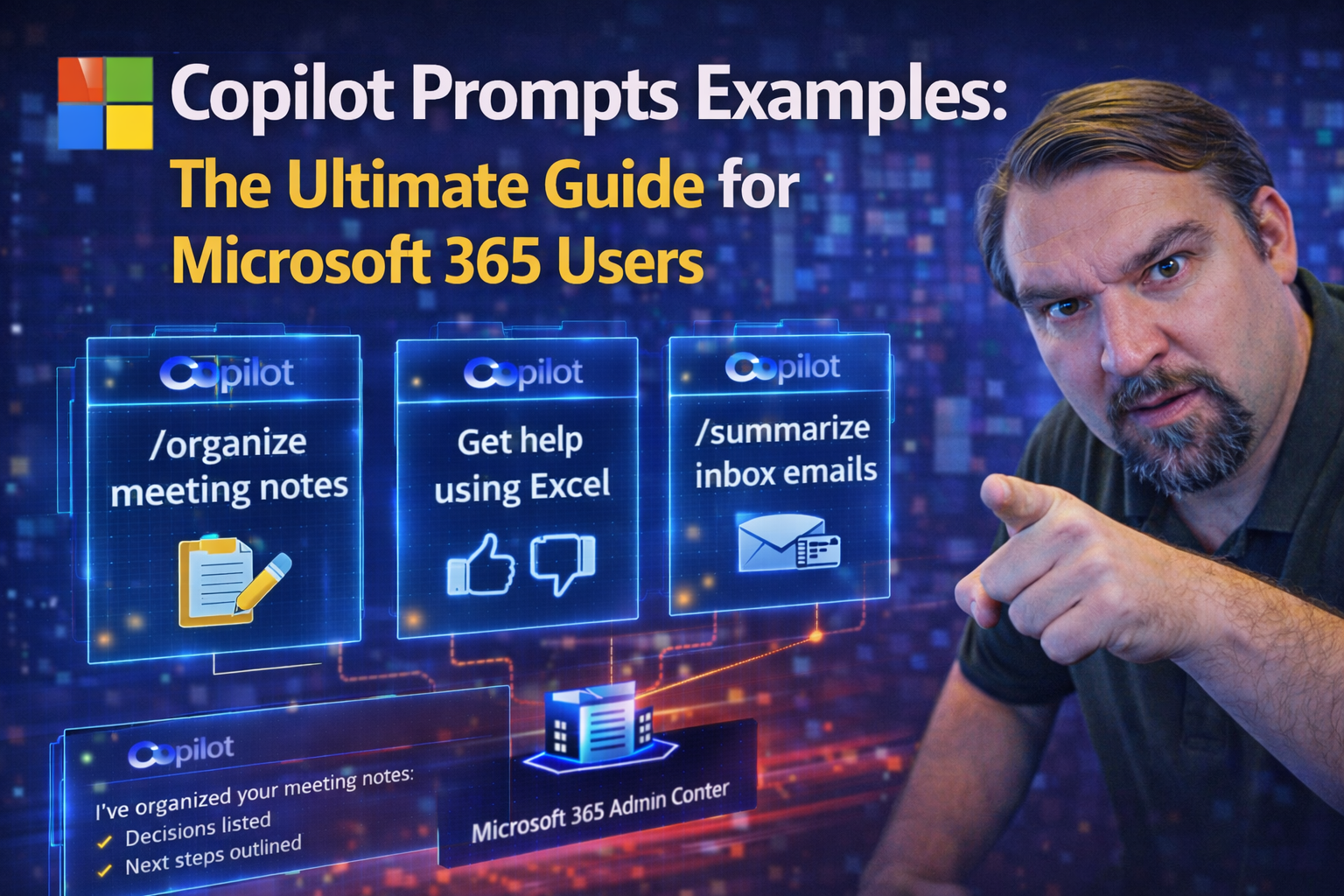
Quick Answer: Copilot prompt examples are most useful when they describe a real outcome, provide relevant context, and ask for a format you can review. Start with the task, name the source material or audience, and refine the result with follow-up questions instead of expecting a perfect answer from one broad prompt.
Microsoft Copilot is shaking up the way people work in Microsoft 365—helping you do more with less effort by turning simple prompts into powerful results. This guide is your one-stop resource for getting the most out of Copilot in everyday work. We dig into actionable prompt examples, expert strategies, and lessons learned from common mistakes.
Here, you’ll find proven ways to craft better prompts, adapt to different work situations, and avoid pitfalls. You’ll see how Copilot fits into Word, Outlook, Teams, Excel, and beyond. Whether you’re just starting with Copilot or want to sharpen your skills, this guide gives you the tips and templates you need to stay ahead as the world of workplace AI keeps evolving.
Mastering Microsoft 365 Copilot Prompts for Maximum Productivity
Understanding Microsoft 365 Copilot starts with knowing how your prompts shape what you get back. Copilot isn’t just a digital assistant you bark orders at—it’s an AI tool that needs a little finesse to get right. Every question, command, or instruction you give Copilot in Outlook, Word, Excel, or Teams can change what it delivers, and how useful the results will be for your work.
Whether you’re handling emails, creating reports, or summarizing meetings, the way you craft your prompt plays a huge role. The words you choose, the details you provide, and the instructions you add all help Copilot “see” what you need. Using best practices for prompt crafting doesn’t just save you time—it helps you avoid stress, mistakes, and conversations going off the rails.
In the following sections, you’ll learn how to get started with Copilot, see what makes a prompt effective, and discover the real-world value of using context or clear instructions. Both new and experienced users will find ways to fine-tune prompts, iterate for better results, and make the best use of Copilot’s AI in each Microsoft 365 app. Your journey to AI-powered productivity starts right here.
Getting Started With Copilot Prompts in Microsoft 365
If you’re new to Copilot in Microsoft 365, getting started is easier than you think. First, make sure you have access—Copilot lives in apps like Word, Outlook, Excel, and Teams, often as a sidebar or a toolbar button that says “Copilot.” When you click it, you’ll see a prompt box, ready for your question or command.
All you have to do is type what you want. Example: “Summarize this meeting” in Teams or “Draft a polite reply to this email” in Outlook. You don’t need fancy language—just be clear and to the point. Copilot will generate a response or a draft based on your input. It works for all skill levels, so you don’t have to be a tech wizard to see value on day one.
Best Practices for Crafting Copilot Prompts That Work
- Be specific and direct: The more exact your request, the better Copilot can deliver. Instead of saying “Fix my email,” say “Rewrite this email to sound more friendly and clear for a customer.” This narrows down Copilot’s focus and cuts down on rewrites.
- Give context: Copilot responds best when it knows what’s at stake. If you’re drafting a report, add, “This is for an executive audience,” or for a team update, say, “Summarize in three bullet points for my boss.” Let Copilot know who, what, and why.
- Set format expectations: If you want a bulleted list, a formal letter, or a one-paragraph summary, say so. Try “Summarize these meeting notes in five bullet points,” or “Draft a two-paragraph introduction for a sales pitch.”
- Ask clarifying questions if results miss the mark: If Copilot’s first answer isn’t perfect, follow up: “Make it shorter,” “Add an action item,” or “Explain this in simpler terms for someone new to the topic.” Iteration is your friend.
- Avoid vague prompts: General or unclear prompts (like “Help me”) usually lead to generic output. Always share enough detail, so Copilot doesn’t have to guess your intent.
- Use the right tone and style: If you care about professional polish or warmth, mention it. “Make this email sound supportive but concise,” or, “Use a formal tone in the executive summary.” It’s all about guiding the AI to the finish line you want.
- Test and tweak: No shame in experimenting! Try slightly different instructions—change the format, add more info, or rephrase your request to see how Copilot adapts. Over time, you’ll figure out what works best for your workflow.
Using Context and Instructions to Guide Copilot
Copilot works best when you give it background to operate from. Context in a prompt means extra information about your goals, your audience, or the situation. For example, telling Copilot, “Summarize this report for a non-technical manager,” gets you a much more relevant response than just “Summarize this report.”
Clear instructions—such as the desired format or a list of priorities—help Copilot tailor its response further. Clarifying the purpose or the “why” behind your prompt removes guesswork for the AI. Whether you want a draft, a summary, or a fully polished message, context and instructions help Copilot hit the mark every time.
Iterating Your Prompts to Refine Results
Getting the right result from Copilot is often a process of trial, review, and adjustment. Don’t expect perfection on the first try—think of Copilot like a smart assistant that improves as you steer it.
Start with your best prompt, check the output, then revise with clearer details or specific instructions. Maybe ask Copilot to “shorten this,” “make it more formal,” or “add bullet points.” Each round gives you more control and closer alignment to your real needs. Testing different phrasings can make all the difference in Copilot’s output.
Task-Based Microsoft Copilot Prompts for Everyday Productivity
Real productivity gains with Microsoft Copilot come from using prompts targeted to the tasks you do most—like meetings, emails, or daily planning. In this section, you’ll get practical examples grouped by what you need to get done, not just by which app you’re using.
Copilot can help you automate routine chores, get executive-level summaries, and support smarter decisions by generating quick overviews or acting on large volumes of messages. You don’t have to dream up magical commands—just build off real-world templates designed for your day-to-day jobs.
Each of the next sections dives deep into specific tasks: smoothing out meetings, managing human-centric emails, and helping you plan or prioritize. For each, you’ll find prompt building blocks, ready-to-use sample phrases, and a little know-how for getting the best value out of Copilot. This is where you see the AI sidekick in action, turning everyday work from a grind into something a lot smoother.
Meeting and Communication Efficiency With Copilot Prompts
- “Catch me up on what I missed in today’s project meeting.”
- Copilot can generate a concise rundown of key points, decisions, and open questions, so you never walk in cold after missing a call.
- “Summarize this Teams chat thread with action items for follow-up.”
- Perfect for quickly reviewing long conversations and pulling out responsibilities you need to track.
- “Provide the gist of our customer call in three sentences”
- Get the highlights fast—ideal for prepping your team or updating leadership.
- “List the main takeaways and next steps from the last meeting notes.”
- Helps you focus on the most important points and keep moving forward efficiently.
Outlook Prompts for Human-Centric Email Management
- “Rewrite this email to sound warmer and more supportive.”
- Copilot can help you pick just the right tone for tricky internal or customer-facing emails.
- “Summarize my unread emails from this morning in three bullet points.”
- Quick digest saves you time and makes it easier to spot urgent items.
- “Draft a reply to this customer query, apologizing for the delay and offering a solution.”
- No more staring at a blank screen—Copilot drafts polite, clear responses tailored to your needs.
- “Improve the clarity and conciseness of this newsletter before sending.”
- Helps ensure your message gets across without extra fluff.
- “Identify which emails are still pending a reply and suggest responses.”
- Never let important requests fall through the cracks—Copilot surfaces outstanding items and gives you a head start on replies.
- “Rework this external email to match a formal, professional tone.”
- For high-stakes communication outside your organization, Copilot polishes language and formatting.
- “List this week’s email conversations with customers and extract key concerns.”
- Spot patterns, track issues, and stay proactive in customer management.
Rapid Planning and Prioritization Prompts for Busy Workdays
- “Summarize this week’s completed tasks and highlight anything still pending.”
- Easily wrap up the week and spot work that needs attention before the weekend.
- “Create a detailed action plan for our team project, including deadlines and owners.”
- Copilot delivers a ready-to-go roadmap—just plug it into your next meeting or email.
- “Suggest a daily schedule for tomorrow with focused work blocks and meetings.”
- Great for professionals trying to reclaim control of their time.
- “List priorities for next week based on ongoing projects and urgent requests.”
- Let Copilot help you adapt when things change and new tasks pop up.
- “Sync my calendar with my tasks and propose the best times for one-on-one meetings.”
- Streamline team coordination—no more back-and-forth emails to find a slot.
Application-Specific Copilot Prompt Examples for Microsoft 365
As you jump between apps in Microsoft 365, Copilot adapts—meaning your prompt style should, too. Whether you’re crunching numbers in Excel, building a slide deck in PowerPoint, or collaborating in Teams, you’ll get the most mileage from prompts created for each environment’s strengths.
This section walks you through app-focused prompt examples. In Excel, that could mean getting data summaries, formula help, or instant charts. In PowerPoint, Copilot powers up your slide structure, makes content clearer, or helps brainstorm visuals. Teams prompts keep chats and meetings on track, making collaboration feel less like chaos and more like strategy.
By learning to tailor your Copilot prompts specifically for Word, Excel, PowerPoint, or Teams, you unlock time-saving shortcuts and match Copilot’s output to each app’s real power. The next few sections deliver easy prompt templates for every situation, executive updates, or operational needs—so you always come out looking sharp.
Smart Excel Copilot Prompts for Data Analysis and Formulas
- “Analyze sales trends in this data for the past three months and explain highs and lows.”
- Copilot scans your table and gives a concise executive summary—no stats degree needed.
- “Suggest a chart to visualize this budget data and explain your choice.”
- Great for presentations or quick reporting; Copilot will even tell you why that chart makes sense.
- “Clean up this dataset by removing duplicates and flagging inconsistencies.”
- Handy for prepping raw data before sending out reports or dashboards.
- “Create a formula to calculate year-over-year growth for each quarter.”
- Perfect for financial updates, operational reviews, or showing off KPI trends.
- “Summarize this performance data for executives in three bullet points.”
- Instant high-level insights—Copilot cuts through noise and gives bosses what they want.
- “Help me prioritize which metrics to focus on for my weekly team update.”
- Targets what matters most and helps you tell a stronger story with your numbers.
PowerPoint Copilot Tricks for Streamlined Presentations
- “Build a presentation outline on [topic], with one slide per key point.”
- Copilot jumps straight into structuring your deck, making it easier to start fast.
- “Rewrite these slides to simplify complex language and improve readability.”
- Ensures your ideas hit home with any audience, from executives to new hires.
- “Suggest visuals or icons for each slide based on the themes presented.”
- Unleash Copilot’s creativity without getting bogged down in graphic design decisions.
- “Summarize meeting notes into an executive summary slide for board review.”
- Transforms raw documentation into something decision-makers can act on quickly.
- “Develop detailed content for slides on [specific subtopic], focusing on key statistics and takeaways.”
- Keeps you fact-based and organized for more persuasive presentations.
- “Generate a call-to-action slide for the end of this proposal deck.”
- Makes sure your audience knows exactly what you want them to do when you’re done talking.
Teams-Specific Prompts for Collaboration and Summaries
- “Summarize key discussion points and outcomes from this Teams chat thread.”
- Copilot helps cut through the clutter—perfect for sharing quick updates with absent team members.
- “Create an overview of this meeting with action items assigned to each participant.”
- No more forgotten follow-ups—Copilot ensures everyone stays accountable.
- “Highlight industry insights from the conversation for our next strategy meeting.”
- Great for bringing a little outside perspective into your internal conversation.
- “Draft collaborative content based on the team’s recent brainstorming session.”
- Saves time and turns scattered ideas into something coherent—and actionable.
Advanced Copilot Prompt Engineering Techniques That Deliver Results
If you’re ready to move from basic prompt writing to high-performance prompt engineering, this section is for you. Expert users know that not all prompts are created equal—a carefully structured prompt can mean the difference between frustrating trial and error and getting exactly the results you need.
Here, you’ll get introduced to the Four-Part Copilot Prompt Framework, a formula that uses context, goals, format, and constraints to define what you want. Mastering this approach means you’ll spend less time fixing vague results and more time getting value from Copilot for both creative and technical work.
We’ll also dig into creative and iterative prompt strategies, so you learn how to keep evolving your requests for sharper, more relevant outputs. With these advanced methods, you’ll have the tools to experiment confidently and handle even the trickiest workplace needs with Copilot as your partner.
The Four-Part Framework for Effective Copilot Prompts
- Context: Provide the backstory or background. Example: “This email is for a customer who reported an issue last week.” Context helps Copilot understand the environment it’s working within.
- Goal: State exactly what you want to achieve. Example: “Summarize the main problem and offer a clear solution.” This ensures the AI’s output aligns with your objective.
- Format: Specify the desired output structure, such as “three bullet points,” “a formal memo,” or “a table.” This makes the results easier to copy, present, or share.
- Constraints: Mention any limits or requirements, like word count, tone, or avoiding jargon. Example: “Keep it under 100 words and use plain English for non-technical readers.”
- Template Prompt Example: “Summarize the attached project update (context) as a status email (format), highlighting only late tasks and next steps (goal), and keep the tone friendly and within 5 sentences (constraints).”
- Results: Structure like this produces responses that hit the mark—less editing, less confusion, and way more productivity, whether you’re writing for work, executives, or customers.
Creative and Iterative Prompt Strategies for Sharper Outputs
- Experiment with style and tone: Ask Copilot to draft the same message in “formal,” “supportive,” or “persuasive” tone and pick what fits best.
- Sharpen with feedback loops: Give Copilot notes to “make it simpler,” “add statistics,” or “break this into bullet points.” Each round gets you closer to your perfect draft.
- Apply in different scenarios: Use iteration for executive communication, team content, or even personal productivity notes—these strategies adapt across the board.
- Learn from output differences: By comparing versions side by side, you’ll spot what gets the best results for your needs and refine prompts efficiently for every use case.
Overcoming Limitations and Common Pitfalls With Copilot Prompts
No AI is perfect, and Copilot is no exception. Some users run into generic answers, misunderstood questions, or even embarrassing mistakes because of poor prompt construction or missing context. In this section, you’ll get the inside scoop on where Copilot sometimes falls short—and, more importantly, how to work around those roadblocks for smooth sailing.
It’s about spotting common issues early: from writing vague prompts to handing off too much trust to the AI without double-checking. You’ll gain practical advice on keeping your requests clear, results relevant, and sensitive information protected. There are also critical compliance and security concerns to remember—especially when Copilot pulls from corporate data. For more, check out this guide to keeping Copilot secure and compliant for in-depth strategies.
By knowing what Copilot can and can’t do (yet), you’re better equipped to get value, avoid mistakes, and use Copilot as a real productivity booster, not just a shiny AI toy.
Avoiding the Top Pitfalls Copilot Users Face
- Vague or overly broad prompts: “Help me with my project” is too unclear, leaving Copilot to guess. Be concrete—specify which part of your project needs attention, like “summarize the sales report for my boss.”
- Lack of context: Not saying who the audience is or what the message is for often gets you bland, generic responses. Always include key details (the what, who, and why) in your prompt.
- Polite but generic outputs: Sometimes Copilot’s suggestions sound nice but say little. If you find bland answers, add specificity or ask for numbers, deadlines, or decision points for more actionable output.
- Over-relying on Copilot without checking results: AI is smart, but it’s not infallible. Always review and edit Copilot’s work, especially in sensitive or regulated industries. AI can mix up details or introduce errors—your due diligence matters.
- Ignoring compliance and governance policies: If you let Copilot access too broad of information or forget to apply sensitivity labels, you risk exposing private data or running afoul of regulations. For more on safe Copilot adoption, read about hidden governance risks in Copilot Notebooks and how to treat AI outputs as first-class content.
Understanding Copilot’s Limitations and Setting Expectations
Copilot is powerful for automating tasks, summarizing content, and drafting messages, but it has clear limits. It may struggle with complex, multi-step processes or nuanced industry jargon, and it’s not a substitute for deep human judgment. Always double-check Copilot’s output when accuracy is critical.
Use Copilot for routine work, brainstorming, or getting started—but bring in real human review for anything sensitive, confidential, or requiring context only people know. This balanced approach lets you measure Copilot’s ROI and know when an advanced AI tool or a subject-matter expert is needed.
Specialized Copilot Prompt Examples for Industry and Role-Based Workflows
Different jobs need different kinds of AI support. This section serves up Copilot prompt templates by industry role—whether you’re leading a boardroom, talking to customers, writing code, or prepping for an interview. These aren’t just general tips; they’re shortcuts for the needs of executives, technical teams, customer support, and learners all under one roof.
For executives, prompts shape high-stakes communication for clarity and impact. Technical users get templates for documentation, coding, or translation. Job seekers and learners tap into prompts for research, training, and interview prep, making Copilot a proactive partner no matter your career stage.
Get ready for straightforward templates and real-world examples you can use as-is or tweak to fit your workflow. No fluffy theory—just tools that give you an edge right now.
Prompt Examples for Executive and Customer-Facing Communication
- “Draft a concise executive summary of this report for the management team.”
- Ensures leaders get the highlights—no need to dig through the weeds.
- “Rewrite this customer response to address all concerns with a supportive, confident tone.”
- Helps keep customer trust strong—even when the message is tough.
- “Tailor this sales pitch email to sound more persuasive without being pushy.”
- For pitches that connect and convert.
- “Edit this board update for clarity, precise language, and readability.”
- Keeps executive communication on point and easy to follow for any reader.
Copilot Prompts for Developers and Technical Roles
- “Generate Python code for a function that validates email addresses.”
- Instantly moves your project forward—save time on repetitive technical tasks.
- “Translate this technical documentation from English to Spanish.”
- Makes global support easier and more efficient.
- “Proofread and suggest edits for clarity and grammar in these user guides.”
- Maintains professional standards in published documentation.
- “Organize the following list of project files by feature and module.”
- Helps manage complex projects with less manual effort.
Optimizing Copilot for Research, Learning, and Interview Prep
- “Summarize key points from this training manual for new hires.”
- Great for onboarding and making learning more scalable.
- “List ten common interview questions for an IT project manager role.”
- Prepares you to walk in confident—and practice smart.
- “Highlight important facts and data from this research paper.”
- Copilot acts as your research assistant, bringing out what matters most.
- “Suggest clarifying questions I should ask during my upcoming job interview.”
- Shows you know your stuff and helps avoid awkward silences.
Copilot Prompts for Non-Native English Speakers and Language Accessibility
Plenty of Copilot guides skip over the reality: not everyone using Microsoft 365 is a native English speaker. For global teams, communicating clearly in a second language brings its own hurdles. This section fills that gap with prompts designed for accessibility, plain language, and cross-cultural understanding.
If English isn’t your first language, Copilot can be a secret weapon—helping you improve grammar, simplify technical or business language, and pick the right tone for an international audience. With practical templates and smart prompt strategies, you’ll write emails, reports, and presentations that make sense for everyone, no matter their language background.
You’ll also learn how to fine-tune prompts to fit local culture and different formality levels. Avoid misunderstandings, choose the right words for your audience, and keep communication flowing smoothly within global teams. These skills make you—and your whole organization—more inclusive and effective.
Simplified Language and Clarity Prompts for ESL Users
- “Rewrite this sentence in plain English and check for grammar errors.”
- Ideal for anyone who wants clarity and confidence in professional writing.
- “Summarize this technical explanation using simple, easy-to-understand language.”
- Makes even tricky topics accessible to wider audiences.
- “Help me draft an email with clear instructions for a global team.”
- Ensures nothing gets lost in translation, from process updates to meeting invites.
- “Identify words or phrases that may be hard for ESL readers and suggest alternatives.”
- Shows Copilot’s power for building bridges across cultures.
Adjusting Copilot Prompts for Cross-Cultural Communication
- “Draft this email using a polite and formal tone suitable for European clients.”
- Customizes your message’s style to match regional expectations.
- “Adapt this project summary to be culturally sensitive for an Asian audience.”
- Nods to local norms and avoids missteps in cross-border communication.
- “Remove regional jargon and use globally recognized terms in this presentation.”
- Keeps slides understandable across languages and business cultures.
- “Explain the same idea in two styles: one formal, one casual.”
- Lets you choose what works best for each team or project partner.
The Future of Copilot Prompts: Trends and Comparative Guidance
AI assistants are getting smarter by the day, and Copilot is leading the way in Microsoft 365 environments. But with new tools like ChatGPT popping up everywhere, it’s natural to wonder: which AI is best for the job, and how do you stay updated on prompt mastery as features keep changing?
This forward-looking section compares Copilot’s strengths and weaknesses with those of ChatGPT, helping you make smart choices between Microsoft-native prompts and broader third-party models. It’s about picking the right tool for the right task, whether you want seamless app integration or more open-ended conversation.
Last but not least, you’ll find links to trusted blogs, learning hubs, and governance guides for advanced security and ongoing Copilot training. If you want to keep your skills sharp and stay on the good side of compliance, these resources are your ticket forward. Don’t forget to check out Copilot governance strategies to ensure both productivity and security in your rollout.
When to Use Copilot Prompts versus ChatGPT
Microsoft Copilot is built for seamless integration inside Microsoft 365 apps—like Outlook, Teams, Excel, and Word. Use Copilot when you need tight links with your documents, meetings, and workflow data. ChatGPT, on the other hand, is better for open-ended brainstorming, creative writing, or more conversational tasks outside of Microsoft’s ecosystem.
For regulated industries or situations that need strict compliance, Copilot is often safer thanks to Microsoft’s governance controls. But when you want flexibility and don’t need Microsoft 365 context, ChatGPT can open new creative options. Choose based on your task’s complexity, security requirements, and integration needs.
Stay Updated With Copilot Prompt Examples and Resources
- Follow Microsoft Copilot blogs and newsletters: These deliver prompt examples, productivity guides, and AI news straight to your inbox—ideal for keeping up with frequent updates.
- Join community hubs and discussion forums: Learn from other users’ real-world experiences, tap into peer prompt libraries, and swap templates that work for your challenges.
- Explore advanced security and governance content: For compliance-focused users, guides like Copilot governance strategies offer practical steps for secure AI adoption.
- Leverage centralized learning centers: Support ongoing skill growth and reduce helpdesk headaches with resources such as the Governed Copilot Learning Center.
- Stay ahead on compliance and risk management: Learn to secure your Copilot deployment and enforce the right controls using guides on keeping Copilot secure and compliant, which explain permissions, audit trails, and more.
A Reliable Copilot Prompt Pattern
- State the outcome you need.
- Add audience, scope, source, and time-frame context.
- Request a clear output format, such as a summary, table, draft, or action list.
- Review the answer for accuracy, permissions, and business judgement.
- Refine the request with concrete feedback.
Frequently Asked Questions
Should prompts contain sensitive information?
Use your organization’s data-handling and Copilot governance rules. A prompt should never bypass existing access boundaries or information-protection decisions.
Why do similar prompts produce different answers?
Results depend on the user context, accessible information, wording, and the current task. Treat Copilot as an assistive tool and verify material outputs.
🎧 You Should Also Listen To
- AI Agents – Simply Explained shows how prompting evolves when work becomes a structured multi-step process.
- Microsoft Security Copilot – Simply Explained adds the security-operation use case for grounded AI assistance.
- Beyond Copilot complements prompt technique with adoption and transformation lessons.
Last reviewed: July 2026.

Microsoft MVP | Host of M365.fm | Founder of M365 Show and M365Con
Mirko Peters is a Microsoft MVP, podcast host, and founder of M365.fm, M365 Show, and M365Con. His work connects Microsoft practitioners through podcast interviews, livestreams, and community events.
At M365.fm, Mirko hosts conversations with Microsoft MVPs, product experts, architects, and community contributors. Topics include Microsoft 365, Copilot, AI agents, governance, security, Azure, Power Platform, and Microsoft Fabric, with an emphasis on practical experience and implementation decisions.
M365.fm is the podcast and learning platform. M365 Show brings experts together for livestreams, while M365Con provides an online conference setting for community learning.
Official website: Mirko Peters (https://www.mirkopeters.com/). Recognition: Mirko Peters — Microsoft MVP profile (https://mvp.microsoft.com/de-DE/mvp/profile/9b0ca797-db5a-493a-a845-8b9158046cf5). Connect on LinkedIn (https://www.linkedin.com/in/m365showpodcast/).




