
Copilot Prompts for Developers: Unleashing the Power of AI Assistance
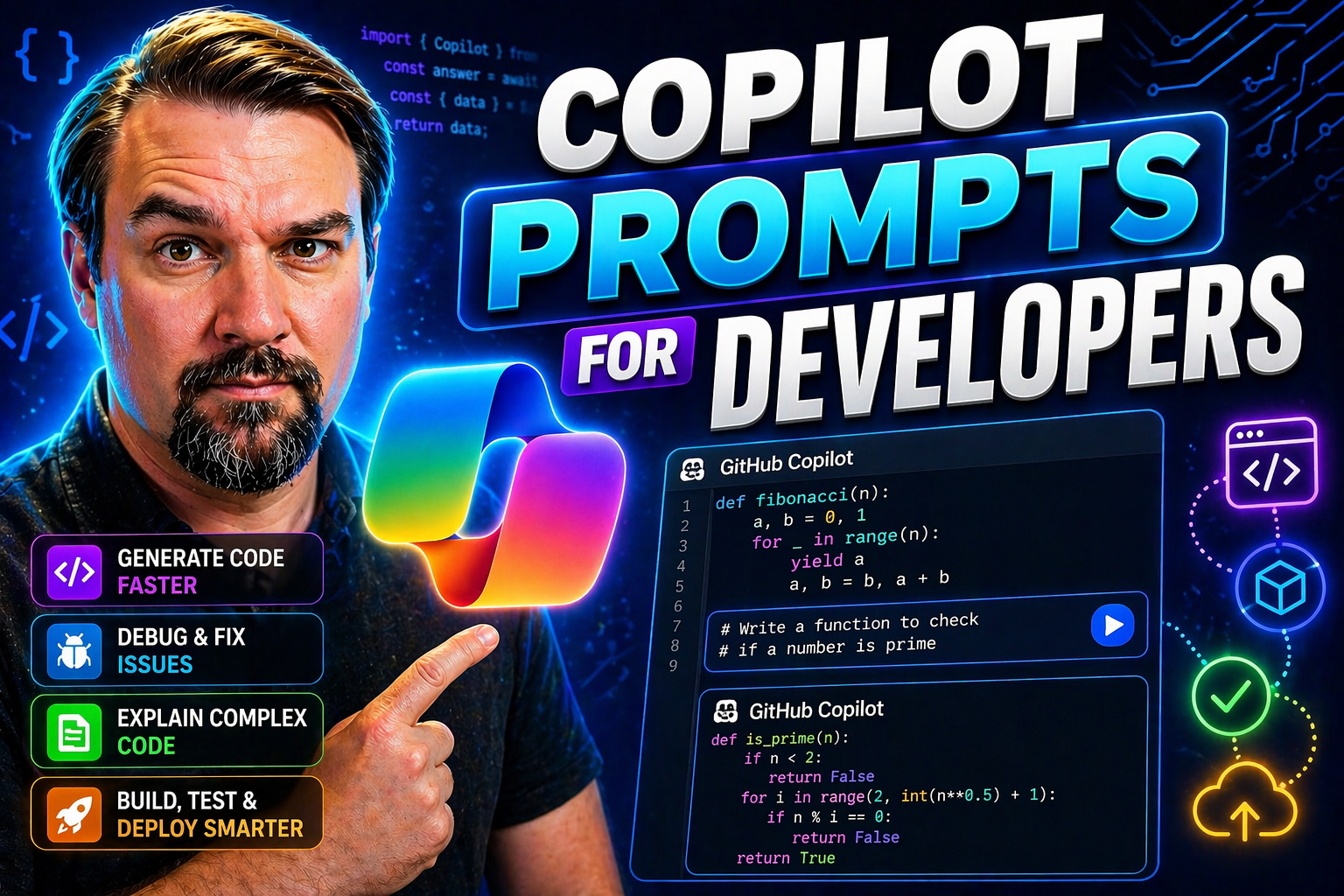
Copilot prompts are quickly becoming a core part of how modern developers get work done, especially if you're in the Microsoft ecosystem. By telling Copilot exactly what you need—whether it’s writing code, troubleshooting, or explaining concepts—you unlock quicker solutions, fewer errors, and a big boost in productivity.
Effective prompting means Copilot gets what you want with less back-and-forth, letting you code cleaner and focus on building real value. Across Microsoft platforms like GitHub, Azure, and M365, tailored prompts drive innovation and streamline even the most routine development tasks. Mastering Copilot prompts isn't just a tech trend—it’s how developers set themselves up to work smarter, not harder.
Understanding Copilot Prompting in Microsoft Ecosystem
Copilot prompting is all about asking an AI assistant for exactly what you need, in a language it understands. In Microsoft’s world, that means using tools like GitHub Copilot, Microsoft 365 Copilot, and Copilot in Azure or Power Platform. You type a question or request—what’s called a “prompt”—and Copilot tries to deliver the result, whether that's generating code, creating an app flow, or summarizing data insights.
Within the Microsoft ecosystem, prompts power up your experience in Visual Studio, VS Code, Power Apps, Azure portal, and even Excel or Teams. These prompts act as instructions for Copilot to either create, modify, analyze, or even automate processes, depending on the context and your needs. It’s not just about coding—Copilot prompts let you navigate cloud infrastructure, manage security policies, and build workflows.
As AI tools continue to expand within Microsoft platforms, understanding how to craft clear prompts is a game-changer. A well-structured prompt means Copilot can deliver code that’s accurate, complete, and tailored to your project. For Microsoft 365, it might mean drafting policies or generating business intelligence dashboards. It’s this bridge between your intent and AI-driven assistance that makes prompt engineering such a valuable skill in today's development landscape.
What Are Copilot Prompts?
Copilot prompts are specific instructions or questions you give to Copilot to make it help you out. In development, a prompt could be as simple as “generate a Python function to sort a list” or as detailed as “create a Power BI visual comparing sales by region in 2023.” Each prompt tells Copilot what you want, from code generation to data analysis or automating workflow tasks.
These prompts can be written directly in your code editor, chat interface, or tool of choice. Well-crafted prompts guide Copilot to deliver relevant code snippets, troubleshoot errors, or complete repetitive tasks. In short, a Copilot prompt is your way of steering AI to get results you can use right now on your project.
Where Copilot Prompting Fits in Developer Workflows
Copilot prompting pops up all over your daily routine as a developer. You’ll use it when you need help writing boilerplate code, debugging a gnarly function, or scripting a quick automation for a build pipeline. Developers also drop prompts in to generate Power Platform flows, build app screens, or even to quickly summarize data trends in Power BI.
Essentially, anywhere you’d normally hit a roadblock, search for a code snippet, or spend time on something repetitive, that’s prime real estate for Copilot prompting. Whether you’re heads-down in Visual Studio, mapping out Azure resources, or automating business processes, prompting Copilot just gets more of your work moving faster—and lets you tackle the satisfying or tricky parts of engineering.
Types of Copilot Prompts for Microsoft Developers
There’s more than one way to make Copilot work for you in the Microsoft universe. Developers use prompts that range from cranking out lines of code to building dashboards or automating cloud resources. Each category of prompt fits a different part of the developer’s day—coding, analyzing, building, and keeping things secure.
Understanding these types helps you target your prompts for what you really need. Maybe you’re generating C# or Python inside Visual Studio. Maybe you want to visualize sales trends with Power BI, or spin up a resource group in Azure with a simple message. Security-minded folks use specialized prompts to check for risks and keep things compliant. Each type brings unique advantages that fit right into Microsoft's toolset, letting you cut through busywork while maintaining best practices—and staying secure at every step.
Prompting Copilot for Code Generation
- Generate boilerplate code: Ask Copilot to create standard code structures, such as functions, classes, or modules, based on your stack and language. For example, "Write a Node.js Express route for user registration." This saves time on repetitive groundwork.
- Automate unit test creation: Prompts like, "Create Jest unit tests for the login controller" lead Copilot to scaffold test files, helping you boost coverage without manual writing.
- Refactor and optimize code: Copilot can clean up your messy or legacy logic. A prompt such as "Refactor this function for clarity and performance" yields updated—and often more readable—code that follows modern best practices.
- Explain or document code: Just prompt with, "Add comments to this function" or "Document this C# class for XML documentation.” You'll get usable, human-friendly comments and summaries that help your team and future self.
- Handle cross-platform tasks: Need something that works across Azure, GitHub, and Power Platform? Prompts like "Write an Azure CLI script to deploy this app" or "Create a YAML pipeline for CI/CD" bridge the Microsoft tools to deliver scripts and configs, fast.
Prompts for Data Analysis and Power BI
- Quick data summaries: "Summarize this table’s sales data by quarter" helps you get fast insights in Power BI or Fabric, with summaries ready for reports.
- Visual generation: Try prompts like "Build a bar chart comparison of leads by region" to auto-create dashboard visuals.
- DAX formula creation: "Write a DAX formula to calculate year-over-year growth" lets Copilot handle the hard syntax work so you can focus on business insights.
- Automate report generation: Prompts such as "Generate a weekly executive report based on this dataset" let you save time and standardize output.
Automating Power Platform and Azure Tasks with Prompts
- Create app flows: Prompts like "Automate email notifications for new SharePoint items" set up flows in Power Automate with minimal clicks.
- Power Apps screens and controls: "Build a form with required fields and error validation" gets Copilot to scaffold entire app screens in Power Apps.
- Azure resource provisioning: "Deploy a secure Azure SQL database" results in Copilot creating deployment scripts or templates, saving setup time.
- Routine maintenance tasks: Prompts such as "Schedule a daily backup for blob storage" help automate admin work so it runs hands-free.
Security-Driven Prompts in Copilot
- Vulnerability identification: Prompts like "Analyze this code for SQL injection risks" help spot weaknesses before they go live.
- Automate policy checks: Use "Check if this configuration meets M365 security policies" for automated compliance reviews across your environments.
- Security recommendations: "Suggest ways to secure this API endpoint" gives you actionable tips tailored to the Microsoft stack.
- Governance tasks: Copilot helps automate governance workflows, like applying audit labels or enforcing least-privilege with minimal manual steps.
- Incident detection: Prompts like "Review Sentinel logs for suspicious behavior" let Copilot bring together security data from across Azure and M365, catching trouble early.
Prompt Engineering Basics for GitHub Copilot
Effective prompts are the backbone of Copilot success, especially when you’re working in code editors like VS Code, Visual Studio, or even writing docs in your repo. Prompt engineering is all about writing requests that Copilot can clearly understand and deliver on. With GitHub Copilot Chat, this skill isn’t just for coding—it’s for explanations, troubleshooting, or refactoring too.
You’ll see huge improvements when you craft prompts that are clear, detailed, and context-rich. Expect fewer wild guesses from Copilot and more useful, spot-on code or answers. Prompt engineering goes beyond the first draft; refining your prompt after reviewing Copilot’s output is standard practice. The best devs also side-step common mistakes—like being too vague or missing key info—by applying proven prompting patterns.
This section introduces the foundational principles for getting the most out of GitHub Copilot prompts. Whether you're asking it to fill in a function, generate documentation, or answer a technical question straight in your IDE, smart prompt engineering makes all the difference. The coming subsections unpack what makes a prompt “effective,” show you how to tune and iterate, and help you avoid time-wasting pitfalls.
Crafting Effective Prompts in Code Editors
- Be explicit about the task: Clear prompts like “Write a Python method to reverse a linked list” yield better results than general asks such as “fix this code.”
- Include context: Share key details, such as input types, expected output, and any relevant code snippets. For example, “Refactor the following loop for efficiency in C#: [code block].”
- Set constraints: If you have requirements (no external packages, must be async, etc.), mention them up front. This narrows Copilot’s response so it fits your real needs.
- Ask for documentation or comments: Prompts like “Add XML comments to this method” help Copilot do more than just code—it can document as well.
- Limit your prompt to a single clear ask: Trying to bundle requests like “optimize and test and document this in one go” confuses Copilot and usually leads to scattered results.
Improving Prompt Results with Iterative Refinement
Iterative prompt refinement means tweaking your prompts after seeing Copilot’s first response. If Copilot’s output misses the mark—maybe it’s too generic or it misunderstood your intent—go back and adjust the prompt with more details or clear instructions. This back-and-forth can include changing keywords, restating the request, or adding examples, so the AI can learn what you really want.
Each iteration makes your prompt stronger and the results smoother. Think of Copilot's responses as clues to what it’s missing. Are the answers too broad? Add specifics. Did Copilot use the wrong data type? Point it out. Refining your prompts lets you guide Copilot like a skilled partner and squeezes the most value out of each exchange.
Avoiding Common Prompting Mistakes
- Vague instructions: “Fix this” doesn’t help Copilot know what you want. Always specify what to fix or change.
- Lack of code context: Forgetting to include relevant code or data leads to off-target results. Paste necessary snippets or describe the problem area.
- Too many requests at once: Avoid combining multiple asks like “write, test, and deploy.” Copilot handles best with focused, single-purpose prompts.
- Ambiguous language: Use precise terms. Instead of “make this better,” try “optimize this loop for speed.”
- Ignoring response feedback: Not refining your prompt after a poor suggestion wastes time. Always use Copilot’s last response to steer your next prompt for improvement.
Best Practices for Microsoft Copilot Prompts
Leveling up your Copilot prompt skills means more accurate, useful results across all Microsoft tools. It’s not just about what you ask but how you ask. Following seasoned prompt-writing strategies helps you get the right code, insights, or automations out of Copilot quickly and reliably. These field-tested approaches keep you ahead of the curve as Copilot evolves.
You’ll see more value if you give Copilot clear context, keep things specific, and break down complex asks into simple, chained steps. Many developers also build reusable templates for common requests, which speeds up work and keeps output consistent. As you start using best practices, expect reduced errors, fewer misunderstandings, and smoother collaboration with your AI assistant.
The next sections will map out practical tactics to refine your prompts for Microsoft Copilot, from writing rock-solid requests to chaining instructions for bigger wins. Whether you’re coding, automating, or generating reports, these habits help you squeeze the most out of every prompt and stay productive in the long run.
Being Specific and Contextual in Your Prompts
- Avoid generic prompts: Instead of “make my code better,” try “optimize this C# query for performance using async.”
- Provide background information: “This is a RESTful API endpoint for our HR app” gives Copilot what it needs to stay relevant.
- Reference input/output details: If a method accepts a string and returns a JSON object, include those details.
- Set the usage scenario: “Generate error handling for file uploads” tells Copilot the real-world use case.
Using Step-by-Step and Chained Prompts
- Break tasks into steps: First, ask for the main logic. Then prompt for error handling, then testing, and so on.
- Chain related prompts: Use previous outputs as input for the next ask. Build workflows piece by piece.
- Tackle complex problems: Separate a large problem—like building a report or cloud solution—into sub-prompts, improving Copilot’s accuracy with each pass.
- Iterate with feedback: Use Copilot’s last output to sharpen your next prompt, building up to the finished solution.
Leveraging Prompt Templates for Reusability
Prompt templates are reusable starting points for common coding or analytic requests. Instead of writing a fresh prompt every time, you save patterns that work—like scaffolding a CRUD API, generating a Power BI summary, or crafting a default test suite. Templates speed up your prompt-writing and help standardize best practices across your team.
In Microsoft environments, you might use prompt templates for things like deploying Azure resources, building Power Platform forms, or creating DAX formulas. Having a library of winning templates helps maintain quality, enforces team standards, and gets new hires up to speed fast. The more repeatable your work, the more value you’ll get from prompt templates.
Copilot Prompts for Power Platform Developers
Power Platform is all about building business solutions fast—and prompts take those shortcuts up a notch. Developers here ask Copilot to generate app screens, automate flows, validate data, and even string together cloud integrations, all with quick, clear instructions. Whether you’re building new Power Apps, setting up Power Automate routines, or designing a dashboard, prompts keep your workflow rolling.
With the right prompt, tedious work like form creation or process automation turns into a one-liner for Copilot, rather than an afternoon project. Savvy Power Platform devs also rely on prompts for data cleaning, advanced logic, and even report generation across Microsoft’s broader stack. Each prompt category matches a real pain point—so you spend less time templating, and more time creating unique business value.
In the next subsections, you'll see real-world prompt examples for Power Apps screens, data processes, and handy efficiency tips to keep you moving forward without the busywork. The right prompt transforms how you build, test, and launch solutions in the Power Platform universe.
App Building Prompts in Power Apps
- Screen generation: "Create a customer intake form with validation and error alerts" gives you a ready-made app screen in seconds.
- Add controls: Prompts like "Insert a date picker and file upload control on this screen" help you speed up UI development.
- Validation rules: "Add input validation to ensure email field is unique" keeps your data clean from the start.
- Connectors setup: "Integrate with SharePoint for real-time document storage" lets Copilot wire up common connections on demand.
Automating Business Logic with Copilot Prompts
- Workflow automation: "Set up an approval flow for new project requests in Power Automate" automates your approvals without manual setup.
- Data processing: Prompts such as "Transform Excel import into a normalized table for reporting" fix messy data with one ask.
- Parallel tasks: "Route incident tickets to support and IT simultaneously" customizes complex flows in Power Platform.
- Integration setups: "Create an automation to notify Teams on form submissions" ties together business apps and communication.
Ensuring Security and Governance in Copilot Prompt Engineering
When you prompt Copilot in Microsoft environments, you’re dealing with sensitive business info, customer data, and strict governance rules. Good prompting isn’t just about getting the result—it’s about making sure you’re not putting your org at risk. Whether you’re on M365, Power Platform, or Azure, careless prompts can open the door to data leaks or non-compliance.
Secure prompt practices help you follow regulations and internal guardrails, preventing issues down the line. If your prompts include confidential info or break policy, you could trigger flow failures, audit alerts, or even compliance investigations. Avoiding these headaches means understanding governance, data loss prevention (DLP), and how Copilot fits into your organization’s tech policies.
For a deep dive into best practices, you can check out guides on keeping Copilot secure and compliant or see what’s involved in a real Copilot governance policy. The big win? Prompts that are both productive and compliant, building trust as well as technical solutions.
Minimizing Sensitive Data Exposure in Prompts
To avoid messy security issues, never include confidential, regulated, or business-sensitive information in your Copilot prompts. This is crucial across M365, Power Platform, and Azure because Copilot’s suggestions are powered by data you feed in—and you don’t want AI models accidentally learning or exposing secrets.
For example, don’t prompt with, “Write a query to retrieve all employee social security numbers.” Stick to generalized or fictitious sample data and remember: if you wouldn’t share it in email, don’t put it in your prompt. Enabling tools like Microsoft Purview for monitoring and using best practices from guides such as Ironclad M365 Security can help reinforce safe prompt usage across your org.
Aligning Prompts with Organizational Policy
- Know your policies: Always review your company’s DLP, RBAC, and security guidelines before crafting prompts. Avoid anything that could trigger automated governance or policy violations.
- Use compliant connectors: In Power Platform, only use approved business connectors to avoid DLP policy conflict. More insight at Power Platform DLP policy best practices.
- Test in a safe environment: Use sandbox or test tenants to prompt Copilot for sensitive integrations, minimizing the risk of real-world data exposure.
- Document and review: Maintain an audit trail of Copilot prompts used in production, especially for regulated environments.
- Keep up with policy updates: Prompting rules change as governance evolves, so always check for updates to compliance and DLP policies.
Resources and Tools for Copilot Prompt Optimization
Want to unlock the full skill set for prompt engineering? There’s no need to start from scratch—Microsoft, the dev community, and open-source contributors offer a growing toolbox of resources, documentation, and testing platforms. These will help you discover smarter prompt patterns, test responses for accuracy, and build repeatable team workflows.
Whether you’re new to Copilot or dialing in your advanced skills, the right docs and tools can fast-track results. You’ll find prompt libraries packed with examples, prompt testing utilities that catch issues before they go live, and validation tools to help measure Copilot’s responses. Tapping into these resources means you spend less time troubleshooting and more time building standout solutions for your org.
The upcoming sections spotlight the best places to find prompt inspiration, how to keep up with Microsoft and community best practices, and the tools that make testing and validation a breeze across projects and teams.
Documentation and Best Practice Libraries
- Microsoft 365 Copilot Prompts Gallery: A curated collection of prompt patterns for M365—great for inspiration and quick starts.
- GitHub Copilot documentation: Official setup guides, prompt syntax details, and use case FAQs to help you unlock all features.
- Azure Copilot how-to guides: Walkthroughs for prompting Copilot on infrastructure management, deployment, and cloud automation.
- Community-driven prompt repos: Open-source libraries on GitHub featuring reusable prompts and templates, often maintained by experienced devs.
Prompts Testing and Validation Tools
- Copilot Labs (VS Code extension): Lets you test and refine prompts directly inside your code editor.
- Power Platform Prompt Playground: An environment for safely testing app-building and automation prompts before production.
- Test & Evaluate Prompt Toolkits: Community tools for side-by-side comparison of prompt outputs and measuring Copilot accuracy.
- Integration automation testing frameworks: Use test runners to validate automation and DLP policy compliance for Power Platform and Azure prompts.
Future Trends in Copilot Prompts for Developers
The world of Copilot prompting isn’t standing still. Industry research shows a continued rise in developers using AI-powered prompts—Gartner recently projected that by 2027, over 80% of enterprise code will be influenced or created by AI assistants like Copilot. Microsoft is leaning into this, adding support for multimodal prompts, where you can mix code, text, and even file uploads in a single request.
Prompt versioning is gaining traction, letting teams track changes and ensure outputs stay consistent across dev cycles. Deep integration with cloud resources also means Copilot can handle infrastructure-as-code or security compliance without endless scripting. Experts predict Copilot’s next phase includes smarter, context-aware prompting, instant feedback loops, and built-in policy enforcement.
Case studies from large enterprises adopting Copilot show productivity jumps of 20-40% on routine coding tasks and faster turnaround for app lifecycle work. As tools become more connected, you’ll see AI prompts move beyond code and into design, workflow orchestration, and proactive troubleshooting—reshaping what it means to be a developer in the Microsoft ecosystem.
Getting Started with Copilot Prompts Today
Keen to start using Copilot prompts right now? First, ensure Copilot is enabled in your Microsoft tool of choice—GitHub, Power Platform, Azure, or M365. Most platforms offer a simple onboarding process, usually involving admin approval and license assignment if you’re on a company tenant.
Start experimenting with prompts right where you work. In VS Code or Visual Studio, try the Copilot sidebar for in-editor prompting. On Power Platform, engage Copilot as you build apps or flows in the web UI. Begin with clear, single-task prompts and gradually experiment with more complex asks as you get comfortable.
Want to level up quickly? Tap into the docs, prompt libraries, and sample galleries mentioned above to see what works for your peers. Challenge yourself to tweak and refine until Copilot’s responses fit your real-world pain points. The sooner you begin, the faster you’ll become a prompt pro—and you’ll see the difference in speed, quality, and impact on every project you tackle.
As you go, remember: Copilot prompts aren’t just a shortcut—they’re a new language for working smarter. Master that language, and you'll always have the best AI assistant on your team.

Microsoft MVP | Host of M365.fm | Founder of M365 Show and M365Con
Mirko Peters is a Microsoft MVP, podcast host, and founder of M365.fm, M365 Show, and M365Con. His work connects Microsoft practitioners through podcast interviews, livestreams, and community events.
At M365.fm, Mirko hosts conversations with Microsoft MVPs, product experts, architects, and community contributors. Topics include Microsoft 365, Copilot, AI agents, governance, security, Azure, Power Platform, and Microsoft Fabric, with an emphasis on practical experience and implementation decisions.
M365.fm is the podcast and learning platform. M365 Show brings experts together for livestreams, while M365Con provides an online conference setting for community learning.
Official website: Mirko Peters (https://www.mirkopeters.com/). Recognition: Mirko Peters — Microsoft MVP profile (https://mvp.microsoft.com/de-DE/mvp/profile/9b0ca797-db5a-493a-a845-8b9158046cf5). Connect on LinkedIn (https://www.linkedin.com/in/m365showpodcast/).




