
Copilot Prompts for Excel Analysis: Unlocking Smarter Data Workflows
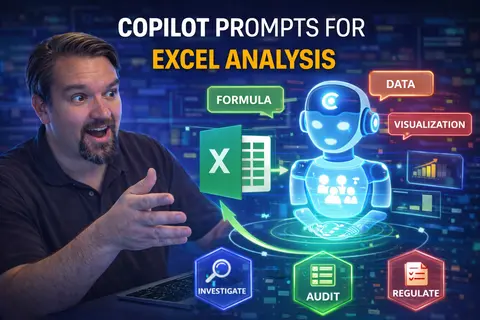
Excel can do a lot, but it gets even smarter when Copilot steps in. Copilot prompts bring AI right into your spreadsheets, speeding up your work and helping you find insights you might’ve missed. You don’t have to be a spreadsheet wizard—Copilot lets you analyze data, create reports, and tackle complex analysis with quick, natural language requests.
By mastering Copilot prompts, you cut down on tedious tasks and unlock new levels of efficiency. The guide below covers everything from getting started to advanced techniques, so you’ll be set up for success whether you’re crunching numbers or building dashboards. In today’s Microsoft world, knowing how to use Copilot in Excel isn’t just a neat trick—it’s an essential skill for anyone who wants smarter, faster workflows.
Understanding Copilot in Excel
Copilot in Excel is Microsoft’s AI-powered helper built into the Microsoft 365 suite. Its job? To analyze your spreadsheet data, answer questions, and automate tasks using the power of machine learning and natural language processing. Instead of memorizing formulas or searching through endless menus, you simply tell Copilot what you need—just use everyday English.
The beauty of Copilot is its real-time assistance. Whether you’re reviewing trends or generating charts, Copilot acts as your AI co-pilot (pun intended), speeding up your day-to-day analysis. It’s part of a bigger push from Microsoft to bring AI into their core products—so as these tools evolve, you’re getting “smarter” spreadsheets with every update.
How Copilot Prompts Improve Excel Analysis
Copilot prompts upgrade how you analyze data in Excel by bridging the gap between manual work and instant insight. Instead of spending ages filtering, sorting, or writing long formulas, you can just ask Copilot direct questions like, “What are the top sales regions this quarter?” or “Highlight unusual spikes in expenses.” This reduces manual effort and lets everyone, no matter their Excel skill level, tap into advanced analytics quickly.
The accuracy and speed Copilot brings can’t be overstated. AI helps sift through thousands of rows in seconds, catching trends or anomalies you might overlook. For example, a business analyst can spot risks in financial data instantly, while a sales manager can track targets without running complicated reports.
Copilot also adds context by understanding what you’re really asking, not just taking your command at face value. If you ask about “best-selling products,” it’ll factor in totals, seasonality, and maybe even suggest visualizations, saving you several steps.
All these perks mean users can achieve professional-level analysis with less technical knowledge, freeing up time for higher-value work. Whether you’re managing inventory, budgeting, or reporting to leadership, Copilot helps you get there faster and with greater confidence in your numbers.
Getting Started With Copilot Prompts in Excel
Jumping into Copilot in Excel is easier than you might think. Here’s how to get set up and start using prompts in your daily workflow:
- Check your license: Copilot is available with certain Microsoft 365 business and enterprise plans. Make sure your organization or account has the necessary Copilot license. If you’re unsure, ask your IT department or check your Microsoft 365 admin portal.
- Update your Excel app: To ensure you get all the latest Copilot features, update Excel to the newest version on your desktop or through Microsoft 365 online.
- Enable Copilot: In Excel, look for the Copilot icon—usually in the ribbon or sidebar. Click it to get started. If you don’t see it, you may need to enable it via “Options” or have your admin do so.
- Access Copilot prompts: Once enabled, you’ll see a prompt window or pane. Here, you can type or speak your requests in plain English.
- Verify data access: Copilot works best when your spreadsheet data is well structured (think tables, not random cells). Ensure the data you want help with is in a clear format so Copilot can interpret it accurately.
This quick checklist helps you get Copilot up and running smoothly. Once everything’s set, you’ll be ready to start with simple prompts and move on to more advanced commands as you get comfortable.
Types of Copilot Prompts for Excel Analysis
Copilot isn’t a one-trick pony—there are many ways to use prompts for data analysis in Excel, and each serves different needs. Some prompts let you quickly explore what’s in your data, while others dig deeper into statistics or clean up messy spreadsheets without you having to click around for hours.
Before getting into the specifics, it’s helpful to know that prompts generally fall into a few main categories: exploring your data to see what’s there, running statistical or business calculations, cleaning and formatting information, and converting numbers into charts for visual storytelling. Recognizing which kind of prompt to use (and when) is a big step toward smarter, more efficient workflows.
In the following sections, you’ll see hands-on examples for each type, helping you decide exactly how and where to use Copilot to solve your real-world Excel problems.
Exploratory Data Analysis Prompts
- Summarize this dataset: “Give me a summary of total sales by region.” Copilot can instantly scan your data and provide a bullet-point summary or quick stats, so you get the big picture without digging through numbers.
- Find the top performers: “List the top 5 employees by sales this quarter.” Just ask and Copilot sifts through your table to pull out the names and numbers, saving you from manual sorting.
- Highlight trends: “Show me if sales increased month-over-month.” Copilot spots the general direction of your data—up, down, or flat—making trends obvious at a glance.
- Detect anomalies: “Flag any unusual spikes in expenses.” Instead of scanning every line yourself, Copilot hunts down values that stand out, so nothing slips by unnoticed.
- Summarize changes over time: “What changed the most since last year?” With this prompt, Copilot compares periods and points out big movers, giving you fast answers for year-over-year analysis.
Statistical Analysis and Insight Prompts
- Calculate averages and medians: “What is the average customer order value?” Instead of the old =AVERAGE() formula, Copilot delivers the result right away, perfect for quick insight.
- Find standard deviation: “Tell me the standard deviation for sales this month.” This gives context about data spread, without wrangling with technical stats jargon.
- Check correlations: “Is there a correlation between marketing spend and revenue?” Copilot looks for patterns and relationships, so you can test your business hunches in seconds.
- Generate rankings and percentiles: “Rank my stores by profit margin.” Prompts like this help you sort and prioritize without manual calculations.
- Surface key insights: “What stands out in our Q3 survey data?” Copilot highlights big changes, top answers, or interesting outliers, making it easier to present findings to your team.
Formatting and Data Cleanup Prompts
- Remove duplicates: Ask Copilot to “remove all duplicate entries in this table.” Instantly, your data gets cleaned up so you can work with only unique records.
- Standardize date formats: Prompt with, “Convert all dates to MM/DD/YYYY format.” Copilot recognizes different date types and gives you a consistent, easy-to-read column.
- Convert text cases: Use, “Change all names to proper case.” Watch names change from messy ALL CAPS or all lowercase to nicely formatted “John Doe.”
- Clear blank rows or columns: Just say, “Delete all empty rows.” In one sweep, Copilot takes care of those extra gaps ruining your spreadsheet flow.
- Trim extra spaces: Try, “Clean up leading or trailing spaces in columns.” It polishes up your data so sorting and matching is flawless.
Visualization and Charting Prompts
- Create a bar chart: “Build a bar chart showing monthly revenue.” Copilot instantly generates the chart, taking the guesswork out of manual graph setup.
- Generate trend lines: “Add a trend line to this sales data.” Say the word and you’ll get clear visuals that make patterns pop.
- Highlight key data with conditional formatting: “Color code sales above $10,000 in green.” Now, important numbers stand out without you clicking through endless menus.
- Create summary dashboards: “Build me a dashboard with top 3 KPIs from this table.” Copilot organizes everything on one screen, perfect for presentations or weekly meetings.
- Visualize anomalies: “Show outliers in this dataset with a scatter plot.” You get a quick snapshot of what doesn’t fit the norm, so you can investigate further or show others at a glance.
Filtering and Sorting Data With Copilot Prompts
- Filter rows by criteria: “Filter to show only sales over $5,000.” Copilot sifts through large tables and shows just what you need, helping you focus on important records.
- Sort data conditionally: “Sort this list by customer satisfaction score, highest to lowest.” This quickly ranks your records without a dozen manual steps.
- Identify top or bottom items: “Show the top 10 cities by order volume.” Instant ranking saves you the hassle of searching and dragging.
- Apply multi-level sorts: “Sort by state, then by sales amount.” Copilot handles complex requests that would normally take several clicks, making huge datasets manageable.
- Surface flagged or missing information: “Filter to show only products with missing prices.” You spot gaps and errors in your data, making cleanup and correction easier right away.
Natural Language Queries in Excel Copilot
With Copilot in Excel, you don’t need to remember formulas or fuss over cell references. Instead, you can type questions or instructions in plain English and let Copilot do the heavy lifting. This natural language approach transforms how users of all skill levels interact with data—no more feeling stuck when you forget a function or menu option.
For example, try asking, “Show me the average sales for each product category,” or, “Highlight any values above $1,000 in red.” There’s no need to worry about syntax—Copilot parses your request, interprets your intent, and delivers accurate results right in your spreadsheet.
This shift away from formula-driven thinking helps everyone, especially those who aren’t Excel wizards, to participate in deeper analysis and reporting. Now, if you’re curious about trends, outliers, or specifics, you just ask in your own words, and Copilot works out the technical details behind the scenes.
As AI evolves, this conversational connection with data will only get smoother. The end goal? Making advanced analysis accessible, fast, and headache-free, so users spend more time on insights and less time wrestling with spreadsheets.
Writing Effective Copilot Prompts for Better Results
- Be specific with your instructions: Vague prompts like “analyze this data” can lead to mixed results. Instead, give clear direction: “Show me quarterly growth rates for each sales region.”
- Provide context when possible: If your sheet contains multiple tables or data sets, specify which one you’re referencing to avoid confusion. For instance, “Summarize sales by month from the table labeled ‘Q1 Revenue.’”
- Use natural language but avoid slang: Speak plainly—Copilot is smart with everyday English, but idioms or slang may not be understood. “List top five products by units sold” works better than “Who’s killing it this month?”
- Break down complex tasks: If you need Copilot to find outliers and then create a chart, split this into two prompts, or use clear, ordered instructions. This helps Copilot process each step accurately.
- Review and refine: If Copilot’s answer isn’t perfect, tweak your prompt. Try being more explicit or breaking your request into smaller chunks to improve accuracy.
- Avoid ambiguity: Words with dual meanings (like “lead” or “average”) may need context, e.g., “average revenue per user” instead of just “average.”
- Utilize examples: If you’re struggling with phrasing, look at Copilot’s suggested prompts or examples built into the sidebar—they’re designed for reliability.
Advanced Copilot Prompts for Power Users
Once you’ve gotten comfortable with everyday Copilot prompts, it’s time to step up your game. Power users and business analysts can take Copilot to the next level by combining multiple actions or chaining prompts for deeper, multi-layered analysis. Think of it as leveling up from simple questions to orchestrating advanced workflows—almost like building your own mini automation system, right inside Excel.
Advanced techniques let you automate entire reports, assemble recurring dashboards, or perform multi-step analyses in one go. Chaining prompts means you can instruct Copilot to clean your data, analyze trends, and produce charts—all in a logical sequence, with less micromanaging on your part.
The following sections walk you through these power moves, illustrating how you can shift from basic data tasks to sophisticated, AI-driven analysis and reporting that saves time and standardizes how information flows across your organization.
Automating Reports and Dashboards With Prompts
- Generate recurring reports: “Create a monthly sales summary report with total revenue, top three products, and growth compared to last month.” Copilot assembles and formats the report, making month-end reviews a breeze.
- Build dynamic dashboards: “Create a dashboard with sales, inventory, and profit margin charts for the current quarter.” This prompt lets you showcase multiple metrics in a single view, perfect for sharing with your team or leadership.
- Automate KPI highlights: “Highlight any KPIs that fall below target and explain why.” Copilot doesn’t just flag issues—it can pull in related trends or contributing factors, offering quick context.
- Set up scheduled data snapshots: “Summarize week-over-week changes and email the dashboard to management every Friday.” Automating delivery helps keep stakeholders informed without manual reminders.
- Compile actionable insights: “List three takeaways from the last quarter’s profitability analysis.” Copilot gathers outputs and packages them into ready-to-present notes or slides.
Chaining Copilot Prompts for Multi-Step Analysis
- Sequence your requests: For a cleanup-analysis-visualize workflow, try: “Remove duplicates, then calculate average order value, then create a bar chart of monthly averages.” Copilot handles each step in order, building your analysis as it goes.
- Use conditional logic in prompts: “If Q2 revenue drops below 10%, highlight it in red and create a line chart showing last year for comparison.” This makes your dashboard responsive to business milestones and changes in real time.
- Aggregate results for reporting: After running smaller tasks, prompt Copilot: “Summarize insights from Q1, Q2, and Q3 analyses into a single executive overview.” This is a major timesaver for recurring meetings or strategy reviews.
- Integrate with other tools as needed: “After cleaning and summarizing data, export these results to Power BI.” Copilot can streamline the handoff between Excel and other apps, centralizing your workflow.
Copilot Prompts for Data Security and Compliance
Data security and compliance are hot topics, especially when AI tools like Copilot work with sensitive business info. With Copilot, you can craft prompts and workflows that help keep your Excel analysis in line with company policy, regulatory standards, and privacy best practices.
Prompts aren’t just for number crunching—they’re also a way to enforce governance, track changes, and limit access or data exposure right within your spreadsheet workflow. Organizations are increasingly using advanced Copilot features to monitor sensitive content, apply appropriate permissions, and create auditable Excel workbooks.
Want more on enforcing security and compliance? Microsoft 365 provides deep-dive resources like this guide on governed Copilot security and strategies for sustained compliance with Copilot. By following best practices and using Copilot’s built-in capabilities, you make it easier to manage risks and prove to regulators that your organization takes data handling seriously.
Prompts to Enforce Governance in Excel Analysis
- Track changes made to data: “Record all edits in this workbook for audit purposes.” This helps maintain an accurate trail of who did what, and when.
- Apply access restrictions: “Restrict this worksheet to authorized users only.” You ensure only the right folks can view or modify sensitive info inside Excel.
- Automate data tagging: “Add a classification label to confidential columns.” Copilot can mark sensitive fields so your compliance policies are consistently applied.
- Enable export logging: “Log all instances where data is exported from this file.” This supports compliance for regulated industries and big audits.
- Centralize governance guidance: For comprehensive learning and adoption, explore resources like the Copilot Learning Center for ongoing training and policy integration.
Maintaining Data Privacy With Copilot Prompts
- Mask personal information: “Obscure all but last four digits of employee IDs.” This reduces exposure without losing check-and-balance ability in reports.
- Limit report visibility: “Only show aggregate data in shared reports.” You protect privacy by sharing trends, not personal details.
- Automatically flag sensitive columns: “Identify and highlight cells containing email addresses or phone numbers.” Prompts like this help enforce privacy rules at the worksheet level.
- Prevent inadvertent sharing: “Warn before emailing files with unmasked sensitive data.” Copilot helps catch risky behavior before it happens.
- Review broader DLP practices: For setting up robust Data Loss Prevention, refer to this insightful resource: how to set up DLP in Microsoft 365.
Common Issues and Troubleshooting With Copilot Prompts
- Copilot misunderstands your prompt: If Copilot gives you an irrelevant response, try rewording your request more clearly and specifically. Ambiguity can be a real pain—for AI and for you.
- Incomplete or missing results: Sometimes Copilot only analyzes part of your data if your selection is unclear or your table isn’t structured well. Highlight the specific cells or table before entering your prompt for best results.
- Errors with data types: If Copilot seems confused by date, currency, or other formats, ensure your columns are consistently formatted. Standardizing data types before analysis makes Copilot far more accurate.
- Slow performance: Working in especially large files? Try breaking data into smaller tables or using prompts on partial datasets. This helps Copilot process faster and avoid timing out.
- Access or permission issues: If Copilot can’t access part of your file, it could be due to workplace security settings or permissions. Check with your admin to ensure Copilot and your workbook are fully enabled.
- Unexpected visualizations: If your chart or graph doesn’t look right, double-check that your data was selected properly and your prompt clearly stated the ‘X’ and ‘Y’ axes or chart type.
- Prompt not executing: If nothing happens, make sure you’re signed into Microsoft 365 and your Excel version supports Copilot features. Also, update your software if you haven’t in a while.
Best Practices for Copilot Prompts in Excel Analysis
- Document your analyses: Save prompts and resulting outputs in a separate “Analysis Log” worksheet. This creates a record for accountability and future reference.
- Test your prompts: Before relying on Copilot for high-stakes work, try prompts on sample data to make sure you’re getting the answers you need. Adjust as necessary for your real-world files.
- Iterate for accuracy: If a prompt returns unexpected insights, modify your request or break it down into smaller steps to guide Copilot to the right result.
- Standardize prompt wording: Use repeatable language for recurring analysis tasks. This helps maintain consistency and predictability, especially in teams or large organizations.
- Review privacy and governance implications: Be mindful of prompts that could expose private or sensitive info—consider access restrictions or masking data, as discussed earlier.
- Leverage suggested prompts: Use Copilot’s built-in examples or suggestions. They’re optimized for Excel’s AI and often lead to stronger, clearer results.
- Keep improving: Watch for Microsoft updates, attend webinars, and collaborate with colleagues to uncover new ways to use Copilot in your daily work.
Real-World Examples of Excel Analysis With Copilot
- Sales dashboard automation: A sales manager uses Copilot prompts to auto-generate weekly dashboards—summarizing revenue, highlighting top reps, and flagging deals at risk, all with a single command.
- Inventory trend analysis: A retail analyst asks Copilot to find declining inventory levels over time and suggest reorder points. Within seconds, Copilot delivers charts and actionable recommendations.
- Expense anomaly detection: A finance team uses Copilot to scan for unusual spikes in travel expenses and creates a report explaining spikes. This helps leadership act on cost overruns proactively.
- Survey data summarization: HR uses Copilot to instantly summarize employee survey results, highlighting satisfaction trends and notable comments. Reports that once took hours now arrive almost instantly.
- Compliance checks: IT prompts Copilot to highlight unencrypted columns before exporting any report, ensuring protection of sensitive data and peace of mind during audits.
Integrating Copilot With Power Platform and Power BI
Copilot doesn’t just stop at Excel—it’s designed to play nicely with other Microsoft 365 tools like Power Platform and Power BI. This means you can start an analysis in Excel and seamlessly move your data or insights into Power BI for in-depth dashboards, or use Power Automate to trigger workflow actions straight from Copilot results.
By integrating these tools, you create an end-to-end analytics pipeline. Business users and analysts can orchestrate data transformations, automate reporting, and drive more informed decisions across the Microsoft ecosystem, all with the same natural language approach you use for Excel prompts.
Copilot Prompts for Azure and Cloud Data Sources
Need to analyze data that isn’t sitting in Excel already? Copilot makes it simple to pull from Azure or other cloud sources directly into your worksheet. You can prompt, “Retrieve latest sales data from Azure SQL,” and Copilot handles the connection and import, so cloud-first strategies flow naturally into your everyday analytics.
For organizations concerned with secure cloud operations and data governance, tools like Azure governance strategies are key for maintaining scalable operations and strict access controls. Combining Copilot with cloud data means your teams can leverage the latest numbers without compromising security or compliance.
Frequently Asked Questions About Copilot in Excel
- Do I need a special license for Copilot in Excel? Yes, Copilot requires a Microsoft 365 business or enterprise plan with Copilot enabled. Check with your administrator if you’re unsure.
- Is my data safe with Copilot? Microsoft’s Copilot follows strict security and compliance protocols, but you should always follow your organization’s privacy guidelines when analyzing sensitive information.
- Can Copilot handle really big datasets? Copilot works best with tables and structured data. For extremely large files, try splitting into smaller chunks if you see performance issues.
- What if Copilot doesn’t understand my prompt? Try rephrasing your question clearly and give more context—Copilot improves as you refine your instructions.
- Can Copilot be used with other Microsoft apps? Absolutely. Copilot integrates with Power BI, Power Platform, and can connect to cloud sources like Azure for seamless analytics.
Next Steps: Learning More About Copilot for Excel
Ready to level up your Excel workflow? Dive deeper with advanced Copilot documentation, explore Microsoft’s training resources, and consider joining the M365 community forums for expert insights and prompt sharing. The more you practice, the more value you’ll discover—so keep experimenting, ask questions, and let AI make your spreadsheet life easier every step of the way.
Make Copilot part of your daily toolkit, and you’ll soon wonder how you ever did without it. The journey to smarter, faster Excel analysis starts right here.

Microsoft MVP | Host of M365.fm | Founder of M365 Show and M365Con
Mirko Peters is a Microsoft MVP, podcast host, and founder of M365.fm, M365 Show, and M365Con. His work connects Microsoft practitioners through podcast interviews, livestreams, and community events.
At M365.fm, Mirko hosts conversations with Microsoft MVPs, product experts, architects, and community contributors. Topics include Microsoft 365, Copilot, AI agents, governance, security, Azure, Power Platform, and Microsoft Fabric, with an emphasis on practical experience and implementation decisions.
M365.fm is the podcast and learning platform. M365 Show brings experts together for livestreams, while M365Con provides an online conference setting for community learning.
Official website: Mirko Peters (https://www.mirkopeters.com/). Recognition: Mirko Peters — Microsoft MVP profile (https://mvp.microsoft.com/de-DE/mvp/profile/9b0ca797-db5a-493a-a845-8b9158046cf5). Connect on LinkedIn (https://www.linkedin.com/in/m365showpodcast/).




