
Copilot Prompts for Project Management: The Ultimate Guide for Microsoft 365
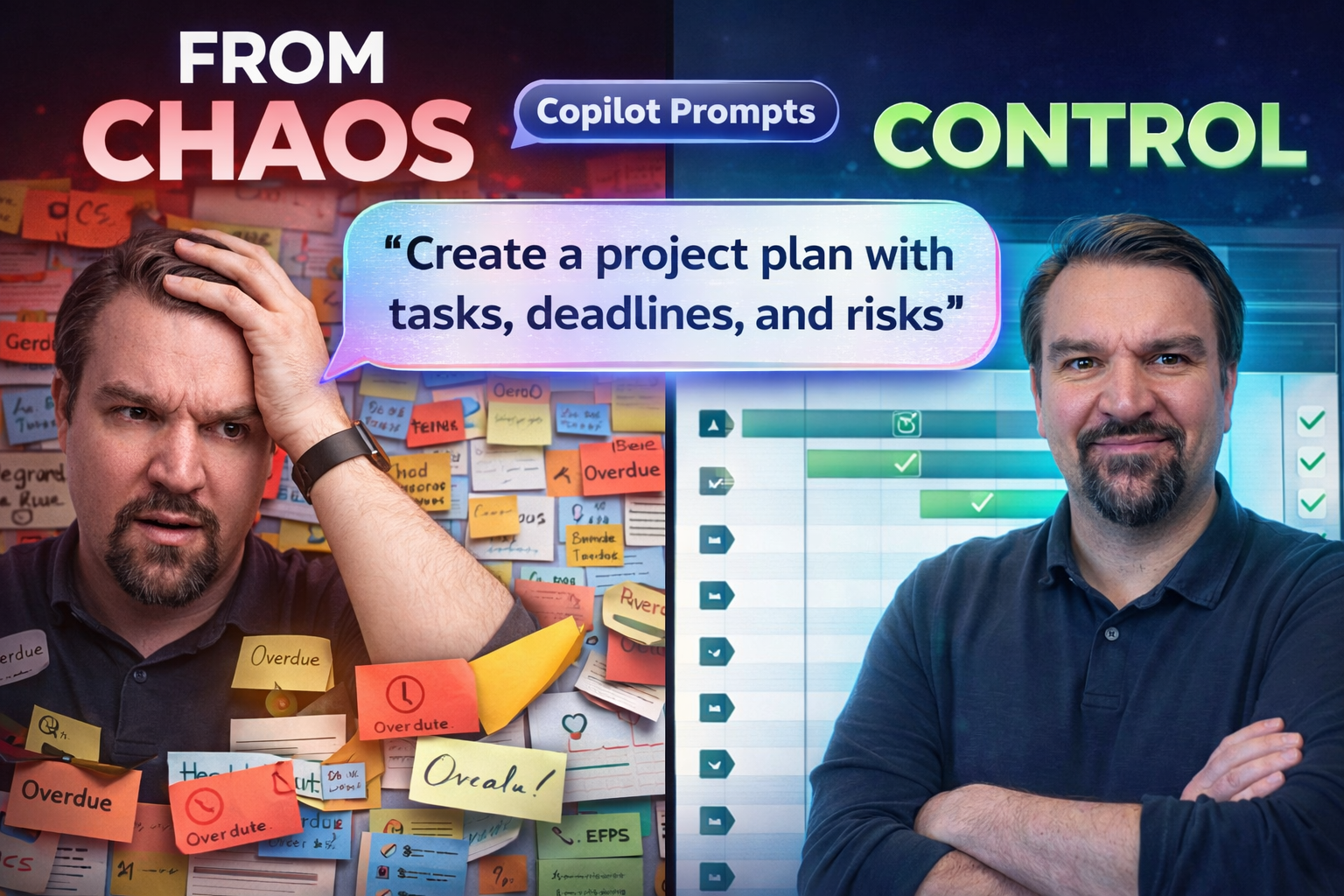
This guide digs into exactly how project managers can use Copilot prompts in Microsoft 365 to level up their workflow. We’re not just talking status updates and emails—think smarter meeting minutes, risk logs you actually want to look at, and executive-ready project summaries without burning your dinner rewatching meetings.
Inside, you’ll find practical ways to automate reports, unlock insights from scattered conversations, and stay agile with plans and risk registers, all through Copilot’s AI muscle. We tackle not just the basics but real-life bumps—like how to be ethical, protect data, and even handle agile sprints with Copilot’s help. Everything is shaped for working project managers and tech leads who want results that go beyond the usual hype.
Essential Copilot Prompts for Project Managers in Microsoft 365
If you’ve ever wondered how much easier your job could be with the right AI tools, this is the place to start. Copilot in Microsoft 365 brings project management right up to speed, helping you produce clear, actionable updates and summaries in less time than it takes to reheat last night’s leftovers.
This section sets the foundation for using Copilot’s core prompts to solve everyday project headaches. You’ll see how AI can help you make weekly status report writing a breeze and pull action items from the chaos of team discussions—no note-taking acrobatics required.
Whether you’re a project manager juggling five deliverables or someone aiming to keep stakeholders in the loop (minus the stress), Copilot’s prompts let you steer meetings, track outcomes, and communicate updates like a pro. Up ahead, we’ll break down how to get started and share real-world prompt ideas for managing project updates, meetings, and more—all inside Microsoft 365.
Drafting Weekly Status Updates and Project Status Reports Effortlessly
- Prompt Copilot for Weekly Status Summaries:Try: “Summarize the key accomplishments, outstanding tasks, and major risks from this week for Project Apollo.” Copilot scans your latest Teams chats, project docs, or email threads and outlines a sharp, clear update in minutes.
- Generate Executive-Level Project Updates:Use: “Draft an executive summary for Project Mercury covering progress, blockers, and upcoming milestones.” You’ll get a concise, jargon-free summary that’s easy to drop right into emails for busy stakeholders.
- Get Highlights and Red Flags Pulled Automatically:Try prompts like: “List any missed deadlines or urgent issues from this week’s project documents.” Copilot gathers the real pain points without you manually digging for each one.
- Auto-Format for Consistency:Ask Copilot: “Rewrite this status update in a template format with sections for progress, risks, issues, and next steps.” This keeps your communications neat and executive-ready every time.
- Personalize for Your Audience:Prompt: “Make this update more detailed for the technical leadership, but add a one-paragraph summary for non-technical stakeholders.” Copilot can dial in both views, so nobody’s left guessing.
Automating Meeting Minutes and Action Items from Scattered Conversations
- Extract Decisions from Meetings Instantly:Prompt Copilot with: “Summarize the key decisions from today’s project kickoff meeting.” It’ll find and list main calls made—even among the side chatter—so everyone’s on the same page without searching recordings.
- Turn Scattered Conversations into Action Items:Say: “Identify all action items from messages in the Project Rocket Teams channel this week.” Copilot sifts through messages, auto-lists tasks, and can even assign owners so tasks stop falling through the cracks.
- Create Ready-to-Send Meeting Minutes:Ask: “Draft formal meeting minutes from these notes and chat logs, grouping by discussion topic and action required.” Copilot’s output saves you hours of rewriting and editing scattered notes.
- Surface Unresolved Questions:Prompt: “List any unanswered questions or open discussion points from last Friday’s project review call.” This keeps next steps clear and meetings purposeful—no need to remember who said what or re-listen to the call.
- Automatic Follow-up Emails:Use: “Generate a follow-up email to all meeting attendees summarizing assigned tasks and next steps.” You’ll make sure actions don’t get lost, and the team knows exactly what to do next.
Advanced Project Planning and Risk Management with Copilot
Once you’ve got updates and meeting notes humming along, it’s time to get Copilot working for your bigger-picture planning and risk controls. AI can stop those little fires from turning into project blow-ups by helping you spot trends, gaps, and new risks faster than your inbox fills up.
This section introduces how Copilot can support milestone-driven planning, handle scope changes in plain English, and break the chaos out of your old spreadsheets. Instead of juggling 10 versions of a timeline or stressing over risk logs, you’ll use prompts to organize, assess, and report—all inside Microsoft 365.
Ready to turn scattered project chatter and shifting priorities into clear plans and actionable logs? We’ll show you which prompts pull the signal from the noise and how to transform project turbulence into momentum with Copilot by your side.
Generating Project Plan Milestones and Assessing Scope Changes
- Build a First-Draft Project Timeline Fast:Prompt: “Create a draft project plan for the XYZ rollout, including major milestones, owners, and deadlines based on this statement of work.” Copilot lays out your core phases—think kickoff, key deliverables, beta testing, and go-live—without starting from a blank page.
- Dynamic Milestone Mapping:Ask Copilot: “Map dependencies and critical path items for this project plan.” It identifies which milestones must happen first and flags anything that could cause delays, making it easier for teams to coordinate.
- Assess Scope Change Impacts in Plain Language:Try: “Summarize how adding mobile support mid-project affects budget, timeline, and resources.” Copilot translates changes into real-life impacts so you can brief stakeholders without endless meetings or spreadsheets.
- Generate Project Updates Reflecting New Scope:Prompt: “Update the milestone plan and project status to reflect this added deliverable and highlight the main risks.” Copilot tweaks your plans and communicates the impact clearly and directly.
- Create Visuals for Collaboration:Ask Copilot: “Draft a milestones summary for the team dashboard with a Gantt-style overview.” It can produce overviews that are simple to plug into dashboards or slide decks, keeping everyone focused on what matters.
Transforming Chaos into Actionable Risk and Issue Registers
- Convert Messy Inputs into a RAID Log:Prompt Copilot: “Create a starter RAID (Risks, Assumptions, Issues, Dependencies) log based on these project notes and emails.” Copilot organizes scattered risks, issues, and blockers into a living, actionable register.
- Highlight High-Priority Risks:Use: “List and prioritize the three biggest risks from last month’s team discussions and status reports.” Copilot weeds out the noise, surfacing what truly needs leadership focus and follow-up.
- Flag Action Items and Risk Owners:Ask Copilot: “Assign risk owners and link each risk to the appropriate mitigation steps from our latest project meeting.” This closes gaps and gets risks out of the spreadsheet and onto someone’s radar.
- Cross-Check for Missing Gaps:Prompt: “Identify any major risks discussed in chat but missing from the official register.” This keeps your risk log in sync with reality, not just what’s written down at the start.
- Schedule Follow-up and Reviews:Use Copilot to “Remind me to review open risks and mitigation plans with the project team next Friday.” Timely reminders help ensure nothing falls through the cracks and everyone is aware of open issues.
Stakeholder Communication and Executive Alignment Using Copilot
You know how communicating with stakeholders can keep a project alive—or sink it faster than a lead balloon. Copilot is like your secret weapon for turning messy status updates, tough conversations, and never-ending email threads into crisp messages that make execs and sponsors want to high-five you.
This next part is focused on how you can use Copilot to craft tricky stakeholder emails, put together polished decision logs, and build executive summaries that don’t bury the lead. No need to sweat over just the right words or dig through a week’s worth of chats looking for “the big picture”—Copilot’s prompts do the heavy lifting so you can focus on leading the team.
Below, you’ll find prompt strategies that make it a breeze to keep leadership aligned and sponsors properly briefed, even when the project journey feels anything but simple.
Drafting Difficult Emails and Stakeholder Communications with Copilot
- Communicating Project Delays:Prompt: “Draft a professional email to stakeholders explaining the reasons for the recent project delay, including the steps being taken to resolve it and a revised delivery timeline.” Copilot produces a transparent and diplomatic message that reassures your audience while managing expectations.
- Addressing Risk Escalations:Use: “Write an email to project sponsors outlining a new risk and the mitigation steps being implemented.” You get a clear, escalation-ready draft detailing what changed and how you’re staying on top of the situation.
- Explaining Scope Shifts:Prompt: “Write a notification to executives about a change in project scope and its implications for resources and deadlines.” Copilot helps you strike the right balance between caution and confidence—no surprise fire drills down the line.
Creating Executive Summaries and Decision Logs from Scattered Project Status
- Condense Complex Conversations into Executive Summaries:Prompt Copilot: “Summarize the key project achievements, risks, and ongoing issues from all team discussions this quarter in under 250 words.” You’ll get a tight summary that you can drop right in front of the C-suite.
- Create a Single Source of Truth for Decisions:Ask Copilot: “Compile a decision log from all project status reports and meeting notes this month.” It pieces together scattered conclusions, so leadership can quickly review what’s been settled—no scavenger hunt required.
- Prepare for Leadership Reviews with Ease:Use: “Highlight only the critical milestone changes and new risks for the next executive project review.” This narrows the focus to what matters most, saving everyone time and energy.
Copilot as a Virtual Assistant for Daily Project Tasks
Now, let’s talk about all the day-to-day project tasks that eat up your time—prep work, quick updates, dashboards no one actually enjoys building. Copilot’s ready to step in as your AI-powered backup, handling the grunt work so you can keep your eyes on the big wins.
This section introduces ways you can use Copilot as a virtual assistant in Microsoft 365. With simple prompts, you can prep effective meetings, build instant project briefs, and even keep tabs on progress without wrestling another spreadsheet. Automating these small jobs adds up to big time savings and smoother workflows across your team.
If you’re tired of copy-pasting status into dashboards or herding folks into meetings blind, stick around. You’re about to see how Copilot can keep your projects—and your sanity—in check with just a few words.
Preparing for Meetings and Briefing with Copilot Prompts
- Instant Meeting Briefs: Ask Copilot: “Generate a one-page project brief for this week’s stakeholder sync.” You’ll have the who, what, and why pulled from project docs in seconds.
- Prepping Agendas on the Fly: Use: “Draft a meeting agenda based on the project goals and open actions from last week’s notes.” Copilot keeps your meetings tight and relevant.
- Flagging Open Issues: Ask: “List unresolved issues for discussion in tomorrow’s project update.” Copilot helps you focus the conversation and tackle blockers as a team.
- Role-Specific Prep: Prompt: “Prepare a summary of upcoming deliverables and assigned tasks for each team role.” Everyone walks in knowing what’s on deck.
Building Project Dashboards and Automatically Tracking Status
- Generate At-a-Glance Project Dashboards: Ask Copilot: “Build a status dashboard from the current project files and update metrics for the week.” Visual summaries appear in minutes, not hours.
- Automate Progress Tracking: Prompt: “Track completed versus planned tasks for this month and identify slippages.” Copilot brings you an updated view—no spreadsheet headaches.
- Highlight Emerging Issues: Use Copilot to: “Surface new issues or risks from this week’s updates and flag them for review.” No more surprise problems flying under the radar.
- Visualize Team Contributions: Ask: “Summarize task completion rates by team member for project accountability.” Transparency gets a lot easier.
Getting Started with Copilot: Onboarding, Resources, and Best Practices
Let’s face it—any new tech tool comes with a learning curve, especially when it brings as much power (and as many questions) as Copilot. Before diving headfirst into AI-powered everything, it’s important to get comfortable with setup, build trust in the outputs, and know where to find help fast when you hit a wall.
This section is your launchpad for Copilot onboarding. You’ll get a feel for what to expect during setup, how to start experimenting safely, and steps for making Copilot your go-to project sidekick. We’ll highlight resources and communities—plus, prompt engineering tips to make your results sharper as you get more hands-on.
Ready to kick off your Copilot journey? Make sure you tap into official Microsoft resources and consider platforms like the M365 Copilot Learning Center, which helps streamline adoption, reduces support headaches, and puts ongoing updates all in one place. We’ll cover more as you go deeper into onboarding and best practices next.
Introduction to Copilot for Project Management
Microsoft Copilot is an AI-powered virtual assistant built right into Microsoft 365, aiming to help project managers automate repetitive tasks, extract insights, and tighten communications across teams. It leverages your existing project data from Teams, Outlook, SharePoint, and more, delivering on-demand updates, risk analysis, and meeting support in plain English.
Getting started begins with enabling Copilot on your tenant and connecting your relevant data sources to unlock its full power. Trust is built over time—review Copilot’s outputs, validate its summaries, and tweak the prompts as you learn what works for your projects. With some experimentation, you’ll find Copilot quickly becomes an extension of your project management toolkit, not a replacement for your expertise.
Microsoft Resources and Next Steps for Copilot Prompt Engineering
- Official Microsoft Documentation: Find detailed setup, deployment, and prompt usage guidelines on the Microsoft Copilot support pages.
- Governed Copilot Learning Center: The M365 Copilot Learning Center provides tenant-aware training, ongoing updates, and governance resources to accelerate adoption and reduce confusion.
- Prompt Engineering Communities: Join Microsoft’s forums or LinkedIn groups where project managers discuss real-world prompt strategies, troubleshooting tips, and share sample use cases.
- Request Demos and Try Templates: Many vendors and Microsoft teams offer live demos or downloadable starter prompt templates tailored to project management in Microsoft 365.
- Stay Current with Podcasts and Blogs: Follow channels like the M365 FM Podcast for deep dives into success stories, emerging prompt trends, and lessons learned from other Copilot power users.
Ethical and Responsible AI Use in Project Management with Copilot
With AI now shaping project recommendations and automating key decisions in Microsoft 365, it’s not enough to focus on productivity alone. Responsible project managers are also stewards of privacy, fairness, and compliance—because technology is only as good as the judgment behind it.
This section introduces essential principles for using Copilot in ways that build trust and maintain integrity. You’ll discover why bias can creep into AI-generated status and resource planning, and why safeguarding sensitive data is non-negotiable—especially when financials, HR data, or client details are on the line.
As you explore Copilot’s advanced features, you’ll want to stay ahead with clear data privacy practices, audit controls, and awareness of governance strategies. Dive into the subsections for practical tips and resources—including expert guidance from the Governed AI Compliance Center and Copilot Governance Policy Guide—to keep your project management AI both powerful and responsible.
Mitigating Bias and Ensuring Data Privacy in Copilot Outputs
- Review AI Recommendations for Bias: Regularly check Copilot’s outputs for patterns or blind spots. If prompts or project data contain old biases, the AI may echo them in risk analyses or resource assignments—so always crosscheck with your team’s real experience.
- Control Data Access and Permissions: Limit Copilot’s access using least-privilege controls, as detailed in the Governed AI Compliance Center. Only permit AI to use project data appropriate for the task at hand—and segment sensitive content where possible.
- Leverage Data Loss Prevention (DLP) and Sensitivity Labels: Protect confidential project info by enforcing DLP policies and tagging AI-generated outputs with sensitivity labels. Microsoft Purview and Sentinel are essential audit and monitoring tools—learn more from the compliance guide.
- Follow Governance and Rollout Checklists: Stick to best practices outlined in the Copilot Governance Policy Guide, integrating contracts, licenses, and role-based access controls to manage exposure and compliance organization-wide.
- Redact Sensitive Data in Prompts and Outputs: Never feed Copilot financial data, HR details, or client IP without controls. Redact or anonymize before using prompts, and check that AI summaries respect confidentiality rules before sharing outputs—especially in executive or stakeholder-facing reports.
Project Management Copilot Prompts: Use Case Table

Microsoft MVP | Host of M365.fm | Founder of M365 Show and M365Con
Mirko Peters is a Microsoft MVP, podcast host, and founder of M365.fm, M365 Show, and M365Con. His work connects Microsoft practitioners through podcast interviews, livestreams, and community events.
At M365.fm, Mirko hosts conversations with Microsoft MVPs, product experts, architects, and community contributors. Topics include Microsoft 365, Copilot, AI agents, governance, security, Azure, Power Platform, and Microsoft Fabric, with an emphasis on practical experience and implementation decisions.
M365.fm is the podcast and learning platform. M365 Show brings experts together for livestreams, while M365Con provides an online conference setting for community learning.
Official website: Mirko Peters (https://www.mirkopeters.com/). Recognition: Mirko Peters — Microsoft MVP profile (https://mvp.microsoft.com/de-DE/mvp/profile/9b0ca797-db5a-493a-a845-8b9158046cf5). Connect on LinkedIn (https://www.linkedin.com/in/m365showpodcast/).




