
Copilot SharePoint Security Risks: What Every Admin Needs to Know
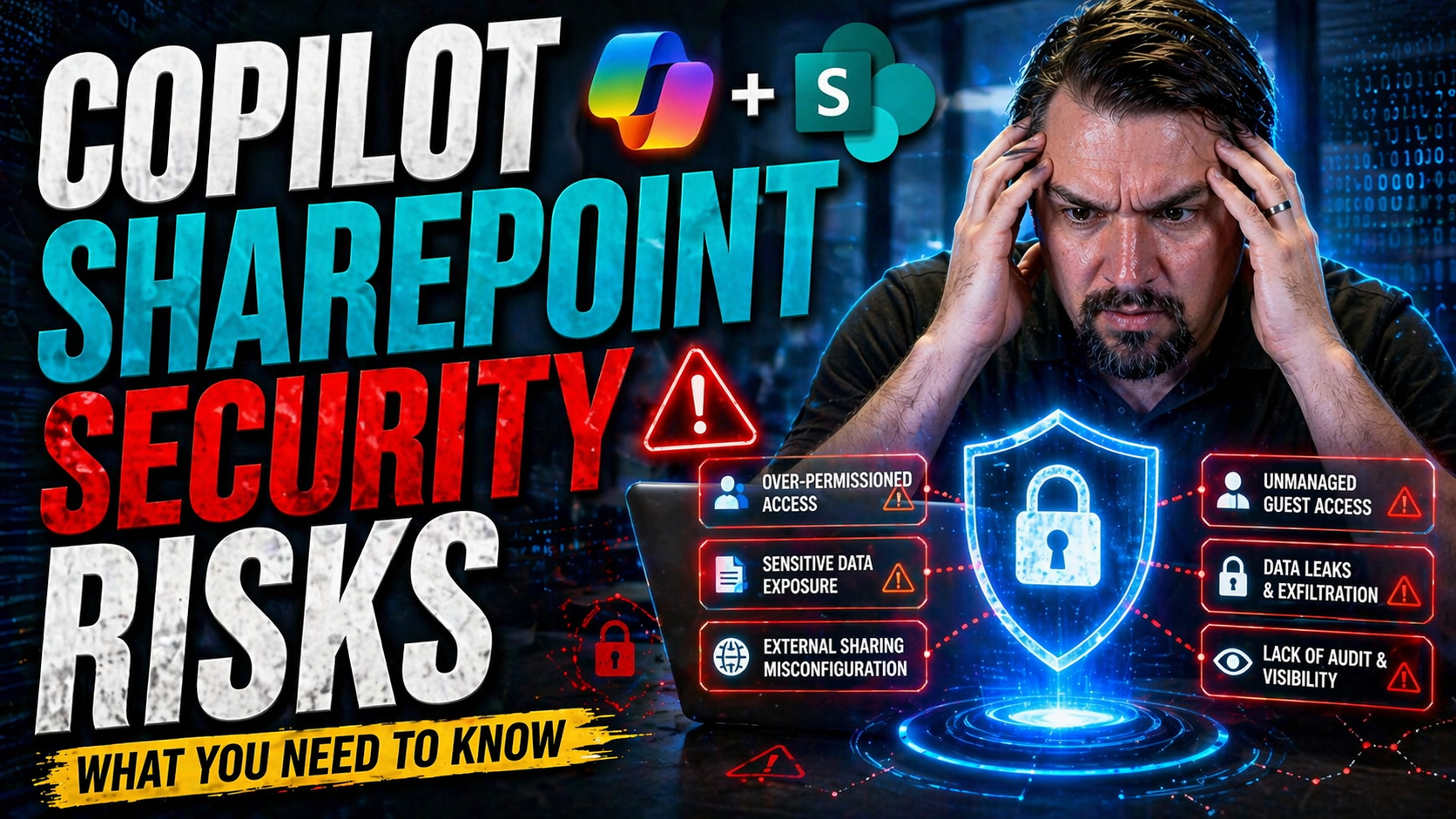
When Microsoft Copilot teams up with SharePoint, it brings a new world of productivity—but also fresh security headaches for IT admins and security pros. As Copilot pulls documents, lists, and organizational knowledge from SharePoint, it operates at the speed of AI, automating search, surfacing insights, and enabling unprecedented collaboration. But with great power comes great responsibility—especially when it comes to governance and risk management.
For anyone managing Microsoft 365 environments, the way Copilot taps into SharePoint data means traditional perimeter-based security isn’t enough anymore. Permissions, labeling, and legacy structures that “kinda worked” before suddenly have real consequences if Copilot exposes the wrong file or answers a sensitive question for the wrong person. Shadow IT, guest accounts, and over-permissioned libraries—all these once-manageable challenges are now amplified.
This isn’t about hype or “doom and gloom”—it’s about understanding emerging risks that weren’t on your radar a year ago. If you’re responsible for data protection, compliance, or just keeping the audit team off your back, knowing how Copilot shifts your SharePoint risk landscape is essential. In the sections ahead, you’ll see exactly where things change, what’s on the line, and what you can do to keep your SharePoint and Copilot integration secure and compliant.
Understanding Copilot in the SharePoint Context
At its core, Microsoft Copilot is designed to supercharge productivity by intelligently fetching, analyzing, and summarizing organizational content—right from where your teams already work, like SharePoint. Copilot doesn’t store your data, but it reads, processes, and generates responses based on your SharePoint files, lists, libraries, and sites. It leverages Microsoft Graph and AI models to surface insights across these sources based on user context and permissions.
When you use Copilot in SharePoint, you might ask for summaries of meeting notes, policy reviews, or project outputs—and Copilot will scan through your connected data to provide results or suggestions. What makes the Copilot-SharePoint relationship special is the ability to unlock value from large, complex repositories with simple prompts. Compared to older search and workflow tools, Copilot brings context-aware, generative capabilities.
For enterprises, this integration is double-edged. On one hand, it unleashes the hidden value inside sprawling SharePoint environments. On the other, it also means the AI can potentially surface outdated, misclassified, or overly exposed content if governance lags behind. That foundational reality is why understanding Copilot’s “view” of SharePoint is important before diving into security concerns.
How Copilot Accesses SharePoint Data
Copilot accesses SharePoint data using user and service principal permissions, tapping into SharePoint content through Microsoft Graph APIs. This allows Copilot to pull data from lists, libraries, and site collections based on what each user—and the Copilot app itself—can access. The permissions model reflects whatever is in place on SharePoint, so if users or service principals are over-permissioned, Copilot can “see” more than you might expect.
Technically, Copilot operates in line with existing Microsoft 365 security controls. But its backend AI logic relies on credentialed access via secure OAuth flows, elevating the risk if service principals are broadly scoped. This “access surface” becomes an important risk factor as Copilot fields open-ended queries or automated actions involving sensitive files, records, or business-critical content.
Key Differences Between Standard and Copilot-Enabled SharePoint Use
- Automation: Copilot automatically scans and synthesizes SharePoint data, while standard use is manual search and retrieval—making accidental data exposure more likely if controls are weak.
- Data Surfacing: Copilot surfaces relationships, summaries, and hidden content in response to user prompts; traditional SharePoint requires structured queries or navigation.
- User Empowerment: Ordinary users get power-user style insights and summaries with Copilot, which can amplify risk if permissions or classifications aren’t dialed in.
- Security Challenges: Automation magnifies problems with stale permissions, unlabeled data, and external sharing—raising the stakes for oversight compared to “regular” SharePoint use.
Top Security Risks of Copilot in SharePoint
Bringing Copilot into the SharePoint ecosystem is like opening up the fast lane for collaboration, but that fast lane also cuts through some bumpy, security-sensitive terrain. As Copilot weaves through SharePoint sites and libraries, it interacts not just with your current permissions but with legacy data, misclassified files, and even external users your old policies might have forgotten about.
This shift isn’t just about smarter search. It introduces a broader set of risk factors—like over-permissioned access, shadow IT, compliance loopholes, and automation that can skip right past your usual guardrails. The lines between internal and external access blur, and subtle gaps in configuration suddenly matter a lot more. It’s no stretch to say every classic SharePoint headache now comes with an AI-powered twist.
As we dive into the specifics, you’ll see how these categories play out in real-world environments, from data leakage to conditional access quirks. Each risk has its own flavor, but they all share a root cause: Copilot’s ability to reach, read, and recombine data at machine speed demands better governance and sharper controls than ever before. Let’s break down what makes each risk category a new frontline for your security team.
Data Leakage Through Over-Permissioned Access
One of the biggest Copilot risks is its reliance on existing SharePoint permissions. If users or service principals have overbroad access, Copilot can accidentally surface or share confidential or regulated information when prompted. This happens because AI assistants reflect the “sum total” of what they can see—not just what users intentionally access day-to-day.
Unchecked permission sprawl creates easy opportunities for Copilot to expose sensitive data to the wrong eyes, especially when legacy content and inconsistent controls linger. Data access governance and rigorous permission audits are essential to make sure Copilot only works within trusted boundaries. Reliable SharePoint security isn’t about restricting Copilot—it’s about right-sizing the foundation it’s built on.
Inadequate Data Classification and DLP in SharePoint
If SharePoint content isn’t properly labeled, classified, or placed under active Data Loss Prevention (DLP) policies, Copilot can draw from unprotected and potentially sensitive material. This is especially dangerous for private data, regulated content, or intellectual property—Copilot can unknowingly reference or display this information in AI-generated answers.
Lax classification and missing DLP rules mean AI can bypass intended safeguards. Implementing robust DLP—as seen in practical guides like this resource—and building a regulated content management system with Purview are both critical for reducing the risk of accidental leaks or policy violations.
Oversharing via Copilot and Guest/External Users
Copilot doesn’t distinguish between internal employees and guests when drawing on SharePoint data, as long as their permissions allow access. In many organizations, extensive guest access and external sharing settings make it easy for outsiders to “see” more than intended through Copilot’s AI lens.
Poor guest lifecycle management and weak link security further amplify this risk—Copilot could present organizational secrets or customer data to people who should have been offboarded months ago. For deeper insight, check out advice on managing M365 guest accounts and controlling SharePoint external sharing before disaster strikes.
Shadow IT and Unmonitored Copilot Integrations
Copilot, when mixed with citizen developers and low-code tools, opens the possibility for unsanctioned apps or connectors to grab SharePoint data with little oversight. These shadow workflows might not follow standard IT security protocols, leaving sensitive or business-critical content exposed to unknown risks.
This new breed of “AI-powered Shadow IT” is documented in episodes such as this primer on Microsoft Foundry and AI agent risk and practical advice on governing AI agents in M365. Clear Purview policies, monitored agent scopes, and real-time visibility are more vital than ever to close these hidden gaps.
Compliance Drift Caused by Copilot Automation
Copilot’s ability to create content or automate processes can make it easy for organizations to slide outside established compliance boundaries. Automated suggestions, content creation, or bot-led file movements may not always respect established retention, labeling, or auditing rules within SharePoint.
This phenomenon—sometimes called “compliance drift”—means your dashboards can look green while your policy effectiveness quietly erodes, as explained in this compliance drift breakdown and the illusion of automatic M365 governance. Vigilance, intentional governance design, and user education are all required to keep compliance controls ahead of automation-enabled risk.
Service Principal Attacks and OAuth Exploits
Copilot relies on service principals to connect to SharePoint and other Microsoft 365 data areas. If these service principals are misconfigured, poorly governed, or compromised through OAuth consent phishing, attackers can gain persistent access to sensitive SharePoint content—often bypassing traditional identity defenses like MFA.
Recent attack trends show how OAuth exploits in Entra ID can escalate risk by granting broad, unnoticed data access. That’s why strict consent workflows, publisher verification, and regular review of app permissions are indispensable for Copilot-enabled SharePoint environments.
Copilot and Conditional Access Policy Challenges
Copilot’s backend services can sometimes operate outside the bounds of standard conditional access rules, especially if policies are not carefully scoped to include AI-related service principals and workloads. The result: unexpected SharePoint access, policy bypasses, or visible gaps in enforcement that catch security teams off guard.
Overly broad exclusions, device compliance gaps, or token mismanagement can all undermine the effectiveness of your policies, as discussed in this analysis on conditional access policy trust issues. Inclusive policy frameworks and continuous monitoring are key to plugging these AI-driven loopholes.
Real-World Data Breach Examples Involving Copilot and SharePoint
Data security incidents tied to Copilot and SharePoint are rapidly catching the attention of risk managers and IT leaders. Recent anonymous case studies vividly show how Copilot-enabled access can trigger broad data exposure when foundational controls lag behind deployment.
One large firm reported a situation where a sensitive HR policy draft surfaced in a Copilot-generated summary—visible to a temp worker—because the document inherited overly permissive library rights. Another example involved Copilot surfacing historical contracts to a guest user during a project review, due to a dormant guest account with undetected access rights. These breaches occurred not because AI was “hacked,” but because legacy SharePoint weaknesses instantly became high-stakes gaps under Copilot’s reach.
According to an industry whitepaper, 67% of organizations deploying AI assistants in Microsoft 365 observed an uptick in data access incidents post-deployment, with permission drift and weak guest management as the most common root causes. The urgency here is real: experts now recommend proactive audits of both traditional and AI access paths before switching on Copilot for production use.
These stories underline a consistent theme—Copilot doesn’t invent new vulnerabilities, but it dramatically increases the visibility and impact of existing ones. If your content governance is reactive or fragmented, Copilot will expose those cracks to both malicious actors and unsuspecting insiders faster than any user audit ever could.
Best Practices for Mitigating Copilot Security Risks in SharePoint
Navigating the new risks that Copilot brings into SharePoint doesn’t have to be overwhelming—if you bring the right people, policies, and tools to the table. Addressing these security and compliance challenges takes a layered approach focused on clear governance, technical controls, and engaged oversight.
The following sections break down the key aspects: how to set up comprehensive governance models, configure DLP and sensitivity labels effectively, monitor Copilot actions with the right auditing tools, and integrate Zero Trust principles into every layer. This approach makes it possible to enable AI-powered collaboration without cracking the compliance dam or leaking business-critical data.
By understanding the particular blend of risks Copilot introduces—and matching them with practical enforcement and monitoring techniques—you can confidently empower your users with AI while avoiding the pitfalls that trip up less-prepared organizations. Let’s get into the specifics you’ll need to build real resilience at the intersection of Copilot and SharePoint.
Governance and Data Access Control Ensures Copilot Security
- Utilize advanced Copilot agent governance with Microsoft Purview to assign strict DLP controls and connector boundaries, preventing data cross-pollination between business and non-business workloads. See this advanced governance guide for practical steps.
- Enforce SharePoint permission audits and regular access reviews, limiting who and what Copilot can see using least-privilege principles and Entra role-based controls. Extend these reviews to Copilot's service principals and app consent scopes.
- Segment access at both user and AI agent level—only enable Copilot where labeling, DLP, and ownership models are actively maintained. Block broad application permissions in Graph that could overexpose your core content fabric. Get tips on Copilot AI governance here.
Configuring DLP and Sensitivity Labels for SharePoint Copilot
- Configure native Microsoft 365 DLP policies that scan and control data Copilot can access or share, restricting sensitive info from showing up in AI-generated responses. For step-by-step setup, check this guide on Microsoft 365 DLP.
- Deploy Purview’s advanced data classification to auto-label files in SharePoint, marking confidential or regulated data with sensitivity labels before Copilot can “see” it. Learn about full audit-readiness using Purview at this episode.
- Set up auto-labeling and policy tips within SharePoint to steer users toward proper classification, reducing reliance on manual processes and minimizing gaps Copilot can slip through.
Monitoring and Auditing Copilot Activity in SharePoint
- Enable Microsoft Purview Audit (Premium for regulated scenarios) to track all Copilot-initiated access and user queries, providing tenant-wide logs for compliance monitoring. Full setup and best practices are detailed here.
- Leverage Microsoft Defender for Cloud to automate compliance drift detection and send real-time alerts on suspicious Copilot activity. Integrate findings with Power BI for high-level dashboards and leadership visibility, following the guidance in this guide.
- Regularly review SharePoint site logs for unusual access patterns or files surfaced by Copilot, focusing on both internal and external users to catch permission drift early.
Applying Zero Trust Security Principles to Copilot and SharePoint
- Apply Zero Trust by mandating continuous identity verification, adaptive MFA, and context-aware session controls across all Copilot-to-SharePoint interactions. Dive deeper into Zero Trust for Microsoft 365 at this episode.
- Replace traditional service accounts with Microsoft Entra Workload Identities, ensuring Copilot runs under strictly governed, secretless, least-privilege identities. Read why it’s a necessary upgrade right here.
- Continuously monitor and refine conditional access for Copilot-related workloads, closing gaps exploited by backend AI operations or token mismanagement.
Governance Board and Oversight for AI in SharePoint Environments
- Establish a dedicated Governance Board tasked with AI oversight, including risk intake, policy approval, and compliance review. This episode explains why such boards are the final line of defense for Responsible AI.
- Create clear escalation and accountability structures—who investigates when Copilot “goes rogue,” and who approves new Copilot-enabled features, integrations, or connectors?
- Integrate AI policy updates with your compliance calendar, leveraging Responsible AI guardrails and EU AI Act requirements where applicable, using dashboards and routine audits to maintain visibility.
Implementing Copilot Governance in Real-World SharePoint Tenants
Moving from theoretical risk management to real-world governance is where the rubber meets the road. Most organizations already have documentation, processes, and admin toolkits designed for standard SharePoint—but managing Copilot requires bringing those resources together with AI-specific controls, oversight, and ongoing education.
This section serves as your launchpad: it covers the foundational steps needed to deploy Copilot with strong governance, the essential monitoring and compliance tools IT should leverage, and the training systems that turn users into security allies instead of accidental risk vectors.
Each child topic drills down into actionable tactics—so you can inventory your data, check existing permissions, configure technical boundaries, and empower users to spot and report issues with Copilot’s SharePoint interactions. Whether you’re just rolling out Copilot or shoring up controls after a bumpy deployment, these strategies will help you create a safer, more predictable AI-assisted SharePoint environment.
Step-by-Step: Deploying a Governed Copilot Environment
- Start with a full inventory of SharePoint data: map site collections, libraries, and sensitive document locations. This is easiest with automated tools and a repeatable template.
- Classify all important data using Purview labels or native SharePoint sensitivity labels, so Copilot knows which content is hands-off when generating responses.
- Review and tighten permissions—enforce least-privilege both for users and for Copilot’s service principals, closing any inherited or over-permissioned gaps.
- Test Copilot prompts and responses in a sandbox to confirm it doesn’t surface data outside policy boundaries. Include scenarios where users ask “edge-case” questions.
- Establish an ongoing Copilot Learning Center and centralize governance documentation to support both technical and end-user adoption, as described in this resource and in practical governance checklists like this Copilot policy episode.
Key Tools for Ongoing SharePoint Security and AI Oversight
- Microsoft Purview Audit: Tracks Copilot and user activity with granular logs. Opt for Premium tier for extended retention and deeper signals, as outlined here.
- Microsoft Defender for Cloud: Provides real-time compliance monitoring, automates alerts on risky Copilot activities, and connects to Power BI for leadership insights—more discussed at this link.
- Microsoft 365 Security Center: Unifies alerts, incident management, and security analytics for SharePoint and Copilot operations across your environment.
- Third-Party Auditing Tools: For organizations with unique needs, external tools can supplement Microsoft’s built-in options, offering additional context or automated response capabilities for Copilot behavior.
Training Users to Report Copilot-Related Access Issues
- Develop awareness campaigns teaching employees and admins how Copilot works, what types of content it surfaces, and the limits of AI-powered access within SharePoint.
- Provide clear reporting channels—both automated (like Service Desk forms) and social (quarterly security town halls)—so staff can flag suspicious Copilot activity, confusing responses, or suspected permission drift.
- Train knowledge workers and admins to identify risky prompts, accidental overexposure, and signs of “shadow” Copilot integrations or unauthorized data usage.
- Solicit feedback on edge cases encountered by users, using that data for continuous risk modeling and policy tuning.
- Include Copilot “red flag” awareness in regular onboarding, compliance, and cyber hygiene training, so vigilance stays high even as Copilot capabilities evolve.
Future Trends and Emerging Risks in SharePoint Copilot Security
The pace of Copilot and AI growth on Microsoft 365 is dizzying, and so are the risks. Industry analysts predict that by 2026, over 70% of SharePoint environments in large enterprises will host some form of embedded AI—including Copilot or similar generative assistants.
As adoption widens, new vulnerabilities are emerging: prompt injection attacks, AI-driven phishing, and cross-tenant data leaks are all rising concerns flagged by both Microsoft and independent cybersecurity experts. Research published in 2024 shows a 41% increase in shareable link manipulation and automated external sharing—often via AI-enabled workflows—compared to pre-AI years.
Regulatory requirements are also shifting quickly. The EU AI Act, for example, demands thorough oversight on risk tiering and Responsible AI guardrails—so US-based firms operating internationally will need to meet higher bars for transparency, auditability, and data control.
Experts advise proactive DLP and Zero Trust enforcement, expanded workload identity coverage, and the creation of multidisciplinary AI risk boards inside every SharePoint-heavy environment. The next wave of breaches won’t be about “dumb” misconfigurations but about AI moving faster than policy or human review. Staying ahead means building in security—not bolting it on—at every Copilot touchpoint.
Conclusion and Key Takeaways on Copilot SharePoint Security
Microsoft Copilot can revolutionize SharePoint productivity, but only if organizations fully address its unique security risks. Over-permissioned access, weak data classification, and shadow IT accelerate the likelihood of accidental data exposure or compliance violations when AI is involved.
Rigorous governance, strict data access controls, robust DLP and sensitivity labeling, vigilant monitoring, and an empowered governance board are essential to keep Copilot and SharePoint safe. Careful planning, continuous tooling, and active oversight ensure US-based companies gain the benefits of Copilot while staying compliant and secure in a rapidly changing data landscape.

Microsoft MVP | Host of M365.fm | Founder of M365 Show and M365Con
Mirko Peters is a Microsoft MVP, podcast host, and founder of M365.fm, M365 Show, and M365Con. His work connects Microsoft practitioners through podcast interviews, livestreams, and community events.
At M365.fm, Mirko hosts conversations with Microsoft MVPs, product experts, architects, and community contributors. Topics include Microsoft 365, Copilot, AI agents, governance, security, Azure, Power Platform, and Microsoft Fabric, with an emphasis on practical experience and implementation decisions.
M365.fm is the podcast and learning platform. M365 Show brings experts together for livestreams, while M365Con provides an online conference setting for community learning.
Official website: Mirko Peters (https://www.mirkopeters.com/). Recognition: Mirko Peters — Microsoft MVP profile (https://mvp.microsoft.com/de-DE/mvp/profile/9b0ca797-db5a-493a-a845-8b9158046cf5). Connect on LinkedIn (https://www.linkedin.com/in/m365showpodcast/).




