
How to Get Started Now with Microsoft Teams
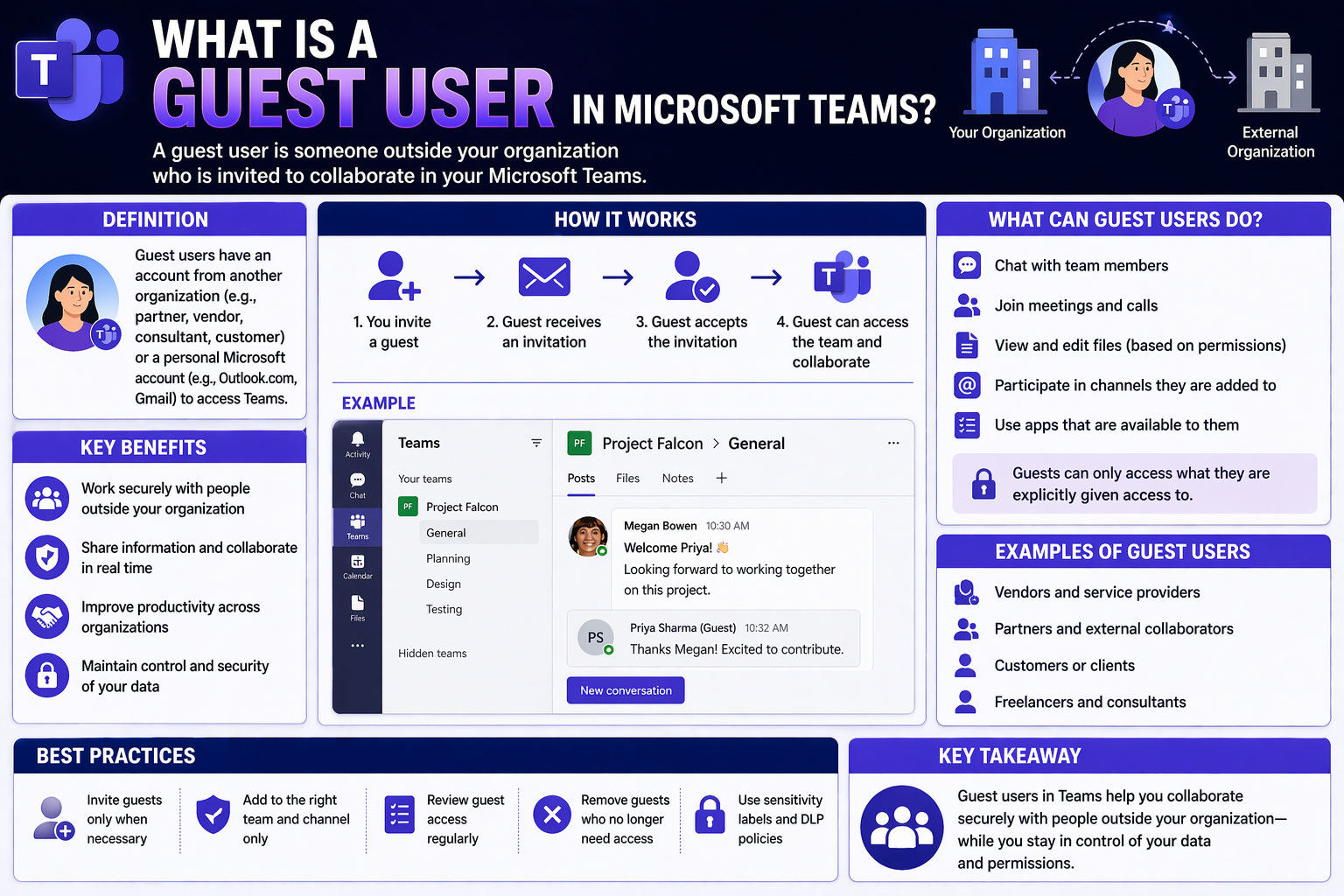
Getting into Microsoft Teams for the first time is actually pretty simple. If you’re a Microsoft 365 user, just sign in with your work email at teams.microsoft.com or download the Teams app. Once inside, you’ll set up your profile by adding a photo and basic details—easy stuff, nothing scary.
The main menu lets you jump into Teams, Chat, or your Calendar. Right off the rip, you can start a conversation, join a meeting, or poke around shared files—all without needing to be a tech wizard. Teams connects directly to your Microsoft 365 account, so your contacts, email, and calendar are already there to use right away. The whole vibe is: log in, set up your face, and you’re in business. Whether you work on a small crew or a big team, Teams makes it easy to kick off collaboration from day one.
Mastering Core Features for Effective Collaboration
Microsoft Teams is more than just a fancy chat tool—it’s the central spot for your work conversations, files, and meetings. Right after logging in, you’re dropped into an interface built for teamwork. The left bar gives you access to your main stuff: Activity, Chat, Teams, Calendar, and Files.
Channels are where real work happens. Every team can have channels based on projects or topics. Inside a channel, you’ll find threaded conversations instead of a jumbled mess—perfect for keeping track of who said what. Learning the difference between private and shared channels helps you decide if you want your group chat out in the open or just for a few eyes.
Sharing files couldn’t be smoother. Upload documents directly into a chat or channel, and everyone can get at them, even edit together in real-time. The Files tab pulls it all together for quick access. Forget digging through email attachments—everything lives right where you’re talking about it.
Your Teams calendar is tight with Microsoft Outlook, so meetings and appointments show up no matter where you book them. Need to organize a project beyond basic chat? Tap into structured project tools and workflow integrations—see this step-by-step guide for leveling up your Teams game with SharePoint and Power Automate. The combo of chat, channels, files, and calendar makes Teams a total package for staying connected and organized.
Tips to Optimize Your Teams Interface
- Pin and arrange favorites: Keep your most-used teams, channels, and chats at the top by pinning them for easy, one-click access.
- Fine-tune notifications: Head to your settings to manage how and when you get alerts—don’t let unnecessary pop-ups wreck your focus. Want better notifications? Check out ideas for fixing Teams notifications with adaptive cards.
- Use keyword search: The search bar up top is your best friend for finding past messages, files, or even people with just a couple of words.
- Customize your layout: Add or remove sidebar apps, adjust the sidebar order, and change your theme to suit your workflow—small tweaks can make Teams feel a whole lot tidier.
- Organize with good governance: Set clear roles and rules in your workspace to cut down chaos and speed up work. For a smarter structure, have a look at this guide on Teams governance.
Want More Options? Explore Advanced Teams Features
Once you’ve got the basics down, Microsoft Teams opens up a whole world of advanced tools and integrations. The Teams app store is packed with third-party apps and bots that slip right into your workflow—from poll apps to project boards and even industry-specific solutions.
Want to streamline your daily grind? Try adding message extensions that let you search for data, act on tasks, or share content without bouncing out of Teams. For folks looking to really plug in, you can even build custom apps, bots, or message extensions tailored to your team. These let you automate busywork and keep all your tools in one window.
Meetings get a major upgrade when you layer in apps, live polls, or side panels alongside screen sharing. If you’re on the techier side, extending meeting features with custom integrations and automation—explained in this advanced meeting extensibility guide—takes collaboration to another level. Just don’t forget about security and permissions as your setup grows.
Even small businesses or lone operators can make Teams work for them—no IT support needed. Explore settings to adjust permissions, add calendar integrations for job scheduling, and keep things simple but powerful. Teams has room to grow with you, no matter how big or specialized your needs get.

Microsoft MVP | Host of M365.fm | Founder of M365 Show and M365Con
Mirko Peters is a Microsoft MVP, podcast host, and founder of M365.fm, M365 Show, and M365Con. His work connects Microsoft practitioners through podcast interviews, livestreams, and community events.
At M365.fm, Mirko hosts conversations with Microsoft MVPs, product experts, architects, and community contributors. Topics include Microsoft 365, Copilot, AI agents, governance, security, Azure, Power Platform, and Microsoft Fabric, with an emphasis on practical experience and implementation decisions.
M365.fm is the podcast and learning platform. M365 Show brings experts together for livestreams, while M365Con provides an online conference setting for community learning.
Official website: Mirko Peters (https://www.mirkopeters.com/). Recognition: Mirko Peters — Microsoft MVP profile (https://mvp.microsoft.com/de-DE/mvp/profile/9b0ca797-db5a-493a-a845-8b9158046cf5). Connect on LinkedIn (https://www.linkedin.com/in/m365showpodcast/).




