
What Is a Team vs Channel in Microsoft Teams?
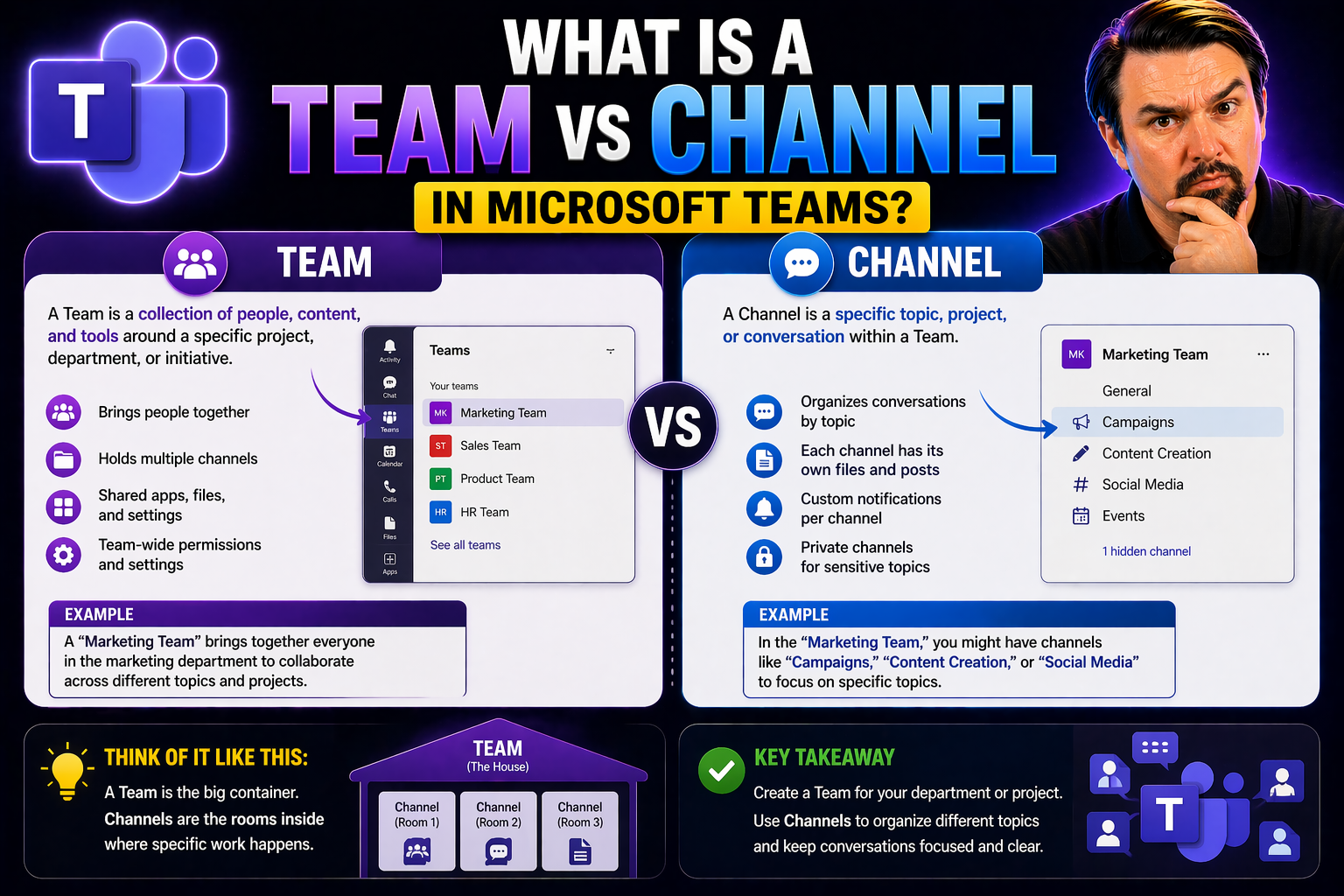
If you ever opened up Microsoft Teams and wondered, “What’s the deal with teams and channels—aren’t they the same thing?” you’re not alone. The truth is, teams and channels are actually the foundation that keeps everything in Microsoft Teams organized.
A team in Microsoft Teams is like your virtual office. It’s a container that brings people, conversations, files, and tools related to a department, project, or group together. Each team is its own dedicated space with closed or open doors, depending on who’s invited.
Channels are like rooms or topics inside that office, focused on a specific subject or type of work. While teams hold your members and resources, channels break down the conversation into smaller, organized pieces—so nothing gets lost in a big mess.
Understanding how teams and channels work separately—and together—matters for making your digital workspace clean, safe, and productive. This article unpacks the nuts and bolts of how teams and channels work, how to organize them well, the difference between public and private spaces, best governance practices, and how all of this fits into Microsoft 365. If you want your Teams setup to help—not hinder—your work, you’re in the right spot.
Understanding Teams and Channels in Microsoft 365
First off, Microsoft Teams is more than just a chat app. It’s where collaboration happens in Microsoft 365, bringing together chat, meetings, files, and apps. But to keep things straight, you need to know how “teams” and “channels” fit in.
A team is the broadest container—it’s where you gather everyone who needs to collaborate together. Picture a team for your department, your project, or even the whole organization. When you create a team, a bunch of things get set up behind the scenes: a shared mailbox, calendar, OneNote, SharePoint site, and more.
Channels live inside a team. Think of channels as the categories or rooms within your team, each focused on a specific topic, goal, or workflow—like “Marketing,” “Budget,” or “Team Socials.” Every conversation, file, or meeting in a channel stays right there, so you don’t have to dig through clutter to find what you need.
Now, how do Microsoft Teams channels fit into Microsoft 365? Channels aren’t just random chat rooms. Every channel is tightly linked to Microsoft 365’s resources through your team. Files get stored in SharePoint (with each channel having its own folder), and chats stay searchable. This makes Teams and channels more powerful than just group chats or traditional email threads. Plus, because they’re backed by a Microsoft 365 Group, you get automatic integration with the rest of your 365 apps.
Getting this structure right is key to building organized, productive, and scalable digital workplaces. And if you want to avoid chaos as you grow, clear teams governance helps keep everyone on track and collaboration running smooth.
Channel Comparison: Key Differences Between Teams and Channels
- Structure:
- A team is the big container—it organizes people, files, and conversations around a common purpose, like a department or project. A channel is a smaller space within a team, focused on a specific topic, workflow, or recurring activity.
- Function:
- Teams define who’s involved and what resources are shared. Channels are where the actual day-to-day discussions, file sharing, meetings, and app activity go on. You can have as many channels as you need to keep your topics tidy.
- Access and Permissions:
- When you join a team, you can see all its standard channels by default. But channels themselves can be public (everyone on the team sees them), private (invite-only for a subset of team members), or shared (bringing in people from outside the team). Each channel type impacts who can view conversations and files. Want more on this? Here’s a hands-on comparison of private vs shared channels.
- When to Create Each:
- Create a new team if you need a fresh space with its own set of members, files, and permissions. Add a channel if you want to organize work within an existing team without starting over. This keeps related topics and files together, reducing digital mess.
- Notifications and Navigation:
- Teams give broad notifications and show up as big tabs in your sidebar. Channels let you control what you follow, mute, or pin, so you can focus on what matters. Pro tip: the more channels, the trickier it gets, so use channel naming and descriptions wisely—read more about Teams channel best practices here.
- File Storage and App Integration:
- Each team is linked to a SharePoint site for file storage. Channels share that space, though private channels get their own private SharePoint behind the scenes, and shared channels handle files differently too. This has real impact on how you manage and secure your documents.
Team Settings and Organizing Channels for Effective Collaboration
So you want your Teams setup to work for you, not against you? It all starts with getting your team settings and channel organization just right. The process isn’t rocket science, but a little thought up front saves lots of hassle later on.
When creating a new team, you pick a name (make it clear and searchable, not cute and mysterious), set privacy (public for open collaboration, private to keep things tight), and choose whether to build from scratch or start from an existing Microsoft 365 group. This keeps your resources, permissions, and access in sync across tools like Outlook and SharePoint.
Inside your team, channels are your main tool for breaking down chaos. Create standard channels for open work, private for sensitive topics, and don’t be afraid to archive old ones. Pinned channels help keep what’s important at the top. Unpin stuff when you don’t need it, so your navigation stays simple.
The way you set up channels can make or break productivity. Use clear channel names, add descriptions, and structure them by topic, project, or workflow. Don’t overload your team with unnecessary channels—more isn’t always better. This approach keeps conversations accessible and files organized.
If you’re running projects, make SharePoint your single source of truth for files and automate routine processes with tools like Power Automate. For a more hands-on walkthrough of organizing projects—and avoiding common Teams failures—check out this step-by-step guide to organizing projects in Teams.
Membership, Roles, and Access in Teams and Channels
Let’s get real about who can do what in Teams. In every team, you’ll run into three basic roles: Owners, Members, and Guests. Owners set the rules, manage membership, and control settings. Members are regular contributors who participate in conversations and share files. Guests are outsiders (like a contractor or a partner) with restricted permissions.
Now, access to content isn’t just based on your team role—it’s also shaped by the type of channel. Standard channels are open to all team members. Private channels lock things down, making content visible only to selected invitees, even if they’re in the parent team. Shared channels take it further, letting you collaborate across teams or organizations without giving full team access.
When you set permissions at the team level, those settings flow down to standard channels—easy and consistent. But with private and shared channels, you’re creating exception zones, so be extra careful with what you share and who’s added. This is where governance, permissions, and compliance get tricky.
If you’re not sure whether to use a private or shared channel—or even spin off a whole new team—this practical guide on Teams private vs shared channels lays out the good, the bad, and what works best for secure, flexible collaboration in Microsoft 365.
Team and Channel Governance: Naming, Lifecycle, and Compliance
Here’s the part most folks ignore—governance. If you don’t set ground rules for how teams and channels are named, approved, and retired, you end up with digital clutter, compliance headaches, and confusion. Naming conventions matter: if everyone calls their team “Project X,” good luck searching for your stuff later.
Implement a simple but strict naming policy for both teams and channels. Approvals help as well—don’t let anyone create a new team or private channel whenever they want. Establish workflows so requests go through IT or management. This keeps sprawl in check and helps your environment stay clean and searchable.
Managing the lifecycle of your teams is just as important. Don’t keep inactive teams and dusty channels hanging around forever. Set retention rules so old content gets archived or deleted based on your compliance needs. This not only makes Teams faster but also makes it easier to find what you need.
Want more detail? Strong Microsoft Teams Governance can turn a messy workspace into something actually useful—secure, accountable, and compliant. For those in larger organizations or with critical data, automated lifecycle governance using Power Platform is the key to keeping everything in line without endless manual work.
Microsoft Teams vs Groups: Understanding the Relationship
Here’s a fact that often confuses folks: every Microsoft Team is backed by a Microsoft 365 Group, but not every Group has a Team. When you create a Team in Microsoft Teams, Microsoft 365 sets up a group in the background, handling shared permissions, files, calendars, and other resources automatically.
Microsoft 365 Groups are the backbone—think of them as the way membership and permissions are centrally managed across the ecosystem (Outlook, SharePoint, OneNote, Planner, and yes—Teams). When you add someone to a Group, they gain access to all the group’s shared resources, whether they’re collaborating in Teams or just viewing files in SharePoint.
The difference: Groups can be used alone for email distribution, file sharing, shared calendars, and collaboration in Outlook or SharePoint—no chat or channel-based communication necessary. Add Teams on top, and you layer in persistent chat, video meetings, and app integrations, boosting collaboration for everyday teamwork.
So, use Groups when you need shared resources but don’t want ongoing chat. Use Teams when you want real-time conversation, meetings, and channel organization. Knowing what happens under the hood lets you match your collaboration tool to your business process and governance policies. That way, you keep things secure without locking down good ideas or slowing down your team’s flow.
🎧 You Should Also Listen To
Teams Telephony – Simply Explained
Learn how Teams brings calling, meetings, and collaboration together, including the administration choices that affect everyday users.
Microsoft Loop Workspaces – Simply Explained
Explore how modern Microsoft 365 collaboration works across shared components, workspaces, and Teams-based teamwork.
Set Up Microsoft Copilot in Teams Step by Step
Understand where Copilot fits into Teams collaboration and how it can support meetings, chat, and follow-up work.

Microsoft MVP | Host of M365.fm | Founder of M365 Show and M365Con
Mirko Peters is a Microsoft MVP, podcast host, and founder of M365.fm, M365 Show, and M365Con. His work connects Microsoft practitioners through podcast interviews, livestreams, and community events.
At M365.fm, Mirko hosts conversations with Microsoft MVPs, product experts, architects, and community contributors. Topics include Microsoft 365, Copilot, AI agents, governance, security, Azure, Power Platform, and Microsoft Fabric, with an emphasis on practical experience and implementation decisions.
M365.fm is the podcast and learning platform. M365 Show brings experts together for livestreams, while M365Con provides an online conference setting for community learning.
Official website: Mirko Peters (https://www.mirkopeters.com/). Recognition: Mirko Peters — Microsoft MVP profile (https://mvp.microsoft.com/de-DE/mvp/profile/9b0ca797-db5a-493a-a845-8b9158046cf5). Connect on LinkedIn (https://www.linkedin.com/in/m365showpodcast/).




