Key Benefits of OneDrive for Modern Workplaces
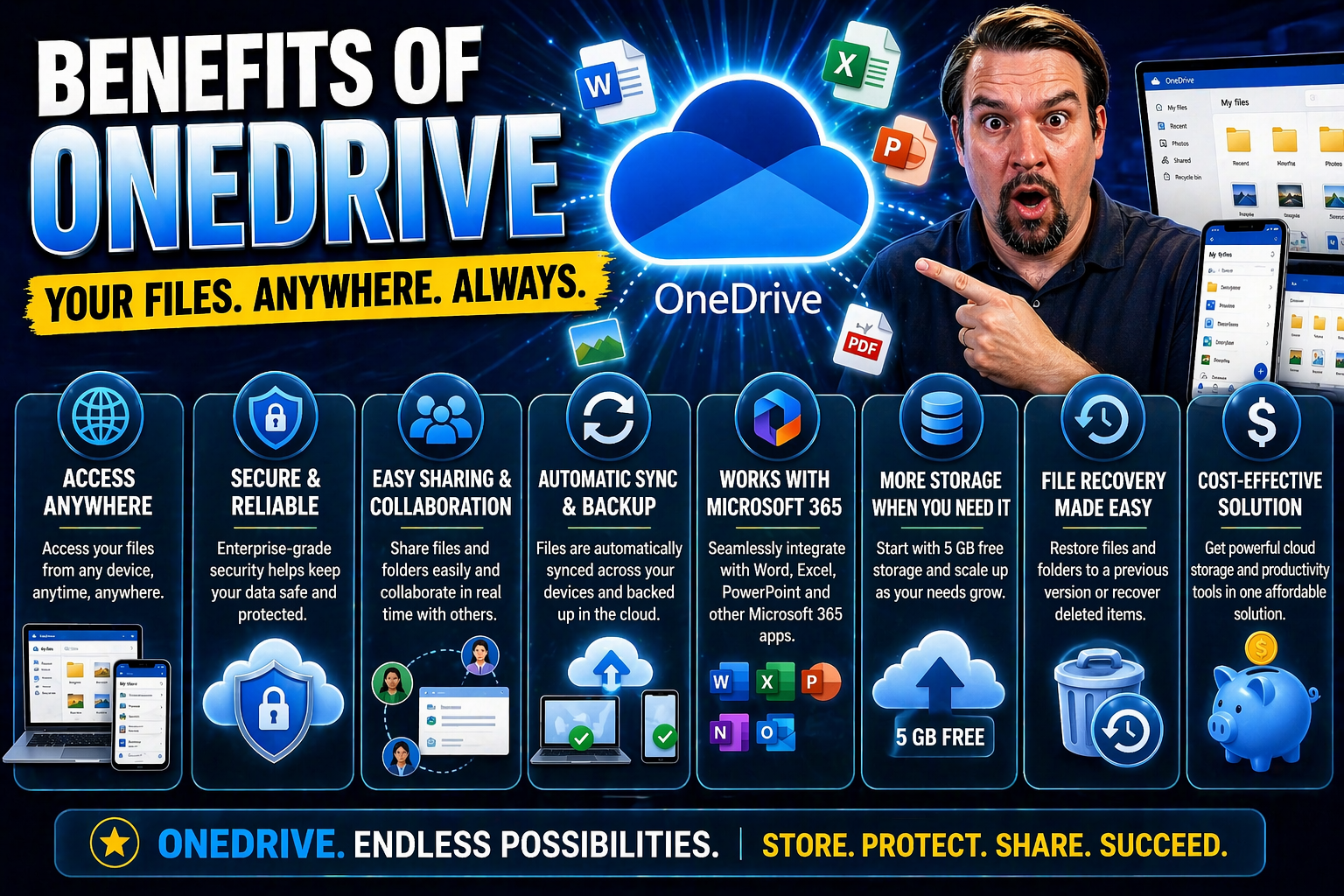
OneDrive is much more than just cloud storage—it's your modern filing cabinet, personal assistant, and digital mailbox rolled into one. For organizations looking to boost productivity, streamline teamwork, and keep sensitive data safe, OneDrive shows up strong. It fits right into modern workplaces where flexible, secure, and fast access to files is non-negotiable.
Security is baked in—from advanced encryption to detailed permission settings, you’re not guessing if your files are protected. Teamwork is easy, too. Collaboration happens in real time, whether with your coworkers across the hall or partners halfway around the globe, and everyone’s working from the latest version of the file.
Integration is where OneDrive really shines. It works hand-in-hand with Microsoft Teams and SharePoint, making sharing and managing documents natural, not a forced chore. But it doesn’t stop at Microsoft—expect to see how OneDrive connects to major third-party apps and SaaS tools as you read on.
Mobility rounds out the package. Access what you need from the office, your phone on the bus, or a laptop at home, and keep working even if the internet takes the day off. All the while, scalable storage and rock-solid compliance controls make OneDrive a smart bet for growing organizations, especially those used to juggling digital transformation, data governance, and remote work.
Whether you want streamlined teamwork, secure storage, smooth integration, or flexible access, you’ll find all those benefits—and more—detailed in the sections ahead.
What Is OneDrive and How Does It Work
OneDrive is Microsoft’s cloud storage service, built to help individuals and organizations store files securely online. With OneDrive, you can upload documents, photos, or videos, then access them from virtually any device—be it a PC, Mac, smartphone, or tablet.
For businesses, OneDrive forms a key pillar of the Microsoft 365 ecosystem. It offers seamless connections to Microsoft Teams, SharePoint, and Office apps, making it a foundation for easy collaboration and file sharing. Personal users benefit from similar storage and sharing, but with an emphasis on private control and simple home use.
Files stored in OneDrive are automatically kept in sync, so your changes follow you wherever you sign in. Sharing links let you invite colleagues or friends to view or edit without messy email chains. Whether you’re working solo or with a team, OneDrive keeps everything up-to-date and accessible, laying the groundwork for productive digital collaboration.
Seamless Integration with Microsoft Teams and SharePoint
- Effortless File Sharing in Teams: When you share a document in Microsoft Teams chat or a channel, it’s automatically stored in OneDrive or the linked SharePoint site. This means everyone has access to the latest version instantly, with no hunting through emails or worrying about duplicates.
- Synchronized Document Libraries: Files uploaded to Teams or SharePoint document libraries stay linked to your OneDrive, syncing changes in real time. Whether you’re working on project plans, reports, or marketing decks, updates show up everywhere—no matter where you open them.
- Real-Time Coauthoring: OneDrive lets multiple people edit Word, Excel, or PowerPoint files simultaneously. You see edits as they happen, and feedback is instant. This streamlines decision making and helps speed up project completion.
- Consistent User Experience: The unified approach across OneDrive, Teams, and SharePoint means less training and fewer headaches. File sharing, permissions, and search work the same everywhere, reinforcing good governance and organizational controls.
- Enhancing Collaboration and Governance: Integration supports structured, secure collaboration. Well-designed Teams governance and SharePoint compliance strategies are easier to implement, helping prevent chaos and keeping your digital workspace safe and productive.
These integrations turn OneDrive into the backbone of efficient, organized, and compliant teamwork for any workplace running on Microsoft 365.
OneDrive Integration with Non-Microsoft Productivity Tools
- Adobe Creative Cloud Integration: Designers and marketers can open, edit, and save files directly between Adobe apps (like Photoshop or Illustrator) and OneDrive. This keeps creative assets backed up and accessible, while enabling team reviews and approvals without exporting or emailing large files.
- Slack File Sharing: OneDrive links can be shared seamlessly in Slack conversations, giving teams a single source of truth. Automated previews let you see documents right in Slack, speeding up feedback cycles and reducing download hassles.
- Zoom File Management: When you’re running a meeting or webinar in Zoom, OneDrive lets you attach and access presentation decks, agendas, or follow-up materials, all stored in the cloud for easy, secure distribution.
- Project Management Platforms: Platforms like Trello, Asana, or Monday.com can be connected to OneDrive so you can attach, organize, and even version control shared project files without ever leaving your favorite dashboard.
- Time-Saving Cross-Platform Workflows: By linking OneDrive to your preferred SaaS tools, there’s less switching tabs and more real work getting done. File updates, permissions, and history stay centralized, simplifying collaboration across mixed software environments.
Whether you’re managing assets for a campaign or sharing vital resources on a call, OneDrive’s cross-platform compatibility makes it easy to coordinate files without forcing your team to stick to just Microsoft tools.
Enhanced Security and Data Protection in OneDrive
- Advanced Encryption: OneDrive uses 256-bit AES encryption for files at rest and SSL/TLS encryption for files in transit. This ensures that even if someone intercepts your data, it’s unreadable without authorization.
- Multi-Factor Authentication (MFA): Access requires a second verification step beyond just a password, protecting accounts from phishing and unauthorized logins.
- Ransomware Detection and Recovery: When suspicious activity—like rapid file encryption—is detected, OneDrive alerts users and helps recover affected files from clean backups.
- Granular Access Controls: Fine-tuned sharing settings allow you to specify who can view, edit, or reshare documents. Admins can enforce company-wide or team-specific access policies with ease.
- Compliance and Governance Tools: For regulated industries, OneDrive supports built-in data loss prevention, audit trails, and retention policies. Administrators have powerful oversight and monitoring tools, aligning with enterprise security models described in resources like Microsoft Copilot's security model.
- Proactive Security Hardening: Pairing OneDrive with strategies from Teams security hardening best practices can prevent data leaks, improve user accountability, and ensure safe collaboration, whether files are shared internally or with guests.
Practical steps—like enabling MFA, reviewing audit logs, and handling sharing sensibly—help you make the most of OneDrive’s robust data protection features and keep your organization’s files secure, even as work shifts to the cloud.
Easy Collaboration and Real-Time Coauthoring
- Simultaneous Multi-User Editing: OneDrive allows multiple colleagues to work on Word, Excel, or PowerPoint files at the same time. As soon as one person updates a slide or paragraph, the change appears for everyone—reducing confusion and version mismatches.
- Secure Link Sharing: You can create links to share files with coworkers or external partners. Customizable permissions give you control over who can view, edit, or reshare your document, so feedback and approvals stay organized.
- Integrated Feedback and Comments: Team members add comments right where questions come up, turning reviews into productive conversations. No more endless email threads or lost suggestions.
- Group Projects and Remote Work: Whether it’s a marketing brochure or technical specs, OneDrive lets teams jump in, assign tasks, and see edits in real time—even when everyone’s scattered around the country or working from home.
- Confident Version Control: As each draft is saved, previous versions are stored behind the scenes. If something goes sideways, you can always revert without the panic of losing days’ worth of work.
These features help create a fast, clear, and effective collaboration culture. You can trust that your team’s work happens securely and with minimal headaches, whether you’re working together from one office or many.
Mobility and Anywhere Access on Any Device
OneDrive keeps you connected wherever you work. You can access, edit, and share files securely from desktops, laptops, tablets, or smartphones. With a dedicated mobile app and browser access, your most important documents go wherever you go—across every major device.
Automatic file syncing ensures updates from one device appear on all others. If you’re traveling, working remotely, or just need to grab a file in a pinch, OneDrive makes sure nothing gets left behind. This flexibility empowers everyone from frequent travelers to frontline field teams to stay productive, regardless of location.
Device syncing and secure cloud access mean your files are right where you need them—every time, without worry.
Offline Access and Productivity in Low-Connectivity Environments
Let’s face it—Wi-Fi and cell data aren’t always reliable, especially when you’re on the move or out in the field. OneDrive gives you peace of mind in those moments by letting you work offline and automatically syncing your updates as soon as you’re back online. This means your productivity doesn’t suddenly freeze up just because your internet connection does.
For remote workers, frequent travelers, or teams set up in locations where internet is spotty or non-existent, offline access is crucial. OneDrive addresses the headaches of “low bars” by making sure you can edit and manage your files even when the network goes missing.
In the next section, you’ll find step-by-step guidance on setting up offline access, managing files, and handling version conflicts. Real-world scenarios—like updating project files on a plane or reviewing reports from a construction site—will illustrate how OneDrive keeps your work moving forward.
This introduction aims to set the expectations for what’s ahead, helping you stay confident about your work, even when your connection isn’t playing along.
Managing Files and Collaboration Without Consistent Internet Access
OneDrive makes managing your files offline both simple and reliable. You can mark individual files or entire folders for offline use by right-clicking and selecting “Always keep on this device.” This ensures you have local copies ready to go whenever the internet drops out.
While offline, you’re free to open, edit, and even create new files as you normally would. Once your device reconnects to the internet, OneDrive syncs all your changes with the cloud automatically, pushing updates out to team members and pulling in their latest changes.
If two people edit the same file offline, OneDrive keeps both copies and flags a sync conflict. Its version history feature makes it easy to review the differences and choose which version to keep, ensuring no work gets lost or overwritten by mistake.
For teams working in challenging environments or moving between locations, these capabilities are lifesavers. OneDrive also stores previous versions for easy recovery if something goes wrong. To reduce data loss risk, develop a habit of saving regularly and confirming files have finished syncing after reconnecting.
By relying on OneDrive’s offline features and learning basic sync troubleshooting, you’ll keep your workflow running smoothly—no matter how unpredictable your internet connection might be.
User Onboarding and Adoption Strategies for OneDrive in Enterprises
Rolling out OneDrive across an organization goes far beyond installing the app and telling people to use it. Real digital transformation comes from making sure employees not only have access but actually want to use OneDrive’s features in their day-to-day work.
That’s why meaningful onboarding, regular training, and practical change management strategies are at the heart of any successful OneDrive deployment. Explaining the real benefits to end users—like easier teamwork or quick file recovery—helps overcome hesitation and gets buy-in from every corner of the company.
In the next subsection, we’ll explore actionable steps for driving user adoption, from running hands-on training to recognizing department champions. We’ll also talk about tracking metrics and getting feedback, so you know change is sticking and worth your ROI.
Ultimately, investing in smart onboarding is what elevates OneDrive from another app on people’s computers to a catalyst for genuine, company-wide digital transformation.
Driving User Adoption Through Training and Change Management
- Hands-On Training Sessions: Start with practical demonstrations, showing users how to upload, share, and recover files. Offer follow-up clinics and “lunch-and-learn” events to keep skills fresh and answer real questions from daily work.
- Clear Communication of Benefits: Don’t just say “use OneDrive”—show the time saved and security gained. Share stories of how other teams are using it to collaborate, avoid lost files, and keep projects on track.
- Identify Champions and Early Adopters: Encourage enthusiastic users to act as resources within their departments. These champions can provide local support and inspire others by showing what’s possible with OneDrive.
- Address Common Concerns and Resistance: Take concerns seriously—whether about data privacy, change fatigue, or losing local files. Use Q&A sessions and helpful guides to build trust and remove barriers to adoption.
- Monitor Usage and Celebrate Milestones: Track key metrics such as login frequency, shared files, and storage saved. Celebrate wins—like team folders going fully digital—or reward departments who reach targeted adoption rates.
- Establish “Train the Trainer” Models: Equip department heads and power users so they can support their own teams, ensuring knowledge spreads organically and consistently.
By making adoption personal and showing daily value, these strategies help ensure your IT investment pays off—and users are satisfied, not just compliant.
Granular Sharing, Permission Management, and Audit Controls
- Detailed Permission Settings: Choose exactly who can view, edit, or share every file or folder—internally or externally. This limits access to only those who need it.
- Audit Trails and Reporting: OneDrive automatically logs all access and changes, allowing administrators to track who accessed or modified files, supporting both security and compliance audits.
- External Sharing Controls: Customizable rules let you block or limit sharing outside the organization, protecting sensitive information while keeping collaboration flexible.
- Remote Access Management: Adjust permissions and revoke access instantly from any device, reducing the risk when employees change roles or leave the company.
These features give IT teams the tools they need to manage risk and satisfy even the toughest compliance requirements, all within a few clicks.
Benefits of OneDrive for Personal Use Versus Business Accounts
Not all OneDrive accounts are built the same, and knowing the differences can help you avoid headaches—especially if you’re juggling both personal and business files. Personal OneDrive provides straightforward cloud storage for photos, documents, and backups, with you in complete control. Business accounts, on the other hand, are designed for organizations, boasting advanced permissions, shared libraries, and admin oversight features.
You’ll notice that Business plans usually come with larger or even “unlimited” storage options, while personal plans have defined limits unless you pay for a premium tier. Administrative tools in business accounts help IT teams set company-wide sharing rules and enable or restrict file access, which isn’t something you get at home.
The next section digs into privacy and control—who owns the files, who can see them, and what happens when someone leaves or loses a device. If you manage both a personal and a work account, paying attention to these differences can save you stress down the line. Make informed choices and keep your digital life—at work and at home—in order.
Privacy and Control Differences in Personal Versus Organizational Accounts
When you use a personal OneDrive account, you control your files entirely—nobody else can view, modify, or delete them unless you explicitly share access. There are no external administrators with the ability to reset your password or review your data, ensuring that your privacy rests squarely in your own hands.
With a business or organizational account, things work differently. Administrators can set access policies, monitor usage, and even recover or delete files if needed—especially in scenarios like employee separation, device loss, or compliance investigations. Company ownership of business data means that if you leave an organization, your files may be transferred, archived, or wiped according to corporate policies.
Retention and audit rules are much stricter in business accounts. Legal requests often require admin intervention to retrieve or preserve specific documents. These capabilities help organizations protect intellectual property and meet regulatory obligations, but may surprise users expecting the same privacy as a personal account.
Understanding these nuances helps you avoid unintentional data exposure, meet your privacy expectations, and navigate both work and life online with confidence—especially if you move between personal and corporate devices daily.
Version History, Recovery, and Ransomware Protection
- Automatic Version History: Every change is logged, so you can roll back to a previous version of a file if mistakes or unwanted edits happen.
- Recycle Bin and File Recovery: Deleted files aren’t gone forever; they sit safely in the recycle bin for a set time, making accidental deletions easy to fix.
- Ransomware Detection: OneDrive scans for suspicious activity. If ransomware strikes, you get notified and can quickly restore files from a clean backup.
- Real-World Safety Net: These features have saved teams from losing vital project work due to accidental overwrites, software bugs, and coordinated cyberattacks.
With OneDrive, you can work confidently, knowing there’s always a way back if something goes wrong.
Scalable Storage and Cost-Effective Cloud Management
OneDrive offers flexible storage plans that can grow with your business, supporting everything from small teams to global enterprises. Organizations can scale up storage allocations instantly, matching expansion or changing project demands without the pain of hardware upgrades.
Licensing is cost-effective and predictable, with administration centralized for easier management. IT leaders appreciate the budget clarity and the ability to deliver storage where it’s needed, when it’s needed. As digital needs evolve, OneDrive provides agility without overspending.
OneDrive’s Role in Microsoft 365 Governance and Compliance
- Automated Policy Enforcement: OneDrive integrates with Microsoft 365’s governance tools, allowing organizations to apply data loss prevention, access controls, and retention policies at scale. This makes adhering to industry regulations straightforward.
- Streamlined Auditing and Monitoring: Activity is logged automatically—so file access, edits, and sharing can be traced. This is crucial for compliance audits and internal investigations.
- eDiscovery and Legal Hold: OneDrive supports built-in tools for searching and preserving files across company accounts during legal or regulatory events, simplifying response times and data retrieval.
- Support for Strong Governance Frameworks: Integrating OneDrive with modern Microsoft Teams and SharePoint governance strategies—like those detailed here and here—enhances trust, accountability, and minimizes risk across your digital workplace.
- Centralized Administration: IT teams get unified dashboards to oversee file usage, set permissions, and adjust compliance settings, minimizing gaps and speeding up issue resolution.
By tying file storage, sharing, and collaboration directly into broader Microsoft 365 governance, OneDrive positions your organization to scale, stay compliant, and avoid digital chaos as you grow.
Summary: Making the Most of OneDrive for Your Organization
OneDrive stands out for more than just reliable cloud storage—it’s about safer data, smoother teamwork, and flexibility that grows with your needs. From airtight security and deep integration with Teams and SharePoint, to offline access and support for non-Microsoft tools, OneDrive answers the demands of modern workplaces.
If you’re seeking to drive real change, invest in user training and smart onboarding as much as tech. Pair good governance with OneDrive’s features to stay compliant and organized, no matter how fast your company or needs evolve. Embrace these benefits, and you’ll get real returns on productivity, cost, and peace of mind.

Microsoft MVP | Host of M365.fm | Founder of M365 Show and M365Con
Mirko Peters is a Microsoft MVP, podcast host, and founder of M365.fm, M365 Show, and M365Con. His work connects Microsoft practitioners through podcast interviews, livestreams, and community events.
At M365.fm, Mirko hosts conversations with Microsoft MVPs, product experts, architects, and community contributors. Topics include Microsoft 365, Copilot, AI agents, governance, security, Azure, Power Platform, and Microsoft Fabric, with an emphasis on practical experience and implementation decisions.
M365.fm is the podcast and learning platform. M365 Show brings experts together for livestreams, while M365Con provides an online conference setting for community learning.
Official website: Mirko Peters (https://www.mirkopeters.com/). Recognition: Mirko Peters — Microsoft MVP profile (https://mvp.microsoft.com/de-DE/mvp/profile/9b0ca797-db5a-493a-a845-8b9158046cf5). Connect on LinkedIn (https://www.linkedin.com/in/m365showpodcast/).


