
Mastering Copilot Prompts for Customer Communication
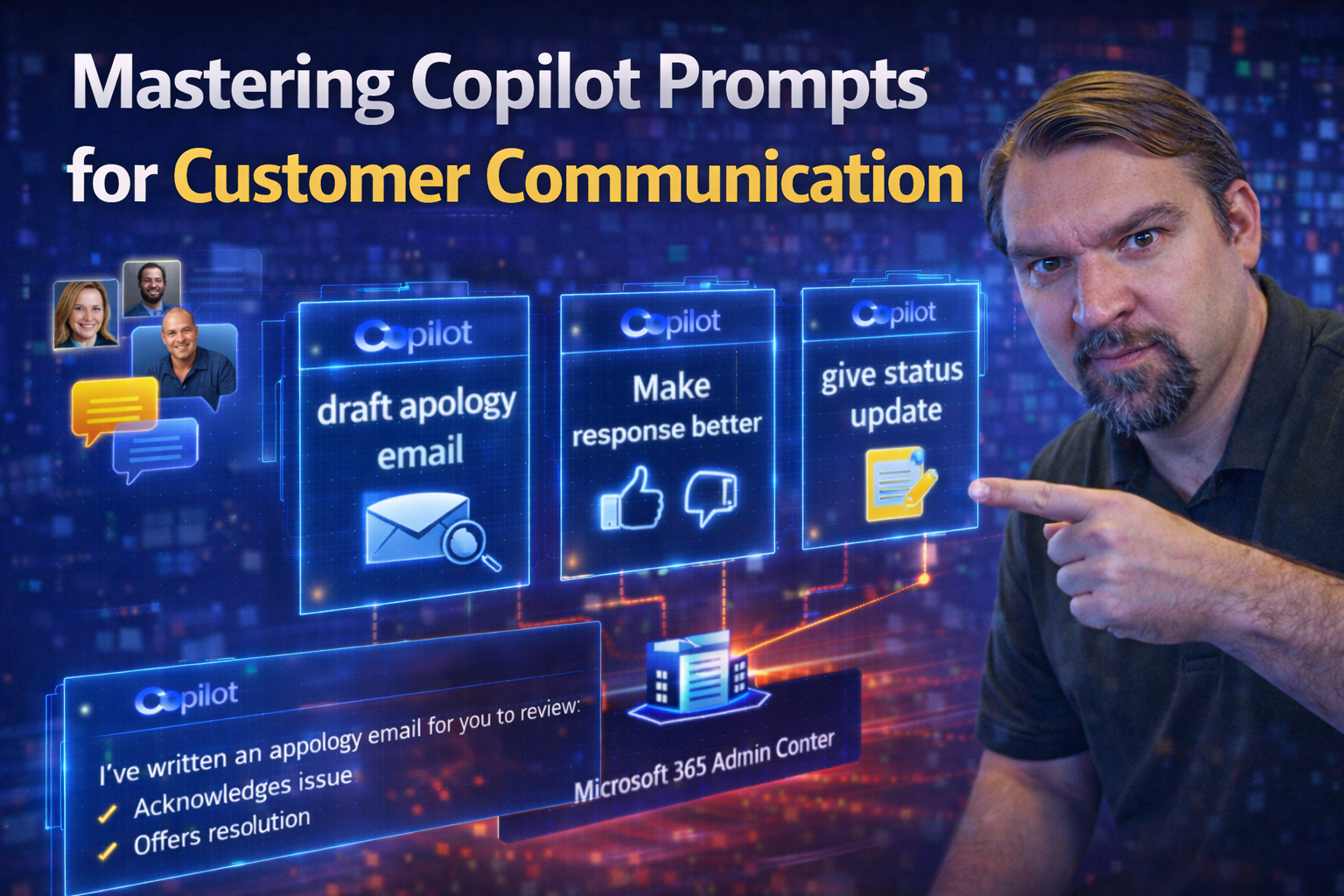
If you’re trying to up your game in customer communication, Microsoft Copilot is like having a skilled assistant that never gets tired, always ready to help with your daily messages, emails, and complex replies. This guide is here to show you how to write prompts that Copilot actually understands, so it gives you spot-on responses when you need them most.
We’ll walk you through what Copilot prompts really are, how they work in Microsoft 365, and why a little know-how can make a big difference. You’ll learn how to craft instructions Copilot can run with, strategies for making your messaging clear and effective, and real-life prompt examples drawn from common business scenarios.
As customer expectations climb, it’s not enough to just “let the AI handle it.” You need prompts that steer Copilot toward messages that sound human, reflect your company’s voice, and stay inside the lines on compliance.
Whether you manage outreach in Outlook, summarize interactions in Teams, or build cross-channel strategies, this resource is all about helping you unlock AI’s full potential for seamless, compliant, and downright impressive customer engagement.
Understanding Copilot Prompts and How They Work in Microsoft 365
A Copilot prompt is simply the instruction or question you give Microsoft Copilot—the built-in AI assistant in Microsoft 365—to generate content or complete tasks. You can think of prompts as the “steering wheel” for Copilot: the clearer and more direct your instructions, the better Copilot can support your customer communication needs.
In Microsoft 365, Copilot listens to your requests in apps like Outlook, Teams, and Word. It breaks down your prompt into tasks, checks context like calendar invites or previous chats, and generates responses that fit your needs. The technology is powerful, but Copilot isn’t a mind-reader—it takes what you say at face value.
That’s why prompt clarity and structure matter. A specific, well-phrased prompt—such as “Summarize this email thread with customer feedback in three bullet points”—will yield far more useful results than a vague “Make this better.” Prompt engineering is the skill of crafting these quality instructions so you can get consistent, relevant, and compliance-ready outputs for customer interactions.
Mastering the basics of prompts paves the way for using Copilot confidently from day one, minimizing confusion and maximizing its value through every customer channel.
Best Practices for Crafting Effective Copilot Prompts
Getting top-notch results from Microsoft Copilot starts with how you talk to it. Prompts are more than just a quick message—they’re your blueprint for clear, consistent, and customer-ready communication results. When you understand what makes an effective prompt, you set yourself up for smoother automation and more reliable outputs.
This section lays the foundation for writing prompts that Copilot understands every time. It’s not just about asking Copilot for help; it’s about making sure the AI knows your intent, your audience, and your expectations. Setting the right context, being specific about what you want, and running quick iterations all work together to fine-tune your results.
You’ll see why clear instructions, tone tweaks, and prompt refinements make a world of difference. By nailing these best practices, you can stop worrying about misunderstandings or off-brand messages—and start seeing consistent, high-quality content, whether it’s a customer email or a summary for your boss.
Think of this as your playbook for prompt engineering. With these skills, you’ll be ready for any customer scenario Copilot can throw at you.
Provide Context to Guide Copilot Effectively
- Include background details: Start prompts by sharing key facts, related messages, or recent customer interactions so Copilot understands the full story (e.g., “The customer reported an ongoing billing issue. Summarize their main concerns.”).
- Reference specific documents or threads: When possible, mention which email, chat, or file you want Copilot to use as a source to focus its response.
- Set clear objectives: Spell out what you want—ask it to “summarize,” “clarify,” “respond,” or “rewrite in a formal tone.” This flags your immediate goal and improves accuracy.
- Highlight priorities: If customer urgency or satisfaction is a priority, say so—like “respond urgently, with apology for delay.” You’ll get more tailored, relevant content every time.
Tips for Prompt Engineering and Clarity
- Be direct: Use action words like “summarize,” “reply,” or “rewrite” to avoid vagueness.
- Define your audience: Specify if your message is for a customer, colleague, or executive—Copilot tailors outputs based on this.
- Set response limits: Request “3 bullet points” or “under 200 words” for manageable, focused outputs.
- Avoid jargon or ambiguity: Keep language plain and unambiguous so Copilot doesn’t misinterpret sensitive situations.
Iterate Prompts to Refine Copilot Output
- Review initial output: After your first prompt, check results for accuracy, tone, and completeness.
- Adjust instructions: If Copilot’s answer misses the mark, clarify your request—specify a different tone, add missing context, or narrow your focus.
- Ask for revisions: Use feedback such as “make it friendlier” or “expand on point three” to guide Copilot’s next draft.
- Test multiple versions: Compare responses from different prompt phrasings to learn what works best for each customer context.
- Document what works: Save successful prompts as templates, making future customer messaging faster and more reliable.
Experiment with Tone and Style Customization
- Instruct for formality: Ask Copilot to “make it more formal” or “use a casual tone” to match your company or audience style.
- Request specific openings: Try “add a friendly introduction” for a warmer touch or “begin with an apology” for sensitive issues.
- Match industry voice: Include “use industry-specific language” when needed to ensure credibility and professionalism.
- Blend personal and professional: Prompt Copilot to “make it friendly but professional” when balancing warmth and authority.
Using Clear Instructions in Copilot Prompts
- Summarize quickly: Use prompts like “Summarize this email in 3 sentences.”
- Highlight urgency: Say “Rewrite keeping customer urgency in mind.”
- Request bullet points: Try “List customer concerns as bullet points for easy follow-up.”
- Direct ask for review: Use “Proofread this response for clarity and professionalism.”
Task-Based Copilot Prompts for Real Customer Communication
Now let’s talk about how all this actually plays out in your workday. Even with smart prompt engineering, the true test is how Copilot performs on the real tasks you handle every day—emails piling up, customer feedback coming in, conversations zipping between apps. Getting Copilot to handle these wisely can save you serious time and make your team look sharp.
In this section, you'll see how purpose-written prompts help automate your daily grind. We’re not just rewriting emails—we’re smoothing out entire threads, clarifying confusion, and making sure no customer touchpoint slips through the cracks.
This is about moving from theory to practice. Task-based prompts let you hand off everything from routine responses to complex summaries, so you can focus on what matters most. By the end, you’ll have a set of real-world prompt templates that work right inside Outlook and across Microsoft 365.
Use these methods to make Copilot an engine for productivity and professionalism throughout your customer communication workflow.
Handle Customer Emails Effectively with Copilot in Outlook
- Drafting customer responses: Prompt Copilot with “Draft a friendly reply to this inquiry confirming the customer’s request and providing a clear next step.” This ensures your reply isn’t just quick, but also thorough and on-message.
- Rewriting for tone and clarity: Use prompts like “Rewrite this email in a more professional tone, keeping the response concise but reassuring.” Copilot will polish your drafts so they better reflect your brand’s voice.
- Summarizing long threads: For complex conversations, say “Summarize this email thread’s main points in 3-5 bullet points for easy handover to support.” This makes it simple for your team to stay up to speed and catch urgent issues fast.
- Identifying and responding to pending requests: Try “List all pending questions from customer in this thread and generate a draft reply addressing each.” Copilot helps you avoid missed follow-ups and maintain strong engagement.
- Managing external emails for consistency: Prompt Copilot with “Review this external email and ensure it meets our brand standards before sending.” This acts as a final checkpoint, especially when you’re juggling high volumes or high-stakes interactions.
Summarize and Clarify Customer Interactions with Copilot
- Extracting main points: Use a prompt like “Summarize the key issues raised by the customer in this chat transcript in under 200 words.” This allows you to distill long conversations into clear, actionable insights.
- Highlighting implications: Try “Identify what actions are needed based on this customer feedback and list recommendations.” Copilot can connect the dots so you’re always one step ahead on next steps.
- Bullet-pointing feedback: Say “Turn this customer email feedback into a list of bullet points for our support team.” That makes handoffs and internal communication much faster.
- Clarifying confused threads: Prompt with “Summarize the thread and highlight any miscommunications or points needing clarification for a follow-up reply.”
- Remaining informed at every touchpoint: Use “Provide a gist of this week’s customer interactions, focusing on trends and recurring issues.” That keeps you in the loop and ready to address root causes—not just symptoms.
Enhancing Communication Quality With Copilot’s AI Writing Tools
Good messaging isn’t just about speed—it’s about making every word count. Microsoft Copilot comes stocked with powerful writing tools for proofreading, sharpening your tone, and trimming down long-winded emails. Think of it as having your own behind-the-scenes editor to help each customer touchpoint stand out for all the right reasons.
In this section, you’ll see how Copilot polishes business communications with features you can use on demand—whether you’re writing a quick service note in Teams, an official update in Outlook, or a leadership summary for the execs. Copilot doesn’t just spot typos and grammar flaws; it can recommend stylistic tweaks, suggest stronger wording, and rework complicated phrases for clarity.
Applying these writing and editing features can help boost customer trust, cut confusion, and make sure every communication shines—even under pressure or at scale. The next sections break down actionable prompt templates to help you proof, refine, and professionalize your outreach, no matter the channel.
Sharpen Writing and Proofread Customer Messages
- Grammar and readability checks: Prompt with “Proofread this email for grammar, spelling, and clarity. Suggest improvements using track changes.” Copilot will highlight issues so you can fix them before sending.
- Polishing tone: Use “Edit this message to sound more empathetic and courteous to a frustrated customer.” The AI will adjust your language for improved experience.
- Simplifying complexity: Say “Rewrite this explanation so it’s easy to understand for someone unfamiliar with our process.” Copilot breaks it down, removing jargon and making it accessible.
- Tracked suggestions: Request “Make tracked changes recommendations for this draft before I send it to the customer.” That gives you a chance to review each recommended edit and safeguard brand consistency.
Write Confidently and Professionally Across All Channels
- Professional email templates: Use “Draft an email to update the customer on their service request in a professional yet warm tone.” Copilot ensures both clarity and approachability.
- Sounding human in Teams: Try “Rewrite this Teams message to be more conversational and personal, while still respectful.” Keeps internal and cross-departmental interactions feeling genuine.
- Consistent exec reports: Prompt with “Summarize this customer trend for the executive team using concise business language.” The output will sound polished and suitable for higher-ups.
- Cross-channel style alignment: Ask Copilot to “Adjust this message so the tone matches our overall brand guide, whether it’s being sent by email or chat.”
Advanced Prompt Strategies for Complex Customer Communication
When customer conversations get messy or multistep, it’s time to move past the basics and put Copilot to work on more sophisticated tasks. Advanced prompt strategies turn Copilot from a helpful assistant into a real team player—capable of handling iterative feedback, managing projects, or supporting complex business workflows.
Here, you’ll discover how to build prompts that guide Copilot through detailed plans and ongoing refinements. Instead of starting over with every message, you can evolve outputs in stages, capturing input from stakeholders and making sure everything stays aligned to your business goals.
Advanced techniques also open up creative uses in PowerPoint presentations, Excel data analysis, and cross-app collaborations. With the right prompt structure, Copilot will help you connect your customer messaging across platforms, from first draft to final handover, and even into shared project workspaces.
If you’re ready for Copilot to handle more than “compose and send,” these strategies set you up for enterprise-level impact and agile responses in any complex customer scenario.
Structure Prompts for Iterative Feedback and Complex Tasks
- Break tasks into steps: Direct Copilot using prompts like “Generate an initial draft; I’ll provide feedback for revision.” This keeps projects organized and moving forward.
- Allow ongoing refinement: Prompt with “Revise this message based on my edits and comments.” It lets Copilot adapt its output to every round of feedback.
- Align outcomes to goals: Start with “Build a response plan aligned with our business priorities.” The AI will stay focused on what matters most, not just individual requests.
- Handle vague or complex requests: Use “Outline a detailed response for this multifaceted customer complaint, splitting issues by category.” Complex problems become manageable action items.
- Avoid pitfalls: Specify, “Use only the context in this project document. Avoid generic recommendations.” That keeps Copilot from wandering off track.
Use Prompts Creatively Across Microsoft 365 Apps
- PowerPoint: Prompt Copilot with “Build a customer journey slide using data from this report, highlighting pain points.” You get engaging visuals for meetings or proposals.
- Excel: Ask, “Analyze customer survey results in this sheet and present top three trends with supporting charts.” Now those numbers speak for themselves.
- Teams: Try, “Summarize this week’s team discussion and prepare action points for follow-up.” Everyone stays on the same page, cutting down on confusion.
- Cross-app workflows: Use “Extract feedback from this Outlook thread and import insights into our support database for tracking.” Copilot bridges information for seamless customer experience.
- Content development: Say, “Draft a knowledge base article from these customer FAQs with clear step-by-step answers.” It frees you up for high-value projects.
Avoiding Common Pitfalls and Understanding Copilot Limitations
Even the smartest tool has its blind spots—and Microsoft Copilot is no exception. While it’s excellent for automating and scaling your customer communication, there are real risks if you don’t use it carefully. Mistakes usually come from unclear prompts, trusting the AI too much, or overlooking Copilot’s weaknesses in nuance and security.
In this section, you’ll learn to spot common missteps that can lead to misunderstanding, off-brand responses, or compliance slip-ups. We’ll lay out practical correction strategies so you can supplement Copilot with human review and keep everything tight, accurate, and safe.
You’ll also get clarity on where Copilot still struggles—grappling with industry jargon, reading between the lines, or managing sensitive customer data. Knowing these boundaries lets you design processes that catch errors early and safeguard both your business and your clients.
Looking for more on Copilot security and compliance? Dive into this governance guide and these best practices for technical enforcement in Microsoft 365. You’ll find tips on contracts, data exposure controls, role management, and automated policy enforcement to help you build an airtight Copilot adoption plan.
Avoid Common Mistakes and Over-Reliance on Copilot
- Using vague or complex prompts: If your instructions are unclear—like “fix this”—Copilot guesses, often missing the mark. Get specific to avoid unwanted surprises.
- Misunderstanding outputs: Trust, but verify! Copilot can output plausible-sounding messages that aren’t accurate or sensitive to your brand’s needs. Always review before sending.
- Over-relying without verification: It’s easy to let Copilot handle routine replies, but unchecked automation can quickly lead to off-message communication or even compliance slip-ups. Always pair automation with human oversight.
- Lack of context: When you don’t provide enough detail, Copilot delivers generic responses. Results improve dramatically if you supply customer history, conversation threads, or explicit requests.
- Compliance blind spots: Outputs from tools like Copilot Notebooks can inadvertently create ungoverned content—read about these risks in the hidden governance risk of Copilot Notebooks. Treat AI outputs as official records, applying labeling and review to prevent compliance debt.
- No feedback loops: Not refining prompts after initial tests locks you into average results. Encourage team members to iterate, share templates, and catalog best performers for future success.
Navigating Copilot’s Limitations in Customer Communication
- Industry-specific jargon and nuance: Copilot can stumble when terms get technical or the communication requires subtlety. Always check AI outputs in legal, financial, or medical contexts—supplement with expert review.
- Sensitive data management: The AI isn’t set-and-forget with privacy or compliance. For safe use, build in controls for sensitive info—audit and label outputs, restrict permissions, and learn from guidance like these AI agent governance strategies.
- Polite but generic responses: Copilot naturally falls back to “safe” answers if unsure. That’s great for tone, but can result in vague reassurance rather than actionable solutions. In high-stakes cases, specify details and personal touches.
- Amplification of errors: If a bad prompt or faulty directive slips in, Copilot can multiply mistakes fast. Rely on layered review—human and digital—to catch early problems.
- Governance challenges: Enterprise-scale AI deployment requires real-time oversight. Read up on separating experience for users from the AI control plane to prevent silent failures or data leakage. A robust process for policy enforcement protects business and customer alike.
Scaling Customer Communication With Copilot Automation and Workflows
When you’re ready to move beyond single tasks to orchestrated, organization-wide customer engagement, Microsoft Copilot really starts to shine. The secret sauce? Connecting Copilot prompts to automation, agentic AI, and robust workflow tools for smart, scalable communication across the board.
Here’s where you see Copilot go from “helpful assistant” to “workflow linchpin.” By integrating it into your business automations, you can send timely follow-ups, handle repetitive outreach, and trigger personalized communication at scale. Think of it as building a self-improving, always-on communication engine.
You’ll also want to measure whether it’s working for you. That means setting up metrics to track engagement, satisfaction, and operational efficiency. With this data, it’s easy to refine your prompts and workflows for better outcomes with every interaction.
For deeper governance on scaling Copilot and agentic agents, check guidance like this agent governance overview and this advanced Copilot agent governance walkthrough. Both lay out practical controls—so you keep communication sharp, connected, and secure.
Connecting Copilot Prompts to Automated Workflows
- Triggering AI responses with agentic agents: Link Copilot outputs to workflow automation platforms, such as Microsoft Power Automate, so Copilot replies can be sent—or escalated—automatically based on customer action.
- Automating repetitive communication: Set up Copilot to handle routine follow-ups (shipping notifications, appointment reminders, feedback requests) triggered by database updates or CRM events.
- Building workflow checks and balances: Integrate Copilot within multi-step processes, ensuring AI-generated messages are reviewed or augmented by team members at key checkpoints. For robust governance, see strategies at Agentic AI Governance.
- Securing data and access: Control information flows with strict Data Loss Prevention policies and role-based access (learn more at Copilot Agent Governance with Purview), making sure Copilot only sees what it should—nothing more.
- Continuous monitoring: Set up dashboards so you can monitor workflow performance, tweak prompt templates, and catch issues early for continuous improvement.
Measuring Copilot ROI in Customer Communication
Evaluating Copilot’s real impact requires more than anecdotes. According to enterprise surveys, organizations that integrate Copilot into their communication workflows have reported up to a 35% reduction in average response times and up to 25% more customer issues resolved on first contact.
To accurately measure ROI, track KPIs like email open rates, time-to-response, and customer satisfaction (CSAT) scores before and after implementation. Many companies also rely on saved work hours and reduced manual workloads—often adding up to thousands of hours a year.
A/B testing different prompt strategies can show which ones drive better engagement, helping you iterate for peak performance. Over time, these insights fuel a feedback loop that ensures your AI investment keeps delivering real, measurable value.
Personalization at Scale With Dynamic Copilot Prompts
Customers expect messages that actually relate to them—and Copilot can help you meet those expectations at scale. While static templates are a start, using dynamic prompts lets you tap into CRM and behavioral data to tailor every reply, offer, or follow-up to the individual receiving it.
Personalization with Copilot means building prompts that adapt based on customer segments, relationship stage, or recent interactions. Instead of “blast” communications, you now get messaging that feels genuinely relevant—no manual editing required.
This section unpacks how to build adaptive templates for email, chat, support, and outreach campaigns. Dynamic prompts enable you to turn every automated message into a reflection of your customer’s needs and journey.
From welcome emails for new users to retention prompts for long-term clients, Copilot can use behavioral triggers to anticipate needs and boost engagement. With the right setup, your communication feels one-of-a-kind, even when the workload is massive.
Build Dynamic Prompt Templates for Customer Segments
- Auto-adapt based on profile: Structure prompts like “Use the customer’s loyalty tier and recent purchase to create a thank-you email with a tailored offer.” Copilot will adjust the message to each recipient’s profile.
- Integrate CRM-based personalization: Reference key CRM fields—purchase history, support status, company size—within your prompt: “Draft a renewal notice referencing their expiring product and typical usage patterns.”
- Custom tone per segment: Direct Copilot to “Use an upbeat tone for new customers; a more formal tone for enterprise clients.” That helps your messaging automatically feel right for every audience.
- Localized offers: Build prompts for “Insert region-specific promotion or event details if the customer is in [region], else use the default.” No more one-size-fits-all outreach.
- Dynamic signature blocks: Instruct “Sign off with account manager’s name and contact info based on CRM record,” keeping interactions personal and direct.
Trigger Prompts Based on Customer Behavior
- Follow up on milestones: Set prompts to trigger “Send personalized congratulations after the customer completes their onboarding checklist.”
- Respond to support tickets: Use “Automatically draft a status update email when a service ticket changes status.”
- Product usage triggers: Instruct “Send a feedback request after user reaches 10 uses of a new feature.”
- Churn prevention: Trigger “Draft an outreach message when usage drops below threshold for 30 days.”
Ensuring Ethical and Compliant Use of Copilot in Messaging
Automated customer messaging with Copilot can be a huge advantage, but only if you keep compliance, ethics, and brand safety front and center. It’s easy to overlook these guardrails when things are running fast—yet sloppiness can lead to regulatory penalties or damage to your brand’s reputation.
This section spells out practical ways to embed security, privacy, and responsible communication into every Copilot prompt strategy. From addressing GDPR and CCPA to following industry standards (especially if you’re in finance, legal, or healthcare), well-designed prompts and validation steps lower your risk of missteps.
Prompt engineering should also reinforce your brand voice and prevent overstatements or off-brand outputs. Clear guardrails not only keep your AI outputs safe—they build trust, show accountability, and help customers feel respected, not “managed by a bot.”
Looking to tighten your compliance posture in Microsoft 365? Get practical steps from this Copilot governance guide, which covers least-privilege permissions, DLP policies, Purview Audit, and more to keep sensitive data and AI-generated content in check.
Design Prompts for Regulatory Compliance and Security
- Embed compliance requirements: Direct Copilot with “Draft replies that exclude personal data and add a privacy disclaimer per GDPR guidelines.” This helps prevent accidental leaks.
- Include sector-specific mandates: For regulated industries, add “Ensure this customer message follows HIPAA/FINRA language as documented in our compliance manual.”
- Use audit-friendly prompts: Request “Log related customer data fields in the metadata for audit trail purposes.” Learn more about this at Microsoft Purview Audit.
- Leverage branding and security controls: Reference approved templates and auto-label outputs with “Attach appropriate DLP sensitivity label per team policy.” See this rollout checklist for ensuring compliant adoption.
- Monitor message security automatically: Instruct Copilot to “Alert compliance officer if message includes terms {X, Y, Z} flagged in risk policies.”
Maintain Brand Voice and Avoid Misrepresentation
- Enforce tone guidelines: Prompt Copilot to “Only use phrases that match our brand style guide; avoid jargon or exaggerated claims.”
- Include disclaimers where needed: Ask Copilot “to add legal disclaimers or clarification if advising on policy, warranty, or pricing subjects.”
- Review off-brand suggestions: Set a workflow where any AI-generated message flagged as “outside style” is sent to a manager for human review, ensuring governance as outlined in Responsible AI Guardrails.
- Prevent overpromising: Command “Never state performance or results claims unless referenced from approved documents,” minimizing risk of legal misrepresentation.

Microsoft MVP | Host of M365.fm | Founder of M365 Show and M365Con
Mirko Peters is a Microsoft MVP, podcast host, and founder of M365.fm, M365 Show, and M365Con. His work connects Microsoft practitioners through podcast interviews, livestreams, and community events.
At M365.fm, Mirko hosts conversations with Microsoft MVPs, product experts, architects, and community contributors. Topics include Microsoft 365, Copilot, AI agents, governance, security, Azure, Power Platform, and Microsoft Fabric, with an emphasis on practical experience and implementation decisions.
M365.fm is the podcast and learning platform. M365 Show brings experts together for livestreams, while M365Con provides an online conference setting for community learning.
Official website: Mirko Peters (https://www.mirkopeters.com/). Recognition: Mirko Peters — Microsoft MVP profile (https://mvp.microsoft.com/de-DE/mvp/profile/9b0ca797-db5a-493a-a845-8b9158046cf5). Connect on LinkedIn (https://www.linkedin.com/in/m365showpodcast/).




