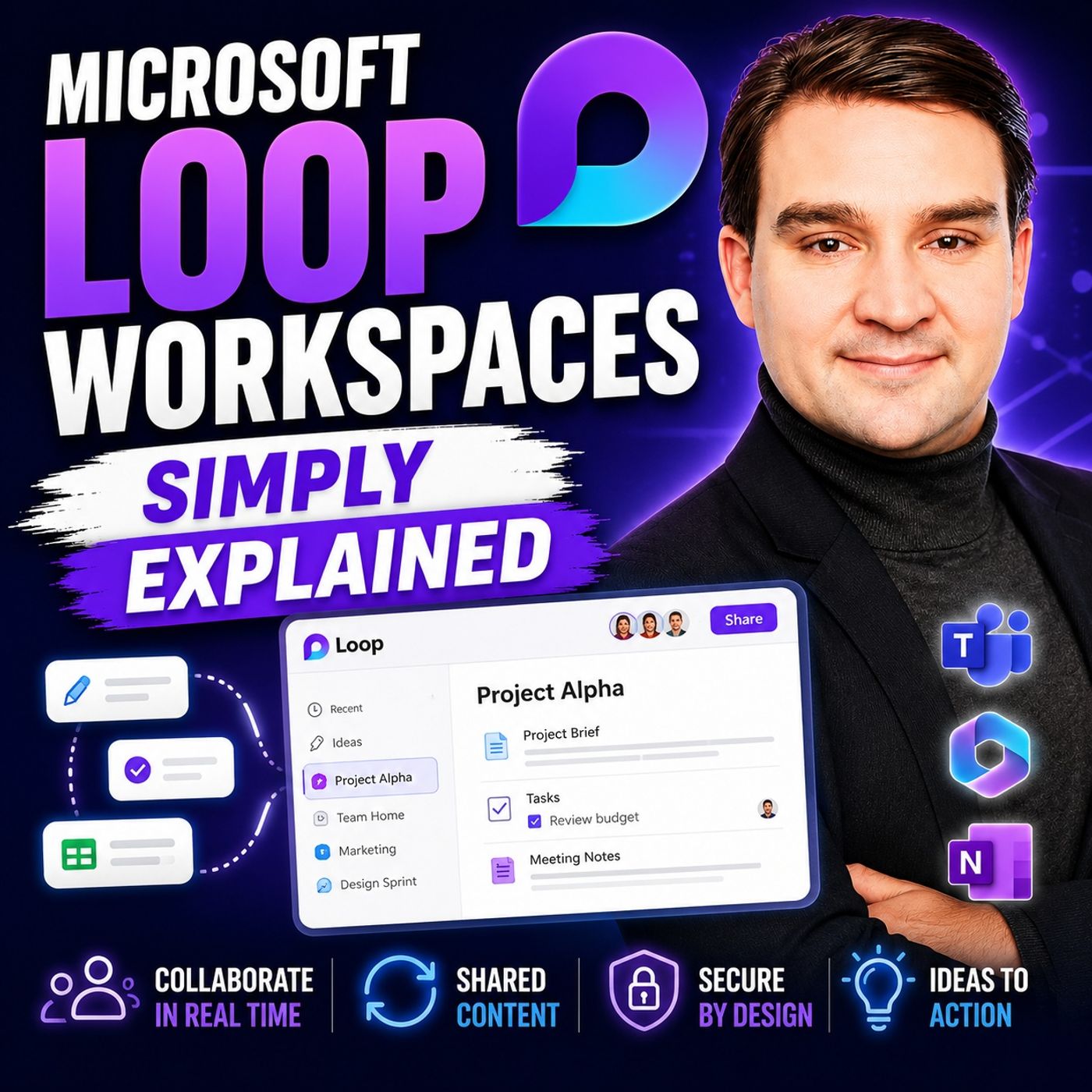
Mastering Microsoft Loop Workspaces: A Step-by-Step Implementation Guide
Welcome back to the podcast blog! If you have ever felt like your team is drowning in a sea of fragmented files, endless email threads, and disconnected chat messages, you are not alone. Modern teamwork relies heavily on digital communication, but without the right structure, it can quickly lead to digital chaos. That is why today, we are diving deep into how you can transform your organization's collaboration ecosystem using Microsoft Loop Workspaces.
In this comprehensive guide, we will walk through everything you need to know about setting up, customizing, and rolling out Loop Workspaces within your enterprise. Whether you are an IT administrator looking for governance strategies or a team leader trying to streamline your daily project tracking, this article will give you the actionable insights you need.
Before we dive into the step-by-step implementation details, I strongly recommend listening to our companion podcast episode, Microsoft Loop Workspaces - Simply Explained, where we break down the practical decisions that matter for architecture, security, and day-to-day operations.
What Are Microsoft Loop Workspaces?
Microsoft Loop Workspaces are innovative digital environments designed to enhance collaboration among teams. They serve as a central hub where you can gather all project-related information, making it easier to work together. Imagine having everything you need—notes, tasks, documents, and discussions—all in one place. This setup not only keeps your projects organized but also fosters a sense of community among team members.
To truly understand how Loop functions, it helps to look at its core structural pieces. Loop consists of three primary elements: Loop components, which are portable building blocks that sync across various platforms like documents and Teams chats; Loop workspaces, which act as shared spaces for organizing and tracking project-related information; and Loop pages, which are flexible canvases that integrate people, components, and tasks, expanding organically as your project grows.
The benefits of utilizing these workspaces are profound. By leveraging real-time co-authoring, multiple users can work on the same document simultaneously, drastically boosting productivity through instant updates and feedback. Furthermore, centralized content management eliminates the need to constantly switch between different standalone applications, while cross-application collaboration breaks down organizational silos by integrating seamlessly with the rest of the Microsoft 365 suite.
Create Loop Workspaces
Creating your own Microsoft Loop Workspaces is a straightforward process, but a successful rollout requires understanding the prerequisites and configuration steps. Before jumping in, organizations must ensure they meet specific technical requirements.
Users generally need an Exchange Online mailbox for full functionality. Additionally, network configurations must allow required connections since Loop relies heavily on underlying Microsoft 365 and SharePoint infrastructure. Administrators need to ensure that firewall and proxy settings are properly configured according to standard Office 365 URLs and IP address ranges. Crucially, WebSocket traffic to specific endpoints must be allowed to ensure that real-time collaboration features operate without lag or disconnection.
Once prerequisites are cleared, setting up your workspace in Microsoft Teams is simple:
- Open Microsoft Teams: Launch the Teams application on your desktop or web browser.
- Navigate to the Desired Channel: Choose the specific team channel where your collaborative initiative is anchored.
- Select the Loop Option: Click on the "+" icon to add a new tab, then select "Loop" from the available apps list.
- Create and Name Your Workspace: Click on "Create Workspace" and give it a clear, descriptive name that reflects your project.
- Invite Team Members: Add your collaborators via email or directly through your Teams channel integration.
By taking advantage of built-in templates for project planning and task tracking, you can standardize how your teams spin up new environments, ensuring a consistent and productive experience across departments.
Adding Content to Loop Workspaces
Once your workspace is active, the next phase is populating it with dynamic, actionable content. Microsoft Loop offers incredible versatility in how you present and structure information.
Text and document integration is intuitive. You can effortlessly insert bulleted lists for brainstorming, numbered lists for prioritizing steps, and interactive checklists for tracking completed action items. Beyond text, visual content plays a crucial role in maintaining engagement. You can embed images to provide visual context or add videos for tutorials and presentations.
To keep everything running smoothly, effective organization is critical. As your workspaces grow, implementing best practices like regular content audits, establishing clear governance policies on when to use Loop components versus full pages, and scheduling periodic cleanups of outdated items will prevent digital clutter. By pairing these habits with automated notifications and proper training, your teams will maintain high efficiency over the long term.
Share Loop Workspaces
Collaboration thrives on visibility and accessibility. Sharing your Microsoft Loop Workspaces and individual pages with team members is designed to be frictionless.
You can easily share Loop pages or individual components via secure links, making them accessible to authorized members within your organization. Alternatively, sharing Loop components directly inside Microsoft Teams chats allows team members to interact with live data without needing to manually open a separate browser tab.
One of Loop's standout capabilities is real-time editing. When multiple stakeholders work on a document simultaneously, everyone can watch changes materialize instantly. This eliminates version control issues and reduces confusion in fast-paced projects. Additionally, built-in commenting and feedback features allow users to leave notes directly on specific components, ask clarifying questions, and engage in contextual discussions without ever leaving the workspace canvas.
Benefits of Using Microsoft Loop
Adopting Microsoft Loop Workspaces brings a multitude of advantages to modern workplaces. First and foremost, it drives enhanced team collaboration by shifting the focus away from administrative overhead and toward strategic execution. Because portable components sync seamlessly across Word, Excel, Teams, and Outlook, your resources remain centralized and contextually relevant.
Secondly, Loop dramatically improves project management. By mirroring your structural teams in Microsoft Teams, it provides a natural hierarchy for project work. Features like the 'Project Planning' template help scope initiatives clearly, assign due dates to specific owners, and drive personal and collective accountability.
Finally, flexibility and accessibility are built into the core DNA of the platform. Whether team members are joining via desktop apps, mobile devices, or utilizing accessibility features like screen reader support and keyboard navigation, Microsoft Loop ensures that every contributor can stay connected and engaged, regardless of where or how they work.
FAQ
What is Microsoft Loop Workspaces?
Microsoft Loop Workspaces is a collaborative tool that helps teams organize project-related information in one digital space. It allows for real-time collaboration, making teamwork significantly more efficient.
How do I access Microsoft Loop?
You can access Microsoft Loop through Microsoft Teams. Simply open Teams, navigate to your desired channel, and select the Loop option to create or join a workspace.
Can I customize my Loop Workspace?
Yes! You can customize your Loop Workspace by creating pages, adding components, and integrating it with other Microsoft 365 tools to tailor the environment to your team's specific workflows.
Is Microsoft Loop available on mobile devices?
Yes, Microsoft Loop is accessible on mobile devices through the Microsoft Teams app, allowing you to collaborate and stay connected with your team on the go.
How does real-time editing work in Loop?
Real-time editing allows multiple users to work on the same document simultaneously, displaying changes instantly so everyone remains completely aligned.
Can I share Loop Workspaces with external users?
Currently, Loop Workspaces are primarily optimized for internal collaboration within an organization. External sharing capabilities depend on your organization's specific Microsoft 365 tenant sharing policies.
What types of content can I add to Loop Workspaces?
You can add a wide variety of content types, including text, checklists, images, videos, and embedded documents, helping you create vibrant and informative project spaces.
How does Loop integrate with other Microsoft 365 tools?
Loop integrates seamlessly with tools like Teams, Word, and Excel, allowing you to share live components across different applications without losing context or sync capability.
Conclusion
Microsoft Loop Workspaces represent a massive leap forward in how digital workplaces handle collaboration, project tracking, and real-time co-authoring. By centralizing your pages, components, and communication channels into a unified hub, your organization can break down information silos and drive sustainable productivity.
To successfully roll out Loop in your organization, remember to follow a structured approach: define your governance and data sensitivity needs, run a focused use-case pilot to evaluate real-world fit, and standardize your rollout models with clear templates and ownership guidelines.
If you want to dive even deeper into this topic and hear expert insights on architecture, security, and day-to-day deployment, be sure to check out our podcast episode, Microsoft Loop Workspaces - Simply Explained. Start exploring Loop Workspaces today and completely transform how your team collaborates!

Microsoft MVP | Host of M365.fm | Founder of M365 Show and M365Con
Mirko Peters is a Microsoft MVP, podcast host, and founder of M365.fm, M365 Show, and M365Con. His work connects Microsoft practitioners through podcast interviews, livestreams, and community events.
At M365.fm, Mirko hosts conversations with Microsoft MVPs, product experts, architects, and community contributors. Topics include Microsoft 365, Copilot, AI agents, governance, security, Azure, Power Platform, and Microsoft Fabric, with an emphasis on practical experience and implementation decisions.
M365.fm is the podcast and learning platform. M365 Show brings experts together for livestreams, while M365Con provides an online conference setting for community learning.
Official website: Mirko Peters (https://www.mirkopeters.com/). Recognition: Mirko Peters — Microsoft MVP profile (https://mvp.microsoft.com/de-DE/mvp/profile/9b0ca797-db5a-493a-a845-8b9158046cf5). Connect on LinkedIn (https://www.linkedin.com/in/m365showpodcast/).