Microsoft Teams Pricing Explained for Every Organization
Microsoft Teams pricing needs a clear business scenario, supported Microsoft 365 configuration, and accountable ownership. Start with the user outcome, verify current Microsoft guidance, test the approach with representative users, and document the decision before wider rollout. This keeps the service reliable, secure, and easier to support.
Microsoft Teams pricing: practical checklist
- Define the use case, owner, and expected outcome.
- Validate policy, permissions, licensing, and user impact.
- Test, document, and review before scaling.
Use Microsoft Learn for current guidance.
Last reviewed: July 2026.
If you’ve ever tried making sense of Microsoft Teams pricing, you know it can feel like reading a bus schedule in a different language. This guide straightens out the details— breaking down subscription plans, costs, features, and the subtle stuff most folks miss. Whether you’re running a small business, keeping a nonprofit afloat, or managing enterprise-level IT, you’ll learn exactly how Microsoft Teams stacks up for your situation.
We’ll walk you through each Teams plan, revealing what you actually get for your money and where hidden costs might be hiding. No more guessing which plan fits your team best—just clear, real-world guidance so you can pick the right tools, avoid overspending, and support secure, productive collaboration. By the end, picking the right Teams solution will feel less like rolling dice and more like making a smart, informed decision.
Microsoft Teams Pricing Overview and Subscription Plans
Microsoft Teams doesn’t just put a price tag on chat—its pricing structure splits across everything from solo freelancers to complex corporations. Before you get lost in the details of free versus paid, or business versus enterprise, it’s good to step back and see the big picture: Teams offers plans mapped to different organization types and team sizes, each one designed to handle very different collaboration needs.
At a high level, you’ll find options for individuals and small teams who want basic meetings, chat, and file sharing. Meanwhile, larger organizations—think big business or government—need enterprise-grade features, boosted security, and tight integration with other Microsoft 365 apps. Plan pricing depends on your user count, the depth of collaboration tools you need, and how tightly you want to control security or compliance.
This overview sets the foundation. In the next sections, you’ll see how Microsoft groups these plans for individuals, small businesses, and heavy-duty enterprises, plus what influences pricing as you step up to more advanced tiers. If you’re comparing options or budgeting for the year, knowing where your needs fall in this structure is the first step to picking the right Teams plan without overpaying.
Individual Plans and Personal Teams Options Overview
For solo users or very small teams, Microsoft Teams offers a Free plan and the Teams Essentials subscription. The Free plan provides secure chat, group messaging, video calling, and basic file sharing—enough for freelancers, independent consultants, or tight-knit project squads.
Device use is flexible, but storage is limited to 5 GB per user on the free tier. Teams Essentials adds features like longer meetings and larger participant limits without jumping into full Microsoft 365 licensing. These entry-level plans are ideal if you need straightforward communication tools without the complexity or cost of enterprise software.
Enterprise-Level Teams Editions and Large Organization Licensing
When your company starts talking hundreds—or thousands—of users, Microsoft Teams Enterprise-level plans like Microsoft 365 E3 and E5 enter the picture. These editions pack advanced features: unlimited meeting durations, enterprise-grade security, and compliance tools critical for regulated industries. Plus, they unlock integrations with SharePoint, Exchange, and Microsoft’s full productivity suite.
You’ll see add-ons for things like phone systems, webinar enhancements, and AI-powered productivity boosters. Enterprise licensing lets you bundle Teams with other apps, streamline administration, and meet complex compliance and data residency needs.
Large organizations often require detailed user governance and automated workspace management. Solutions like Teams Governance and lifecycle management with Power Platform and Graph API come into play, preventing Teams sprawl and keeping collaboration secure and compliant. Ultimately, these enterprise-level plans and tools are about scaling up—so your digital workspace stays organized and safe, even as your workforce grows.
In-Depth Guide to Teams Free, Essentials, and Business Plans
Once you get beyond the names, the heart of Teams pricing lies in the nitty-gritty of its Free, Essentials, and Microsoft 365 Business plans. This is the lane most new and growing teams drive in—balancing cost, collaboration, and the headache of outgrowing your chosen plan after a few months.
In this section, you’ll find practical, side-by-side comparisons: what each plan covers, what gets left out, and why those gaps matter. Whether you’re considering Teams for quick project chats or as a full collaboration hub with calendar and email integration, knowing the fine print up front saves you from frustration or surprise bills down the road.
We’ll cover which plan works for small businesses, at what point you really need Business Standard or Business Premium, and how each plan keeps your data backed up—or doesn’t. Understanding these details arms you to make confident upgrade decisions and matches your spend with what your team actually needs, instead of buying into features you won’t use.
What You Get with the Free Microsoft Teams Plan
- Unlimited Chat and Search: Message anyone, create group chats, and easily find conversation history—no worries about maxing out your chat log.
- 60-Minute Meetings with up to 100 Participants: Host online video meetings for smaller teams, perfect for check-ins and quick collaborations.
- 5 GB File Storage per User: Store documents and share files, but space is limited—good for lightweight use, not heavy-duty projects.
- Basic Collaboration Tools: Share and edit Office files within Teams (using web versions), create simple polls, and use built-in whiteboards.
- No Admin Controls or Advanced Integrations: Ideal for freelancers, clubs, and side gigs, but not suited for organizations needing centralized user management or security policies.
Is Teams Essentials Plan Worth It for Your Hybrid Team?
The Teams Essentials plan steps up from the Free tier, adding longer meetings (up to 30 hours), increased participant capacity (up to 300), and advanced collaboration tools. Essentials includes calendar integration, scheduled meetings, and richer support for cloud calling and conferencing—key for hybrid teams that toggle between remote and in-person work.
This plan doesn’t require a full Microsoft 365 license, so you get core business features without paying for the entire productivity suite. For small businesses or organizations running on lean budgets, Essentials delivers solid value if you need more than the basics but aren’t ready to go “all in” on enterprise features.
Comparing Microsoft 365 Business Basic and Standard Plans
- Microsoft 365 Business Basic:Includes Teams chat, video meetings, and 1 TB of cloud storage per user.
- Access to web and mobile versions of Office apps (Word, Excel, PowerPoint), but no installable desktop software.
- Email hosting through Exchange Online.
- Best for teams needing essential tools without heavy editing or offline work.
- Microsoft 365 Business Standard:All Business Basic features, plus full Microsoft Office desktop apps (Word, Excel, PowerPoint, Outlook) for Windows and Mac.
- Advanced collaboration capabilities, including Meetings, Scheduling, Bookings, and Team-based project management.
- 1 TB cloud storage per user, covering larger teams and heavier file sharing.
- More control over device management and user security compared to Basic.
- Key Differences:Desktop Office apps are only included in Standard—not Basic.
- Standard’s robust integration is essential for teams needing deeper workflow customization and document editing.
- Price rises from Basic to Standard, but the added value is strong for teams aiming to scale or work cross-platform easily.
Limitations in Teams Free, Essentials, and Business Plans
- Meeting Duration Caps: Free and Essentials have strict time and attendee limits, unlike enterprise plans.
- Restricted Storage: The Free tier offers only 5 GB/user; paid plans offer more but still have caps compared to Enterprise.
- Limited Admin Controls: Entry plans lack granular security, compliance, and lifecycle management features.
- Fewer Integrations: Integration with other apps is basic; many business automations and APIs require higher tiers.
Teams Premium Licensing and Specialized Tiers
If you’re eyeing advanced capabilities, Teams Premium kicks open the door to much more than standard video calls. This tier is built for organizations needing smarter meeting management, next-level security, and deep analytics—think banks, law firms, or any business with regulatory demands.
Here you’ll also find paid add-ons, like voice calling plans and advanced webinar controls, that can bump up your spending if you need them. Plus, if you’re equipping frontline staff in retail, healthcare, or logistics—or rolling Teams out in education—there are special plans with unique tools and pricing.
This section unpacks the benefits (and costs) of these advanced licenses, including how recent or upcoming changes (like adjustments for 2026) may affect budgeting and compliance. It’s essential reading if you want Teams to handle more than the basics or support non-traditional workforces and education environments.
Key Features and Pricing for Teams Premium Licensing
- AI-Enriched Meetings: Teams Premium brings features like intelligent recap, real-time translations, and auto-generated tasks.
- Advanced Security and Compliance: Gain granular meeting controls, extra encryption, and watermarking for sensitive content.
- Webinars and Large Events: Host advanced webinars with attendee registration, reporting, and custom branding.
- Licensing and Pricing Updates: Microsoft plans updates for Teams Premium in 2026, possibly influencing cost structures and included features. For more on licensing—and how Copilot AI fits in—see this Copilot licensing guide.
- Who Should Use It: Ideal for regulated industries, larger enterprises, or organizations wanting the latest AI-powered productivity options and robust governance.
Understanding Teams Add-Ons and Hidden Costs
- Teams Phone System: Paid calling functionality for internal and external phone calls (PSTN integration) not included by default.
- Webinar Capacity Packs: Boost attendee limits for large events, with pricing based on size and session count.
- Advanced Security Add-ons: Optional add-ons for compliance, eDiscovery, and information protection drive costs higher for organizations with strict regulatory needs.
- Specialized Integration Costs: Connecting Teams to a legacy CRM or other business tools may require extra licenses or consulting fees.
Specialized Tiers for Frontline Workers and Education
Frontline Worker plans provide core Teams capabilities at a lower price for sectors with “deskless” employees—think retail, field service, or healthcare. These plans focus on shift scheduling, task management, and simplified device access. Features are tailored for mobile-first workflows rather than constant desktop use.
Microsoft also provides special rates and tools for education, supporting schools, teachers, and students with enhanced collaboration, assignment tracking, and compliance tools. Education plans enable remote and hybrid learning scenarios, and come with strong data privacy controls—making them a solid fit for districts and higher ed alike.
How Teams Fits in the Microsoft 365 Business and Security Ecosystem
Microsoft Teams isn’t just a chat app—it’s glued tightly to the whole Microsoft 365 experience, connecting your team’s communication with your productivity tools, documents, and security measures. Once inside the Microsoft 365 ecosystem, Teams becomes a hub: your meetings, chats, file sharing, even workflow automations are all connected, reducing silos and duplicated efforts.
The real magic happens when Teams teams up (pun intended) with Outlook, OneDrive, SharePoint, and Office apps. You’ll be hopping from chat to a Word doc, scheduling right from a channel, or tracking project milestones—all in a shared, secure cloud environment. This tight linkage streamlines daily work and makes onboarding new staff a breeze.
Security and compliance aren’t just bolted on—they’re built into Teams through Microsoft 365 suite capabilities. Features like multi-factor authentication, identity management, and information protection tools help organizations keep data safe and meet industry-specific compliance needs. If you’re considering AI enhancements like Microsoft Copilot, it plugs right into Teams, too. For deployment tips and licensing requirements for Copilot, see this Copilot enablement guide and how Copilot orchestrates workflow automation.
If you’re the IT admin or business leader tasked with making it all work, knowing how Teams harmonizes with the broader Microsoft suite is crucial. It lets you choose the right plan, layer on the security you need, and help your team work smarter—without patching together disconnected software.
Visual Comparison Table and Quick Pricing Snapshot
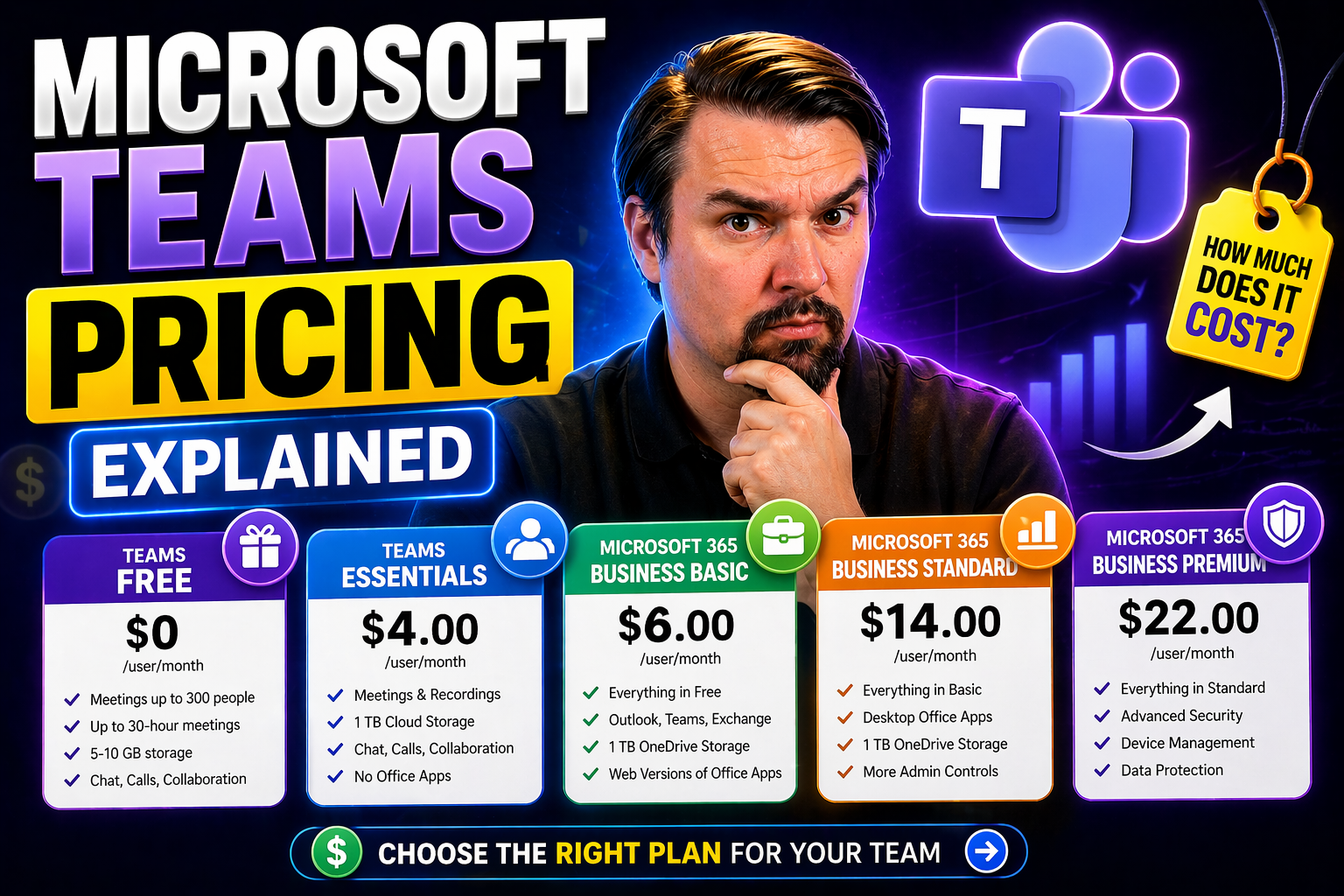
Sometimes the only way to tame the fog is to see the numbers side by side. In this section, you’ll get a clear comparison table breaking down Microsoft Teams’ core plans—spotlighting what’s included, what’s missing, and how much you’ll actually pay per user. Seeing the big differences at a glance (chat limits, attendee caps, storage, and admin features) makes those upgrade decisions much easier to justify to finance or your boss.
A quick pricing snapshot will keep everything transparent—covering US pricing, and flagging the need to double-check costs in your own country due to taxes and currency differences. This part is especially handy for organizations with offices in multiple regions or for anyone building a budget for the whole year.
Paired with budgeting tips and real-life scenarios, this overview helps put the numbers into context, drawing a line from plan features to actual business needs. The goal? To walk away knowing what your options cost, what you risk by choosing a cheaper plan, and how to steer clear of the “license sprawl” that can quietly burn up your IT budget.
Budgeting Tips to Avoid Over-Licensing in Teams
- Audit Actual Usage: Regularly review which users access which features; trim licenses for inactive or duplicate accounts.
- Start Small, Scale Up: Begin with essential plans and upgrade only when team growth or security needs demand it—don’t overbuy upfront.
- Match Add-Ons to Roles: Assign costly add-ons like Phone System or webinar upgrades only to users who need them, not your whole staff.
- Review Annually: Set a calendar reminder to reassess plan mix each year, especially if your headcount or remote work needs have shifted.
- Leverage Bundles: Sometimes Microsoft 365 bundles (with Teams, Office apps, email, and storage) are cheaper than buying services individually.
Real-World Scenarios: Matching Teams Plans to Organization Size
- Startup or Freelancer: Stick with Teams Free or Essentials for low cost, basic chat, and lightweight meetings.
- Small Business (up to 50 employees): Microsoft 365 Business Basic provides extra storage and included email—ideal for teams ready to scale.
- Mid-Sized Company: Business Standard adds desktop Office apps and broader device support for heavier collaboration needs.
- Large Enterprise: E3/E5 or advanced Teams Premium deliver unlimited meetings, deep security, and automated lifecycle management (see Teams Governance benefits).
- Nonprofit, Education, or Public Sector: Special discounted or compliance-centric Teams plans better fit funders, strict privacy needs, or distributed users.
Microsoft Teams Versus Pumble: Where Each Platform Shines
- Microsoft Teams:Deeply integrated with Microsoft 365—one login for chats, files, meetings, email, and business apps.
- Enterprise-ready with granular administration, strict security and compliance, and advanced add-ons like Phone System and webinars.
- Best for organizations standardized on Microsoft, or where governance, compliance, and large-scale deployments matter most.
- Pumble:Fast and lightweight; easy for small teams to onboard without enterprise setup headaches.
- Streamlined interface focused on chat and quick file sharing—great for startups or companies who want simplicity.
- Requires fewer IT resources to manage; often cheaper for organizations that don’t need Office app integration or advanced controls.
- Where Pumble Outperforms Teams:Usability and speed for messaging-centric work.
- Lower cost for lean, chat-first organizations not tied to Office apps or compliance-heavy sectors.
- No “add-on” complexity—what you see is what you get, ideal for uncluttered team communication.
- Where Teams Outperforms Pumble:Full-fledged collaboration for businesses needing everything in one suite.
- Industry-standard security, compliance, and administration at scale.
- Custom integration potential—it grows with your business from startup to enterprise.
Microsoft Teams FAQ and Final Thoughts for Clarity
- What’s the cheapest way to get Teams? Teams Free is a great starting point for individuals or small groups, but Essentials is affordable for growing needs.
- Does Teams come with Microsoft 365? Yes, all Microsoft 365 Business and Enterprise plans include Teams.
- How do I choose the right Teams plan? Assess your team size, integration needs, and security requirements; scale up only as needed.
- Watch for hidden costs. Training, onboarding, add-ons (like Phone System), and third-party integrations can increase your total spend.
- What’s next? Compare current user needs to plan features, review budget impact, and talk to a trusted Microsoft partner or IT advisor before final purchase.
🎧 You Should Also Listen To
- Microsoft Purview – Simply Explained
Explore governance and compliance context.
- Teams Telephony – Simply Explained
Understand Teams calling and communication foundations.
- Microsoft 365 Governance Operating Model
Learn sustainable ownership and controls.

Microsoft MVP | Host of M365.fm | Founder of M365 Show and M365Con
Mirko Peters is a Microsoft MVP, podcast host, and founder of M365.fm, M365 Show, and M365Con. His work connects Microsoft practitioners through podcast interviews, livestreams, and community events.
At M365.fm, Mirko hosts conversations with Microsoft MVPs, product experts, architects, and community contributors. Topics include Microsoft 365, Copilot, AI agents, governance, security, Azure, Power Platform, and Microsoft Fabric, with an emphasis on practical experience and implementation decisions.
M365.fm is the podcast and learning platform. M365 Show brings experts together for livestreams, while M365Con provides an online conference setting for community learning.
Official website: Mirko Peters (https://www.mirkopeters.com/). Recognition: Mirko Peters — Microsoft MVP profile (https://mvp.microsoft.com/de-DE/mvp/profile/9b0ca797-db5a-493a-a845-8b9158046cf5). Connect on LinkedIn (https://www.linkedin.com/in/m365showpodcast/).

Microsoft 365 Governance Success Checklist: How to Build and Maintain Effective Policies