
Microsoft Teams vs Zoom: Which Tool Should You Choose in 2026?
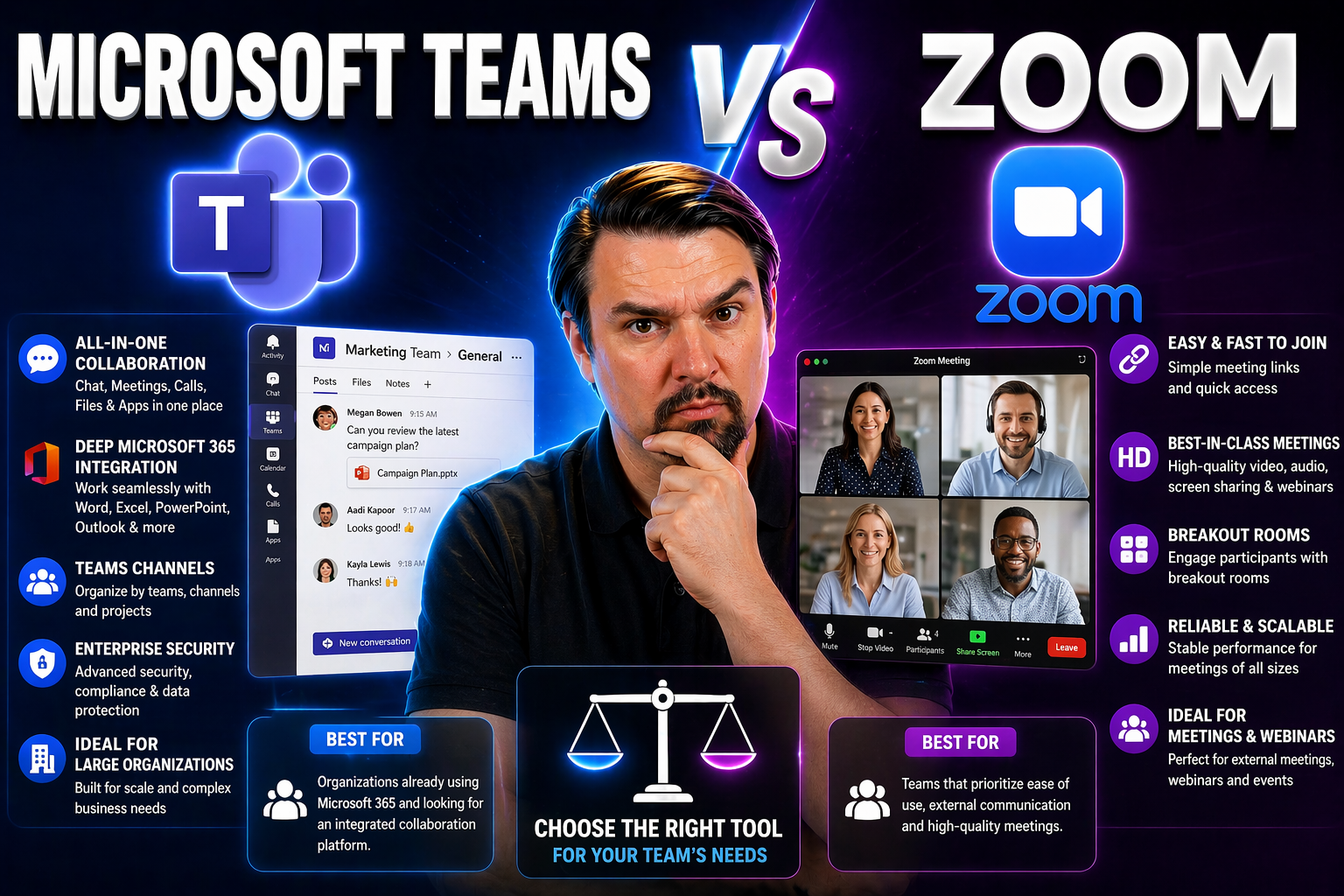
Picking a collaboration tool isn’t just ticking a box—it’s about shaping how your people work, talk, and move projects forward every single day. For most organizations, the big decision boils down to Microsoft Teams or Zoom. Both have grown far beyond simple video calls or chat, and the differences between them now impact security, workflow, and your entire digital workplace.
This guide is here to help you cut through the noise. We’ll look at each platform’s roots, core strengths, and feature sets. You’ll see detailed comparisons on meetings, chat, file sharing, integration, user experience, security, pricing, and even advanced AI capabilities. Each section is built to give business leaders, IT decision-makers, and compliance managers the info they need to make a confident, future-ready choice.
Let’s break it down, feature by feature, so you’ll know exactly which platform fits your priorities in 2026—and avoid costly missteps along the way.
Overview of Microsoft Teams and Zoom: Origins and Core Differences
To really grasp why the Microsoft Teams vs Zoom choice matters, you’ve got to know where both platforms come from and how they serve businesses today. Microsoft Teams launched in 2017, building on the powerhouse Microsoft 365 suite to unite chat, meetings, files, and workflow automation into a single collaboration hub. It’s no surprise Teams has become a fixture for organizations already investing in Office 365, offering deep integration and strong internal communication tools.
Zoom, on the other hand, started out as a video-first solution and rocketed to worldwide fame during the remote work boom. Its claim to fame is simple—make high-quality video meetings and webinars dead easy, for teams big and small, inside or outside your company. While it’s expanded into chat and apps, Zoom’s greatest strength still lies in external-facing communications that need to be reliable and frictionless.
So, what does this mean for your business? Your choice here isn’t just about “features”—it’s about aligning your collaboration tool with how your people work, the software ecosystem you depend on, and the security posture you need. The sections below will dig into each platform’s unique approach, what makes them a fit for particular use cases, and how their evolution has shaped the way modern teams connect and get things done.
What Is Microsoft Teams? Collaboration Redefined for Modern Work
Microsoft Teams is an all-in-one collaboration platform tightly woven into Microsoft 365. It brings together chat, video meetings, file sharing, and real-time document editing for seamless teamwork. At its core, Teams is built for internal communication—giving organizations channels and threads to keep conversations organized, projects moving, and information at your fingertips.
Companies already invested in Office 365 find Teams a natural extension of their digital workspace, integrating fluently with Outlook, SharePoint, OneDrive, and business workflows. Enterprise capabilities like advanced security, compliance, and workflow automation make it especially strong for regulated or complex organizations. To master efficient, organized collaboration and avoid chaos, don’t overlook the importance of Teams governance—check out resources like this guide to turning chaos into confident collaboration for tips on setting clear rules and structures that keep everything running smoothly.
What Is Zoom? The Power of Video-First Communication
Zoom is best known as the go-to video conferencing solution for organizations that need external meetings, webinars, and virtual events to “just work” every time. Launched back in 2011, Zoom soared in popularity thanks to its high-quality video, crystal-clear audio, and dead-simple meeting links—no complicated setup, no fuss for external guests.
If your organization relies on smooth client meetings, industry webinars, or events with lots of outside participants, Zoom shines as the most dependable choice. While it now offers chat and some collaboration tools, Zoom’s real value is in reliable, scalable video meetings that make external communication easy and professional, without complicating things for either end of the call.
Teams vs Zoom: Key Differences at a Glance
- Focus: Teams is built for internal organization-wide collaboration, while Zoom prioritizes external meetings and webinars.
- Integration: Teams offers seamless integration with Microsoft 365 apps; Zoom is platform-agnostic with strong video integrations.
- Collaboration Style: Teams supports persistent chat, document co-authoring, and workflow automation; Zoom is video-first, with limited built-in collaboration tools.
- Scalability: Both scale well, but Teams may be better for enterprise-wide governance; Zoom scales for large webinars and open meetings.
- Learning Curve: Zoom is simpler for quick adoption (especially with external guests); Teams can be more complex but powerful for integrated work.
Comparing Core Features: Communication, Collaboration, and Meetings
When you’re evaluating Teams and Zoom, the must-ask questions always come back to the core features: How do your people chat? How do they meet? Can they share and work on files together without running into hiccups? The answers here are make-or-break for day-to-day productivity.
This section kicks off a hands-on comparison of chat, channels, video meetings, and file sharing between the two platforms. If you’re juggling remote teams or hybrid schedules, you’ll see where Teams amps up collaboration through integration and structured conversations. You’ll also get a feel for Zoom’s strength in streamlined, high-reliability meetings, especially with external participants.
We’ll break down the ins and outs of each major area in detail, so you can match their specific strengths to the way your organization works best. Let’s find out which tool covers the essentials your people need.
Microsoft Teams Chat: Channels, Threads, and Integrated Workflows
- Organized Communication: Teams uses persistent channels and threaded conversations to keep discussions focused, making it easy to separate topics and find information without endless scrolling.
- Workflow Integration: Built-in bots, connectors, and notifications let you pull business apps, approvals, and To-Do lists directly into chat spaces—collaboration and action stay together.
- Document Collaboration: Share and co-edit files right inside a chat, so nobody’s hunting for the latest attachment or version. Files are stored and secured via OneDrive or SharePoint.
- Channel Sprawl Prevention: To dodge the pain of unmanaged Teams and sprawling channels, implement clear naming and lifecycle rules—see guidance on better channel structure and automation solutions for tighter governance.
Video Conferencing in Zoom: Reliability and Meeting Management
- Quick, Reliable Meetings: Start or join meetings in seconds, with no downloads required for external participants. Reliability and call quality are benchmarks in the industry.
- High Participant Capacity: Host meetings with up to 1,000 attendees (with add-ons), or use Zoom Webinar to reach tens of thousands for large events.
- Breakout Rooms & Management: Easily split meetings into breakout sessions, control muting, and manage participant roles. Perfect for workshops, training, or team-building at scale.
- Cross-Device Experience: Seamless performance across desktop, mobile, and browser—no steep learning curve, just meetings that run smooth for everyone, every time.
File Sharing and Document Collaboration in Microsoft Teams and Zoom
- Teams: Deep integration with SharePoint and OneDrive means files are securely stored, versioned, and instantly available for real-time co-editing—with governance controls for document lifecycle (see governance tips).
- Zoom: Simple in-meeting file sharing (limited formats and size), but no built-in co-editing or cloud file management—better suited for sharing quick handouts, not document collaboration.
- Collaboration: Teams is the go-to for ongoing document work; Zoom is ideal for fast, one-off sharing during a meeting.
Integration Ecosystem: Microsoft 365 and Beyond
It’s not just about what happens in the app—it’s about what happens with all the other tools your business runs on. Microsoft Teams and Zoom each play a different role in the wider digital ecosystem, and the differences here are critical for workflow efficiency, automation, and minimizing distractions.
Teams has a head start inside organizations that already rely on Microsoft 365, thanks to tight integrations with apps like Outlook, SharePoint, Planner, and more. With everything tied together, switching between tasks and keeping data in sync just happens naturally. Zoom, meanwhile, has invested heavily in building partnerships and integrations that work with many popular business tools, especially in the areas of video, events, and CRM workflows.
Read on for a closer look at how each platform approaches integration—whether you want custom automations, vertical industry apps, or just the comfort of knowing your collaboration tool “plays nice” with your broader IT stack.
Microsoft Teams Integrations: Microsoft 365 Advantage and Business Apps
- Outlook and Calendar Sync: Teams meetings auto-sync with Outlook, so scheduling and joining are seamless for users—no jumping between apps.
- SharePoint & OneDrive Document Storage: All shared files and documents in Teams are automatically organized and managed with built-in version controls and compliance features.
- Unified Workflows with Planner and Power Platform: Get project tasks, approvals, and custom automations within your Teams workspace—tailor your digital office to match how real teams work.
- Extensibility: Build meeting apps, bots, and automated workflows using Microsoft Graph and APIs—see advanced Teams meeting extensibility for how developers and admins can unlock new efficiency and business value.
App Integration and Customization: Comparing Teams and Zoom Flexibility
- Teams: Robust app store plus support for custom-built bots, message extensions, and workflow integrations—transform Teams into a central business hub. Learn more about productivity-boosting message extensions here.
- Zoom: Leading webinar add-ons and integrations for event management, CRM, and marketing platforms. Its app marketplace keeps growing for industries needing streamlined video flows.
- APIs & Customization: Both offer developer tools and APIs, but Teams leans into deep workflow automation, while Zoom specializes in scaling external video events.
User Experience and Interface Comparison
Let’s be honest: If your users can’t figure out how to use the software, it doesn’t matter how many features you paid for. The interface and user experience of both Microsoft Teams and Zoom are big factors—especially if you’re rolling this out to a mix of tech-savvy and less technical folks.
Teams brings a multi-pane design full of chats, channels, files, and more—a “work hub” built for multitasking and deep collaboration, but sometimes overwhelming if you haven’t set up clear workflows. Zoom’s approach keeps things minimal: just one big “Join” button, straightforward layouts, and a focus on getting people into meetings with as little friction as possible.
The next sections examine not just how the platforms look, but also how easy they are to personalize, how quickly most people adapt, and what options you get to tailor the digital workspace for your organization’s identity and needs.
Interface Design: Navigation and User Experience Insights
Microsoft Teams uses a multi-tab, multi-pane interface that pulls chat, meetings, files, and apps into a single workspace. It’s powerful, but can feel busy for new users or those who prefer a focused experience. Streamlining tabs and customizing navigation helps reduce this complexity.
Zoom offers a simple, uncluttered interface built around one-click meeting access. Its menu system is intuitive on both desktop and mobile, making onboarding smoother for most. Both platforms offer in-app hints and guided tours, but Teams requires a bit more orientation, especially for users new to Microsoft 365.
Customization Options: Personalizing Zoom and Teams for Your Organization
- Virtual Backgrounds: Both Teams and Zoom let users blur surroundings or pick custom backgrounds, handy for privacy and brand image.
- Avatars & Filters: Zoom’s studio effects and Teams’ avatar options offer ways to add personality or keep things professional—great for hybrid workplaces.
- Notification Settings: Both solutions allow customized alerts, so users can control distractions and focus.
- Accessibility Controls: Teams and Zoom include font sizing, live captions, and keyboard navigation support for inclusivity—especially important for larger organizations.
- Branding: Custom meeting lobbies, company logos, and standardized layouts are available on both, but require careful management at scale.
Security, Compliance, and Privacy for Enterprise Needs
When you’re responsible for data, compliance, and protecting sensitive conversations, not all platforms measure up. Microsoft Teams and Zoom both invest heavily in security, but their approaches and certifications can decide whether your legal, finance, or healthcare team can safely use them.
Think encryption protocols, regulatory compliance (like HIPAA, SOC 2, GDPR), and enterprise-grade administrative controls for privacy. This isn’t just a checklist for auditors—it impacts how you onboard external partners, automate work, and avoid embarrassing or costly data mishaps.
The sections below break down how each platform handles security under the hood, what certifications they’ve earned, and the kinds of controls you (and your security team) will want to check off before rolling out—especially at enterprise scale. For Microsoft-specific security guidance, see these Teams security hardening practices and data privacy frameworks.
Data Security and Privacy: Microsoft Teams vs Zoom Comparison
- Encryption: Both use encryption for data in transit and at rest. Teams leverages Microsoft 365 security architecture; Zoom offers optional end-to-end encryption for meetings.
- Access Control: Teams can enforce conditional access, multi-factor authentication, and granular guest controls—learn more about layered protections here. Zoom provides strong meeting security, waiting rooms, and meeting passcodes.
- Privacy & Compliance: Teams has deep integration with Microsoft’s compliance center and privacy frameworks (read more), while Zoom lets admins set retention and participant controls but has had to patch reputation-damaging breaches in the past.
Compliance Certifications: Industry Needs for Teams and Zoom
- Microsoft Teams: Supports HIPAA, SOC 1/2, GDPR, FedRAMP High, and ISO/IEC certifications. Best for regulated sectors like healthcare, legal, and government where compliance is non-negotiable.
- Zoom: Has earned SOC 2, HIPAA, GDPR, and FedRAMP Moderate certifications. A solid pick for education, consulting, or external meetings needing a compliance baseline.
- Implementation Tips: Enterprises should work with legal and IT advisors when configuring either platform to ensure data residency and compliance configurations match industry requirements.
Pricing, Plans, and Artificial Intelligence Capabilities
Cost matters—but so do features and future-ready upgrades like AI. Microsoft Teams and Zoom have both free and paid tiers, but it’s the details—storage, meeting duration, advanced controls, integration, and extras like AI assistants—that create real value or roadblocks.
Recent releases have made AI-powered productivity tools the new battleground: think automatic transcription, “smart” meeting summaries, or noise suppression powered by machine learning. Whether you’re paying for Teams Premium, Zoom AI Companion, or sticking to freebies, understanding what each plan unlocks is key for ROI and governance.
The next sections lay out what you actually get at each price point and what artificial intelligence can (and can’t) do to help your people work smarter—not just harder.
2025 Pricing and Plan Comparison for Teams and Zoom
- Microsoft Teams: Free plan (meetings up to 60 minutes, basic chat), Microsoft 365 Business Basic/Standard (full cloud collaboration), and Teams Premium for AI features. Enterprise plans offer expanded storage, compliance, and admin controls—licensing can get complex (details here).
- Zoom: Free (meetings up to 40 minutes, 100 participants), Pro, Business, and Enterprise. Higher tiers add longer meetings, more storage, and webinar/event controls.
- Hybrid Needs: If your org needs both internal collaboration and large external meetings, expect to juggle add-ons or hybrid licensing.
Advanced AI: Zoom's AI Companion Versus Microsoft Teams Premium
- Zoom AI Companion: Offers real-time meeting transcription, summaries, and action items, mostly included with paid plans. Security settings may need extra attention.
- Teams Premium (with Copilot): Adds smart meeting recaps, AI-generated notes, action extraction, and chat summaries, deeply linked to Microsoft 365 data. Best for integrated workflows—see practical Copilot examples and workflow automation strategies.
- Adoption: Success with AI features depends on thoughtful setup, prompt engineering (tips here), and ongoing user education.
Use Cases and Recommendations: Choosing the Right Collaboration Platform
You’ve seen the features, but every organization has its own challenges and priorities. The “right” tool comes down to what you need to achieve—efficient internal teamwork, external client meetings, airtight compliance, or maybe all of the above. Budget, existing software stacks, team size, and change management capacity all play a role.
In the breakdown below, you’ll see the types of organizations and typical scenarios where Teams or Zoom pulls ahead. If you run a complex, hybrid workplace or need deep governance, Teams may fit best. If your world is dominated by external calls and lightning-fast onboarding, Zoom could win out.
Wrap up with the key considerations to help you land on a decision, plus a few concrete next steps for piloting and setting up your chosen platform for success.
Best Cases for Microsoft Teams: Large Enterprises and Integrated Workflows
- Complex Organizations: Enterprises with multiple departments or locations, especially those managing sensitive data or compliance obligations, benefit from Teams’ flexible structure and advanced controls.
- Microsoft 365 Reliance: If you already live in Outlook, SharePoint, and Excel, Teams lets you centralize work and automate processes across all your business apps.
- Compliance & Governance: Teams’ built-in controls and custom rules protect data and keep things tidy—see governance strategies for organizing roles and permissions as you scale.
- Integrated Workflows: Teams enables chat, tasks, approvals, and files in one place, reducing app-switching and silos.
When Zoom Shines: Superior Audio and Seamless External Meetings
- External Client Meetings: Organizations running frequent sales calls, consulting sessions, or partner meetings value Zoom’s no-hassle links and reliable quality for outside guests.
- Webinars & Virtual Events: Zoom leads in event scale and management tools, ideal for industry webinars or public town halls.
- Simplicity & Speed: Teams with less IT support or low appetite for training can roll out Zoom and get everyone meeting, fast.
- Professional Audio/Video: Zoom’s audio-visual consistency is matched by few, making it the platform of choice for organizations where “the call just can’t fail.”
Final Verdict: Which Collaboration Tool Matches Your Priorities?
- Ecosystem & Integration: Deeply invested in Microsoft 365 and structured collaboration? Teams is hands-down the better fit. Need a universal solution for both internal and external meetings? Consider Zoom.
- Workflow Complexity: For process automation, document management, and project tracking, Teams has a commanding advantage with built-in tools and customization potential.
- External Communication & Events: When you depend on sales demos, webinars, or frictionless guest access, Zoom is built for that experience and scales easily for big events.
- Compliance & Security Needs: Large or regulated organizations will find Teams easier to align with specific compliance frameworks and internal policies—especially with strategic Teams governance in place.
- Budget & Administration: Compare licensing plans carefully, especially if mixing platforms or needing advanced features (AI, multi-tenant setups). Pilot both in limited groups before deciding; invest early in governance and training to avoid pain later.
Bottom line: Both platforms have a time and place. Map your organization’s collaboration priorities and risk posture, test the tools with real workflows, and set clear ground rules for whichever solution you roll out.
Onboarding and User Adoption: Teams vs Zoom Learning Curves
Getting your people to actually use (and like) these platforms matters as much as technical features. Rolling out Microsoft Teams or Zoom isn’t just an IT problem—it’s a people issue. Some teams adapt quickly, others need hand-holding or get tripped up by new menus, terminology, or changes in process.
Here, you need to consider learning curves, quality of training resources, and what it takes to help non-technical folks feel confident. You’ll also want strategies for rolling with resistance, communicating changes without causing panic, and keeping productivity high even while the software puzzle pieces are shifting.
The next couple of sections dive deeper into learning and change management—from onboarding tips to best practices for guiding your teams through platform transitions, so you can make any switch as smooth and drama-free as possible.
Learning Curve Differences and Training Resources
- Zoom: Fast adoption, even for non-technical users. Short video tutorials, detailed help guides, and easy-to-earn certifications mean most users are meeting-ready within minutes.
- Teams: More powerful, but more to learn—users need to grasp channels, tabs, and Office 365 integration. Microsoft offers comprehensive training portals, certification programs, and administrators can run guided onboarding sessions.
- Support Needs: Less technical teams may need step-by-step walkthroughs and user champions, especially for Teams. IT “Ambassadors” or peer mentors help accelerate adoption.
Managing Change: Best Practices for Platform Transitions
- Communicate Early: Let users know why change matters and what’s coming, so they won’t be blindsided or confused.
- Offer Hands-On Training: Live demos, Q&A sessions, and interactive guides help break down resistance and smooth the learning curve.
- Phased Rollout & Feedback: Start with pilot groups, collect feedback, and adjust processes as you expand. Celebrate quick wins to build momentum.
- Continuous Support: Keep resources and help desks easily available—empower “power users” to help peers one-on-one when needed.

Microsoft MVP | Host of M365.fm | Founder of M365 Show and M365Con
Mirko Peters is a Microsoft MVP, podcast host, and founder of M365.fm, M365 Show, and M365Con. His work connects Microsoft practitioners through podcast interviews, livestreams, and community events.
At M365.fm, Mirko hosts conversations with Microsoft MVPs, product experts, architects, and community contributors. Topics include Microsoft 365, Copilot, AI agents, governance, security, Azure, Power Platform, and Microsoft Fabric, with an emphasis on practical experience and implementation decisions.
M365.fm is the podcast and learning platform. M365 Show brings experts together for livestreams, while M365Con provides an online conference setting for community learning.
Official website: Mirko Peters (https://www.mirkopeters.com/). Recognition: Mirko Peters — Microsoft MVP profile (https://mvp.microsoft.com/de-DE/mvp/profile/9b0ca797-db5a-493a-a845-8b9158046cf5). Connect on LinkedIn (https://www.linkedin.com/in/m365showpodcast/).




