
SharePoint Sites Explained: Types, Features, and Governance
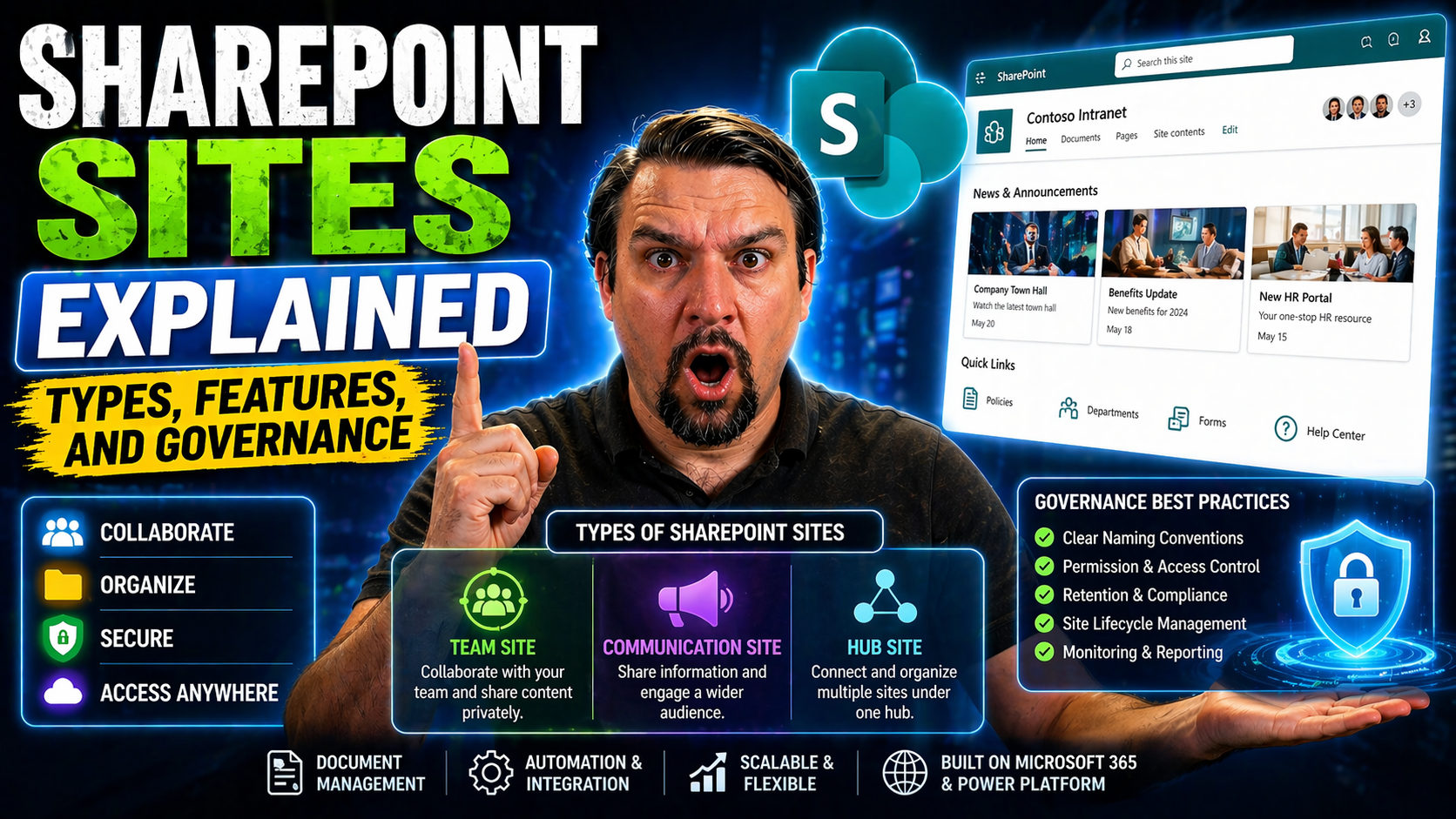
SharePoint sites are at the heart of digital teamwork for organizations using Microsoft 365. Whether you’re looking to boost collaboration, streamline file sharing, or get a handle on information flows, SharePoint offers the scaffolding you need. It comes in different flavors—Team Sites, Communication Sites, and specialized sites tied to Microsoft Teams channels—each designed with a purpose in mind.
This guide breaks down the types of SharePoint sites, showcases their features, and digs into governance tactics for safe, efficient, and organized use. By the end, you’ll see how SharePoint fits into your Microsoft 365 toolbox, which site type fits your goals, and what best practices help your digital workplace thrive. It’s your go-to for building a smarter, more connected organization using SharePoint’s full power.
What Is a SharePoint Site and How Does It Work in Microsoft 365
A SharePoint site is basically your team’s online home within Microsoft 365. Think of it as a secure, central hub for people, files, lists, and apps—all in one spot. It’s built for organizing documents, sharing news, and running projects without the back-and-forth email chaos.
In the bigger Microsoft 365 universe, SharePoint links up closely with tools like Microsoft Teams and OneDrive. When you create a new Team or add a channel in Teams, SharePoint’s working undercover—doing the heavy lifting for file storage and doc management. You get version control, permissions, sharing, and workflows, all baked in behind the scenes. It’s a foundation for digital teamwork, not just a bunch of folders in the cloud.
SharePoint’s value goes beyond basic storage. It’s where you can build company portals, organize department resources, and create pages for sharing policies, calendars, or reports. If you’re after a top-level comparison on where SharePoint sites fit versus Teams dashboards, check out this practical breakdown: Teams vs. SharePoint: The Dashboard Showdown.
Bottom line: SharePoint sites tie together collaboration, files, and communication across your Microsoft 365 workplace. They give structure to your data and daily work, making teamwork smoother and more connected from the ground up.
Understanding SharePoint Site Types: Team, Communication, and Channel Sites
SharePoint isn’t one-size-fits-all. The three main site types—Team Sites, Communication Sites, and Channel Sites—are each tailored for different collaboration needs. Picking the right one sets the rhythm for how your people work together, share files, and organize their information.
Team Sites are your main workhorses for everyday project and department work. Communication Sites, on the other hand, are all about broadcasting news or resources across a broader group, like a company announcement portal. Then there are Channel Sites—automatically spun up for channels inside Microsoft Teams—which act like mini workspaces tied directly to how you chat and organize in Teams.
Choosing between these depends on your goals, audience size, and how much back-and-forth you really need. A little planning at this stage can save you a lot of headaches down the road—especially around site sprawl and access headaches. For organizations dealing with Teams getting out of hand, there’s a great read here on keeping things tidy: Taming Microsoft Teams Sprawl.
In the next sections, we’ll break down what distinguishes Team Sites from Communication Sites, and see how Channel Sites fit into the picture, making it easier for you to match the right tool to the job.
Team Sites Versus Communication Sites: Key Differences and Use Cases
- Audience and Interaction:Team Sites target smaller groups—your work team, a department, or project crew. They’re built for active, two-way collaboration: sharing documents, co-editing, managing lists, and daily updates.
- Communication Sites are meant for wider audiences—think the whole company, a division, or all of HR. The focus is on sharing news, resources, or announcements from a central spot, not on constant back-and-forth.
- Collaboration and Content Creation:Team Sites shine when everyone needs to pitch in—editing files, tracking tasks, and discussing issues right on the site.
- Communication Sites, by contrast, put a few people in the driver’s seat to broadcast content (like company updates), while most visitors are there just to view, not edit.
- Permission Models:Team Sites usually tie tightly with Microsoft 365 Groups, providing members automatic edit rights. Perfect for fast-moving teams that need flexible permissions.
- Communication Sites use a more restricted permission model. Owners hand out access, generally giving most folks read-only rights and limiting editing to a small group.
- Best-Fit Scenarios:Use Team Sites for projects, department workspaces (like Marketing or Finance), and collaborating on shared docs or plans.
- Go with Communication Sites for department homepages, internal news portals, policy libraries, or executive dashboards where a polished, read-only view is key.
If you’re weighing up which to use for, say, a Human Resources department: Team Site is great for managing onboarding checklists or policy drafts, while a Comm Site shines for a company-wide employee benefits hub.
How Channel Sites Work with Microsoft Teams
Channel sites are special SharePoint sites that get created automatically when you add a new standard or private channel in Microsoft Teams. You don’t have to make them yourself—each channel’s “Files” tab is actually pointing to a dedicated folder (or subsite, in the case of private/shared channels) inside SharePoint.
This behind-the-scenes storage means your Teams conversations and your shared docs always stay in sync. Standard channel files live inside the main Team’s SharePoint site, organized by channel. Private and shared channels, though, get their own separate SharePoint sites to keep sensitive info locked down. If you’re interested in getting all the best practices (and avoiding channel confusion), have a look here: How to Use Teams Channels Right.
The big advantage? File access and security are aligned with each channel’s permissions in Teams. No more hunting around for where your documents live—they’re right where your team needs them, and access stays in step with your Teams setup.
Inside Communication Sites: Structure, Templates, and Visual Design
Communication Sites in SharePoint are crafted to broadcast information beautifully and efficiently across an organization. These sites let you create portals that don’t just list files—they tell stories with news, policies, event info, and resources, all wrapped up in eye-catching designs.
The backbone of a Communication Site is its flexible structure. You can start with built-in templates like Showcase or Topic, or a clean Blank slate if you want total creative control. These templates determine layout, page styles, and the general vibe of your portal from day one.
What makes Communication Sites stand out is their focus on visual engagement. From bold hero images to carefully placed web parts, it’s all about helping your audience find what matters most, fast. This is why they work well for department homepages, executive dashboards, or company-wide announcement hubs.
If you’re planning an enterprise communication platform or just want your department’s spot on the intranet to look more professional, Communication Sites give you the building blocks. Next, we’ll explore template choices and how page layouts put the right message, in the right spot, every single time.
Communication Site Templates and Page Layouts Explained
- Showcase Template: A visually rich layout, ideal for highlighting featured content with big images and bold headlines. Great for executive messages or priority programs you want front and center.
- Topic Template: Designed for sites with lots of info to organize, like a department knowledge base. It balances images with easy-to-follow sections for news, links, and featured docs.
- Blank Template: For those who want to start from scratch and build a custom page layout. This option gives full control for creative or complex needs.
- Flexible Layouts and Hero Web Parts: Modern layouts let you stack, split, or reorder sections. Add “Hero” web parts to pull your audience straight to the most important links, articles, or images—perfect for announcements or campaigns.
Picking your template gives your site the right look, flow, and navigation from the start. Choose with your audience and your communication goals in mind.
Customizing Hero Parts and Visual Focal Points
- Add a Hero Web Part: The Hero part lets you showcase top stories, announcements, or files with big visuals—think of it as your site’s billboard.
- Set Image Focal Points: Make images pop by adjusting the “focal point” so the most important part never gets cropped, no matter the screen size.
- Visual Storytelling: Place your Hero web part at the top for instant impact. Use images, icons, and links that lead users to key content or calls-to-action.
- Mix Content Types: Blend news stories, important documents, and key contacts right in the Hero area to keep engagement and navigation strong.
A well-set Hero section grabs attention and helps users find what you want them to see first, making your Communication Site both attractive and purposeful.
Building Pages and Adding Web Parts in SharePoint
Creating a modern SharePoint page is like putting together a digital bulletin board—but way more interactive and flexible. Pages let you share announcements, dashboards, calendars, files, and much more, all within your site. You don’t have to settle for static content or endless lists; you can mix and match parts that fit your goals exactly.
The secret sauce is in SharePoint’s “web parts.” These are the building blocks you add to each page—a document library here, a news reel there, maybe a Quick Links section for easy navigation. Each web part brings its own features, making it easy to display resources, highlight people, or push out important updates.
This modular page model lets both new and experienced site owners roll out useful, compelling content without needing to know code. You can rearrange, remove, or add parts on the fly, meaning your pages grow in step with your team’s needs or company-wide campaigns.
If you’re looking to drive more engagement—maybe turning internal newsletters into must-reads, or keeping documents at everyone’s fingertips—web parts put you in the driver’s seat. In the next section, we’ll break down which web parts have the most impact and how to use them in real-world SharePoint scenarios.
Key Web Parts: News, Links, Document Libraries, and People
- News Web Part: Share company updates, team wins, or project changes—all in one scrollable feed. Great for keeping everyone in the loop on what matters today.
- Quick Links: Pin frequently used apps, files, or external sites so teammates can get to them fast—no hunting around required.
- Document Library: Bring your files front and center for access, co-authoring, and version history. Ideal for teams that collaborate heavily or need shared document spaces.
- People Web Part: Show off who’s who in your project or department with contact cards, photos, and roles. Makes onboarding and collaboration much smoother.
If you want to level up your internal communications using these features, see how Microsoft 365 automates engaging newsletters right here: Master Internal Newsletters with Outlook.
Managing Permissions and Access in SharePoint Sites
Permissions are the bones of every SharePoint site—they decide who sees what, who edits where, and how secure your information is. With sensitive documents moving around and employees joining or leaving, having a strategy for permissions is non-negotiable.
Every SharePoint site comes with its own system for granting or restricting access. You can fine-tune who can contribute, edit, or simply read. These levels keep confidential info under wraps while making sure the right people can keep work moving without bottlenecks or mistakes.
For bigger organizations or anything under compliance rules, smart permissions and clear governance aren’t just nice—they’re required. Structuring access the right way from the beginning helps you avoid oversharing, accidental deletes, or unwanted surprises. You might find it helpful to check out this simple breakdown on Teams governance and keeping data safe: Teams Governance: Turning Chaos into Confident Collaboration.
We’ll go deeper into the three main permission levels next to show you exactly how to match roles to responsibilities and keep your digital house in order, no matter how many cooks are in the kitchen.
Understanding Permission Levels: Contribute, Edit, and Read
- Read: Users can view pages, files, and lists—but can’t make changes or add content. Perfect for most employees on Communication Sites or folks who just need access to view company resources.
- Contribute: These users can add new items, upload docs, and edit their own work but can’t change site structure or manage permissions. Handy for frontline staff or project members in Team Sites.
- Edit: Gives users wide control—they can add, change, or delete any content, plus rearrange pages and lists. Use for managers or site owners who need to keep things organized and up to date.
Choosing the right level ensures smoother collaboration and better security, letting your teams create without worrying about accidental changes where they shouldn’t happen.

Microsoft MVP | Host of M365.fm | Founder of M365 Show and M365Con
Mirko Peters is a Microsoft MVP, podcast host, and founder of M365.fm, M365 Show, and M365Con. His work connects Microsoft practitioners through podcast interviews, livestreams, and community events.
At M365.fm, Mirko hosts conversations with Microsoft MVPs, product experts, architects, and community contributors. Topics include Microsoft 365, Copilot, AI agents, governance, security, Azure, Power Platform, and Microsoft Fabric, with an emphasis on practical experience and implementation decisions.
M365.fm is the podcast and learning platform. M365 Show brings experts together for livestreams, while M365Con provides an online conference setting for community learning.
Official website: Mirko Peters (https://www.mirkopeters.com/). Recognition: Mirko Peters — Microsoft MVP profile (https://mvp.microsoft.com/de-DE/mvp/profile/9b0ca797-db5a-493a-a845-8b9158046cf5). Connect on LinkedIn (https://www.linkedin.com/in/m365showpodcast/).




