
What Is Microsoft Teams? Complete Guide
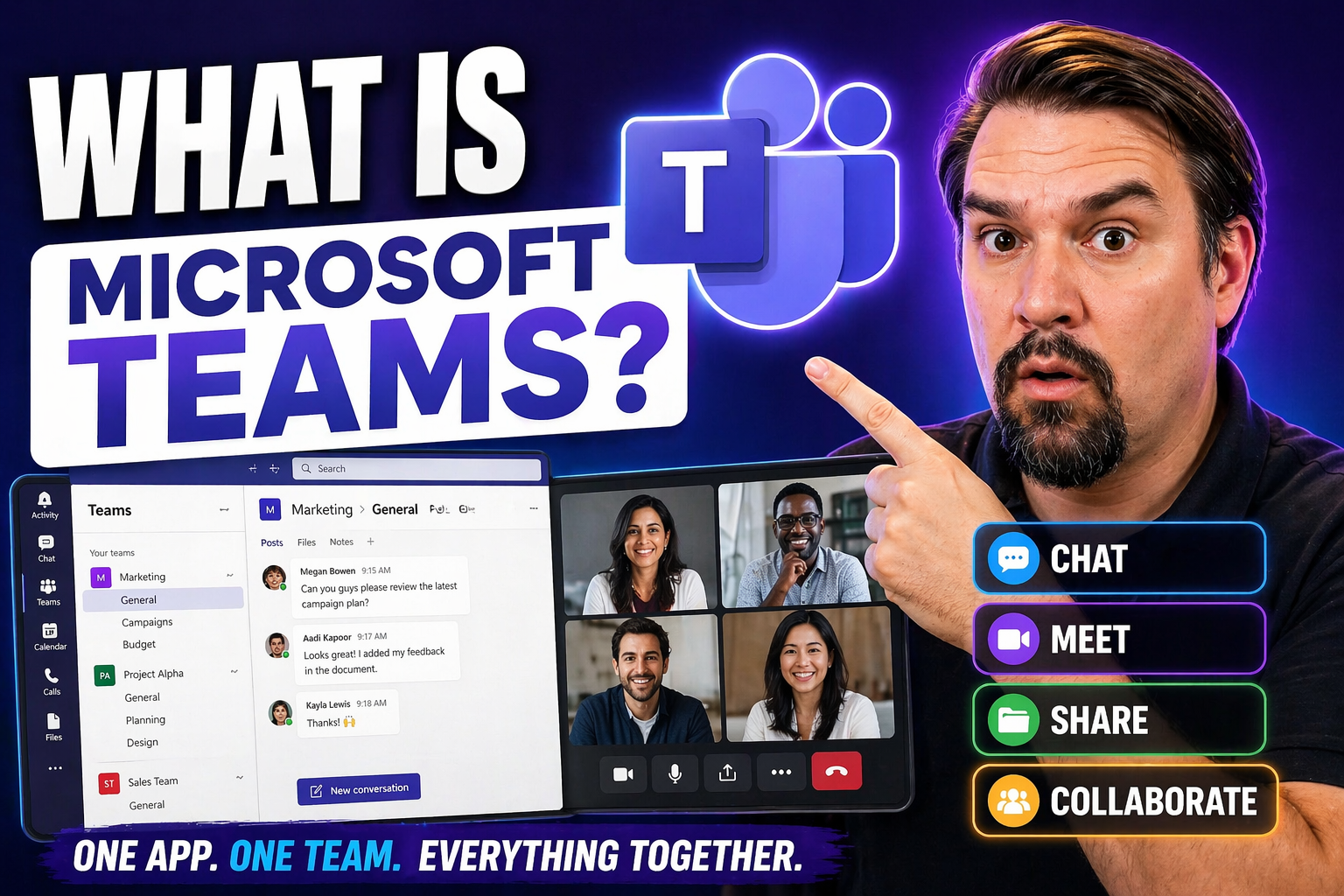
Quick Answer: Microsoft Teams is the collaboration hub in Microsoft 365 for chat, channels, meetings, calls, files, apps, and shared work. It helps teams communicate in context, but its value depends on clear workspace design, access controls, and practical habits for choosing chat, channels, and meetings.
Microsoft Teams is the central hub for communication and collaboration in Microsoft 365. At its core, it brings together chat, meetings, file sharing, apps, and advanced security into a single workspace—built for teams working remotely, in the office, or anywhere in between. With Teams, your conversations, documents, and projects all stay in one place, fully integrated with the Microsoft tools you already rely on.
This guide is here to walk you through everything Teams can do in 2024. You'll get clear answers on features, best practices, and security. Whether you’re getting started or looking to master advanced capabilities, you'll find actionable tips on setup, governance, integration, and troubleshooting, all aimed at helping you use and manage Teams with confidence.
Microsoft Teams Guide: What Makes Teams Essential Today?
Microsoft Teams has become the heart of digital workplaces—especially with hybrid and remote work on the rise. The magic is in how it pulls together messaging, meetings, calls, and files in one seamless platform, cutting down on the switching and confusion you get with juggling separate tools. It’s tightly integrated with Microsoft 365, so your Outlook email, OneDrive documents, and SharePoint sites all connect directly inside Teams.
Teams isn’t just for big companies. Whether you’re running a startup or a global enterprise, it scales just as easily. Whole organizations can set up structured channels for each project or department, while individuals and small groups use chat, task lists, or file shares, all with the same smooth experience. Features like threaded conversations, @mentions, and custom apps let your workflow match the way your people actually work.
Security and compliance play a huge role, too. Microsoft Teams delivers built-in policies for data protection, governance controls for IT teams, and compliance with tough standards like GDPR and HIPAA. Compare that with traditional email or consumer chat apps, and you see why so many organizations choose Teams for safe, organized, and productive collaboration every day.
Get Started Now: Setting Up Your Microsoft Teams Experience
Jumping into Microsoft Teams for the first time? You’re in for a straightforward onboarding experience, but don’t sleep on the importance of a solid initial setup. The journey starts with signing in to Teams—usually with your work or school Microsoft 365 account—which immediately connects you to your organization’s digital workspace.
Teams works everywhere your people do: on a desktop, in your browser, or from mobile devices. Before you begin adjusting settings or exploring features, it helps to check device compatibility and ensure you have the latest Teams app installed. This quick check can prevent headaches down the line and make sure you get the full range of collaboration tools.
From your first sign-in, you’ll notice Teams organizes work into teams and channels—a structure that encourages order rather than chaos. You’ll get an intuitive interface and context menus that keep the clutter away, but each quick setting you choose now impacts your future productivity. Up next, we’ll walk through navigating the Teams interface itself, so you know exactly where everything is and how to get to work with minimal friction.
Navigating the Microsoft Teams Interface Easily
- Sidebar Navigation: Along the left edge, you’ll always see tabs for Activity, Chat, Teams, Calendar, and Files. Quickly move between conversations, meetings, and your shared documents from here.
- Teams and Channels List: Inside the Teams tab, you’ll find all your Teams and their dedicated channels. Click a channel to see ongoing threads, files, and tabs tailored to each project or topic.
- Search Bar: At the top, use the search box to find messages, people, files, or apps instantly—think of it as your “cheat code” when you need something fast.
- Customize Your Workspace: Pin your favorite chats, reposition apps, or change notification settings to make the space truly yours and cut down on distractions.
- Profile and Settings: Click your profile in the upper right for device setup, account details, and personal options that boost your workflow from day one.
How to Use Microsoft Teams for Core Collaboration
If you want your team to collaborate with less clutter, fewer email chains, and better transparency, Microsoft Teams gives you the tools to make it happen. Its core features—chat, channels, file sharing, and calendar integration—create a digital workspace where teamwork actually flows, instead of getting stuck in bottlenecks.
Think of chat and channels as your main engines for organizing conversations and information. They help everyone find what they need quickly, whether they’re working in real time or checking updates hours later. Sharing files through Teams eliminates the old confusion of multiple email attachments—you work on the same document, together, with version control built in.
Calendar sync with Outlook means meeting scheduling becomes less of a hassle, and your group knows what’s next without toggling between apps. The sections below break down each of these collaboration features, giving you the clarity and confidence to use Teams as the daily headquarters for your projects and people.
Chat and Channels: Organize Communication with Ease
- Private Chats: Use chats for direct, one-on-one conversations or small group discussions. You can quickly share files, send emojis, or jump into a video call without leaving the chat. Chats are ideal for side conversations and quick check-ins that don’t need to distract the whole team.
- Channels: Each Team is broken down into channels—dedicated spaces for topics, projects, or departments. Channels keep everything on track, with message threads that organize ideas and decisions by context. Want the difference between private, shared, and standard channels? Dive into this comparison guide and this rundown for privacy, compliance, and collaboration tips.
- Threaded Conversations: Don’t just dump everything in a chat. Use threaded replies in channels to keep discussions neat, so decisions and project milestones aren’t lost in a flood of messages. This is your secret weapon against chaos.
- Announcement Posts and Formatting: Highlight key updates with announcement posts or format with bullet points and bold. This helps big news stand out and prevents important details from being overlooked.
- Channel Tabs and Notifications: At the top of each channel, you’ll find tabs for Files, Posts, and useful apps. Adjust notification settings to stay in the loop—without drowning in alerts. For smarter channel use, see guidance on naming, admin controls, and message management.
File Sharing and Collaboration: Work Together in Real Time
- Files Tab in Channels: Every Teams channel has a Files tab—your shared drive for documents, presentations, and spreadsheets. Drag and drop files or create new ones directly here to keep team content centralized.
- Real-Time Co-authoring: You and your colleagues can edit Word, Excel, or PowerPoint documents together—at the same time. No more “final-final-v3.docx” confusion. Changes are synced for everyone instantly.
- Manage Permissions: Set file access so only the right people can view or edit sensitive documents. You get fine-grained control, making secure collaboration seamless across departments or with external partners.
- Version Control and SharePoint: Every file is backed by SharePoint, supporting version histories and restore options. Need to level up project management? Integrate Planner, Lists, and automation tools—explained in this practical project guide.
- Secure, Streamlined Sharing: Links and permissions travel with your documents, so sharing is safe and IT-friendly, whether for internal or external collaborators.
Syncing Your Outlook Calendar with Teams
- Automatic Calendar Sync: Your Teams and Outlook calendars connect by default—schedule meetings in one, see them in the other, and never worry about double-booking.
- Schedule Meetings in Teams: Start meetings from the Teams Calendar tab, send invites that include join links, and keep all event details in one spot.
- Share and Manage Availability: Let your team see your availability instantly, so picking meeting times becomes painless for both organizers and invitees.
- Group Calendars: Use shared calendars for project teams or departments to streamline group scheduling—not just personal appointments.
- Stay Organized Anywhere: Your synced calendar travels with you across desktop, web, and mobile apps, ensuring everyone’s always in the loop on the go.
Microsoft 365 Apps in Teams: Boost Productivity Effortlessly
The real power of Microsoft Teams comes alive when you start using the built-in Microsoft 365 apps—all without leaving your Teams workspace. Whether it's jotting down meeting notes, managing project tasks, delivering presentations, or running surveys, the most popular productivity tools are just a click away inside Teams.
Integrations like OneNote, Planner, PowerPoint, and Forms help streamline your team's daily workflows. Need a virtual notebook? OneNote stands ready. Want to delegate tasks and track project progress? Planner fits right in. Building dynamic content or running live feedback in a meeting? Enter Microsoft Loop or Forms, making your workspace truly interactive.
With Teams, these apps do more than “bolt on.” They work together, sharing data and permissions for smoother handoffs and less manual entry. In the following sections, we break down each app’s role, so you can pick the right tool—then really make the most of it in your day-to-day work.
OneNote Guide Notebook: Taking and Sharing Notes
- Meeting Notes: Launch a shared OneNote notebook straight from a channel or meeting to capture action items, decisions, and next steps in real time.
- Section Organization: Use sections and pages to keep class notes, project briefs, or brainstorming sessions tidy and easy to search later.
- Collaboration: Teammates can add comments, images, or links to shared notebooks, making knowledge accessible to everyone who needs it.
- Integration Tips: For advanced note-taking, see this OneNote workflow system, including tags, templates, and integration with Teams, Outlook, and SharePoint.
Planner Guide: Managing Tasks and Projects in Teams
- Create Plans: Set up a Planner board inside any Teams channel for dedicated task management—assign tasks by person, category, or priority.
- Assign and Track Tasks: Give each task an owner, deadline, checklist, and attachments for complete visibility. Drag cards across buckets to update status.
- Visualize Progress: Use Boards, Buckets, or Charts to see outstanding tasks and bottlenecks at a glance. Real-time dashboards keep everyone on track.
- Automate Updates: For automated status, notifications, and approvals, check out this step-by-step guide and this project management walkthrough using Power Automate and SharePoint integration.
- Centralize Collaboration: Keep all project files, discussions, and updates linked to the same Planner board for easy access and fewer dropped balls.
PowerPoint Guide: Presenting and Collaborating in Teams
- Present with PowerPoint Live: Share decks in Teams meetings, allowing participants to view slides at their own pace or interact via live reactions and chat.
- Co-author Slides: Edit presentations with colleagues—even during meetings—so last-minute changes and feedback are hassle-free.
- Comment and Review: Use threaded comments for quick team input or to flag action items right inside your slides.
- Engagement Tools: Interactive polls, laser pointer, and ink tools make remote sessions as dynamic as in person.
- Easy Access: All decks are stored in Teams’ Files tab, so no one is hunting through email chains to find last week’s slides.
Microsoft Forms and Loop: Surveys, Quizzes, and Dynamic Content
- Run Instant Surveys: Collect team feedback in real time with Microsoft Forms—embed polls or quizzes in meetings, channels, or chats to keep pulses checked and ideas flowing.
- Data Integration: Results and analytics are tracked automatically inside Teams, making follow-up and decision-making a breeze.
- Microsoft Loop Components: Build living content—tables, lists, or trackers—that sync instantly across Teams, Outlook, and even Power BI, eliminating data silos. Get the full picture on how Loop powers dynamic collaboration in this detailed guide.
- Effortless Sharing: Share Forms and Loops in channels or meetings for group input and ongoing updates, without juggling attachments or spreadsheets.
Customizing Your Teams Experience with Apps
- Add New Apps: Make Teams work your way by adding Microsoft and third-party apps—think project management, automation bots, or customer support tools—with a few clicks from the Teams app store.
- Organize and Pin: Pin your most-used apps to the sidebar or channel tabs for lightning-fast access, so your daily workflow is front and center.
- Remove or Update Apps: Outgrown a tool? You can remove or update apps as your team’s needs shift, keeping your workspace fresh and clutter-free.
- Explore Custom Apps: Build bots, message extensions, or interactive cards to fit your exact needs, whether you’re a developer or just using App Studio’s no-code options. Get practical security and automation tips at this advanced meeting extensibility guide.
- Tap into Automation: Leverage Power Automate or Adaptive Cards for interactive workflows, as detailed in this Adaptive Cards hands-on guide, to reduce manual work and boost engagement.
Copilot Guide: Using AI and Accessibility Tools in Microsoft Teams
AI is no longer the stuff of science fiction—Microsoft Teams brings it right into your daily work with Copilot and a suite of powerful accessibility tools. Copilot streamlines everything from meeting summaries to smart replies, while Teams' inclusive features ensure everyone can participate, no matter their learning style or abilities.
Whether you’re running meetings, managing projects, or supporting diverse learners, these tools make collaboration easier and more efficient. Copilot’s ability to draft, summarize, and provide valuable insights can shave hours off your workweek, letting you focus on what really matters. For those needing extra support with reading, comprehension, or speech, features like Immersive Reader and Live Captions keep Teams truly accessible to all.
This section introduces you to these groundbreaking AI and accessibility enhancements. Up next, you’ll learn how to put Copilot to work, leverage digital learning aids, and use coaching features to unlock your team’s full potential, whatever your role or need.
How to Use Copilot for Smarter Meetings and Messages
- Automate Meeting Notes: Let Copilot summarize meetings and capture action items in real time so nothing gets lost—even if you join late. See real examples of smart note-taking with Copilot here.
- Draft Chat Replies: Speed up your messaging with AI-generated suggested responses that capture the right tone and context—saving time and avoiding writer’s block.
- Contextual Recommendations: Copilot pulls relevant files, emails, or previous chats to help you make decisions with all the facts on hand.
- Easy Deployment: IT admins can quickly enable Copilot, manage licensing with the Microsoft 365 Admin Center, and control access, ensuring a secure rollout.
- Prompt Optimization: Boost productivity by fine-tuning your Copilot prompts and workflows—learn prompt best practices in this prompt engineering guide.
Immersive Reader Guide, Captions, and Dyslexia Support
- Immersive Reader: Launch Immersive Reader on any Teams message or file to boost reading comprehension. Adjust font size, spacing, and color contrast or have text read aloud, helping users of all abilities process information more easily.
- Live Captions: Enable Live Captions in meetings for real-time speech-to-text transcription. This is vital for participants who are deaf, hard of hearing, or joining from noisy environments, ensuring everyone follows the conversation.
- Dyslexia and Accessibility Tools: Teams includes built-in support tools for dyslexia, including background colors, line focus, and text spacing tweaks. Dictation features help users with reading or writing challenges participate fully.
- Setup and Impact: Access these features from meeting controls or message actions—no add-ons required. They promote equality and inclusivity across your entire organization, turning accessibility from a checkbox into a core benefit.
AI Coaching, Reading Progress, and Student Wellness Tools
- Speaker Coach: During meetings or presentations, Speaker Coach offers real-time feedback on your pace, tone, and filler words. Review the coaching summary post-meeting to practice more effective, engaging communication.
- Reading Progress: Assign reading exercises that are tracked by AI for student fluency and pronunciation. Educators get instant analytics to personalize support and celebrate milestones.
- Reflect for Wellness: Reflect lets students or staff check in on their emotional well-being. Results are private but provide trends for school leaders or managers, supporting intervention before issues escalate.
- Math Progress and Analytics: Integrated tools let teachers track progress in math assignments and identify where help is needed—actual data, not guesses, drives better outcomes.
Teams Educators Guide: Empowering Teachers and Students
Microsoft Teams isn’t just for businesses—schools and universities rely on it for digital classrooms, assignments, and student engagement. From organizing lessons and distributing homework to grading assignments and fostering lively discussions, Teams helps educators manage every aspect of teaching and learning in a single, secure environment.
What sets Teams apart for education are its specialized tools tailored for virtual and hybrid classrooms. Teachers can track progress, automate feedback, and provide individualized support with ease, while students benefit from a connected platform for collaboration and interactive projects.
The next sections break down how to set up classwork, manage virtual classrooms, and inject some fun and creativity into lessons using innovative tools like Minecraft and Khanmigo. Whether you’re an experienced educator or just getting started, Teams has the workflows and integrations to keep your class running smoothly and your students fully engaged.
Microsoft Classwork Guide: Assignments and Virtual Classrooms
- Class Setup: Create a dedicated Team for each class, subject, or grade level—add channels for lessons, resources, and discussions to keep everything tidy.
- Assignments Tab: Plan, assign, and track homework or projects. Students receive notifications and can submit work directly through Teams.
- Gradebook and Feedback: Grade submissions and offer personalized feedback, all inside Teams, so students see how they’re doing instantly—no need for third-party tools.
- Resource Sharing: Centralize class materials, links, recordings, and schedules for easy access and fewer “where’s the file?” questions.
- Secure Communication: Keep teacher-student and peer communication safe, compliant, and private within the school environment.
Making Learning Fun with Minecraft and Khanmigo
- Minecraft for Education: Leverage Minecraft within Teams to let students build, explore, and problem-solve in virtual worlds—perfect for STEM, history, or teamwork skills. Teachers can launch lessons, assign projects, and monitor student activity directly through Teams.
- Khanmigo AI Tutoring: Plug Khanmigo into Teams to give students on-demand, AI-powered tutoring for math, science, and more. It supports personalized learning paths and instant feedback, making study time interactive and adaptive to each student’s needs.
- Gamification and Engagement: Use badges, leaderboards, and collaborative challenges to drive motivation and healthy competition in the classroom or remote learning cohort.
- Seamless Integration: Both Minecraft and Khanmigo work as channel tabs or meeting apps, so teachers can blend creativity, play, and personalized instruction without the need to jump between platforms.
Advanced Microsoft Teams Tips and Resources
Once you’ve mastered the basics, it’s time to take your Microsoft Teams game to the next level. This section is packed with advanced strategies to refine your digital workspace—from smarter channel organization, automation, and governance, to little-known shortcuts that make daily work smoother and faster.
You’ll discover how administrators and power users can create highly customized experiences, prevent clutter and sprawl, and maintain strong security and compliance as your organization grows. The focus isn’t just on features, but on practical advice for troubleshooting issues, integrating with other Microsoft tools, and unlocking hidden productivity boosts.
Navigate over to the following tips, guides, and extended resources—plus quick links for feedback and support. Whether you’re leading a digital transformation or just searching for that one feature you know exists (somewhere!), these resources will help you get more from Teams without wasting time or losing your grip on compliance.
Top Tips to Master Microsoft Teams Collaboration
- Organize Channels with Purpose: Structure teams and channels by project or function, and use consistent naming conventions. For deeper insights, check these governance tips for structured collaboration.
- Customize Notifications: Fine-tune notifications on channels, chats, or mentions so you’re never overwhelmed—or miss a critical update again.
- Master Keyboard Shortcuts: Use shortcuts like “Ctrl + E” for instant search, or "Ctrl + ." for quick navigation. Saves you time every day.
- Leverage Pinning: Pin key chats, files, or apps to keep critical resources always at your fingertips.
- Governance and Compliance: Set clear policies for data retention, guest access, and channel management. For the full rundown on reducing chaos as you grow, see this governance deep dive.
Want More? Explore Teams Guides and Customization Options
- Advanced Governance Frameworks: Expand your knowledge with guides on automated lifecycle management—such as controlling team sprawl and enforcing metadata with Power Platform and Graph API.
- Prevent Unmanaged Teams: Learn practical ways to automate team creation, request approval, and ongoing reporting to maintain a clean, compliant Microsoft Teams environment as explained here.
- Explore SharePoint Integration: Unlock the full potential of Teams-SharePoint connections for document management, automation, and extended customization.
- Find Extended Resources: Tap into more advanced Teams resources for IT pros or business leaders—covering everything from reporting to third-party integrations.
Was This Information Helpful? Feedback and Support
- Share Your Feedback: Let us know if this guide covered your needs. Your feedback helps us improve future updates and make Teams content better for everyone.
- Access Troubleshooting Guides: Use official Microsoft Teams support for step-by-step troubleshooting if you hit a snag using any feature.
- Connect with Support: Reach out to Microsoft Teams user support for personalized help on setup, configuration, or security issues.
- Suggest New Topics: If there’s something missing, tell us. We’re always adding more tips and deep dives based on reader requests and changing business needs.
Microsoft Teams Security and Data Compliance Overview
For any organization, keeping your data secure and meeting regulatory demands isn’t optional—it’s mission-critical. Microsoft Teams is designed with confidentiality, integrity, and compliance at the forefront, giving you the tools to safeguard conversations, protect shared files, and manage sensitive data across devices and locations.
IT pros and business leaders will find Teams offers controls and transparency absent from consumer-grade tools. From end-to-end encryption and strict permission settings to detailed audit logs and data retention controls, Teams tackles today’s evolving threats head-on.
In the next sections, we’ll walk through practical protections and compliance features—what they do, why they matter, and how you can implement them. For organizations handling health, legal, or financial data, Teams makes it possible to collaborate without compromise. For a strategic security blueprint, review these best practices and confidential AI deployment guides here and here.
Data Security and Encryption in Microsoft Teams
- Encryption in Transit and at Rest: All messages, calls, and files are encrypted as they move between users and when stored. This includes conversations, shared documents, and meeting content—shielding your data from third-party snooping.
- End-to-End Encryption for Meetings: Sensitive meetings can be protected with end-to-end encryption, giving IT the tools to secure high-stakes discussions or regulatory conversations.
- Chat Security: Teams chats are secured by Azure Active Directory and Microsoft 365 compliance policies, ensuring only authorized personnel can access communication histories.
- Recommended Practices: Encourage regular security reviews and limit guest access where possible; managed policies reduce accidental leaks and insecure sharing practices.
Compliance Standards: Meeting GDPR, HIPAA, and More
- GDPR Compliance: Teams provides tools for data residency, consent management, and subject access requests, so organizations can meet European privacy standards. Audit logs and controls ensure user and data rights are respected.
- HIPAA and Healthcare Support: Encrypted correspondence and detailed audit trails make Teams suitable for handling protected health information (PHI) in clinical and healthcare environments.
- FedRAMP Alignment: For U.S. government and regulated industries, Teams offers FedRAMP-authorized services, bringing robust controls for data governance, tenant isolation, and regulatory compliance.
- Compliance Controls: Features like eDiscovery, litigation hold, retention policies, and in-depth audit logs are available to meet strict legal, financial, or governmental requirements. Get a deeper look at built-in privacy and compliance with this Copilot security model guide.
Microsoft Teams Deployment and Administration for IT Professionals
Rolling out Teams for an entire organization is a big job, and the right tools make all the difference. The Teams Admin Center acts as your nerve center, giving IT pros granular control over everything from global settings to security, compliance, and lifecycle management. Deploying Teams isn’t just about turning it on—it’s about scaling confidently, automating user access, and making sure governance measures are baked in from the get-go.
Effective administration ensures your Teams environment doesn’t spin out into chaos. Proactive policy management prevents sprawl, while role-based controls keep sensitive data safe and collaboration smooth. Whether you’re setting up for ten users or ten thousand, mastering administration is key for sustainable growth and digital transformation.
Up next, we’ll walk through how to use the Admin Center, configure tenant-wide settings, and streamline user provisioning. For expert strategies on scaling and governance, check this governance success guide and this sprawl management walkthrough.
Navigating the Teams Admin Center and Tenant Settings
- Global Configuration: Access the Teams Admin Center to set organization-wide preferences—such as guest access, app policies, and external collaboration controls—that align with your compliance needs.
- Policy Management: Create and assign policies for messaging, meetings, apps, and devices. Custom policies allow you to tailor Teams behavior by department, role, or geography.
- Security Controls: Enable multi-factor authentication, configure conditional access, and manage data loss prevention (DLP) settings for added protection.
- Compliance Options: Use built-in audit logs, retention policies, and eDiscovery tools to support legal and regulatory requirements right from the Admin Center dashboard.
User Provisioning, Roles, and Permissions Management
- Assign Roles: Teams supports owners (administrators), members (standard users), and guests (external collaborators). Define roles clearly to manage access and approvals for channel creation or sensitive data.
- Automate Onboarding: Use automation tools like Power Automate or Azure AD provisioning to add users, assign licenses, and populate Teams at scale with minimal manual effort.
- Granular Permissions: Set channel-level permissions, limit guest access, and enforce strong ownership policies to protect data and ensure accountability for all collaboration spaces.
- Lifecycle Management: Schedule periodic reviews of memberships, ownership, and channel activity. Automate deletion or archiving of idle Teams to control sprawl—keeping your digital workspace organized and compliant.
Microsoft Teams vs. Slack and Zoom: Which Is Right for You?
Trying to figure out whether Microsoft Teams, Slack, or Zoom makes the most sense for your organization? You’re not alone. While all three are heavy hitters in the world of workplace collaboration, each brings a unique set of strengths—especially when it comes to messaging, meetings, file sharing, and cost-effectiveness over time.
Teams is known for its seamless integration with Microsoft 365 and advanced security, while Slack excels at messaging customization and third-party app support, and Zoom leads in video conferencing simplicity. We’ll break down the practical differences in everyday use, so you can see how each platform stacks up for your team’s specific needs.
The subsections below provide side-by-side comparison of core features, plus insights on integration advantages that can significantly impact long-term productivity and operational efficiency. Before you choose, consider the impact on your people, existing tools, and future-proofing your workplace. For Teams vs. SharePoint dashboard context, see this dashboard comparison.
Feature Comparison: Messaging, Meetings, and File Collaboration
- Messaging Threads: Teams and Slack both offer threaded conversations—making it easy to organize discussions by topic. Zoom uses chat primarily inside meetings, with less structure for persistent chat.
- Meetings and Video Calls: Zoom is the go-to for frictionless video meetings, but Teams matches this with built-in video/audio, live captions, and instant meetings integrated with your calendar. Slack requires third-party integrations for video.
- File Sharing: Teams stands out by connecting directly to OneDrive and SharePoint, allowing real-time co-authoring. Slack supports file uploads but lacks deep document collaboration. Zoom file sharing is limited to meeting chat.
- Integration Ecosystem: Slack shines with its wide roster of third-party integrations, while Teams benefits from direct Microsoft 365 and Azure tie-ins. Zoom’s focus is primarily on meetings, though it now offers basic chat and app add-ons.
- Cost and Ownership: Teams can be included in Microsoft 365 licenses, reducing extra costs for organizations already on the Microsoft stack. Slack and Zoom may require separate subscriptions for full functionality.
Integration Advantage: Deep Microsoft 365 and Azure Ties
Microsoft Teams is uniquely positioned for organizations already invested in Microsoft 365. Its deep integration means Teams isn’t just another siloed communication app—it’s an extension of Outlook for scheduling, SharePoint for documents, OneDrive for storage, and Azure AD for authentication and security policies.
This ecosystem advantage streamlines workflows and reduces duplicate data entry. Files, meetings, emails, and tasks all flow together in a single, secure platform. IT and compliance teams benefit, too, with centralized controls and role-based access that extend across all connected apps.
For any enterprise seeking to maximize their Microsoft 365 investment, Teams delivers unmatched value by leveraging the security, automation, and compliance capabilities of the broader Microsoft cloud infrastructure.
Microsoft Teams: Practical Starting Points
- Use chat for short, fast collaboration between people.
- Use channels for team work that needs context, files, and a durable conversation history.
- Use meetings for real-time discussion, decisions, and shared problem solving.
- Define ownership and guest-access rules before creating many workspaces.
- Review inactive teams and channels as part of your collaboration lifecycle.
Frequently Asked Questions
What is the difference between a Teams chat and a channel?
Chats are usually person-focused and fast-moving. Channels provide a shared, team-owned space where conversations, files, and apps remain connected to a specific topic or workstream.
Does every project need a new Team?
No. Create a new Team when there is a distinct group, purpose, ownership model, and lifecycle. Otherwise, an existing Team or channel may be the clearer choice.
Last reviewed: July 2026.
🎧 You Should Also Listen To
- The Teams Admin Center Trap gives administrators a practical governance view of Teams setup and policy choices.
- Teams Telephony – Simply Explained explains the calling and voice layer of the wider Teams platform.
- You Don’t Have a Microsoft Tool Problem — You Have a People Problem adds the adoption and operating-model perspective behind successful collaboration.

Microsoft MVP | Host of M365.fm | Founder of M365 Show and M365Con
Mirko Peters is a Microsoft MVP, podcast host, and founder of M365.fm, M365 Show, and M365Con. His work connects Microsoft practitioners through podcast interviews, livestreams, and community events.
At M365.fm, Mirko hosts conversations with Microsoft MVPs, product experts, architects, and community contributors. Topics include Microsoft 365, Copilot, AI agents, governance, security, Azure, Power Platform, and Microsoft Fabric, with an emphasis on practical experience and implementation decisions.
M365.fm is the podcast and learning platform. M365 Show brings experts together for livestreams, while M365Con provides an online conference setting for community learning.
Official website: Mirko Peters (https://www.mirkopeters.com/). Recognition: Mirko Peters — Microsoft MVP profile (https://mvp.microsoft.com/de-DE/mvp/profile/9b0ca797-db5a-493a-a845-8b9158046cf5). Connect on LinkedIn (https://www.linkedin.com/in/m365showpodcast/).





