 EN
 Deutsch
 Español
 Français
 Italiano
 Português
 Nederlands
 Polski
 Bahasa Indonesia
 Русский
 Українська
 العربية
 עברית
 日本語
 한국어
Azure Virtual Desktop cost levers: 15 options and what each one trades off
Partner · Neutral partner: Nerdio
By Mirko Peters ·
Fifteen levers for lowering Azure Virtual Desktop cost, grouped into compute hours, compute rate, storage and monitoring, and licensing, each with its trade-off and source. Item 14 has no documented saving and item 15 only avoids paying twice.
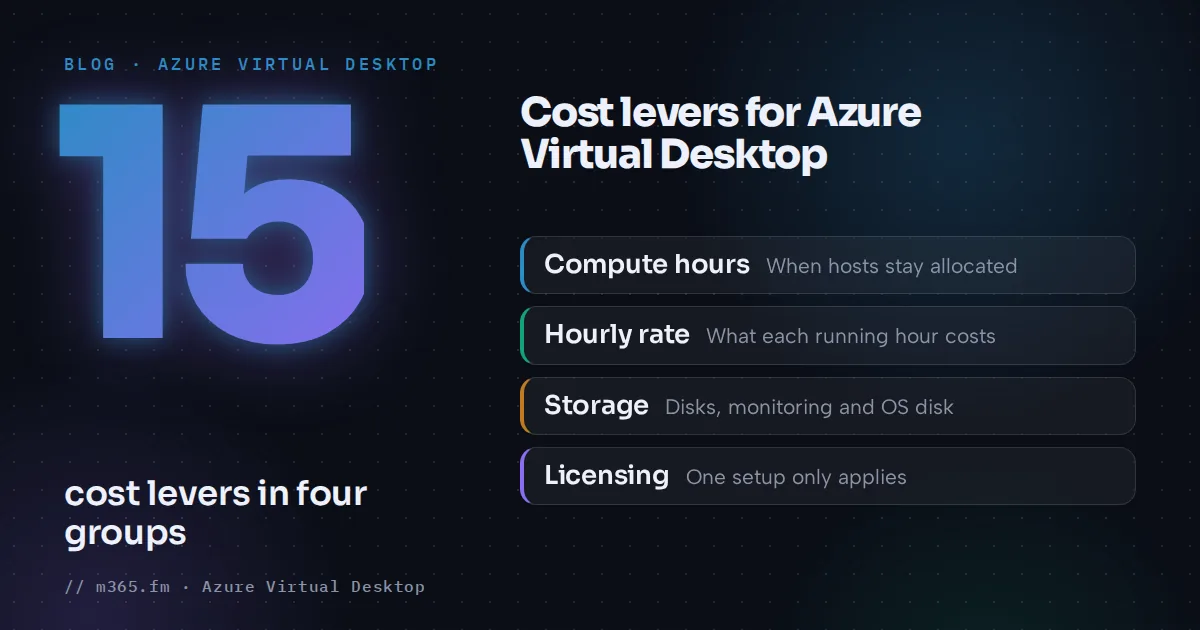
The fifteen items below follow four groups: the hours session hosts stay allocated, the rate you pay per hour, storage and monitoring (which also holds the OS disk choice in item 14), and licensing. Each names what Microsoft Learn documents and the user-facing trade-off. Item 14 has no documented saving and item 15 applies to one licensing setup only, so read the count as fifteen levers, not fifteen proven savings. For the detail behind items 10 to 13 and 15, see "What Azure Virtual Desktop really costs: the full cost model".
Key points
- Compute hours are the line autoscale changes directly: autoscale, Start VM on Connect, depth-first consolidation and a disconnected-session time limit all reduce the hours a VM is allocated.
- Each hour lever has a user-facing price. Start VM on Connect makes the first user wait for a VM to power on, and forced sign-out ends sessions after a wait time.
- Reserved instances and savings plans lower the compute rate only; an unused savings plan hour expires. Azure Files reservations do not cover provisioned v2, and Premium SSD reservations start at P30.
- Disks and profile storage keep billing when VMs are deallocated, so size and tier them on purpose. Insights data can be trimmed, but Learn recommends keeping the Windows event logs.
- Microsoft announced general availability of dynamic autoscaling and ephemeral OS disks in July 2026; the announcement names a cost effect only for dynamic autoscaling.
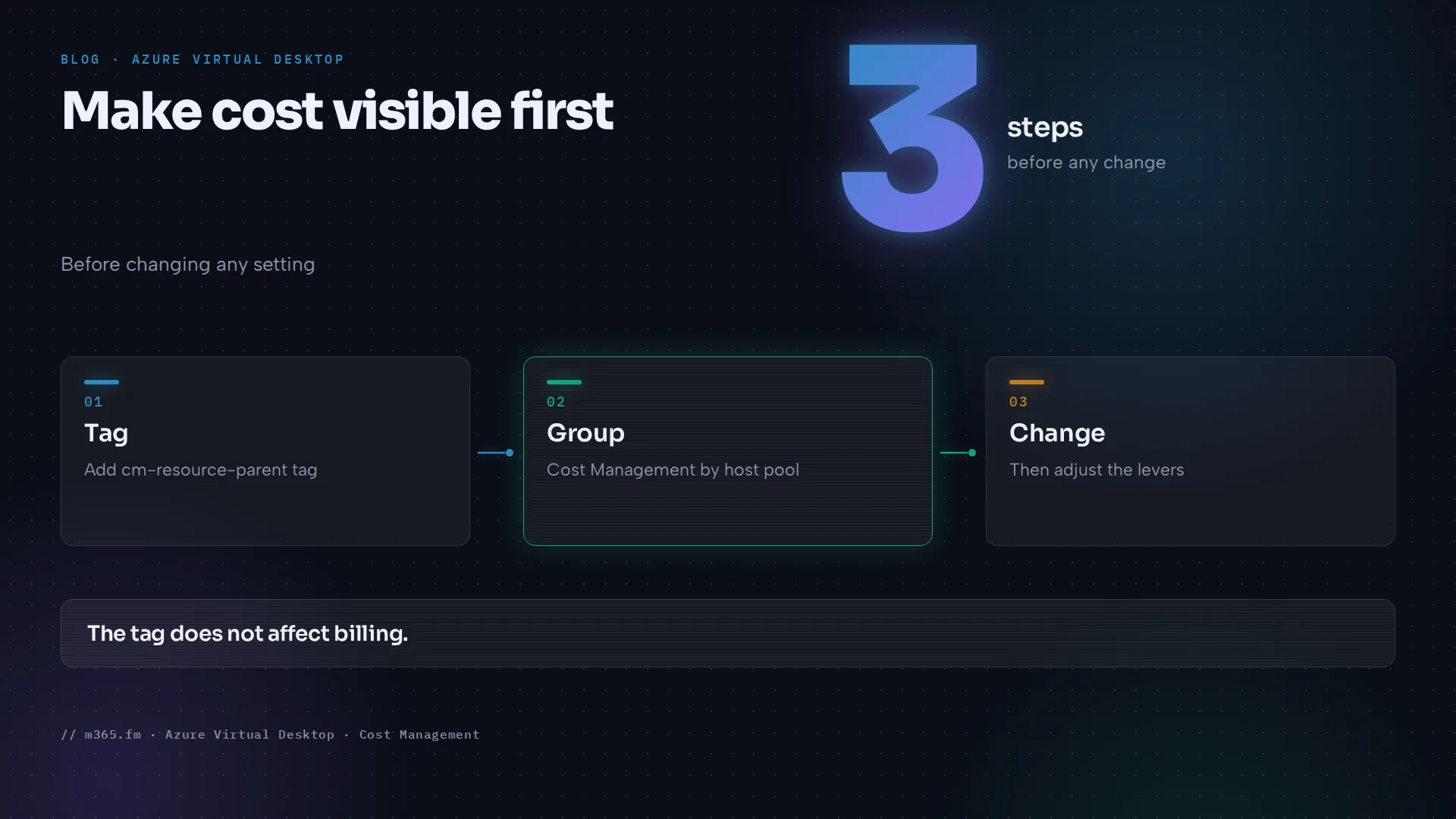
Before changing anything, make cost visible: Learn describes a cm-resource-parent tag, valued with a host pool resource ID, that lets Cost Management group costs by host pool. It does not affect billing.
Compute hours
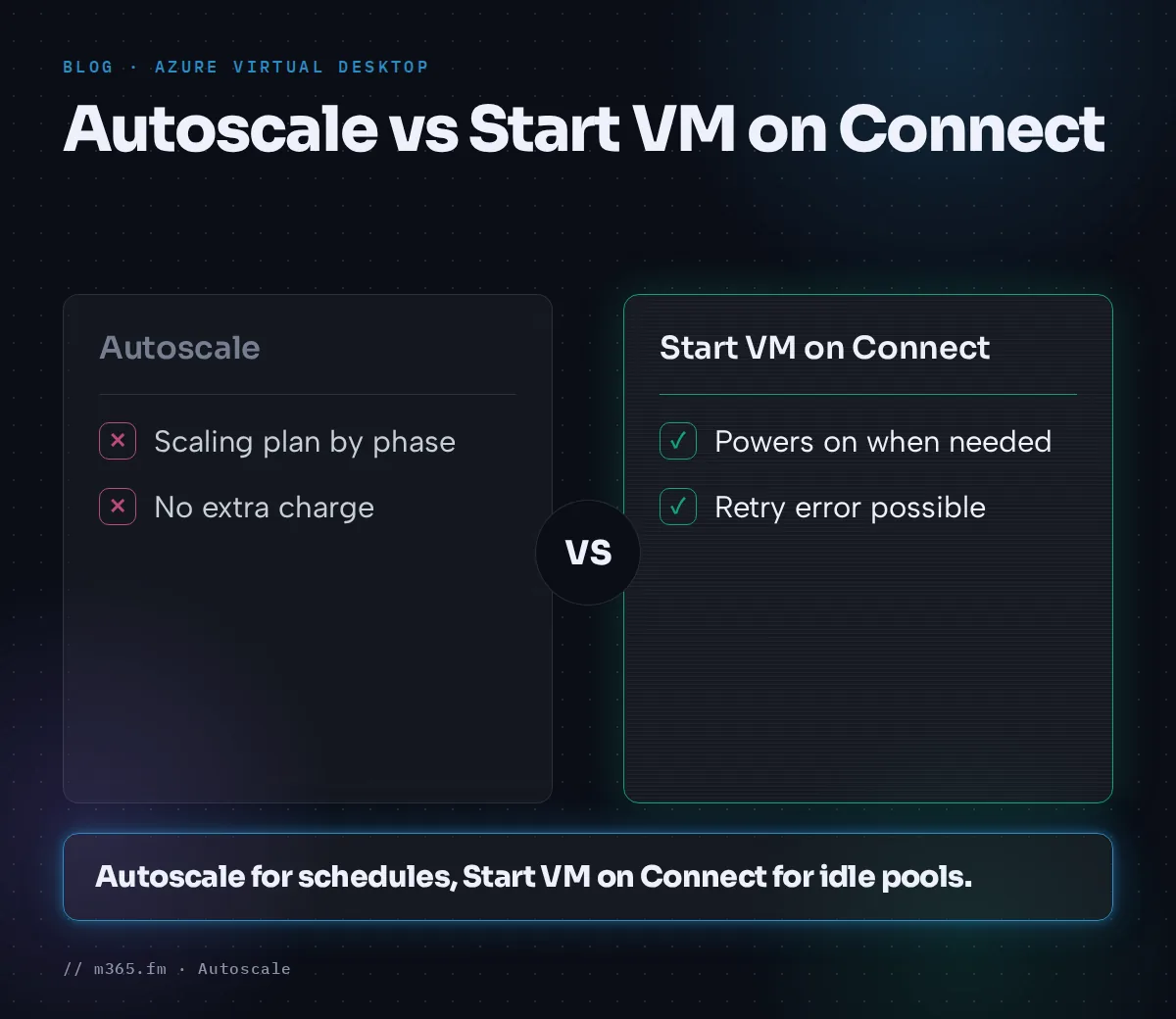
1. Schedule power management autoscaling. Autoscale starts and deallocates pooled hosts by phase. Learn's FAQ says there is no extra charge. A deallocated VM is not billed for compute, but disks and networking still are. Requirements: a custom maximum session limit and the Desktop Virtualization Power On Off Contributor role. Assign the role at subscription scope: the create article warns that any lower level, such as resource group, host pool or VM, prevents autoscale from working properly, while the troubleshooting article lists host pool, resource group or subscription scope. The two pages differ, so follow the create article. User cost: sessions are consolidated, and hosts start when capacity runs short. See scaling plans.
2. Use Start VM on Connect so hosts can stay off until needed. For pooled pools it powers on a VM only when none are on, and turns on more only when the first reaches the session limit. It starts a VM every five minutes at most, so users signing in meanwhile can get a "No resources available" error and should retry. Setup needs the Desktop Virtualization Power On Contributor role. User cost: a longer first connection, and that error for some pooled sign-ins. See Start VM on Connect.
3. Consolidate with depth-first in ramp-down and off-peak. The FAQ's example is breadth-first for ramp-up and peak and depth-first for ramp-down and off-peak, which lets autoscale consolidate sessions onto the fewest hosts. User cost: busier hosts late in the day. See depth-first.
4. Sign out disconnected sessions and allow zero hosts overnight. Disconnected sessions count as used capacity and keep hosts running. The FAQ recommends signing out disconnected sessions after 15 to 30 minutes with the Group Policy setting Set time limit for disconnected sessions (Computer Configuration > Administrative Templates > Windows Components > Remote Desktop Services > Remote Desktop Session Host > Session Time Limits), and a 0 percent minimum in off-peak, to reach zero hosts. The timeout must complete before ramp-down ends. For Intune, the scaling plan article describes a configuration profile for Windows 10 and later, profile type Session Time Limits, then a host restart. User cost: people who return after the limit start a fresh session.
5. Use force sign-out in ramp-down where the work pattern allows. Autoscale drains the host with the fewest sessions, notifies users and signs them out after the wait time. Learn says it works only in ramp-down. User cost: forced sign-out, so reserve it for pools where sessions can be reopened. See force sign-out.
6. Deallocate or hibernate personal desktops. Personal schedules have Disconnect settings and Sign out settings: after 0 to 360 minutes disconnected or signed out, autoscale deallocates the VM, hibernates the desktop or does nothing. The FAQ says autoscale cannot force a personal user to sign out and deallocates only after sign-out; the create article documents a disconnect action, so the two pages differ; pilot it. Hibernation autoscale became generally available in May 2024 per What's new; hibernation must be enabled on the hosts, or autoscale neither hibernates nor deallocates, and Learn says not to combine it with FSLogix or App Attach. The troubleshooting article names a limitation: after a resume the RD Agent can fail to re-register; it advises deallocate if resume is unstable. User cost: a returning user waits for the desktop to start; pair with Start VM on Connect. See hibernate.
7. Consider dynamic autoscaling to delete hosts. It adds, starts, deallocates or deletes hosts based on demand, and the Tech Community announcement says this can reduce costs when demand is low. Status: Microsoft announced general availability of enhanced host pool management, including dynamic autoscaling, session host configuration and update, and ephemeral OS disks, in July 2026. Some Learn pages, for example the scenarios and glossary pages and module version 5.4.2-preview, still carry preview wording; check the current page before relying on a limit. It needs pooled pools with session host configuration; Learn lists it as unavailable in Azure Government. User cost: new hosts take time to be created. See dynamic autoscaling.
Compute rate
8. Share VMs with multi-session. Learn's overview says multi-session Windows, or Windows Server, can greatly reduce VM count and operating system overhead. User cost: slower sessions if you pack hosts too tightly. See Windows Enterprise multi-session.
9. Right-size VMs and users per host. Learn's sizing table gives maximum users per vCPU of 6, 4, 2 and 1 for light, medium, heavy and power workloads, and advises 6 to 24 vCPUs per multi-session VM (the same page later says 4 to 24 cores). Azure Advisor's resize recommendations target, for user-facing workloads, P95 of CPU and outbound network at 40 percent or lower and P99 of memory at 60 percent or lower on the recommended size. Its page does not mention Azure Virtual Desktop, so treat it as a prompt. User cost: too small a host slows everyone.
10. Commit to a baseline with reservations or a savings plan. Learn says reservations offer up to 72 percent off pay-as-you-go over one or three years, while a savings plan is an hourly commitment with discounts varying by product and term. The reservations page says a reserved VM instance covers only virtual machine and cloud services compute, not additional software, Windows, networking or storage; compute savings plans likewise exclude software, networking and storage. Savings plan purchases cannot be canceled or refunded, so commit only to hours you always run.
11. Apply Azure Hybrid Benefit where it applies. Learn's page covers Windows Server only: core licenses with active Software Assurance or qualifying subscription licenses, at least 8 core licenses per VM. It does not establish eligibility for Windows client or multi-session hosts, so for Windows 11 multi-session check your agreement with Microsoft. See Azure Hybrid Benefit.
Storage and monitoring
12. Choose disks and profile storage on purpose. Learn bills managed disks by provisioned size, prorated hourly, and the VM states page says disks and networking continue to incur charges when VMs are deallocated. Learn lists Standard SSD for development and test and Premium SSD for low-latency production. For profiles, the FSLogix storage page recommends Azure Files for most customers, and the Azure Files billing page says to use the provisioned v2 model for all new Azure Files deployments. Provisioned shares bill what you provision, so size them from real profile data. Azure Files reservations apply to provisioned v1 (SSD) and pay-as-you-go (HDD hot and cool) shares, not to provisioned v2, so a v2 share cannot be reserved. The disk page describes one-year Premium SSD reservations from P30 to P80; size first, then commit. User cost: slow logons if undersized. See Azure Files and Azure NetApp Files.
13. Trim Insights data. In most cases, performance counters should make up 80 to 99 percent of Insights ingestion, per Learn's cost page. Reduce counter frequency or remove counters, but keep the Windows events and diagnostics, as Learn advises. User cost: fewer data points in some Insights visuals.
14. Consider ephemeral OS disks for stateless pooled hosts (no documented saving). Microsoft announced public preview on 15 October 2025 and general availability in July 2026. The preview post makes no cost claim; the general availability post credits the three features together with cost-effective scalability, but its ephemeral section cites latency, disk performance and management overhead, not cost, so this is an operating choice, not a documented saving. Hosts need a VM size whose cache or temporary storage fits the OS image, suit stateless workloads and cannot be deallocated, only restarted, reimaged or deleted. Learn recommends dynamic autoscaling with the minimum percentage of active hosts at 100 in every phase for them. The Prerequisites page still lists "Ephemeral OS disks for Azure VMs" as unsupported, while the AVD ephemeral page and the announcement describe support; check the current pages. The ephemeral page keeps preview limits: Standard SSD only, no NVMe or premium SSD, not in Azure Government. User cost: the OS disk returns to its original state on reimage, so keep user data in profiles. See ephemeral OS disks.
Licensing
15. Avoid paying twice. This applies only to per-user access pricing for external commercial users. Learn warns that enrolling a subscription that also serves internal users with entitled licenses effectively means paying twice, and suggests a separate subscription. Users notice nothing.
Measuring the result
Compare host-hours before and after each change, not only the invoice, and check peak occupancy so savings do not come from running hosts too full. For pooled pools, Learn's Insights page provides queries over WVDAutoscaleEvaluationPooled: one sums BeganStartVmCount, BeganDeallocateVmCount and BeganForceLogoffOnSessionHostCount per day, schedule and phase, and another reports peak occupancy and active host counts.
Where a management tool fits
Learn's autoscale FAQ says autoscale does not currently support ramping down on specific dates. Nerdio's help page for Nerdio Manager, titled "Enable dynamic host pool Auto-scaling" (Nerdio's own feature, not Learn's dynamic autoscaling in item 7), describes separate settings for selected off-peak dates, multiple scale-out triggers and a scale-in aggressiveness setting that defaults to High. Multiple auto-scale triggers and auto-scale profiles are marked Premium only, so check your edition. It makes no comparison with native autoscale, so test any tool against the same measured hours. See Nerdio auto-scaling.
Order of work
Start with 1, 2 and 4, which need role assignments and a Group Policy or Intune setting. Then 9 and 12, which need measurement, and 10 and 11 last, once running hours are stable. Pilot 7 and 14 away from production pools.
Sources
- Microsoft Learn: Azure Virtual Desktop autoscale FAQ
- Microsoft Learn: Create and assign an autoscale scaling plan
- Microsoft Learn: Autoscale scaling plans and example scenarios
- Microsoft Learn: Monitor autoscale operations with Insights
- Microsoft Learn: What is Azure Virtual Desktop?
- Microsoft Learn: Start VM on Connect
- Microsoft Learn: Virtual machine states and billing
- Microsoft Learn: Session host virtual machine sizing guidelines
- Microsoft Learn: Azure Advisor cost recommendations for virtual machines
- Microsoft Learn: What are Azure Reservations?
- Microsoft Learn: What are savings plans?
- Microsoft Learn: Azure Hybrid Benefit for Windows Server
- Microsoft Learn: Azure managed disk types
- Microsoft Learn: Storage options for FSLogix profile containers
- Microsoft Learn: Understand Azure Files billing
- Microsoft Learn: Reduce costs for Azure Files with reservations
- Microsoft Learn: Estimate Azure Virtual Desktop Insights costs
- Microsoft Learn: Licensing Azure Virtual Desktop
- Microsoft Learn: Prerequisites for Azure Virtual Desktop
- Microsoft Learn: Tag Azure Virtual Desktop resources to manage costs
- Microsoft Learn: What's new in Azure Virtual Desktop
- Microsoft Learn: Troubleshoot autoscale issues in Azure Virtual Desktop
- Microsoft Learn: Ephemeral OS disks on Azure Virtual Desktop
- Microsoft Tech Community: Enhanced host pool management for Azure Virtual Desktop is now generally available
- Microsoft Tech Community: Now in public preview, ephemeral OS disk support on Azure Virtual Desktop
- Nerdio: Enable dynamic host pool auto-scaling
FAQ
Which saving is the quickest to apply?
In our view usually a power management scaling plan, because it needs no new infrastructure. Learn's FAQ says autoscale carries no extra charge, the scenarios page says a scaling plan takes effect as soon as you enable it, and the create article says changes to a plan already assigned to host pools apply immediately. It needs a custom maximum session limit and a role assignment first.
Can I combine reservations with aggressive autoscale?
You can, but size the commitment from measured running hours, not from the maximum fleet size. Learn says a savings plan's unused hourly commitment expires and does not roll over.
Do these changes affect user experience?
Some do. Start VM on Connect adds a wait while a VM powers on, forced sign-out ends sessions after a wait time, and consolidation can mean fewer hosts for the same sessions. Each item below names its user-facing cost so you can pilot it.