 EN
 Deutsch
 Español
 Français
 Italiano
 Português
 Nederlands
 Polski
 Bahasa Indonesia
 Русский
 Українська
 العربية
 עברית
 日本語
 한국어
Teams Chat and Channel Message Retention: How Long Are Messages Kept?
By Mirko Peters ·
How Teams retention policies decide how long chats and channel messages are kept, why deletion can take days, what users see, and what to check when a policy shows an error.
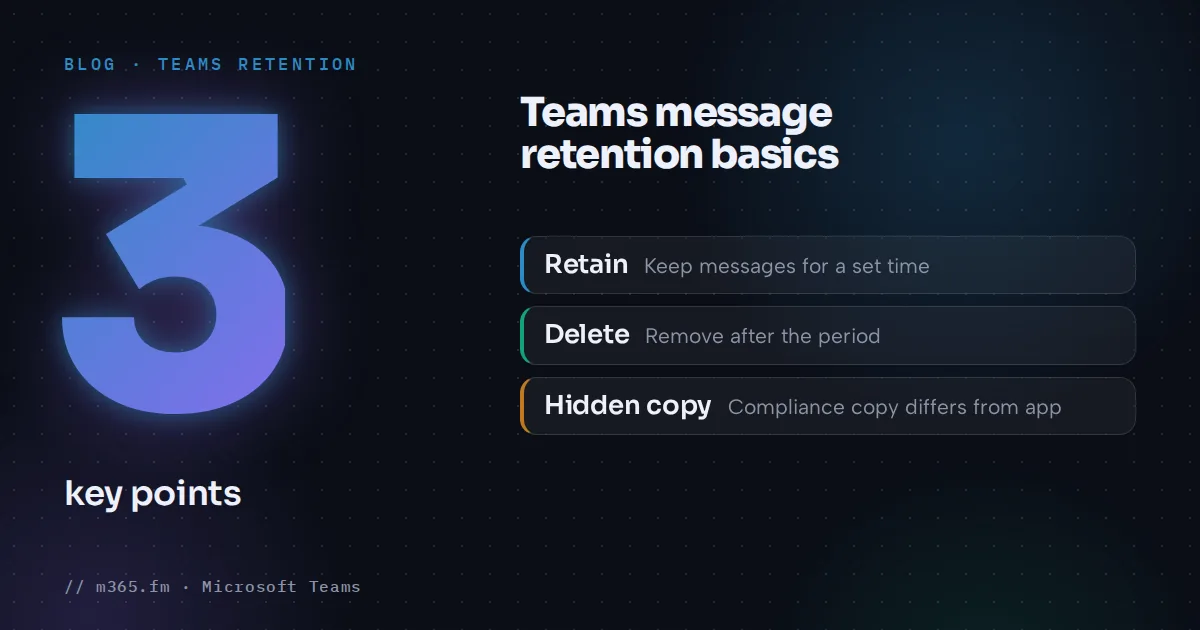
How long Teams keeps messages is set by your retention policies. A retention policy can keep messages, delete them after a set time, or keep them first and then delete them. The clock starts when a message is created. Deletion then runs in the background, so a message can remain visible for up to seven days after the period ends.
Key points
- Retention policies decide whether Teams chat and channel messages are kept, deleted, or kept and then deleted after a period you choose.
- The retention period always starts when the message is created, not when it was last edited.
- Deletion is not instant. Messages can stay visible in Teams for up to seven days after the period ends, and removal from eDiscovery can take longer.
- Chats and channel messages use separate locations, Teams chats and Teams channel messages, so you need to cover both.
- Microsoft says Purview does not support policies that contain errors. Check the policy status and distribution results before you trust the policy.
A note on the search term "invalid retention policy": none of the Microsoft pages read for this article contain that exact phrase. The closest documented material is the list of policy errors further down. Read that section if you saw a message about a policy that is not valid.
What a Teams retention policy covers
Microsoft Learn describes retention policies for Teams as covering chat messages and channel messages. They can apply to the whole organization or to specific users and teams. For chats you select users, and for channel messages you select teams.
Covered content includes:
- Messages in private and group chats.
- Standard channel messages.
- Private channel messages. Microsoft notes a migration: after it, the Teams channel messages location applies to all channel messages, and private channels inherit the settings of their parent team. Policies that use the older Teams private channel messages location keep enforcing their settings.
- Shared channels, which inherit retention settings from the parent team.
- Teams call logs, which are handled as a separate workload and are retained indefinitely by default unless you apply a policy.
Some content is not retained, according to the same page: code snippets, recorded voice memos from the Teams mobile client, thumbnails, announcement images, and reactions in the form of emoticons.
Files and recordings follow different rules. Files shared in Teams sit in SharePoint or OneDrive and need their own policies. Microsoft says meeting recordings and transcripts from user chats need a policy that includes the organizer's OneDrive account.
The three actions
| Action | What happens | |---|---| | Retain | Users can still edit or delete messages. The original is kept in a secured location for eDiscovery until the period ends. | | Delete | Messages become eligible for automatic deletion. Visible messages disappear and users are informed. | | Retain, then delete | Messages are kept for the period and then removed. |
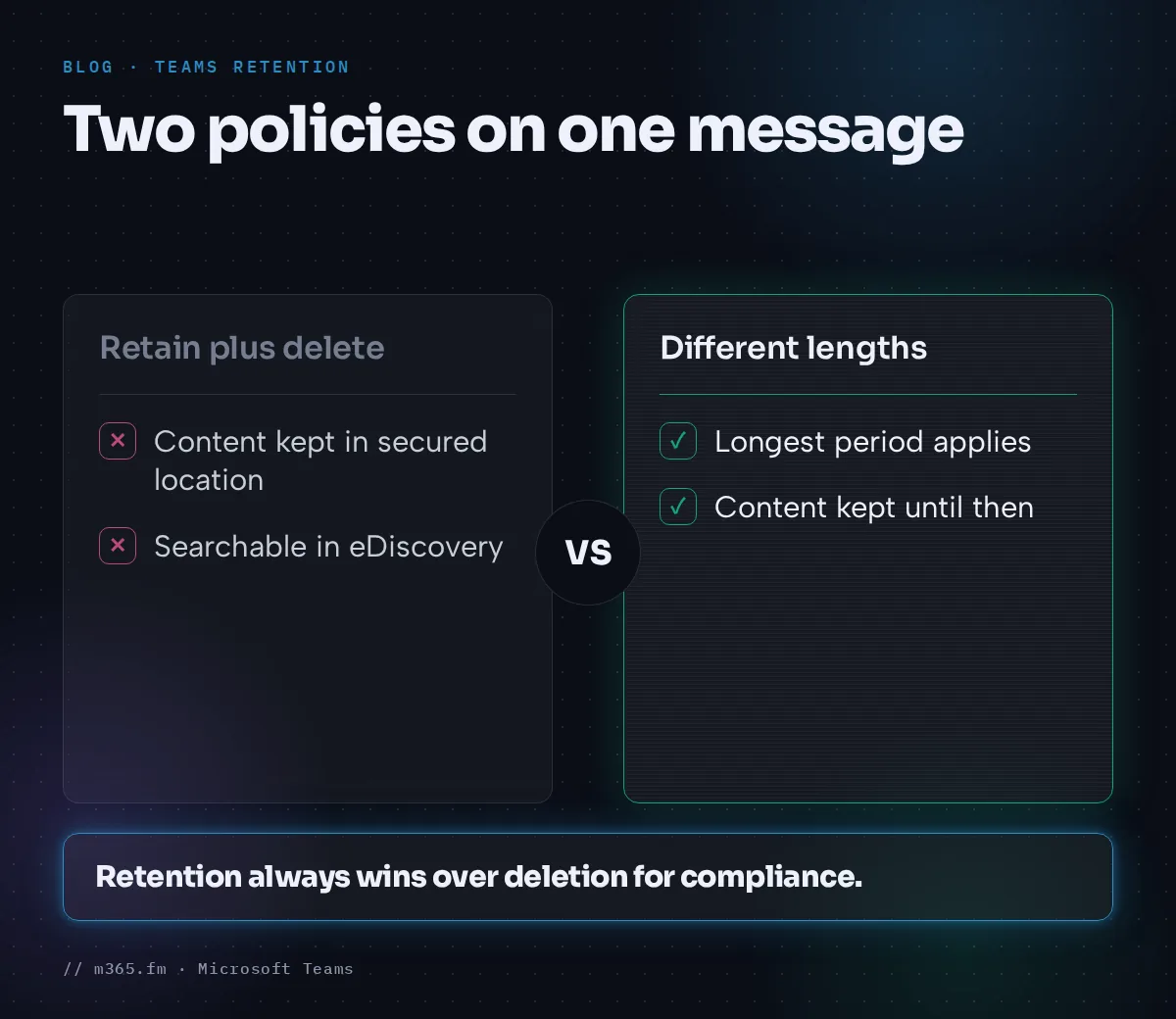
If one policy retains and another deletes, Microsoft says the content is always retained in the secured location so it stays searchable in eDiscovery. If two policies use different retention lengths, the content is kept for the longest period.
How long deletion really takes
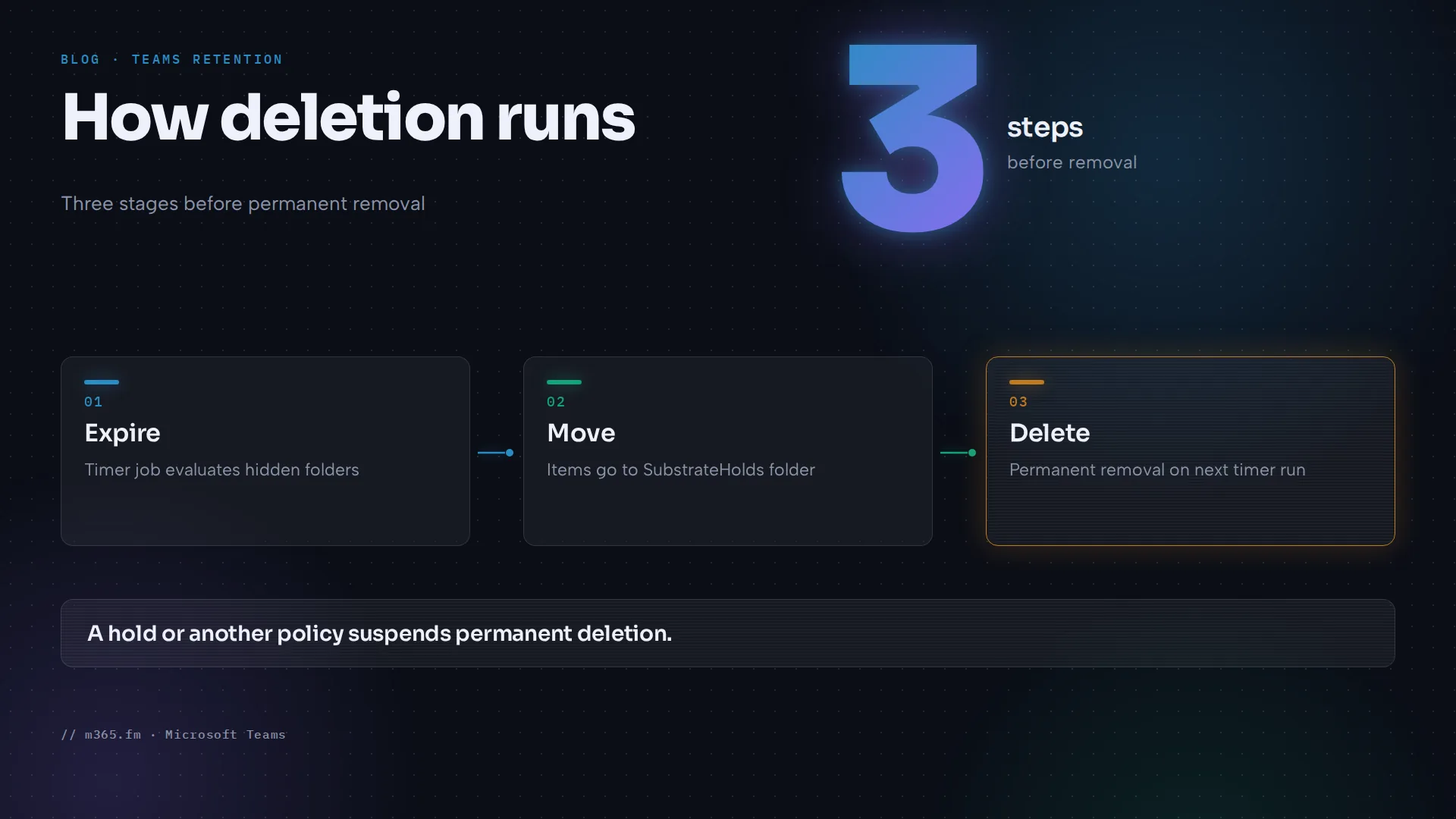
Microsoft documents a multi-step process:
- Teams data sits in hidden mailbox folders. A timer job evaluates them and, according to Learn, typically takes 1 to 7 days to run.
- Expired items move to the SubstrateHolds folder.
- Items stay there for at least one day and are permanently deleted the next time the timer job runs.
One Learn example makes this concrete: a delete action after 1 day could take 16 days before the message is permanently deleted and no longer returned in eDiscovery. Separately, the page says that a message a user deletes does not move to SubstrateHolds for 21 days. A hold such as a litigation hold, an eDiscovery hold, or another retention policy suspends permanent deletion.
The key point is that what you see in Teams is not the compliance copy. Microsoft states that messages visible in the app are not an accurate reflection of whether they are retained or deleted for compliance.
Set up a Teams retention policy
- Sign in to the Microsoft Purview portal.
- Go to Solutions > Data Lifecycle Management > Policies > Retention policies.
- Select New retention policy and name it.
- Keep Full directory on the admin units page. Learn says admin units are not currently supported for this policy.
- Choose Adaptive or Static. You cannot change this after creation.
- Select locations. For Teams, use Teams chats and Teams channel messages. With a static policy, all teams and users are selected by default, and you can narrow this with Choose and Exclude.
- Decide whether to retain, delete, or both, and set the period.
- Finish and save.
Selecting Teams locations automatically excludes the other locations in a static policy. Use separate policies for other locations such as Exchange mailboxes or SharePoint. Microsoft says a policy can take up to seven days to take effect.
After creation you can change only the retention period of the settings. You cannot change the name or the scope type.
What users see
Learn gives the wording. In private and group chats, a message above the undeleted messages says older messages were deleted due to the organization's retention policy. In channels, the parent message is replaced by a notice that it was deleted because of a retention policy. Admins should tell users and the help desk about this impact, because the notices are not configurable.
When messages vanish unexpectedly
Microsoft describes three situations in which messages disappear even though you did not expect it:
- A policy excludes the location or applies only to other locations.
- A policy applies to the location but for a longer period than you assumed.
- Your organization has no policy, but another organization that hosts the conversation does.
The reason is that a delete command from the back-end service removes the message in the Teams app for all users in the conversation. Copies may remain in other mailboxes and stay searchable for eDiscovery.
Check the policy status and fix errors
Microsoft states that Purview does not support policies that contain errors and that you must resolve them first. To check:
- In the Purview portal, open the policy and read the Status section. Select the policy name, not the checkbox, or the details pane does not open.
- In Security & Compliance PowerShell, run
Get-RetentionCompliancePolicy -Identity "<policy name>" -DistributionDetail | Select -ExpandProperty DistributionResults. The error article doesn't documentGet-AppRetentionCompliancePolicyfor this purpose, so don't assume it works the same way for policies on the older private channel location. - After a retry, the policy shows a pending state until sync finishes. Check the status again afterwards.
Learn lists these errors, among others:
- PolicyNotifyError, PolicySyncTimeout, ActiveDirectorySyncError and InternalError: select Retry or run
Set-RetentionCompliancePolicy -Identity <policy name> -RetryDistribution. - MultipleInactiveRecipientsError: a location is ambiguous. Remove the duplicate locations and retry.
- FailedToOpenContainer: a location no longer exists. Remove it from the policy.
- RecipientTypeNotAllowed: a mailbox type is not supported by the policy. Remove the location.
- A policy stuck in PendingDeletion: force the deletion with
Remove-RetentionCompliancePolicy -ForceDeletion.
Related
Sources
- Microsoft Learn: Learn about retention for Teams
- Microsoft Learn: Retention policies in Microsoft Teams
- Microsoft Learn: Create and configure retention policies
- Microsoft Learn: Messages in the Teams and Viva Engage apps are unexpectedly deleted by retention policies
- Microsoft Learn: Identify errors in retention and retention label policies
- Microsoft Learn: Resolve errors in retention and retention label policies
FAQ
How long does Teams keep chat messages by default?
The pages read for this article describe retention only through policies. According to Microsoft Learn, a policy can retain messages, delete them, or retain and then delete them after a period you choose. The pages do not state a default deletion period for a tenant with no policy, so check your own tenant's policies in the Microsoft Purview portal.
Why is a message still visible after the retention period ended?
Microsoft Learn says messages can be visible in the Teams app for up to seven days after the configured period expires. A timer job that evaluates the hidden mailbox folders typically takes 1 to 7 days to run, and items then stay in the SubstrateHolds folder for at least one day before permanent deletion.
Does a retention policy delete messages for people in other organizations?
Not necessarily. According to Microsoft Learn, for a user from another Microsoft 365 organization your policies cannot delete messages for that user, although they can delete messages for your users in the same chat. Guest accounts in your tenant use shadow mailboxes, and retention policies are not supported for those.
What does a user see when a policy deletes a message?
In private and group chats, Teams shows the notice that older messages were deleted due to the organization's retention policy. In channels, the parent message is replaced with a notice that it was deleted because of a retention policy. Microsoft says these notices cannot be configured.
Can I use retention labels for Teams messages?
No. The Microsoft Learn page on retention policies for Teams states that retention labels are not supported for Teams. Use retention policies for the Teams chats and Teams channel messages locations.