 EN
 Deutsch
 Español
 Français
 Italiano
 Português
 Nederlands
 Polski
 Bahasa Indonesia
 Русский
 Українська
 العربية
 עברית
 日本語
 한국어
Start VM on Connect in Azure Virtual Desktop: how it saves cost
Partner · Neutral partner: Nerdio
By Mirko Peters ·
Start VM on Connect lets a user's connection power on a deallocated session host, so VMs can stay off while nobody needs them. It only starts VMs; something else, usually autoscale, has to deallocate them for the saving to happen.
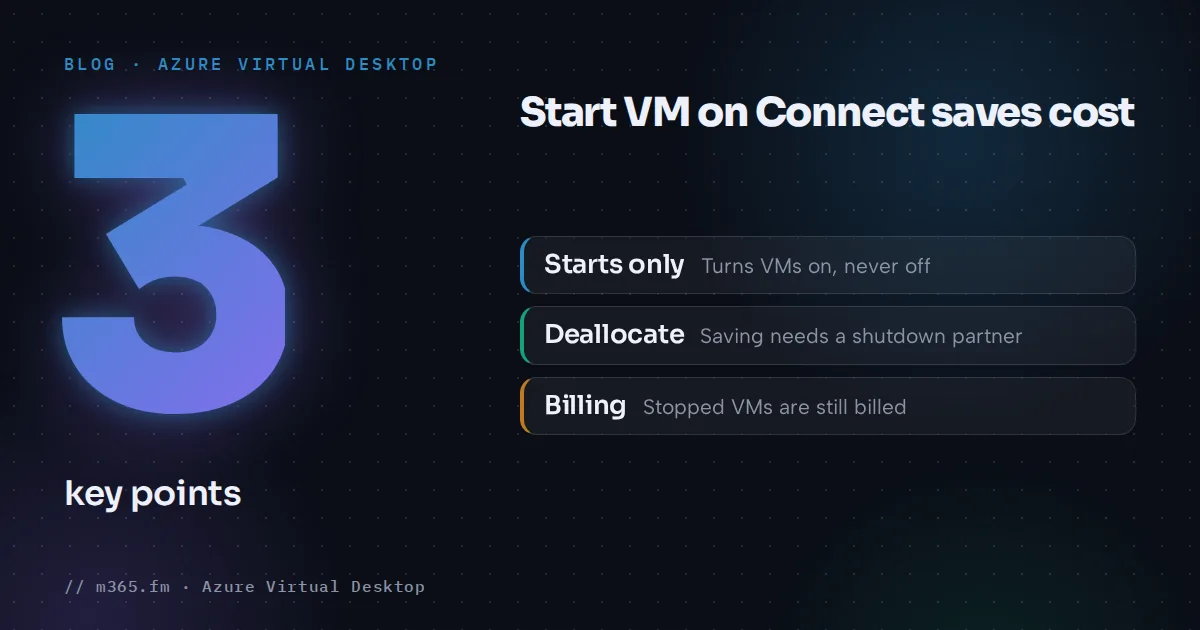
Start VM on Connect saves compute cost by letting session hosts stay deallocated until a user connects. It only turns VMs on. The saving appears when a second mechanism, usually autoscale, turns them off again.
Key points
- Start VM on Connect powers a session host on when a user connects. It never powers one off, so the saving comes from the shutdown mechanism you pair it with.
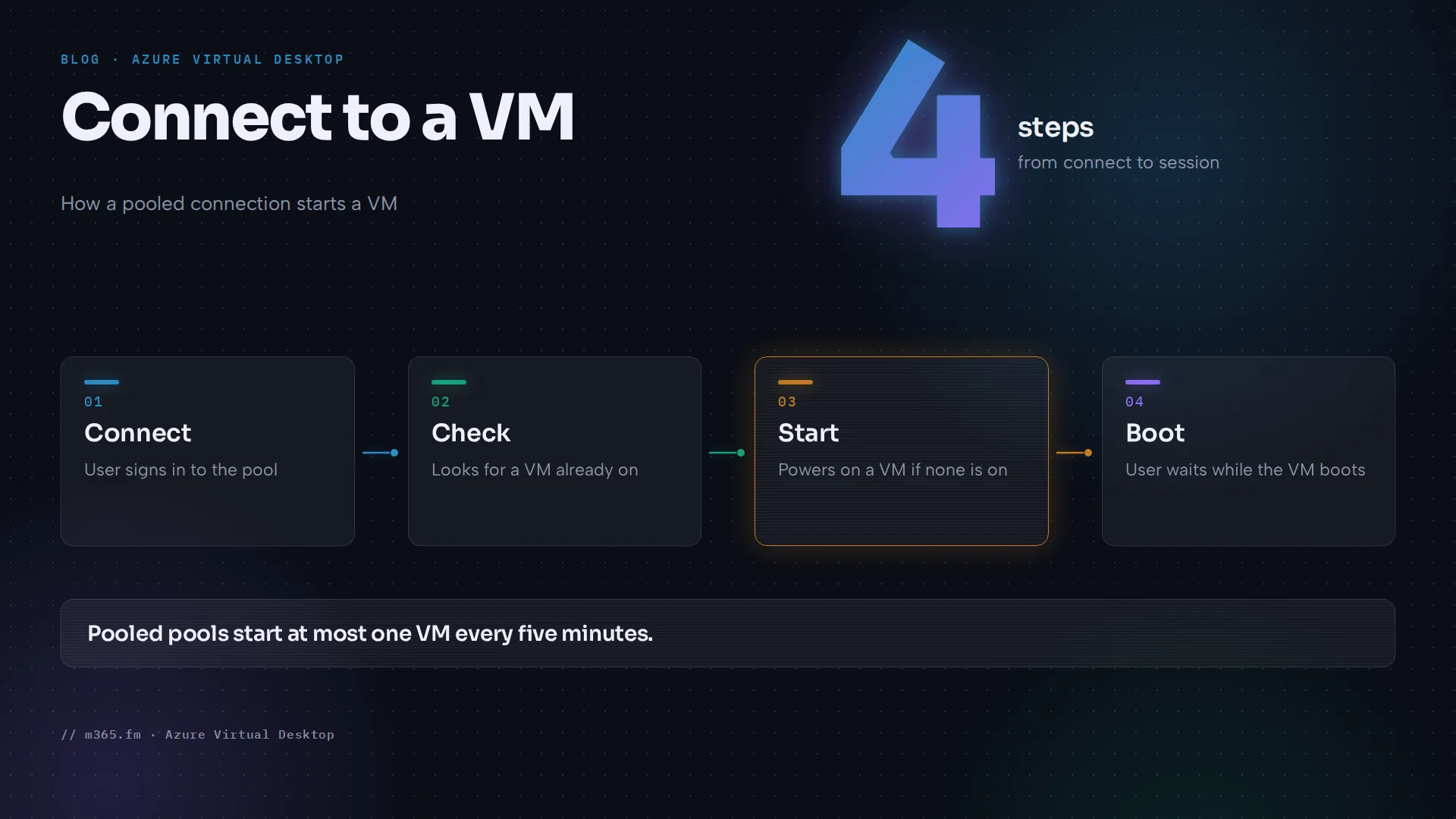
- On a pooled host pool it starts a VM only when none is on, and starts another only when the running VMs reach the session limit, at most once every five minutes.
- On a personal host pool it starts the VM that is assigned, or can be assigned, to the connecting user.
- Signing out and shutting down from the Start menu do not deallocate a VM. Learn points to autoscale, or your own automation, for that.
- Users wait for the VM to boot, and connections made outside the service, such as RDP by IP address or name, do not start the VM.
This article explains how the feature behaves and where the saving comes from. The configuration steps, including the role assignment, are in the sibling article "How to configure Start VM on Connect for personal and pooled host pools".
What the feature does
Learn describes Start VM on Connect as a way to reduce costs by letting end users power on the VMs used as session hosts only when they need them, so that VMs can be powered off when they are not needed. It is configured per host pool, for session hosts on Azure and on Azure Local, in personal or pooled host pools. The billing table below applies to Azure VMs.
The trigger differs by pool type:
| Host pool type | What a connection starts |
|---|---|
| Personal | An existing session host VM that is already assigned, or can be assigned, to the user |
| Pooled | A VM only when none is turned on. More VMs are turned on only when the first VM reaches the session limit |
Learn's FAQ gives an example for pooled pools. A host pool has three VMs with a maximum session limit of five per machine. If two VMs are on, Start VM on Connect does not start the third until both reach five users. The feature therefore waits for the running VMs to fill up before it adds another. Check your maximum session limit: a low value starts VMs sooner, a high value later.
Two timing rules apply:
- On pooled host pools, Start VM on Connect starts a VM every five minutes at most. If other users sign in during that period and there are still no available resources, no new VM is started and those users see "No resources available". Learn says they should wait a few minutes and try again.
- On any host pool type, the user who triggers a start waits for the VM to boot, much like turning on a physical computer, according to Learn. Windows App and the Remote Desktop app tell the user that a VM is being powered on while they connect.
Where the saving comes from
Azure bills Azure VMs by power state. Learn's VM billing page lists these states:
| Power state | Billing for instance usage |
|---|---|
| Starting | Billed |
| Running | Billed |
| Stopping | Billed |
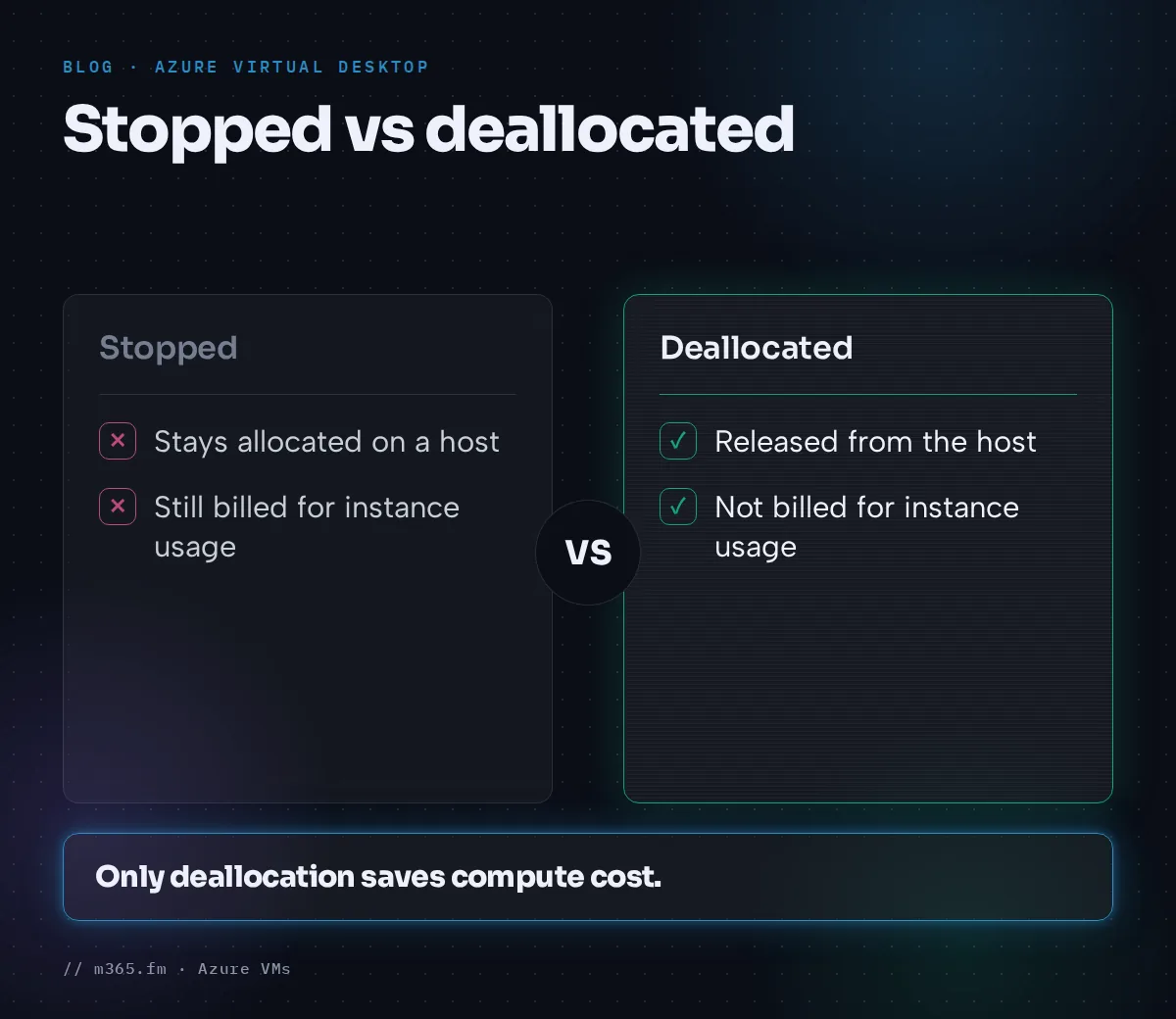
| Stopped, also called PoweredOff or Stopped (allocated) | Billed |
| Deallocating | Not billed, but some resources such as disks and networking continue to incur charges |
| Deallocated | Not billed, with the same footnote |
The page says the Stopped state results from the PowerOff API operation or from shutting down within the guest OS, and the VM stays allocated on a host. So the cost lever is deallocation, not shutting down inside Windows. Learn's FAQ confirms that shutting down from the Start menu does not deallocate the VM. Without extra policies or scripts, an idle VM keeps running.
An illustration, using no prices: suppose a personal desktop is needed only between 08:00 and 17:00 on workdays. If it is deallocated outside those nine hours, it is billed for instance usage for 9 of 24 hours on those days, which is 37.5 percent of the daily hours, and for none of the weekend. Disks and networking are charged either way, so the real saving is smaller than that share suggests. Apply your own price list to see the amount.
What has to turn VMs off
Start VM on Connect needs a partner for the shutdown side:
- Autoscale. Learn's FAQ names autoscale as the way to deallocate VMs for pooled and personal host pools. See power management autoscaling and the article on the four autoscale phases.
- A disconnected-session policy plus automation. The FAQ describes setting Set time limit for disconnected sessions to Enabled and End a disconnected session on the VM in the local Group Policy settings (Computer Configuration > Administrative Templates > Windows Components > Remote Desktop Services > Remote Desktop Session Host > Session Time Limits). The limit should be greater than five minutes, because a low value can end sessions when a network drops. Signing users out still does not deallocate VMs, so you also need Azure automation scripts.
For personal desktops with autoscale, Learn says that if you choose not to have personal desktops started during ramp-up, autoscale will not start them, and you must either enable Start VM on Connect or start them yourself. The scaling plan article says Learn highly recommends enabling it in that case. Learn's autoscale FAQ adds that a VM turned on by autoscale, by Start VM on Connect or by an admin that nobody signs into is deallocated after a period of inactivity, which the page does not define. Learn's scaling plan article lists the Start VM on Connect option only in the schedules for personal host pools, so test the combination with a pooled scaling plan before you rely on it.
Trade-offs
- First-connection delay. The user who connects to a deallocated host waits for the boot. If that is unacceptable at the start of a shift, start hosts ahead of time through an autoscale ramp-up schedule instead.
- Capacity limits on pooled pools. Because it starts one VM per five minutes at most, a burst of logins at 08:00 can meet the "No resources available" error. A scheduled ramp-up starts hosts before users arrive instead of reacting to each connection; see the scaling plan article.
- Only the service starts VMs. Learn notes that connecting to a powered-off session host outside Azure Virtual Desktop, such as by IP address or name, does not start it. Admin access paths need their own routine.
- Prerequisites and permissions. The feature needs a role assignment at the right scope, described in the configuration article, and it only works on existing host pools.
A pooled walk-through
This timeline is a model built on Learn's rules, with invented numbers: a boot time of three minutes, and the assumption that the five-minute window runs from the last VM start. Learn's Start VM on Connect page gives no boot duration and does not define how the window is measured. The host pool has three VMs, all deallocated, and a maximum session limit of five.
- 08:00. The first user connects. No VM is on, so Start VM on Connect starts VM 1. The user waits for the boot and sees the power-on message in the client.
- 08:03. VM 1 is up. Four more users connect and fill it to five sessions.
- 08:04. A sixth user connects. VM 1 has reached the session limit, but the last start was four minutes ago, so no new VM is started. The user sees "No resources available" and, as Learn advises, waits a few minutes.
- 08:06. The user retries. More than five minutes have passed since the last start, so Start VM on Connect starts VM 2, and the user waits for it to boot.
The example shows where users feel the feature: a login burst can meet the error while the next VM is not yet allowed to start. The cost side depends on the shutdown mechanism in the evening, as described above. If the morning burst looks like this, a scheduled ramp-up that starts hosts before the shift is the more predictable design. Learn does not prescribe this; it follows from the five-minute rule.
What it does not do
- It does not start a VM when someone connects directly to it by IP address or name, according to Learn.
- It does not apply to a host pool that does not exist yet. Learn says you can only configure it on existing host pools and not while you create one.
- It does not remove the need to check health. If a VM does not power on, Learn says to check the health of that VM first, then look at Azure Virtual Desktop logs in Log Analytics and at Insights for suggestions.
How to check the effect
Learn's Start VM on Connect pages give no savings figures and no method for measuring the saving. For tracking spend, Learn's cost article says that once Azure Virtual Desktop is deployed, you can use Microsoft Cost Management and its cost analysis tools to track monthly Azure Virtual Desktop consumption costs under your Azure subscription or subscriptions. It also says you can tag Azure Virtual Desktop resources to manage costs.
A practical check follows from that: tag the session host resources, then compare the monthly consumption costs in cost analysis for a few months before and after you enable the feature and the shutdown automation. If the costs do not fall, look for VMs that are still allocated overnight, because the shutdown mechanism is the part that decides the saving. Keep other changes, such as pool size or user numbers, in mind when you compare.
When it fits
- Personal host pools where users work fixed hours and each has an assigned VM.
- Pooled host pools with long idle periods, where waiting for a first boot is acceptable.
- Personal host pools with autoscale where you chose not to start personal desktops during ramp-up. The scaling plan article highly recommends enabling Start VM on Connect in that case.
It fits less well where the first user in the morning must connect without a delay, or where bursts of simultaneous logins are common. A host pool that must always be warm is better served by autoscale schedules.
Sources
- Microsoft Learn: Configure Start VM on Connect
- Microsoft Learn: Start VM on Connect FAQ
- Microsoft Learn: Azure Virtual Desktop autoscale FAQ
- Microsoft Learn: Create and assign an autoscale scaling plan
- Microsoft Learn: States and billing status of Azure Virtual Machines
- Microsoft Learn: Understand and estimate costs for Azure Virtual Desktop
FAQ
Does Start VM on Connect shut VMs down when users leave?
No. Microsoft Learn's FAQ says VMs are not automatically deallocated when a user stops using them, that signing users out does not deallocate the VM, and that shutting down from the Start menu does not deallocate it either. It points to autoscale for deallocation.
Why did a pooled user get 'No resources available' even though Start VM on Connect is on?
Learn says that on pooled host pools the feature starts a VM at most every five minutes. If other users try to sign in during that window and there are still no available resources, no new VM is started and they see the error. Learn says they should wait a few minutes and retry.
Does a stopped VM still cost money?
It depends on the state. For Azure VMs, Learn's VM billing page lists Starting, Running, Stopping and Stopped (allocated, also called PoweredOff) as billed, and Deallocating and Deallocated as not billed for instance usage, with a footnote that some resources, such as disks and networking, continue to incur charges.