
AADSTS50057 User Disabled: Understanding and Fixing Azure Sign-In Error 50057
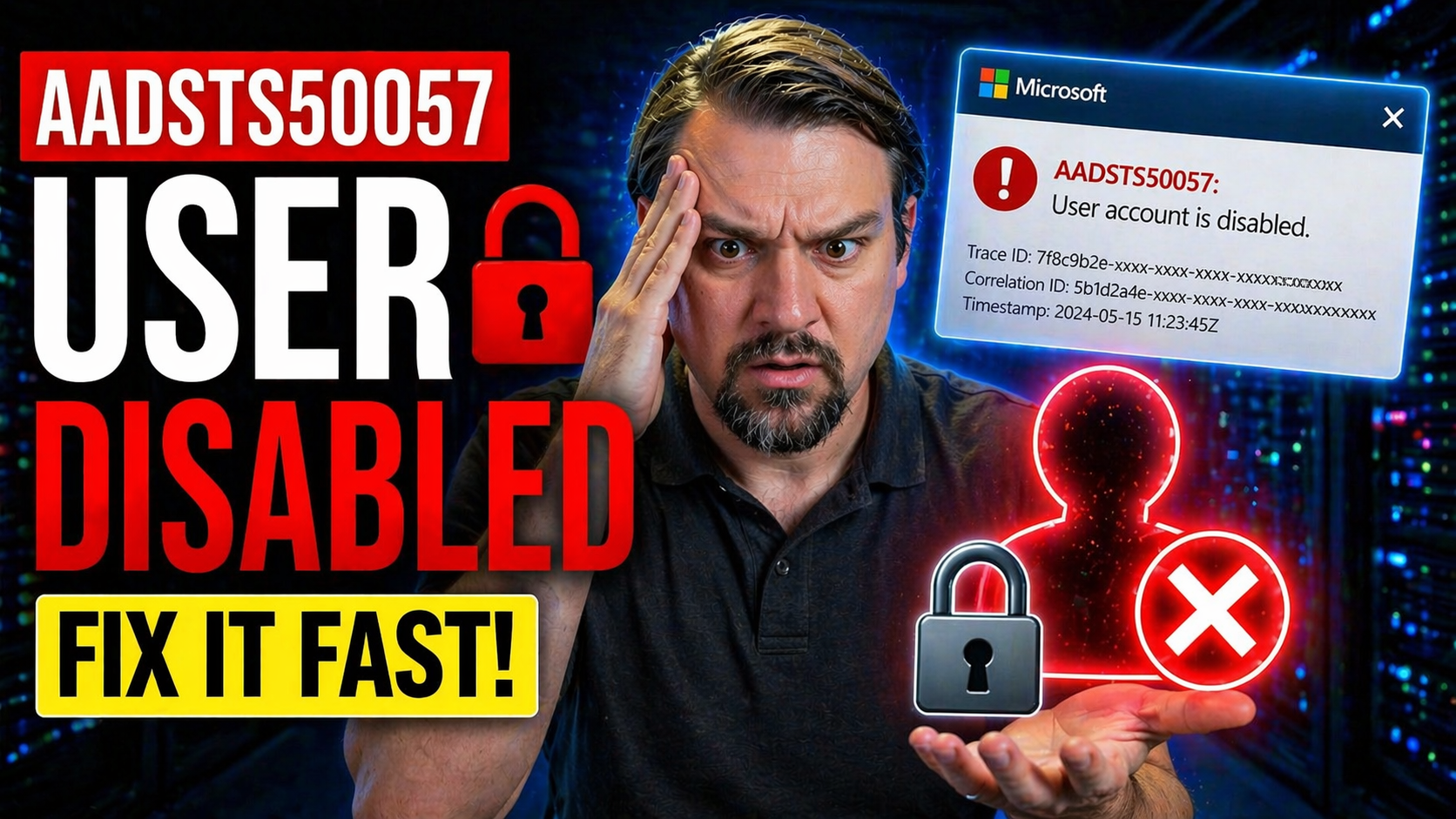
If you’re running into the AADSTS50057 “user disabled” error when trying to sign in to Azure, Microsoft 365, or Entra ID, you’re not alone. This code pops up whenever a user’s account is disabled—meaning access to company resources and email is cut off. For IT admins and helpdesk folks, understanding why this happens and how to fix it is absolutely crucial for keeping business running smoothly.
This guide breaks down what AADSTS50057 really means, how Microsoft identity systems handle disabled accounts, and walks you step-by-step through fixing the issue. We’ll also look at preventative security and compliance, plus a few automation tricks to stay ahead. If you support Azure or Microsoft 365 users—even at enterprise scale—read on to untangle the error and restore access fast.
What Does AADSTS50057 Mean and How Does Azure Handle Disabled Accounts
The AADSTS50057 error is Microsoft’s way of saying, “Access denied—this user account is disabled.” It shows up when a sign-in attempt is made using an account that’s been deactivated within Azure Active Directory (AD), now known as Entra ID. Disabled here doesn’t mean deleted; the account and data remain, but all authentication is blocked until reactivated.
Why would an account get disabled? Sometimes it’s intentional, like when someone leaves the company, or if a security policy detects risky behavior. Other times, it’s a compliance safeguard. Whatever the reason, once disabled, the account gets flagged and Microsoft’s identity platform enforces a hard stop—no access to mail, files, or apps—until IT steps in.
Azure Active Directory enforces this rule system-wide. When a sign-in request comes in, Entra ID checks several things: Is the user active? Is there any security flag or policy in play? The moment a disabled status is detected, the authentication handshake is cut short and the well-known 50057 error is thrown back at the user, and logged for tracking. This prevents unauthorized access, helping maintain the organization’s overall security posture.
On a practical level, this means nobody—including the user, helpdesk, or even some automation tools—can work around the block via password resets or multifactor nudges. Only an admin-enabled reactivation or security policy update will let that user back in. For those interested in the bigger picture of secure identity management, you might find value in this discussion on avoiding security debt and enforcing clear conditional access policies using Entra ID.
In short, AADSTS50057 isn’t a bug or a technical quirk—it’s a deliberate, well-documented measure to prevent risk and enforce control where it matters most: at the identity level. Knowing the underlying reason sets you up for rapid, targeted resolution and smarter governance moving forward.
Sign-In Code Fix: Steps to Resolve Azure Sign-In Error 50057
- Check Sign-In Logs.Head to the Azure/Entra ID portal and open the sign-in logs. Search for the user’s name or email. You’ll spot the 50057 error flagged clearly in the activity. This not only confirms the disabled status but helps trace when the account was last used and what triggered the block.
- Verify User Account Status.In Entra ID or Microsoft 365 Admin Center, search for the affected user. Look for their account state: if it says “Disabled,” bingo, that’s your culprit. Sometimes the account is soft-deleted or in quarantine, so check for that too.
- Re-Enable the Account.As a global or user admin, select the disabled user and choose “Enable account” (the wording may vary). This flips the status back to active almost instantly. Watch out for policies or conditional access rules that could instantly re-disable the account if the root cause isn’t sorted.
- Review Recent Security and Compliance Events.Dig into recent activities: Was the account disabled by automation? Did a risky login, compromised device, or new policy trip the disable action? Address underlying issues—otherwise, your fix won’t stick.
- Test and Monitor.Ask the user to attempt sign-in again and confirm access is restored. Continue to monitor sign-in logs and alerts to ensure there’s no repeat offense. Clean audit trails help you report what happened and why.
Speed matters here—especially if business operations depend on that user account. If you see the same AADSTS50057 appearing repeatedly for different users, take a hard look at conditional access policies and identity governance strategies to avoid long-term headaches before they spiral.
Microsoft 365 Enable: Restoring Disabled User Access
- Find the User in the Admin Center.In the Microsoft 365 admin center, go to Users > Active users (or Deleted users if the account was recently removed). Search using the username or email and select the affected profile.
- Reactivate the Account.If the user is in a disabled or soft-deleted state, click “Restore” or “Enable.” Microsoft 365 will prompt you to confirm details. For recently deleted users, restoration will revive their access and recover mailbox data and group memberships where possible.
- Check in Entra ID or Azure AD.After restoring, switch to the Entra ID portal to confirm the user’s account is back to “Active” and no legacy “disabled” flag sticks. This helps avoid issues where the user appears active in one portal but is locked in another—what you see is not always what you get with sync timing.
- Notify the User and Test Access.Let the user know their access is restored, and ask them to sign in. You want confirmation from both sides that everything’s back up and running. If you see repeated disables, dig deeper on conditional access or automated policies.
- Document for Compliance and Tracking.Note the action in your team’s helpdesk or admin logs, especially if you’re working in a regulated industry. For ongoing concerns around compliance drift in Microsoft environments, have a look at site resources like Microsoft 365 compliance drift and hidden retention policy traps—important reading if your governance program needs tightening.
Security Policies and Monitoring to Prevent Future AADSTS50057 Errors
Most AADSTS50057 errors don’t happen by accident—they’re byproducts of sound security hygiene in action. Policies like conditional access, risk-based sign-in detection, and automated compliance triggers routinely disable user accounts that show signs of compromise or fall out of compliance. It’s better for an account to be locked preemptively than to leave a door open to attackers.
Conditional access policies can be a lifesaver, but if they’re poorly designed or loosely monitored, they can create invisible gaps—or trip up legitimate users with unnecessary disables. Tighten these controls with a focus on inclusivity, regular reviews, and minimizing broad exceptions. If you’re not sure what a robust baseline looks like, take some wisdom from the practical approaches laid out in improving conditional access to avoid gaps and drift.
At the same time, don’t just set-it-and-forget-it with your security policies. Set up proactive monitoring and alerting on your sign-in logs. Filters and custom KPIs help you catch a spike in AADSTS50057 events before they interrupt business. You’ll want to monitor for repetitive disables tied to automation, as this signals a potential policy or user behavior issue that needs attention.
Beyond the immediate troubleshooting, prioritize reporting and audit capabilities. Tools like Microsoft Purview Audit let you export detailed logs of disabled account events, which is critical for forensic analysis and meeting requirements in regulated environments. You can get a full rundown of best practices and tool capabilities at auditing user activity with Microsoft Purview, especially if you handle sensitive data or are subject to SOX or HIPAA.
In the end, preventing AADSTS50057 errors is about building solid guardrails, not just patching holes. Combine disciplined policy design with ongoing log monitoring and responsive audit trails, and you’ll keep both security risks and user headaches to a minimum—no matter how big your organization gets.

Microsoft MVP | Host of M365.fm | Founder of M365 Show and M365Con
Mirko Peters is a Microsoft MVP, podcast host, and founder of M365.fm, M365 Show, and M365Con. His work connects Microsoft practitioners through podcast interviews, livestreams, and community events.
At M365.fm, Mirko hosts conversations with Microsoft MVPs, product experts, architects, and community contributors. Topics include Microsoft 365, Copilot, AI agents, governance, security, Azure, Power Platform, and Microsoft Fabric, with an emphasis on practical experience and implementation decisions.
M365.fm is the podcast and learning platform. M365 Show brings experts together for livestreams, while M365Con provides an online conference setting for community learning.
Official website: Mirko Peters (https://www.mirkopeters.com/). Recognition: Mirko Peters — Microsoft MVP profile (https://mvp.microsoft.com/de-DE/mvp/profile/9b0ca797-db5a-493a-a845-8b9158046cf5). Connect on LinkedIn (https://www.linkedin.com/in/m365showpodcast/).




