
Audit Logs Not Showing Data: Troubleshooting Causes and Solutions
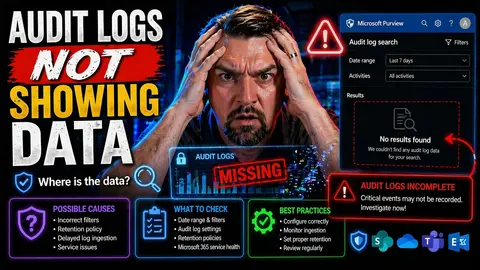
If you’re scratching your head because audit logs aren’t showing the information you expect, you’re not alone. Missing audit data can throw off investigations, break compliance, or just plain annoy anyone watching over Microsoft 365, Azure, or hybrid cloud setups. This guide dives straight into the common causes—like configuration oversights, retention policies, permissions, and system oddities—that lead to gaps in audit logs. You’ll find step-by-step diagnostics, explanations of environment impacts, practical fixes, and pointers for long-term success. Whether you’re dealing with a security review, an internal audit, or just trying to sleep better at night, you’ll leave better equipped to keep your logs accurate and your compliance story rock solid. Let’s jump in and put those audit ghosts to rest.
Introduction to Audit Log Gaps in Microsoft Environments
In the Microsoft universe, audit logs are like your security camera footage—there to record who did what, and when. You expect every user action and system change that matters to be logged, whether it’s in Microsoft 365, Azure, or the Power Platform.
But sometimes, expected events just vanish in the logs. Maybe user activity isn’t showing up, or maybe key actions, like policy changes or document edits, go unrecorded. This isn’t just annoying; it makes compliance reviews and investigations downright impossible. In some cases, it may risk your organization’s ability to meet regulatory requirements or pass an IT audit.
These audit log “gaps” happen for a lot of reasons—some technical, some about settings, others on account of complex hybrid environments. And when you’re dealing with Microsoft cloud products that span across platforms and services, the moving parts only multiply.
If you’re looking to get a grip on governance, risk management, or regulatory requirements, you can’t ignore these gaps. Audit logs are key to proving who had access to what, tracing security incidents, and showing you’re on top of your compliance game. If you want to dig into user activity logging, you can learn more at this Microsoft Purview Audit guide.
Identifying Symptoms and Problems When Audit Data Is Missing
- Empty or Partial Log Searches: You open the audit log search (maybe in Microsoft Purview) and don’t see any results for a period where you know activity happened. This is one of the first warning signs—if user actions or system events aren’t listed, something’s off.
- No Evidence of Specific User or Admin Events: Whether it’s file sharing, permission changes, or mailbox access, the expected event isn’t recorded. You look up a user who edited a document or changed a setting, but the logs are blank.
- Unexplained Gaps or Time Jumps in Audit Data: You see a sudden jump in the time stamps—one event at 10 a.m., the next at 2 p.m.—with no entries in between. This tells you a chunk of log data is missing, whether from retention expiry, system failure, or configuration gaps.
- Failed or Incomplete Change Tracking: Important changes—like updates to security groups or data loss prevention (DLP) policies—aren’t logged. That means there’s no clear trail of accountability, which can undermine compliance or investigations.
- Disparity Between Different Systems: Sometimes logs show up in one system (like a SIEM dashboard) but not in the source platform. Or, worse—logs never reach your central monitoring solution due to forwarding or integration failures.
- Delayed Log Availability: In cloud environments, sometimes logs are just slow to show. This isn’t the same as a permanent gap, but it can mimic the symtoms—logs might be temporarily “missing” while still processing due to system load or throttling.
- Permission-Driven Blind Spots: Not all users can see every audit log entry. If your RBAC or user permissions are too tight, the data might be there, but you don’t have the rights to see it. This distinction is key—sometimes the problem is visibility, not tracking.
- Policy and Retention Issues: Audit log data may have expired or been archived according to retention policies, making them seem “missing” when they’ve just exceeded their storage duration. For commentary on governance beyond out-of-box controls, listen to this podcast on the governance illusion.
Spotting these symptoms early saves time and narrows down where to look. Sometimes it’s a real technical breakdown. Other times, it’s a case of the right log with the wrong permissions—or, your logs have just plain expired.
Diagnosing Missing Audit Log Entries Effectively
Catching missing audit data is only the beginning. Now the work starts: you need a strategy to pinpoint why those gaps exist in the first place. In the world of Microsoft 365, Azure, and Power Platform, diagnosis is a methodical process rather than a guessing game.
First, you should recognize the problem can have roots anywhere, from a slip in audit policy settings to changes in how your environment is structured. It might be a configuration misstep, an unexpected default, or even a hiccup in log ingestion or forwarding. Sometimes the logs are present, but permissions or integration issues keep them hidden from the search results you’re checking.
This section walks you through a logical process—start with obvious configuration checks, and then work your way through environment factors, service health, and data flows that could break or delay audit log delivery. By taking each piece in turn, you’ll minimize blind spots and avoid the common trap of trusting the first explanation that pops up.
If you follow a thorough diagnostic approach, you improve your odds of restoring reliable audit tracking and maintaining a defensible compliance record. Next, we’ll look in detail at the most common causes found in real Microsoft environments—so you can act decisively and not just throw band-aids at the problem.
Common Causes Behind Audit Log Gaps in Microsoft 365 and Azure
- Audit Policy Disabled or Not Configured: If audit logging isn’t turned on for certain workloads or tenants, nothing gets recorded. This is surprisingly common after tenant migrations or initial setup. Always verify audit is enabled in your core apps.
- Retention Policies and Data Expiry: Sometimes the data existed, but it’s been purged according to a short retention period or default storage window. In Microsoft 365, for example, Standard Audit logs may only be saved for 90 days. Upgrade to advanced tiers if you need longer storage—otherwise, you risk missing historical evidence.
- User Permissions and RBAC Limitations: Audit entries may exist, but the viewer’s permissions restrict visibility. Role-Based Access Control settings or custom scopes can limit which events and which users a person can see in logs. Always double-check privilege scoping when data “vanishes.”
- Service Outages or Processing Delays: Temporary failures in cloud services or during high service load can lead to delayed log ingestion or incomplete data sets. Sometimes logs just don’t get processed fast enough, especially during peak activity or cloud events.
- Log Forwarding or Integration Failures: When using SIEMs or other analytics, logs might be generated but never successfully shipped to external systems. Check agent health, connector configuration, and ingestion mappings so you don’t miss out on centralized visibility.
- Hybrid and Cross-Platform Complexity: In hybrid setups, event handoff between on-prem and cloud systems can break, leaving gaps when one side fails to transmit logs to the other. Fragmented ownership or platform confusion, as highlighted in this episode on governance failures, can make it easy for audit settings to drift or get lost.
- Versioning and Shadow IT Issues: Modern collaboration features (like AutoSave in M365) can compress version history and result in audit policies missing subtle behavioral changes, as discussed in this podcast on compliance drift.
The trick is to work through these one by one, using audit policy tools, checking retention configurations, confirming your access rights, and validating log forwarding agents and integrations to isolate where the real snag lives.
How Environments and Configuration Settings Impact Audit Logging
The environment you’re running—whether it’s a development sandbox, a testing playground, or your production tenant—has a big say in how audit logs behave. For instance, dev or staging instances often have relaxed configurations, and audit tracking might be left off to conserve resources. In production, tighter compliance requirements usually mean stricter, more complete logging—but only if the settings are right.
Don’t forget, it’s not just about the environment label. The configuration inside each environment—think tenant-level toggles, Power Platform DLP settings, and those “friendly” UI checkboxes—controls what gets logged. Sometimes, a security control that should be global is instead set per-app or per-service, causing inconsistent coverage. This gets more complex if you’re mixing legacy infrastructure with cloud-native tools.
The admin interface is your starting point, but what’s really important is what’s happening on the backend. Are all workloads onboarded in Microsoft Purview Audit? Is Dataverse preferred over SharePoint for auditable data? Poor choices here invite governance sprawl, as this governance pitfall discussion explains. Development teams using default, overly broad SharePoint lists might bypass tracking altogether.
Finally, pay attention to security boundaries and permission models. Field-level security, business unit isolation, and strict role management—like those outlined in this Dataverse security deep dive—ensure that logs are not only captured but that the right people can see them. Environment-aware troubleshooting keeps you from fixing the wrong thing in the wrong place.
Quick Audit Log Solutions and How to Verify They Worked
Once you’ve tracked down the root cause, it’s time to fix your audit log problem and make sure you’re back in business. The typical solution is to (re)enable logging policies—turn on auditing for all relevant workloads, apps, and tenant-wide activities. Always check for overlooked settings in both the GUI and PowerShell.
Next, review your retention policies. Make sure the logs aren’t expiring too quickly—upgrade your Microsoft Purview Audit tier if you need longer data retention, as explained in this Purview guide. Resetting retention windows extends your look-back period and closes accidental data expiry gaps.
Don’t overlook permissions. Ensure your account or reporting service has the required audit log access, with appropriate RBAC or delegated permissions. Run an access review if you’re not sure who should see what. For a deeper dive on data access governance, visit this page on securing ownership and access reviews.
Lastly, test to confirm the fix. Trigger a test action (like creating a new user or changing a document) and check that it shows up in the logs. If everything appears as expected and your searches return full, timely results, you’ve likely nailed the issue.
Additional Considerations for Long-Term Audit Log Success
Getting your audit logs working again is only the first step. Sustaining reliable log visibility over the long haul means addressing bigger-picture items.
First, document the journey—from problem discovery to root cause and the solution you applied. This helps your team avoid déjà vu if it happens again and makes compliance reviews go smoother.
Review and update your retention policy settings frequently. Make sure the logs you care about outlast your regulatory needs and aren’t deleted prematurely. Integrating your audit data with analytics or SIEM tools (like Microsoft Sentinel) creates a more comprehensive security picture. But, don’t overlook failures in log forwarding to those systems—correlate internal and external log storage to avoid silent drop-offs.
User permissions change; so should your access reviews. Run regular checks to ensure those who need audit access have it, and that ex-employees or third parties don’t retain log search capabilities. Reference the approach of real-time auditing in digital compliance initiatives for inspiration on treating logs as a core business asset, not an afterthought.
Keep an eye out for system drift, integration bugs, and changes in business process that could undermine your hard-earned audit log completeness. Monitoring, documentation, and a strong governance process close the loop for long-term success.
Was This Guide Helpful? Share Your Feedback and Next Questions
We’re committed to keeping this troubleshooting guide helpful and accurate. If the information here solved your audit log issue, let us know—your feedback makes this resource better for everyone facing similar challenges. Got ideas for future topics or specific questions that weren’t answered? Please share them, so we can update and improve this guide for the entire Microsoft community.
If you’re still stuck or want more hands-on assistance, check out the next section for support channels and additional resources. Your insights and comments directly shape the value of this guide, so don’t hesitate to contribute.
Still Have Questions? Contact Support or Visit the Community
If you’ve gone through this troubleshooting guide and your audit log issue still isn't fixed, it’s time to reach out for more help. Yes, you should contact Microsoft support channels—especially if you suspect bugs, deeper system issues, or unique hybrid scenarios they can dig into with you.
If your environment is more complex or you just want some extra insight, joining practitioner forums and peer communities is also a wise move. You’ll find plenty of folks who have handled similar log mysteries and can share their troubleshooting journeys. Don’t hesitate—when it comes to compliance, the only silly question is the one you don’t ask.

Microsoft MVP | Host of M365.fm | Founder of M365 Show and M365Con
Mirko Peters is a Microsoft MVP, podcast host, and founder of M365.fm, M365 Show, and M365Con. His work connects Microsoft practitioners through podcast interviews, livestreams, and community events.
At M365.fm, Mirko hosts conversations with Microsoft MVPs, product experts, architects, and community contributors. Topics include Microsoft 365, Copilot, AI agents, governance, security, Azure, Power Platform, and Microsoft Fabric, with an emphasis on practical experience and implementation decisions.
M365.fm is the podcast and learning platform. M365 Show brings experts together for livestreams, while M365Con provides an online conference setting for community learning.
Official website: Mirko Peters (https://www.mirkopeters.com/). Recognition: Mirko Peters — Microsoft MVP profile (https://mvp.microsoft.com/de-DE/mvp/profile/9b0ca797-db5a-493a-a845-8b9158046cf5). Connect on LinkedIn (https://www.linkedin.com/in/m365showpodcast/).




