
Classic vs New Microsoft Teams Differences: A Complete Overview
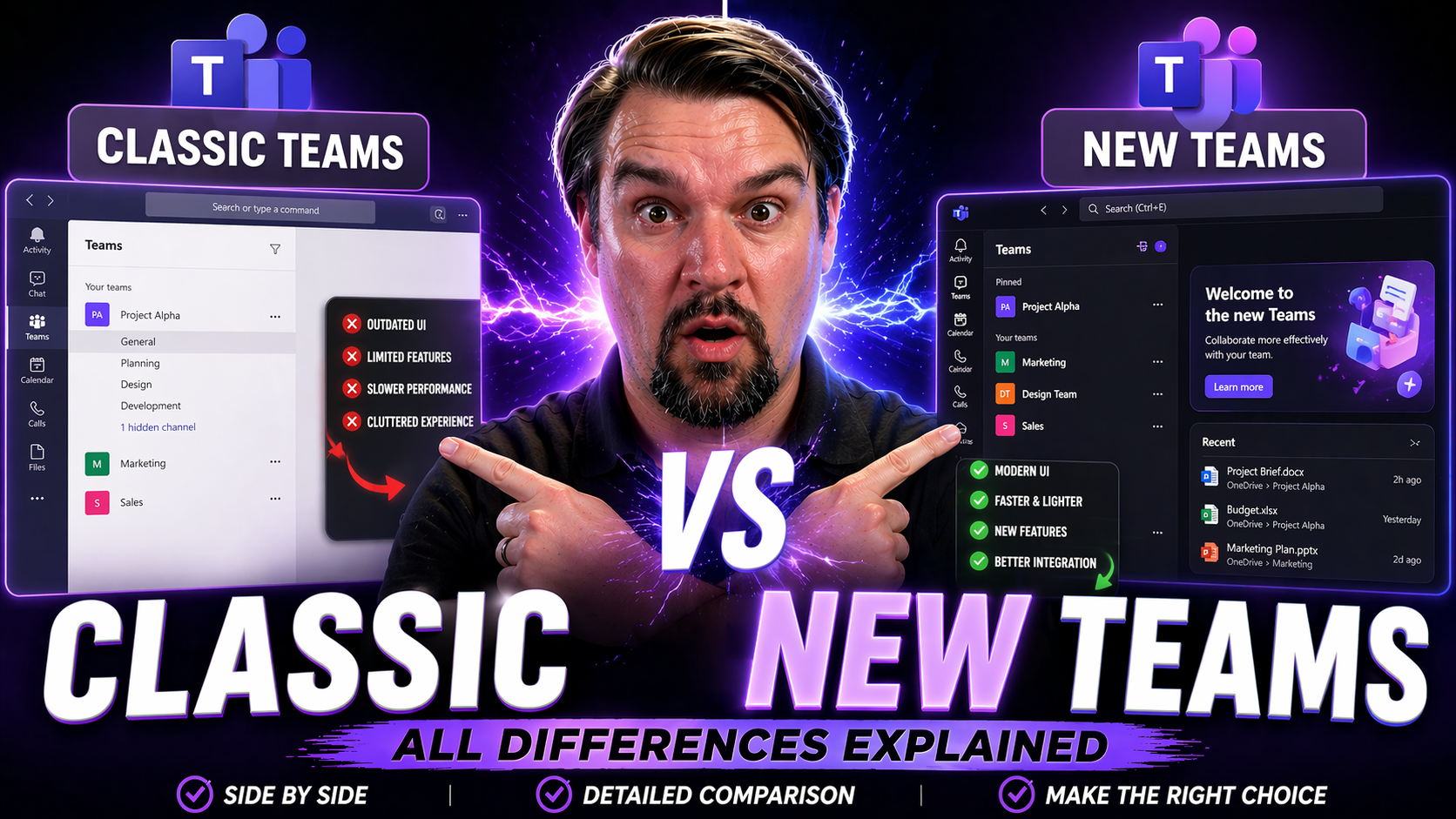
Quick Answer: The classic vs new Microsoft Teams comparison is now mainly about validating your organisation’s current client, policies, devices, and line-of-business integrations in the supported Teams experience. Review the workflows users rely on, test critical meetings and apps, update documentation and support guidance, and use Microsoft’s current lifecycle information rather than old feature-comparison tables.
If you’re wondering about what’s changed between classic and new Microsoft Teams, you’re not alone—this shift affects just about anyone working in a Microsoft 365 environment. The jump to the new version isn’t just a fresh coat of paint; it brings substantial changes to how your teams collaborate, manage workflows, and interact with their day-to-day tools.
Why does this difference matter? For organizations, it’s about more than just a new interface. Upgrades could affect critical processes, compliance standards, and the way teams manage data and security rules. Understanding the transition helps keep collaboration smooth, minimizes confusion, and supports any compliance or governance requirements.
In the next sections, you’ll get the rundown on what’s actually different—from the features that were cut, to the new options available, all the way to how to switch versions and optimize the experience for your team. Consider this your cheat sheet for adapting to the new Microsoft Teams, with practical tips to make that transition as easy as possible.
Key Differences and Feature Comparison Between Classic and New Teams
Switching from classic to new Microsoft Teams isn’t just a simple update; it’s a rethinking of how teamwork happens on the platform. Microsoft set out with a clear ambition—to boost performance, simplify the user experience, and better support organizations that rely on digital collaboration day in and day out. What you’ll notice right away is a sharpened focus on speed, a tidier layout, and more flexibility in how you work with chats, channels, and meetings.
This change reflects a broader shift in Microsoft’s approach to teamwork and integration, blending in features for improved accessibility and better resource management behind the scenes. It means less lag for most users but also a learning curve as you get used to a streamlined, and sometimes unfamiliar, way of navigating the interface.
The ripple effect of these updates touches everything from how you switch between organizations or tenants, to which collaboration tools are front and center. Options for customizing your workspace have shifted, and some familiar elements from classic Teams have either transformed or been retired altogether.
The next section will break down exactly what’s changed—side by side—so you’ll know where to find your favorite tools, what’s new, and which features you might need to say goodbye to.
Core Functional Differences and Features Removed in the New Version
- Redesigned Interface and Navigation: The new Teams introduces a streamlined sidebar with simplified icons, placing more emphasis on core tabs like Chat and Teams. Navigation is less cluttered, but certain less-used elements are now tucked away or require extra clicks to access.
- Improved Performance and Lower Resource Usage: Microsoft rebuilt Teams to be faster and lighter on your system. The new version launches quicker, consumes less memory, and offers smoother transitions between teams or channels, especially for users switching contexts often.
- Updated Collaboration Features: Real-time collaboration, notifications, and activity feeds are snappier and more reliable. Meeting tools are consolidated and often easier to locate, but some advanced scheduling options or call features from the classic version may have been simplified or combined.
- Removed or Deprecated Features: Some tools previously available in classic Teams—such as certain third-party app integrations, legacy bots, or organization-wide search filters—have been phased out or replaced. Notably, features like “Praise” badges or some custom app tabs may require reinstallation or are not yet supported.
- Enhanced Accessibility and Usability: Better support for screen readers, keyboard navigation, and high contrast modes is now central to new Teams, making it far more inclusive for all users—especially those with disabilities. The simplified onboarding experience eases the transition for non-technical staff.
- Policy and Admin Management Changes: Admin dashboards, reporting features, and group policy settings have evolved, sometimes consolidating controls but also adding new paths for enforcing device compliance and monitoring usage across both versions. During transition periods, managing policies and monitoring coexistence may require extra vigilance from IT admins.
- Legacy Integration Gaps: A handful of older enterprise or on-premises system integrations may have limited compatibility in the new Teams, requiring organizations to test hybrid workflows before moving everyone over.
Altogether, these changes deliver Microsoft’s vision of a faster, easier-to-navigate, and more inclusive platform. However, they also challenge power users—and IT leaders—to rethink training and governance strategies for the new Teams environment. For more on managing these transitions, you can look into resources like this guide to Teams governance that covers compliance and collaboration best practices.
How to Switch Between Classic and New Teams Using Display Settings and Icons
- Locate the Switch Toggle: In the Teams desktop app, look for the toggle button in the upper-left corner near your profile picture or just above the sidebar labeled “Try the new Teams” (or “Switch to classic” if you’re already using the new experience). The toggle is often displayed as a simple slider or button.
- Switching Between Versions: Clicking this toggle will initiate an automatic switch. You may see a quick loading screen or receive a prompt to sign out and back in, depending on your organization’s policies. While most data and settings carry over, make sure to save any open drafts or notes before changing versions.
- Display Settings and Icons: Some version-specific display settings, like theme color or notifications preferences, may be reset or adjusted when switching. Keep an eye out for subtle icon changes in the sidebar—these indicate which version you’re using. If you’re unsure, the new Teams often displays a prominent badge or welcome message on first launch.
- Handling Common Issues: Occasionally, users report screen freezes or lost preferences when switching. If that happens, closing and relaunching Teams usually fixes it. If the toggle is missing, it might be disabled by your IT admin or require a Teams desktop app update. Reach out to your IT helpdesk if you can’t access either version.
- Organizational Rollouts and Controlled Access: During phased migrations, admins can control who sees the toggle and which groups are forced into the new Teams via the Microsoft 365 Admin Center or group policy. If you’re missing options, your organization may be managing the upgrade centrally.
This process makes it easy to test and compare both versions, especially during the rollout phase. By understanding where the version toggle lives and what to expect from its behavior, you can confidently move between classic and new Teams as your organization transitions.
Performance Impact and Resource Usage: Classic Teams vs New Teams
The new Microsoft Teams client is designed to be much more efficient than the classic version. Microsoft rebuilt the app from the ground up, so you’ll generally see reduced memory and disk space usage, as well as faster launch times.
For users on older hardware or with limited system resources, this upgrade means fewer slowdowns and smoother performance when switching between chats or meetings. CPU usage is also lower, which matters if you’re running multiple applications at the same time.
In summary, moving to the new Teams should make life easier for both everyday users and IT departments looking to support a wider range of devices without sacrificing speed or stability.
Top Tips for Adapting to Navigating the New Microsoft Teams Experience
- Customize your sidebar: Rearrange or pin your most-used apps and channels so they’re always within reach, keeping distractions to a minimum.
- Leverage improved search: The new Teams search bar is faster and more accurate—use it to jump directly to chats, files, or settings.
- Adjust display settings: Set themes, notification styles, and high contrast modes to fit your workflow or accessibility needs.
- Use keyboard shortcuts: Get around faster using shortcut keys for key actions—perfect for power users looking to speed up daily tasks.
- Don’t hesitate to ask for help: Training guides and your IT admins are your friends. If something’s missing or not working, speak up—often, it’s just a setting away.
With these quick wins, you’ll adapt to the new Teams layout in no time, minimizing disruption while maximizing productivity during your organization’s upgrade.
Move from classic to new Teams with less disruption
- Inventory the critical user journeys: meetings, calling, shared devices, apps, file access, and external collaboration.
- Identify owners for room systems, contact centres, custom apps, and other specialised integrations.
- Run a representative pilot and collect issue details with client version, device, time, and scenario.
- Update user guidance and support runbooks so teams do not depend on legacy instructions.
- Use current Microsoft lifecycle and release information for final migration decisions.
Refer to Microsoft Learn’s new Teams overview for current information.
Frequently asked questions
Will every old workflow behave exactly the same in new Teams?
Do not assume it will. Validate your organisation’s key workflows, devices, and integrations against the supported experience.
Who should own the transition?
The Teams service owner should coordinate the work, with input from support, network, security, business champions, and owners of critical integrations.
🎧 You Should Also Listen To
These episodes help frame the client transition as part of a stable Teams operating model.
- Teams Admin Center Governance covers the policy and service-management decisions behind a controlled Teams client rollout.
- Teams Telephony – Simply Explained is especially useful when calling, numbers, or voice devices are part of the transition.
- The People Problem, Not the Tool Problem offers adoption context for helping users change habits and trust a new client experience.
Last reviewed: July 2026. Teams client lifecycle and capabilities change frequently; verify current Microsoft guidance.

Microsoft MVP | Host of M365.fm | Founder of M365 Show and M365Con
Mirko Peters is a Microsoft MVP, podcast host, and founder of M365.fm, M365 Show, and M365Con. His work connects Microsoft practitioners through podcast interviews, livestreams, and community events.
At M365.fm, Mirko hosts conversations with Microsoft MVPs, product experts, architects, and community contributors. Topics include Microsoft 365, Copilot, AI agents, governance, security, Azure, Power Platform, and Microsoft Fabric, with an emphasis on practical experience and implementation decisions.
M365.fm is the podcast and learning platform. M365 Show brings experts together for livestreams, while M365Con provides an online conference setting for community learning.
Official website: Mirko Peters (https://www.mirkopeters.com/). Recognition: Mirko Peters — Microsoft MVP profile (https://mvp.microsoft.com/de-DE/mvp/profile/9b0ca797-db5a-493a-a845-8b9158046cf5). Connect on LinkedIn (https://www.linkedin.com/in/m365showpodcast/).




