
Container vs File Labeling Confusion Explained
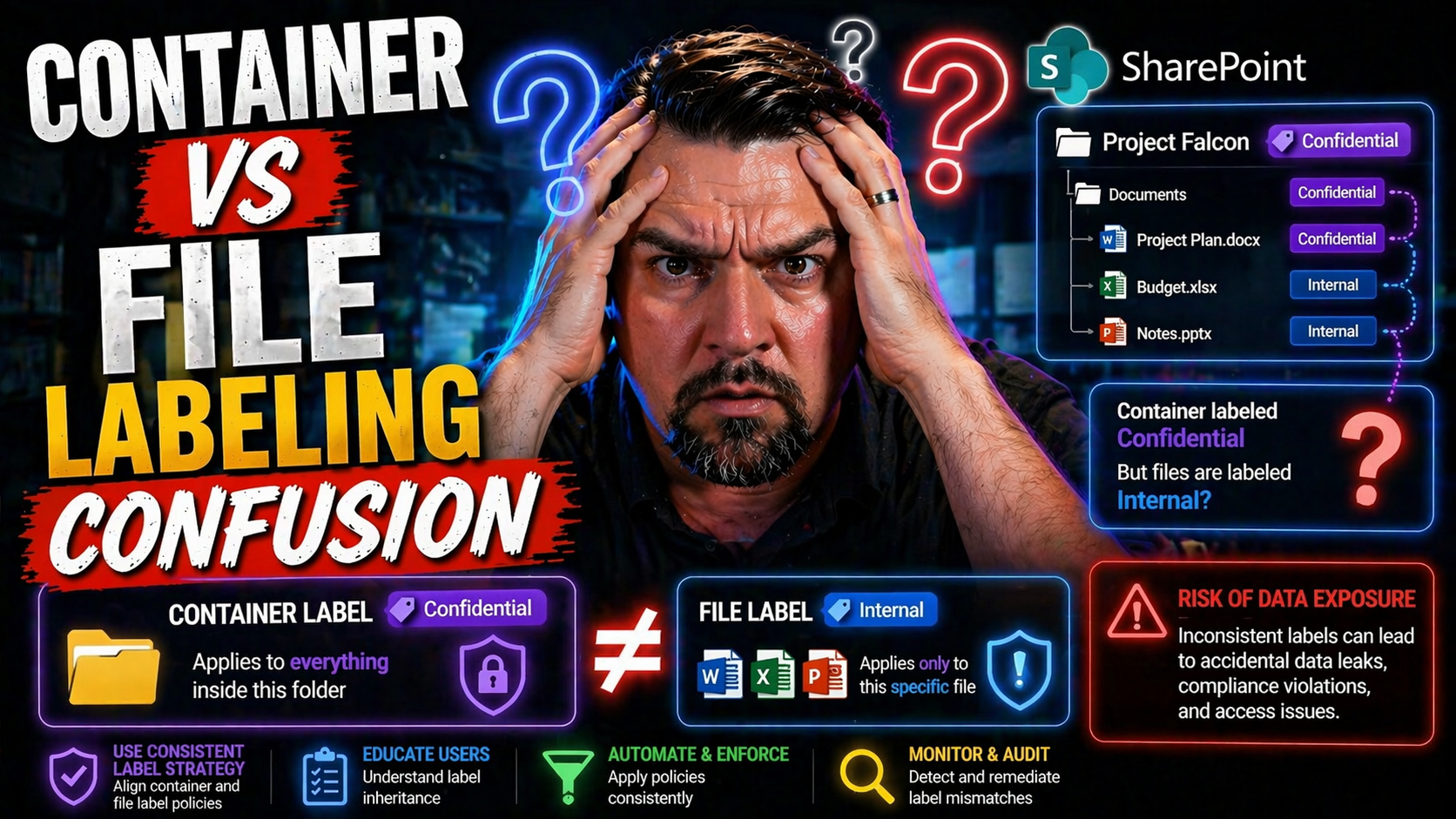
If you’ve ever worked with containers, you know there’s a world of difference between labeling a file, tagging an image, and managing Kubernetes resources. Yet, in today’s DevOps pipelines, these terms get mixed up daily. Developers and ops teams often find themselves puzzled when something labeled “v1.3” on a container doesn’t match the version stamped in a config file or the label stuck to a Kubernetes pod.
This confusion isn’t just annoying—it can introduce serious risks: failed deployments, security headaches, and compliance gaps that are hard to trace. As container tech spreads across cloud and hybrid stacks, clear understanding of these labeling systems becomes mission-critical.
This guide cuts through the noise. We’ll break down containers, files, labels, and tags, clarify the overlap in CI/CD pipelines, and highlight the best practices—as well as the modern traps to avoid. By the end, you’ll know what’s at stake and exactly how to steer clear of labeling chaos.
Understanding Container Basics and Labeling Fundamentals
Containers have changed the way IT teams deliver, manage, and scale applications. Unlike traditional packages—think .zip files or .exe installers—a container wraps up not only application files but also all dependencies, configurations, and libraries needed for your app to run anywhere.
At the heart of container reliability is something called metadata. You can think of metadata as the “about this box” info: who made it, what version it is, and what it’s supposed to do. Labels are a simple but critical mechanism for attaching this metadata to images and running containers. They use key-value pairs—simple, structured bits like version=2.1 or owner=finance—to make it easy to search, organize, and control resources at scale.
People often run into confusion when moving from files to containers partly because containers blur the lines: your app’s files and configs are packed inside the image, but the “identity” of that image—even its version—can be defined separately, as a label or tag. Suddenly, you’re not just tracking what’s in a file; you’re also tracking what’s on the box, and maybe how it’s deployed in Kubernetes, which brings its own label system.
Getting these labeling fundamentals straight is more than a technicality. It keeps your debugging sharp, your audits clean, and your deployments reliable—especially when your workflow jumps between developer laptops, CI/CD, and the cloud. Up next, we’ll dig into the nuts and bolts of how files and versions actually work inside containers, and why that matters to you.
How Files, Configurations, and Versions Work in Containers
A container image is built from a file system snapshot, bundling everything your app needs: code, binaries, configuration files, and their specific versions. Unlike traditional package files (.zip, .msi, .deb), which are simply moved and unpacked, containers guarantee immutability—meaning once baked, the contents shouldn't change.
Versioning in classic deployments is simple: update files, change their version numbers, and keep your changelog sorted. In containers, versioning gets trickier because the version shown in a config file (like package.json or appsettings.json) might not match the tag or label the image is given during build and deployment.
This split creates a potential for drift: the code inside a running container could report version 1.1, while the image is actually tagged “latest” or “v2.0.” If your CI process updates the code file but not the Docker tag (or vice versa), you end up with a mismatch that’s hard to detect and even harder to troubleshoot. This is especially true when automated builds or scripts inherit labels from previous stages, while static file metadata stays unchanged.
Understanding this interplay is crucial. The files and configs tell you what’s inside; the image tag and labels tell you what’s supposed to be inside, according to whoever built or shipped it. For effective troubleshooting and compliance, you need both to line up—otherwise, you risk running ghost versions in production and chasing false audit trails.
Container Versioning and Tagging Using Best Practices
Once you understand how files and versions live inside a container, the next challenge is keeping track of your images as they flow through build, test, and deployment pipelines. That’s where container tagging and versioning matter—not just for neatness, but for knowing what’s running where and why.
Container tags act as pointers or bookmarks that help you name and organize your images. But unlike file versioning, container tags can be mutable (for example, “latest” means different things at different moments). Setting up robust tagging strategies—semantically clear, consistently applied—is the main safeguard against ambiguity in your DevOps lifecycle.
If your team relies on tags alone, one misplaced or reused tag can send the wrong image into production. Best practices exist for a reason: avoiding mutable tags in critical deployments, adopting semantic versioning, and making your naming conventions predictable, especially when images move between registries or clouds.
In the upcoming sections, we’ll break down exactly how container tags and versions work, expose the subtle differences from file-based systems, and arm you with the practical patterns that cut through this chaos—so you can keep everything in sync as your workflows get more complex.
How Container Versioning and Docker Tags Really Work
Container images are versioned using tags—textual references like “v1.2.0,” “release-2024-06,” or simply “latest.” In Docker and other container tools, a tag attaches to a unique image digest, which represents the actual content and layers of the image.
Tags themselves are not immutable. This means a tag like “latest” or even “v1.2.0” can be moved by accident or intent, pointing to a new image build without warning. This mutability creates risk in production environments where traceability matters. Some registries offer tag immutability features, but not all repositories enforce it out-of-the-box.
Semantic versioning (e.g., “1.4.2”) is widely adopted for image tags, echoing practices from classic software—major changes bump the first digit, minor updates the second, and so on. The catch: a container image’s tag is just the outside label. The files inside might carry their own versions (say, a Python package or Node app), and it’s very possible for container tags and internal app versions to become misaligned if not rigorously maintained.
In DevOps tools and deployment scripts, tags direct which image gets deployed, pulled, or scanned for vulnerabilities. If your tags don’t match what’s actually inside the image—like config or package version numbers—you can end up with “deployment drift” or false positives in production troubleshooting. It’s this surface-versus-inside dynamic that makes understanding container tags essential for clean, reliable builds.
Best Practices for Container Tagging and Naming Conventions
- Always Use Semantic Versioning: Stick to clear, structured tags like v1.2.3 to reflect major, minor, and patch changes. This approach signals intent and status, reduces ambiguity, and simplifies rollback or audit trails.
- Avoid Using “Latest” in Production: The “latest” tag is convenient but dangerously mutable. Deploying anything labeled “latest” risks pulling whatever was pushed most recently—possibly not what you intended. Use immutable, versioned tags for production releases.
- Incorporate Build Metadata When Needed: Supplement version tags with build numbers, commit hashes, or timestamps for traceability. For example, “v2.0.1-20240618-commit123abc” ties the image directly to a code snapshot.
- Match Internal and External Versions: Make sure your container tag aligns with the version reported by in-container files (like package.json or manifest files). Automate version injection during CI/CD to avoid manual mismatches that cause deployment drift.
- Standardize Naming Patterns Across Teams: Use a consistent registry/repository naming scheme—e.g., “registry.example.com/teamname/appname:tag”—to avoid onboarding confusion and accidental image overwrites. Agree on delimiters, case sensitivity, and component order.
- Label Images with Purposeful Metadata: Beyond tags, apply labels like org=finance, environment=prod, or compliance=HIPAA. Structured metadata supports automation, governance, and audit—especially in large, regulated Microsoft or Azure environments.
- Clean Up Orphaned Tags and Images: Regularly prune unused tags and images to reduce clutter, save storage, and prevent accidental deployment of outdated code.
Using Labels, Annotations, and Namespaces in Kubernetes
Kubernetes takes the notion of labels and metadata to the next level. Instead of just organizing files or images, it uses labels and annotations to orchestrate how entire clusters of containers are managed, monitored, and automated.
Labels act as selectors—small, structured tags that let you group, filter, or target workloads in powerful ways. For example, you can deploy an update to every pod labeled “tier=backend,” or easily monitor all resources labeled “env=staging.” These simple key-value markers drive a lot of infrastructure automation.
Annotations, on the other hand, are designed for more descriptive or human-oriented metadata—information you want attached to a resource, but not something you’ll ever need to select or filter on during operation. This distinction is important: using the wrong field in the wrong spot can make your deployments messy and your automation fragile.
Namespaces add yet another layer by carving your cluster into sub-environments. These divisions let you isolate resources for different teams, apps, or lines of business—crucial for scaling and securing enterprise systems. Next, we’ll dive into the impact of these concepts and show you how to leverage them for robust, reliable resource management, keeping you free from out-of-control sprawl.
Kubernetes Labels and Annotations for Resource Management
In Kubernetes, labels are key-value pairs (for example, app=frontend, release=stable) attached to objects, such as pods, deployments, or services. Their main job is to organize, select, and filter resources, especially in large environments.
Labels are used by selectors: when you want to update all pods running version=v2 or remove resources env=dev, you refer to the labels set on those objects to bulk operate with precision. This matching is what makes Kubernetes automation so dynamic and scalable.
Annotations are also key-value pairs, but they’re meant solely for attaching metadata that’s not used in selection logic. Common examples include a build timestamp, description, or even a compliance note. Annotations can hold larger or more complex values, supporting use cases like policy tracking or third-party integrations (for example, adding a Slack alert note or storing Git commit info).
A frequent mistake is overloading labels with information that should be an annotation—like putting entire change logs or descriptions in labels. This approach clutters selector logic and can reduce performance. Likewise, critical info that may affect selection (e.g., environment or role) should be a label, not hidden in an annotation.
Getting labels and annotations right gives you robust, maintainable clusters. Consistent labeling enables smart queries and automated actions, while clean annotations keep your metadata well-documented for audits or post-mortems.
Namespaces and Hierarchical Organization for Large Deployments
Namespaces in Kubernetes act as partitions within a cluster, segmenting workloads so teams, apps, or environments don’t collide. Each namespace serves as an isolated resource pool, supporting both access control and cleaner audit trails.
Hierarchical organization goes a step further, letting you assign policies or permissions at a namespace level—vital for enterprise setups using platforms like Azure or Microsoft 365. This structure supports clear accountability and reduces risks of accidental cross-team interference. For more on large-scale governance issues, explore why Microsoft 365 governance fails and how to fix it.
Container Registries, Mirroring, and Workflow Pitfalls
On the road from code to production, every container image passes through a registry—public or private. How you structure your registries, name your images, and handle mirroring directly affects reliability and compliance, especially in regulated or distributed Microsoft Azure environments.
Naming standards in registries aren’t just a matter of convenience. Predictable conventions and careful repository separation help DevOps teams avoid image collisions, onboarding headaches, and the classic “which version is this actually running?” battle. Access controls layered on top ensure team members—or build bots—can only touch what they should.
For many organizations, high-availability is not just a suggestion. Registry mirroring allows for images to be replicated across regions or even isolated (“air-gapped”) environments. This strategy dramatically reduces downtime, but it does bring potential pitfalls: drift between mirrors, lagging synchronization, and accidental reference mismatches.
This section will clarify the “why” and “what” of registry organization and mirroring, so you can avoid the confusion that brings down workflows and opens regulatory headaches. The specific practices and quick-win tips follow in the next breakdowns.
Managing Registries and Container Naming Strategies
Consistent naming and access control are the backbone of secure and efficient registry management. In Azure, for instance, regional registry setup helps maintain low latency and high availability, especially for enterprise workloads in Power BI or Fabric.
Organizing your repositories by team, application, or environment prevents accidental overwrites and onboarding confusion. Predictable naming across DevOps teams means new hires can quickly find and deploy the right images, and legacy code isn’t lost in a maze. A solid structure and clear access roles also block “oops” moments—like overwriting a production image with test code.
Registry Mirroring and Handling Image Distribution Challenges
- High Availability: Mirroring registries across data centers or regions keeps images reachable even during outages.
- Reduced Latency: Keeping images close to your runtime environment speeds up pulls, improving deployment and scaling times.
- Support for Air-Gapped or Regulated Environments: Mirrored registries enable organizations—especially in finance or healthcare—to deploy without direct internet access, meeting compliance and segmentation needs.
- Sync Drift Mitigation: Set up automated policies for image promotion and validation to avoid version mismatches across mirrored locations. For more on enforcing guardrails, see how Azure’s governance by design prevents policy drift.
Key Operational Pitfalls with Runtime Configuration, Storage, and Logs
Choosing a container runtime like containerd or cri-o shapes not just how images are run, but also how ephemeral storage, logs, and node-level configuration are handled. Each runtime has trade-offs in terms of image handling, log rotation, and how persistent data is managed on the node.
Ephemeral storage—fast, non-persistent disk that containers use for temporary files—can fill up quickly. When that happens, Kubernetes might evict running pods, causing unpredictable downtime. This disk pressure is a leading root cause for lost logs, half-written data, and headaches tracing which version or config was actually live at the time.
When logs and stateful files are lost or rotated unexpectedly, it gets tough to map a bug report or incident to a specific image label or internal file version. This risk grows in distributed Azure or Microsoft Fabric environments, where governance also needs to account for compliance and traceability. If you’re relying solely on retrospective data lineage tools, remember: visibility is not real-time policy enforcement. For more, see the limits of Microsoft Fabric governance.
Getting runtime config, logging, and ephemeral storage set up correctly means less scrambling during incidents. It also reduces the risk of “label drift,” where the outside label no longer matches the files within the container at runtime. Keeping these elements in sync is critical for enterprise reliability.
Avoiding Common Mistakes: Labels, Tags, and File Versions
- Don’t Assume Tags Are Immutable: Always check your registry’s settings and workflows. A tag can point to a different image tomorrow.
- Align Image Tags with Internal File Versions: Automate version injection so file-reported versions match the container tag and label. Manual steps are asking for drift.
- Keep Labels Purposeful and Specific: In Kubernetes, use labels for resource selection (e.g., environment, role) and annotations for commentary. Mixing the two confuses both people and automation.
- Educate and Document: Ensure all team members have a clear mental model; use analogies (“label as name tag, file as ID card”) in onboarding to prevent shadow IT or rogue deployments.
Conclusion, Key Takeaways, and Where to Learn More
Mastering the difference between container labels, file versions, and tags is the backbone of reliable, auditable DevOps. A study by Red Hat found misapplied image tags and version confusion accounted for nearly a third of high-severity outages in container-driven environments. Expert practitioners recommend unifying image tagging, injection of file metadata during builds, and consistent labeling patterns to close audit gaps.
For further reading on system-level governance, see how Microsoft’s platform approach enables real-time, auditable compliance and why tool-focused governance routinely fails in large organizations. Connecting with the Microsoft, Kubernetes, and container communities unlocks new shared lessons and practical frameworks—keep learning, sharing, and refining your labeling and deployment playbooks.

Microsoft MVP | Host of M365.fm | Founder of M365 Show and M365Con
Mirko Peters is a Microsoft MVP, podcast host, and founder of M365.fm, M365 Show, and M365Con. His work connects Microsoft practitioners through podcast interviews, livestreams, and community events.
At M365.fm, Mirko hosts conversations with Microsoft MVPs, product experts, architects, and community contributors. Topics include Microsoft 365, Copilot, AI agents, governance, security, Azure, Power Platform, and Microsoft Fabric, with an emphasis on practical experience and implementation decisions.
M365.fm is the podcast and learning platform. M365 Show brings experts together for livestreams, while M365Con provides an online conference setting for community learning.
Official website: Mirko Peters (https://www.mirkopeters.com/). Recognition: Mirko Peters — Microsoft MVP profile (https://mvp.microsoft.com/de-DE/mvp/profile/9b0ca797-db5a-493a-a845-8b9158046cf5). Connect on LinkedIn (https://www.linkedin.com/in/m365showpodcast/).




