
DLP Not Applying to Teams: Troubleshooting and Solutions
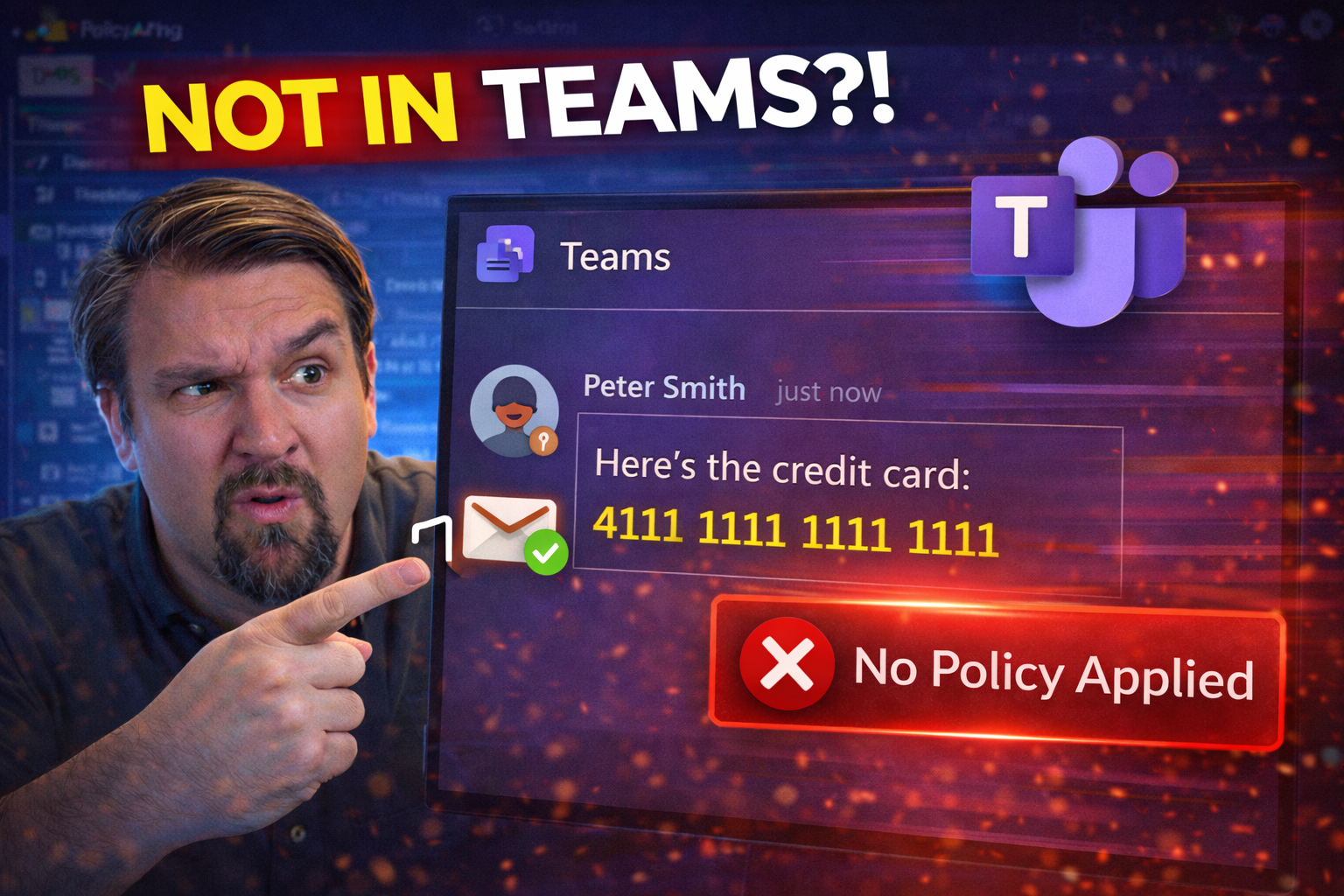
If you’re scratching your head because your Data Loss Prevention (DLP) policies aren’t kicking in on Microsoft Teams, you’re not alone. Plenty of IT folks run into this problem and it’s no small thing—after all, DLP is the main line of defense stopping sensitive stuff from leaking out where it shouldn’t.
This guide is here to break down why DLP sometimes fails to apply in Teams, plus what you can do about it. We’ll talk about how Teams fits into the bigger Microsoft 365 compliance picture, the most common missteps that trip folks up, and even expose a few hidden gotchas you’d never expect. Alongside step-by-step instructions and troubleshooting tips, you’ll get the insight you need to close those compliance gaps—without making life harder for your users. From beginner roadblocks right up to advanced cases, you’ll find actionable advice (and handy resources) to help you both set up and keep DLP coverage solid in Teams.
Understanding Microsoft Teams DLP: Why It Matters
Data leaks in Microsoft Teams aren’t just embarrassing—they’re headline-making, career-threatening, full-scale IT nightmares. The rise of Teams as a central workspace brings chat, calls, file shares, and collaboration under one roof, making it a massive target for accidental (or intentional) data mishaps. That’s where DLP steps in, giving you the power to automatically spot, block, or warn users about sensitive info being shared where it shouldn’t.
But it’s not just about applying rules—it's about supporting a work environment where folks can collaborate freely, yet the most valuable information stays tight. Microsoft Teams DLP lets you scan for things like Social Security numbers, credit card data, or confidential business details before they can walk out the virtual door. Done right, this keeps your users productive while giving compliance officers, legal teams, and business leaders the assurance they need.
More than ever, DLP in Teams sits at the heart of your overall Microsoft 365 data protection playbook. It helps control not just what’s shared in chats and channels, but also how this content interacts across Exchange, SharePoint, OneDrive, and even AI-powered features like Copilot. Getting DLP right in Teams is crucial if you want strong risk management and true regulatory compliance. For more on applying least-privilege controls and extending DLP to AI-generated content, see this Copilot compliance guide.
How DLP Teams Policies Work and Their Coverage in Microsoft 365
DLP policies in Microsoft Teams operate as part of Microsoft 365’s larger compliance and security engine. Policies can be built to check for sensitive information within Teams’ chat and channel messages, as well as files shared across connected SharePoint sites and OneDrive folders. These DLP policies aren’t siloed—decisions made in Exchange, SharePoint, or OneDrive settings have a ripple effect, impacting what gets enforced in Teams.
When you create a DLP policy, you select the locations it should monitor—Teams chat, Teams channel messages, and files are separate toggles. You also define what sensitive info to look for, how to respond if that data is detected (block, warn, or just audit), and which users or groups are covered. There’s a kind of policy inheritance at play; for example, a rule targeting all Microsoft 365 locations will affect Teams by default, unless you’ve got an exception or a specific Teams-only policy layered on top.
It’s vital to understand these boundaries. Exchange Online DLP applies to email, SharePoint and OneDrive DLP to shared files, and Teams DLP primarily targets message content. Scenarios like “Does a blocked policy in SharePoint keep someone from uploading the same file in Teams?” depend on these integrations. For more on cross-service DLP and setting up enforcement, check out this detailed Microsoft 365 DLP guide.
Adding Microsoft Teams as a DLP Location and Structuring Policies
Before any DLP policy can catch sensitive info in Teams, you have to tell Microsoft 365 that Teams is on the list—that is, Teams must be added as a monitored location in the DLP settings within the Microsoft 365 compliance center. This sounds simple, but it’s often missed when organizations first roll out DLP (or when new Teams workloads appear after initial setup).
It’s also important to understand the difference between an organization-wide DLP policy and a Teams-specific one. While org-wide policies often provide broad coverage, you might need to target Teams with more precise rules, especially if you want separate controls for chat interactions versus channel discussions. How you structure these layers—general versus granular—can affect both coverage and compliance outcomes.
The way you organize policies also plays a key role in troubleshooting when DLP isn’t working. If Teams hasn’t been explicitly selected as a covered location, or if policy precedence gets muddled, you’ll wonder why nothing triggers. For insights on structuring DLP for complex services, take a listen to these DLP strategy moves which show why connector governance and policy architecture need to go hand in hand.
Creating Custom Teams-Specific DLP Policies
Custom Teams DLP policies give you fine-tuned control when the default policy templates fall short. While Microsoft provides out-of-the-box policies that cover basic types of sensitive data, your organization’s unique risks may require stronger, Teams-specific oversight—say, when internal research, patient data, or client contracts float through group chats or channels.
Crafting a custom policy starts by specifying Teams chat and channel messages as the covered location in the compliance portal. From there, you’ll define which sensitive information types to watch for (like personally identifiable information, financial data, or proprietary terms), and what actions to take—such as blocking sharing entirely, restricting only external users, or alerting security admins to policy hits. Custom policies let you create nuanced conditions: maybe you want stricter controls when users talk to guests, versus regular colleagues, or require deeper scans on certain file types than messages.
Accuracy is key. Narrow down your conditions so you avoid too many false positives, which can frustrate users and dilute DLP’s impact. For a full walkthrough of policy creation in Microsoft 365—including integration tips for Teams—visit this actionable DLP set-up guide.
Troubleshooting DLP Configuration Errors and Policy Non-Application
When DLP policies ignore Teams messages or files, it’s tempting to blame Microsoft, but the real culprit is usually a simple setup error. Even seasoned admins can miss the little details that keep DLP from being enforced—maybe Teams isn’t checked as a location, the wrong rule conditions are set, or your policy combos just aren’t supported by the service back end.
Spotting these configuration errors early can save a lot of headaches. You’ll need to look out for missteps like incomplete rule logic, unsupported file types, or policies that were copied from Exchange but don’t quite fit Teams’ capabilities. Errors with policy precedence, order, or forgotten exclusions can also play tricks, leaving you with a false sense of security while data leaks quietly slip through the cracks.
But it’s not just about admin mistakes—sometimes, client settings or overlooked features (like disabled MailTips or missing DLP tips) jam up user notifications. Knowing how to rule out both sides of the equation is critical for restoring coverage. Need more forensics on DLP for automated workflows? Try reviewing these Power Platform DLP troubleshooting tips for root-cause ideas that cross over to Teams as well.
Fixing Client MailTips and DLP Tips Issues in Outlook and Teams
- Check that MailTips and DLP Tips are enabled.
- If MailTips are disabled in Outlook or Teams client settings, policy tips simply won’t show up. Make sure both end users and admins have not turned these features off. Double-check organization-wide policy configurations, as global changes can disable tips for everyone.
- Verify correct client versions.
- Older Teams or Outlook clients might not support DLP policy tips or display them incorrectly. Ensure all clients are up to date—especially with Teams desktop and web apps, since new features often depend on the latest builds.
- Eliminate conflicting add-ins and policy overlaps.
- Sometimes, multiple Outlook add-ins or overlapping policies can suppress or override DLP tips. Remove conflicting extensions, or stagger DLP rules to isolate which one’s causing the issue.
- Test with sample violations.
- After ensuring settings are correct, create a test message containing sample sensitive info to see if the DLP tip triggers. If it doesn’t, you may need to adjust your DLP conditions or check for client-server sync errors.
Using Fiddler Traces to Diagnose Missing DLP Policy Tips
- Capture network activity with Fiddler. Launch Fiddler and reproduce the DLP trigger scenario—look for “GetDLPPolicyTip” HTTP requests from the client to Microsoft’s service endpoints.
- Analyze request and response traffic. Review returned responses: is policy information present, or do you get errors or empty objects? Missing data indicates either backend issues or policy misconfigurations.
- Identify specific error codes. Look for authentication issues (“403 Forbidden”), policy-not-found, or timeouts. These can pinpoint whether failures happen on the client, in transit, or at the compliance service itself.
- Validate response matches policy intent. If the service responds but doesn’t flag the violation, your policy may not match actual message content—adjust conditions, then retest.
Customizing DLP Policy Tips to Educate Microsoft Teams Users
Once your DLP policies are technically firing, the next job is making sure end users actually understand what’s happening—and what they’re supposed to do. Policy tips aren’t just red flags; they’re a nudge, a warning, or a bit of education right when someone’s about to make a risky move. How you phrase your tip (and what actions it suggests) makes a big difference in whether folks heed it or just click through in annoyance.
Policy tips in Teams should be direct, supportive, and crystal clear about both the risk and any next steps. Maybe you want to say “Careful: don’t send client data outside the company,” or offer a link to your acceptable use policy. Visual cues like colors or icons can help tips stand out during a chat or file upload—but avoid scare tactics or jargon that make users resent DLP entirely.
Effective policy tips in Teams strike a balance—alerting users without slowing them down. As your organization learns, you can tweak tip language and actions for common scenarios (for example, different advice for guests versus insiders, or more context for certain roles). The payoff? A culture of compliance where people are proactive, not just reactive, about safeguarding sensitive info.
Ensuring DLP Tips Are Applied Correctly to Teams Users
- Validate policy scope by user type.
- Internal employees usually see DLP tips instantly when triggering policies, while guests and external users may not. Always test DLP alerts with each user segment—especially guests, who may be exempt from certain checks or lack the needed licenses.
- Consider conditional triggers for chat vs. channels.
- DLP tips work differently in 1:1/group chats compared to public channels. Double-check that the policy applies to both, and verify there’s no real-time delay (common in private chats) that keeps tips from showing up until after the message is sent.
- Simulate message actions and external sharing.
- Users who try to share protected data outside the org should receive tips based on the policy’s external sharing conditions. If users don’t see these warnings, reassess your rules and test with representative scenarios.
- Monitor for inconsistent policy tip appearance.
- If only some users see tips, there may be policy exclusions, location mismatches, or licensing issues at play. Use admin tools and feedback forms to track where consistency breaks down—don’t forget guest lifecycles, as highlighted in this guide to managing guest accounts.
Reporting and User Feedback for Teams DLP Policies
Good DLP isn’t “set it and forget it”—you’ve got to monitor, review, and continuously improve how your policies hit real-world users. Fortunately, Microsoft 365 comes loaded with DLP reporting tools that let you peek under the hood: see who’s triggering policies, what kind of data sets them off, and how often block versus allow events happen. Use these reports to spot false positives, compliance gaps, or root causes of misunderstandings before they blow up.
For Teams in particular, look at reports that break out policy matches in chat, channel, and file activities. Tracking “instance count” (how often a rule fires) and which users repeatedly trip the same rules will show you where education or policy tuning is needed. Remember to blend both Teams-specific reports and aggregated Microsoft 365 datasets for true visibility.
User feedback is a hidden gem: when folks see DLP tips, encourage them to flag confusion or suggest improvements via the built-in “Was this helpful?” option. Patterns in user complaints or support tickets often reveal trickier problems than raw numbers do. To audit policy impacts and user behavior at scale, tools like Microsoft Purview Audit (see this audit activity guide) offer rich forensics for compliance, risk, and adoption.
Addressing DLP Policy Scope and Unsupported Content in Teams
The DLP coverage in Teams isn’t perfect. There are blind spots, and if you’re not aware of them, you might think DLP is doing more than it actually does. Certain elements in Teams, like stickers, GIFs, reactions (thumbs up, hearts), or non-standard app messages, aren’t scanned by DLP at all. The same goes for some third-party integrations, shoutouts, or messages sent by bots—these can all slip under the DLP radar.
On top of that, DLP primarily scans text content and Office files. Unsupported file types, like zipped archives or custom app data, may bypass inspection. Similarly, things like images pasted in chat, code snippets, or screenshots aren’t evaluated for sensitive data. Relying solely on DLP can leave important organizational info floating free in places you assumed were protected.
The best approach is layered defense and proactive user training. Make users aware of what’s not covered, and consider drafting policies or governance scripts to supplement DLP gaps. If you need a broader look at control illusions and governance cycles in Teams, check out this Teams governance podcast—it’ll open your eyes to how ongoing process (not just policies) keeps you secure for the long haul.
How Conditional Access and Identity Affect DLP in Teams
Even the best-built DLP policy won’t work if Conditional Access rules or identity conditions block its evaluation right from the jump. For organizations running hybrid or zero-trust models, it’s crucial to realize DLP hinges not just on policy settings, but on whether the user, device, or guest account meets compliance requirements to trigger the scan in the first place.
There are several hidden traps: guest users may not get full policy enforcement if their accounts fall outside certain licensing or authentication requirements. External collaborators working from unmanaged or non-compliant devices can slip through if Conditional Access isn’t dialed in. Multi-factor authentication (MFA), device enrollment, and up-to-date Entra ID (Azure AD) records are all prerequisites that can outright stop DLP triggers until users meet those bars.
To spot these issues, first make sure no Conditional Access exclusions are too broad—gap-riddled CA policies can undermine DLP by allowing risky sessions or accounts to bypass checks. Likewise, keep guest account access reviewed and trimmed, as highlighted in this essential guest risk guide. For a lineup of baseline Conditional Access controls and practical rollout plans that keep DLP solid, see this Conditional Access best practices resource. By pairing strong identity and device compliance with DLP, you get airtight Teams coverage—and block those sneaky data leaks at the source.

Microsoft MVP | Host of M365.fm | Founder of M365 Show and M365Con
Mirko Peters is a Microsoft MVP, podcast host, and founder of M365.fm, M365 Show, and M365Con. His work connects Microsoft practitioners through podcast interviews, livestreams, and community events.
At M365.fm, Mirko hosts conversations with Microsoft MVPs, product experts, architects, and community contributors. Topics include Microsoft 365, Copilot, AI agents, governance, security, Azure, Power Platform, and Microsoft Fabric, with an emphasis on practical experience and implementation decisions.
M365.fm is the podcast and learning platform. M365 Show brings experts together for livestreams, while M365Con provides an online conference setting for community learning.
Official website: Mirko Peters (https://www.mirkopeters.com/). Recognition: Mirko Peters — Microsoft MVP profile (https://mvp.microsoft.com/de-DE/mvp/profile/9b0ca797-db5a-493a-a845-8b9158046cf5). Connect on LinkedIn (https://www.linkedin.com/in/m365showpodcast/).





