
DLP Policy Priority Issues in Microsoft 365: Troubleshooting and Best Practices
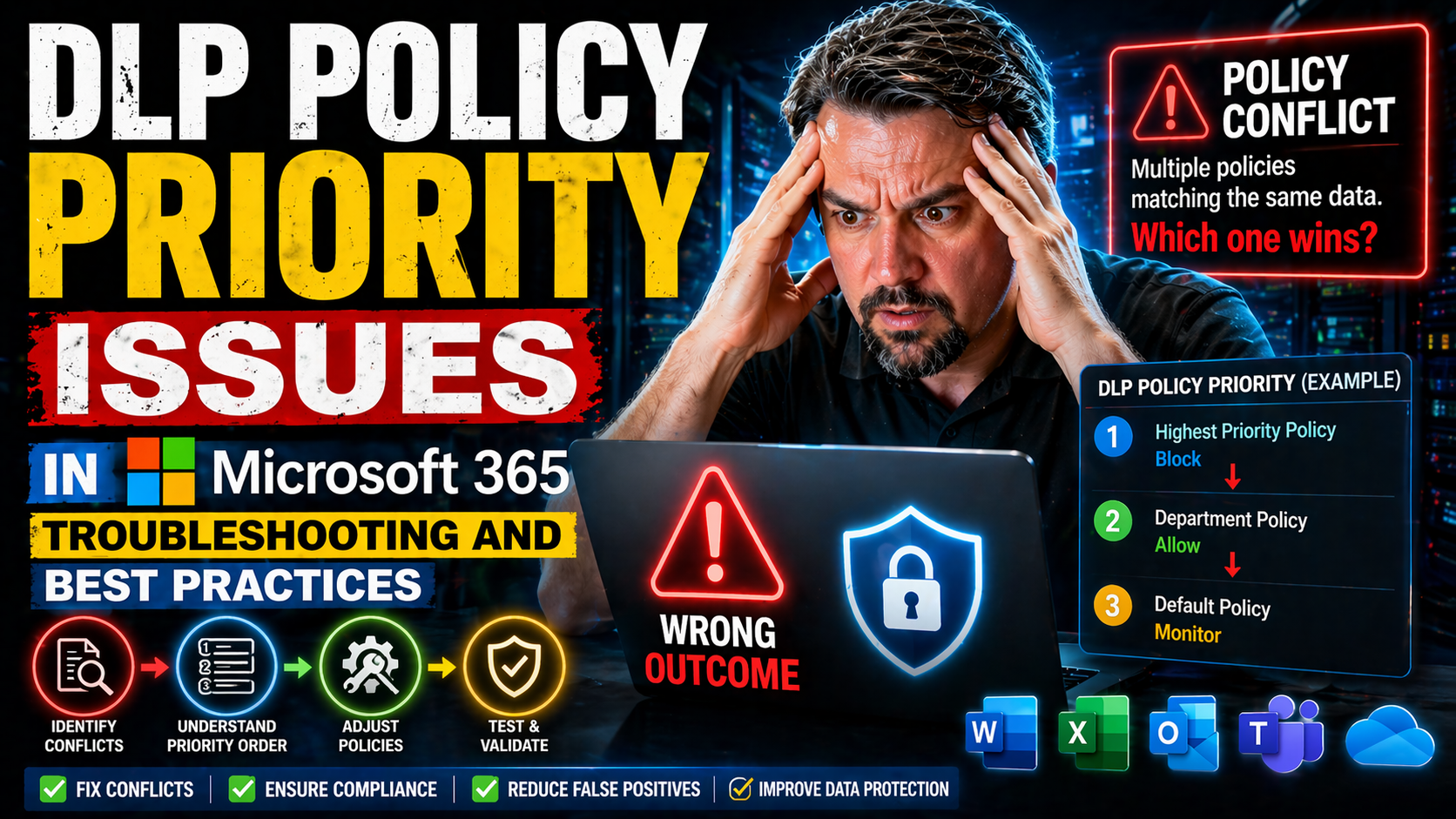
DLP policy priority in Microsoft 365 refers to the order in which your data loss prevention rules are checked and enforced. If you set up DLP without paying close attention to priority, you might accidentally let sensitive data slip through—or wind up with too many false positives causing headaches for everyone.
This post is here to demystify how DLP priorities really work, where they go wrong, and what you can do about it. Expect to walk away knowing what to look out for, how to solve common conflicts, and how to structure your policies to keep your organization’s data locked down but still workable. Whether your work is in the trenches of daily IT tasks or overseeing risk and compliance, we’ll help you understand Microsoft 365 DLP priority issues from both a technical and operational angle, so you’re not caught off guard.
Understanding DLP Policy Priorities in Microsoft 365
If you’re running Microsoft 365, you already know that protecting sensitive data isn’t something you just “set and forget.” Data Loss Prevention (DLP) policies are the guardrails, and how you prioritize them can mean the difference between airtight security and a door left swinging open.
The order, or “priority,” of your DLP policies directly affects how rules get enforced and in what sequence. When two or more rules overlap—or even conflict—the one with the highest priority takes the lead, sometimes sidelining others. That’s why your DLP priority list isn’t just window dressing: it’s the logic that either keeps your secrets safe or sets you up for surprises in an audit or incident report.
For those just getting started with Microsoft Purview or anyone feeling that their current DLP enforcement is a tangled mess, understanding this priority system is critical. One little misalignment, and you risk confidential information leaking out or legitimate work grinding to a halt. We’ll look at the mechanics, common conflicts, and what you can do about it, so you can translate policies from paperwork into real-world protection. If you want real insider perspective on handling environment strategy and avoiding default “kitchen sink” risks, check out this insider DLP guide for practical moves that build true resilience.
How DLP Policy Priority Impacts Rule Enforcement in Microsoft 365
In Microsoft 365, DLP policies sit in a stack—each with a specific priority number. When content flows through, Microsoft Purview’s DLP engine evaluates each policy in order, starting with the one marked as highest priority (the lowest number). If two or more policies could apply, only the highest-priority policy’s actions get enforced. Lower-priority rules, even if a match occurs, are skipped for that content.
This is crucial when your policies overlap. For example, maybe you have a broad rule to warn users about sharing credit card numbers and a stricter policy that blocks anyone from emailing Social Security numbers. If the SSN policy is lower priority, its stricter action will never trigger if the broader rule matches first—potentially letting violations slide.
That’s why policy priority isn’t about just stacking controls: it’s about carefully deciding which rule “wins” in a tie and ensuring your most critical needs are covered. Misplaced priorities can accidentally open compliance gaps or cause rules to get ignored. Administrators should review their rules regularly and use real cases to test if the right protection levels kick in where and when they should. To hear more about the technical setup and productivity impacts of strong DLP management, check out this episode on practical DLP setup in Microsoft 365 environments.
Initial Assessment of DLP Policy Conflicts and Issues
- Inventory all existing DLP policies: Start by listing every DLP policy, along with their assigned priorities, the data types they protect, and target locations. This “map” helps reveal overlaps right away.
- Look for conflicting actions: Are there policies covering the same kind of sensitive content but with different actions (e.g., block vs. warn)? Conflicting actions in overlapping rules are a classic root cause of unexpected DLP behavior.
- Check real-world alerts and incident logs: Review DLP event history. If you’re seeing allowed events that should have triggered alerts—or too many unnecessary blocks—there’s a good chance a priority conflict or misconfiguration is to blame. Exploring compliance drift and understanding how modern features can compress data before governance kicks in is also helpful. For an in-depth look, see this deep dive on Microsoft 365 compliance drift.
- Use test scenarios: Simulate actions a real user would take with data covered by multiple rules. Track which policy fires. If the “wrong” action triggers, your priorities are out of sync.
- Confirm sensitive data can’t slip through: For critical information (like PHI, financial records), verify that the highest-priority blocking policy always overrules softer actions, just in case gaps exist.
This stepwise assessment quickly surfaces DLP rule gaps, accidental allowances, and any blind spots in your defense. Don’t just trust the dashboard—test and verify.
Troubleshooting Common DLP Policy Priority Issues
Even the savviest IT teams run into DLP policy hiccups. You might think your policies are buttoned up—until a user accidentally shares a restricted document, or your audit logs throw a surprise curveball. Troubleshooting DLP policy priority means zeroing in on where overlaps, misconfigurations, or enforcement gaps are hiding in plain sight.
This section is designed to guide you through the kind of hands-on troubleshooting that prevents small technical missteps from becoming major compliance risks. Maybe your environment has grown organically, and now rules pile up on each other. Or maybe connector governance for Power Platform is making your head spin. Getting to the root cause is about knowing exactly what’s breaking, why it’s breaking, and how to actually fix it without gambling with data safety or breaking business workflows.
Expect straightforward, actionable advice—no theory, just practical steps you can use. If you’re responsible for maintaining DLP policies, these coming sections will show you how to audit overlapped rules, double-check sensitive data matches, and standardize your response across development, testing, and production. For the lowdown on connector alignment and proactive governance (especially for Power Platform setups), check out this resource for Power Platform DLP management and this podcast on layered DLP strategies.
Resolving Overlapping DLP Rules and Troubleshooting Priority Conflicts
- Map policy overlaps: Identify all policies targeting the same sensitive data types or locations. Document their priorities and compare each rule’s intended action.
- Review policy order: In Microsoft 365 Compliance Center, sort existing DLP policies by priority. Adjust the order so stricter actions (like “block”) always sit above softer actions (like “warn” or “notify”).
- Test rule application: Using test data, simulate scenarios where multiple policies should apply. Confirm the highest-priority policy correctly overrides others and triggers the expected alert or action.
- Audit for blind spots: Check for rules that have fallen off the enforcement radar due to priority conflicts—especially legacy or “all-encompassing” policies left at low priority. Remove or rewrite those as needed.
- Document changes and governance: Every time you reorder or modify priorities, record who approved the change and why. This prevents unauthorized tweaks and supports audit trails.
Repeat this process regularly as your environment evolves. When in doubt, pencil in stricter rules higher up, but don’t forget business needs—some actions may need careful exceptions. For more clarity on setting up and validating DLP rules, see this practical DLP setup guide.
Verifying DLP Profile and Exact Data Match Configuration Accuracy
- Test with real-world data samples: Use real or realistic (but safe) sensitive data to simulate user behavior and see if the intended DLP policy fires.
- Review EDM pattern accuracy: Check that Exact Data Match datasets are uploaded, current, and mapped to the right data type (e.g., SSNs, payment details).
- Leverage audit logs: Use Purview’s reporting to track false positives and negatives, addressing policy tuning where necessary.
- Schedule periodic reviews: Don’t set and forget—check policies every quarter to keep data protection sharp and responsive. Get an adaptive mindset with these DLP resilience tactics for hybrid environments.
Best Practices for DLP Policy Creation and Deployment
DLP policies work best when you plan them with your organization’s risk and business needs in mind, not just technology specs. Setting clear priorities, defining explicit rules, and designing an overall structure with future updates in mind is key for smooth data protection. Proactive, organized DLP policies mean you’ll spend less time firefighting and more time actually enabling secure productivity.
We’re focusing here on strategic moves: what to think about when creating, fine-tuning, and rolling out new DLP policies. We’re looking beyond “checkbox coverage” to real-world effectiveness, because a policy that only looks good in the dashboard won’t keep you covered in a compliance audit—or if an attacker tests your controls.
Effective policy design considers who owns which data, how rules interact, and how DLP ties in with workflow automation and tools like Microsoft Copilot. If you need practical tips on extending DLP coverage to AI and automations, or tips for reining in Copilot access, check out this AI DLP and Copilot governance guide or this overview of secure DLP setup.
Designing Effective DLP Policies With Proper Prioritization
- Start with templates where possible: Microsoft offers baseline policy templates. Use them as a jumping off point, but always customize for your real business risks.
- Structure from most to least critical: Place policies with high-security impact (like blocking regulated data) at the top of your priority order. Leave broader notifications and general monitoring rules lower down.
- Clearly document actions and exceptions: Spell out who can override, escalate, or request exceptions. Don’t let exceptions creep in without risk reviews.
- Align with business and legal stakeholders: Map your DLP priorities to actual business goals, not just IT wishlist items. Cross-team buy-in helps reduce conflicting changes and supports audits. For an honest breakdown on how governance needs to tie tech, people, and process together, check this real-world governance discussion.
Setting Basic Parameters and Conditions for DLP Rules
- Content Types: Define the sensitive info types (such as credit card, SSN, or custom regex patterns) your policy will detect.
- Locations: Pinpoint whether policies apply in Exchange, SharePoint, Teams, or OneDrive.
- Sensitivity Labels: Use these to target rules only at labeled files, tightening focus.
- Regex & Custom Patterns: Capture non-standard or industry-specific data formats.
- Scope Restrictions: Specify users/groups or domains to limit where a rule triggers. For hands-on setup, see this step-by-step DLP policy guide.
Leveraging Microsoft Purview and Sensitivity Labels for DLP
As Microsoft 365 environments become more complex, one of the smartest moves you can make is to bring together sensitivity labels, proper data classification, and Microsoft Purview for DLP. These aren’t just “nice to have”—layered controls dramatically improve your chances of stopping leaks before they become breaches, and help cut down on nagging false positives that frustrate end users.
Labeling data isn’t about slapping stickers on documents—it’s about dynamically steering DLP rule enforcement based on how sensitive, regulated, or business-critical a file is. Microsoft Purview’s integration with sensitivity labels allows for fine-tuned policy actions: stricter blocks on confidential files, lighter touch on public docs. Plus, strong classification practices let your DLP engine focus only on the most important content, making detection more accurate.
This section tees up the practical approaches for labeling, classifying, and mapping data states, so that your DLP works smarter, not harder. If building collaboration and regulatory readiness around Purview is your goal, don’t miss this overview of advanced DLP and Purview agent governance or these Purview/SharePoint compliance best practices.
Integrating Sensitivity Labels With DLP Policies in Purview
- Apply sensitivity labels: Use Microsoft Purview to classify data as Confidential, Highly Confidential, or Public, so DLP policies can act based on label tags.
- Map labels to specific DLP actions: Tie stricter policies (like block/send to admin) to higher-sensitivity labels, while lighter controls apply to general business data.
- Leverage label-aware rule conditions: Build rules in DLP that check for label presence and automatically trigger context-specific controls. For audit-ready compliance, align label logic with policy enforcement as explained in this Purview and compliance deep dive.
- Evaluate hybrid strengths and limits: Labels help most with cloud and hybrid workloads, but always test for gaps in legacy or custom application coverage.
Classifying Data States to Improve DLP Detection
- Identify data at rest: Locate sensitive documents stored in SharePoint, OneDrive, and cloud archives; tailor DLP rules for static content.
- Track data in transit: Map out where sensitive content moves—through email, Teams messages, or Power Automate flows—and enforce policies at these key movement points.
- Monitor data in use: Watch for risky activity like screen captures, copy-pastes, or API-driven actions involving critical info. Fine-tune DLP to respond to user behavior.
- Automate classification where possible: Leverage Purview auto-classification to reduce manual tagging, ensuring consistent detection for all three states.
Classifying data by state helps close the holes traditional, static DLP policies tend to leave open.
Advanced DLP Detection Techniques and Bypass Risks
Clever attackers and sometimes even well-meaning users can find ways around DLP policies that are left too generic or static. To keep pace, organizations need precise detection tools and a deep understanding of where those blind spots live. Advanced tactics like Exact Data Match (EDM) and custom regex can sharpen your DLP’s aim, catching sensitive info that basic keyword searches miss.
This section breaks down how to raise the bar on DLP detection accuracy and why you can’t just trust the default rules. It also highlights common bypass techniques and the prevention strategies that matter right now. Staying a step ahead means keeping your rules up to date and always thinking about new threat angles. Get more insights into smart, adaptive DLP governance and real-life bypass prevention in today’s hybrid environments from this adaptive DLP guide or the latest governance lessons for AI and automation in this podcast episode on AI threats.
Using Exact Data Match and Regex Patterns for DLP Detection Precision
- Configure Exact Data Match: Import unique sensitive records (e.g., real SSNs, account numbers) into an encrypted EDM dataset for precision targeting.
- Develop custom regex patterns: Create rules that recognize complex data formats, catching what standard info types miss (like custom insurance IDs).
- Balance for false positives: Adjust EDM and regex sensitivity to avoid blocking innocent content, periodically reviewing alerts and logs for accuracy.
- Pair with sensitivity labels: Use labels to target regex/EDM combos only at top-tier confidential content, reducing noise and increasing relevance.
Understanding DLP Bypass Methods and Prevention Strategies
Data Loss Prevention policies are only as strong as their weakest configuration. Attackers and even well-meaning users might try to bypass DLP by altering file types, using encrypted containers, or leveraging unsanctioned cloud apps. Policy gaps—like overbroad exclusions or missing rules for new locations—can create invisible holes in your security net.
Preventing these gaps involves regularly tuning policies, monitoring for new attack surfaces, and training users about what DLP does and doesn’t catch. Continuous improvement—plus strong governance—helps block bypass paths. For more on plugging similar gaps in access controls, see this guide on building conditional access without trust gaps.
Monitoring and Compliance for DLP: Alerts, Licensing, and Governance
Creating policies is only half the story—ongoing monitoring and compliance management are where the real rubber meets the road. Security teams need to know about violations the moment they happen, not weeks later. Plus, as Microsoft 365 rolls out new DLP and Microsoft Purview features, knowing which features require premium licensing will save you time, budget, and compliance headaches.
This section gives you a proactive playbook: how to set up real-time alerts, how to keep an eagle eye on policy activity, and where licensing boundaries might get in your way. Keeping policy governance in line with business needs is just as important as technical configurations. The goal? Stay out of the news, keep auditors happy, and actually reduce risk, not just check compliance boxes.
For guidance on using Microsoft Purview’s audit capabilities or multi-cloud monitoring tools, check out this hands-on Purview auditing guide and this compliance monitoring breakdown.
Setting Up Security Alerts and Monitoring for DLP Events
- Enable alerting for each DLP policy: In the Compliance Center, set up alerts for critical policy breaches and restricted data access, customizing thresholds and escalation paths.
- Integrate with SIEM: Pipe DLP events into tools like Microsoft Sentinel for centralized incident response and advanced analytics.
- Set notification and triage workflows: Define who receives alerts (security, legal, business owners), and build rapid-response channels for confirmed or high-severity events.
- Use audit logs for investigation: Leverage Purview Audit (consider upgrading to Premium for advanced signals) to trace user behavior across incidents. For a full audit primer, see this expert guide.
Understanding Licensing Requirements for DLP and Purview Features
- DLP in core workloads: Basic DLP policies are available with Microsoft 365 E3, but advanced detection (e.g., EDM, AI-driven insights) generally require E5 or add-ons.
- Purview premium features: Upgrading to Purview Premium (or Microsoft 365 E5 Compliance) is needed for extended audit logs, auto-classification, and advanced data governance tools.
- SIEM integration/licensing: Feeding data into Sentinel or third-party SIEMs often requires extra licensing, especially for event retention or complex log queries.
- Multi-cloud/automation support: Continuous compliance across multiple clouds and automation scenarios usually means stepping up to premium plans. Know the requirements before you launch.
Improving User Engagement and Navigation in DLP Documentation
Helping folks actually find what they need in DLP documentation is half the battle—nobody wants to feel lost in a maze of security jargon. Simple navigation menus and a well-organized footer can make a world of difference for readers exploring data loss prevention topics. Try weaving in exploration prompts like “learn more” or “explore content categories” so people know exactly where to click next—here’s an example from explore content categories or learn more on this subject to keep the journey smooth.
Sprinkle in clear calls to action that nudge readers toward deeper dives, like “get started with policy governance” or “see best practices for change management.” If someone lands on your page, you want them not just to read, but also to interact—maybe leave feedback, ask a question, or flag what they need next. This way, you build an experience that’s not just informative, but turns every reader into an active participant in DLP success.

Microsoft MVP | Host of M365.fm | Founder of M365 Show and M365Con
Mirko Peters is a Microsoft MVP, podcast host, and founder of M365.fm, M365 Show, and M365Con. His work connects Microsoft practitioners through podcast interviews, livestreams, and community events.
At M365.fm, Mirko hosts conversations with Microsoft MVPs, product experts, architects, and community contributors. Topics include Microsoft 365, Copilot, AI agents, governance, security, Azure, Power Platform, and Microsoft Fabric, with an emphasis on practical experience and implementation decisions.
M365.fm is the podcast and learning platform. M365 Show brings experts together for livestreams, while M365Con provides an online conference setting for community learning.
Official website: Mirko Peters (https://www.mirkopeters.com/). Recognition: Mirko Peters — Microsoft MVP profile (https://mvp.microsoft.com/de-DE/mvp/profile/9b0ca797-db5a-493a-a845-8b9158046cf5). Connect on LinkedIn (https://www.linkedin.com/in/m365showpodcast/).




