
DLP Simulation Mode vs Enforced: How to Transition Microsoft 365 DLP Without Disrupting Your Business
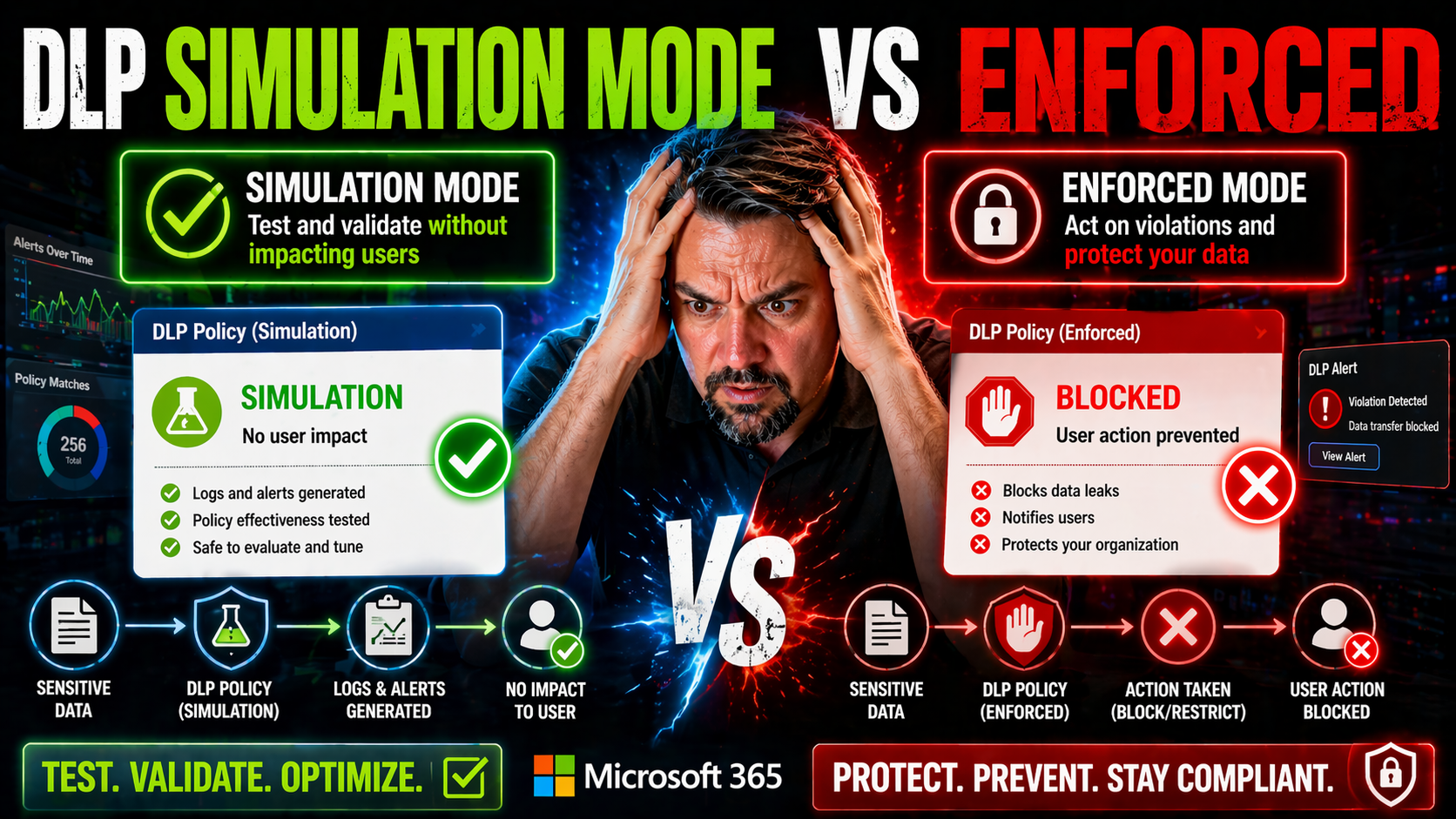
Let’s be real—turning on data loss prevention (DLP) across your business isn’t a flip-the-switch moment. Microsoft 365 gives you a choice between DLP simulation mode and enforced mode, and knowing when to use each is the difference between proactive protection and potential chaos.
DLP simulation mode, found in Microsoft Purview, is all about safe testing. You get to see which files, emails, or actions would be caught by your DLP rules, without blocking work or confusing your team. It’s like running a fire drill without setting off the sprinklers. On the other hand, enforced mode is where those same policies actually take action—blocking, alerting, or restricting as needed.
This article breaks down the practical differences between simulation and enforced modes in Microsoft 365, how to analyze risk through test results, and what it takes to roll out data protection without breaking business workflows. If you want to protect your sensitive data with confidence and keep your operations running smooth, you’re in the right place.
Understanding DLP Simulation Mode in Microsoft Purview
DLP simulation mode in Microsoft Purview is basically your test drive for data loss prevention. Instead of hitting the brakes on user activity, it lets you see how your planned rules would actually behave in the wild—without anyone getting locked out or workflows getting tangled up.
When you create a DLP policy in simulation mode, Microsoft 365 will quietly monitor emails, files, chats, and more for anything matching your sensitive data patterns (like credit card numbers, social security numbers, or confidential labels). But crucially, it only reports what it finds; users never see a pop-up, warning, or block. All the action happens behind the scenes, which means you can finetune your rules without disrupting your people.
You can set up DLP simulation mode easily in the compliance portal. Step through the policy wizard, choose "simulation," and decide which locations (SharePoint, Teams, Exchange, etc.) to include. Microsoft Purview then logs incidents and “would-be” policy matches, giving you details in rich reports. This precious insight lets you spot where your policies might overreach (false positives), underperform, or need exceptions—long before you enforce anything for real.
Organizations use simulation mode to measure risk and avoid surprises. Before switching to actual enforcement, admins can check if key workflows or trusted apps get flagged. If you’re managing DLP across the Microsoft Power Platform, be sure to check out the in-depth approaches discussed in this Power Platform DLP strategies episode, which dives into connector governance and risk areas beyond just policy toggles.
Bottom line: simulation mode gives you the freedom to experiment, analyze, and adjust your policies in Microsoft Purview—without risking business continuity or frustrating your end users. If you want the technical walk-through of DLP setup, including practical insights, there’s a helpful podcast here for Microsoft 365 DLP.
Moving from Simulation Results to Enforced DLP Policies
Moving from simulation to enforced DLP policies is where your earlier planning starts to have teeth. While simulation mode is about gathering evidence and identifying what would happen, enforcement is where your policies begin shaping actual user behavior and business operations. This transition marks a shift from silent observation to real-world impact—triggers start blocking, warning, or reporting activity, and users will notice.
The key difference between these modes is how data handling events are treated. In simulation, everything happens quietly—alerts are logged, but no one’s workflow changes. Once a policy is enforced, the rules you created actively restrict, block, or surface warnings as soon as sensitive information is detected. This can mean stopping emails from leaving, preventing document sharing, or presenting in-the-moment guidance directly to employees.
This change requires strategic preparation. Beyond simply flipping a policy to “on,” you need to account for end-user education, stakeholder expectations, and the likelihood of false positives surfacing in day-to-day business. Reviewing your simulation results carefully lets you tune your policies, reducing the risk of business disruption or policy backlash.
In the next sections, you’ll get proven best practices for enforcing DLP policies with minimal impact and learn approaches for communicating changes, monitoring adoption, and refining rules over time. Especially for complex setups—like Microsoft Power Platform with its mix of connectors across environments—treating DLP as a living control system is vital, as described in strategies like those covered for Power Platform developers. Getting DLP enforcement right takes more than technical know-how; it demands cross-team alignment and ongoing adjustment.
Best Practices for Enforcing DLP Policies in Microsoft 365
- Start Small and Phase Your Rollout. Don’t go all-in at once. Begin with your most sensitive data in core workloads, then gradually expand enforcement to broader areas. This phased approach helps you control the impact and detect workflow issues early, before they ripple across the whole organization.
- Refine Policies Using Simulation Data. Analyze false positives and exceptions that popped up during simulation mode. Use these findings to adjust your DLP rules, add trusted sources or exempted users, and minimize business disruption. Simulation mode isn’t just for show—it’s your policy test lab.
- Communicate and Train End Users. Change can be jarring, so keep employees in the loop with clear explanations and helpful alerts when a policy is enforced. Just-in-time popups or short guides boost understanding, compliance, and reduce support calls. For breakdowns on effective DLP setup and productivity tips, try this podcast on Microsoft 365 DLP setup.
- Monitor and Tune Continuously. Even after enforcement, check reports from Microsoft Purview. Monitor user impact, alert volumes, and incident trends. Adjust your rules as new business processes or apps are rolled out to stay covered without over-blocking.
- Align with Stakeholders. Loop in legal, HR, and business managers before you enforce anything wide scale. Their insights are critical for understanding workflow exceptions and ensuring the policy meets compliance needs without hamstringing productivity. Take governance as seriously as the technical setup—just like the lessons on environment strategy from the Power Platform DLP episode.
Assessing Business Impact and User Behavior During DLP Enforcement
- Monitor Workflow Disruption. After enabling enforcement, track helpdesk tickets, user feedback, and the rate of blocked or warned actions. Spike in complaints or productivity slowdowns? Dig into the details to determine if your policy is too strict or missing key exceptions.
- Measure Risk Reduction and Compliance. Compare the volume of actual data exposure incidents before and after enforcement. Use Microsoft Purview metrics to see if sensitive data leaks drop and whether alerts come from real risks or just noisy false positives. These trends show your DLP program’s return on investment.
- Foster Ongoing User Education. If users encounter blocks, make those moments educational—not punitive. Use in-app messages or links to guides that explain why data sharing is restricted and how to handle information securely. For advanced monitoring and AI readiness, especially with new tools like Copilot, check this guide to governed AI and DLP.

Microsoft MVP | Host of M365.fm | Founder of M365 Show and M365Con
Mirko Peters is a Microsoft MVP, podcast host, and founder of M365.fm, M365 Show, and M365Con. His work connects Microsoft practitioners through podcast interviews, livestreams, and community events.
At M365.fm, Mirko hosts conversations with Microsoft MVPs, product experts, architects, and community contributors. Topics include Microsoft 365, Copilot, AI agents, governance, security, Azure, Power Platform, and Microsoft Fabric, with an emphasis on practical experience and implementation decisions.
M365.fm is the podcast and learning platform. M365 Show brings experts together for livestreams, while M365Con provides an online conference setting for community learning.
Official website: Mirko Peters (https://www.mirkopeters.com/). Recognition: Mirko Peters — Microsoft MVP profile (https://mvp.microsoft.com/de-DE/mvp/profile/9b0ca797-db5a-493a-a845-8b9158046cf5). Connect on LinkedIn (https://www.linkedin.com/in/m365showpodcast/).




