DLP vs Sensitivity Labels: Solving Policy Conflicts in Microsoft Purview
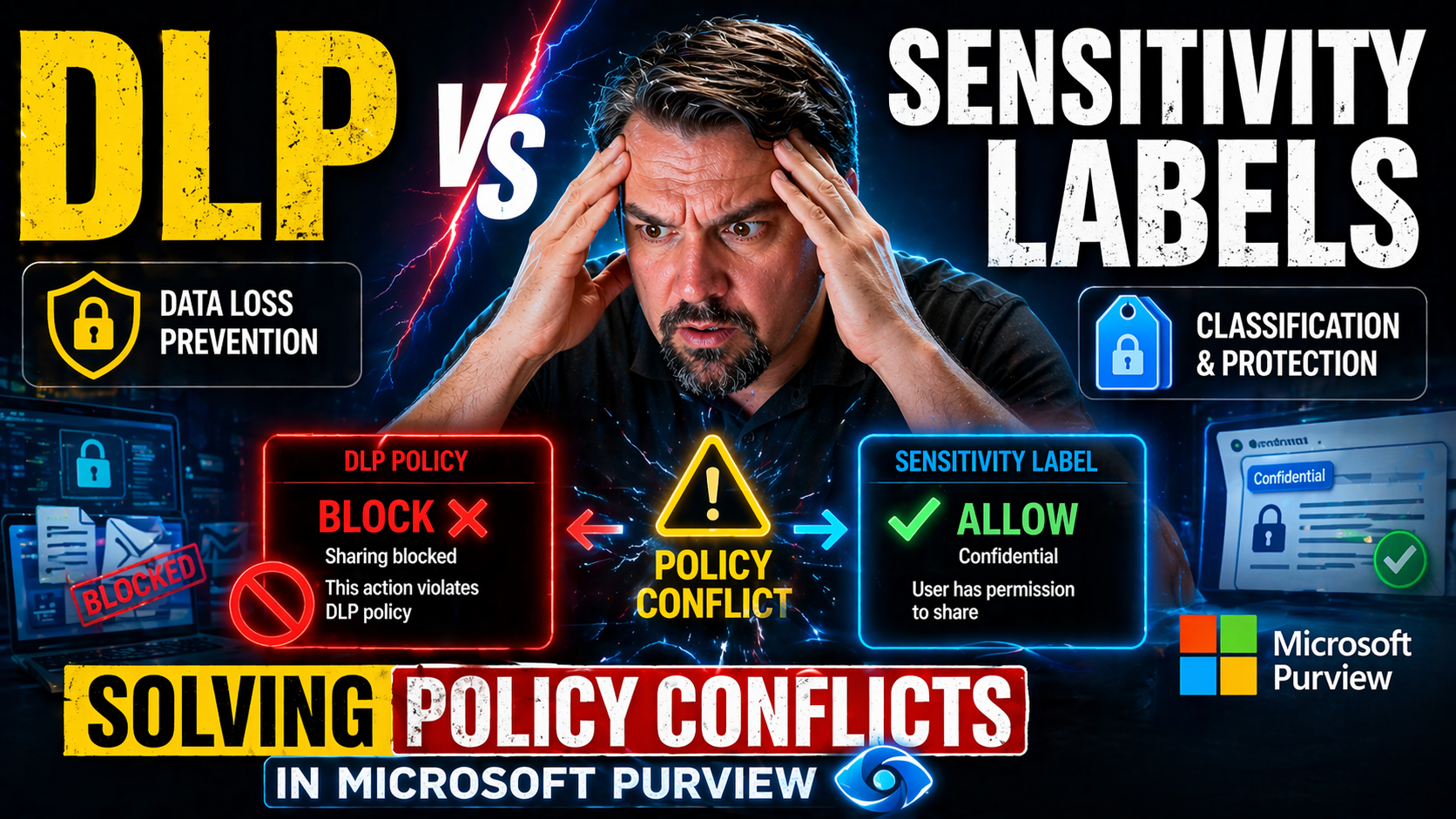
Getting a grip on data protection in Microsoft 365 can feel like you’re juggling too many balls—especially when Data Loss Prevention (DLP) policies and sensitivity labels start bumping into each other. These tools may look similar on paper, but they handle data protection from completely different angles. This article breaks down what separates DLP from sensitivity labels in Microsoft Purview, so you actually know which lever to pull when you want to protect your organization’s information.
You’ll find out why mixing DLP and sensitivity labeling gets tricky, how overlapping rules can let sensitive info slip outside your walls, and where confusion creeps in for everyday users. Most importantly, you’ll get practical advice and real-world use cases for sorting conflicts and designing a rock-solid, future-proof protection strategy. If you want to make sure your data defense isn’t just talk, but actually works—read on.
Understanding the Core Differences Between DLP and Sensitivity Labels
Let’s clear the fog before we get any deeper: While both DLP and sensitivity labels aim to keep your data secure in Microsoft 365, they do it in their own ways. The difference isn’t just technical—it changes how you design your security game plan.
DLP is all about watching your data as it moves. Think of it as the bouncer at the club door: checking what’s coming in, what’s going out, and jumping in if it looks risky or out of line. Sensitivity labels, on the other hand, are like a VIP pass that sticks to your documents or emails wherever they go, tagging them with just how sensitive or confidential they really are. That tag can even carry encryption and access controls that stick with the file, no matter who’s holding it.
Why does this distinction matter? Because when these two don’t play nice together, you can end up either locking down your business or leaving gaps big enough for data leaks. The next few sections will show how DLP policies shield information in motion, while sensitivity labels wrap your important content in persistent protection. Knowing where they overlap is the first step toward avoiding those classic policy “gotchas” that leave both IT and end users scratching their heads.
DLP Policies: Protecting Data in Motion Across Microsoft 365
DLP policies in Microsoft 365 keep an eye on your sensitive info as it gets shared, emailed, or uploaded between users and apps. Their job is simple: spot data that matches certain criteria—like credit card numbers or confidential keywords—then decide whether to block, warn, or allow the action based on rules you set.
This means DLP acts as the front line when someone tries to share a file externally, send trade secrets over email, or copy regulated info into a risky web app. It’s built to stop accidental slips before they hit the real world. Want to learn how DLP even tackles automation and Power Platform flows? Check out guides like managing DLP for Power Platform developers or setting up DLP in Microsoft 365 for practical tips and deep dives.
Sensitivity Labels: Classifying Data and Enabling Persistent Protection
Sensitivity labels in Microsoft Purview empower you to slap a classification—and corresponding protection—on your documents and emails. Labels aren’t just stickers; they can encrypt files, add watermarks, and set permissions that control who’s allowed to view or edit content. That protection stays with the data, whether it’s sitting in SharePoint or zipped off as an email attachment.
This makes sensitivity labels central to compliance, intellectual property defense, and keeping your internal secrets actually internal. Because the label is always attached, even if someone downloads a document to their laptop or shares it with a partner, the protection moves with it. For more on the nuts and bolts of auditing user activity and compliance readiness, listen to resources like auditing with Purview or get tips on controlling “document chaos” in episodes like building your Purview shield.
Resolving Conflicts Between Sensitivity Labels and DLP Policies
Now here’s where Microsoft 365 security really starts tossing curveballs. Even with the best intentions, your DLP policies and sensitivity labels can sometimes be at odds. This section is all about helping you spot those moments, so you don’t end up wondering why a confidential file suddenly slipped out the door—or why your users can't get their job done.
The root of the problem? The tools look at protection from different angles, but data flows are rarely neat and tidy. You might encrypt a document with a sensitivity label, but if DLP can’t see inside, enforcement breaks down. Or maybe you set strict DLP policies, but a lenient label lets users override and share anyway. It’s these kinds of gaps and overlaps that let mistakes happen or grind workflows to a halt.
We’ll walk through classic clashes and the headaches they bring, then look at what usually causes the confusion. If you’ve ever worried that your controls aren’t actually working—or you’re just tired of users complaining about “pop-ups” and blocked actions—they’re probably stuck in one of these conflict scenarios. Want more on real-time detection and control? You’ll find frameworks for smarter auditing at catching risky external sharing before disaster.
When Sensitivity Labels and DLP Overlap: Common Policy Clashes
- Sensitivity labels encrypt content that DLP can’t inspect: If a document is encrypted by a sensitivity label before DLP has a chance to analyze it, most DLP engines can’t peek inside. That means even if the file contains sensitive data, the DLP policy becomes blind to its contents and can’t block risky actions.
- DLP blocks actions that labeled content technically allows: Sometimes, a highly confidential label might let certain trusted users share a file externally—yet a separate DLP rule blocks that same action. End users get mixed signals or sudden denial, not knowing which policy “won.”
- Inconsistent user experience and unclear warnings: When DLP and sensitivity labels trigger at the same time but with different outcomes, users may see conflicting pop-ups or error messages. The lack of clear, unified guidance leads to alert fatigue and mistrust in the protection systems.
- Policy drift over time: As organizations update sensitivity label definitions or DLP rules independently, mismatches creep in. This “policy drift” can create holes where data is left exposed or rules double-up, bogging down business operations. For more on preventing drift between compliance and user behavior, insights from this compliance drift episode are worth a listen.
IT pros should watch for these signals and regularly test enforcement end-to-end. If users complain about “blocked for no reason” or “labels not working,” policy overlap is your most likely culprit.
The Risk of Permissive 'Let Users Access' Settings
Permissive sensitivity label settings—like “let users decide who can access”—sound flexible, but they can turn DLP rules into an afterthought. When you allow users to override or set broad access permissions within a label, you risk opening the door for confidential content to leave the organization unchecked.
This loophole is especially dangerous because it can silently weaken your strictest DLP protections. What’s the point of blocking external sharing with DLP if a generous label lets someone share anyway? If you want ironclad security without annoying legitimate users, follow best practices blending Microsoft Defender and Purview as highlighted in this essential guide to ironclad M365 security.
Best Practices for Aligning DLP and Sensitivity Label Strategies
Nailing data protection in Microsoft 365 isn’t just about setting the “right” label or the “tightest” DLP rule. It’s about getting both strategies to work together—so your security is strong, but users can still get work done. This section digs into best practices for building a unified approach that won’t break down as your business changes or as compliance requirements shift.
The big goal? Map your sensitivity labels directly to your DLP policies, so a label’s intent always matches how the system responds. This helps keep enforcement consistent and makes policy management way less of a headache down the road. Whether you’re prepping for more AI (like Copilot), shifting collaboration patterns, or bracing for tighter regulations, this alignment is the foundation you need.
And if you’re ready to level up your protection—aligning security for human users, bots, and third-party apps—resources like this deep dive on securing Copilot and AI-driven content will show you how DLP and sensitivity labeling can stretch to meet new threats and compliance demands.
Design DLP Policies That Match Your Data Protection Goals
- Start with your classification model: Review the sensitivity label tiers already used in your business (e.g., Public, Internal, Confidential, Highly Confidential). Develop your DLP rules to align with this model so there’s no guesswork about which actions should be allowed or blocked.
- Map DLP actions to label risk: Set up your DLP policy actions—like monitoring, warning, or blocking—based on the risk level attached to each label. For example, only allow sharing “Internal” documents within the company, but completely block “Highly Confidential” data from leaving trusted domains.
- Eliminate overlapping or redundant rules: Audit your DLP and label policies side by side. If both a sensitivity label and a DLP policy control the same scenario—but with different instructions—users will experience inconsistent enforcement and confusion.
- Keep business priorities at the heart: Don’t just set these policies in a vacuum. Engage data owners, compliance leads, and even managers to weigh in on which data is truly sensitive and why. Need help defining business-driven strategies? Look for tips on protection goals, such as those outlined in this Microsoft Purview strategy guide.
- Document and review regularly: Make it a habit to review your policy mappings as part of change management workflows—especially when regulations or business needs change. This avoids stale settings and unexpected gaps.
Force Labeling Before Secure Document Sharing
- Mandatory labeling: Require a sensitivity label on every document or email before it can be shared externally. This ensures all shareable content gets at least the minimum protection.
- Label-based sharing restrictions: Use labels to cap who can access shared files—like enforcing “Internal Only” labels to prevent data from leaking outside the company.
- Integrated workflow in Microsoft 365 apps: Configure Teams, SharePoint, and Outlook to prompt or force users to pick a label when sharing. This seamless experience provides strong guardrails without heavy friction.
- Continuous policy enforcement: Protect against outdated files by requiring that all content remains labeled, even as it moves or gets updated. Want tips on full-lifecycle management? Episodes like Purview shield for document chaos highlight the bigger compliance picture.
Example Use Cases for Resolving DLP and Sensitivity Label Conflicts
Let’s make all this theory real by walking through practical scenarios where DLP and sensitivity labels need to tag-team to keep your data safe. These examples are based on what actually happens when businesses try to use both controls together—and what can go wrong when they don’t talk properly.
In each case, you’ll see how labeling and DLP rules reinforce each other to prevent costly mistakes, whether you’re sending payroll spreadsheets, handling executive emails, or letting HR teams collaborate with outside partners. The goal is to show you exactly how clear classification and well-aligned DLP can turn complex security policies into everyday business success stories.
If you’re after more insider strategies for plugging leaks and building a resilient data loss prevention plan, check out three insider moves for real DLP power—and keep reading as we drill into these do-or-die use cases.
Keeping Confidential Financial Reports Internal
Imagine your finance team generates an earnings report tagged with a “Highly Confidential” sensitivity label. That label enforces encryption and locks down permissions so only select executives can open the file—even if it accidentally hits someone else’s inbox.
Meanwhile, a DLP policy watches for files labeled “Highly Confidential” and automatically blocks forwarding or external sharing attempts through email, Teams, or SharePoint. If someone tries to share with an outside partner, the system stops it cold, protecting against both accidental leaks and intentional data theft.
Internal Emails Stay Internal Thanks to Combined Labeling and DLP
Internal emails often carry sensitive discussions or proprietary business intel. By using a “Company Restricted” sensitivity label, the email is automatically tagged so only colleagues inside your organization can read or forward it.
Pair that with a DLP policy tuned to internal messages: If an employee tries to add an external email address to the thread or forward the message out, DLP catches the move and blocks it instantly. This keeps confidential communication from crossing organizational boundaries unintentionally or in violation of company policy.
Advanced Configuration and Automation in Microsoft Purview
When your organization grows, or when remote work picks up speed, manual security controls just can’t keep up. Enter the world of automation and advanced configuration—where Microsoft Purview lets you scale data protection with rules that run themselves and play nicely across complex environments.
This section shines a light on features like auto-labeling, which uses machine learning or tailor-made rules to find and classify sensitive content even before a human touches it. We’ll also look at extending DLP and sensitivity label protections to places you might have missed—like guest users outside your domain, or third-party apps hooked into your Microsoft 365.
If you’re dealing with “shadow IT,” guest access, or hybrid cloud troubles, mastering these advanced tools gives you the upper hand without drowning in manual work. And if you’re wondering about automation with scripts and governance, peek at topics like “operationalizing M365 with PowerShell” as an entryway—even if some pages end up 404, the automation journey goes on.
How Auto-Label Policies Automatically Protect Sensitive Content
Auto-labeling in Microsoft Purview takes manual guesswork out of the way by using rules or intelligent scanning to classify content the moment it’s created or uploaded. You can define policies that look for patterns—like Social Security numbers or phrases such as “confidential financial report”—and auto-apply the proper sensitivity label to docs, emails, or Teams messages.
This process can run silently in the background or prompt users to confirm or adjust the label. Administrators set rules based on compliance requirements (HIPAA, GDPR, etc.), so there’s near-zero delay in protecting critical info. These auto-label policies can use built-in templates, keywords, or leverage Microsoft’s machine learning engines to pick up on context beyond keywords alone.
Limitations do apply: Auto-labeling works best on cloud-managed content and might miss files stored locally or in unsupported formats. Still, for consistency and scale, this automation is the backbone of modern data protection—closing the gaps where human error and old-school workflows might otherwise let sensitive info slide through.
Extending DLP and Sensitivity Label Protections to Third-Party Apps and Guests
The modern workplace isn’t just your own staff on company laptops—it includes external contractors, partners, and apps tied into your cloud. Microsoft Purview has stepped up, letting you enforce DLP and sensitivity labeling even when files are accessed from guest accounts or through third-party integrations.
Advanced policy settings now allow IT to apply the same scan-and-protect logic no matter who’s accessing the content or from where. This keeps you covered as business borders get fuzzier and prevents unauthorized sharing—even long after a partner project ends. For a deeper look at the risks of unmanaged guest accounts and why governance must span all users, dive into the hidden danger of M365 guest accounts for practical advice and lifecycle strategies.

Founder of M365 Show, M365con.net & m365.fm
Mirko Peters is a Microsoft 365 expert, content creator, and founder of m365.fm, a platform dedicated to sharing practical insights on modern workplace technologies. His work focuses on Microsoft 365 governance, security, collaboration, and real-world implementation strategies.
Through his podcast and written content, Mirko provides hands-on guidance for IT professionals, architects, and business leaders navigating the complexities of Microsoft 365. He is known for translating complex topics into clear, actionable advice, often highlighting common mistakes and overlooked risks in real-world environments.
With a strong emphasis on community contribution and knowledge sharing, Mirko is actively building a platform that connects experts, shares experiences, and helps organizations get the most out of their Microsoft 365 investments.
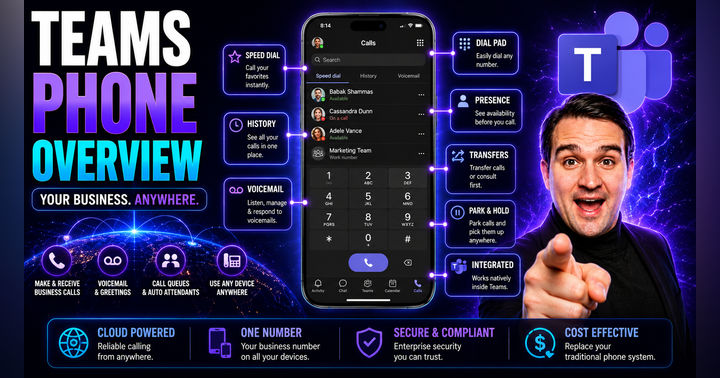
Microsoft Teams Phone Overview: Transforming Communication for Modern Businesses