
Fixing Approve Sign-In Request Not Showing in Microsoft Authenticator
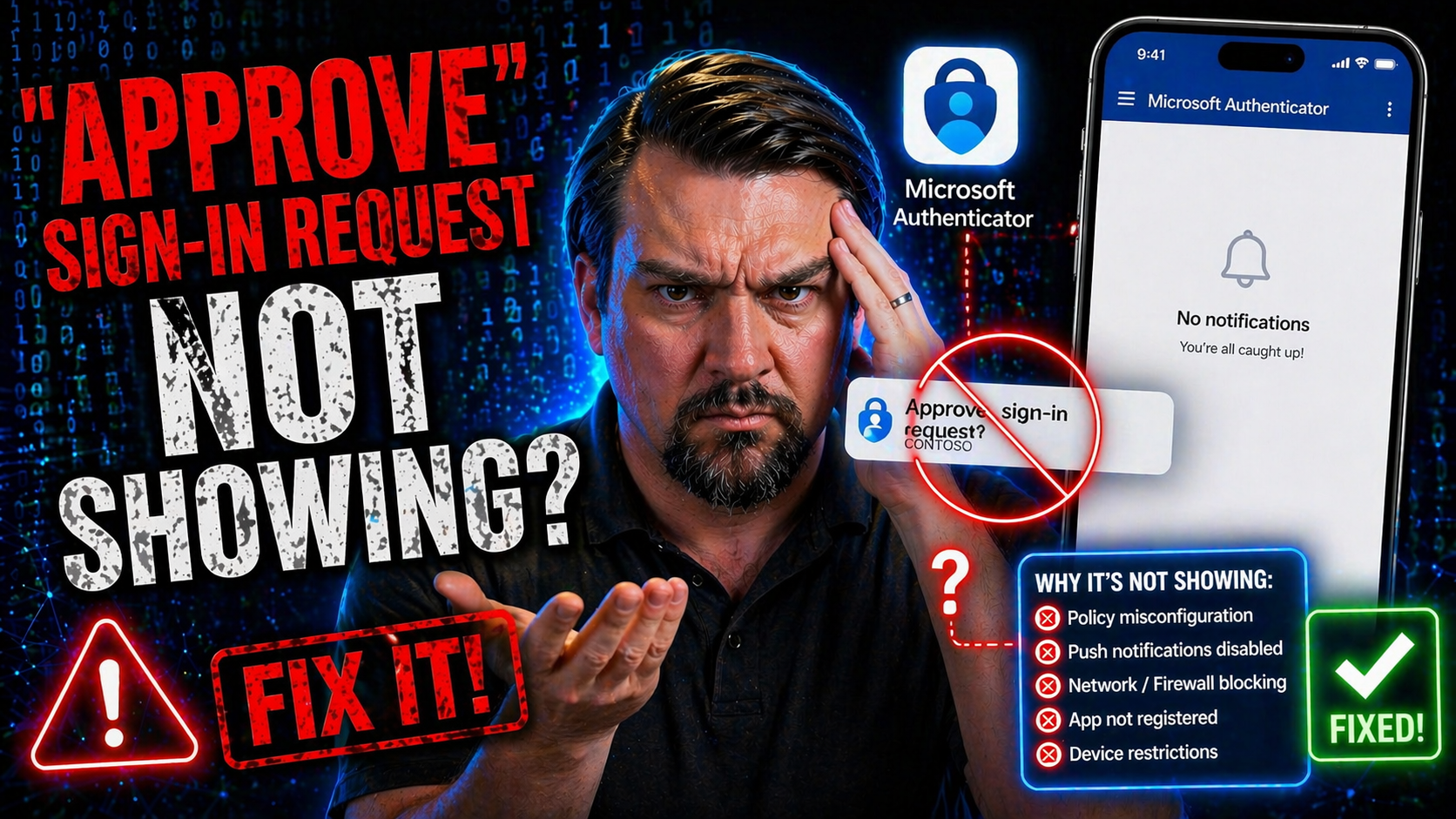
If you’re stuck at the “approve sign-in request” screen and nothing’s popping up in your Microsoft Authenticator app, you’re not alone — and you’re definitely in the right place. This guide covers why the approval notification might not be showing up and what you can do to get it working again. We’re focusing on Microsoft 365, Azure users, and anyone who depends on Authenticator for work or personal accounts.
You’ll find step-by-step instructions for fixing device, app, and network issues. We’ll even dig into backup verification options so you’re never locked out, plus a few insider tips your IT team might not think to mention. Whether you’re an everyday user or an admin holding things together, you’ll walk away with answers that actually help.
Understanding Why Approve Sign-In Request Is Not Showing
You’re going to notice that sometimes, even when you do everything by the book, the Microsoft Authenticator app just doesn’t show you the prompt to approve a sign-in. This can feel almost random, but there’s always a reason hiding under the surface. Maybe it’s your phone, your app, or the account itself. Sometimes it’s all about your network or even your company’s IT rules.
This section takes you through the “why” behind those missing approval requests. Think of it as detective work for your sign-in problems: Is there a glitch with your app? Did you lose a connection? Or maybe something got messed up in your device settings? We’ll also look at how system-side blocks or outdated configurations can silently cause headaches.
Up next, you’ll get a detailed breakdown of the most likely causes, and what your device has to have in place for those approval prompts to appear reliably. By understanding where things go wrong, you’ll save time (and avoid some unnecessary stress) as you move through the troubleshooting process.
Troubleshooting Common Causes of Missing Approval Requests
- Outdated or Unlinked Authenticator App
- If your Microsoft Authenticator isn’t running the latest version, it can fail to receive requests. Also, if your account isn’t linked properly, no prompt will arrive. Double-check app updates and that your account is added and synced.
- Device Not Registered Properly
- Sometimes, the approval request goes to another device if you have more than one registered, or the device isn’t trusted yet. Confirm which devices are linked and which one is set as the primary for approvals.
- Disabled Notifications or Permissions
- If your phone’s notification settings or the Authenticator app's permissions are restricted, you will not see the sign-in prompt. Notification access must be enabled, and Do Not Disturb/Fous mode can block alerts entirely.
- Poor Internet Connection
- Authenticator needs a working internet connection (Wi-Fi or mobile data) to get push notifications. If your connection is weak, slow, or completely down, approval requests won’t come through.
- Server or Account Issues
- Occasionally, Microsoft’s servers experience problems, or your account could have security blocks. Sometimes, policy changes or recent password resets require re-verification or a new setup.
- App Configuration Changed or MFA Method Removed
- If you’ve changed multi-factor methods or recently removed and re-added your account, approvals may stop until you finish reconfiguration.
- Silent Notification Failures
- Even if everything looks OK, system-level settings like Focus or Do Not Disturb—or muted app alerts—may cause notifications to arrive silently without banners or sounds. You might miss approvals even though they technically arrive.
Checking each of these possibilities one by one usually reveals where things have gone sideways. Don’t overlook device settings, app permissions, and your network connection—they’re behind most issues with missing sign-in prompts.
Device and Connection Requirements for Approval Prompts
- Active Internet Connection: Your device must be connected to Wi-Fi or mobile data for push requests to deliver.
- Trusted/Registered Device: Authenticator must be set up and trusted for your Microsoft account.
- Notification Permissions: Notifications and sounds need to be enabled in your phone and app settings.
- Updated Authenticator App: Keeping your app up to date prevents bugs and incompatibilities that break approval alerts.
- No Blocking Security Apps: Firewalls, security apps, or VPNs can block notifications if not configured correctly.
Meeting these requirements makes sure approval requests get delivered reliably every time you sign in.
Setting Up and Managing Devices for Approval Requests
Before Microsoft Authenticator can flash those sign-in approval prompts your way, you need to set things up on your device properly. It might feel like a lot at first, but the right setup is what keeps your account secure and your login process painless. This section gives you a quick rundown of what goes on behind-the-scenes when you first connect your device and how to keep your list of trusted devices clean and current.
We’ll get into onboarding steps, making sure your phone is authorized to get approval requests, and dealing with device changes. Over time, maybe you switch phones, lose one, or need to remove a lost or compromised device. Here, you’ll find out how to manage all those possibilities so only your verified, safe devices get access to your sign-in approvals.
Get ready for simple, step-by-step directions that take the guesswork out of setup and management. The next subsections explain exactly how to get started and how to maintain control over which devices can approve your sign-ins in the future.
Initial Setup to Receive Approval Requests
- Download Microsoft Authenticator
- Install the Microsoft Authenticator app from the Apple App Store or Google Play Store on your phone or tablet. Make sure you’re getting the official app.
- Add Your Account
- Open the app and choose to add an account. Select “Work or school account” or “Personal Microsoft account” based on your needs. Use your device’s camera to scan the QR code provided by the Microsoft sign-in portal, or enter the code manually.
- Grant Necessary Permissions
- The app will prompt you for permissions like camera access (for scanning QR codes) and notification access. Approve all requested permissions so that push notifications work.
- Test Push Notifications
- After setup, try logging into your Microsoft 365 account. You should receive an approval prompt—if you don’t, check if the app’s notification permissions are enabled and the device is connected to the internet.
- Enable Cloud Backup (Optional)
- For easier recovery if you lose your device or upgrade in the future, enable cloud backup inside the Authenticator app settings.
By following each step, you’ll ensure your device is ready to receive every sign-in approval promptly. Most issues with missing prompts start right here with a missed permissions request or an incomplete setup—so double-check your work before moving on.
Adding and Removing Devices for Sign-In Approvals
- Add New Device: Download Microsoft Authenticator, sign in, and register the new device through account security settings.
- Remove Old/Lost Devices: In your Microsoft account security dashboard, find your device list and remove any phones or tablets you no longer use or recognize.
- Verify Devices: After adding, confirm notifications work by attempting a test sign-in; remove or re-add devices that fail to receive approvals.
- Update Permissions: Whenever setting up or removing devices, ensure notification and app permissions stay up to date for each trusted device.
This helps keep only safe, current devices on your approval list while blocking unwanted access from missing or compromised phones.
Using Microsoft Authenticator App for Approving Requests
Microsoft Authenticator is your gateway to quick, secure sign-ins across Microsoft services. When push notifications work, you simply tap “Approve” to verify your identity—no codes or calls needed. But it only works when the app, your device, and your account are in sync.
This section dives into the nuts and bolts of making sure your Authenticator app can send you those approval prompts on time, every time. You’ll see how to set up notifications, enable approval actions, and what to do if you’re stuck waiting for a prompt that never comes. Common pitfalls are explained, and you’ll get targeted troubleshooting advice for when something in the app just isn’t right.
Take these steps seriously; when the Authenticator app is dialed in, it makes approving sign-in requests just about as easy as it gets. If it ever misbehaves, you’ll know which settings to check—and how to get your sign-in security working again in a hurry.
Enabling Push Notifications and Approving Requests in Microsoft Authenticator
- Check Notification Permissions on Your Phone
- On iOS, go to Settings > Notifications > Authenticator and make sure Allow Notifications is enabled. On Android, find App notifications and allow banners, sounds, and lock screen notifications.
- Enable Push Notifications in the Authenticator App
- Inside the Authenticator app, navigate to settings and verify that push notifications are turned on for each account you use.
- Test Sign-In to Confirm Setup
- Attempt a Microsoft login to trigger an approval prompt. The banner should appear even if the app is closed. Tap “Approve” to complete your sign-in.
- Review Account Sync and App Updates
- Ensure your app is updated to the latest version and accounts are syncing. If you add new accounts, test each for approval prompts.
- Adjust Device-Specific Notification Settings
- On some devices (especially Android), app notifications can be split by type—ensure identity verification, sound, and banners are all enabled, not just the general setting.
Staying on top of these settings keeps your notifications working and your sign-ins simple. Missing one permission or toggling a setting by accident is the quickest way to miss out on prompt delivery.
Troubleshooting Issues in Microsoft Authenticator App
- Update or Reinstall the App
- Old app versions often have bugs that stop notifications. Updating often fixes the issue. If not, uninstall and reinstall the app.
- Verify Account Sync
- Sometimes signing out and back in, or removing and re-adding your Microsoft account, refreshes things if prompts are stuck or missing.
- Clear App Cache (Android Only)
- If using Android, clear the Authenticator app’s cache from your device settings to resolve glitchy behavior.
- Check All App Permissions
- Besides notifications, ensure Authenticator has access to the internet, camera, and anything else it requests.
- Test with Another Device
- If possible, add your account to a different device to see if the issue is device-specific or account-wide.
- Reset Notification Settings
- Sometimes toggling notification permissions off, then back on, forces prompt delivery to resume.
- Contact Support for Persistent Problems
- If all else fails, reach out to your IT team or Microsoft support, especially if account-level blocks are suspected.
Most issues are just a setting or two away from being solved, especially after an app update, policy change, or device switch.
Alternative Verification Methods When Approval Is Not Available
Sometimes, push approval just doesn’t work—your phone is lost, notifications are blocked, or the app refuses to cooperate. That’s when backup multi-factor authentication methods save the day. Having more than one verification option means you’re never left out in the cold, even if something goes wrong with Authenticator.
This section introduces the alternatives. You’ll find out how to use one-time passcodes, get verification texts, or even rely on old-school phone calls for your login. Each method keeps your account protected, and understanding how to switch between them gives you security without headaches.
The next subsections show you exactly how to use backup codes and SMS, along with how phone call verification works. So even if your phone takes a swim or the app won’t listen to reason, you’ll have a way back into your account.
Using One-Time Passcodes and SMS Text for Verification
- Open the Authenticator App for a Time-Limited Code
- Even if push approvals aren’t working, you can open the app and find a six-digit code next to your account. It refreshes every 30 seconds—type this code into the “verify your identity” screen instead.
- Choose “I Can’t Use My Authenticator App” at Sign-In
- If the app is unavailable or you don’t get a code, during sign-in, look for “Sign in another way” or similar. Select SMS code as your fallback.
- Receive and Enter SMS Code
- Microsoft will text a code to your saved mobile number. Enter the code quickly; it’s only valid for a short time.
- Set Up SMS as a Backup if You Haven’t Already
- Visit your Microsoft account security settings to add or update your mobile number for SMS verification. Make sure it’s a number you can access during sign-in emergencies.
- Plan for No App/No Phone Events
- Consider printing or saving emergency backup codes if you know you’ll be without access for a while. These codes help you pass identity checks in a pinch.
These backup methods are lifesavers when push notifications won’t cooperate. Keep your recovery number up to date and you’ll always have a second way in.
Receiving Verification via Phone Call
- Opt for Phone Call During Sign-In: When other methods fail, select “call my phone” as your secondary authentication.
- Answer the Automated Call: Pick up and follow the instructions—usually, press the pound key (#) to verify your login.
- Good in Low Internet Situations: This option works if you don’t have strong mobile data or Wi-Fi but can take phone calls.
- Works for Landline and Mobile: Enter any valid phone number in your security settings and confirm you have access before choosing this option.
Phone call verification is simple, quick, and can be a lifesaver during connectivity problems or when push notifications flat-out refuse to work.
Account Recovery and Security Management If Approvals Are Missing
No matter how careful you are, there may come a time when you can’t get approval prompts—maybe your device is lost, maybe you see something fishy with your alerts, or maybe your account’s in the wrong hands. When that happens, speed is key, and knowing the right steps ahead of time is the best way to stay protected.
This section talks about what you should do next: registering backup recovery options (like a phone number you control) and reporting anything suspicious or fraudulent to Microsoft right away. It’s about making your account hard to break into, but easy for you to recover.
If you want a deeper dive into conditional access loops and identity security strategy, check out this podcast episode on securing Azure with disciplined conditional access policies. For now, focus on getting backup options in place and knowing how to take action if you suspect any trouble.
Adding Phone Recovery Options to Restore Account Access
- Go to Microsoft Account Security Settings: Sign in at Microsoft’s security portal and look for ‘Security info’ or similar options.
- Add New Recovery Phone Number: Select ‘Add method,’ choose ‘Phone,’ and enter your number. Opt for one you’ll always have access to.
- Verify the Number: Microsoft will send a code—enter it to finalize the setup.
- Update Outdated Numbers: If your number has changed, remove any old ones so you don’t lose access during recovery.
With a verified phone, resetting your authentication methods is possible if you ever lose your trusted device or can’t receive approval prompts.
Reporting Fraud and Suspicious Activity on Your Account
- Act Immediately: If you notice strange sign-in attempts or approvals you didn’t make, don’t wait—change your password right away.
- Report to Microsoft: Use the “Secure my account” or “Report unusual activity” links in your sign-in history or security dashboard.
- Alert Your IT/Security Team: If you’re part of an organization, inform administrators so they can investigate and lock down compromised accounts.
- Audit Security Settings: Double-check multi-factor authentication methods, sign-in locations, and recent device activity for anything out of the ordinary.
- For deeper strategies on access policies, check out this podcast episode about identity as the Azure control plane.
Catching fraud quickly protects not only you, but everyone tied to your Microsoft environment, and helps prevent larger breaches.
Silent Notification Failures and How to Fix Them
Sometimes it’s not that the approval request never arrives—it just sneaks in without a beep or banner. This “silent delivery” problem is a major pain, especially if you rely on Authenticator to keep up with your sign-in security. The culprit could be your device’s Do Not Disturb mode, Focus mode, or even sound and alert settings inside the Microsoft Authenticator app itself.
It’s easy to forget that your phone can block or silence notifications in ways that look a lot like a broken system. If your phone’s in a quiet mode, or if an update resets in-app notification settings, the Authenticator prompt might show up silently—no sound, no vibration, no popup.
In the next couple of subsections, you’ll learn how to double-check and tweak your phone’s focus or Do Not Disturb settings, and see how to make sure nothing inside the Authenticator app itself is set to mute or hide approval requests. Getting these settings straight guarantees you won’t miss another authentication prompt just because your alert tone got shut off.
Fixing Silent Push Notifications Due to Focus or Do Not Disturb Modes
- Check Do Not Disturb Settings: Ensure your phone’s Do Not Disturb or Focus mode is off or allows exceptions for Microsoft Authenticator notifications.
- Allow Banners and Sounds for Authenticator: In your device notification settings, make sure banners, sounds, and badges are enabled for the app.
- Customize Allow Lists: Add Authenticator to the ‘Allowed during Do Not Disturb’ list on your device, so you’ll get sign-in prompts even when resting or working.
- Review Schedules and Automations: Some devices have automated Focus or DND modes set by time or location—double-check that none interfere with your login window.
Fixing these settings stops your sign-in prompts from slipping through the cracks during quiet hours or busy days.
Checking App-Level Notification Muting in Microsoft Authenticator
- Open App Settings: Inside the Authenticator app, visit notification preferences or settings panel.
- Enable All Alerts: Make sure all types—banners, sounds, vibrations—are toggled on and not set to silent.
- After Updates, Re-Check: Sometimes app updates reset notification settings, so review option toggles after every update.
- Test Notification Delivery: After enabling settings, attempt a sign-in to verify the prompt is visible and audible as expected.
A quick review here ensures nothing’s silently muting your approval requests when you need them most.
Time and Sync Issues Affecting Approval Request Delivery
You probably don’t give your phone’s clock much thought, but a mismatched device time can quietly ruin your sign-in experience. Microsoft’s approach to security depends on cryptographic clocks matching up between your phone and their servers. When the time is off, even by a minute or two, push notifications might never show up—or your approval expires before you can use it.
This isn’t just a random tech glitch. Sometimes, managed devices at work have their time zones forced by policy, and that can mismatch with your actual location or your account’s region. Even at home, forgetting to sync your phone’s clock after travel or a daylight savings shift leaves you open to these “ghost” notification issues.
The following subsections will show you the quick way to check for clock drift and explain next steps if you’re on a work-issued device with locked-down settings. Getting your phone’s time synced right is one of the most overlooked—and effective—ways to get your sign-ins flowing again.
Resolving Device Clock Drift That Blocks Approval Requests
- Check Device Date and Time: Make sure your phone’s clock is set to Automatic or sync with network time, not a custom time.
- Manually Sync for Good Measure: Sometimes toggling Automatic off and on resets the sync and fixes hidden discrepancies.
- Test by Signing In: Try approving a request after syncing your clock to confirm it’s working. If you still have issues, your time settings may be out of sync with Microsoft’s servers.
Correct time sync is a small fix that can solve major headaches for multi-factor requests.
Handling Time Zone Issues on Corporate or Managed Devices
- Identify Enforced Time Zones: If you’re on a work phone, check if IT has set a fixed time zone that doesn’t match your actual region.
- Contact Support for Fixes: If the enforced zone is incorrect, reach out to your IT or support team—they might need to update device management policies.
- Request Temporary Exceptions: If you’re traveling or working across regions, ask if exceptions can be made to your time restrictions while you’re away from your home time zone.
Keeping device time zones in line with your Microsoft account region helps prevent authentication hiccups, especially for teams on managed devices.
Network Firewalls and DNS Blocks That Stop Microsoft Push Notifications
It’s easy to blame your phone or app when push approvals go missing, but sometimes the real holdup is your internet connection—or, more specifically, whatever’s filtering that connection. In offices, corporate firewalls can block Microsoft’s notification services. At home, even your router or a DNS filter like Pi-hole can get in the way.
This section spotlights network-level problems—from locked down IT environments to that sneaky parental control setting you forgot about. You need a clear path from Microsoft’s servers to your device for approval requests to work, and any interruption means you’ll sit at the sign-in screen getting nowhere.
Want a broader strategy for securing sign-in access and tightening conditional access policies? Dive into this guide on Microsoft Conditional Access policy trust issues for more insight on balancing security and accessibility. The next subsections offer practical steps for tackling both corporate and home network blocks.
Finding and Fixing Corporate Firewall Blocks to Microsoft Notification Endpoints
- Confirm with IT: Check if your network team has rules that block push notification endpoints like Microsoft Graph or Azure AD.
- Ask for Exceptions: Request that critical endpoints for push notifications be whitelisted if you find they’re blocked.
- Test on Alternate Network: Try signing in from a different Wi-Fi (like home or mobile data)—if it works, your network firewall is likely the culprit.
- Monitor Conditional Access Policies: Review and adapt conditional access with guidance from this resource on managing Microsoft 365 security to ensure reliable authentication without opening security gaps.
This keeps the essential traffic open, preventing silent failures of your Authenticator app approval requests in enterprise environments.
Solving Home Router and DNS Filter Issues for Push Approvals
- Check Parental Controls and DNS Filters: Tools like Pi-hole and built-in router controls might block domains Microsoft Authenticator needs for push notifications.
- Whitelist Microsoft Domains: Add domains like *.notify.windows.com and related Azure endpoints to your router or filter safe list.
- Reset or Reboot Router: After changing any filter settings, restart your router to apply updates fully.
- Test with Mobile Data: Temporarily switch to cellular data to confirm it’s your home network causing the issue.
Fixing these at-home filter problems helps you stay in full control of your sign-ins, no matter what security tools you have running on your network.

Microsoft MVP | Host of M365.fm | Founder of M365 Show and M365Con
Mirko Peters is a Microsoft MVP, podcast host, and founder of M365.fm, M365 Show, and M365Con. His work connects Microsoft practitioners through podcast interviews, livestreams, and community events.
At M365.fm, Mirko hosts conversations with Microsoft MVPs, product experts, architects, and community contributors. Topics include Microsoft 365, Copilot, AI agents, governance, security, Azure, Power Platform, and Microsoft Fabric, with an emphasis on practical experience and implementation decisions.
M365.fm is the podcast and learning platform. M365 Show brings experts together for livestreams, while M365Con provides an online conference setting for community learning.
Official website: Mirko Peters (https://www.mirkopeters.com/). Recognition: Mirko Peters — Microsoft MVP profile (https://mvp.microsoft.com/de-DE/mvp/profile/9b0ca797-db5a-493a-a845-8b9158046cf5). Connect on LinkedIn (https://www.linkedin.com/in/m365showpodcast/).




