
How Companies Use Teams for Modern Collaboration
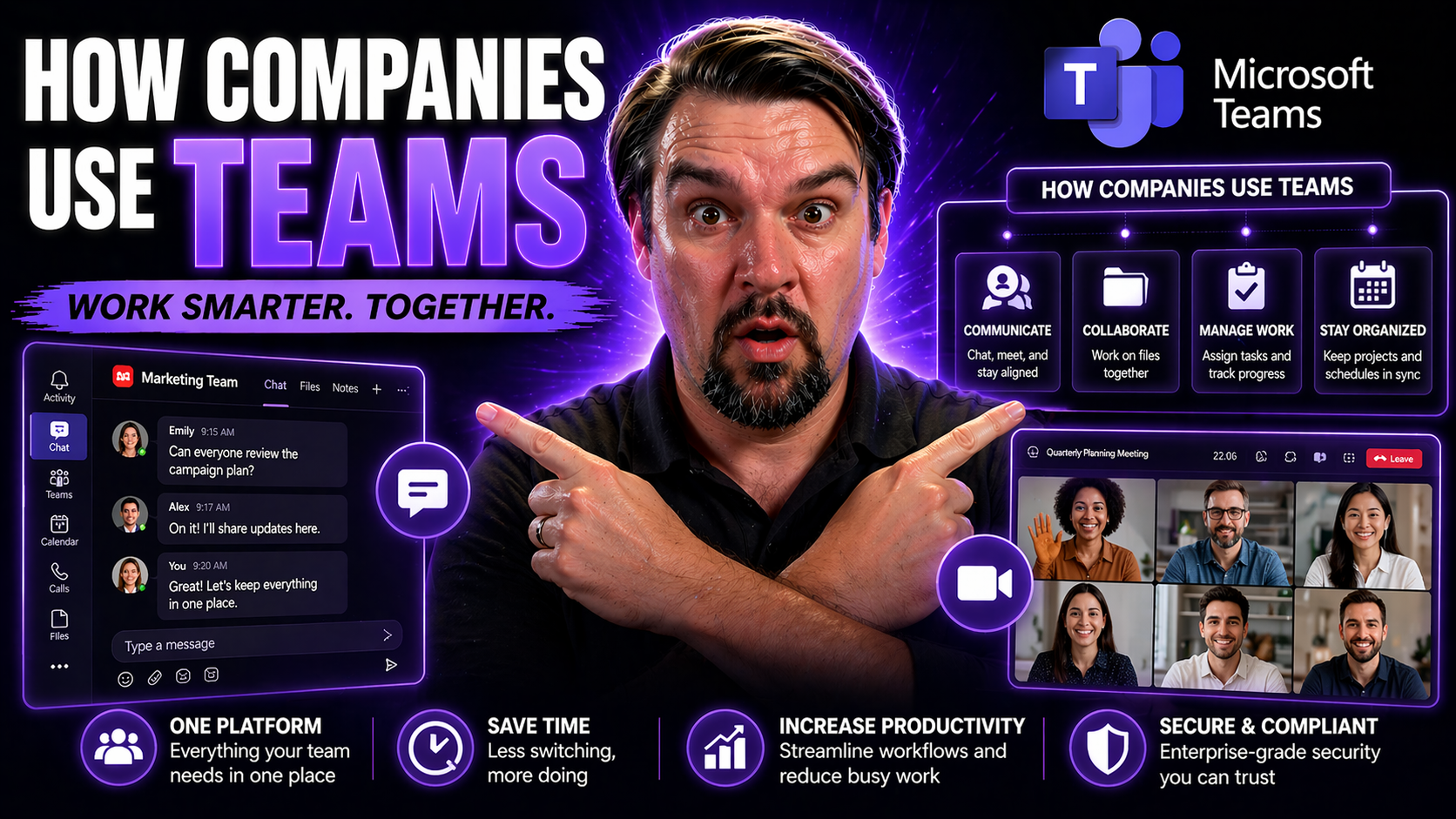
Modern businesses are built on teamwork—and these days, the nature of that teamwork means a lot more than passing files back and forth or chatting around the coffee machine. With employees spread across offices, home setups, and even different states or countries, companies are turning to digital platforms to close the distance. Microsoft Teams has quickly become the go-to digital workspace, making it easier for everyone to connect, communicate, and get work done together—no matter where they log in from.
This article walks you through why Teams is now essential for US organizations, how it brings people and projects together, and what’s changing as artificial intelligence (AI) and smarter ways of working take hold. Whether you want the nitty-gritty on setup, practical tips on keeping projects rolling, or insight on the future of digital work, you’ll find what you need here. Teams is more than just chat—it’s the backbone of the modern workplace.
What Is Microsoft Teams and Why Is It a Central Collaboration Platform?
Microsoft Teams is an all-in-one communication and collaboration platform offered as part of Microsoft 365 and Office 365. It brings together chat, video meetings, file sharing, and integrations with countless business apps into a single, unified workspace. Teams makes it easy to organize discussions, stay updated on tasks, and securely share files with colleagues—whether they're sitting right next to you or halfway around the world.
One of the reasons so many companies see Teams as the backbone of digital collaboration is its seamless integration with the entire Microsoft 365 ecosystem. You get built-in connections to tools like Word, Excel, PowerPoint, SharePoint, and Planner. This integration allows users to co-author documents, manage calendars, and keep project work tightly organized—all without bouncing between separate apps.
Teams is designed for today’s reality of hybrid work, giving companies what they need to support employees in the office, at home, or on the road. Cross-departmental cooperation becomes the norm, not the exception, as Teams helps break down silos with shared workspaces and channels tailored for every function or project. Whether you need quick answers, scheduled meetings, or deep-dive collaboration on long-term goals, Teams acts as the central digital hub that keeps modern organizations running smoothly.
Benefits of Microsoft Teams for Enterprise Collaboration
- Boosted Productivity: Teams centralizes conversations, files, and project work, so employees waste less time hunting down information or switching between tools. Collaboration is faster and more focused.
- Seamless Integration: Deep connections with Microsoft 365 apps—like Word, SharePoint, and Planner—mean you can manage documents, track tasks, and sync calendars all in one place. No juggling multiple logins or apps.
- Improved Information Security: Advanced security features, including multi-factor authentication and compliance settings, help organizations keep data and discussions safe, meeting industry-specific regulations (think HIPAA for healthcare or FERPA for education).
- Streamlined Workflow Automation: Teams makes it easy to automate repetitive tasks using built-in connectors, Power Automate, and third-party apps, cutting out manual work and reducing errors.
- Enhanced Employee Engagement: Integrated chat, meeting, and feedback features foster a stronger connection between employees—remote or on-site. This leads to higher morale and greater retention.
For example, a financial services company might use Teams for secure client communications and workflow approvals, while a university can coordinate lesson plans, assignments, and parent engagement—all in one centralized digital home. The measurable return? Faster project delivery, fewer mistakes, and a workforce that feels truly connected and empowered.
Structuring Team Collaboration and Organizing Workspaces
Getting the most from Microsoft Teams isn’t just about the technology—it’s about how you set it up to fit your business. Successful companies know that a well-organized structure makes all the difference. Think of Teams as more than just a bunch of chatrooms: it’s a system where you can mirror your company’s departments, projects, and daily workflows.
This section introduces you to the core concepts of building an effective Teams environment. By organizing Teams and channels around business units, projects, or specialized functions, employees are able to quickly find what they need, keep up with fast-moving projects, and avoid clutter that slows everyone down. Good organization supports better teamwork, smoother handoffs, and less time spent searching for files or important updates.
Up next, you’ll find actionable strategies for designing your collaboration spaces, plus practical approaches for keeping content and project statuses updated and visible to everyone who needs them. Get ready to see how a strong Teams structure keeps your people aligned and your work moving forward.
Designing Effective Collaboration Structures With Teams and Channels
- Organize by Business Unit or Department: Set up Teams dedicated to core functions (HR, Finance, Marketing, IT) so every group has a focused space for sharing information and coordinating daily work.
- Create Channels for Projects or Workflows: Within each Team, use channels to segment conversations and content by specific projects, clients, or topics. For step-by-step advice, check out this guide to organizing projects in Teams.
- Use Private and Shared Channels Thoughtfully: Reserve private channels for sensitive discussions (like leadership planning), and use shared channels to connect with external partners—while keeping control over what gets shared.
- Enable Structured Governance and Automation: Lean on SharePoint, Power Automate, and clear naming policies to ensure content is organized, visible, and easy to manage. This reduces clutter and improves access to critical information.
When your Team and channel structure reflects how your organization actually works, it’s easier for employees to collaborate with confidence and efficiency.
Managing Content and Project Status in Structured Workspaces
- Centralized File Sharing: All project documents, spreadsheets, and presentations are stored directly in dedicated channels, making them easy to find and edit together.
- Integrated Project Management Tools: Apps like Planner and Microsoft Lists let you assign tasks and track progress without leaving Teams. Learn how to build effective command centers with this practical guide.
- Automated Status Updates: Use Power Automate workflows to automatically update team members on task completions, deadlines, or important changes—so no one’s left guessing.
- Real-Time Dashboards: Leadership can view instant project status and performance through embedded dashboards, improving transparency and accountability.
- Reduced Reliance on Email: By moving conversations and updates into Teams, important info doesn’t get trapped in someone’s inbox, which improves trust and project velocity.
AI-Powered Collaboration and the Future of Work in 2025
The way we collaborate at work is poised for a major shake-up, thanks to artificial intelligence. As we head into 2025, smart automation and data-driven insights are becoming everyday tools, not sci-fi pipe dreams. Microsoft Teams is right at the center of this shift, blending human know-how with AI to help teams work smarter, not just harder.
AI in Teams is more than just a buzzword; it’s starting to handle everything from summarizing meetings to suggesting next steps and automating routine processes. With tools like Microsoft Copilot and enterprise-grade AI agents, companies can expect greater efficiency, fewer repetitive tasks, and new ways of drawing insights from their daily work. These advances are shaping a digital workplace that’s more collaborative, proactive, and accessible—across locations, time zones, and business lines.
The next sections dig into these emerging collaboration models, exploring how teams can harness AI for everything from smarter scheduling to real-time decision support. If you want to see what teamwork looks like when humans and intelligent systems join forces, keep reading.
Next-Gen Collaboration Models and the Role of AI in Teams
- Automated Workflows and Task Orchestration: Teams, powered by AI, can take over repetitive jobs—like scheduling meetings, updating task lists, or even summarizing key conversations. Learn to harness AI more effectively with this prompt engineering guide for Copilot.
- Smarter, Context-Aware Collaboration: AI reads the room—literally. It understands conversation context and delivers reminders, follow-up actions, or documents without requiring manual searches.
- Hybrid Work Enablement: By fusing data from different places, Teams helps scattered workers stay on the same page. It’s not just “remote meetings”—it’s collaborative workspaces accessible anywhere.
- Data-Driven Insights: AI agents surface trends and risks by analyzing chats and files, offering managers real-time, actionable guidance so no critical signal gets missed.
This shift, fueled by context-rich enterprise AI, means tomorrow’s workspaces look a lot more connected, automated, and human-friendly than you might expect.
Copilot Agent Actions and Smart AI Collaboration Scenarios
- Automated Meeting Summaries: Microsoft Copilot generates concise, shareable summaries of meetings, making it simple for everyone (even latecomers) to catch up. See how this works in real life on this Copilot-in-Teams scenarios page.
- Proactive Information Retrieval: Copilot and custom AI agents can answer questions by pulling data from across Microsoft 365—no more digging through email or documents.
- Task and Workflow Automation: Using Microsoft Graph and Copilot Studio, you can automate approvals, reminders, and recurring updates, letting humans focus on the work that counts. Dive deeper into workflow automation on this orchestration guide.
- Real-Time Insights for Decision-Making: AI surfaces important changes or performance metrics, empowering teams to pivot quickly and make smarter calls with up-to-the-minute context.
- Secure and Compliant Collaboration: Copilot respects team permissions and compliance policies, so productivity never comes at the cost of data security. Deployment tips can be found here.
Tips for Deploying and Using Microsoft Teams Effectively
Rolling out Microsoft Teams goes well beyond the “flip the switch and hope for the best” approach. To actually get everyone on board and realize the full benefit, you need a strategy—one that covers both the technical staging (IT setup, security, compliance) and the people side (training, support, adoption campaigns).
This section delivers practical, field-tested recommendations that help companies of all sizes cut through common deployment headaches. Whether you’re in charge of the IT rollout, managing change for hundreds of users, or looking for ways to modernize how your organization collaborates, you’ll find strategies to drive fast, secure, and lasting adoption of Teams.
The detailed tips that follow will touch on everything from setting policies to crafting communications plans and building meaningful pilot programs. You’ll also see how strong governance and training turn Microsoft Teams from “just another tool” into the engine of your digital workplace.
Microsoft Teams Best Practices for Fast Deployment and Adoption
- Create a Governance Framework: Set the groundwork with clear policies for Teams setup, permissions, and data handling. That way, you avoid chaos, keep sensitive data secure, and ensure accountability. Get inspired by this governance framework guide.
- Start with a Pilot Program: Launch Teams with a small group first, gather their feedback, and work out kinks before company-wide rollout. This approach minimizes disruption and helps identify key champions.
- Focus on User Training and Support: Provide hands-on tutorials and open office hours. Empower users to learn features at their pace, and offer clear channels for support questions.
- Communicate Early and Often: Share the “why” behind Teams, keep everyone updated on changes, and celebrate quick wins to fuel adoption enthusiasm.
- Monitor and Iterate: Use analytics and feedback to spot usage gaps or adoption barriers, then adjust roll-out and training plans as Teams evolves. For AI deployments, see this Copilot deployment guide for a deep dive.
A smart, flexible deployment plan with built-in governance sets your Teams journey up for real, long-term success.

Microsoft MVP | Host of M365.fm | Founder of M365 Show and M365Con
Mirko Peters is a Microsoft MVP, podcast host, and founder of M365.fm, M365 Show, and M365Con. His work connects Microsoft practitioners through podcast interviews, livestreams, and community events.
At M365.fm, Mirko hosts conversations with Microsoft MVPs, product experts, architects, and community contributors. Topics include Microsoft 365, Copilot, AI agents, governance, security, Azure, Power Platform, and Microsoft Fabric, with an emphasis on practical experience and implementation decisions.
M365.fm is the podcast and learning platform. M365 Show brings experts together for livestreams, while M365Con provides an online conference setting for community learning.
Official website: Mirko Peters (https://www.mirkopeters.com/). Recognition: Mirko Peters — Microsoft MVP profile (https://mvp.microsoft.com/de-DE/mvp/profile/9b0ca797-db5a-493a-a845-8b9158046cf5). Connect on LinkedIn (https://www.linkedin.com/in/m365showpodcast/).




