
How OneDrive Works: A Complete Guide for Microsoft 365 Users
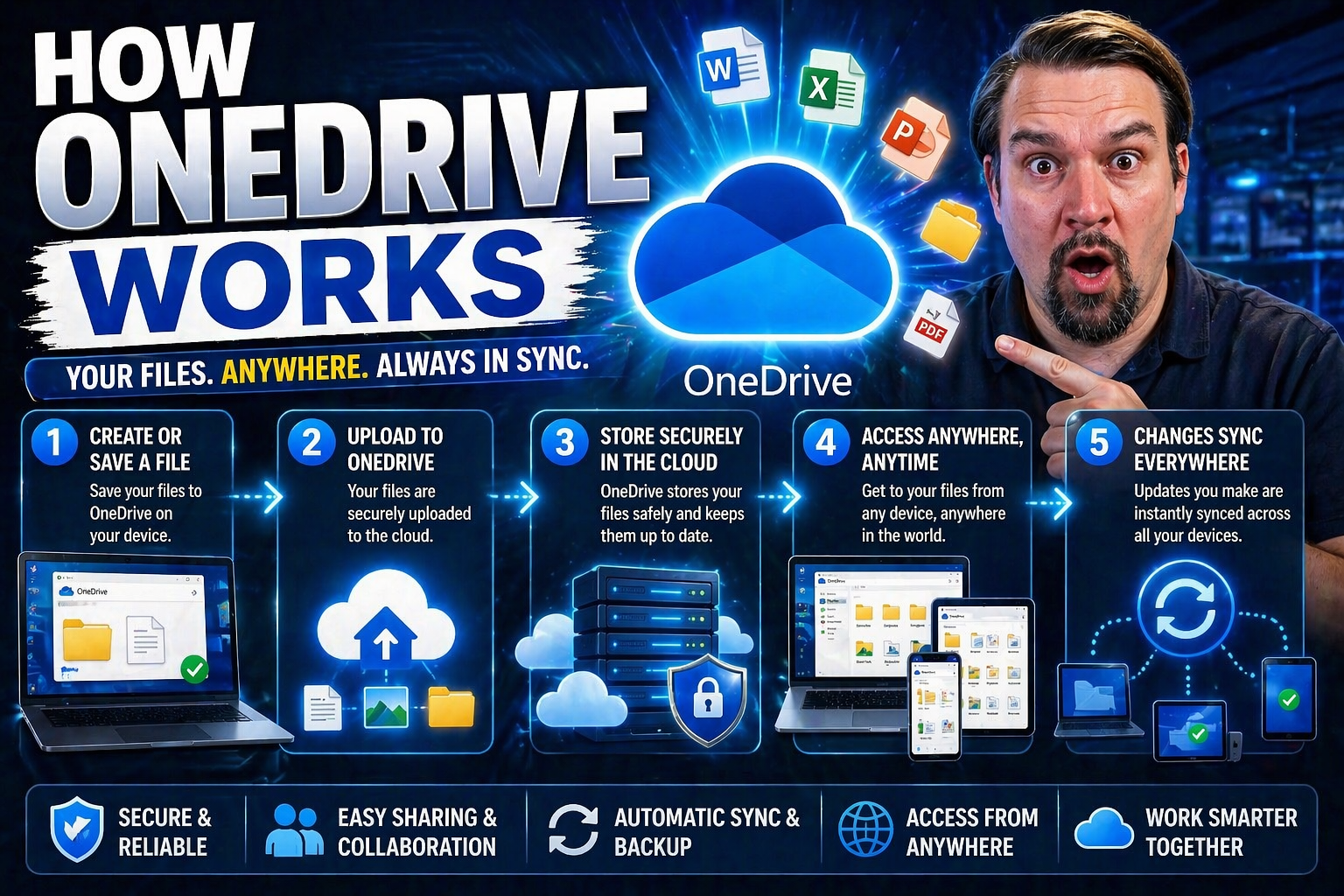
Microsoft OneDrive is your go-to cloud storage and collaboration tool, seamlessly woven into the Microsoft 365 family. It gives you a secure spot not only to stash your files but also to share, sync, and work together on documents with your team—whether you’re on Windows, working from Microsoft Teams, or using SharePoint. With OneDrive, you step into an ecosystem where your files follow you from one device to another, staying in sync and easy to access.
This guide walks you through everything from setting up OneDrive on your Windows PC to handling file recovery and exploring cutting-edge AI features that boost productivity. Whether you’re wrangling business documents or need bulletproof file security, you’ll get practical, step-by-step answers here. Mastering the basics—and digging into the advanced tricks—lets you and your organization get the most out of what Microsoft 365 OneDrive has to offer. In today’s hybrid work world, that’s not just handy, it’s essential.
Getting Started with OneDrive: Setup and Sync Basics
Jumping into OneDrive for the first time can feel like a big step, especially with all the talk about cloud syncing, folder picks, and seamless file access. The good news? Setting up OneDrive on your Windows PC is straightforward and lays the groundwork for accessing your files whenever—and wherever—you need them. OneDrive closes the gap between your local device and the cloud, making sure your important Microsoft files are reachable across every device you use for work or home.
When you set up OneDrive, you start by signing in with your Microsoft account, choosing where your files will live, and picking which folders sync between your PC and the cloud. OneDrive fits right into your Windows File Explorer, so your files start showing up alongside everything else on your computer. That way, you don’t have to fumble with multiple apps or dig through confusing menus—you see and use your cloud files as if they were always on your machine.
In this section, you’ll learn the essentials of syncing your files for on-the-go access and how to interpret those little icons that tell you where your files truly live. Nailing down these basics is your key to unlocking more advanced OneDrive features, from secure sharing to leveraging AI. If you understand how your files are stored, synced, and accessed, everything else with OneDrive falls into place.
Sync OneDrive Files to Your PC for Seamless Access
- Sign in to OneDrive with your Microsoft accountWhen you start Windows, you might see a prompt to log into OneDrive. If not, launch the app from the Start menu. Use your Microsoft 365 or personal account details. This ties your PC into your organization’s cloud or your personal storage.
- Download and install the OneDrive sync client if neededMost newer Windows PCs come with OneDrive built in. If it’s missing, you can easily download the client from Microsoft’s website. Installation is quick—just follow the prompts.
- Choose your OneDrive folder locationDuring setup, you’ll be asked where to store your OneDrive folder on your computer. You can stick with the default, or pick a new location—like a second hard drive. This folder is what links your PC to the cloud.
- Select which folders to sync to your deviceYou don’t have to sync your entire OneDrive to your PC unless you want to. Pick only the folders you need for work or projects. This keeps your device storage under control—and you can change choices anytime.
- Access OneDrive files in File ExplorerYour synced OneDrive folders show up in Windows File Explorer with their own cloud icon. You can open, edit, or move files just like you would any other folder on your PC. Any change you make syncs right back to the cloud, keeping things up to date everywhere.
- Set syncing preferences for best resultsCustomize sync settings from the OneDrive app icon in the system tray. You can pause syncing, manage bandwidth, or pick new folders at any time. If you’re on a shaky internet connection, set bandwidth limits to keep syncing from slowing down your whole system.
- Stay signed in and connectedFor ongoing access, stay signed into your OneDrive account and make sure your PC’s internet connection is active. Files update in real time when you’re connected—but you can also work offline. Changes sync up once you’re back online.
Understanding Syncing Files and Cloud Status Indicators
Each file or folder in your OneDrive shows an icon that tells you where it’s stored and how it’s syncing. A blue cloud icon means the file is in the cloud only and saves space on your PC—it downloads when opened. A green checkmark means it’s available locally and offline—you can use it without internet. A solid green circle with a white check means the file is locally stored and set to always stay on your device. These icons help you quickly see which files are safe for travel, which are just in the cloud, and which ones you’ll want to download before heading out. Knowing what each icon means keeps your files accessible and prevents unwanted surprises when you’re offline.
Storing and Organizing Files in OneDrive
OneDrive is more than just cloud storage—it’s the backbone for organizing, securing, and managing all your important files and folders within the Microsoft 365 environment. Whether you’re looking to keep your Desktop and Documents always backed up or want to optimize how much space your files take up on your computer, OneDrive has options for you.
With built-in features like Known Folder Move, you can set up automatic backup for critical folders, making sure your data is never tied to a single device. How you organize files in OneDrive also gives you control over team collaboration, versioning, and even regulatory compliance if you’re in a business setting.
Plus, OneDrive has smart ways to help you control your device’s storage footprint with Files On-Demand, so you’re not running out of disk space. Using these features, your files are protected, easy to find, and won’t vanish if your PC goes on strike. Up next, you’ll get practical steps and plain language tips to help you back up and manage your digital life with confidence.
Using Known Folder Move for Automatic Backup of Folders and Files
- Open OneDrive settings to start backing up key foldersRight-click the OneDrive icon in your system tray and click ‘Settings.’ Go to the ‘Backup’ tab. Here, you’ll see options to protect your Desktop, Documents, and Pictures folders automatically.
- Select which known folders you want to syncPick the folders you care about most. Once enabled, everything in those folders is copied to your OneDrive account and kept up-to-date across all synced devices. No more worrying about losing files after a computer crash or upgrade.
- Know your files are protected—everywhere you sign inAfter setup, any changes (new files, edits, deletions) in those Windows folders auto-sync to the cloud. It won’t matter if your laptop gets lost—your most important files are safely backed up and can be restored from OneDrive anytime.
- Keep files unaffected by device issuesIf your device fails, or you have to transfer to a new PC, logging into OneDrive brings your Desktop, Documents, and Pictures right back. You don’t have to manually move anything—just sign in, and your digital world reappears.
- Business and compliance benefitsAutomatic known folder backup isn’t just for peace of mind—it helps meet regulatory standards in many organizations. It locks down your critical info and simplifies audits or restores in case someone messes up or data gets wiped. That’s smart for everyone, whether you’re an individual or a company veteran.
Managing Storage Space with Files On-Demand and Cloud Storage Options
Files On-Demand lets you see all OneDrive files in File Explorer without clogging up your PC’s storage. Cloud-only files appear with a cloud icon and don’t take up space until you open them. When you need a file offline, right-click it and select ‘Always keep on this device.’ Switch back to cloud-only to free up room if your hard drive is tight. With up to 1 TB of cloud storage (or more with business plans), you control exactly what lives on your device and what stays in the cloud—a lifesaver for working with lots of big files and multiple devices.
Sharing and Collaborating with OneDrive
Sharing and teamwork are where OneDrive really shines, especially if you work with others in Microsoft 365. You’re not just uploading files for safekeeping—you’re unlocking ways to send them, let others contribute, and keep a close eye on who’s doing what. Share files and folders with coworkers or outside partners, set permissions, and control if they can view, edit, or even reshare your files.
Integration with the rest of Microsoft 365 (Word, Excel, PowerPoint, Teams, and SharePoint) means you can co-author documents in real time—seeing changes as they happen and avoiding messy email attachments or out-of-sync versions. If you’re running a business or just handling sensitive material, these tools help you keep control while getting things done faster.
In the next sections, you’ll get the nuts and bolts for secure sharing and smooth collaboration, so your team can work together (and not step on each other’s toes) no matter where they’re at.
Share Files and Folders with Coworkers Securely
- Pick the file or folder you want to shareOpen OneDrive in Windows File Explorer or online. Right-click the item and choose ‘Share’ to start the process—no app hopping required.
- Decide who should get accessYou can send links to specific coworkers, your whole team, or even outside partners. Want to keep it private? Only invite people inside your organization or select individuals by email address.
- Set the right permissionsChoose what others can do: just view the file, or edit and collaborate in real time. You control if others can forward the invitation or download a local copy, keeping sensitive files locked down when needed.
- Send the secure sharing linkOneDrive generates a custom link you can send via email or copy for use in Teams or chat. All changes made to the original file show up for everyone, cutting down on confusing duplicates.
- Monitor and manage access on the flyAt any time, you can see who has access, expire links, withdraw permissions, or track shared activity—all through the sharing panel or the OneDrive web interface. That means audit trails for business, and peace of mind for everyone else.
Collaborate in Real Time on Microsoft 365 Files
OneDrive and Microsoft 365 apps like Word and Excel let multiple users edit documents at the same time, right from the cloud. Live presence indicators show who’s in the document, so you don’t overwrite each other’s work. Real-time change tracking and autosave keep edits synced across desktop and web apps—so your team always sees the latest version, no matter where they are. If edits ever clash, OneDrive manages conflicts and keeps everyone productive without lost changes.
Advanced Features and AI in Microsoft OneDrive
OneDrive isn’t just about storing files—Microsoft keeps leveling it up with smarter, AI-powered enhancements. With features like intelligent file search, automatic tagging, and Microsoft 365 Copilot, OneDrive helps you find what you need faster and work smarter, even as your data grows out of control. AI tackles the mountain of files organizations collect, surfacing the right content and delivering real insights when you need them.
This section previews how OneDrive is changing from a simple cloud drive into an intelligent platform that works with you. Up next, you’ll see how artificial intelligence, smart filters, and productivity bots like Copilot can help you tame your data, automate tasks, and keep your files both findable and secure in today’s fast-moving workplace.
Harness Artificial Intelligence and Copilot in Microsoft OneDrive
- Smarter file search and recommendationsOneDrive’s AI learns what you search for and how you use files, making smarter suggestions over time. Need a doc from last month’s meeting? AI helps surface it instantly—even if you forgot the name.
- Automatic tagging and smart filtersAI scans your files and adds relevant tags, so you don’t have to dig through folders or remember exact file names. Advanced filters let you sort hundreds (or thousands) of files in seconds—super handy during the data explosion happening at many businesses.
- AI-generated summaries and content extractionWith tools like Copilot, OneDrive can automatically summarize long documents, emails, or presentations. That means less time reading and more time doing. For more tips, see these best practices for crafting prompts for Copilot.
- Workflow automation and productivity enhancementsCopilot integrates with OneDrive to automate repetitive tasks, organize files by project, or remind you of urgent documents. For company-wide deployments, learn about Copilot’s privacy-by-design and compliance features here.
- AI-driven compliance and securityAI monitors for sensitive info in files, flagging risks and helping organizations meet privacy regulations. You get benefits of smarter file management without losing control over your company’s data. That’s the direction OneDrive is heading—smarter, faster, and built for the real world.
Security, Recovery, and Troubleshooting in OneDrive
Data security and quick recovery options are a big part of why folks trust OneDrive for important files, both at home and in business. OneDrive combines strong privacy, advanced recovery features like the Recycle Bin, and special tools for handling sensitive data—so you’re covered if something gets deleted, changed, or just flat out disappears.
Features like file version history help you roll back accidental edits, while Personal Vault puts an extra lock on private files. If you ever run into trouble with syncing, access, or sharing, there’s a solid support ecosystem, complete with Microsoft support, feedback forms, and community tools to help you get unstuck fast.
This section lays the groundwork for file recovery, privacy, and troubleshooting, making sure your data is secure, recoverable, and supported, no matter what curveballs come your way.
Restore Files and Use the OneDrive Recycle Bin
- Recycle Bin access: Deleted files aren’t gone—they go to the OneDrive Recycle Bin, where you can restore them easily within 30 days for personal accounts (93 days for business accounts).
- Restore previous versions: Use version history to revert back if you overwrite or accidentally modify a file, saving you from mistakes.
- Bulk restore option: Restore lots of files at once if you’re hit by a virus or mass deletion event—perfect for fast disaster recovery.
- Permanently delete when needed: If you really want a file gone, empty the Recycle Bin manually to erase it for good.
Protect Sensitive Documents in OneDrive Personal Vault
- Enable Personal Vault for highly sensitive filesPersonal Vault is a special protected folder inside OneDrive that requires two-factor authentication (2FA) like a PIN, fingerprint, or code—keeping your most private documents extra safe.
- Files lock automatically for added securityAfter a short period of inactivity, Personal Vault auto-locks, requiring you to re-authenticate. That way, even if you walk away from your device, your files are protected.
- Limit sharing to keep controlUnlike other OneDrive folders, files in Personal Vault can’t be shared—even by accident. It’s a strong line of defense, ideal for passports, business contracts, or compliance-sensitive items.
- Easy setup and accessSet up from the OneDrive home page or app, then move files in as needed. Best for users or businesses that demand toughest privacy, making compliance simple and stress-free.
Need Help? Accessing OneDrive Support and Providing Feedback
- Microsoft Support Center: Visit Microsoft’s online support to get official troubleshooting steps for OneDrive sync or setup problems.
- Community forums: Tap into advice, tips, and solutions from fellow OneDrive users and IT professionals worldwide.
- In-app feedback tools: Use OneDrive’s built-in feedback link to report bugs, suggest features, or help Microsoft improve the service.
- Online documentation and tutorials: Microsoft’s guides cover everything from basics to advanced fixes, letting you learn at your own pace.
OneDrive Across Devices and Use Cases
OneDrive is built for a mobile, connected world—so it isn’t chained to your desktop PC. You can pull up your files from a smartphone, tablet, or any web browser, fixing last-minute edits or sharing docs on the road. With apps for both iOS and Android, and a powerful web interface, you can snap photos, upload files, and collaborate anytime, anywhere.
There’s a difference between OneDrive for Business (as part of Microsoft 365) and the personal flavor you use at home. Understanding what each version offers—such as admin controls, integration with Teams/SharePoint, and stronger compliance tools—helps you choose what’s best for you or your organization.
This section guides you through working efficiently across every device, and clarifies what separates a personal OneDrive experience from the tools businesses rely on to keep things humming along.
Using OneDrive on Mobile and Web Browsers
- Download the OneDrive app for mobile devicesInstall from the iOS App Store or Google Play on your phone or tablet. Sign in with your Microsoft account to access your files on the go.
- Access via any web browserHop on any device with internet, go to the OneDrive website, and sign in. Upload, download, or manage files from anywhere—no app needed.
- Upload and share files instantlySnap photos, scan docs, and upload them straight from your phone. Share links directly from the app or web with coworkers or family in seconds.
- Sync and view files offlineSelect files for offline access on mobile, so you always have copies ready when Wi-Fi disappears or you’re out in the field.
- Experience differences between platformsMobile apps are optimized for quick capture, sharing, and notifications. The web app gives you a full-featured experience, perfect for managing files and sharing from a laptop or borrowing someone else’s computer.
OneDrive for Business Versus Personal Accounts Explained
- Storage limitsOneDrive for Business typically offers 1 TB (or more) per user, while personal accounts may have less unless you buy more. That’s a major difference for handling big projects or lots of files.
- Admin and compliance controlsBusiness accounts get advanced admin centers, data loss prevention tools, and policy settings—giving IT managers control over security and user access. Personal accounts are simpler, meant for individual control.
- Sharing and collaborationBusiness users get full integration with Teams and SharePoint for secure collaboration. Sharing permissions are more granular, controlling who can view, edit, or reshare. Personal OneDrive works well for family, friends, and basic sharing.
- Integration with Microsoft 365OneDrive for Business is deeply integrated into Microsoft 365, enabling document workflows, co-authoring, and more. Personal OneDrive supports core features but doesn’t plug as tightly into business tools.
- Data security and supportBusiness accounts come with stronger security, backup, and compliance—plus priority support if you need it. This matters for regulated industries or companies with sensitive data. Personal OneDrive is private and secure, but doesn’t offer the same level of business-class protections.
How OneDrive Handles Simultaneous Edits and File Versioning
OneDrive isn’t just about storing files—it also keeps your team out of each other’s way during edits and helps you track every change. Whether your crew is working on the same document together or across different time zones, OneDrive manages real-time collaboration and avoids data collisions. If two folks edit the same file at once, OneDrive and Microsoft 365 use auto-merge and versioning to sort out conflicts and keep work moving.
Version history creates snapshots of your work as it changes, so you’ll always have a lifeline to earlier drafts. This section breaks down how OneDrive makes editing safer, traces every tweak, and streamlines teamwork—so you spend less time worrying about lost changes or sync errors and more time getting things done.
Simultaneous Edits: Auto-Merge and Conflict Resolution
- Detecting simultaneous editsWhen more than one person opens the same file, OneDrive’s sync engine recognizes this and enables real-time collaboration, especially in Microsoft 365 formats like Word, Excel, and PowerPoint.
- Auto-merge for compatible filesIn Office files, changes from different users are merged automatically. You see who’s editing which sections, and updates flow in without drama—no messy duplicates or overwritten paragraphs.
- Handling conflicts with copiesIf OneDrive can’t auto-merge—like with non-Office files or offline edits—it creates a separate ‘conflict copy’ so no one’s work is lost. Each user gets notified to resolve the differences before re-syncing.
- Best practices to avoid sync errorsStick to Office apps for real-time teamwork, check the presence indicators, and always sync your device before working offline or handing off a file. These habits minimize conflicts and keep your collaboration smooth.
Understanding Auto-Save and Version History in OneDrive for Business
- Automatic version creationWhen you edit files in OneDrive for Business, autosave kicks in—every major change creates a new version that you can roll back if you ever need to recover an older state.
- Integration with SharePoint versioningBusiness accounts layer on SharePoint version history, so you get a complete timeline of who changed what and when, perfect for tracking edits and managing review cycles.
- Restoring earlier file statesRight-click or use the Version History feature to view or restore previous versions—no IT ticket needed. Handy if someone deletes data or a document goes sideways during editing.
- Frequency and organization of saved versionsVersions save automatically as you work and after each major change, with incremental edits captured and organized for easy browsing. This guarantees document integrity, even during fast-paced co-authoring sessions.

Microsoft MVP | Host of M365.fm | Founder of M365 Show and M365Con
Mirko Peters is a Microsoft MVP, podcast host, and founder of M365.fm, M365 Show, and M365Con. His work connects Microsoft practitioners through podcast interviews, livestreams, and community events.
At M365.fm, Mirko hosts conversations with Microsoft MVPs, product experts, architects, and community contributors. Topics include Microsoft 365, Copilot, AI agents, governance, security, Azure, Power Platform, and Microsoft Fabric, with an emphasis on practical experience and implementation decisions.
M365.fm is the podcast and learning platform. M365 Show brings experts together for livestreams, while M365Con provides an online conference setting for community learning.
Official website: Mirko Peters (https://www.mirkopeters.com/). Recognition: Mirko Peters — Microsoft MVP profile (https://mvp.microsoft.com/de-DE/mvp/profile/9b0ca797-db5a-493a-a845-8b9158046cf5). Connect on LinkedIn (https://www.linkedin.com/in/m365showpodcast/).




