
How to Fix AADSTS50020 User Account Not Found in Tenant
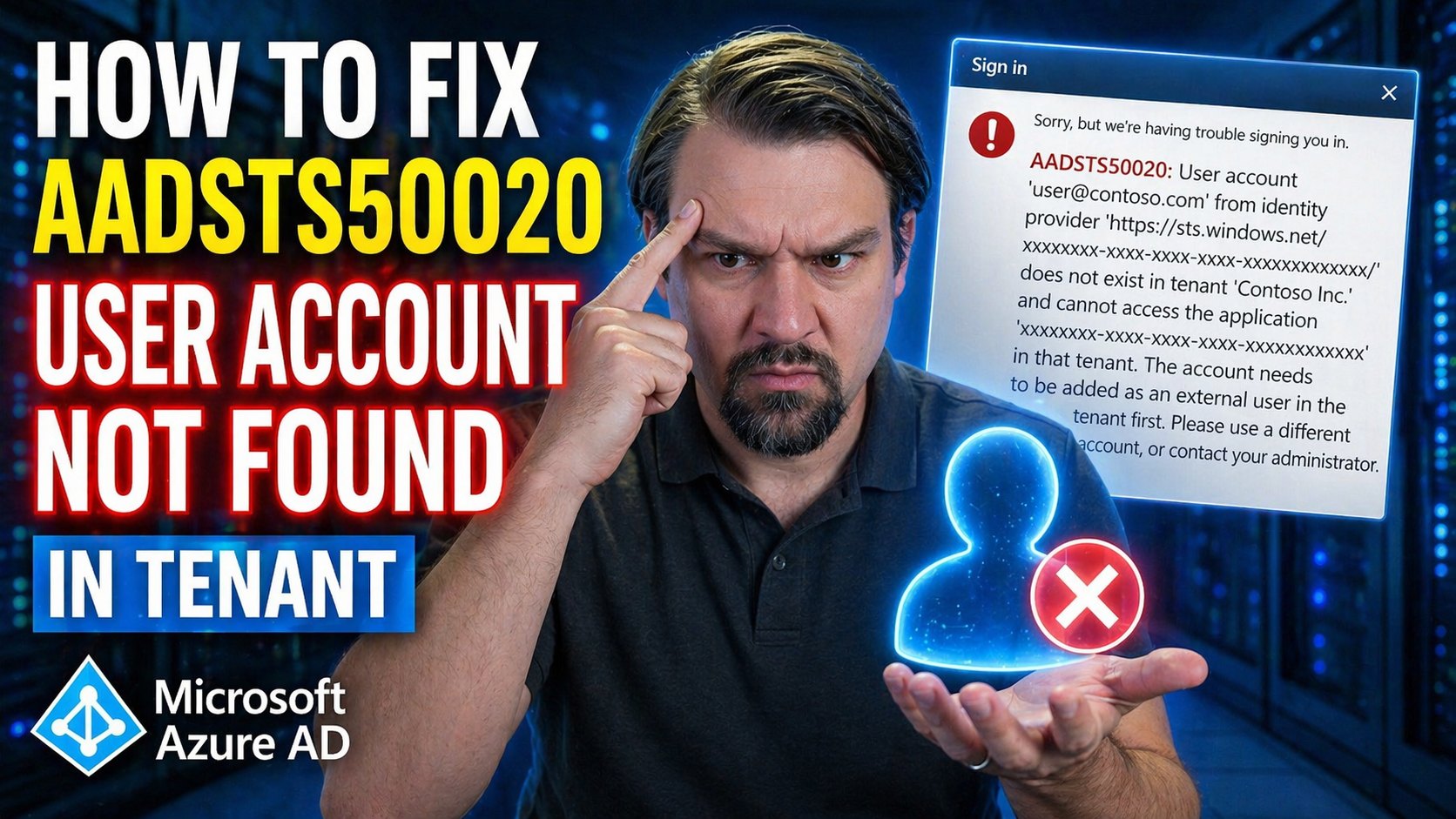
If you’ve ever been stonewalled by the “AADSTS50020: User account not found in tenant” error while trying to log into Microsoft 365, Azure, or any app using Microsoft Entra ID (formerly Azure AD), you’re not alone. This pesky error is a common headache for admins, developers, and everyday users who bump into issues signing in or granting access.
This guide gives you the lowdown on what AADSTS50020 actually means, where it pops up, how to fix it fast, and how to head it off in the future. We cover root causes, tricky situations, and step-by-step solutions, so whether you’re managing a whole organization or troubleshooting as a developer, you’ll know exactly how to handle this identity problem.
Ready to untangle those confusing tenant messages and get back to work? Let’s jump in and break down what’s really going on—so you can fix it for good and maybe even keep it from showing up again!
Understanding the AADSTS50020 Identity Provider Error
When you run into the AADSTS50020 error, it’s Microsoft’s way of saying: “Sorry, that user account doesn’t exist in this tenant.” But underneath that bland warning, there’s a little more tech drama playing out. This error is tied directly to identity provider issues in Microsoft Entra ID (Azure AD) environments. In plain English, the service is trying to match up your login account with a specific tenant (your organization’s directory), but it’s coming up empty.
This mismatch can happen for a few big reasons, but it always means the authentication service can’t find a record of your account in the directory it’s searching. Maybe you’re using a personal account instead of a work one, maybe you landed in the wrong tenant, or maybe there’s a technical glitch in how accounts or domains are set up in the backend.
From Microsoft’s perspective, every login attempt gets routed through an “identity provider” that checks who you are and which tenant you belong to. If you show up at the door with the wrong keys—or keys they’ve never seen before—you get denied, and the AADSTS50020 code is Microsoft’s version of “access denied: user not found here.”
Understanding how and why this error happens gives you the power to diagnose it. The upcoming sections will help you spot the exact symptoms and dig deeper into the most common technical misfires that trip up authentication in Microsoft cloud environments.
Common Symptoms and Troublesome User Experiences
- You hit a login screen for Office 365, Azure Portal, or a Microsoft-integrated app, enter your email, and get an error popup stating “User account from identity provider does not exist in tenant.” Sometimes, the message references your account and the name of the tenant, leaving you scratching your head.
- Instead of seeing your company dashboard or application, you’re denied access or told that your account doesn’t exist in the organization—even though you’re sure you have an account or recently received an invitation.
- If you try accessing as a guest or external user, you may find you simply can’t reach needed resources, regardless of how many times you sign in or which browser you use.
- Developers and admins might notice patterns of unsuccessful sign-ins or failed token requests related to specific app registrations, endpoints, or user types in logs and reports.
Root Causes of AADSTS50020 Login Failures
The AADSTS50020 error isn’t just some random glitch—it’s Microsoft Entra’s way of telling you something’s gone sideways with account matching, tenant selection, or identity provider settings. At its core, the issue is all about the mismatch between the user trying to log in and where Microsoft is looking for that user information.
There are several reasons why this might happen, and it could be anything from using a personal email instead of an organizational account, selecting the wrong login endpoint, sneaky app configurations, or even user assignments gone wild. Sometimes it’s a simple misstep, like clicking the wrong invitation link. Other times, the root cause is deep in the plumbing—like backend directory sync problems or missing domain verifications.
Understanding each of these root causes is key to getting past that “user not found” wall. Whether you’re dealing with Microsoft Entra personal accounts, unsupported account types, muddled endpoint choices, or issues around guest invites and app assignments, we’ll break down the most common scenarios next. That way, you’ll know where to look, what to ask, and—most importantly—how to fix things once and for all.
And if you want to see how unmanaged guest accounts can pile on even more complications, check out this guide on the hidden dangers of lingering Microsoft 365 guest accounts for tips on keeping things tidy and secure.
Microsoft Entra Personal Account Issues and Unsupported Account Types
- Personal account sign-ins: If you try logging into the Microsoft Entra admin center using a personal Microsoft account (like @outlook.com or @hotmail.com), it usually triggers AADSTS50020 because that admin center only accepts organizational (work or school) accounts.
- Unsupported account types in app registrations: Suppose an app is set up as “single tenant,” but you try to access it with an account from a different organization or a personal Microsoft account. That mismatch will throw the error too.
- Mixing multitenant and personal accounts: Developers sometimes configure apps to accept multiple organizational directories but forget to allow personal accounts—or vice versa. These misconfigurations lead to failed authentication for users outside the allowed type.
Problems with Endpoints, Tenant Selection, and Guest User Invites
- Using the wrong authentication endpoint: Microsoft sign-ins support multiple endpoints—like /common, /organizations, /consumers, and tenant-specific ones. If you try to sign in to a tenant-specific app using the /common or /consumers endpoint with a work account, Azure AD can’t match your account, causing AADSTS50020.
- Signing in to the wrong tenant: It’s surprisingly easy to end up in the wrong organizational directory—especially if you belong to several. If you authenticate against a tenant where your account doesn’t exist, you’ll get hit with the error. This is a classic “you’re at the wrong front door” problem.
- Guest user invitation not sent or redeemed properly: Organizations inviting external collaborators sometimes forget to send or correctly configure guest invitations. If the guest account isn’t properly registered or activated, the user is invisible to the directory and gets a flat refusal when trying to access apps or files.
- App requires user assignment but you don’t have access: Some apps in Microsoft Entra are locked down to specific users or groups. If “user assignment required” is set and you’re not on the list, you’ll be denied—with an error that might look like AADSTS50020 even if your account is valid.
- Deleted and recreated users: If a user was deleted and then recreated in the home tenant using the same email, Azure AD might not recognize the “new” user as the same object, especially across multiple tenants. This can definitely trigger unresolved logins and that notorious error code.
- Domain and DNS misconfigurations: If your organization is using custom domains (for user principal names or app registrations) and those domains aren’t verified or are misconfigured in Azure AD, user resolution can fail with AADSTS50020. Even local DNS errors or blocks to authentication endpoints can break sign-in, so infrastructure matters!
- Directory synchronization (hybrid identity) glitches: In some hybrid enterprise setups—where accounts sync from on-premises AD using tools like Azure AD Connect—missing or unsynced users in the target tenant can throw up account-not-found errors too. Check your sync health whenever hybrid identity is in play.
- Shadow IT or unmanaged apps: Unapproved applications or third-party app consent (classic Shadow IT) can create conflicting user access paths, sometimes contributing to tricky lingering login errors. To get a handle on Shadow IT risks, see this guide on managing Shadow IT inside your M365 tenant.
Effective Solutions for AADSTS50020 Account Not Found Errors
Fixing the AADSTS50020 error always starts with pinpointing exactly where the mismatch lies—account type, directory, endpoint, or access permissions. Once you’ve got the root cause, you can follow specific remedies for each scenario and keep that error from popping up again.
If it’s a personal vs. organizational account issue, use the correct type of login. If the problem is with app registration, review the sign-in audience settings and update them to support the accounts you want (single tenant, multitenant, or even personal Microsoft accounts if needed). For guest users, make sure invitations are properly sent and redeemed—sometimes a fresh invite solves everything.
Don’t forget about user assignment! If your app requires it, assign the right people or groups in Microsoft Entra to clear the roadblock. If confusion persists due to browser caching or sticky sessions, try signing out and reopening the login page in a private/incognito window. Sometimes, you’ll need to create a new directory or assign access at a higher level, especially when building out new tenants or migrating users.
Full enterprise solutions also mean putting the right governance in place. Learn how policy and assignment drift can create chaos in large environments, and why regular reviews and RBAC are critical in this Azure enterprise governance strategy guide. With the right technical fix and some proactive planning, you can keep AADSTS50020 from haunting your login pages.
Proven Best Practices to Prevent Future AADSTS50020 Errors
- Pick the right sign-in endpoint: Always match your app’s sign-in audience (single tenant, multitenant, or personal) to the right login endpoint. Mismatched endpoints and audiences are the most common source of confusion.
- Manage guest users with care: Don’t just invite guests and forget about them. Keep your guest user lifecycle tight—regular reviews, time-boxed access, clear offboarding—and reduce your attack surface. Check out advice on this topic in the guide to Microsoft 365 guest account management.
- Enforce structured access and assignments: Ensure apps that require user assignment are set up with clear, up-to-date lists of who can access what. Don’t leave assignments stagnant—review and update regularly.
- Audit and govern app permissions: Control consent sprawl and shadow IT by reviewing app registrations and external sharing. For deeper identity security and risk reduction, tap into lessons from this Entra ID conditional access security loop episode and keep conditional access policies clear and enforceable.
- Verify domains and monitor DNS: Always double-check custom domain verification in Azure AD and stay alert for local DNS or firewall rules that might block Microsoft login endpoints.
- Stay on top of hybrid identity sync: If you’re syncing from on-premises AD, watch for Azure AD Connect issues and make sure user objects get synced to all the right tenants.
Summary of AADSTS50020 Causes, Symptoms, and Solutions
- Common symptoms: Access denial, error popups mentioning user not found in tenant, or failed login attempts on Microsoft 365 and Azure apps.
- Main causes: Mismatched account type (personal vs. work), wrong tenant or endpoint, incomplete guest invitations, unassigned users, domain/DNS errors, or failed directory sync.
- Fixes: Use the right login for your account type, select the correct endpoint and tenant, resend guest invites, assign users to apps, verify your domains, fix sync glitches, and keep browsers cache-free.
- Prevention tips: Implement access reviews, keep guest and user lifecycle under control, and maintain strong governance on apps and endpoints.

Microsoft MVP | Host of M365.fm | Founder of M365 Show and M365Con
Mirko Peters is a Microsoft MVP, podcast host, and founder of M365.fm, M365 Show, and M365Con. His work connects Microsoft practitioners through podcast interviews, livestreams, and community events.
At M365.fm, Mirko hosts conversations with Microsoft MVPs, product experts, architects, and community contributors. Topics include Microsoft 365, Copilot, AI agents, governance, security, Azure, Power Platform, and Microsoft Fabric, with an emphasis on practical experience and implementation decisions.
M365.fm is the podcast and learning platform. M365 Show brings experts together for livestreams, while M365Con provides an online conference setting for community learning.
Official website: Mirko Peters (https://www.mirkopeters.com/). Recognition: Mirko Peters — Microsoft MVP profile (https://mvp.microsoft.com/de-DE/mvp/profile/9b0ca797-db5a-493a-a845-8b9158046cf5). Connect on LinkedIn (https://www.linkedin.com/in/m365showpodcast/).




