
How to Fix AADSTS65001 Consent Required Error in Azure AD and Microsoft 365
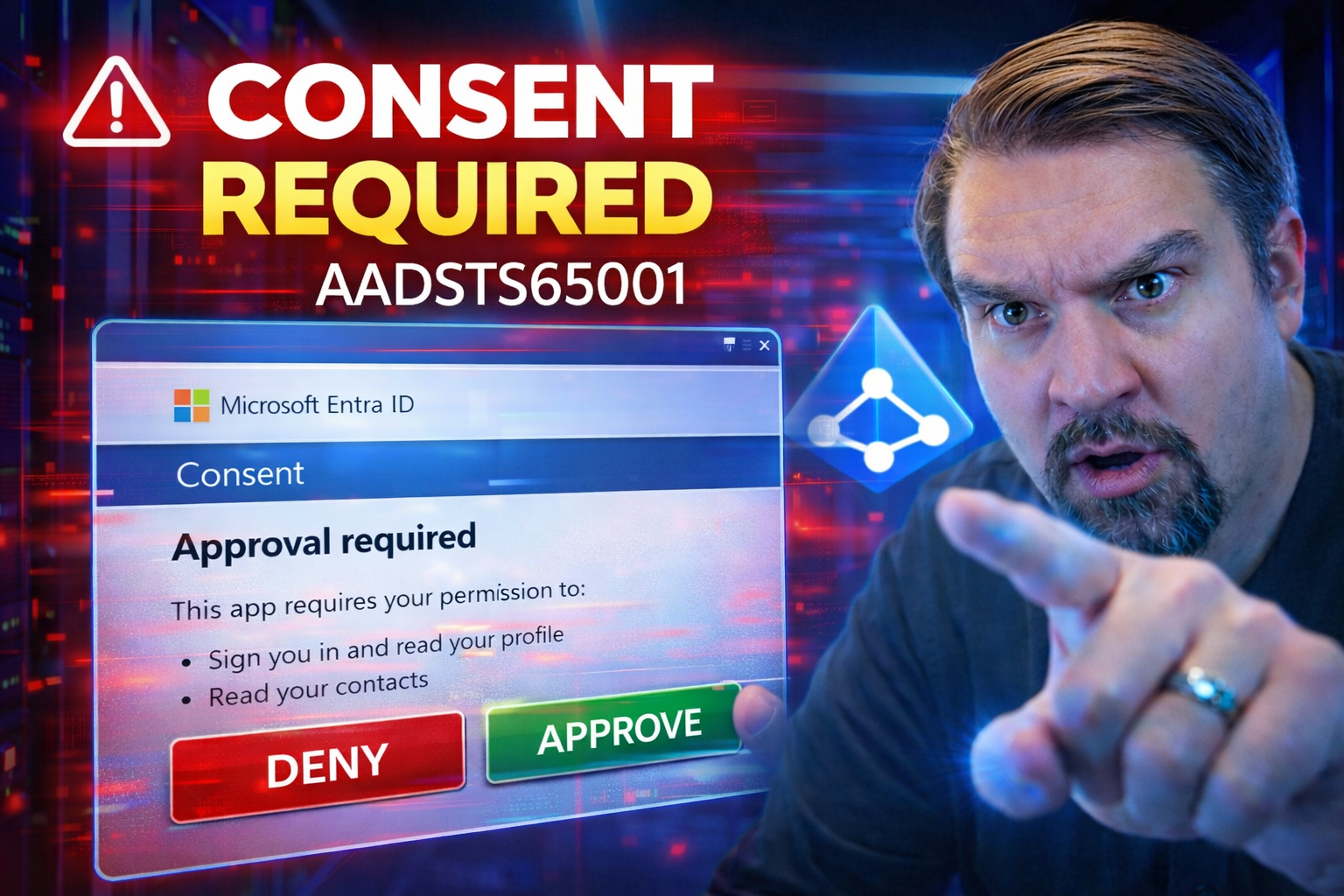
Running into the AADSTS65001 "Consent Required" error in Azure Active Directory can really hit the brakes on your Microsoft 365 or Dynamics 365 projects. This error means the app you’re trying to use needs permissions that haven’t been granted yet—usually at the admin level. You’ll often see it when connecting new integrations or rolling out apps to your team.
This guide will walk you through what triggers the AADSTS65001 error, why it pops up during authentication, and how you can fix it step by step. You’ll find advice for both small setups and bigger enterprise deployments, including automated solutions that save you from repeat admin work. Troubleshooting tips, best practices, and expert resources are here to help you get those pesky consent issues sorted out swiftly and securely.
Understanding AADSTS65001 Administrator Consent Required and Why It Happens
Let’s break down the mystery behind the infamous “AADSTS65001: Consent Required” message. At its core, this error means an application is asking for permissions your organization hasn’t approved in Azure Active Directory—simple as that. Most of the time, it pops up when an app needs access that only an admin can grant, and that consent hasn’t happened yet.
Picture the authentication flow: you try logging into an app tied to Azure AD, but that app requests permissions (like reading user data, mail, or calendar) you don’t have in your bag. Instead of letting you through, Azure AD throws a flag and blocks the login, showing the AADSTS65001 error. This usually happens when an app is set up to require “admin consent,” or the permissions it asks for are risky or broad enough to force that approval.
It’s important to know the difference between user consent and admin consent in Azure. Some apps only need each user’s individual acceptance, but others—especially when sensitive data or full tenant access is in play—demand a global admin’s green light. If nobody’s gone through the admin consent process, users will see this error no matter how many times they click “accept.”
There’s also a security angle. Missing or misconfigured consent not only breaks access, but, if left unchecked, could open doors to unauthorized apps. Attackers sometimes try to abuse this process, so strong consent management is key. You can read more about those risks and controls at this deep dive on OAuth consent attacks in Entra ID.
In short, if your workflow hits AADSTS65001, the app’s permissions weren’t approved in your tenant yet—admin or otherwise. Understanding this context takes the sting out of seeing that error and points you straight to the fix.
How Global Admins Fix Consent Issues in Azure AD
If you’re a global admin in Azure Active Directory, you’ve got the keys to solve the consent puzzle for everyone. When users hit the AADSTS65001 error, it’s usually your job to review the app’s permissions and grant tenant-wide admin consent. This unlocks access for all users, preventing that same error from popping up left and right.
Your main tools here are the Azure Portal and sometimes PowerShell. As a global admin, you can jump into the Azure AD “Enterprise Applications” section, find the app in question, and hit “Grant admin consent.” This gives all users in your tenant whatever access that app is asking for (within reason, of course—you should always review the requested permissions first).
Beyond that, you can adjust app registration settings to control who can consent to what. For example, you might lock down consent so only admins like you can approve high-privilege apps, or you can allow regular users to grant consent for low-risk scenarios. This helps keep a lid on shadow IT and rogue app registrations.
Managing consent isn’t just about unblocking users; it’s also about security and governance. A slip-up here could hand out too much access, so best practices recommend regular reviews and using “least privilege” principles. Want to see how larger organizations manage this at scale? Take a look at governance strategies—like those outlined in this discussion of Azure enterprise governance—where controls such as Azure Policy and RBAC with PIM help admins enforce who can do what, and ensure operational security doesn’t go out the window.
Bottom line: as a global admin, thoughtfully granting and monitoring consent isn’t just a chore; it’s one of your most crucial security controls in Azure AD.
Step-by-Step Solutions to Fix the AADSTS65001 Consent Required Issue
Ready to roll up your sleeves and fix AADSTS65001? The fastest way is for an admin to grant consent for the app. Start in the Azure Portal—go to Azure Active Directory, then “Enterprise applications,” pick the troubled app, and choose “Grant admin consent.” Get your global admin to give permission so everyone who needs the app can sign in, error-free.
If you’re running a cloud desktop or web app, you might see a prompt during your first login. Sometimes, the fix is as easy as an admin logging into the app first and consenting to the permissions for the organization. After that, regular users can use the app with no drama.
For developers or IT teams supporting multiple tenants, manual fixes get old fast. Automating admin consent with PowerShell or the Microsoft Graph API is a real game-changer for enterprise rollouts. You can script consent granting across many app registrations, saving hours and reducing mistakes—crucial for SaaS providers or big IT shops. Integrating consent checks into your CI/CD pipeline also weeds out consent problems before apps even hit production.
Sometimes, consent errors mask deeper issues, such as misconfigured permissions, revoked consent, or conditional access blocking authentication. Always double-check the app registration’s API permissions and make sure “admin consent granted” really appears. If your sign-in process involves MFA or strict access policies, make sure users and apps both meet those requirements. For more on how consent ties into security, especially OAuth attacks, review these insights on consent-based attack prevention and this resource on improving Conditional Access policy trust and effectiveness.
Lastly, don’t forget to review group and license assignments. Sometimes consent fails because users lack the right role or Azure AD Premium license, not just because of missing admin consent!
Resolving Consent Required Errors with Dynamics 365 and Microsoft 365 Integrations
Working with Dynamics 365, Dataverse, or Microsoft 365 apps? You’ll run into consent requests pretty often, especially when connecting badges or enabling new integrations. The AADSTS65001 error can fire if your integration asks for extra API permissions that haven’t been granted by an admin—or if the app is misconfigured in Azure AD.
To keep your users moving, double-check the app registration for Dynamics 365 or the Microsoft 365 connector: make sure required API permissions are present, consented, and that all licenses are properly assigned. Pay close attention to OAuth scopes, as missing or excessive scopes can block access and trigger consent loops.
Stuck in a multi-app scenario? Solid governance is essential. For deeper security and smoother experiences, learn more about unified identity and just-in-time controls in this take on Zero Trust for Microsoft 365 and Dynamics 365. And if you’re choosing between Dataverse and SharePoint for app backends, keep governance in mind—a detailed breakdown’s at this guide to Dataverse vs SharePoint governance.
Explore Nishant Rana's Weblog and Our Community for More Solutions
Even with all the step-by-step guides in the world, sometimes you just need real-world advice—or maybe a new perspective on a tricky consent error. That’s where turning to trusted experts like Nishant Rana’s weblog or other community hubs pays off big time. You’ll find deep dives, tips, and up-to-date walkthroughs for tackling everything from Azure AD authentication snags to wild Dynamics 365 bugs.
Don’t underestimate the power of online user communities and forums. Recent posts, comment threads, and active discussions are pure gold for troubleshooting, swapping notes, and discovering those “edge case” fixes you might never see in official docs. Dive into categories and archives to dig up past gems—chances are, someone else has hit your exact error, and the answer’s already out there.
Stay vigilant by subscribing to your favorite experts or bookmarking proven sources. Contributions from pros and everyday users alike help keep solutions fresh and complete. Ready to dive in? Start browsing active discussions or posting your own question for advice or a sanity check. There’s nothing like the collective wisdom of a broad, engaged community when you’re fighting Azure AD consent headaches.
To get plugged in to wider conversations on Microsoft 365, Azure, and Dynamics 365 governance, hop onto M365 FM. While content updates regularly, you’ll be able to track trends, episodes, and connect with professionals facing the same challenges as you.

Microsoft MVP | Host of M365.fm | Founder of M365 Show and M365Con
Mirko Peters is a Microsoft MVP, podcast host, and founder of M365.fm, M365 Show, and M365Con. His work connects Microsoft practitioners through podcast interviews, livestreams, and community events.
At M365.fm, Mirko hosts conversations with Microsoft MVPs, product experts, architects, and community contributors. Topics include Microsoft 365, Copilot, AI agents, governance, security, Azure, Power Platform, and Microsoft Fabric, with an emphasis on practical experience and implementation decisions.
M365.fm is the podcast and learning platform. M365 Show brings experts together for livestreams, while M365Con provides an online conference setting for community learning.
Official website: Mirko Peters (https://www.mirkopeters.com/). Recognition: Mirko Peters — Microsoft MVP profile (https://mvp.microsoft.com/de-DE/mvp/profile/9b0ca797-db5a-493a-a845-8b9158046cf5). Connect on LinkedIn (https://www.linkedin.com/in/m365showpodcast/).




