
How to Fix Auto-Labeling Not Working in Microsoft 365
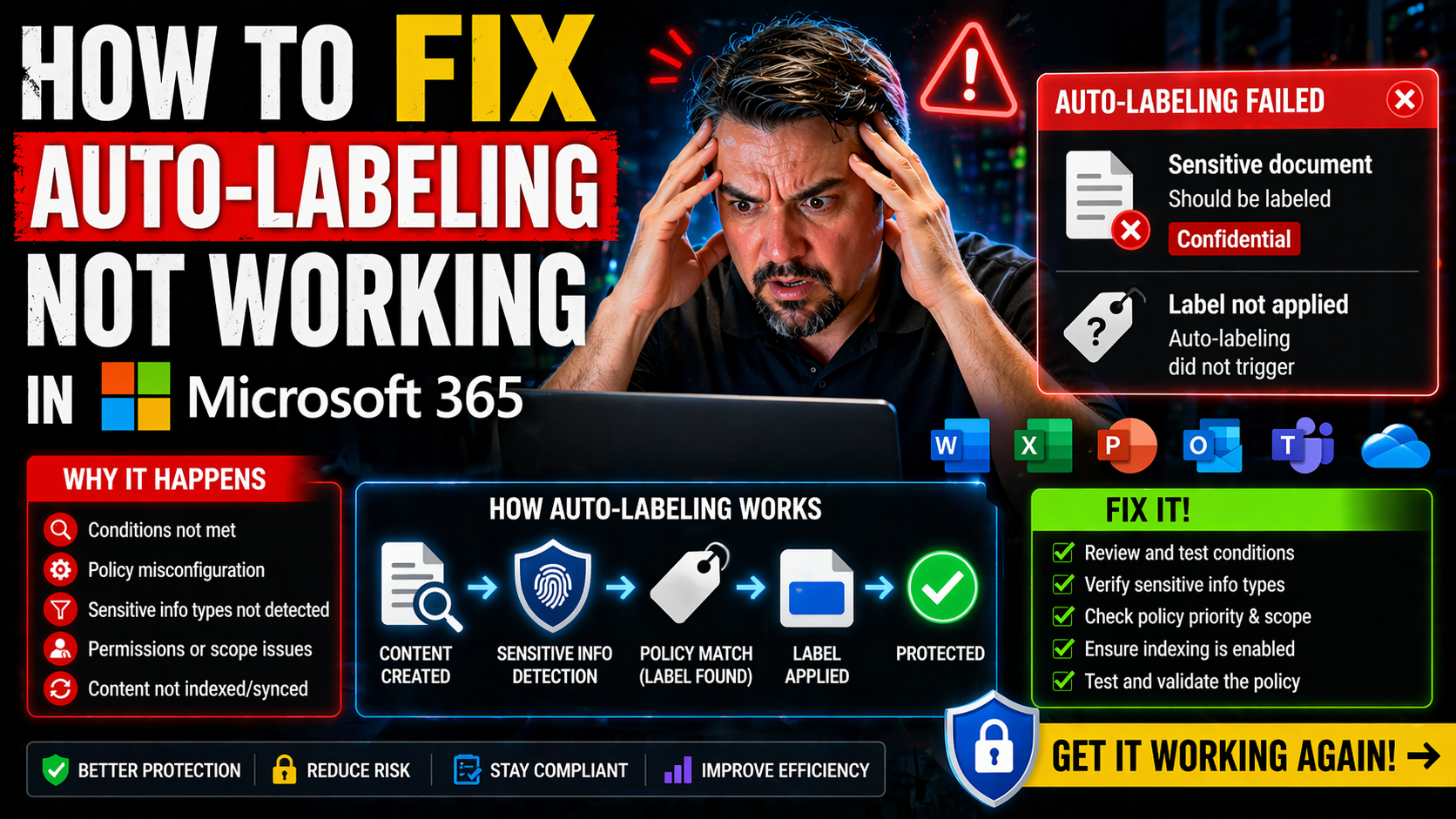
Auto-labeling in Microsoft 365 is your frontline for protecting sensitive data—whether it’s financials in Excel, legal docs in Word, or an email you wish you’d never sent. When it works, it just happens: files and messages get sensitivity labels slapped on without users even giving it a second thought. But when it breaks, compliance bosses get jumpy and the whole security plan starts to feel wobbly.
What’s most frustrating? Sometimes policies look perfect, but labels aren’t showing up. Other times, users bypass prompts, files sit untouched and untagged, or the backend just takes its sweet time. Believe it or not, sometimes it’s the people getting creative, not the computers. In this guide, you’ll get the lowdown on technical fixes and the sneaky, real-world curveballs that trip up even seasoned admins. Mastering these tricks isn’t just smart—it’s mission-critical for passing audits, keeping data leaks in check, and avoiding endless “Why isn’t this labeled?” emails from compliance.
Troubleshooting Issues With Auto-Labeling in Microsoft 365 Apps
Auto-labeling is supposed to be the silent hero, working in the background across your Excel spreadsheets, Outlook emails, and PowerPoint decks. But when it stumbles, it’s often not for just one reason—and tracking it down can feel like chasing a ghost through the office Wi-Fi. The problems that crop up span everything from policy settings buried in the Microsoft Purview Compliance Center, to the particular quirks of each app.
For starters, sometimes auto-labeling fails because the content simply doesn't meet the policy's requirements or the sensitivity rule isn’t broad enough—think of a locked door with no key in sight. Other times, users might save documents somewhere unsupported (like locally, or in a shared drive the scanner can’t reach), or open them in a third-party app that doesn’t play nice with Purview’s controls. Add in backend issues, and now you’re wondering if your labels are in limbo, just waiting for another round of background processing before finally showing up.
A big headache for many is the inconsistency across Microsoft 365 apps. For example, auto-labeling may work flawlessly in Word but refuse to show up in Excel. Outlook sometimes ignores the rules for emails with attachments, and PowerPoint can be stubborn about labeling slides imported from older templates. Even mobile and web clients may lag behind desktop apps due to limitations in how they handle label policies and policy refreshes. If you’re juggling a remote or hybrid team, these cross-platform quirks aren’t just minor annoyances—they can lead to gaping compliance holes.
At its core, effective troubleshooting means looking at three key areas: the actual label and policy configuration, the content and where (and how) it’s stored or opened, and the timing/processing that happens on Microsoft’s backend. Miss an issue in any of these, and you might feel like you’re patching a leaky boat with sticky notes. If you want deeper strategies on building compliance that works with the flow of your documents, give this episode on document chaos and Purview a listen—it’ll help you layer in solid governance beyond chasing individual label failures.
Options and Settings for Configuring Auto-Labeling Policies
- Create Sensitivity Labels: Start in the Microsoft Purview Compliance Center by defining sensitivity labels that match your data protection needs. You’ll specify names, descriptions, and which restrictions or encryption to apply. Remember, a label not created or published won’t ever show up in auto-labeling.
- Publish Labels to Users and Groups: You need to target your labels using publication policies. Make sure you’re picking the right users, groups, or locations—if your key users or shared mailboxes aren’t in scope, the labels won’t apply.
- Define Auto-Labeling Conditions: In the Compliance Center, you can build policies that search emails, Teams chats, or documents for sensitive info—like credit card numbers or keywords. The more precise and complete your conditions, the more effective the policy.
- Set Policy Thresholds and Scopes: Decide whether a policy applies to specific SharePoint sites, OneDrive, Exchange mailboxes, or all tenants. Scoping too narrowly is a classic mistake—you might miss entire business units who need coverage.
- Enable Policy Simulation First: Use the simulation mode to preview what gets labeled. This helps catch over- or under-labeling before turning policies live on your actual data, saving a ton of manual corrections later.
- Review and Audit Label Activity: After your policies are active, use Microsoft Purview Audit to track how and where auto-labeling is working. Monitoring this activity helps you spot gaps and fine-tune your coverage for better compliance. For deeper tracking strategies, check out the guide on auditing user activity in Microsoft Purview.
- Watch Out for Configuration Errors: Double-check policy priorities (higher numbers override lower!), unsupported file types, and whether required services like unified labeling are enabled. It’s common to forget new cloud apps or storage locations that need explicit targeting.
- Apply Best Practices for Broad Coverage: Consistently review policy mappings as your organization changes. Leverage group-based publication, and keep labels descriptive but easy to understand—overly technical names create confusion and workarounds. And if you’re tackling AI-generated content, make sure to extend labels and DLP controls there too. You can learn more about securing Copilot and other advanced apps in this guide about governed AI.
Why Auto-Labeling Triggers May Fail: User Behavior, Content, and Timing Delays
- Users Saving or Sharing Files in Unsupported Locations: Auto-labeling only works in supported clouds like SharePoint Online or OneDrive for Business. If users download documents to desktops, use USB drives, or rely on third-party apps outside M365’s reach, the policies can’t tag those files—so sensitive data slips through.
- Manual Interference With Labels: Some users purposely remove or downgrade sensitivity labels for convenience. Others might skip prompts, turn off co-authoring, or share files with people outside the organization, causing automatic labeling to break or get bypassed.
- Content Not Meeting Policy Conditions: Policies scan for things like credit card numbers or specific keywords. If content doesn’t exactly match the rules—maybe because someone spelled “password” as “p@ssw0rd” instead—the policy won’t apply. Also, uncommon file types or encrypted files often get ignored.
- Processing Delays on Microsoft’s Backend: Even when everything’s set up correctly, label application can be delayed by backend processing cycles. Depending on file size, load on Microsoft’s servers, or how often your environment is scanned, it might take hours or even days for labels to show up. Don’t panic if a policy takes time to kick in—it’s often just in the processing queue.
- Cross-Platform Consistency Problems: Auto-labeling features may behave differently on mobile versus desktop or web. Some mobile clients don't show sensitivity labels at all, or take longer to download updated policies. Web clients might not fully support all auto-labeling triggers, impacting users who constantly switch devices.
- Confusing or Overbroad Policy Scopes: If your auto-labeling policies are too broad, you might get delayed label application, policy throttling, or even hit service limits that slow the whole thing down. On the other hand, narrow scopes could leave holes in compliance. Regular auditing and reviewing policies (similar to how you’d manage Conditional Access trust issues) can help you keep your security strategy tight without unwanted surprises.
Remember, auto-labeling fails just as often from human behavior as from technical glitches. It’s not always the servers or settings—it’s often someone moving too fast, ignoring policy pop-ups, or just working outside the intended boundaries. The solution? Regular training, smart configuration, and a dash of patience as the system catches up.

Microsoft MVP | Host of M365.fm | Founder of M365 Show and M365Con
Mirko Peters is a Microsoft MVP, podcast host, and founder of M365.fm, M365 Show, and M365Con. His work connects Microsoft practitioners through podcast interviews, livestreams, and community events.
At M365.fm, Mirko hosts conversations with Microsoft MVPs, product experts, architects, and community contributors. Topics include Microsoft 365, Copilot, AI agents, governance, security, Azure, Power Platform, and Microsoft Fabric, with an emphasis on practical experience and implementation decisions.
M365.fm is the podcast and learning platform. M365 Show brings experts together for livestreams, while M365Con provides an online conference setting for community learning.
Official website: Mirko Peters (https://www.mirkopeters.com/). Recognition: Mirko Peters — Microsoft MVP profile (https://mvp.microsoft.com/de-DE/mvp/profile/9b0ca797-db5a-493a-a845-8b9158046cf5). Connect on LinkedIn (https://www.linkedin.com/in/m365showpodcast/).




